Overview
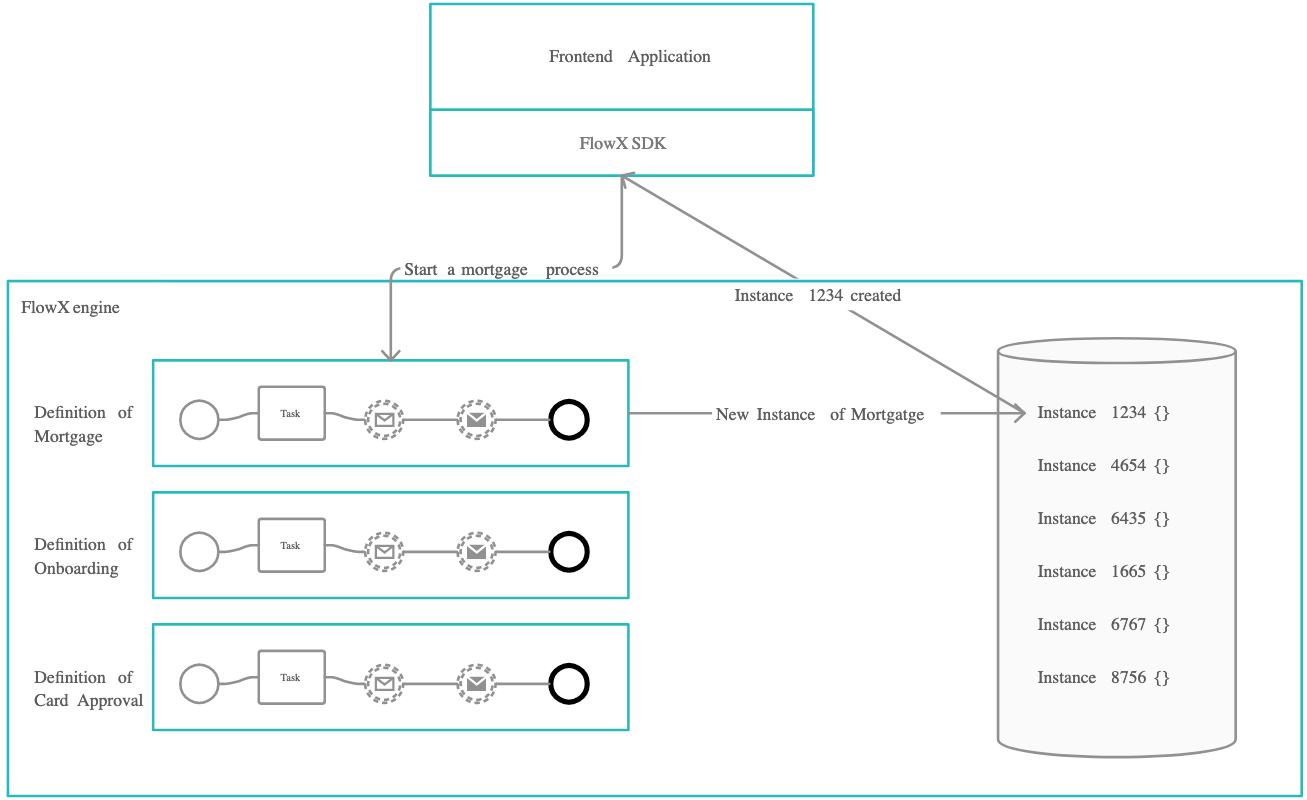
Once the desired processes are defined in the platform, they are ready to be used. Each time a process needs to be used, for example each time a customer wants to request a new credit card, a new instance of the specified process definition is started in the platform. Think of the process definition as a blueprint for a house, and of the process instance as each house of that type being built.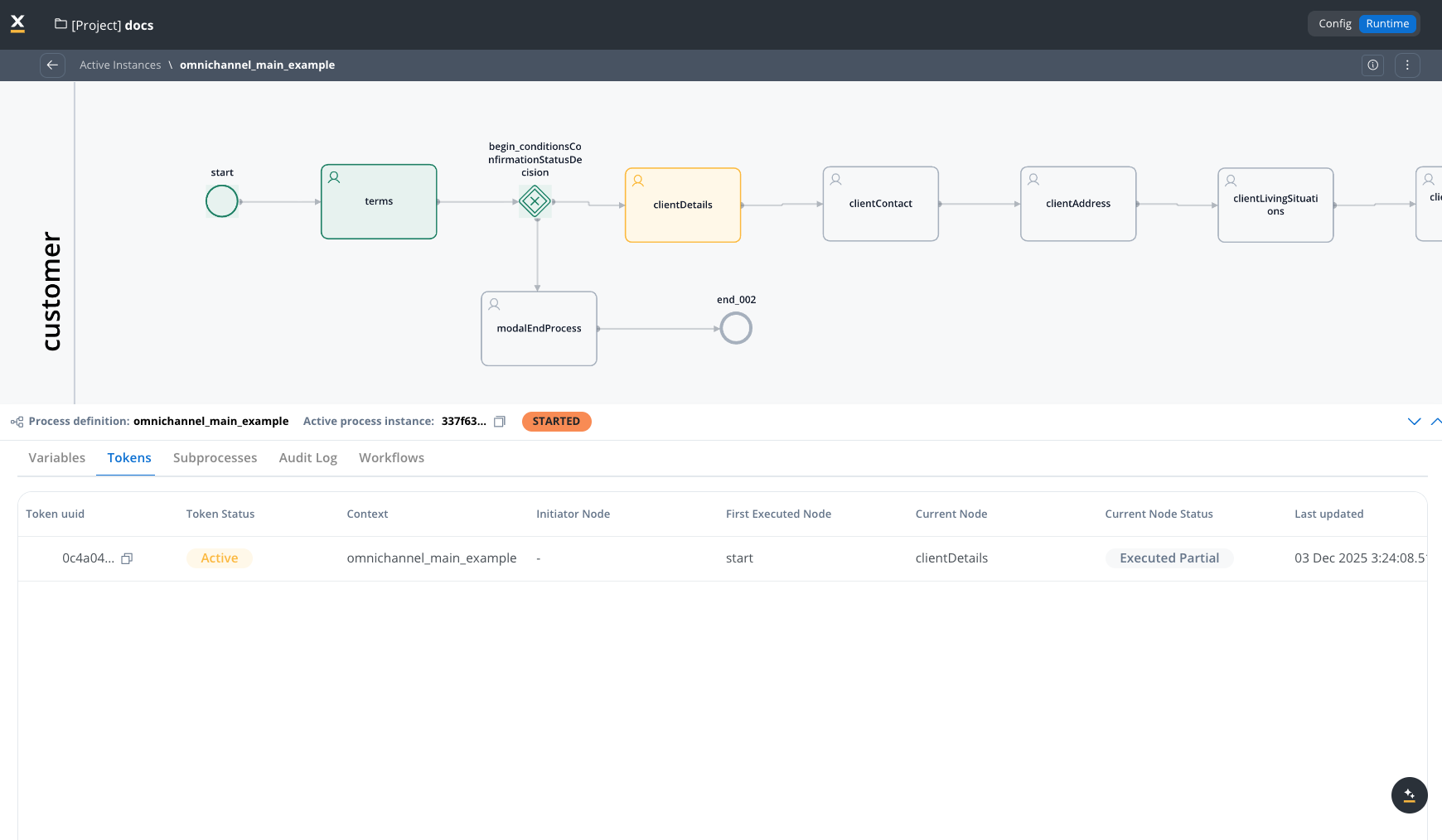
More about Kafka
Checking the Process Status
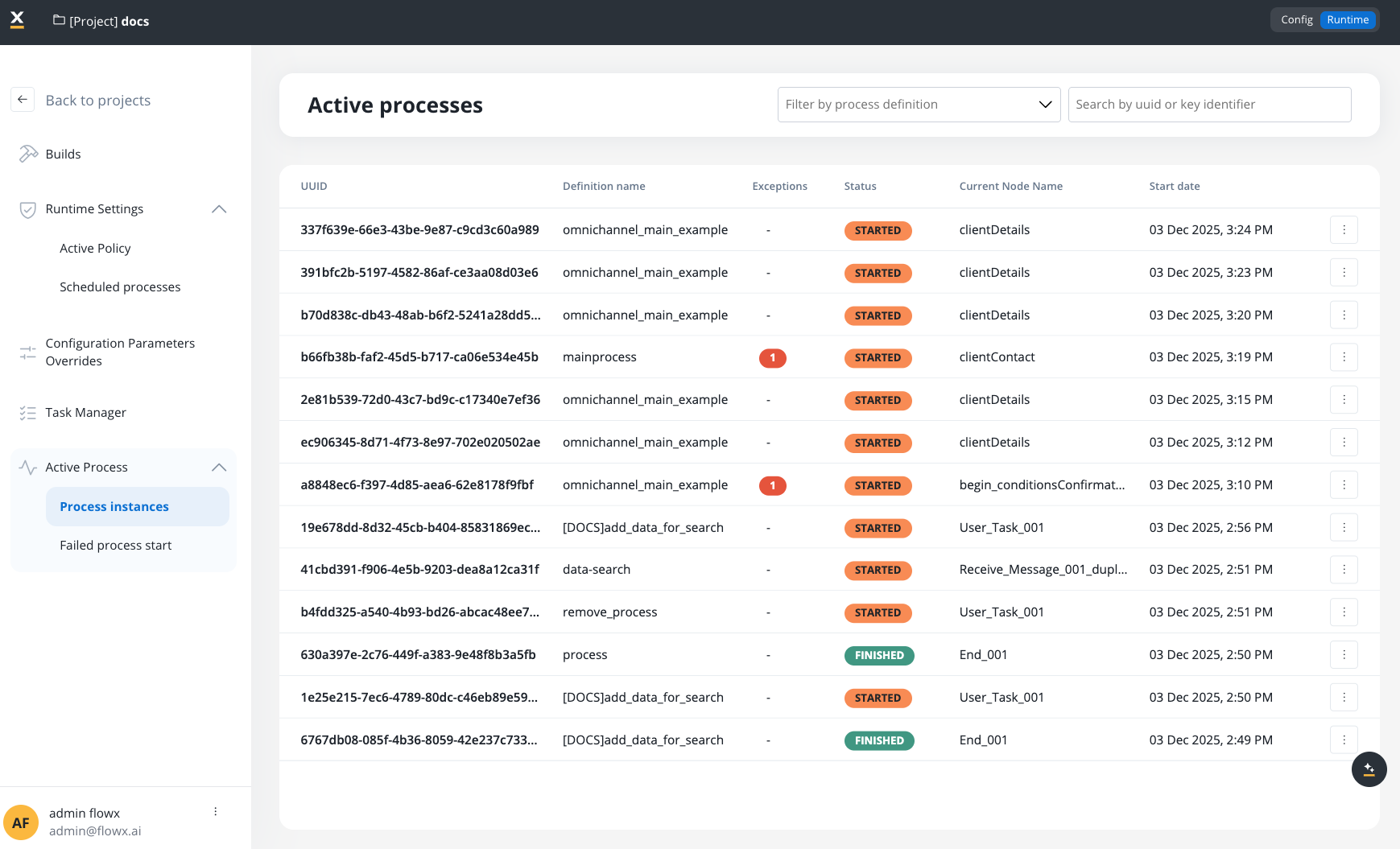
To check the status of a process or troubleshoot a failed process, follow these steps:- Open FlowX.AI Designer.
- Go to Projects → Your Project → Runtime → Active Process → Process instances.
Filtering the list
SaaS ·Available on SaaS with FlowX.AI . This feature is live on managed (SaaS) deployments now. Self-hosted deployments will receive it with the next LTS release family.
Understanding the Process Status data
Understanding the various elements within process status data is crucial. Here’s what each component entails:- The Status field indicates the state of the process instance, offering distinct values:
Process instance details
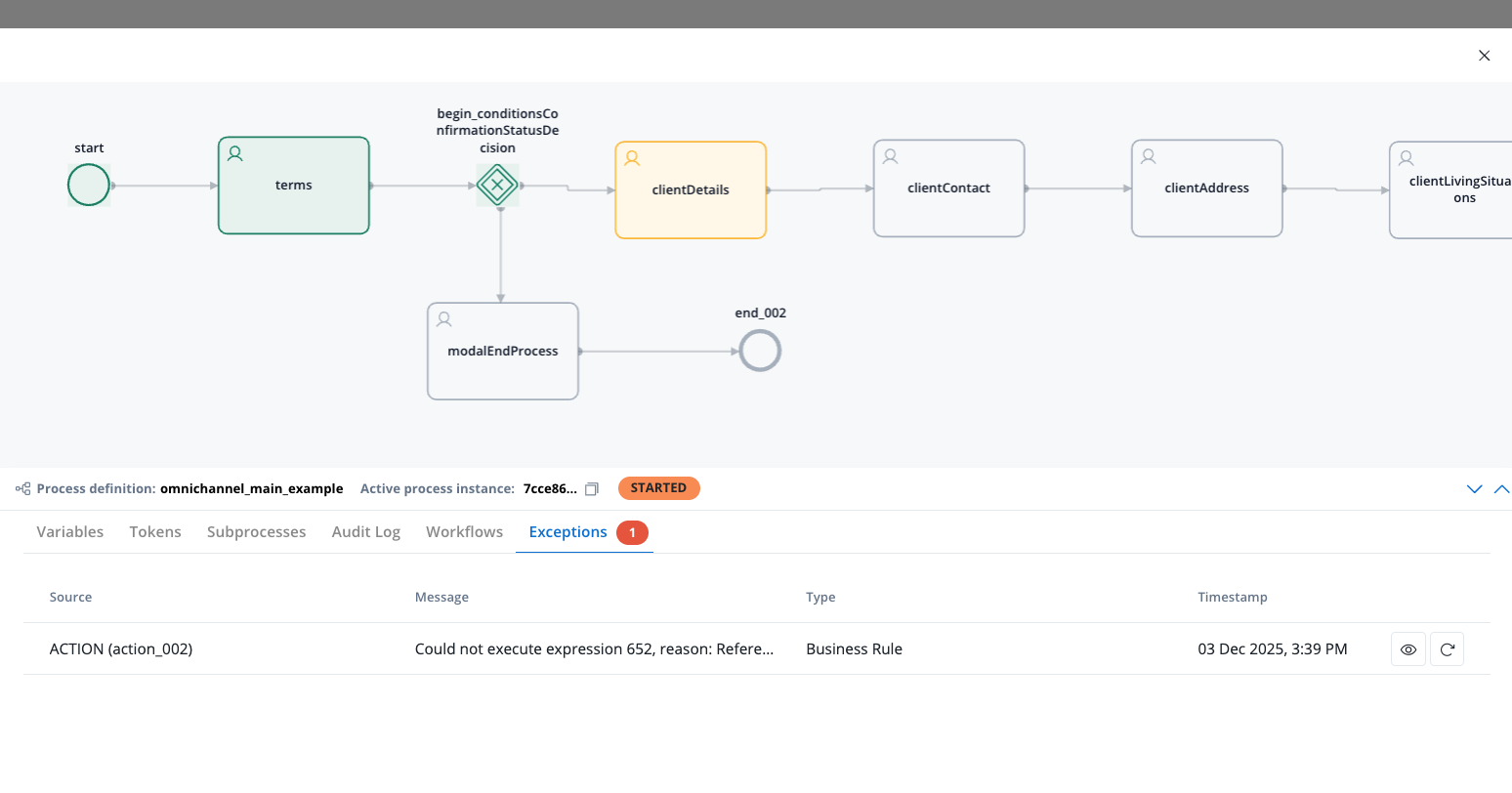
Click on a process instance to view the details.- Active process instance: The UUID of the process instance, with a copy action available.
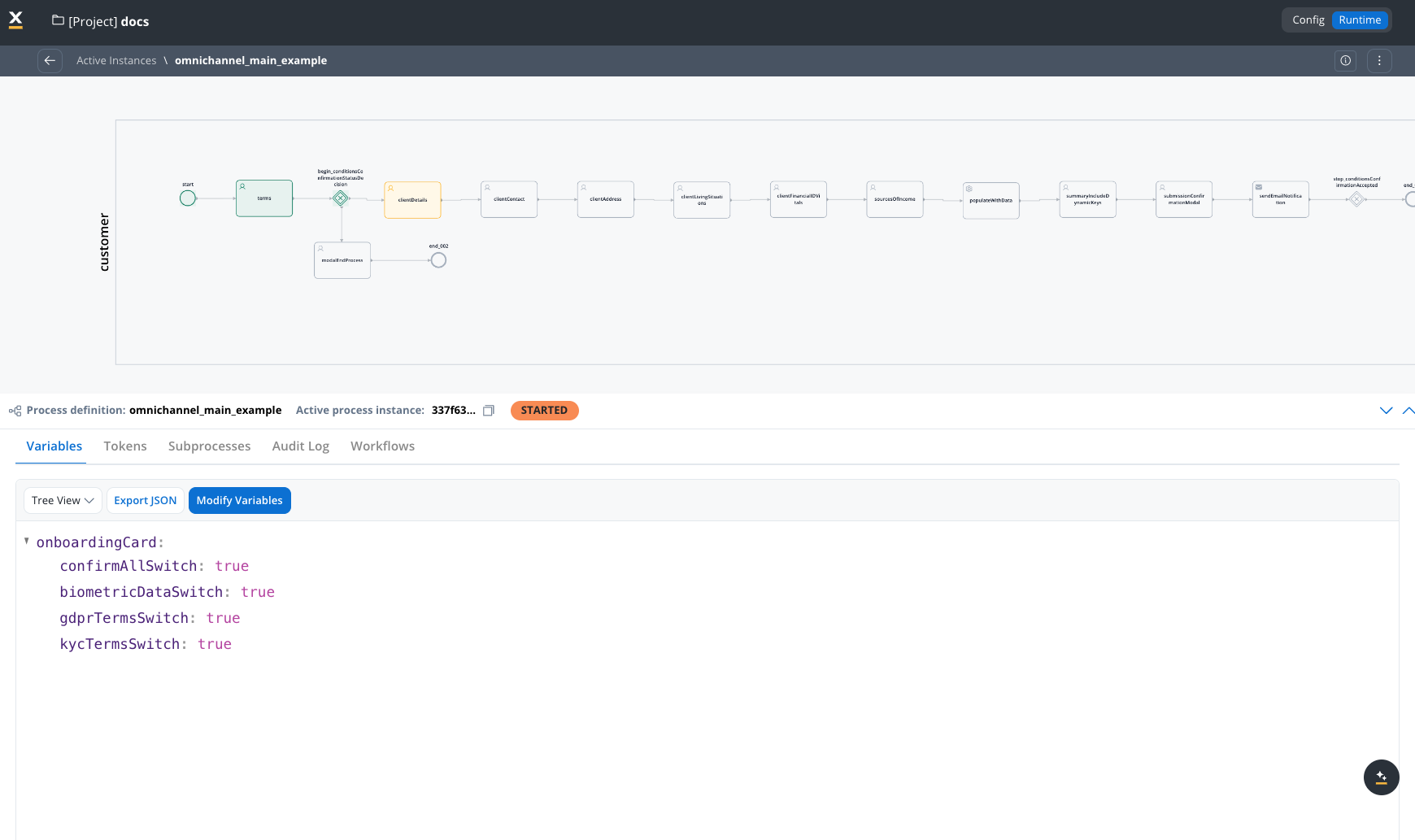
- Variables: Displayed as a tree view or a JSON view. You can modify the variables using the JSON editor (available for STARTED or ON HOLD process instances). Check Update Process Variables for more information.
- Tokens: A token represents the state within the process instance and describe the current position in the process flow.
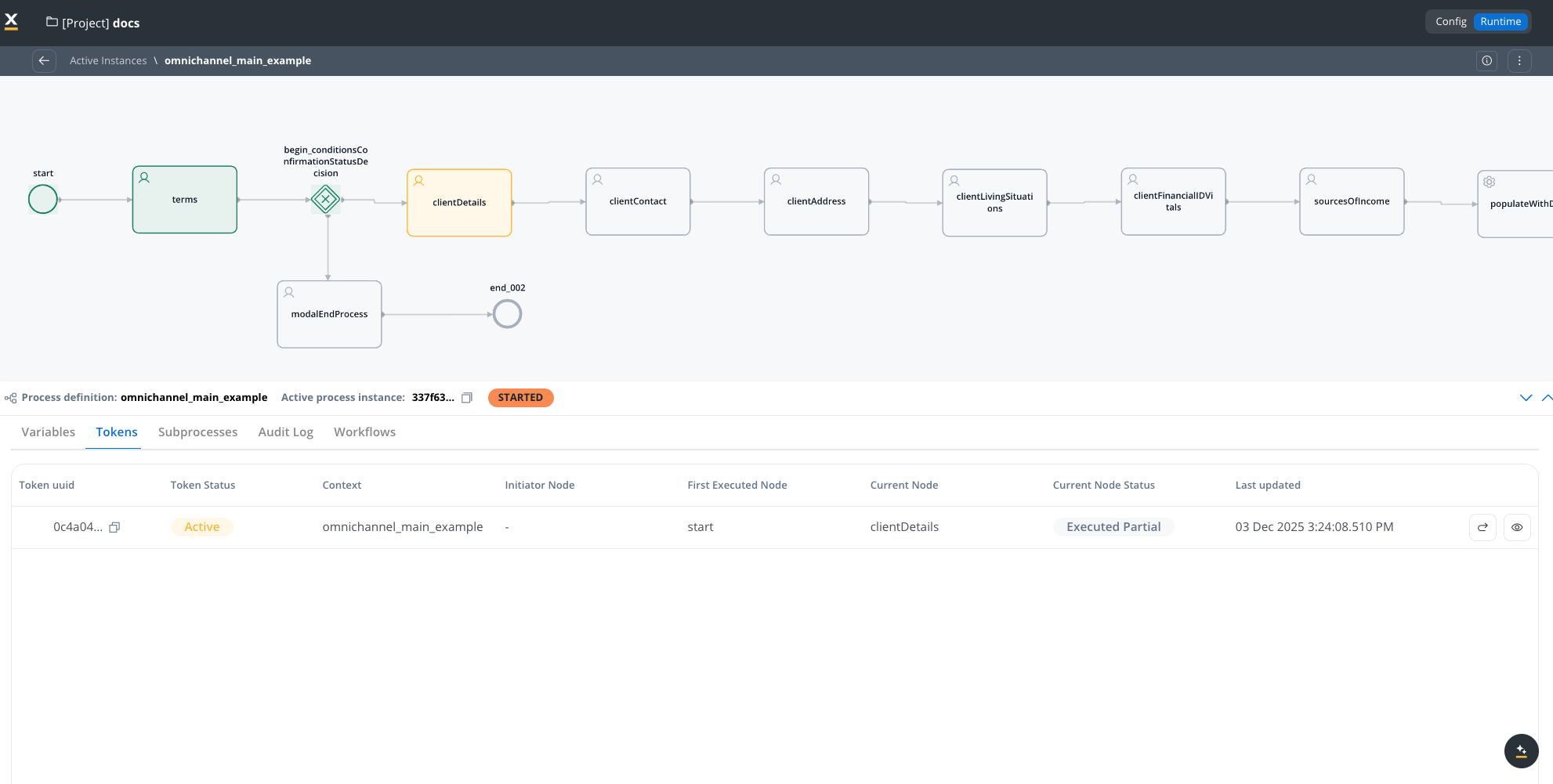
For more information, see the token documentation.
- Subprocesses: Displayed only if the current process instance generated a subprocess instance.
- Exceptions: Errors that let you know where the process is blocked, with a direct link to the node where the process is breaking for easy editing.
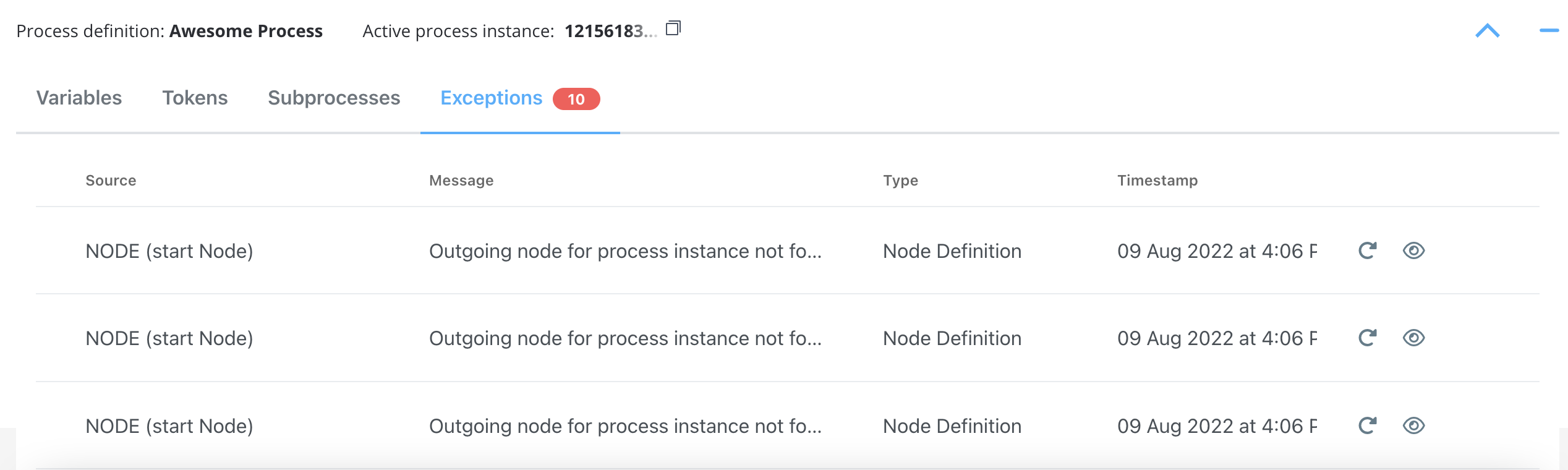
For more information on exceptions, check the following section:Exceptions
- Audit Log: The audit log displays events registered for process instances, tokens, tasks, and exceptions in reverse chronological order by timestamp.
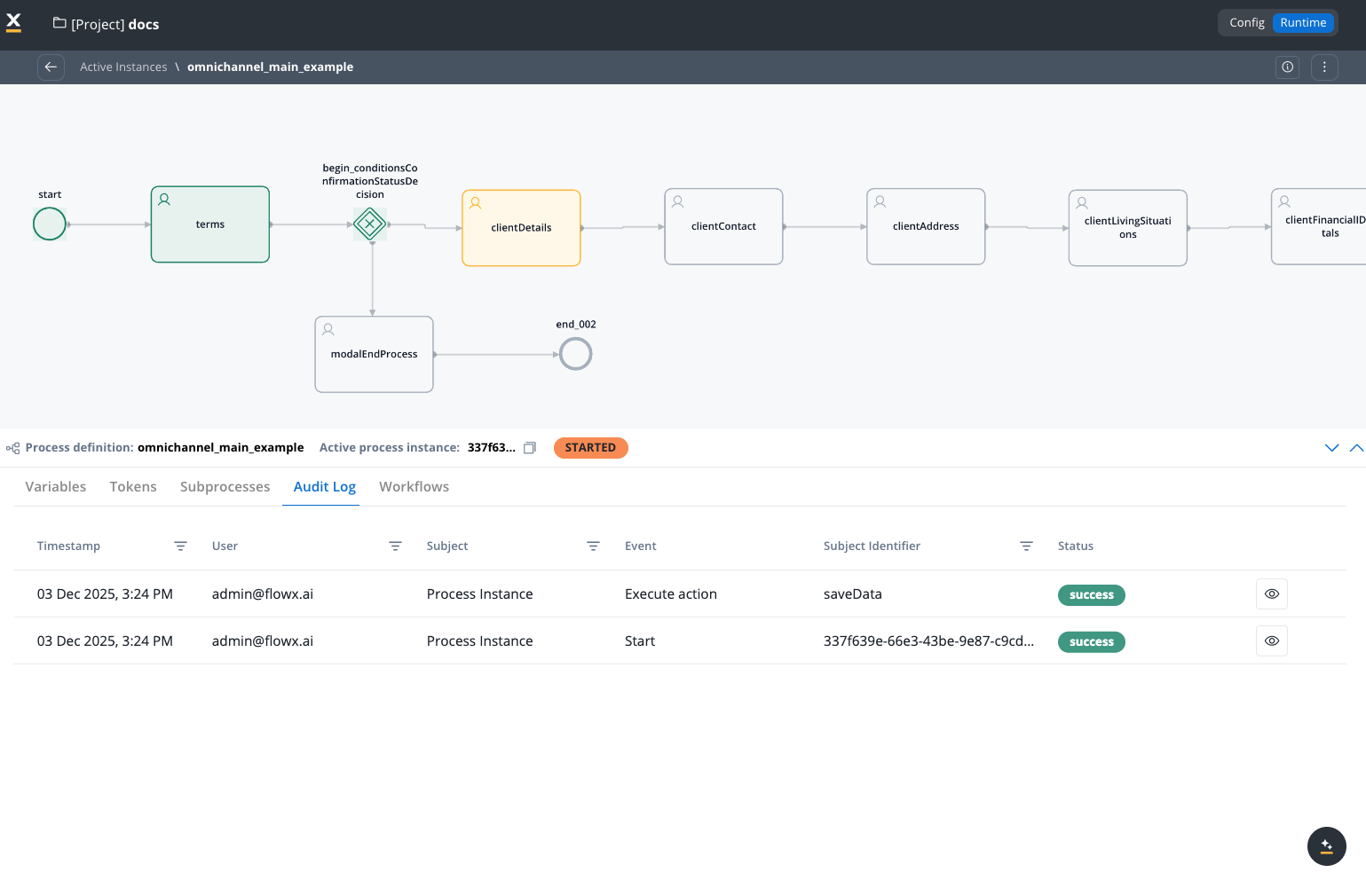
Audit
- Workflows: If process instance has a Start Workflow node, the workflow will be displayed here.
- Trigger: Displayed for process instances started by an event-based trigger (such as an email trigger). Shows the following details:
- Notifications: Displays email notifications sent from this process instance. The table includes the following columns:
-
Documents: Single source of truth for every document handled during the process instance, regardless of how it entered the process. Each row exposes tracking metadata and an inline preview, and any document can be downloaded directly from the tab. Sources covered:
- End-user uploads via the file-upload component
- Attachments forwarded from an email trigger
- Files generated from HTML templates
- Files produced by OCR processing
- Files produced by AI workflow nodes (for example, Document Generation)
Color coding
In the Process Status view, some nodes are highlighted with different colors to easily identify any failures:- Green: Nodes highlighted with green mark the nodes passed by the token.
- Red: The node highlighted with red marks the node where the token is stuck (process failure).
Starting a new process instance
To start a new process instance, a request must be made to the FlowX.AI Engine. This is handled by the web/mobile application. The current user must have the appropriate role/permission to start a new process instance.