

Email Trigger is a data source type that enables process instances to be automatically started when emails are received via IMAP, bringing event-driven automation to your email workflows.
Email Trigger vs Microsoft Outlook
Overview
Email Trigger is a data source type in Integration Designer that allows FlowX.AI processes to be triggered automatically when emails arrive in a monitored mailbox. This enables use cases such as:- Customer support automation: Automatically create support tickets when emails arrive
- Document processing: Trigger document workflows when emails with attachments are received
- Request handling: Start approval processes based on incoming email requests
- Notification workflows: Process automated alerts from monitoring systems
How it works
The Email Trigger system follows a straightforward flow:1
Configure Email Connection
Set up an IMAP connection to your email server as a Data Source in Integration Designer.
2
Link to Message Start Event (Start Catch Message)
Connect the Email Trigger to a Message Start Event node in your process definition.
3
Activate the Trigger
Turn on monitoring from the Manage Triggers section in Runtime Settings.
4
Process Incoming Emails
When emails arrive, FlowX.AI automatically creates process instances with the email data.
Available on SaaS with FlowX.AI 5.12. This feature is live on managed (SaaS) deployments now. Self-hosted deployments will receive it with the next LTS release family.
emailMessage. For details, see External triggers.
Creating an email trigger data source
Prerequisites
Before configuring an Email Trigger, ensure you have:- Access to Integration Designer with appropriate permissions
- IMAP server credentials (host, port, username, password)
- Knowledge of the mailbox folder to monitor (defaults to
INBOXif not specified)
Step 1: Access Integration Designer
1
Navigate to Data Sources
Navigate to FlowX Designer → Workspaces → Your workspace → Projects → Your project → Integrations → Data Sources
2
Add a new data source
Click Add New Data Source
3
Select Email Trigger
Select Email Trigger as the data source type
Step 2: Configure connection settings
Configure the IMAP connection with the following fields:string
required
The email protocol to use. Currently only IMAP is supported.
string
required
The hostname or IP address of your IMAP server.Examples:
imap.gmail.comoutlook.office365.commail.yourcompany.com
number
required
The port number for the IMAP connection. The default value updates automatically based on the SSL/TLS setting.
string
required
The email account username or full email address used for authentication.
string
required
The password or app-specific password for the email account.
boolean
Turn on secure connection using SSL/TLS encryption. Recommended: ON.
The SSL/TLS setting determines the default port value. Change this setting before adjusting the port.
Step 3: Test the connection
Click the Test Connection button to verify your settings:When you click Create, another authentication test is performed. If the test fails, you’ll be redirected to the Authorization tab with an error message, but the Email Trigger will still be created.
Step 4: Configure basic information
string
required
A unique, descriptive name for the Email Trigger.Validation rules:
- Required field
- Must be unique within the project
- Only letters, numbers, and these characters allowed:
[],(),.,_,- - Minimum 3 characters, maximum 50 characters
string
Optional description explaining the purpose of this Email Trigger.
Configuring email trigger settings
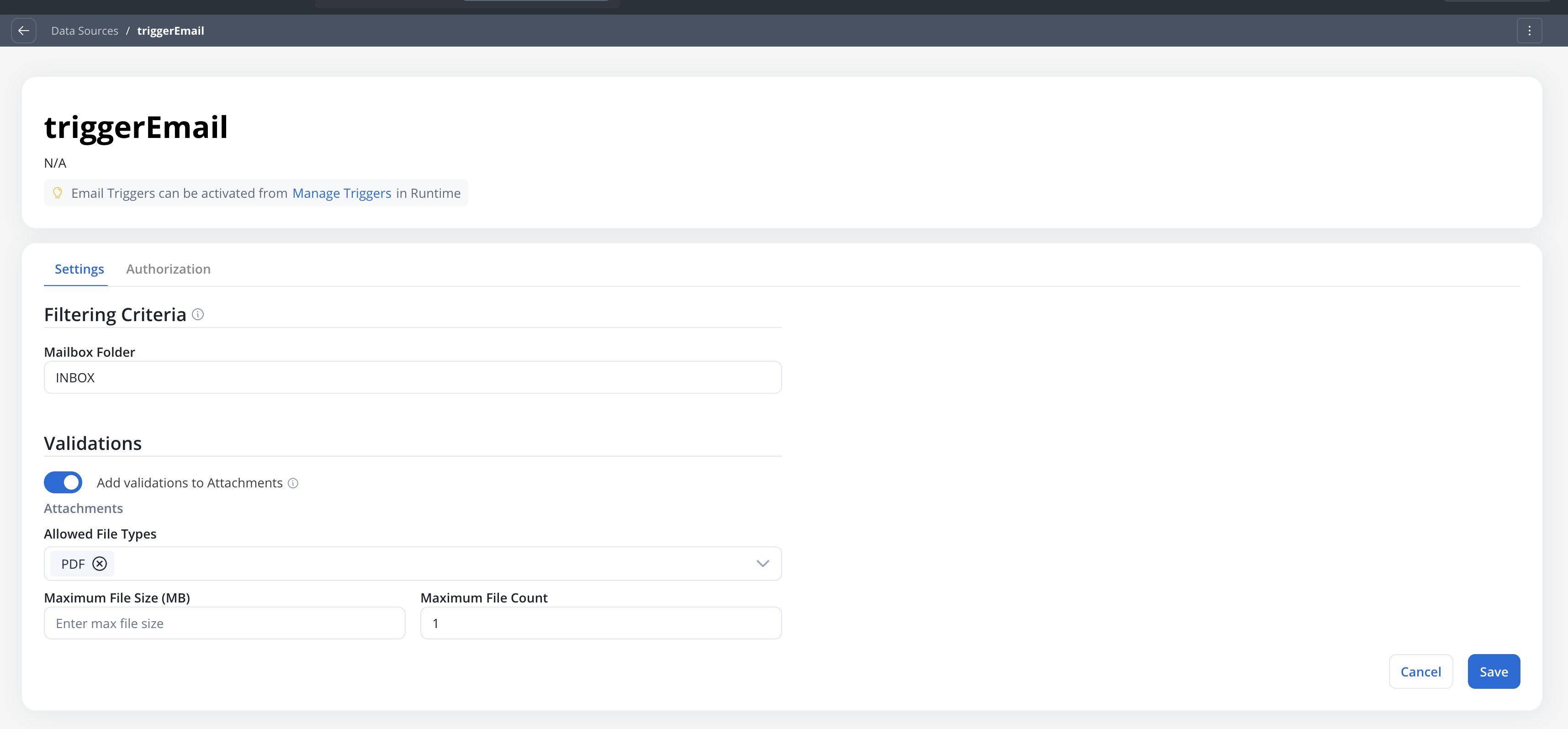
After creating the Email Trigger, configure monitoring and validation settings in the Settings tab.Filtering criteria
Define which emails should trigger processes:string
required
The mailbox folder to monitor for incoming emails.Default:
INBOXExamples:INBOXSupportOrders/New
Trigger condition and attachment forwarding
Email Trigger validation uses a two-stage model:- Start Process for — which incoming emails should create a process instance.
- Save email attachments on process — which attachments are forwarded into the process data.
Start Process for
Select which incoming emails create a process instance.radio
Start the process for all emails received in the selected mailbox folder.
radio
Start the process only when the email has at least one attachment. Emails without attachments are rejected with cause No attachments.
radio
Start the process if at least one attachment matches the selected file types. The Allowed File Types multiselect activates. Emails without a matching attachment are rejected with cause No matching file types.On 5.9.x, you select allowed types from the file type categories below.
Individual file extensions (SaaS · 5.11)Allowed File Types and Forward File Types select individual file extensions instead of these categories. The categories no longer exist in the runtime, so the table above serves only as a reference for what each one used to cover.Selected extensions are stored as bare uppercase values without a leading dot (
PDF, DOCX). Input is tolerant of case and of a leading dot, so pdf and .pdf resolve to the same extension. Existing triggers are migrated automatically, with each stored category expanded into the individual extensions it covered.Save email attachments on process
Select which attachments from the email are passed into the process.radio
Save all attachments from the email to the process instance.
radio
No files are forwarded. Only email metadata (subject, body, sender, headers) reaches the process. The Maximum File Size field is disabled.
radio
Save only attachments that match the selected file types. The Forward File Types multiselect activates. Non-matching attachments are dropped silently (no Failed Trigger entry).
Limits
number
Maximum number of attachments allowed per email. If exceeded, the email is rejected at the trigger level and appears in Failed Triggers with cause File count exceeded.Leave empty for no limit.
number
Maximum allowed size per attachment file, in megabytes. Applies across all forwarding strategies.Maximum allowed value: 25 MBLeave empty to apply no per-file size limit beyond the 25 MB hard cap.
Triggers migrated from an earlier deploymentWhen a deployment is upgraded, existing triggers are set to All incoming emails + All attachments. The
Allowed File Types value is preserved on the trigger but no longer filters anything until you switch the trigger condition or forwarding mode to one of the file-type options. Reopen each trigger after the upgrade to confirm the new settings match your intent.Polling interval
The Email Trigger polls for new emails every 30 seconds by default. This interval can be configured at the environment level but is not user-configurable in the UI.
Connecting to a Message Start Event
To use the Email Trigger, connect it to a Message Start Event node in your process definition.Configuring the Message Start Event
1
Open your process definition
Open your process definition in the Process Designer.
2
Add a Message Start Event node
Add a Message Start Event node.
3
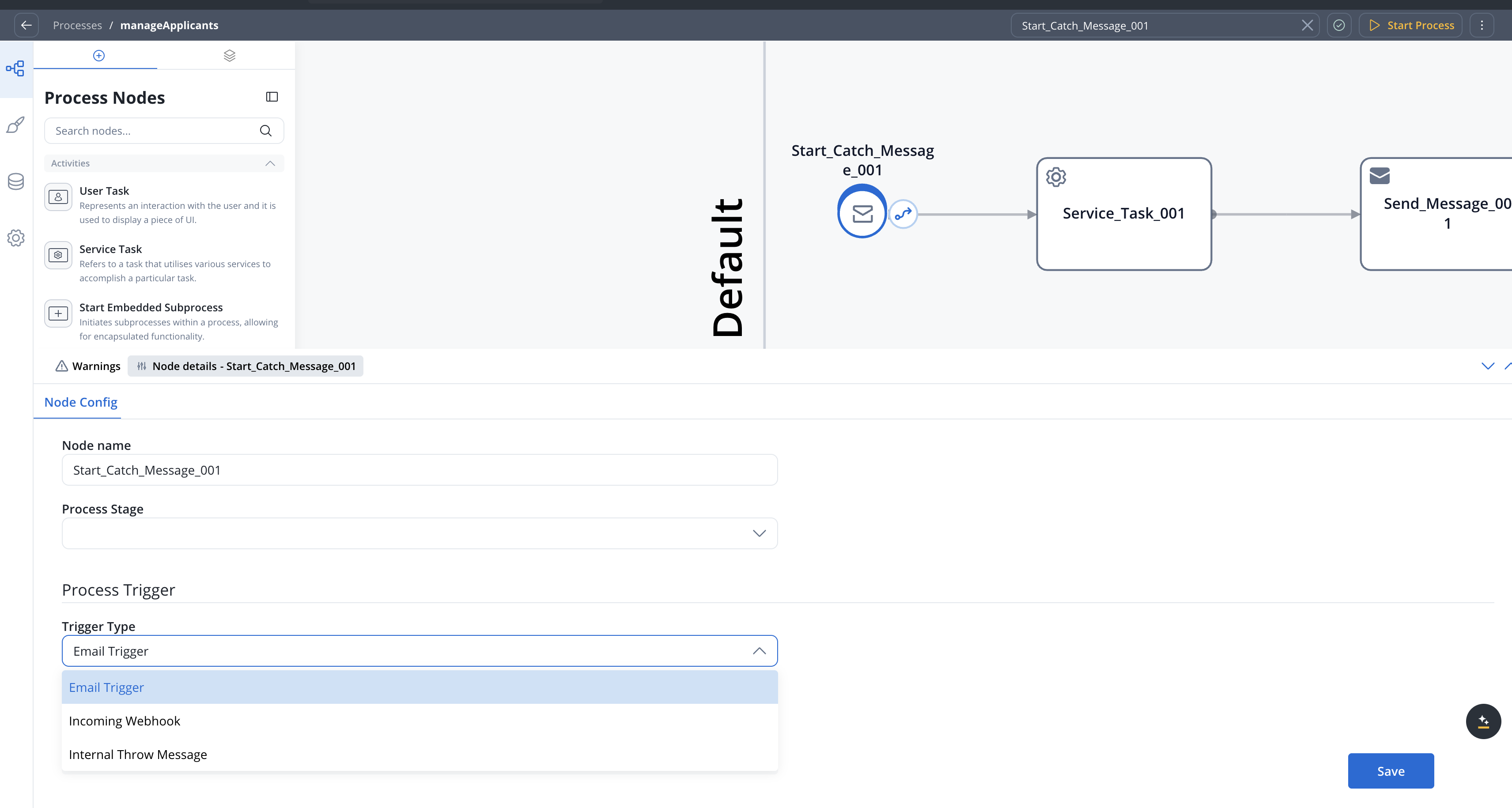
Configure the Process Trigger
In the node configuration, locate the Process Trigger section:
select
required
Select the trigger type:
- Internal Throw Message - Traditional message-based triggering
- Email Trigger - Email-based triggering
- Incoming Webhook - Webhook-based triggering (see the Incoming Webhooks data source)
select
required
Select the Email Trigger data source to use. Only Email Triggers created in the current project are available.
Tooltip: “The email connection that will be triggered”
To start monitoring, you must activate the trigger from Manage Triggers in Runtime Settings.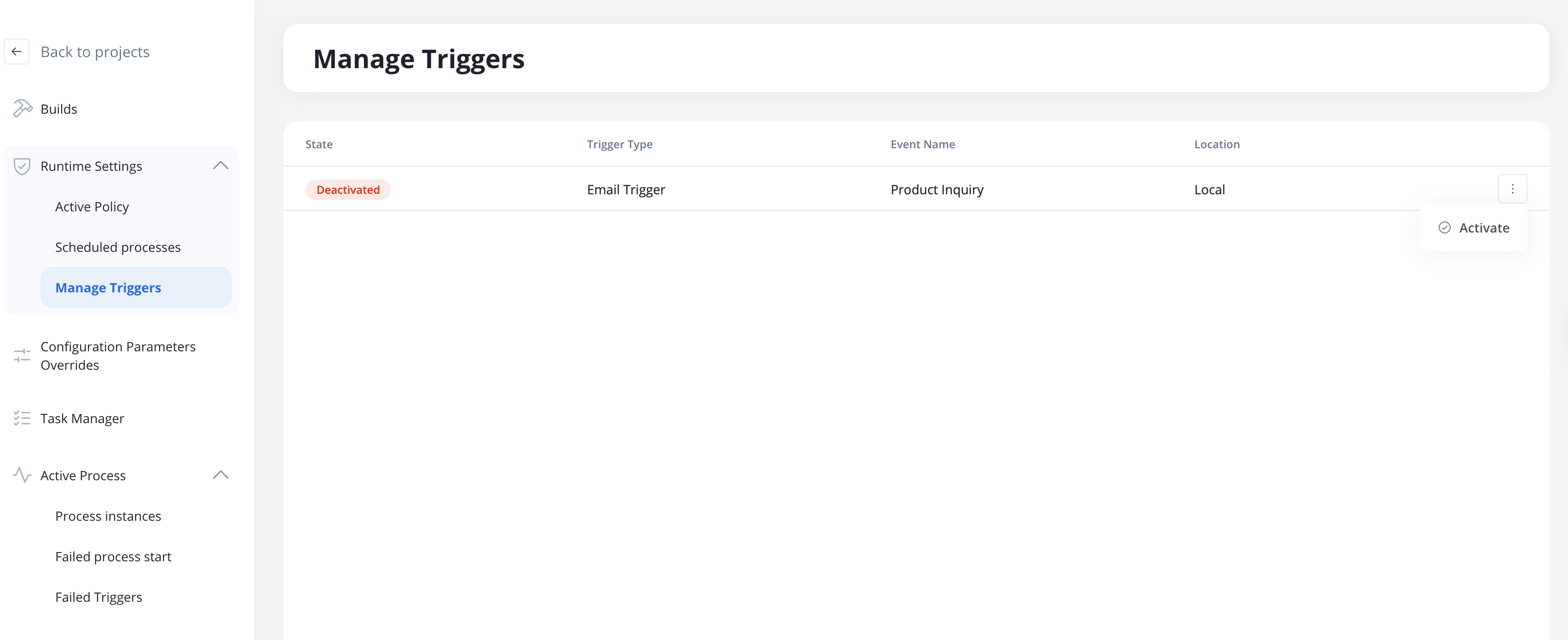
Email data schema
When an email triggers a process, the following data structure is available in your process variables: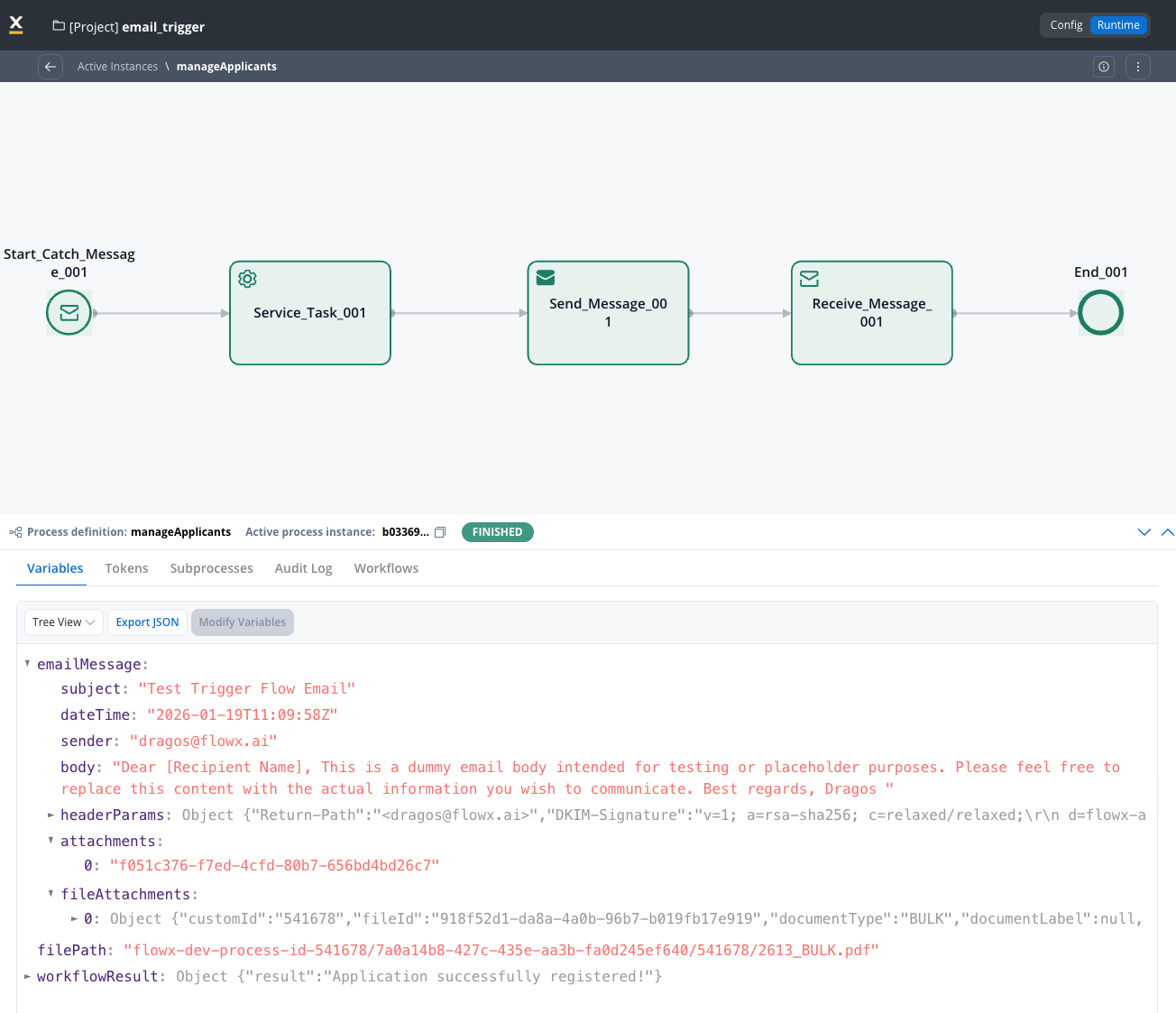
Schema fields
Attachment handling
Email attachments are automatically:- Uploaded to the Document Plugin as temporary files
- Copied to permanent storage linked to the process instance
- Referenced in the
fileAttachmentsarray with download paths
Forwarding incoming attachments to a reply
The inboundfileAttachments[] shape (filePath, downloadPath) differs from the outbound shape expected by the Send Notification action’s Attachments field (path, filename).
To forward original attachments on a reply, transform emailMessage.fileAttachments into the Send Notification shape — typically in a Script node — and pass the result through a process variable:
${replyAttachments}) in the Send Notification action’s Attachments field.
Managing triggers at runtime
Accessing Manage Triggers
Navigate to Runtime → Runtime Settings → Manage Triggers to view and control all configured Email Triggers.Trigger list columns
Activation requirements
For an Email Trigger to appear in Manage Triggers:- ✅ Email Trigger must be created as a Data Source
- ✅ Email Trigger must be added to a Message Start Event node
- ✅ The process must be part of a build in the Active Policy
When the Active Policy changes, Email Triggers retain their previous state (Active or Deactivated). If an Email Trigger is deleted from the latest build, it will be automatically deactivated.
All Email Trigger configuration changes and runtime actions (activation, deactivation, trigger events) are recorded in the audit trail for compliance and debugging purposes.
Activating and deactivating triggers
Open the row menu (⋮) on the trigger and select Activate or Deactivate, then confirm. The State column updates to:- Active: The system monitors the mailbox and creates process instances for incoming emails
- Deactivated: Monitoring is paused; no new process instances are created
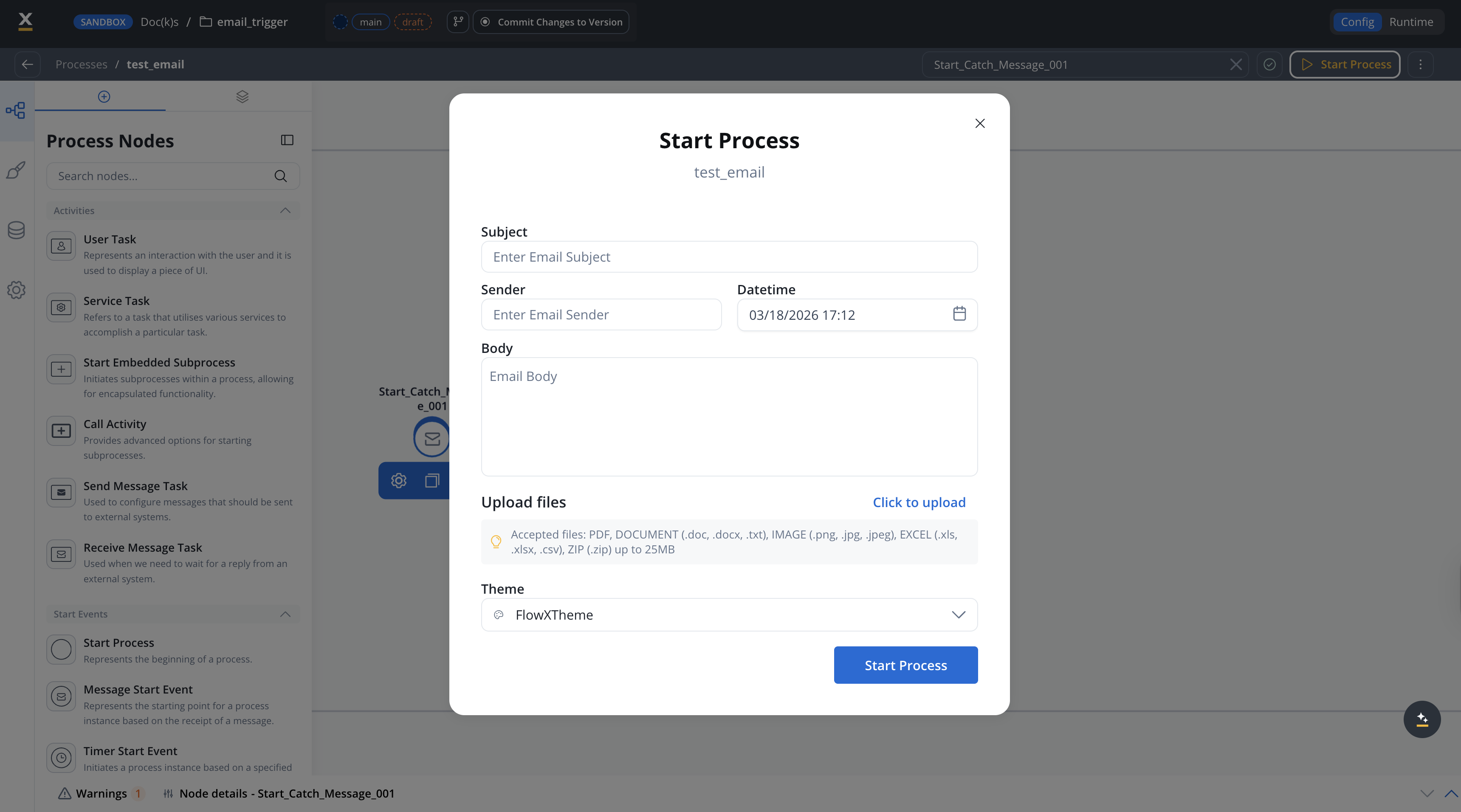
Testing with mock email content
When running a process from the build list, you can provide mock email content to simulate an incoming email trigger. This is useful for:- Testing process logic before connecting to a live mailbox
- Verifying attachment handling and validation rules
- Debugging email-triggered workflows in development
How to test with mock email
1
Open the start process dialog
Navigate to your process definition and click Start Process. If the process has a Message Start Event configured with an Email Trigger, the dialog displays a mock email form instead of the standard start parameters.
2
Fill in the mock email fields
Complete the form fields to simulate an incoming email:
3
Start the process
Click Start Process to create a process instance using the mock email data, just as if a real email had been received.
Handling failed triggers
When emails fail validation or processing errors occur, they appear in the Failed Triggers section.Accessing Failed Triggers
Navigate to Runtime → Processes → Failed Triggers to view failed email processing attempts.Failed Triggers list
Cause types
- File type not permitted
- File size exceeded
- File count exceeded
- No attachments
- No matching file types
- Unable to connect to email server
Message: “The file
{filename} could not be uploaded because it is not on the list of permitted file types.”Resolution: Update the Allowed File Types in the Email Trigger settings, or ask the sender to use an accepted format.Failed trigger details page
Click on a failed trigger row to open the dedicated details page, which displays:
Use the breadcrumb navigation at the top of the page to return to the failed triggers list.
If an email fails for multiple reasons, all failure causes are listed in the details view.
Use cases
Customer support ticket creation
1
Configure Email Trigger
Create an Email Trigger connected to your support email (e.g.,
support@company.com).2
Design the process
Create a process that:
- Extracts customer information from the email
- Creates a ticket in your CRM
- Assigns to the appropriate team
- Sends an acknowledgment email
3
Handle attachments
Configure validation to accept relevant file types (PDF, images) and route attachments to your document management system.
Document processing workflow
Best practices
Use configuration parameters
Store server credentials and environment-specific settings in configuration parameters for easy management across environments.
Set appropriate validations
Configure file type, size, and count limits to prevent processing of unwanted or malicious content.
Monitor failed triggers
Regularly review the Failed Triggers section to identify issues with email processing.
Handle attachments asynchronously
Remember that attachment processing is asynchronous. Design your process to handle potential delays in file availability.
Troubleshooting
Email Trigger not appearing in Manage Triggers
Email Trigger not appearing in Manage Triggers
Ensure all requirements are met:
- Email Trigger is created as a Data Source
- Email Trigger is linked to a Message Start Event
- The process is included in an Active Policy build
Connection test fails
Connection test fails
Common causes:
- Incorrect credentials: Verify username and password
- Wrong port: Use 993 for IMAP with SSL/TLS
- Firewall: Ensure outbound connections to the mail server are allowed
- 2FA enabled: Generate an app-specific password for the email account
Emails not triggering processes
Emails not triggering processes
Check:
- Is the trigger Active in Manage Triggers?
- Is the correct mailbox folder configured?
- Do incoming emails pass validation rules?
- Review Failed Triggers for error details
Attachments not available in process
Attachments not available in process
Attachment processing is asynchronous. If you need immediate access:
- Add a wait step or message catch event after the start node
- Verify the email passed file validation rules
- Check Document Plugin connectivity
Related documentation
Cookbook: reconcile invoices
See the Email Trigger in a full build: invoices arrive by email, AI extracts them, and exceptions go to a reviewer
Email Sender
Configure SMTP connections to send and reply to emails from processes
Microsoft Outlook
Connect to Outlook via MS Graph API for reading and sending emails
Send Notification Action
Send emails and reply to received emails directly from process nodes
Integration Designer
Learn about other data source types and workflow creation
Message Start Event
Configure message-based process triggers
Document Plugin
Manage files and attachments in FlowX.AI
Configuration Parameters
Use environment variables for flexible configurations