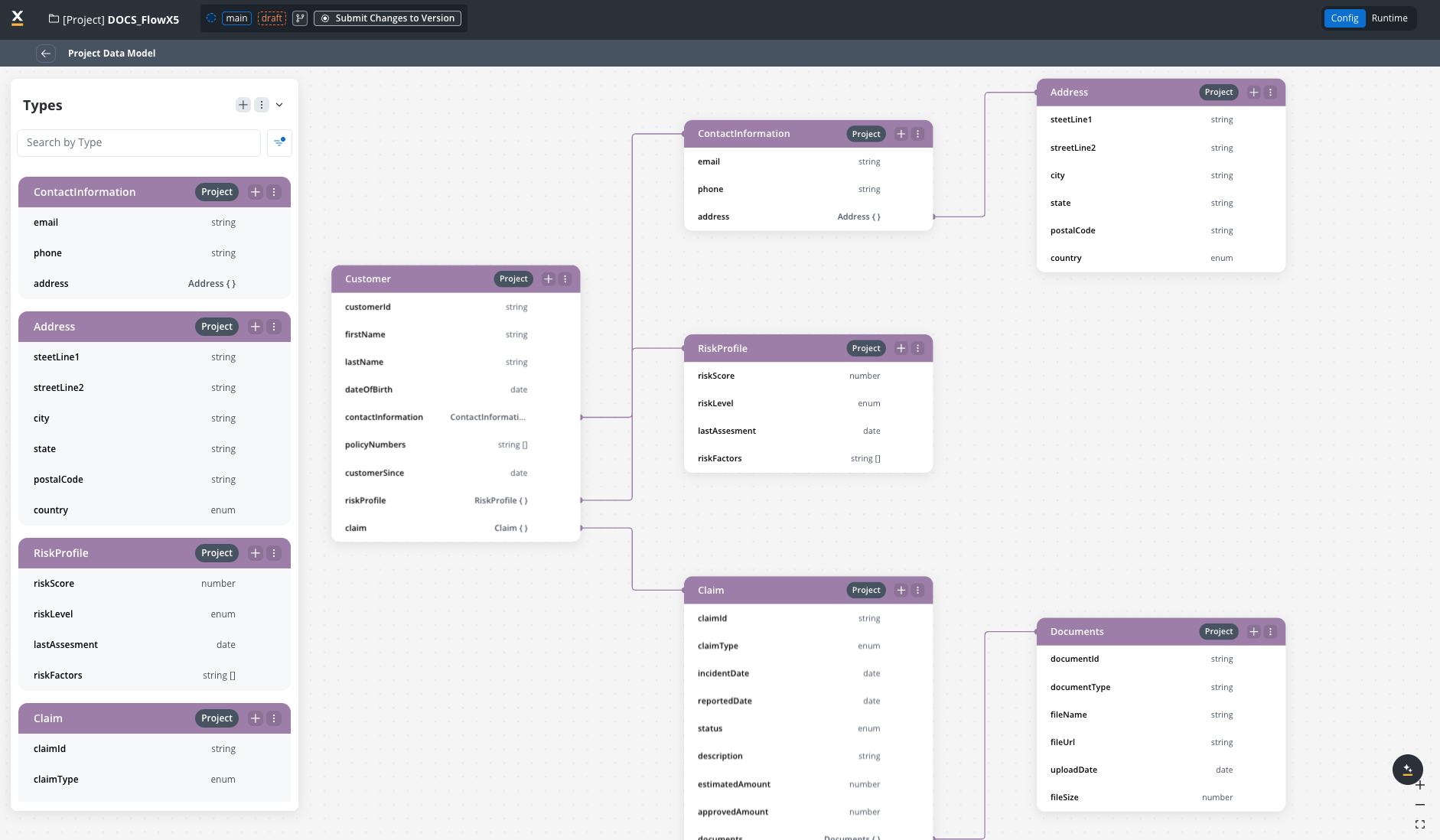
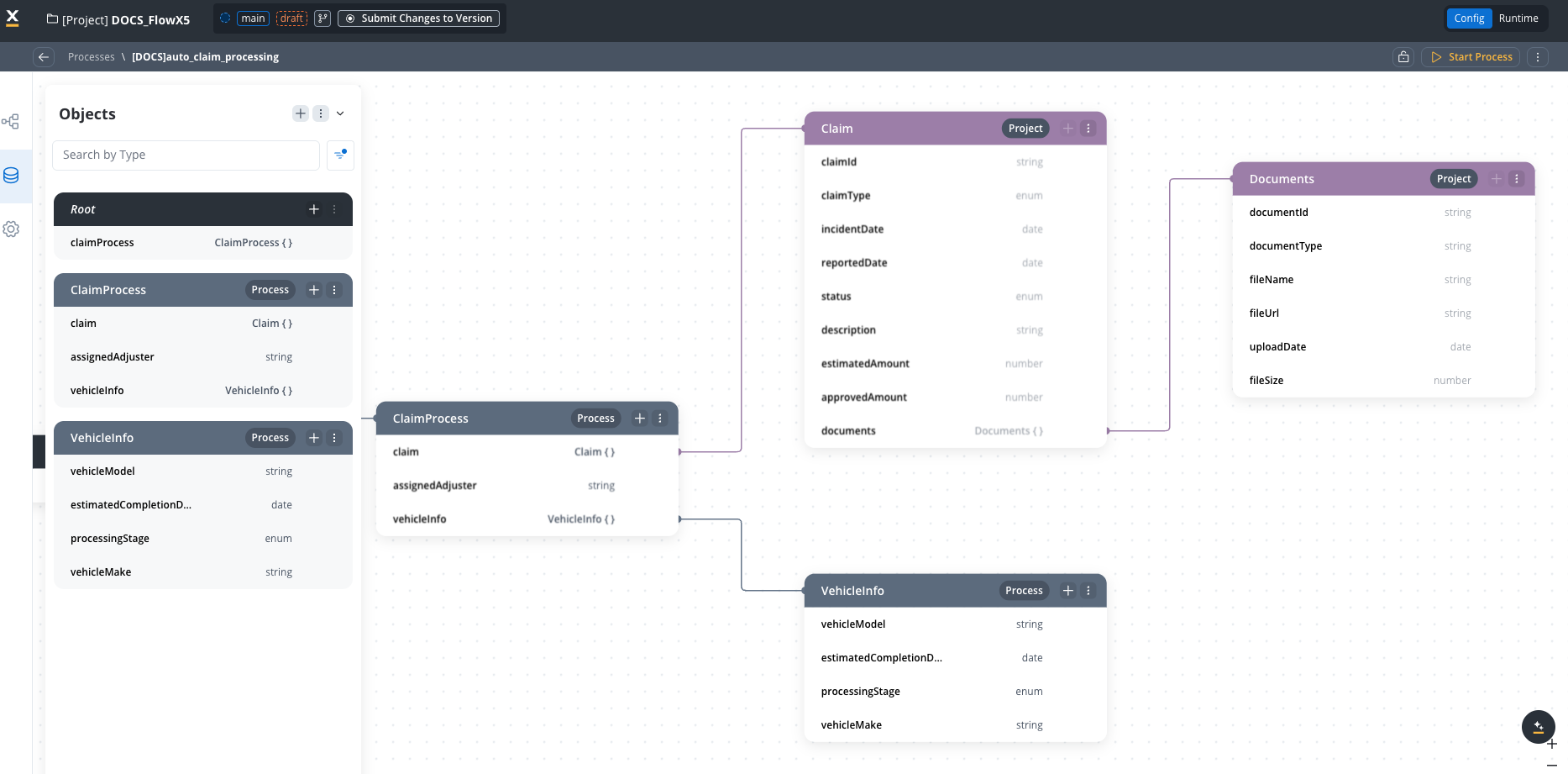
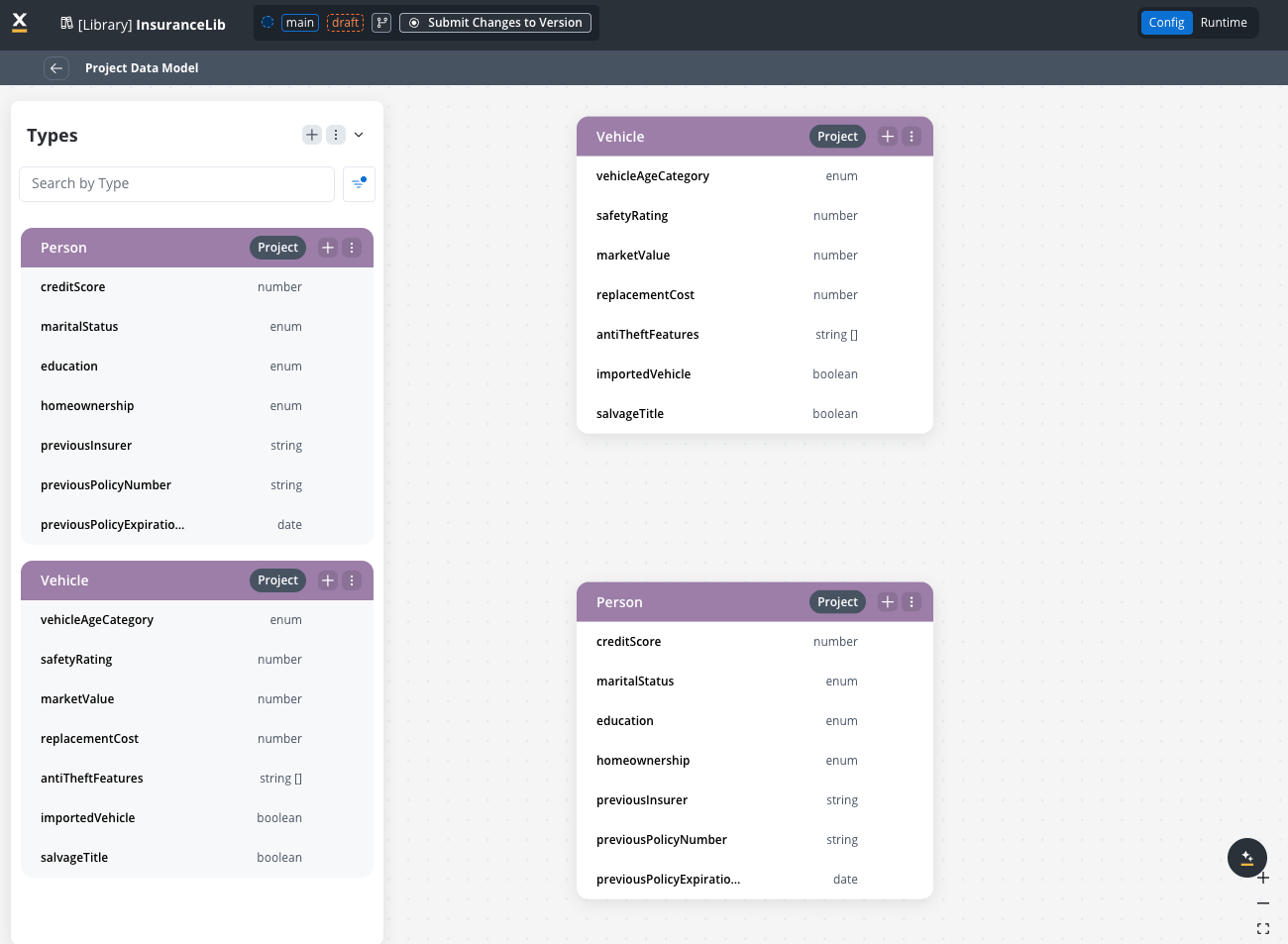
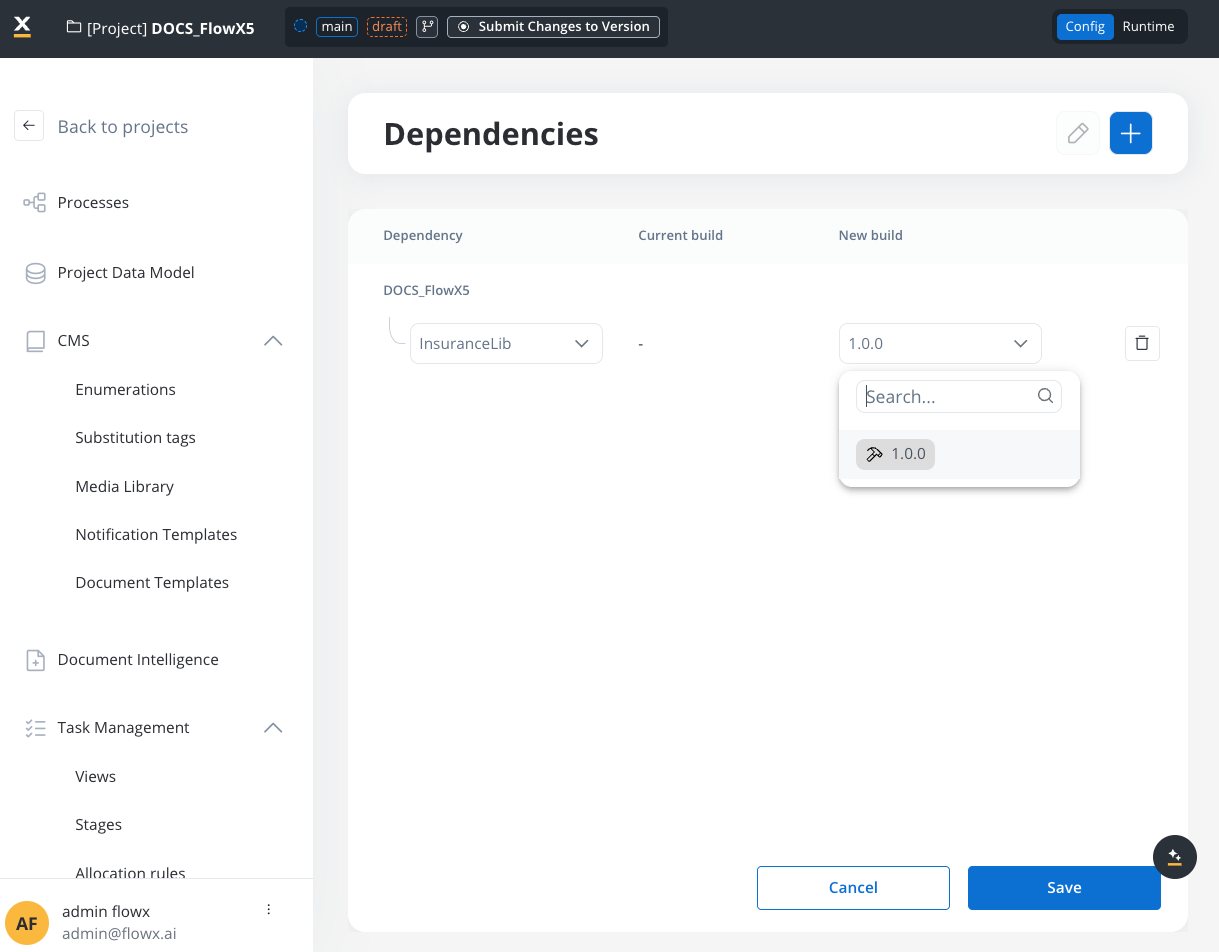
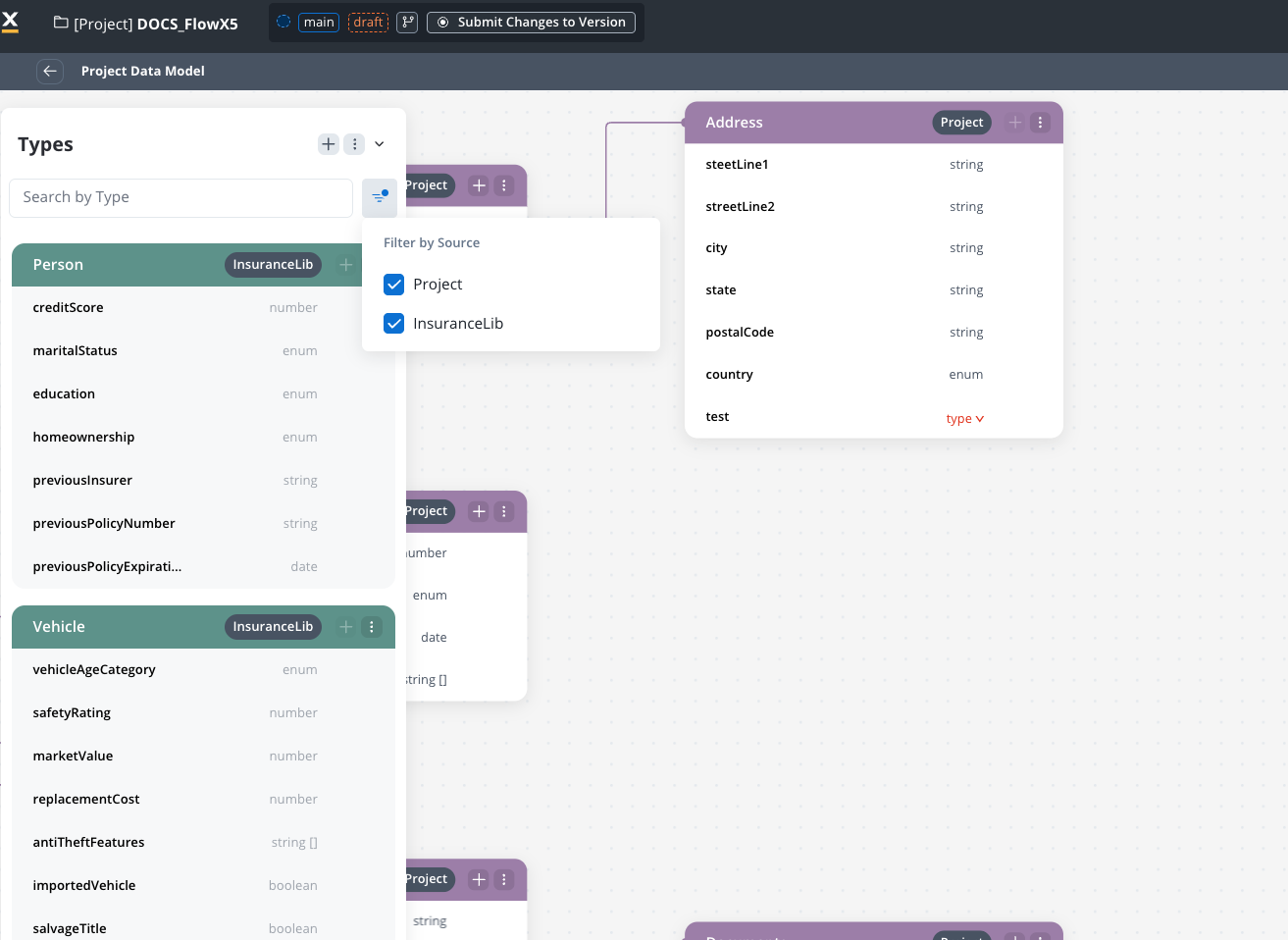
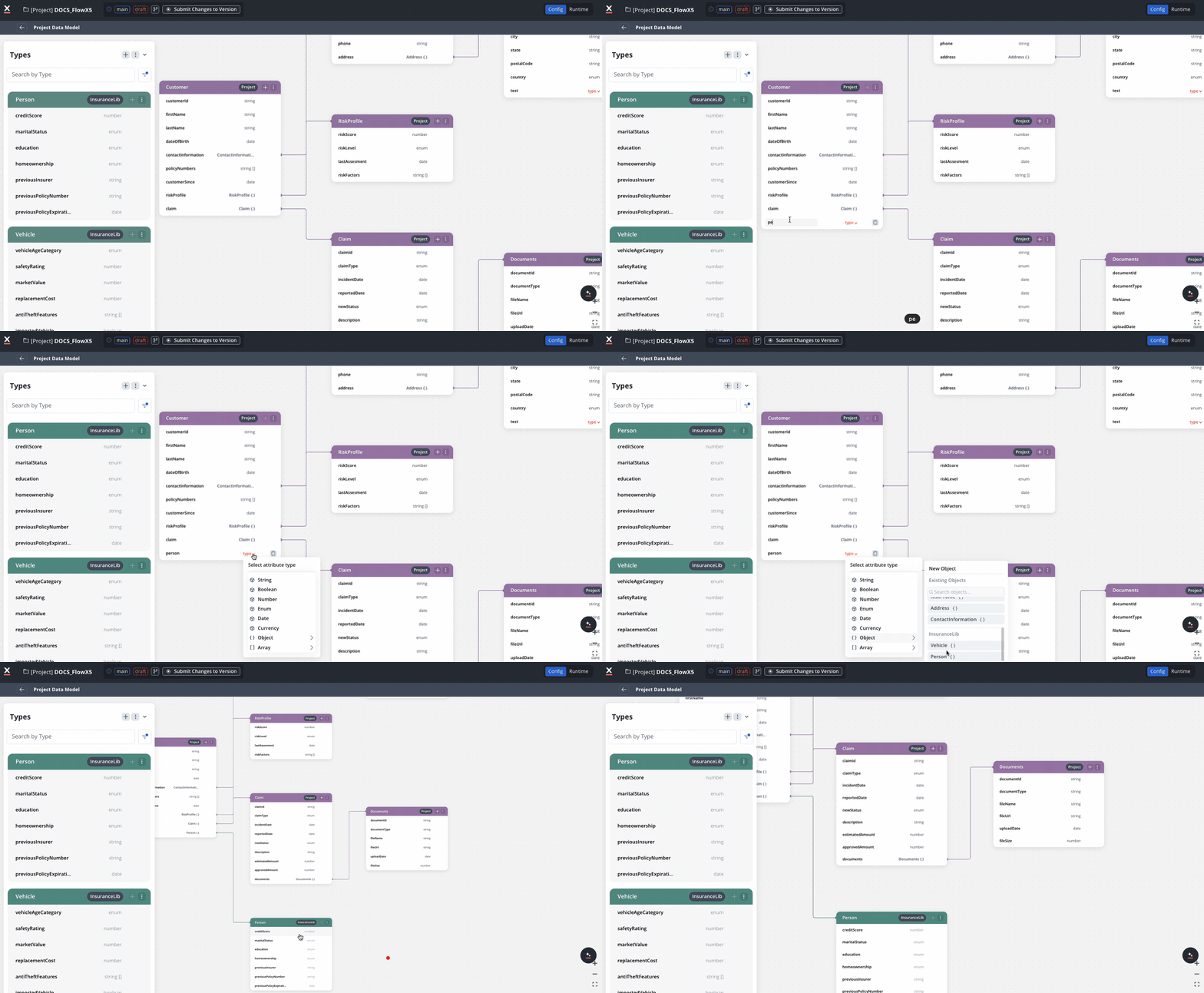
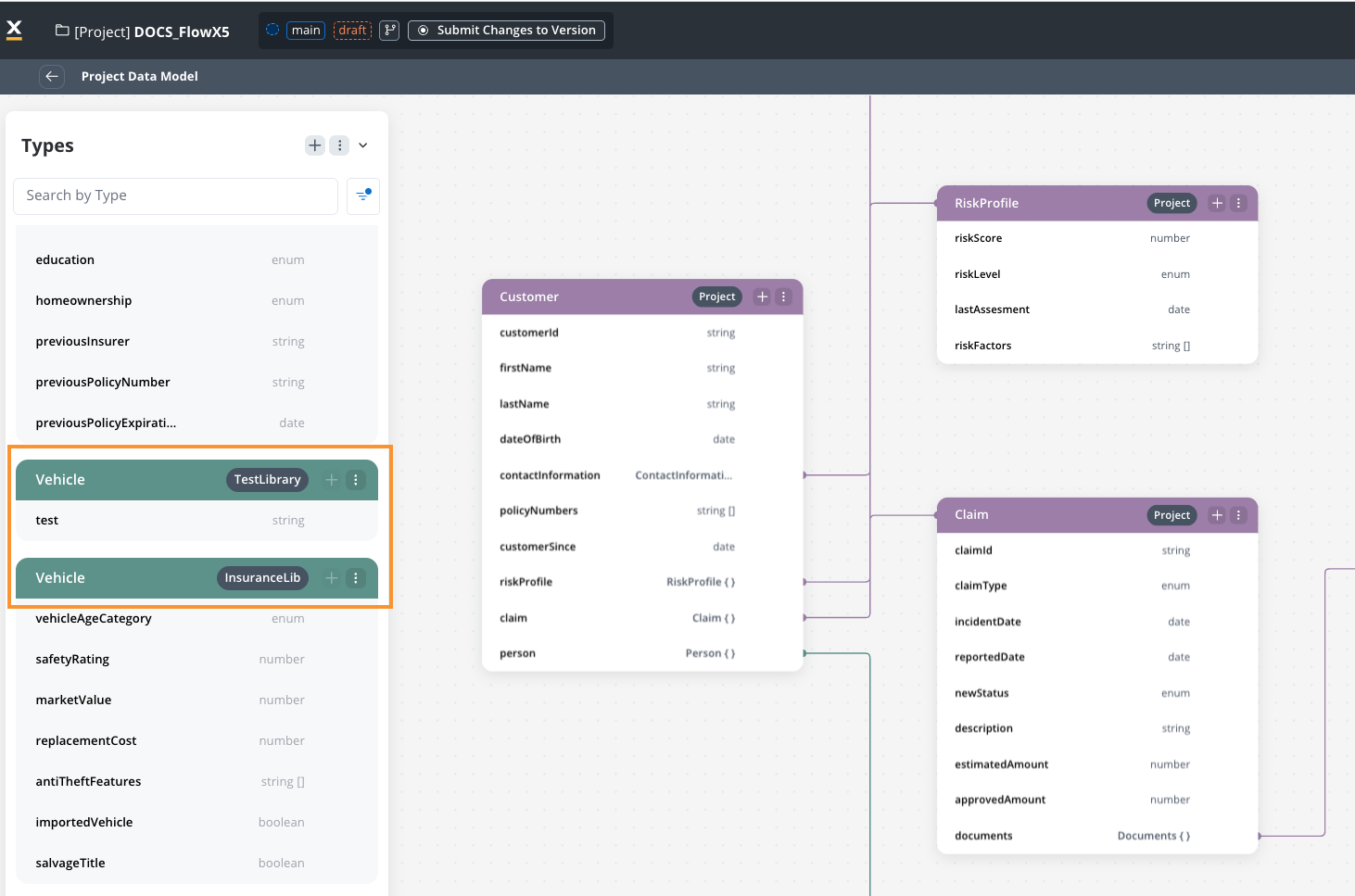
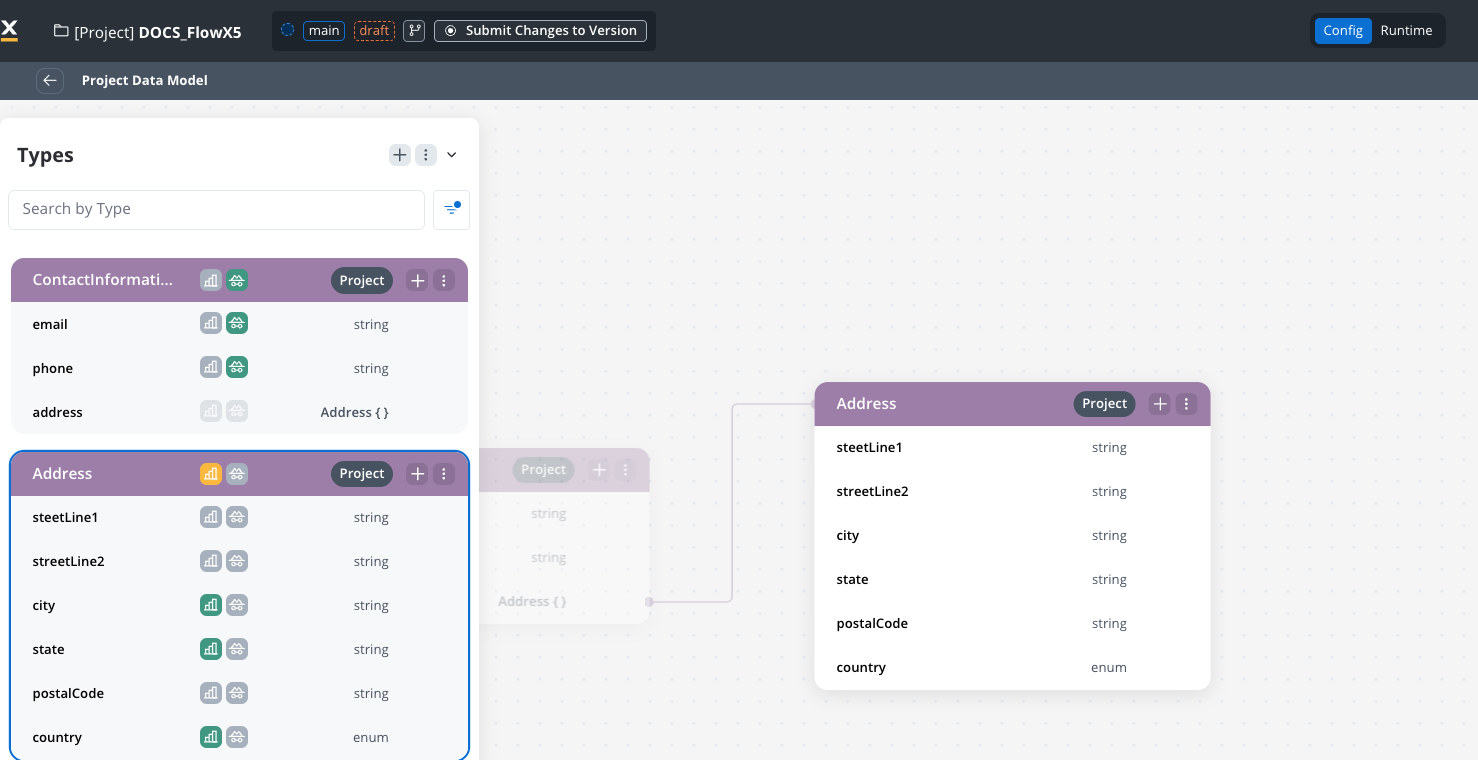
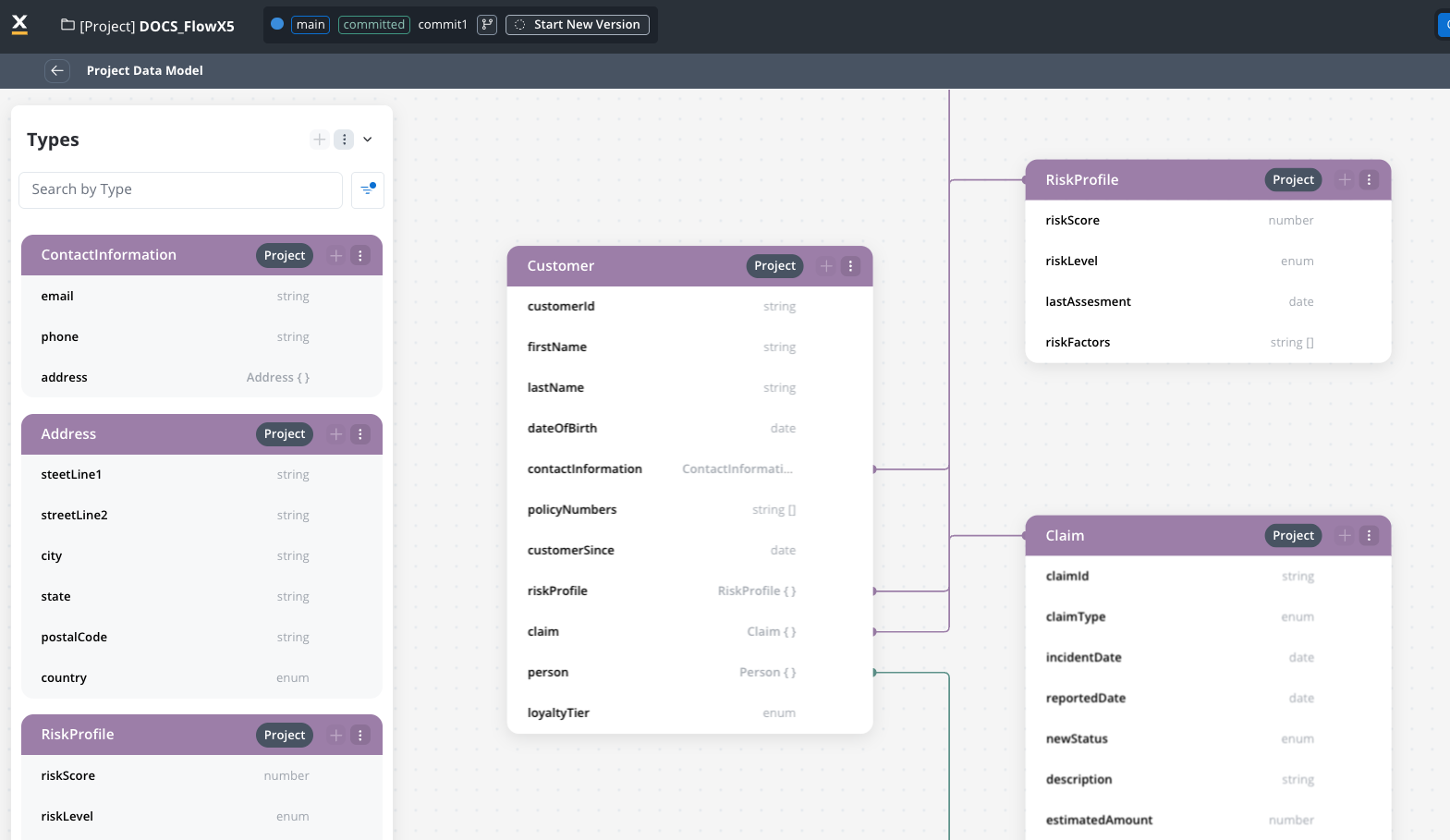
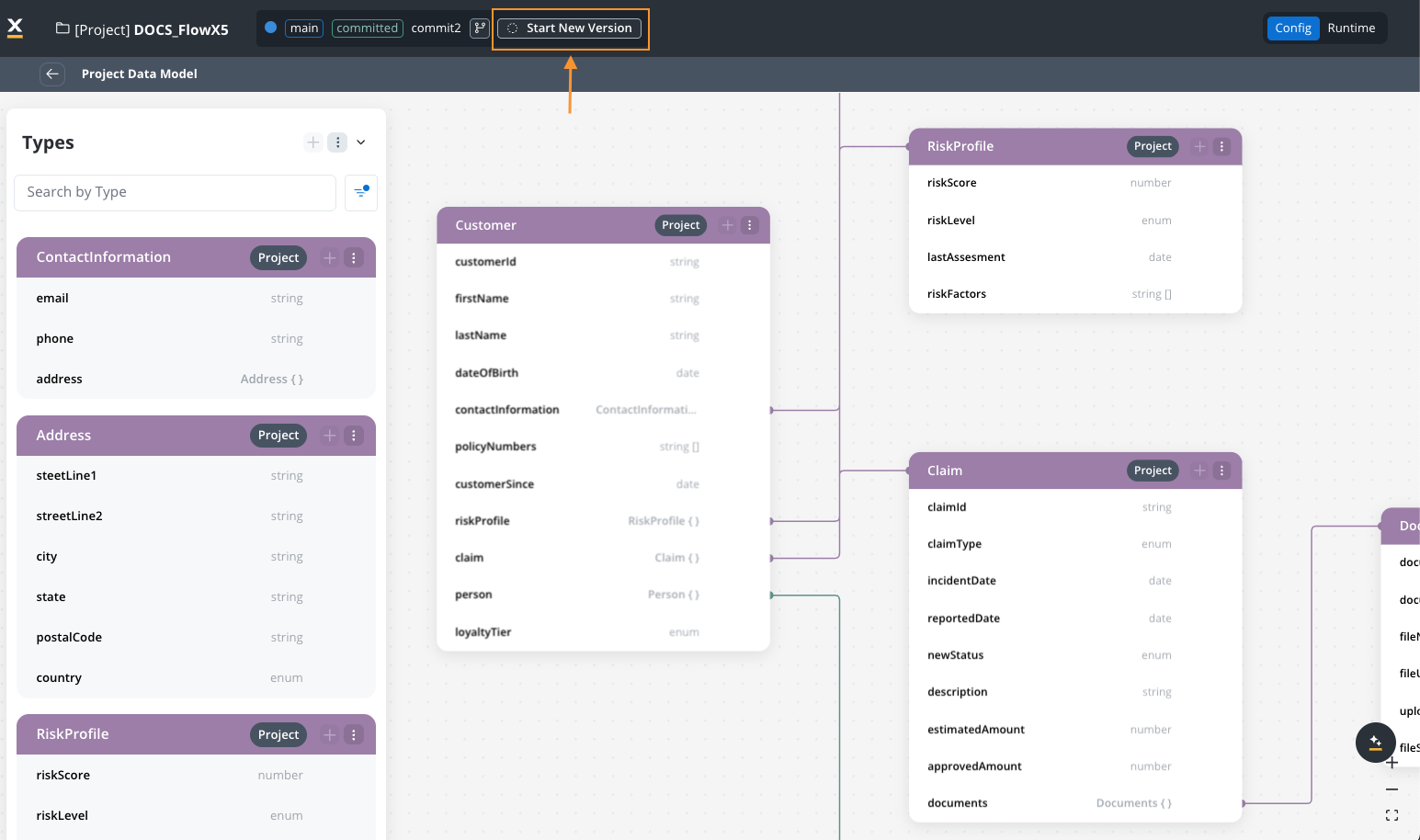
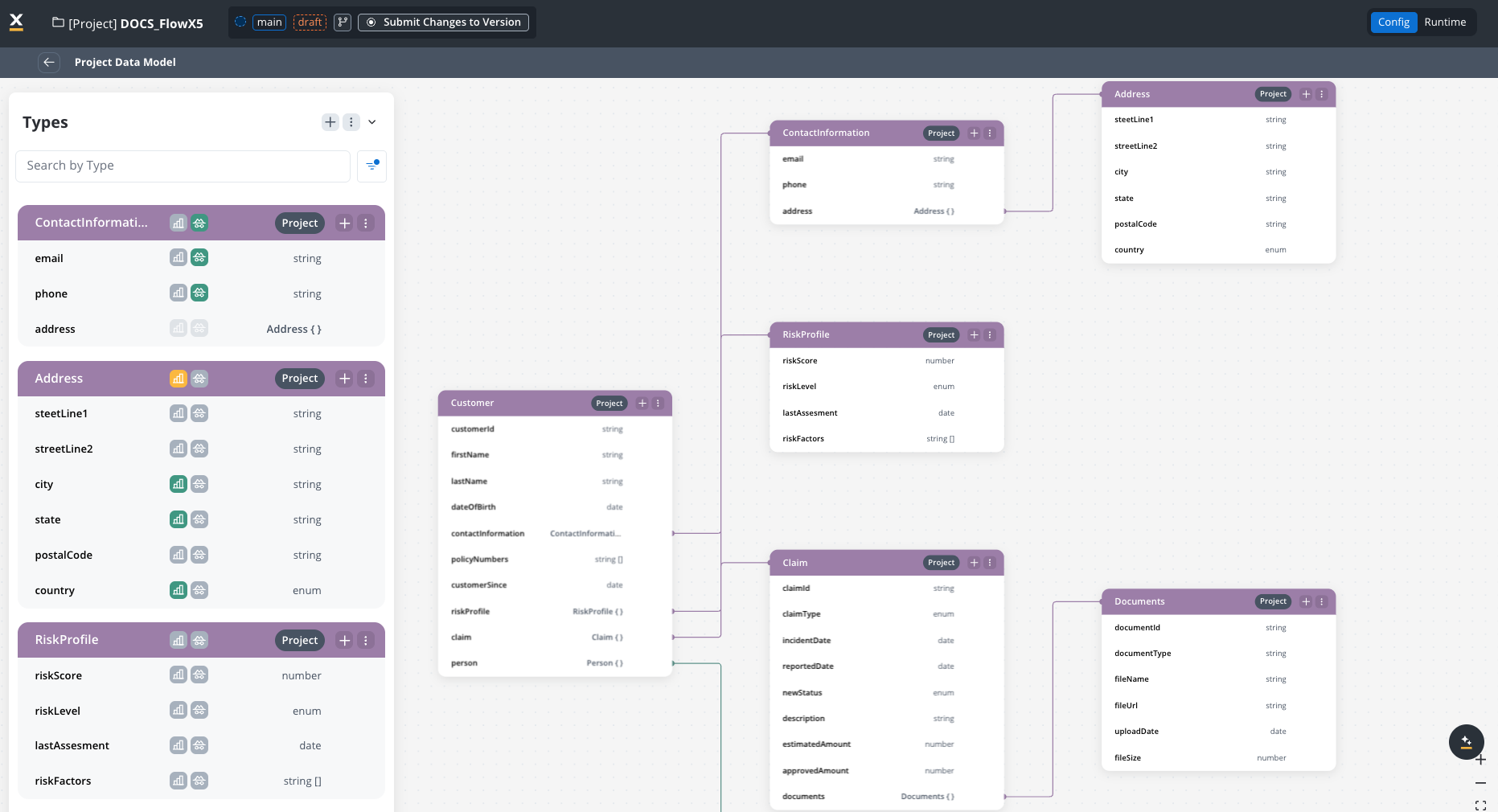
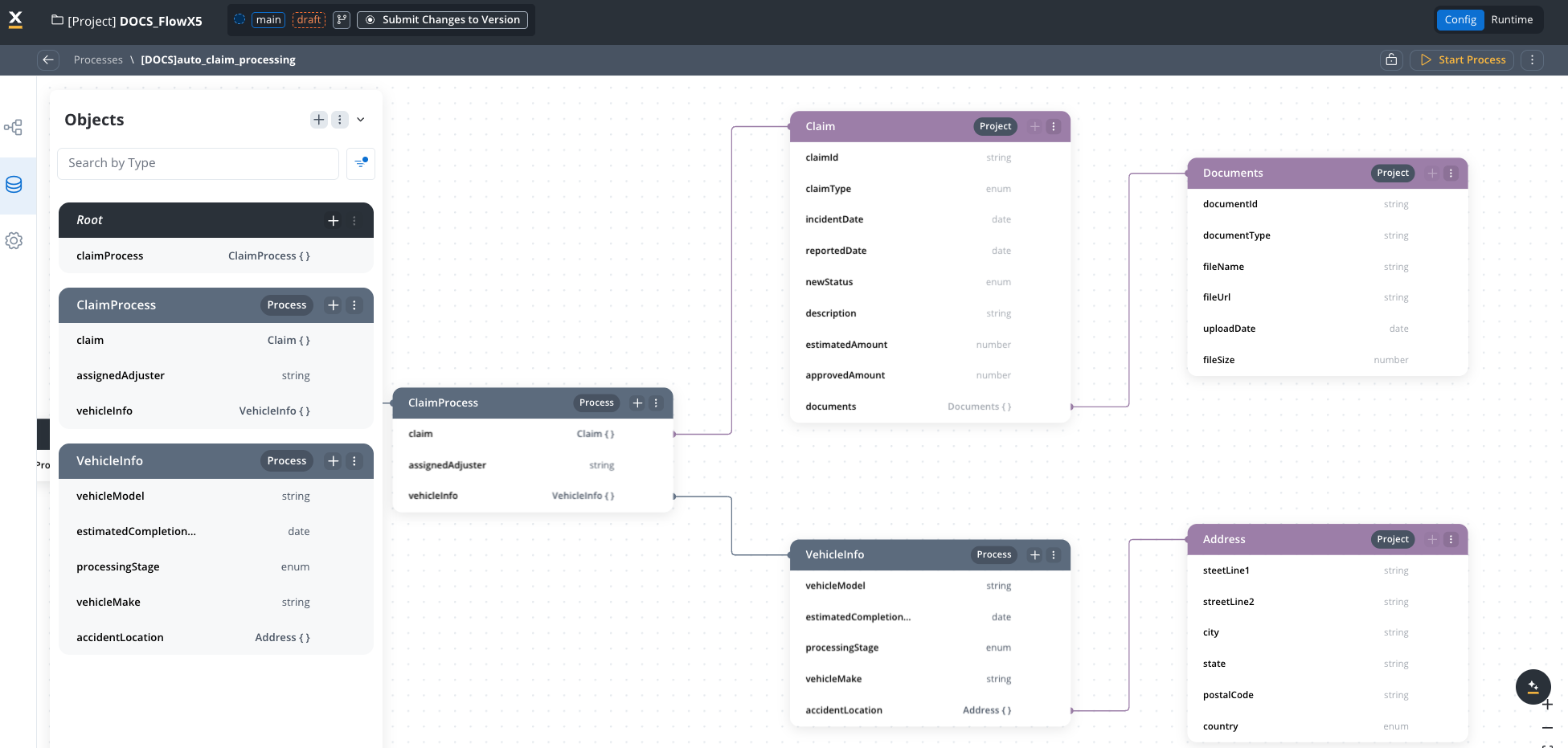
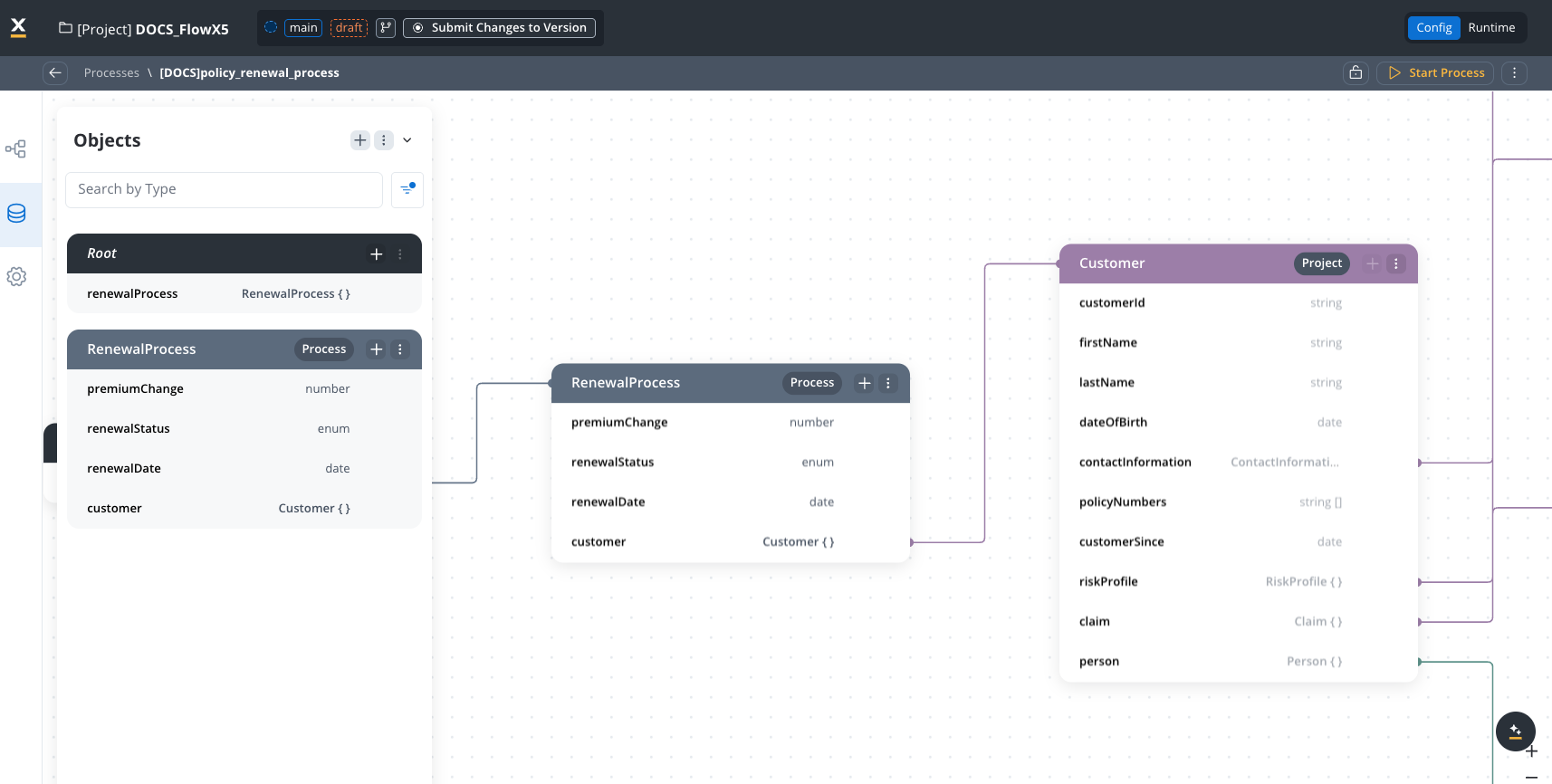
The Project Data Model (PDM) lets you define reusable data types at the project level. These data types propagate to the process data models, ensuring data consistency across your FlowX.AI applications, including in Reusable Functions, Persistence Layer schemas, and other components.With PDM, you create a centralized data structure that serves as the foundation for all processes within your project. This ensures that core data types like Customer, Product, or Document maintain consistent definitions throughout your application.
FlowX.AI supports several data model layers, each serving different purposes:
Data Model Layer
Description
Process Data Model
Can use data types defined in the Project Data Model or Library Data Model.
Project Data Model (PDM)
Defines data types that can be reused across processes and other resources within the project
Library Data Model
Defined within a library. Allows data types to be reused across multiple projects, promoting standardization.
A data type defines the structure of a particular set of data. For example, a Customer data type might contain attributes like name, email, and address.An attribute is an individual property of a data type that specifies its data structure.Data types and attributes can be categorized based on their usage:
Used/Unused: A data type or attribute is considered “used” when it’s incorporated into the structure of another data type.
Referenced/Unreferenced: Refers to data types or attributes from the Project Data Model being used within a Process Data Model or a UI Template.
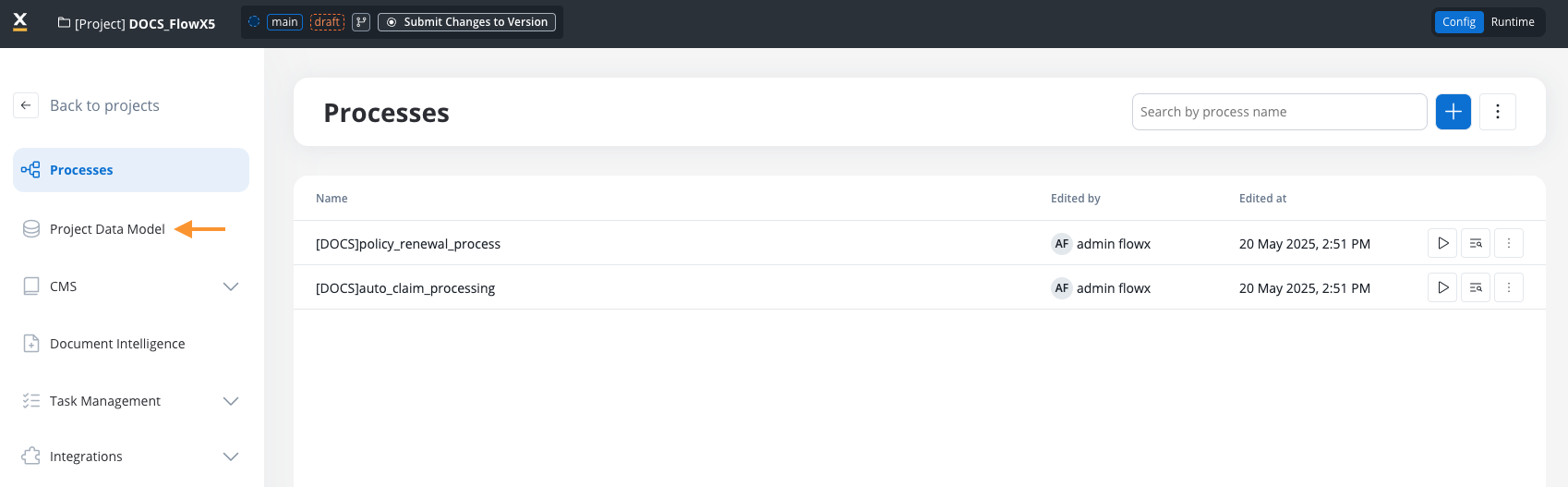
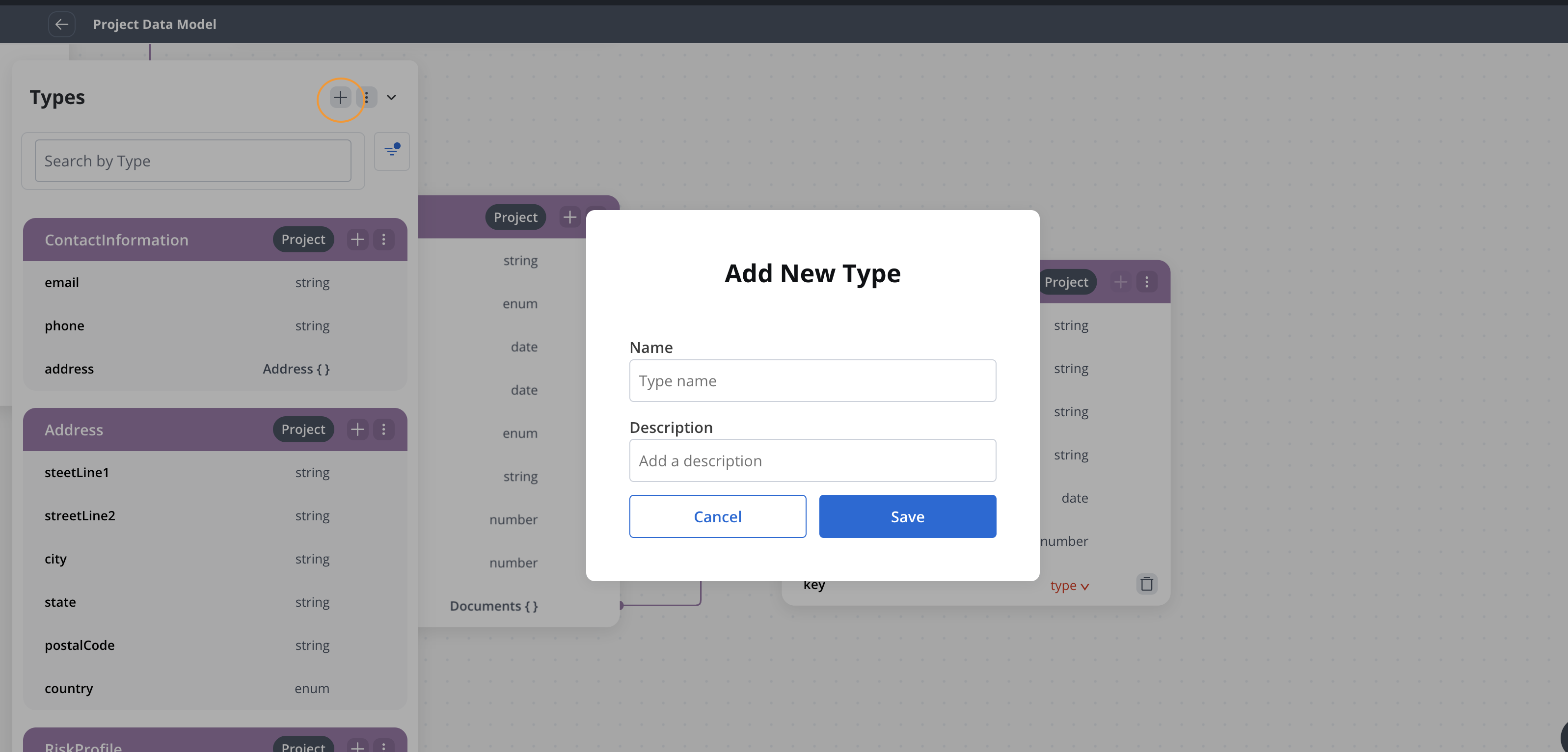
In the Project Data Model view, click + to add a new data type. A confirmation toast notifies you when the data type is created.
2
Name the data type
Provide a name for the data type.
3
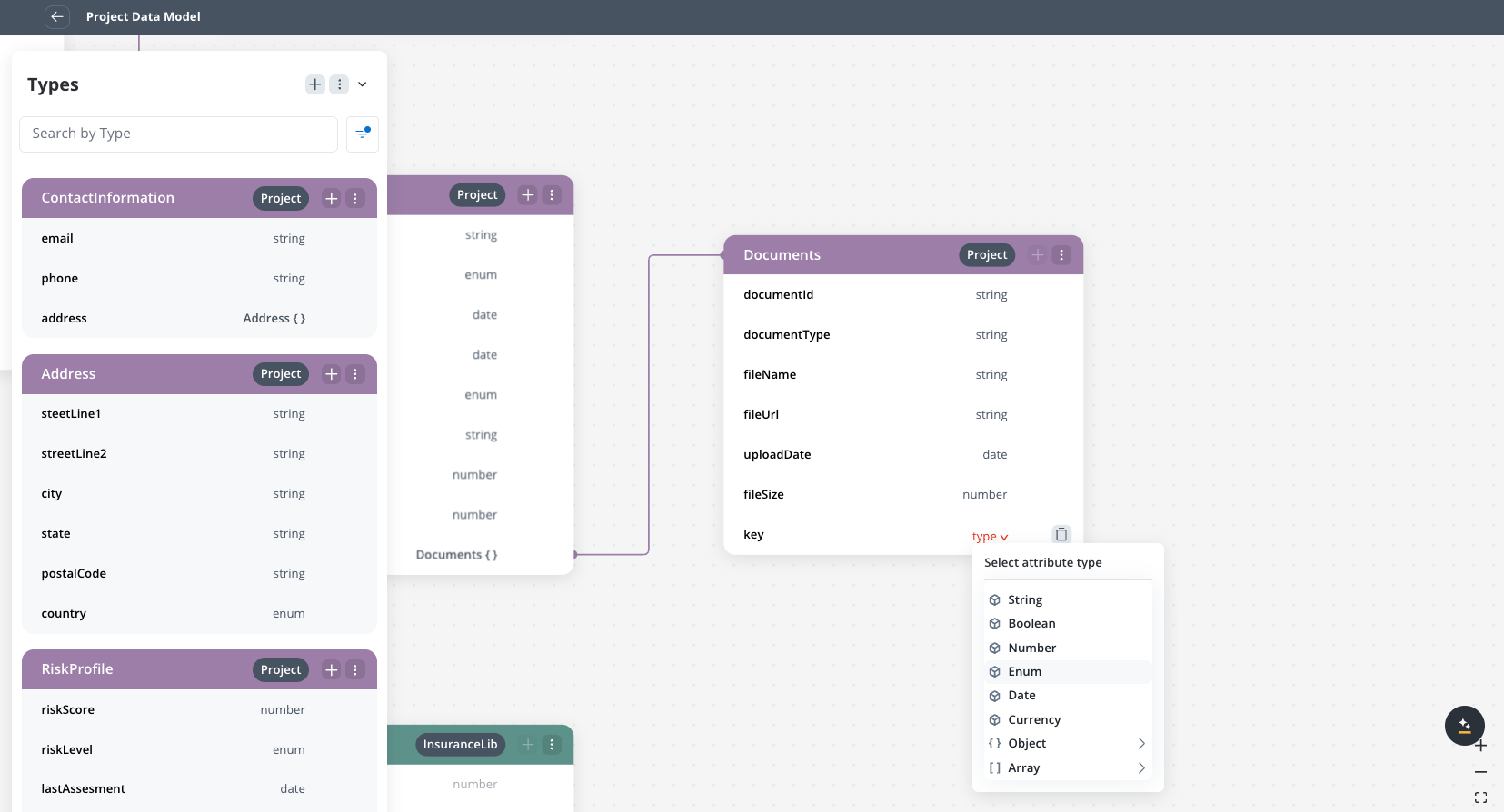
Add attributes
Each data type displays an Add attribute button for creating the first attribute. After the first attribute exists, the button appears only on hover over the data type.When you select an attribute, a settings side panel opens on the right where you can configure:
Attribute name and type (string, number, boolean, object, array, enum)
Validations, sensitive data, and reporting settings
Available on SaaS with FlowX.AI . This feature is live on managed (SaaS) deployments now. Self-hosted deployments will receive it with the next LTS release family.
You can attach validation rules to a data model attribute so that the values held by that attribute follow the constraints you define. Validators are set per attribute from the attribute settings side panel, and they travel with the data model wherever it is used, including process data models, reusable functions, and reusable UI templates.
These validators are defined on the data model attribute itself. They are different from the UI Designer validators, which are configured on individual form components inside a UI template.
Enter the value the validator checks against. Required field and Email Format take no value; every other validator type takes one. For a date attribute, the Min Date and Max Date values are picked from a date picker.
5
Save the validator
Save the validator. It appears in the Validations list for the attribute. Changes to the data model are saved automatically.
You can add at most one validator of each type to an attribute. A type that is already applied no longer appears in the validator list.
The validator types offered depend on the attribute’s type. Required field is available for every type.
Attribute type
Available validators
String
Required field, Min Length, Max Length, Pattern, Email Format
Number
Required field, Min Value, Max Value
Boolean
Required field
Date
Required field, Min Date, Max Date
Enum
Required field
Array
Required field, Min Items, Max Items
Object
Required field
Currency
Required field, Min Amount Value, Max Amount Value, Min Code Length, Max Code Length, Code Pattern (regex)
For a currency attribute, the Min Amount Value and Max Amount Value validators apply to the amount, while Min Code Length, Max Code Length, and Code Pattern (regex) apply to the currency code.
Requires the attribute to hold a value. Takes no value of its own.
Min Length / Max Length
Sets the minimum or maximum number of characters for a string value. For a currency attribute these apply to the currency code and are labeled Min Code Length and Max Code Length. The configured limit is shown as a number of characters, for example 3 characters.
Min Value / Max Value
Sets the lower or upper bound for a numeric value. For a date attribute these are labeled Min Date and Max Date and the bound is entered as a date. For a currency attribute these are labeled Min Amount Value and Max Amount Value and the bound is displayed together with the attribute’s currency code, for example 100 EUR.
Pattern
Checks a string value against a regular expression. For a currency attribute this is labeled Code Pattern (regex) and validates the currency code.
Email Format
Checks that a string value is a valid email address. Takes no value of its own.
Min Items / Max Items
Sets the minimum or maximum number of items for an array attribute.
When you change an attribute’s type, every validator except Required field is removed automatically, because the other validators may no longer apply to the new type. Re-add the validators you need after changing the type.
Each attribute displays a path button next to its name. Click it to view the full key path and copy it to your clipboard. This is useful when referencing keys in business rules, UI component bindings, or integration mappings.
Changes to data types propagate to all processes referencing them. If a process is using this data type, it will automatically get the updated structure.
However, changes do NOT propagate to UI Designer paths, which will need to be adjusted manually.
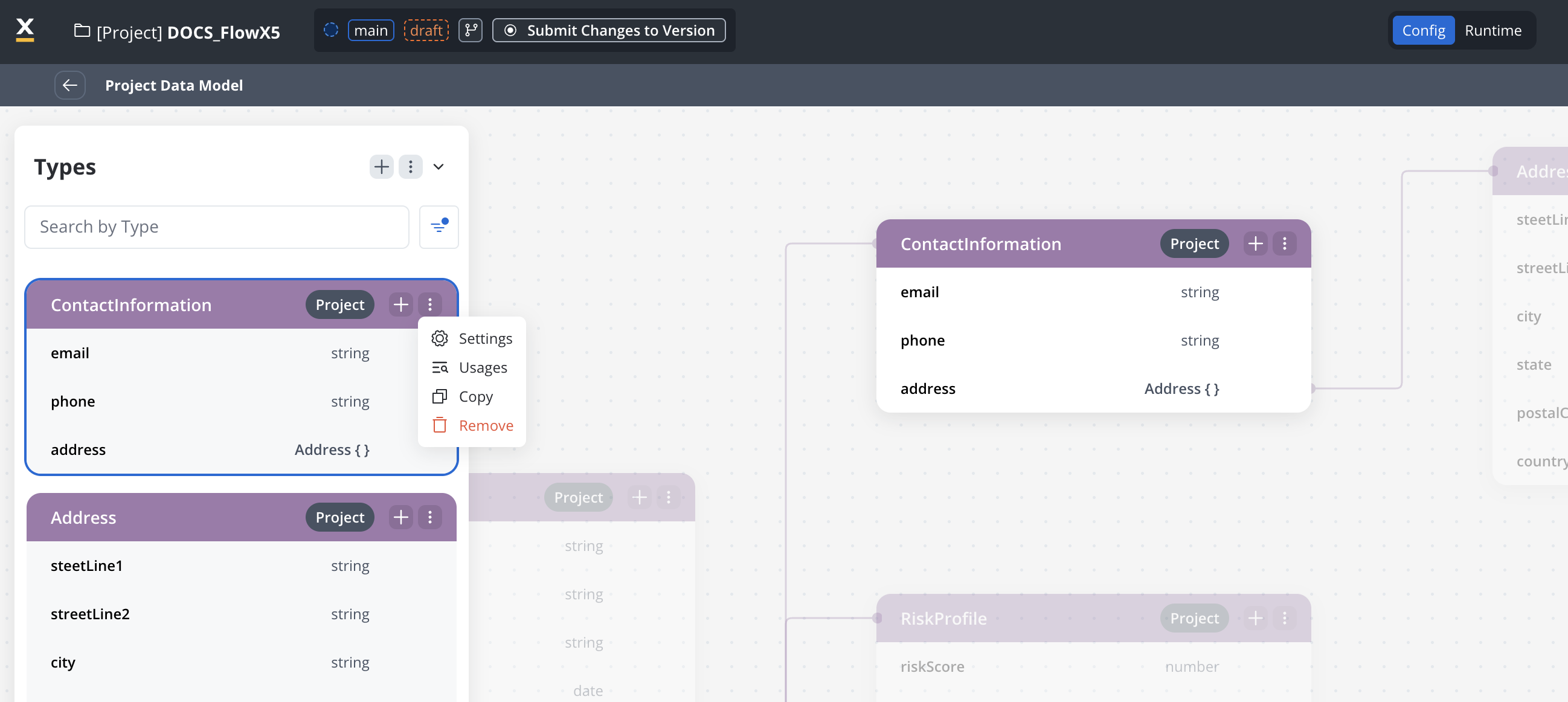
You can either delete an entire object or just a single attribute.
2
Click remove
Click the remove button.
3
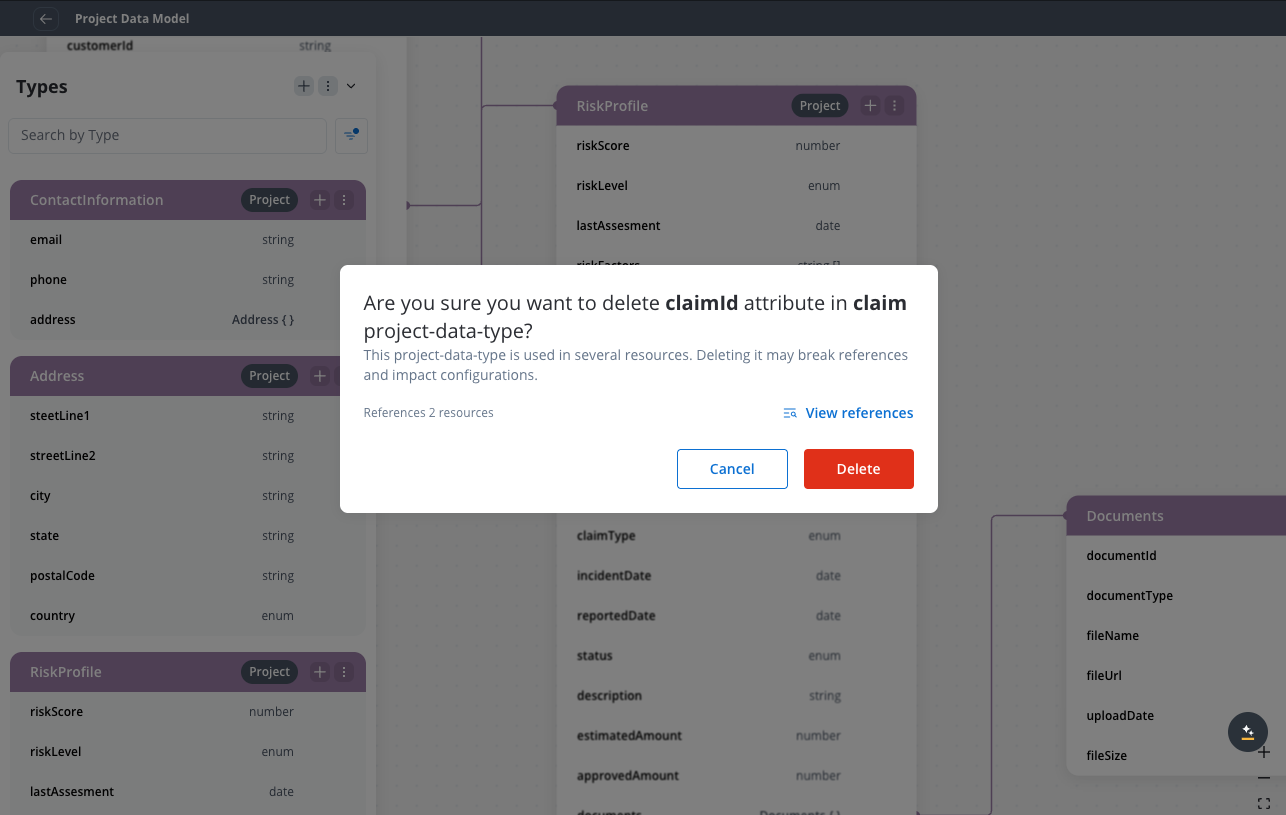
Confirm deletion
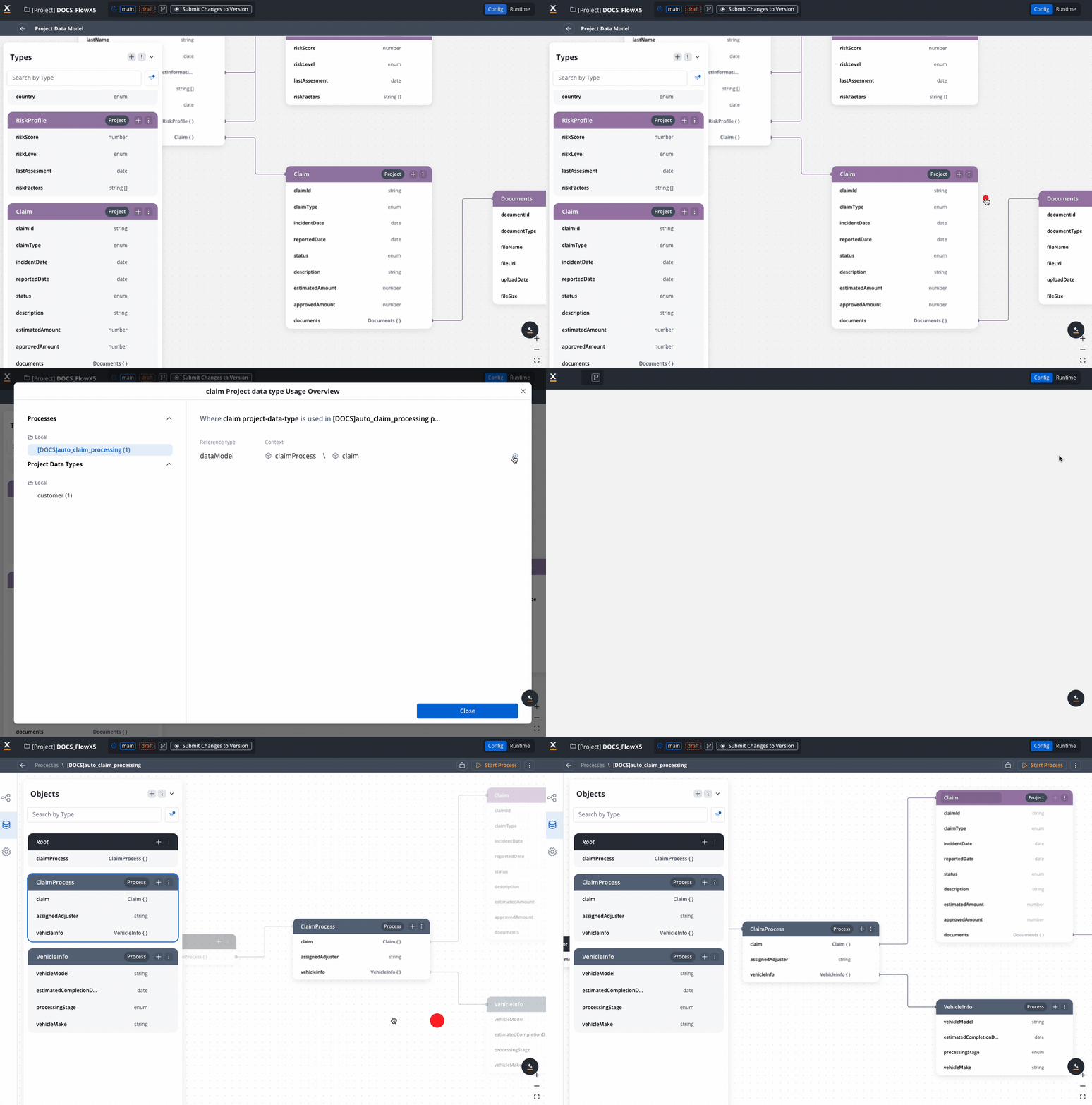
You can delete the data type even if it’s in use. The system will show you a warning message indicating which processes reference the data type.
If the data type is in use by processes, you will receive a warning message showing which processes reference it. You can still proceed with the deletion, but this may affect the referenced processes.
Show Current limitations of the Project Data Model
Custom Data Types from the Project or Library Data Model level cannot be modified at the resource level.
Removing or changing Data Types in use may break resources using it.
Project Data Model becomes read-only after version commitment. This is available for any configuration on commited versions; it applies also for resources data models.
Library builds with breaking changes to Data Types require usage review.
Data Types defined at the Project or Library level can be referenced in the data models of Processes, Reusable Functions, and Reusable UI Templates.