

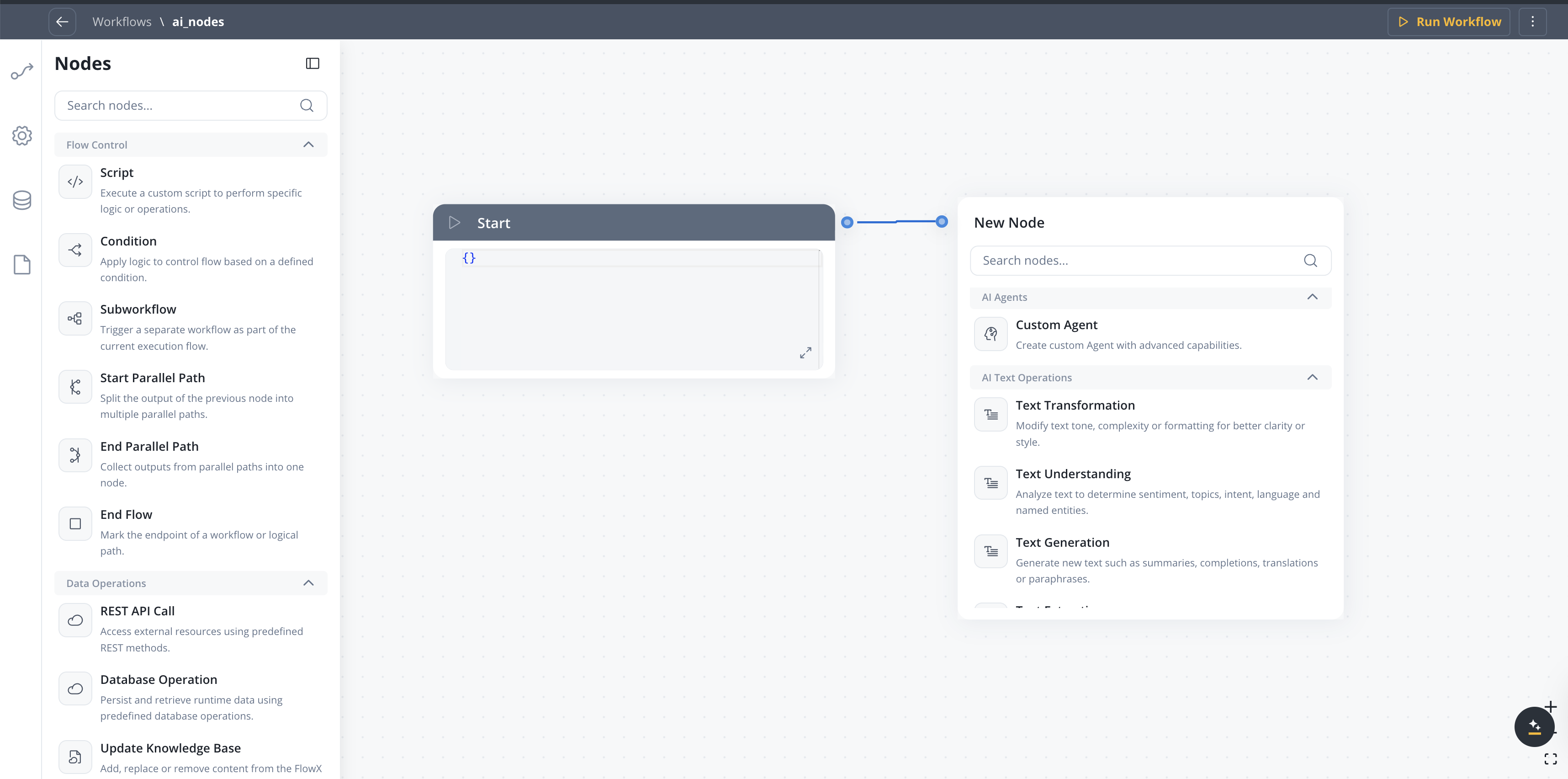
Node categories
Text operations
Process and analyze text content
Document operations
Work with documents and files
Image operations
Analyze visual content
Data operations
Transform and enrich data
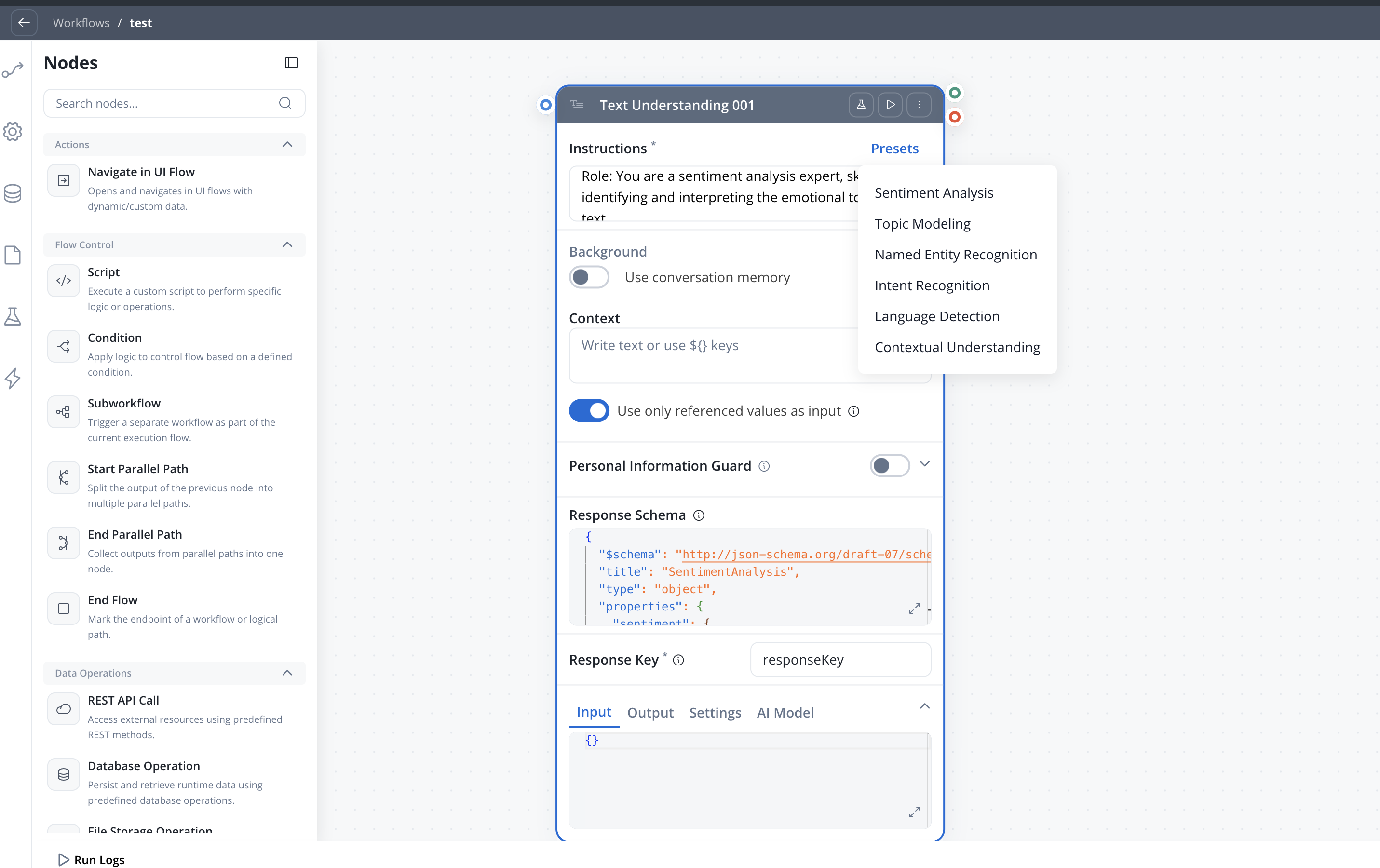
Presets. The text, document, image, and data operation nodes each come with presets — ready-made instruction templates for common tasks. Selecting a preset prefills the node’s Instructions field (and, where useful, an example response schema), which you can then edit. The presets available depend on the node type — for example, Document Understanding offers Content Summarization, Key Information Extraction, Topic Analysis, and Sentiment Analysis, and Document Extraction offers Metadata Generation, Named Entity Recognition, and Table Extraction.
Intent Classification
Classify user messages and automatically route the workflow to the matching branch — combining AI classification and conditional branching in a single node.Configuration options
- User message — Input text to classify (supports
${}references) - Intents — Up to 10 natural language intent descriptions, each becoming an output branch
- Use conversation memory — Include conversation history for context-aware classification
- Include Reason for Selection — Add LLM explanation for the chosen intent
- Fallback branch — Automatic “If No Intent Matches” path
Intent Classification
Learn more about configuring intents, output format, and routing behavior
Context Retrieval
Perform RAG (Retrieval-Augmented Generation) searches against a Knowledge Base and return relevant chunks — without calling an LLM.Configuration options
- Source — Knowledge Base or Memory (Memory only available in chat-driven workflows)
- Knowledge Base — Select which Knowledge Base to query (when source is Knowledge Base)
- User Query — the search query, supports process variable expressions
- Search type — Hybrid (default), Semantic, or Keywords
- Max Number of Chunks — how many chunks to return (1-10)
- Min Relevance Score — minimum relevance threshold (0-100%)
- Metadata Filters — structured filters with typed operators and AND/OR grouping to refine results by chunk metadata
- Use advance metadata filters — toggle for expression-based filtering
- Use Re-rank — re-rank retrieved chunks before returning
Output format
The node outputs an array of retrieved chunks, each containing:Context Retrieval
Learn more about configuring Context Retrieval nodes
Custom Agent
Create custom agents with advanced capabilities powered by Model Context Protocol (MCP) tools, optional Knowledge Base retrieval, and direct chat reply in Chat Driven workflows.Configuration options
- Instructions (mandatory) — The agent’s role, tasks, and expected input/output. Sent as the System message and cached by the LLM between executions, so
${variable}references are not allowed in this field. Limited to 10,000 characters (SaaS · 5.11). - Background → Use conversation memory — Include conversation history in the LLM call (Chat Driven workflows only)
- Background → Knowledge Base — Attach one or more knowledge bases for RAG retrieval; includes Search Type (vector / keyword / hybrid) and Re-rank options. When several knowledge bases are attached, the agent searches all of them, with one retriever per knowledge base (available starting with 5.9.2).
- Background → Enable agentic knowledge base search — When ON (available once a Knowledge Base is selected), the agent runs an agentic retrieval flow instead of a single fixed search, and gains Additional controls → Settings with Max attempts (default 1) and Subqueries per attempt (default 3). Off by default. (SaaS · 5.11)
- Background → Filtering options — Once a Knowledge Base is attached: Manual (default) applies the Metadata Filters you configure; Agentic lets the agent build the metadata filter at runtime from the knowledge base’s metadata keys, hides the Metadata Filters control, and notes
Agent builds the filter at runtime. The per-knowledge-base retrieval block (Search Type / Number of Chunks / Min Relevance Score / Re-rank) also shows whenever a Knowledge Base is attached, independent of both toggles. For per-tenant isolation use Manual — an agent-authored filter is not an access-control mechanism. (SaaS · 5.11) - Background → Context — Free-text field for the per-execution prompt; supports
${variable}references. Sent as the User message and not cached. - Background → Use only referenced values as input — Send only values referenced in the prompt to the LLM; narrows context and reduces token usage
- Tools → MCP Servers — Attach MCP tools the agent can call
- Tools → Add tool → Built-in Tools — Select tool categories to give the agent ready-made helper tools: Math tools, List tools, Date tools, Text tools, and Web search. Each row lists the tools it enables; nothing is on by default. (SaaS · 5.12)
- Before 5.12, built-in tools were two toggles: Use Web Search Tool and Use built-in tools (calculator, compare, sort, filter; SaaS · 5.10). A node last saved with those toggles keeps working; they map to the Web search, Math tools, and List tools categories.
- Tools → Workflow tools — Attach FlowX workflows the agent can call as tools. For each workflow, add a When should the agent use this workflow? hint (max 2,000 characters) that tells the agent what the workflow does. The workflow’s input parameters become the tool’s arguments; a workflow with no input parameters is not eligible. Up to 10 workflow tools per agent. (SaaS · 5.11)
- Tools → Functions — Attach reusable functions the agent can call as tools. A function needs typed input and output parameters to be eligible. (SaaS · 5.12)
- Personal Information Guard — Toggle PII redaction on the node’s input and/or output (see Personal Information Guard)
- Response → Send as Chat Reply — In Chat Driven workflows, deliver the response directly to the Chat component as Markdown
- Response → Show Reasoning — When ON, the agent explains how it reached its answer. The chat reply is unchanged; the reasoning is added to the node’s output and run logs. (SaaS · 5.11)
- Response → Include Task for Prompt Suggestions — In Chat Driven workflows, generate AI follow-up prompts shown in the Chat component after the response
- Response Key — Key where the node output is stored in the workflow data
- Response Schema — Expected JSON structure of the LLM response (hidden when Send as Chat Reply is ON). Supports
${variable}placeholders resolved at runtime against workflow data, with substituted values coerced to the schema-declared types (SaaS · 5.10).
Web Search. With the Web search category selected, the agent can look up up-to-date information from the public web and use it in its response. There are no extra settings to configure — the agent decides when to search based on its instructions and the user’s request. Nothing is selected by default.
Generate prompt and response schema. Open the AI Developer assistant from the Custom Agent node header, describe what you want the node to do, and it generates the Instructions prompt, the Context prompt, and — with Also generate response schema enabled — the Response Schema, then applies them to the node. Use it to create a configuration from a description, or to refine an existing prompt or schema. (SaaS · 5.11)
Custom Agent in Chat Driven workflows
Full reference for Use conversation memory, Send as Chat Reply, Prompt Suggestions, and other Chat Driven specifics
Speech to Text
Transcribe audio to text within integration workflows.Configuration options
- File Source — Document Plugin, S3, or Chat Input (chat-driven workflows)
- File Path — Path to the audio file (supports
${}references); becomes a test-file dropdown when Use Test File is on - Use Test File — Upload a sample audio file for development testing
- Response Key — Key under which the transcript and metadata are stored
Speech to Text
Learn more about configuring transcription and chat voice integration
Understanding nodes
Understanding nodes analyze content to extract meaning and intent.Configuration options
- Classification labels - Define categories for classification
- Confidence threshold - Minimum score for results
- Multi-label - Allow multiple classifications per input
AI Document Operations
Process documents to extract data, generate reports, or understand content.Extract Data from File
Learn more about configuring extraction strategies, image extraction, and signature detection
Configuration options
- Document type - Specify expected document format
- Schema definition - Define expected output structure
- Field mapping - Map extracted fields to data model
- Confidence threshold - Minimum score for extractions
Document utility nodes
Two nodes in the same palette handle documents without calling a model. They are not AI nodes: they run deterministically, cost no tokens, and take no instructions or response schema.Use Tabular Data Extraction for spreadsheets only. A table inside a PDF or a scanned payslip is not tabular data in this sense - reach for Document Extraction or Extract Data from File instead. On SaaS (5.13), Data Parse also accepts XML and JSON files.
Tabular Data Extraction configuration
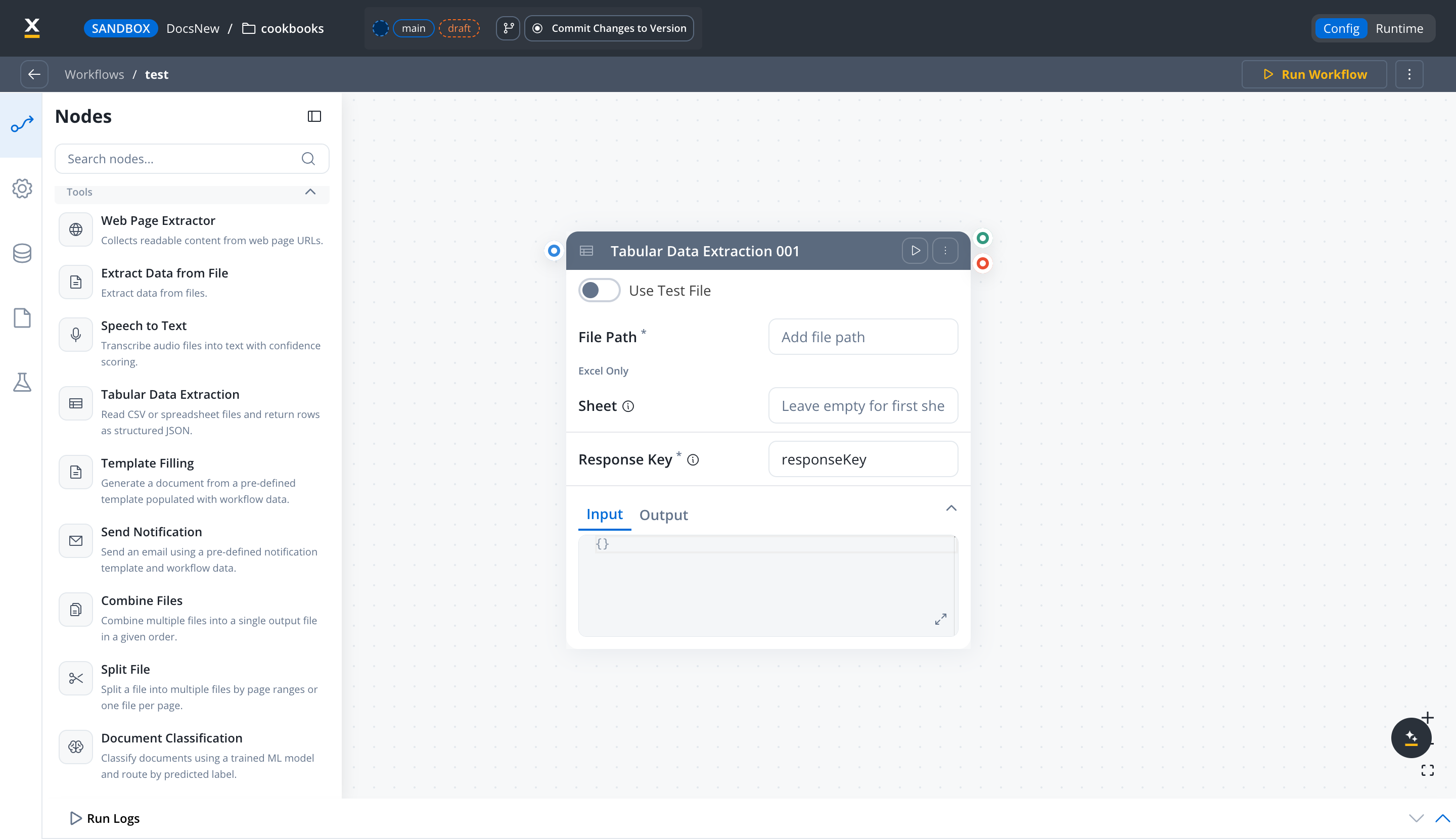
Data Parse node
SaaS · 5.13Available on SaaS with FlowX.AI 5.13. This feature is live on managed (SaaS) deployments now. Self-hosted deployments will receive it with the next LTS release family.
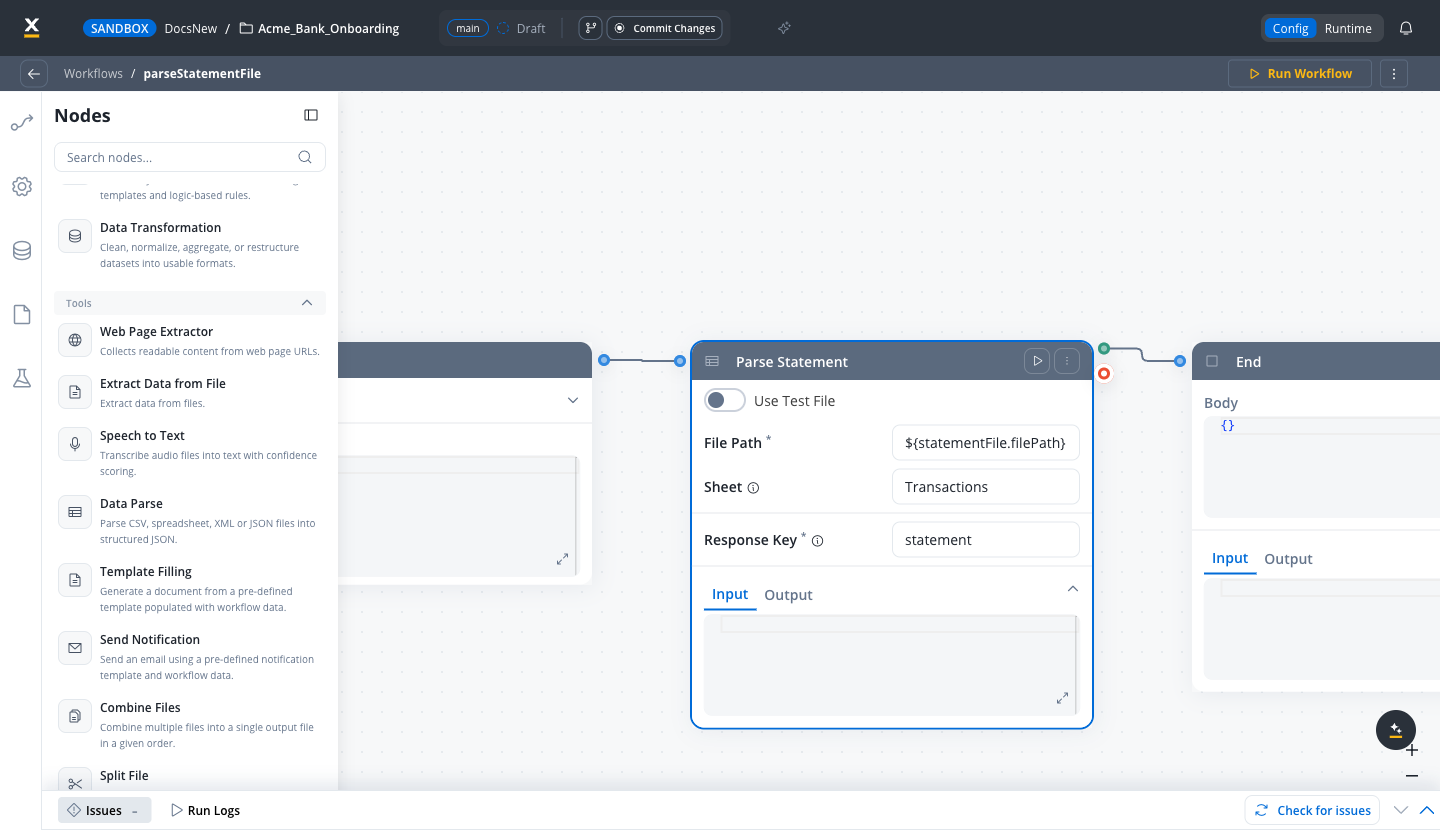
<responseKey>.data: rows for spreadsheets, an object tree for XML and JSON. Existing nodes keep working unchanged.
For the XML conversion rules and size limits, see Data Parse: XML and JSON support.
Template Filling configuration
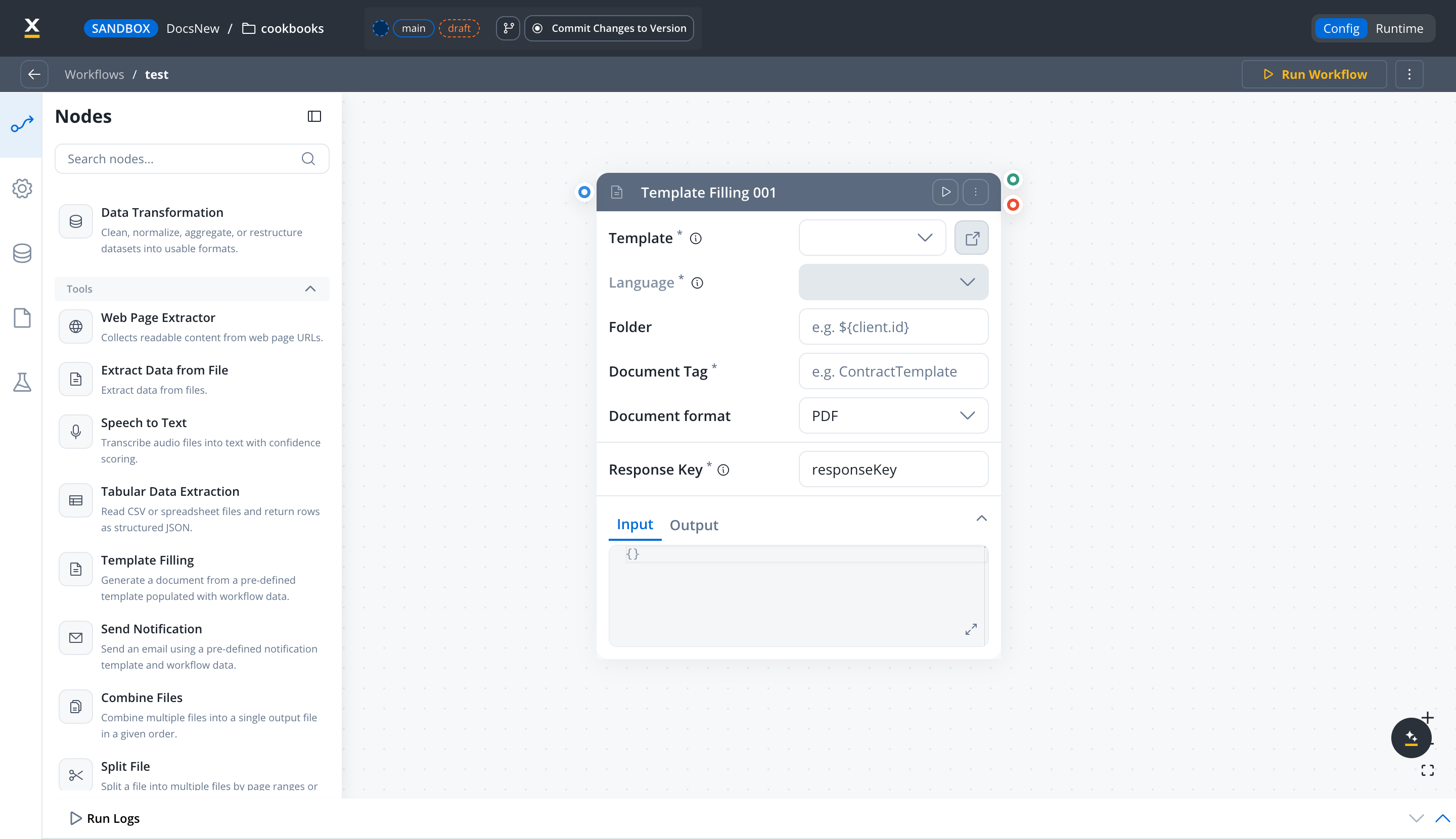
Template, Language, and Document Tag are mandatory - the node cannot render without them.
AI Image Operations
Analyze visual content to generate captions, extract details, or identify objects.Configuration options
- Detection confidence - Minimum threshold for detections
- Region of interest - Focus on specific image areas
- Output format - Structured data or annotations
Structured-output validation and run diagnostics
Available starting with FlowX.AI 5.9.2
What happens when an AI node can’t reach its AI service?
SaaS · 6.0Available on SaaS with FlowX.AI 6.0. This feature is live on managed (SaaS) deployments now. Self-hosted deployments will receive it with the next LTS release family.
- the AI service is unreachable
- the LLM provider is unavailable
- the LLM provider rate-limits the request
- the connection to the LLM provider fails
How do I change the retry settings?
Open the node’s Settings tab and toggle Allow Retry ON. Then set:
Fields you leave empty fall back to the defaults: 10 retries, 30 seconds apart, fixed wait. With Exponential on, the wait before retry n is Interval × Backoff coefficientn-1, capped at Max interval. For example, an interval of
2000 and a coefficient of 2 waits 2, 4, 8, then 16 seconds.
Your own settings retry more broadly than the default: the node also retries after a timeout and after any failed response, not only when the service is unreachable. Toggle Allow Retry OFF to return the node to the default retry.
What happens after the last retry?
If the node has a failure exit connected, the workflow continues down that path. Otherwise the workflow run fails with the error from the AI service.A single-node run from the Designer doesn’t retry an unreachable service. In the workflow run logs, each AI node shows one entry with its last attempt, not one entry per retry.
Combining nodes
Nodes can be connected in workflows to create complex processing pipelines:Best practices
Start simple
Start simple
Begin with a single node and add complexity incrementally. Test each addition before moving on.
Use validation nodes
Use validation nodes
Add validation steps after extraction to ensure data quality before processing continues.
Handle errors
Handle errors
Include fallback paths for when nodes fail or return low-confidence results.
Monitor performance
Monitor performance
Track execution times and accuracy metrics to identify bottlenecks and improvement opportunities.
Related resources
Agent Builder overview
Get started with Agent Builder
Use cases
See real-world examples
Chat-driven workflows
Multi-turn chat with Custom Agent node changes for chat replies and memory