

Available on SaaS with FlowX.AI 5.13. This feature is live on managed (SaaS) deployments now. Self-hosted deployments will receive it with the next LTS release family.
How it works
1
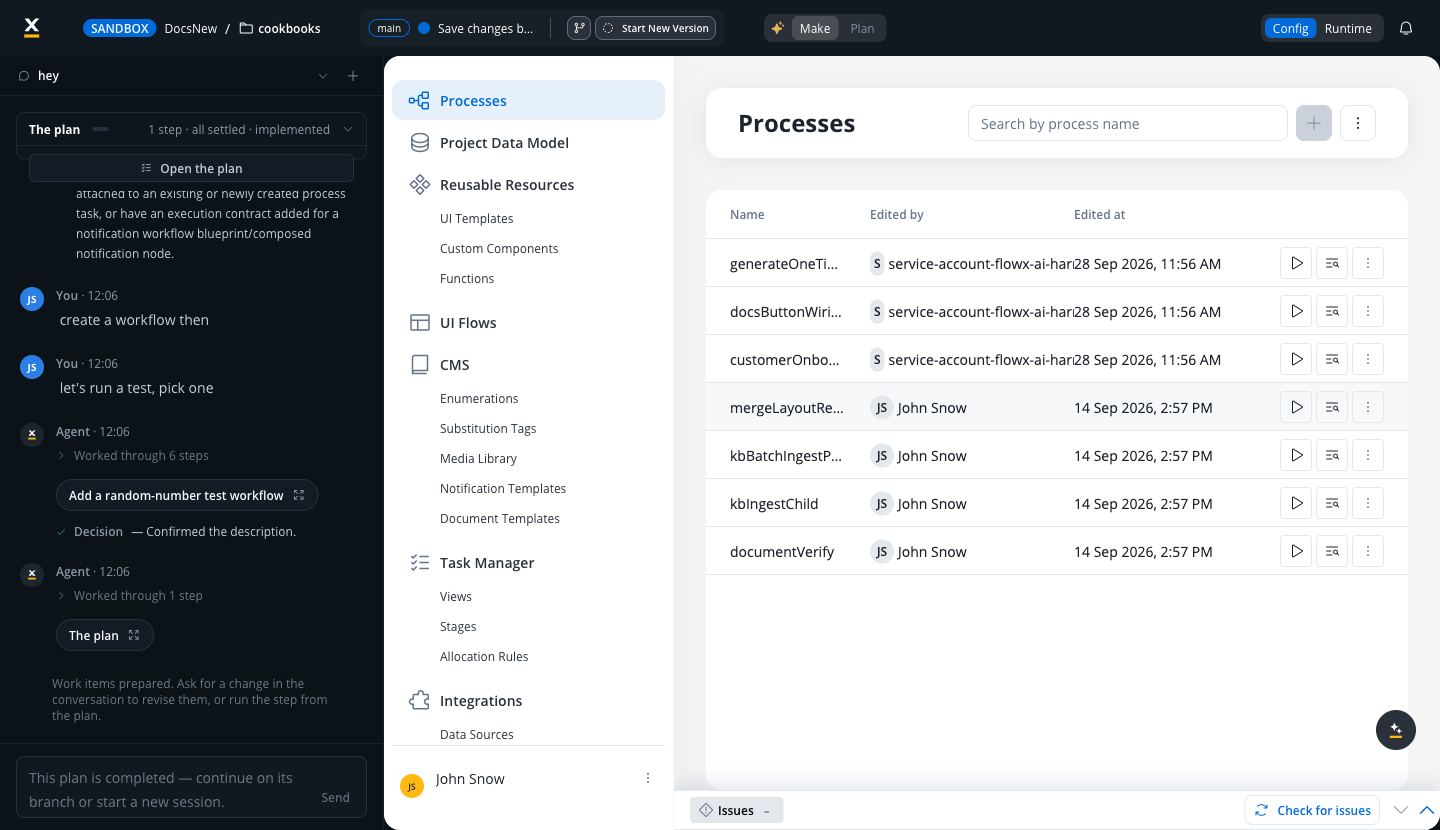
Open the agent rail
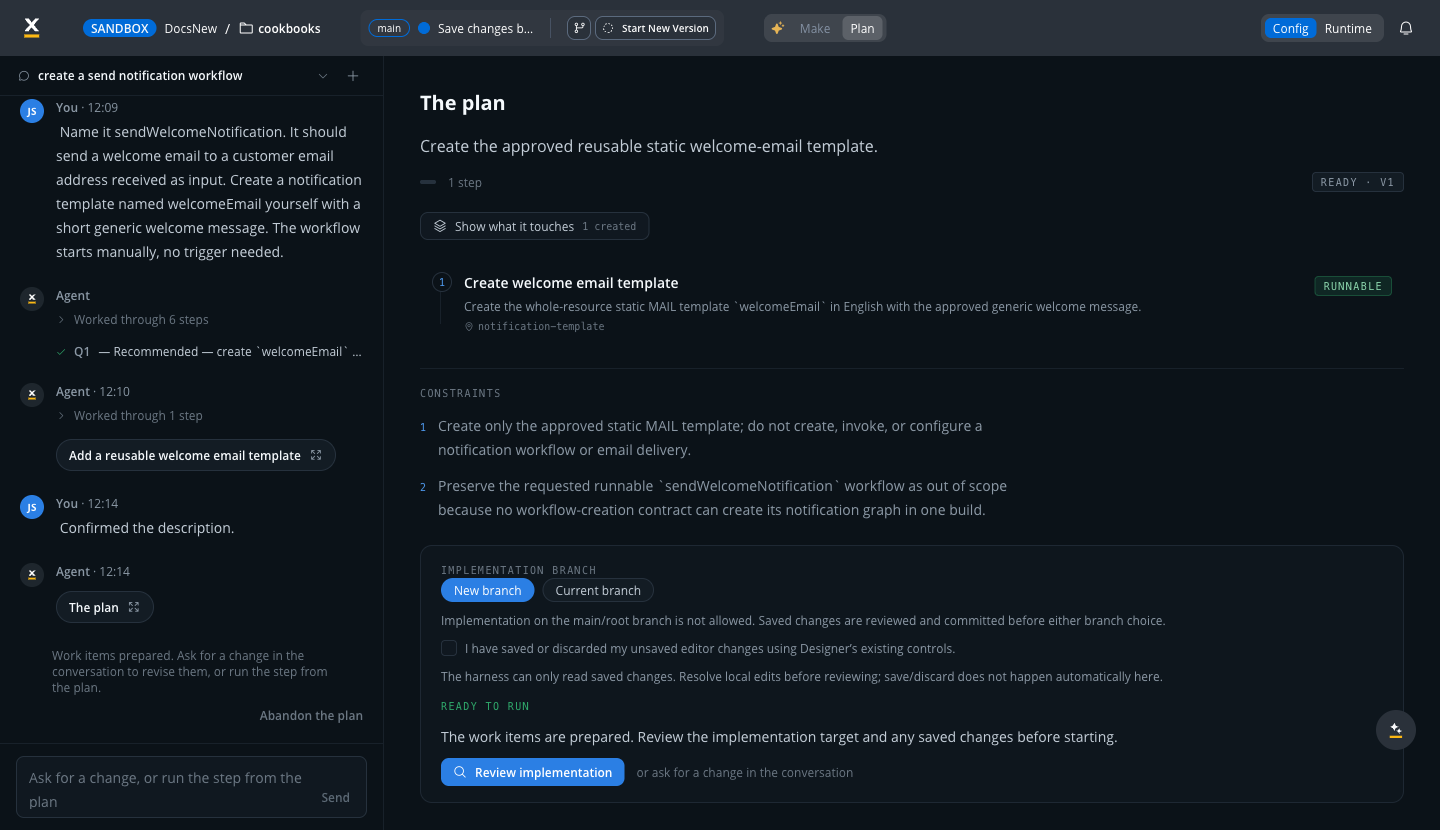
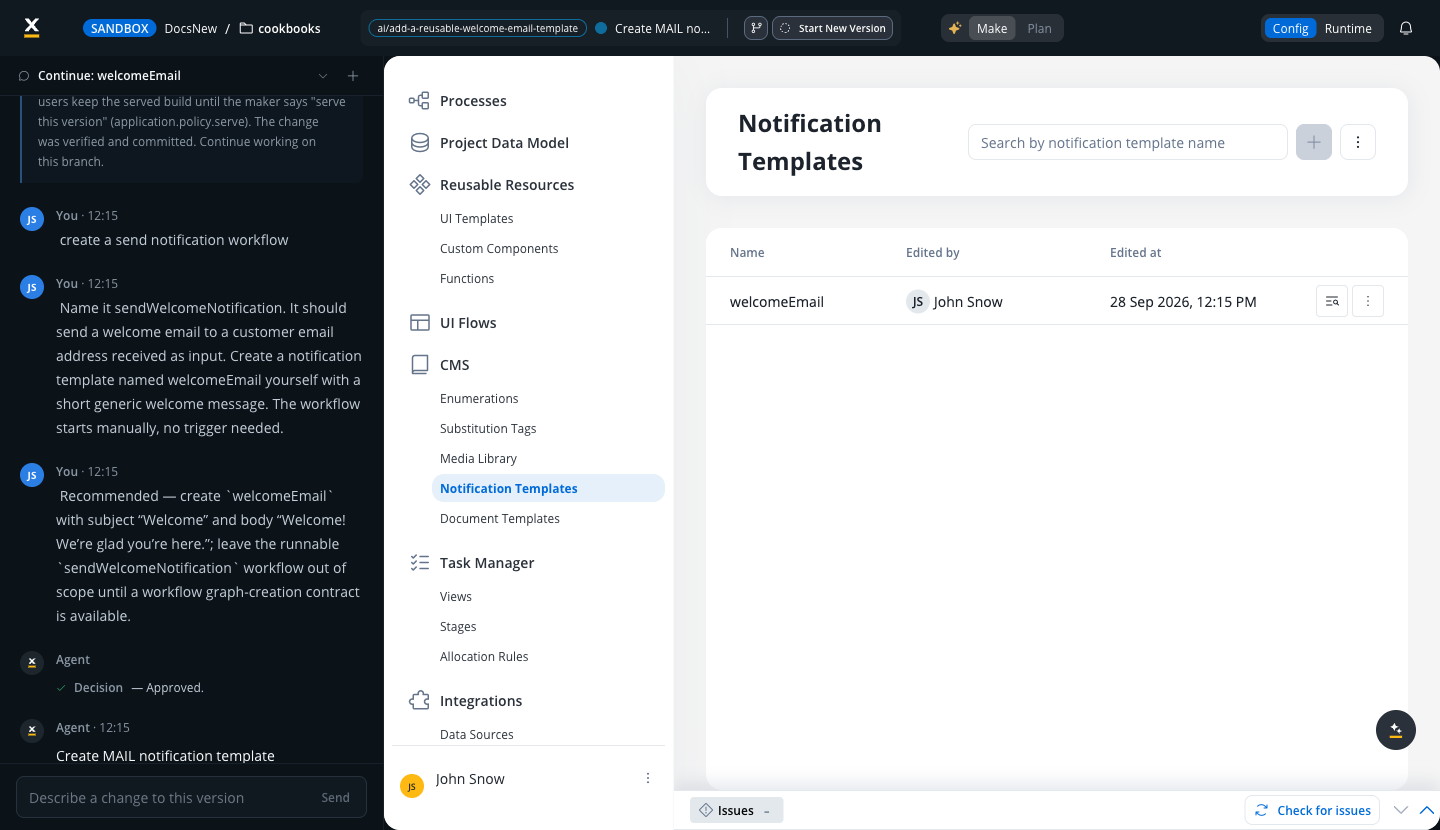
The agent lives in a chat rail on the left side of the Designer, inside your app. Each conversation is a separate thread, and you can start a new thread for a new piece of work.
2
Describe the change
Write what you want to build or modify in plain language. The agent first surveys the app so it works with your real resources and names rather than guesses. While it works, the page is locked and shows its progress; Cancel stops the run at any point.
3
Answer its questions
When a material decision is open, the agent asks instead of guessing. Questions come with selectable options, including a recommended one, and you can always answer in free text.
4
Confirm the plan
The agent presents a one-pager: why the change, what changes, and the decisions it settled on. Confirm the description turns it into a runnable plan, listed step by step with its constraints and the resources each step touches.
5
Review before running
Before anything executes, you pick where the implementation runs: a new branch or an existing one. Implementation on the main branch is not allowed. The review pane then shows every operation the plan will perform, with its full content, before you select Start implementation.
6
Review the result
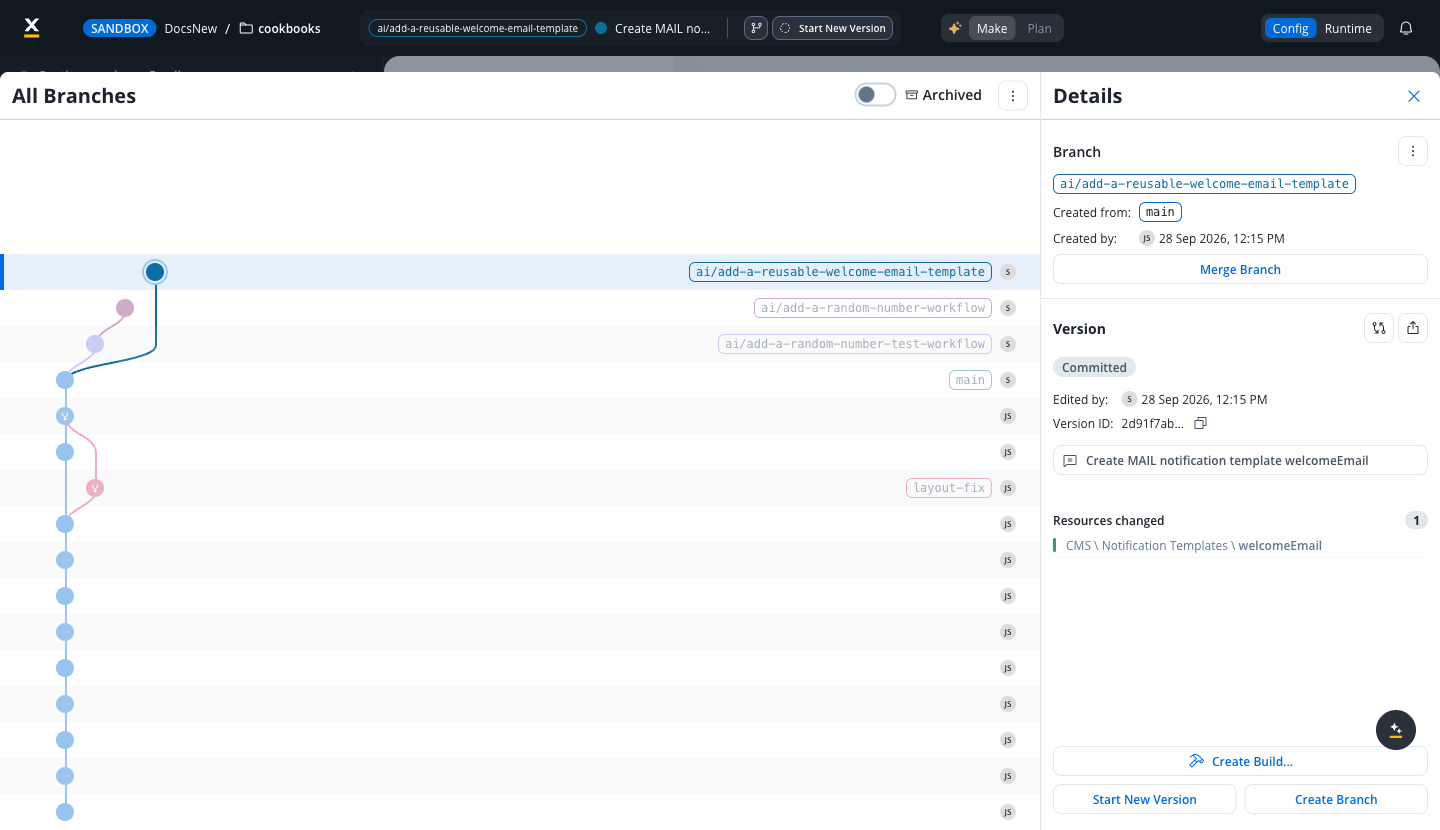
The agent carries out the plan on its own branch, verifies the change, and commits it there. You review the committed version and its changed resources in the branch view, and merge the branch when you are satisfied. Your users are untouched throughout: the app keeps serving the served build until you serve a new version.
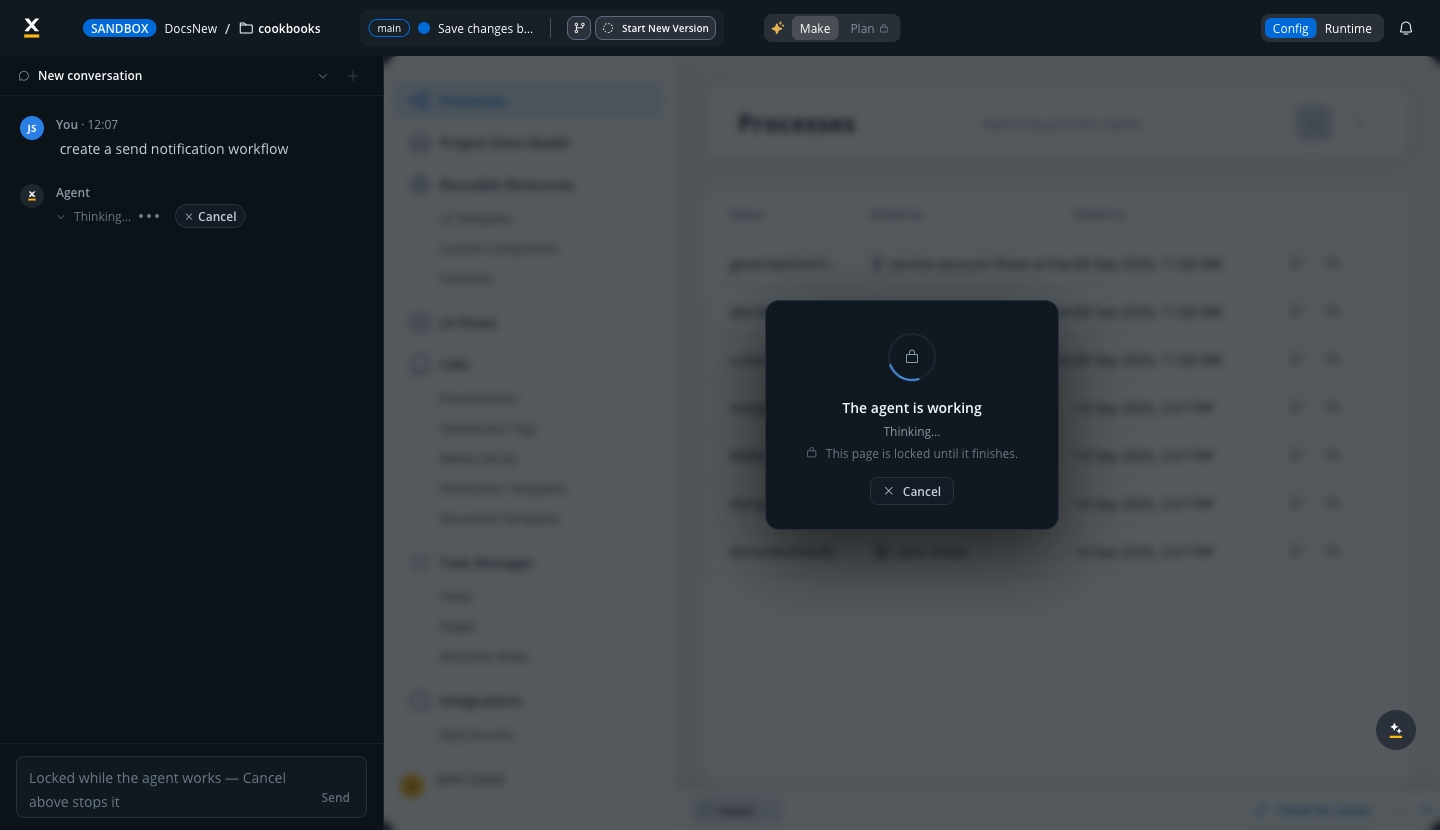
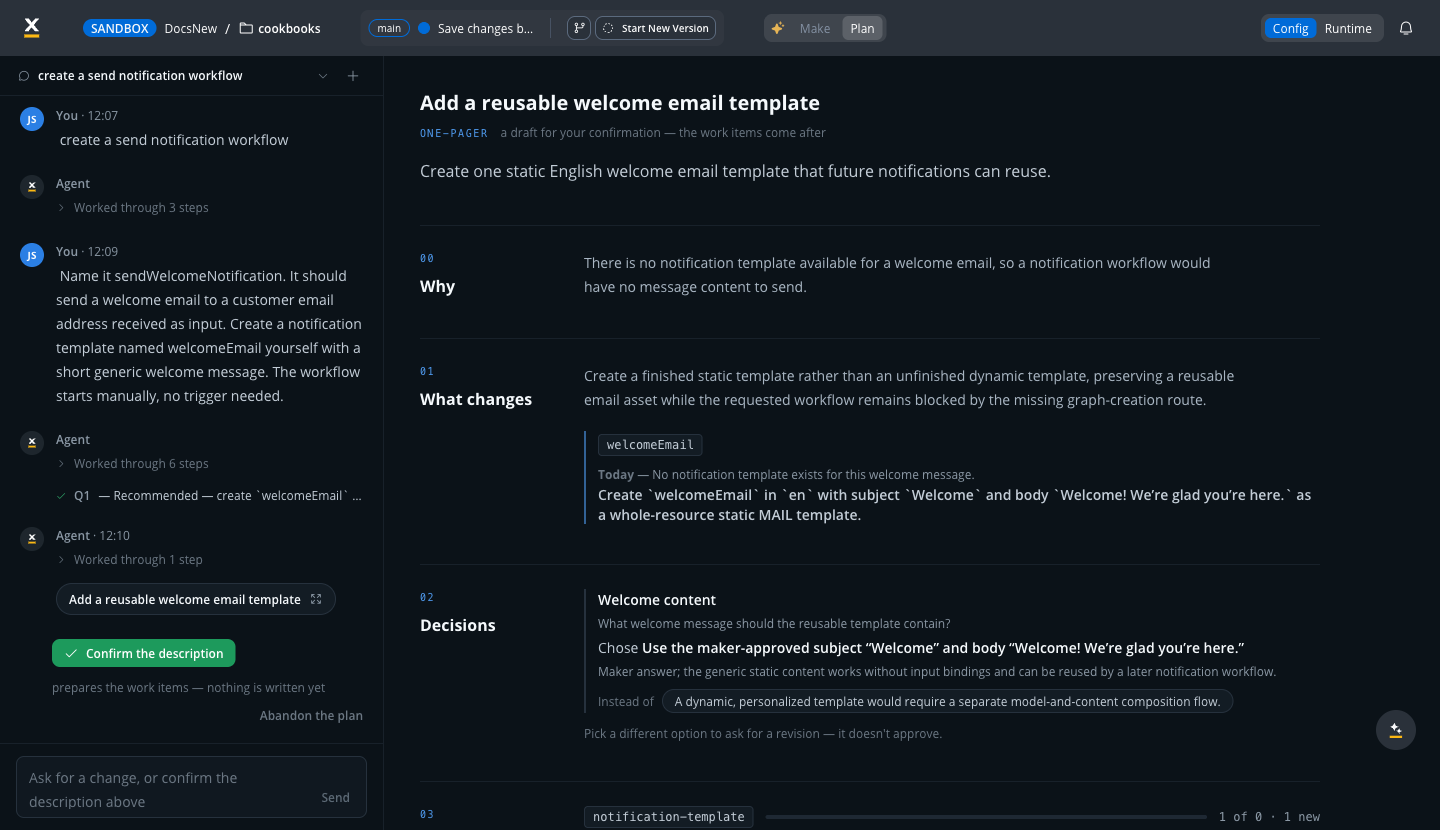
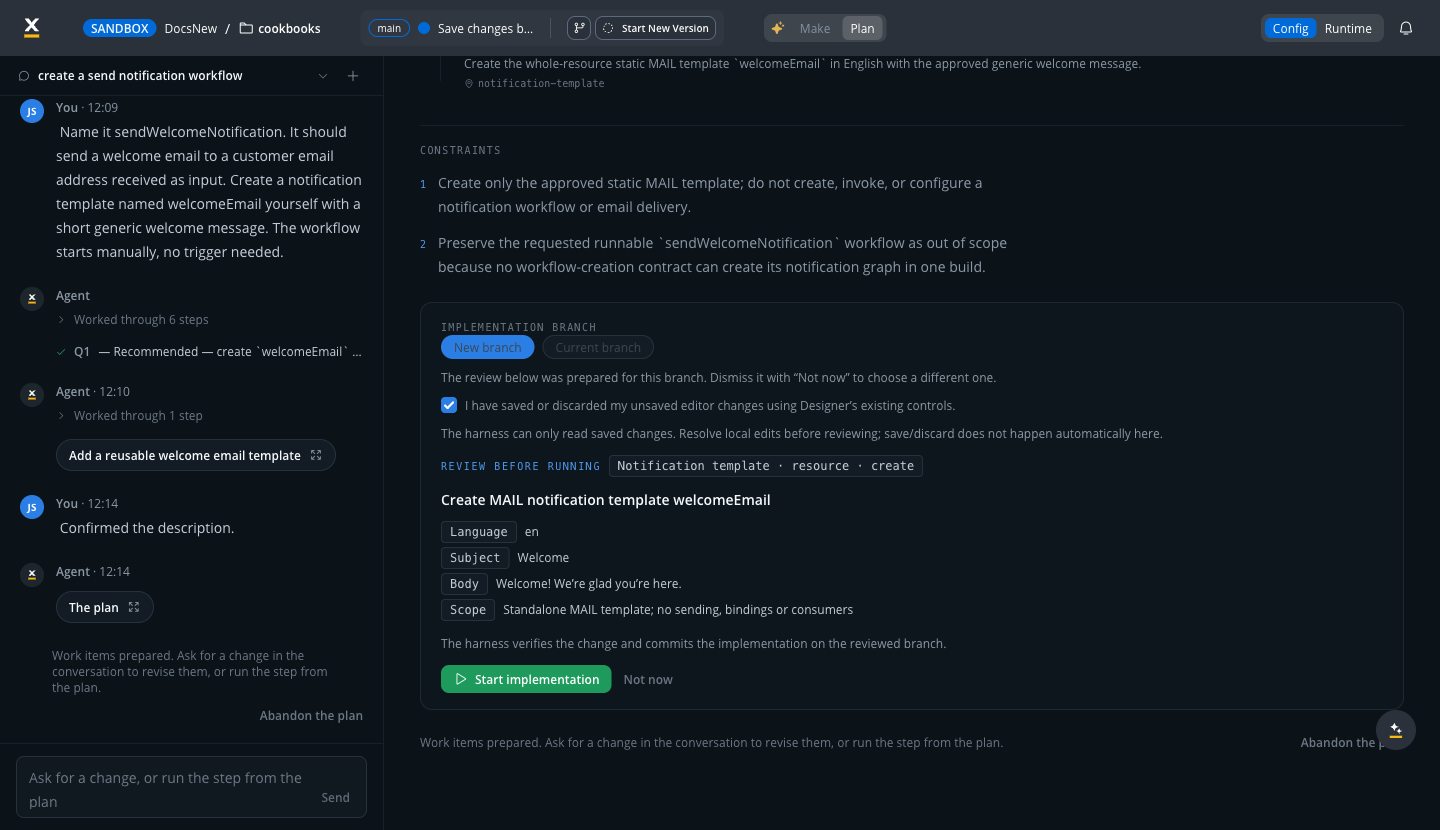
Make and Plan views
The Make | Plan toggle at the top of the Designer switches the main area between your app content and the agent’s plan panel.- Make shows the app itself: your processes, UI flows, templates, and the rest of the Designer, including any changes the agent has made.
- Plan shows the current plan: the one-pager for confirmation, then the runnable plan with its steps, constraints, and what each step touches. Plan unlocks once the agent has drafted a plan in the current session.

What the agent can see and change
The agent works only with design-time resources, the things you author in the Designer. It can survey every resource type in your app, including processes, UI flows and views, workflows, systems, project data types, reusable functions and UI templates, enumerations, themes, media files, and document and notification templates. Changes it can make include:- Creating and editing processes: adding and renaming nodes, wiring sequences and gateway conditions, attaching business rules, notification steps, and workflow calls.
- Creating UI flows and binding components to your data model.
- Creating and editing project data types and their attributes.
- Creating workflows, including conversational workflows that back chat-based UI flows.
The agent never touches runtime data. Process instances, UI flow sessions, and other runtime records are refused by design: they are your users’ in-flight journeys, not app definitions.
Safety and review
- Never on your main branch. Implementation runs on a dedicated branch the agent creates for the plan, or on another branch you choose. Implementation on the main branch is not allowed, and merging a branch stays a human decision.
- You approve before anything runs. The agent executes a plan only after you confirm its one-pager, review the exact operations it will perform, and select Start implementation.
- Verified before committed. The agent validates its change and commits it on its own branch, where you review the version and its changed resources like any teammate’s work.
- Runtime stays untouched. The app’s launch link and its users keep the served build until you serve a new version. Runtime data, such as process instances and UI flow sessions, is refused by design.
- Guarded destructive operations. Deleting a process, for example, is refused while the process has running instances, is referenced by a subprocess or navigation, has start timers or triggers, or is still in use. The agent does not clean these up to force a delete through.
- Cancel at any time. Stopping a run ends it cleanly, and the session can be resumed later.
- Exact wording is preserved. Names, conditions, and scripts you give the agent are used verbatim. If something needed is missing, the agent asks instead of inventing it.
Sessions
A conversation with the agent is a session tied to your app and branch. Sessions can be resumed after an interruption, so a long-running build continues where it left off, or abandoned when the work is no longer wanted. The rail keeps your previous threads so you can return to earlier work.Related resources
The Developer Agentic Harness builds and changes your app for you in the Designer. To create AI agents that run inside your apps and serve your users, use Agent Builder instead.AI in FlowX
Overview of config-time and business agents
Agent Builder
Build business agents that run inside your apps
Versioning
Branches, commits, merging, and builds
Pre-built agents
Config-time agents embedded in the Designer