

Overview
The Web Page Extractor node is a workflow node that collects readable content from web page URLs. It supports static URL lists and dynamic URL generation, configurable crawling depth with link following, and adjustable scrape speed presets.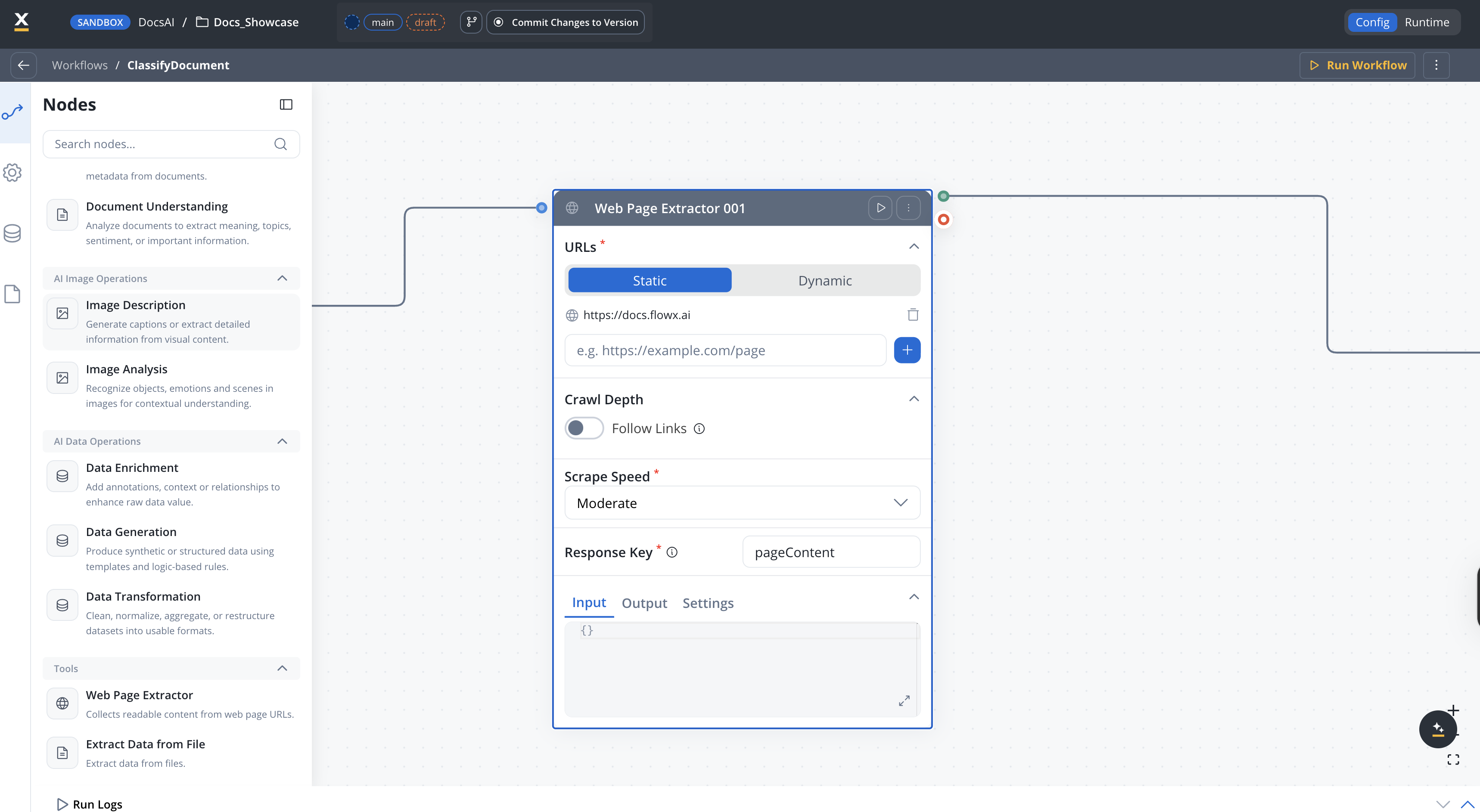
Static or dynamic URLs
Provide a fixed list of URLs or generate them dynamically from workflow data
Link following
Optionally follow links on pages up to a configurable depth
PDF processing
Extract content from PDF files linked on the page
Scrape speed control
Choose from speed presets or define custom rate limits and concurrency
File downloads
Download attached files (.docx, .xlsx, .pdf) found during crawling and store them automatically
Configuration
1
Open your workflow
Open your workflow in Integration Designer.
2
Add the node
Add a Web Page Extractor node from the Tools category in the left panel.
3
Configure URL source and extraction settings
Configure the settings described below.
URL source
enum
required
How URLs are provided to the node.
Default:
Staticstring[]
List of URLs to extract content from. Only available when URL Mode is
Static.Maximum: 20 URLsURLs must use http:// or https:// protocol. Supports ${variable} placeholders for dynamic values.string
A workflow data key or expression that resolves to a URL at runtime. Only available when URL Mode is
Dynamic.Example: ${inputData.targetUrl}Crawl depth
boolean
When turned on, the extractor follows links found on the page up to the configured depth.Default: OFF
number
How many levels of links to follow from the starting page. Only available when Follow Links is turned on. Displayed in the panel as a slider with the current value shown to the right (for example, 2 levels).Range: 0–10Default:
0string[]
Optional list of substring filters applied to discovered links — only URLs that contain at least one of the configured fragments are followed. Click Set Filters to open the filter editor. Only available when Follow Links is turned on.
boolean
When turned on, extracts content from PDF files linked on the page. Only available when Follow Links is turned on.Default: OFF
Download attached files
When turned on, the extractor downloads attached files (.docx, .xlsx, .pdf) found during crawling and stores them using the configured document destination.boolean
When turned on, files discovered during crawling are downloaded and stored automatically. Supported file types include
.docx, .xlsx, and .pdf.Default: OFFenum
Where downloaded files are stored. Only available when Download Attached Files is turned on.
string
required
Identifier used to associate the file with its business owner. Only available when Download Attached Files is turned on and Document Destination is
Document Plugin.Scrape speed
enum
required
Controls how aggressively the node requests pages from the target server.
Default:
Moderatenumber
Maximum requests per second. Displayed in the panel as a slider labelled in
req/s. Only available when Scrape Speed is Custom.Default: 2 req/snumber
Number of concurrent requests. Displayed in the panel as a slider labelled in
parallel. Only available when Scrape Speed is Custom.Default: 3 parallelResponse key
string
required
The key where extracted content is stored in the workflow data.Example:
extractedContentTimeout and retry
number
Request timeout in milliseconds. If the extraction exceeds this duration, the node fails.
object
Optional retry strategy for failed requests.
Best practices
Start with Moderate speed
Use the Moderate preset unless you know the target server’s capacity. Switch to Fast only for internal or robust servers.
Limit crawl depth
Keep Depth of Crawling low (1–3) to avoid excessive page requests. Deep crawls can be slow and may trigger rate limiting.
Use dynamic URLs for runtime flexibility
When the target URL comes from user input or a previous workflow step, use Dynamic mode with
${expression} placeholders.Set timeouts for external sites
Always configure a timeout when crawling external websites to avoid blocking the workflow on slow or unresponsive servers.
Related resources
Extract Data from File
Extract text and data from documents and images
AI node types
Overview of all AI workflow node types
Integration Designer
Build and manage integration workflows