

For UI configuration, settings, and styling, see the Chat component in UI Designer.
Key features
Real-time messaging
Send and receive messages instantly with streaming support
AI agent integration
Connect to workflows powered by AI agents
Session management
Automatic session handling and persistence across page refreshes
Message history
Retrieve and display conversation history on refresh
Knowledge Base integration
Ground AI responses in your organization’s data using RAG capabilities
Reasoning transparency
Show AI reasoning steps to users for trust and transparency
Flexible display modes
Inline, Overlay, FullScreen, and Floating modes with per-mode theming for Web, Android, and iOS
Display modes
The Chat component supports four distinct display modes, including mobile chat support.
You can change the display mode after creation if needed.
Mode details
- Inline
- Overlay
- FullScreen
- Floating
Renders within the parent component, filling the available space. This is the default mode.
- Can be a child of any container or card
- Embeds directly into the page layout
- Best for dedicated chat pages or inline chat experiences
- Width and height follow the parent container; supports Fill or Fixed sizing
Sizing defaults
Theming per display mode
Theme values can be set independently for each display mode and per platform (Web, Android, iOS) through Design Assets → Themes → Components → Chat.
Each mode supports independent configuration for padding, margin, and other layout tokens.
Chat header button and URL synchronization
The chat header includes a state-aware button that adapts based on the current display mode (for example, toggling between fullscreen and overlay views). Chat session state is also synchronized to the browser URL viapopstate, so navigating back or refreshing the page restores the correct session context.
Global component
The Chat component can be added as a Global Component in UI Flows, making it persist across pages without needing to add it to each page individually. When configured as a global component:- The chat appears in the Global Components section of the left navigation panel
- It persists as users navigate between pages in the UI Flow
- You can attach or detach the chat from specific pages to control where it appears
- The chat maintains its conversation state across page navigation
Sizing
The Chat component and floating action button support fixed sizing, allowing you to set a specific width and/or height value for precise control over the chat container dimensions.Subcomponents
The Chat component includes specialized subcomponents for reasoning display, error handling, and message regeneration.
Reasoning display
The reasoning subcomponent shows users how the AI agent is processing their request. When enabled, a thinking indicator appears while the agent works through its reasoning steps.Error handling and regeneration
When a message fails to generate, the chat displays an error state with an option to retry:Chat History
Chat History displays a list of conversations started by the current user, grouped by time period: Today, Yesterday, Previous 7 Days, Previous 30 Days, and Older.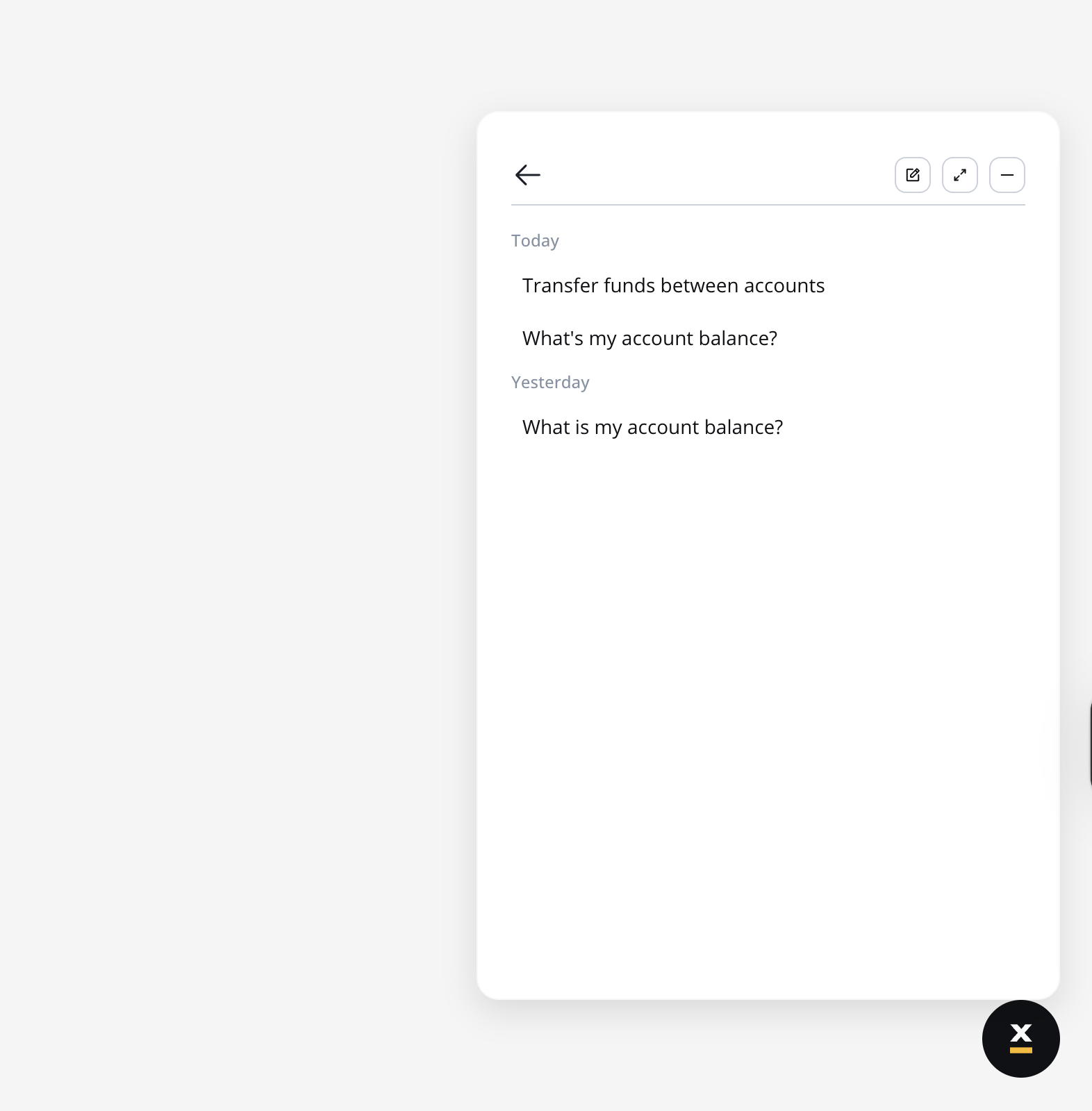
Behavior
- The chat history button is always visible in the chat header
- When opened, the list shows each conversation with its title and timestamp (displayed in a tooltip)
- Available actions: New chat, Expand/Minimize, Dock (hide chat)
- Opening a conversation from the list resumes the session:
- Messages are prefilled with the last exchanged messages
- Scrolling up loads older replies
- New messages continue on the same session ID
- Conversations are per-user — attempting to access another user’s history shows an access denied error and redirects to a new chat session
Theming
Chat History adds three new themed elements configurable per display mode (Inline, Floating, FullScreen) and per platform (Web, Android, iOS) through Design Assets → Themes → Components → Chat:
Two new system icons are added:
sys_ChatHistory and sys_ChatBack.
Localization
Chat History uses system substitution tags for all labels. Override these in CMS → Substitution Tags to customize or localize:Search
Chat History includes a search box that filters the conversation list by a text query. Search runs on the server across the user’s conversations, highlights matches in the results, and shows an empty state when nothing matches. (SaaS · 5.11)Chat notifications
The chat adds a themeable Notification Dot — an indicator you can position and size from the chat style panel — together with an unread-message indicator on the chat button that shows the number of unread agent messages. (SaaS · 5.11)Message actions
Each agent message supports per-message actions: copy the message content, show a timestamp, and give thumbs up / thumbs down feedback. Copy and timestamp visibility are controlled by the Show Copy Action and Show Timestamp toggles in the chat configuration. (SaaS · 5.11)Rating an answer
SaaS ·Available on SaaS with FlowX.AI . This feature is live on managed (SaaS) deployments now. Self-hosted deployments will receive it with the next LTS release family.
Each rating is stored with the value, the chosen reason, the comment, and who submitted it and when. Ratings are recorded in audit, so the quality of a deployed agent is something you can review rather than estimate.
The reason chips are themable, with separate selected and hover states, and the SDKs expose the same feedback state to a custom front end.
Disabling the chat input
You can disable the chat input based on a business condition. When the condition evaluates to true, the input becomes read-only, shows a tooltip explaining why it is disabled, and clears any text already typed. (SaaS · 5.11)Markdown rendering in messages
Agent (receiver) messages support Markdown formatting, allowing AI-generated responses to include structured content. The renderer automatically converts Markdown syntax to styled HTML. Supported syntax:Suggested Prompts
The Suggested Prompts subcomponent displays a set of pre-configured prompt suggestions to the user before they begin typing. When a suggestion is clicked, its text is sent as the user’s input, starting the conversation immediately.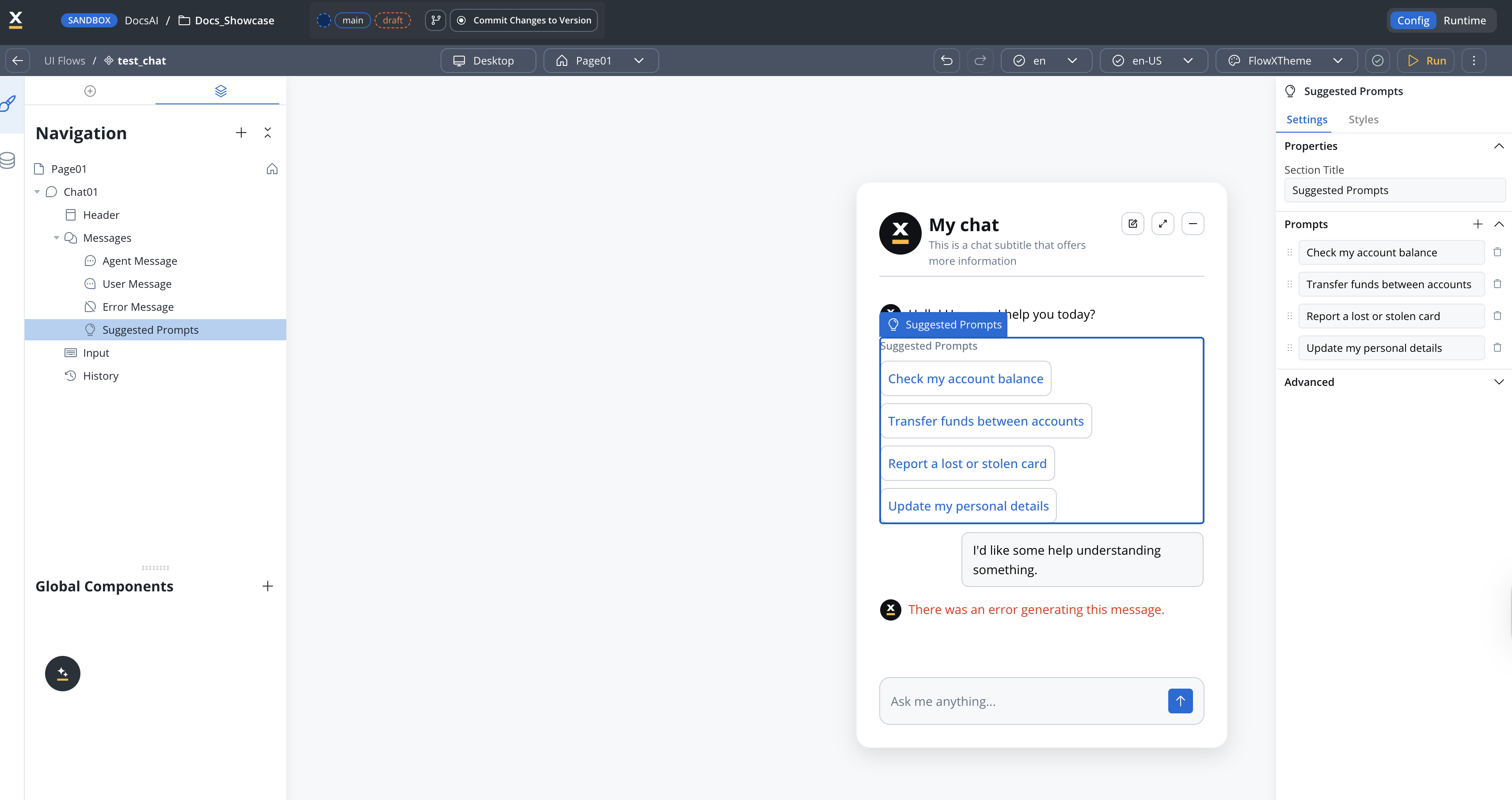
Props
Behavior
- The subcomponent only renders when at least one prompt is provided in the
promptsarray. If the array is empty or not set, the section is hidden entirely. - Clicking a suggestion sends that prompt text as the user’s input, triggering the chat workflow as if the user typed and submitted the message.
- Long prompt strings that exceed the display area are truncated and shown in full via a tooltip on hover.
Theming
Full theming support is available in both Angular and React SDKs. Styles can be configured per display mode (Inline, Floating, FullScreen) and per platform (Web, Android, iOS) through Theme Admin (Design Assets → Themes → Components → Chat → Suggested Prompts).AI-generated prompt suggestions
In addition to the static suggested prompts configured above, the chat component can display AI-generated prompt suggestions that are dynamically created by Custom Agent nodes in chat-driven workflows. When a Custom Agent node has Prompt Suggestions enabled (via its satellite panel), the agent generates contextual follow-up suggestions alongside each reply. These appear as clickable chips below the agent’s message, similar to static suggested prompts but tailored to the conversation context. Key differences from static suggested prompts:
When a user clicks an AI-generated suggestion, the chip’s
label is displayed as the user’s message while the full content is sent as input to the next workflow run.
For configuration details, see the Custom Agent node documentation.
Voice input
Users can send voice messages in addition to typed text. When voice input is enabled, a microphone button appears in the chat input. Clicking it records audio in the browser; the recording is uploaded and sent as the user’s next message, appearing in the chat history as an audio player alongside text messages.Enabling voice input
Voice input is configured on the Chat Input sub-component in UI Designer:
When enabled, the microphone button is shown by default, the SDK handles recording, upload, and playback, and the agent receives the audio file as part of the message payload.
Runtime behavior
- Recording limit: 2 minutes per message. Longer recordings stop automatically.
- Blocked during replies: The microphone is disabled while the agent is streaming a response (SSE in progress) to prevent interleaved turns.
- Single player: Only one audio message can play at a time — starting a new playback pauses any other voice message.
- History: Voice messages are persisted with the rest of the conversation and replayed with a progress bar when the user scrolls back.
File attachments
SaaS ·Available on SaaS with FlowX.AI . This feature is live on managed (SaaS) deployments now. Self-hosted deployments will receive it with the next LTS release family.
Runtime behavior
- File selection uses the platform’s native file picker, constrained to the configured accepted types where the picker supports type filtering.
- Validation runs client-side for accepted types, file count, and total size, before anything is uploaded.
- Send is blocked while any file row or the attachments area is in an error state.
- Upload happens on send. Files upload first, then the message is delivered to the workflow with the original file name, storage path, and MIME type for each file.
- A whole batch fails together. If any file in the batch fails to upload, the send fails rather than delivering a partial set.
- Failed uploads keep the message. The error is surfaced separately from the file rows, the send button stays enabled, and the typed text and selected files are kept so the user can send again.
Where uploaded files go
Uploaded files are extracted and indexed into a knowledge base scoped to that chat session, so AI nodes in the conversational workflow answer grounded in their content. Session knowledge bases are isolated per conversation and per tenant, and are excluded from app export. For the workflow side, see File uploads in Chat-driven workflows.Theming
File Attachments and File Item are themed per display mode (Inline, Floating, FullScreen) and per platform (Web, Android, iOS) through Design Assets → Themes → Components → Chat. File Item carries a default and an error state, so an invalid file can be styled distinctly from a valid one. The input area gains an attach icon, and File Item uses delete and download icons.Localization
Attachment labels are accessibility labels driven by system substitution tags. Override them in CMS → Substitution Tags:Stop agent response
When the user presses Stop:- The running chat-driven workflow is cancelled. If cancellation happens before any AI node executes, the user prompt is persisted as cancelled and no AI call is made. If it happens while an AI node is executing, the in-flight AI call is stopped and any partial response is discarded.
- The chat receives a
chatCancelledSSE event on theCHAT_WORKFLOW_RESPONSEchannel, signalling the UI to exit the streaming state. - The user message is stored with a
cancelled: trueflag on the chat message record.
Theming
The Stop button uses a system icon registered asstopResponseIcon under each chat input area. Defaults preloaded by cms-core:
Override
stopResponseIcon in the active theme to swap the icon, the same way you would override sendMessageIcon or voiceInputIcon.
Localization
The chat input action labels are configurable via system substitution tags. Thea11y variants are used as accessibility labels (screen reader text); the non-a11y variants are used as visible labels and tooltips.
Chat configuration
ThechatConfig object controls the behavior and appearance of the chat:
Runtime behavior
Starting a chat
1
User initiates chat
User opens the chat from the UI Flow
2
API call
System calls the start chat API with the configured workflow
3
Session created
API returns a
chatSessionId that is persisted for the user4
Initial message
First message typically comes from the AI agent as a greeting or conversation starter
The initial system message can be configured in the workflow to provide a customized greeting or conversation starter.
Message exchange
- Sending messages
- Receiving messages
- User types message in input field
- Message is sent to the workflow via Chat Input node
- Workflow processes the message through AI nodes
- Response is returned to the chat interface
Session management
Session persistence
sessionIdstored in browser session/local storage- Enables conversation continuity across page refreshes
- Session data includes message history
Message history retrieval
- On page refresh, system loads existing
sessionId - Retrieves and displays previous messages
- Restores conversation state automatically
Data storage
Chat sessions are persisted in the FlowX Database:Each chat session is stored as a document containing the complete chat history. The chat component works with the FlowX Database to save chat sessions, where each session document contains the full conversation record.
Conversation history API
FlowX provides REST API endpoints for retrieving conversation history programmatically. These are useful for building custom dashboards, analytics, or integrating conversation data into external systems.List conversations
Retrieve all conversations for the current authenticated user within a workspace and app.
Query parameters (optional):
Response:
Fetch a single conversation
Retrieve a single conversation with its full message history.
Query parameters (optional):
Response:
These endpoints return conversations owned by the authenticated user only. The workspace must belong to the user’s organization.
Custom chat persistence workflow
For advanced use cases where you need full control over chat session storage, you can build a custom workflow that manages chat persistence using FlowX Database. This approach allows you to:- Customize the chat data model
- Add additional metadata to chat sessions
- Integrate with external systems
- Implement custom session management logic
Workflow overview
The chat persistence workflow handles two main scenarios:- Loading chat history - When a user returns to an existing chat session
- Processing new messages - When a user sends a new message
Setting up the FlowX database data source
1
Create the data source
Navigate to Integrations → Data Sources → Add New Data Source and select FlowX Database.
2
Configure the collection
Name the collection (e.g.,
chat) and define the schema based on your data model.3
Define the data model
Create a data model with the following structure:
Building the workflow
1
Create the workflow
Create a new workflow in Integration Designer with the following input parameters:The
action parameter determines whether to load history (LOAD_HISTORY) or process a new message.2
Add Get chat session node
Add a Database Operation node to retrieve the existing session:
3
Add action type condition
Add a Condition node to check the action type:
- If true: Route to the “Return chat history” end node
- Else: Continue to message processing
4
Add Return chat history end node
For the
LOAD_HISTORY branch, add an End Flow node that returns the chat history:5
Add session exists condition
For new messages, add another Condition node to check if the session exists:
6
Add Create chat session node
If the session doesn’t exist, add a Database Operation node to create it:
7
Add Update history script node
If the session exists, add a Script node to append the new messages:
8
Add Update chat session node
Add a Database Operation node to save the updated history:
9
Add Return response end node
Add an End Flow node that returns the response:
Chat session data model example
UI Flow integration
The Chat component integrates with UI Flows: Chat Component Wrapper- Chat component is embedded within UI Flow structure
- Follows UI template hierarchy
- Shares session context with other components
Event-based communication
Event-based communication
- Components emit and listen for custom events
- Enables loosely coupled interactions
- Example: Chat triggers process start event
On-demand communication
On-demand communication
- Direct component-to-component calls
- For tightly integrated features
- Example: Chat updates task management state
Audit and debugging
UI Flows audit
Chat sessions tracking
All chat sessions are logged in UI Flow audit:
- Track when chats are started
- Monitor active and completed sessions
- View session duration and message count
Console logging
Access detailed execution information:
- View workflow execution logs
- Debug conversation flow
Debug interface
UI Flow Sessions Console Access comprehensive debugging tools through the UI Flow Sessions panel:- Nodes
- Logs
- Input/Output
Track workflow execution with node-by-node timing:
SDK integration
The Chat component is available through the FlowX SDKs for both Angular and React applications.Angular SDK
Use the
FlxChatRendererComponent in Angular applicationsReact SDK
Use the
FlxChatRenderer component in React applicationsKey SDK parameters
For the complete list of parameters and usage examples, see the respective SDK documentation pages linked above.
Best practices
Workflow design
Do
- Keep chat workflows focused on a single use case
- Use clear, natural language prompts
- Test with various user inputs
- Handle errors gracefully with helpful messages
Don't
- Don’t create overly complex conversation flows
- Don’t send responses from multiple Custom Agent nodes
User experience
Do
- Provide clear initial greeting messages
- Show typing indicators during processing
- Display helpful error messages
- Allow users to restart conversations
Don't
- Don’t make users wait too long for responses
- Don’t use technical jargon in agent messages
- Don’t lose conversation context
Performance
Do
- Optimize workflow execution time
- Cache frequently accessed data
- Limit message history retrieval
Don't
- Don’t load entire conversation history every time
- Don’t make unnecessary API calls
Troubleshooting
Chat not loading
Chat not loading
Possible causes:
- Workflow is not properly configured
- Workflow is not published
- UI Flow has incorrect agent ID/workflow name
- Verify the workflow is properly configured
- Check that the workflow is published and active
- Ensure UI Flow has correct agent ID/workflow name
Messages not sending
Messages not sending
Possible causes:
- Network connectivity issues
- Workflow is in error state
- Configuration errors
- Check network connectivity
- Verify workflow is not in error state
- Review workflow console logs for errors
Session lost on refresh
Session lost on refresh
Possible causes:
- sessionId is not persisted in storage
- Browser storage permissions issues
- Ensure sessionId is persisted in storage
- Check browser storage permissions
- Verify session management configuration
Knowledge Base integration
The Chat component can use Knowledge Bases to provide contextual, grounded AI responses.How it works
1
Create Knowledge Base
Set up a Knowledge Base as a Data Source in Integration Designer and upload relevant content
2
Content processing
Documents are automatically split into “chunks” and indexed for semantic search
3
Link to Custom Agent
Connect the Knowledge Base to Custom Agent nodes in your workflow
4
Context retrieval
When a user sends a message, relevant chunks are retrieved based on semantic similarity
Supported file formats
Configuration options
Knowledge Bases provide Retrieval-Augmented Generation (RAG) capabilities, ensuring AI responses are grounded in your organization’s actual data.
Knowledge Base Documentation
See the complete Knowledge Base documentation for setup guides and best practices.
Platform availability
- Web
- Mobile
- All four display modes: Inline, Overlay, FullScreen, Floating
- Complete feature set including Suggested Prompts, Markdown rendering, and voice input
- Angular and React renderer support
Related resources
Chat UI configuration
Settings, styling, and theme configuration
Chat interface concepts
High-level integration patterns
Custom Agent Node
Custom Agent nodes in Integration Designer
Knowledge Base
Configure knowledge bases for grounded AI responses
Chat-driven workflows
Build multi-turn chat experiences with session memory and intent routing