

Overview
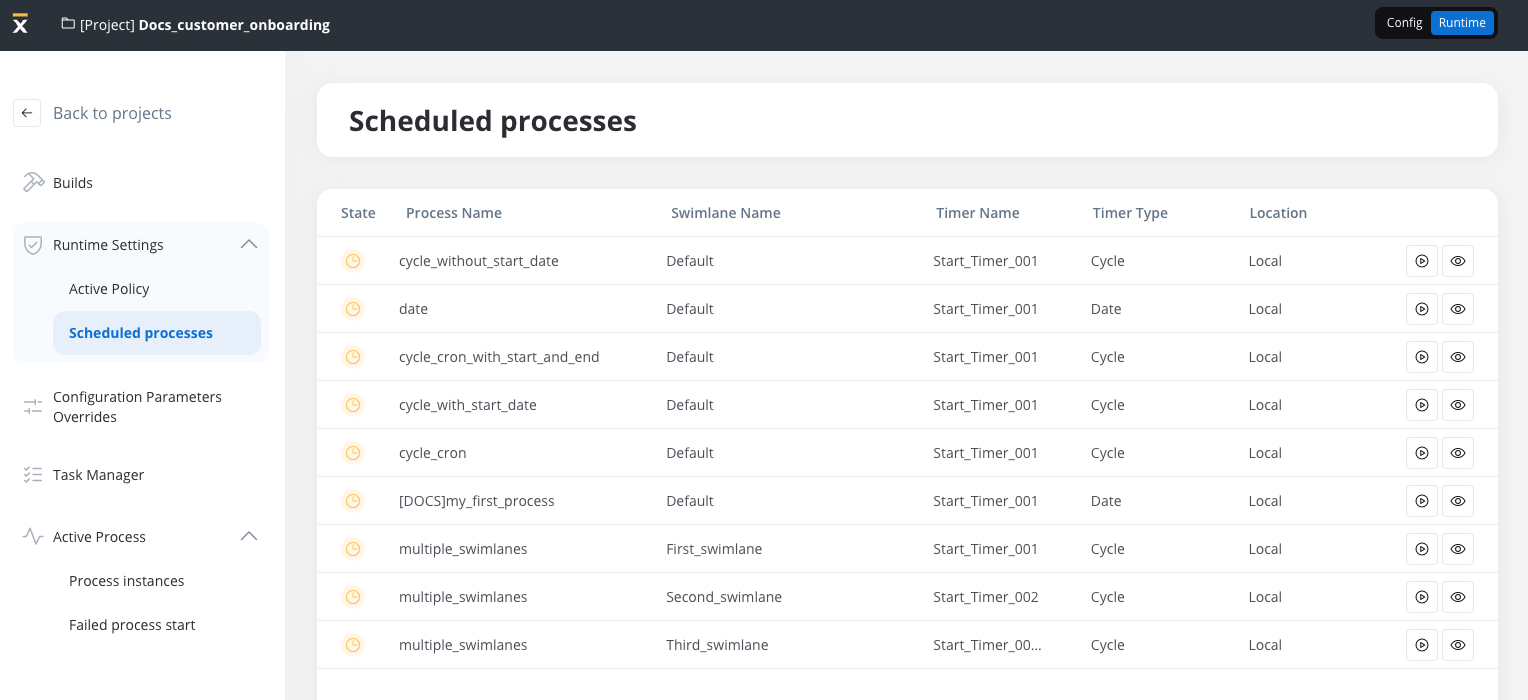
The Scheduled Processes feature automatically triggers process instances using Timer Start Events. In the Runtime tab, you can view scheduled processes and activate/deactivate timers without a redeployment. This feature is especially useful in upper environments, where you might need to pause or resume cron jobs without modifying the project build.Timer Start Event
Check this section for more details about Timer Start Events and how to configure them.
Where are workflow schedules managed?
SaaS · 6.0Available on SaaS with FlowX.AI 6.0. This feature is live on managed (SaaS) deployments now. Self-hosted deployments will receive it with the next LTS release family.
Key components
1. List of scheduled processes
The Scheduled Processes tab displays all timers that trigger process instances. Each row in the list shows:- Process Name: The process linked to the timer.
- Swimlane Name: In multi-swimlane processes, each swimlane may have its own timer.
- Timer Name: The name of the timer node.
- Timer Type:
- Date-based: Triggers at a specific date and time.
- Cycle-based: Repeats at defined intervals (for example, every 10 seconds).
- Location: The execution environment (e.g., Local).
2. Timer Events schedule
To view a timer’s configuration, click the View icon next to the scheduled timer in the list.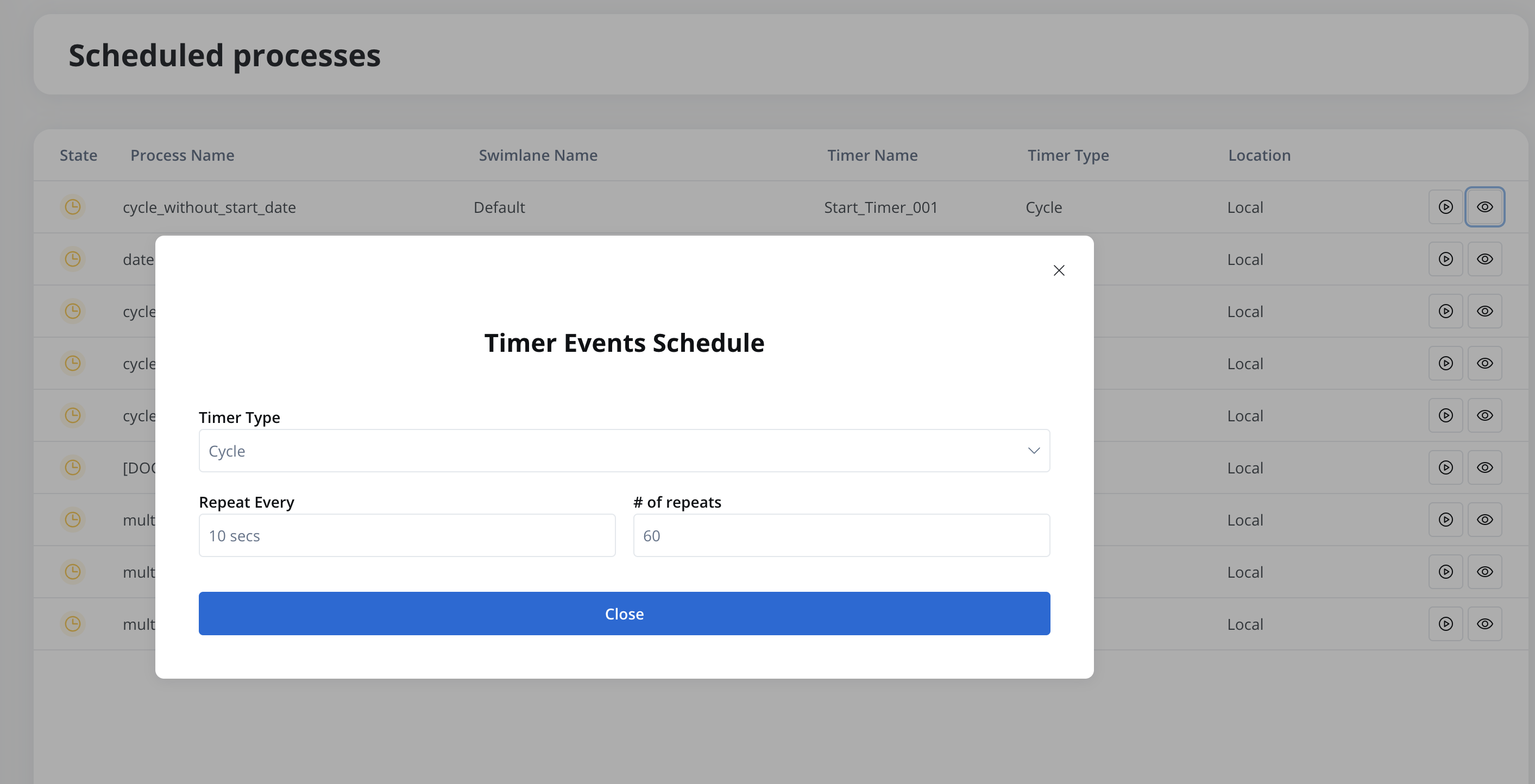
3. Activating and deactivating timers
Manage timer activation directly from the UI: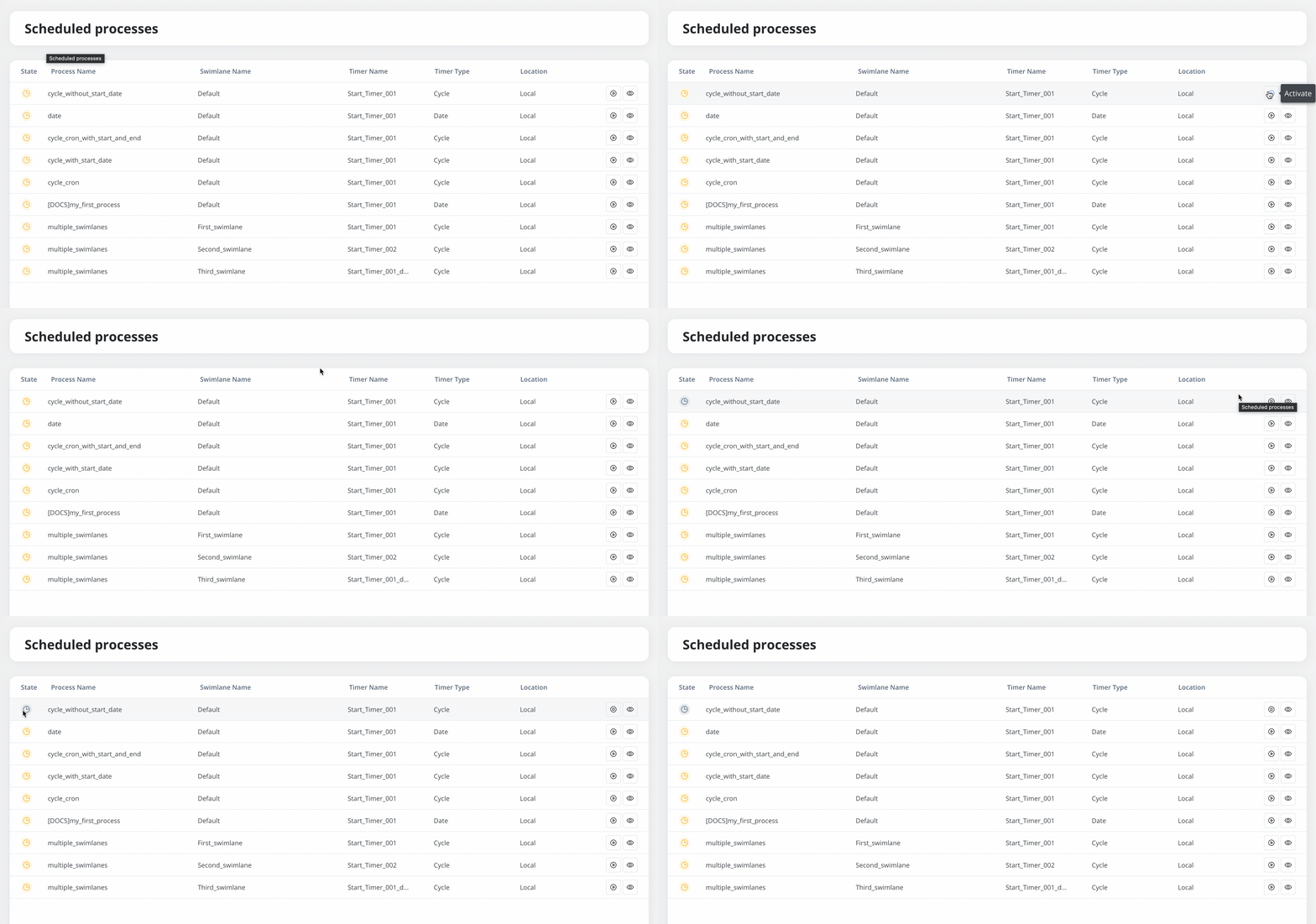
- Activate: Click the activate button in the Scheduled Processes tab.
- Deactivate: Click the same button to suspend the timer.
Use cases
1
Employee Onboarding reminder
A Timer Start Event can be scheduled to automatically trigger an onboarding process at a predefined time.Example: Process starts on January 28, 2025, at 12:14 PM, sending onboarding notifications.
2
Recurring Data processing jobs
A Cycle timer can execute a job every 10 seconds for 60 repetitions, ensuring periodic execution.
3
Scheduled Report generation
A cycle timer with a cron expression can generate a report at 1 AM every day.
Additional notes
-
Runtime Timer Control:
Manage timers in the Runtime tab without changing the application build. The Timer Start Event node itself has no activation setting. -
Timers in Multi-Swimlane Processes:
Each swimlane can have its own timer. The Scheduled Processes tab displays each timer separately for clear management. -
Exporting and Importing Builds:
Timer activation settings are not editable during build export/import. All timer management occurs in the Runtime tab.
Related resources
Timer Start Event
Configure the Date or Cycle timer that schedules a process
Timer expressions
ISO 8601 and cron syntax for timer definitions
Active policy
Choose the build whose timers are scheduled