Learn how to implement “Back” functionality in your processes to allow users to return to previous steps while preserving data.
While most process flows progress in a forward direction, FlowX.AI provides capabilities for moving backwards in a process flow. This feature allows users to revisit previous steps without losing their progress or data, enhancing the flexibility and user-friendliness of your apps.
In FlowX.AI, a token represents the current position within a process instance. It moves from one node to another as the process executes, carrying process data and state information. Normally, tokens advance forward through the process flow, but sometimes you need to allow users to go back to previous steps.
Process Tokens
Learn more about tokens and how they drive process flow
Back navigation is configured at two levels: the node (can users return to this step at all?) and one of its actions (what do users re-execute when they return, and what happens to the data?).
1
Identify target steps
Determine which user tasks users should be able to return to. Typically, these are:
Form submission steps
Points where users might need to correct previous inputs
The beginning of logical sections in your process
2
Turn on Can go back? on the nodes
Select the user task node
In the node configuration, toggle Can go back?ON
As the token advances through the process, each node with Can go back? turned on is recorded as a valid return point for that process instance. A node with it turned off cannot be returned to.
3
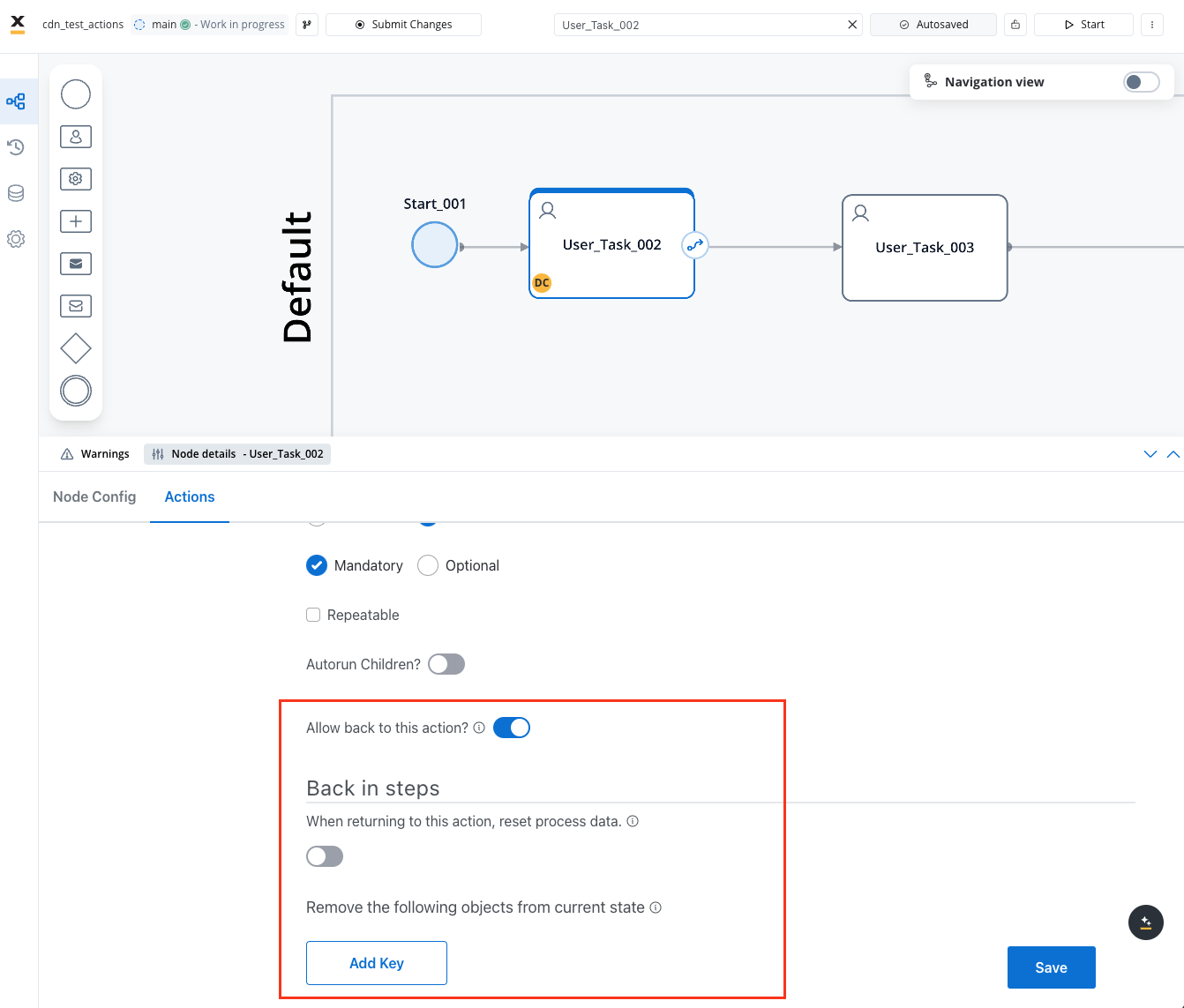
Turn on Allow back to this action
On the target node, add or edit a Manual action (typically the action that saves and submits that screen’s data)
In the action configuration, under Navigation, toggle Allow back to this actionON
Back Action Configuration
Allow back to this action is available only for actions with the Manual trigger. When a mandatory action with this option runs, the engine saves a snapshot of the process data, so the data can be restored if the user later returns to this step.
Only configure “back” functionality on actions that make logical sense as return points in your process. Too many back points can make process state management complex.
4
Configure data handling
Turning on Allow back to this action reveals the Back in steps section. The When returning to this action, reset process data toggle decides what happens to process data when the user comes back:
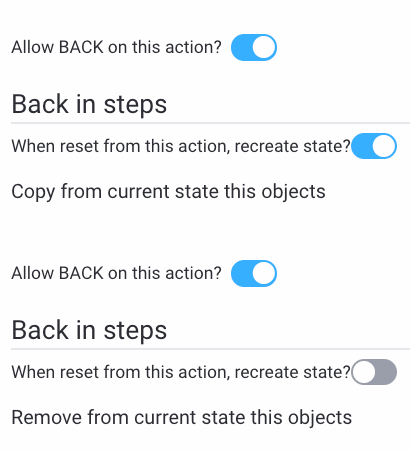
Toggle OFF (default): the process keeps its current data. Use Remove the following objects from current state to list process keys that should be deleted when the user navigates back.
Toggle ON: the process data is restored to the snapshot taken when this action first ran. Use Copy the following objects from current state to list process keys that should keep their current values instead of being restored.
Generally, keep contextual or reference data and reset only the data related to the step being revisited.
5
Let users navigate back from the process navigation
Users trigger back navigation from the rendered navigation itself. There is no separate Back button to configure:
In a Stepper navigation area, completed steps become clickable. Clicking an earlier step returns the user to it.
In a Single Page Form layout with accordion cards, users can reopen a previous card.
After returning, the user adjusts the data and resubmits that step’s own action. The engine detects that a back-enabled action from an earlier node was executed, resets the token, and the UI re-renders from that step.Users can return to any earlier back-enabled step, not only the immediately previous one: jumping directly from step 4 to step 2 works as long as step 2 is a valid return point.
A Button on the current screen cannot trigger back navigation: the button’s Node Action event handler only lists actions belonging to the button’s own node, and there is no dedicated Back action type. Back navigation is available only through the navigation components described above.
On mobile, user tasks rendered inside a single Modal navigation area get a built-in back control between them. See Navigation best practices.
In applications with multi-step forms or wizards, backwards navigation allows users to review and edit their inputs across different steps before final submission.
Decision Correction
When users make selections that lead down specific process paths, back functionality lets them change their mind and explore alternative options.
Error Correction
If validation occurs after a form submission and errors are found, users can navigate back to fix issues while preserving other valid inputs.
Process Review
In complex workflows like loan applications or onboarding processes, users often need to review previous sections before completing the process.
Keep in mind these technical aspects when implementing back functionality:
Performance Impact: Token resetting involves creating new tokens and copying data, which may impact performance in complex processes
Subprocess Handling: Any subprocesses active between the current and target positions will be aborted
Data Consistency: Ensure your data model can handle partial updates without creating inconsistencies
Action Sequencing: When the user returns to a step whose back-enabled action is optional, the engine re-runs that node’s mandatory actions. Actions that produce a different output on a second run (for example, calls to external systems) can behave unexpectedly, so review what re-executes on return
Last modified on September 17, 2026
Assistant
Responses are generated using AI and may contain mistakes.