Learn how to transfer projects between environments using the export and import functionality in FlowX.AI Designer.
Moving projects between environments is a common requirement in enterprise software development. FlowX.AI provides export and import functionality to help you promote your projects from development to testing and production environments.
In recent versions of FlowX.AI, the export/import functionality has moved from the process definition level to the project level, allowing for more comprehensive and consistent transfers between environments.
Export and import are driven from the Designer UI. There is no public REST API to import a process definition or project programmatically — drive the workflow through the Designer.
Modern versions of FlowX.AI use project-level export and import operations rather than process-level ones. This approach ensures that the resources and configurations belonging to the project are transferred together, maintaining the integrity of your application.
Whether the libraries a project depends on travel with the export depends on what you export:
Project version export: records library dependencies only as references to specific library builds. The libraries themselves are not included, so the target environment must already contain those library builds — otherwise the import succeeds but the dependencies land as broken references.
Build export: also packages the builds of the libraries the project depends on, including transitive dependencies. Importing the build imports those library builds as well; library builds that already exist in the target environment are skipped.
Available on SaaS with FlowX.AI 5.13. This feature is live on managed (SaaS) deployments now. Self-hosted deployments will receive it with the next LTS release family.
A project version export that targets the platform version your environment runs now packages the same content a build export does:
Library dependencies: the builds of the libraries the project depends on are exported and packed into the version archive. On import, library builds that already exist in the target environment are reused, and the others are imported with the version.
Theme: the project’s default theme is included, unless it is the system theme. On import, the theme is created in the target environment only if it does not exist there yet. A theme that already exists there is left unchanged, because other project versions can use it.
A version export is therefore self-contained, and you no longer need to import the library builds into the target environment first.If a library build cannot be exported, the version export fails and names the dependency that failed. If a bundled library build cannot be imported, the version import fails and is rolled back. Library builds that did import are kept, so a retry reuses them.
An export that targets an older LTS line, such as 5.9.x or 5.1.x, keeps the older format: library dependencies are recorded only as references and the theme is not included, because those platform versions cannot read the bundled content. Pre-stage the library builds in the target environment before you import such an export.
This documentation covers the updated project export/import approach. If you’re using an older version of FlowX.AI that still handles exports at the process definition level, some details may differ.
You can export projects from the version details panel. This allows you to export specific committed versions with granular control over what’s included in the export.
1
Navigate to Version Details
Open FlowX.AI Designer and go to the Projects section
Select the project you want to export
Navigate to the version details panel for the specific committed version you want to export
2
Initiate Export
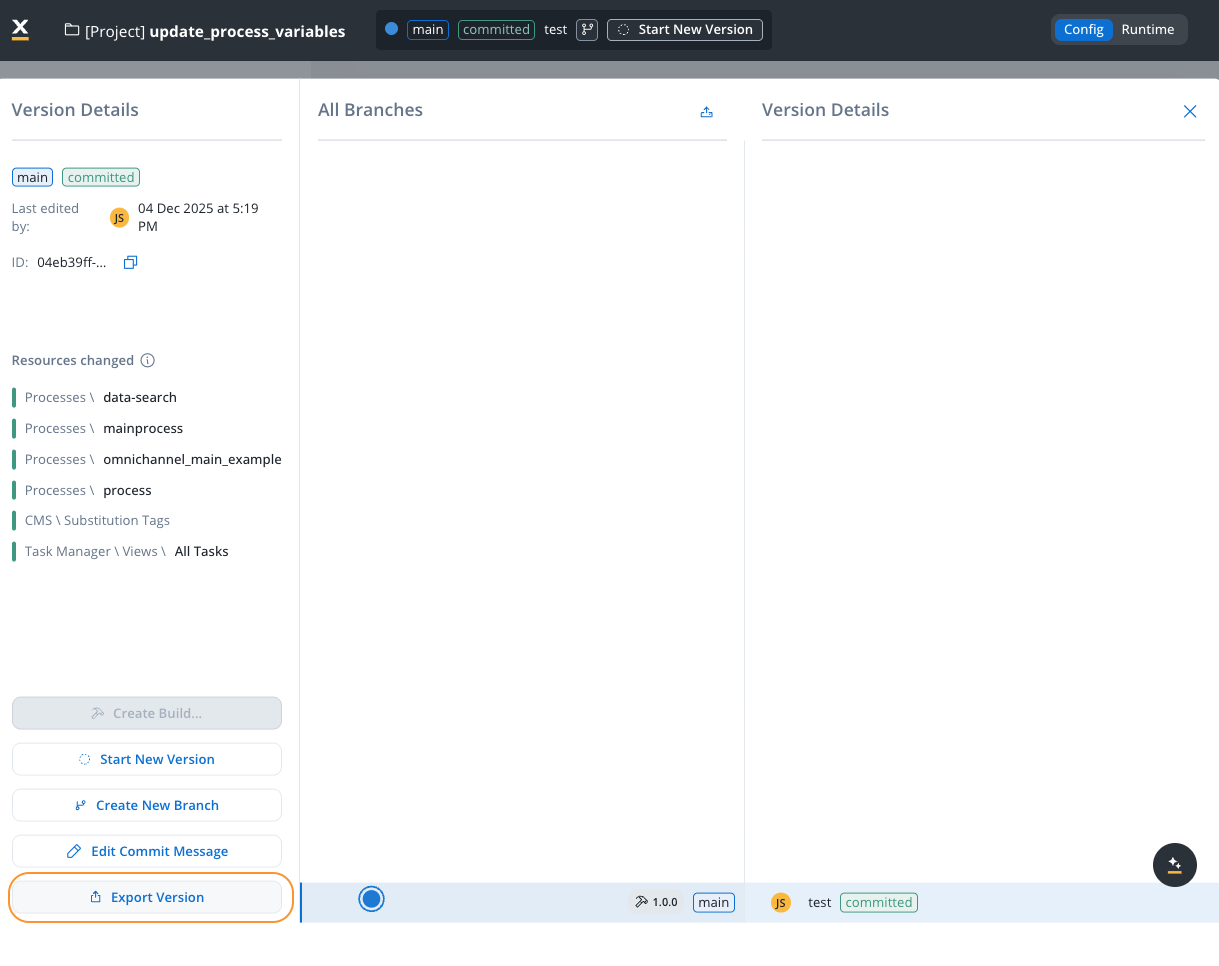
In the version details panel, locate the Export Version button
Click Export Version to open the export dialog
Export Version button in the Version Details panel
3
Choose the target version and options
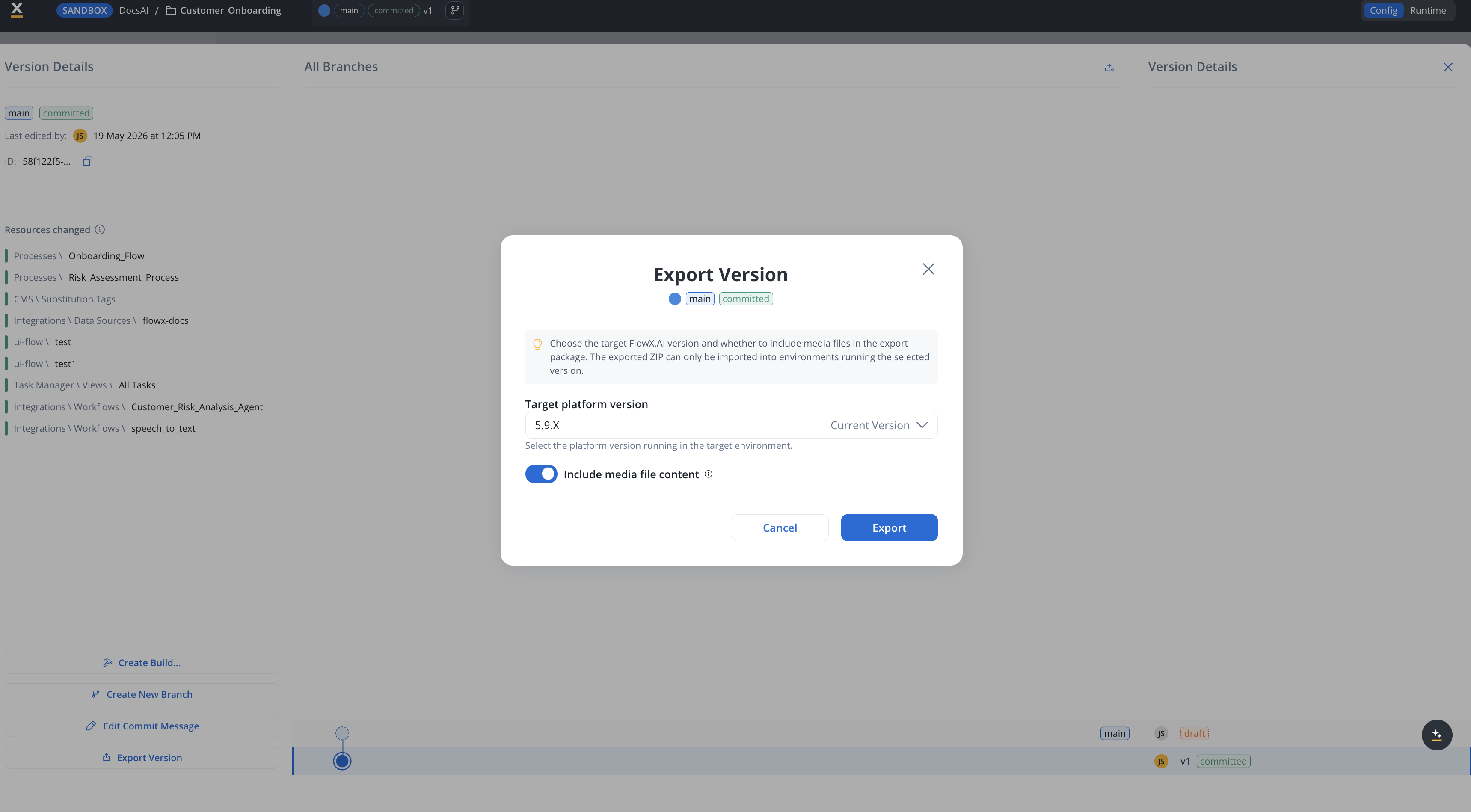
In the Export Version dialog, set two things:
Target platform version - the platform version running in the environment you’ll import into. It defaults to Current Version (the version you’re exporting from). To import into an environment on a different LTS line (for example, a 5.1.x environment), select that version here. The exported ZIP can only be imported into environments running the selected version. See Cross-version export and import.
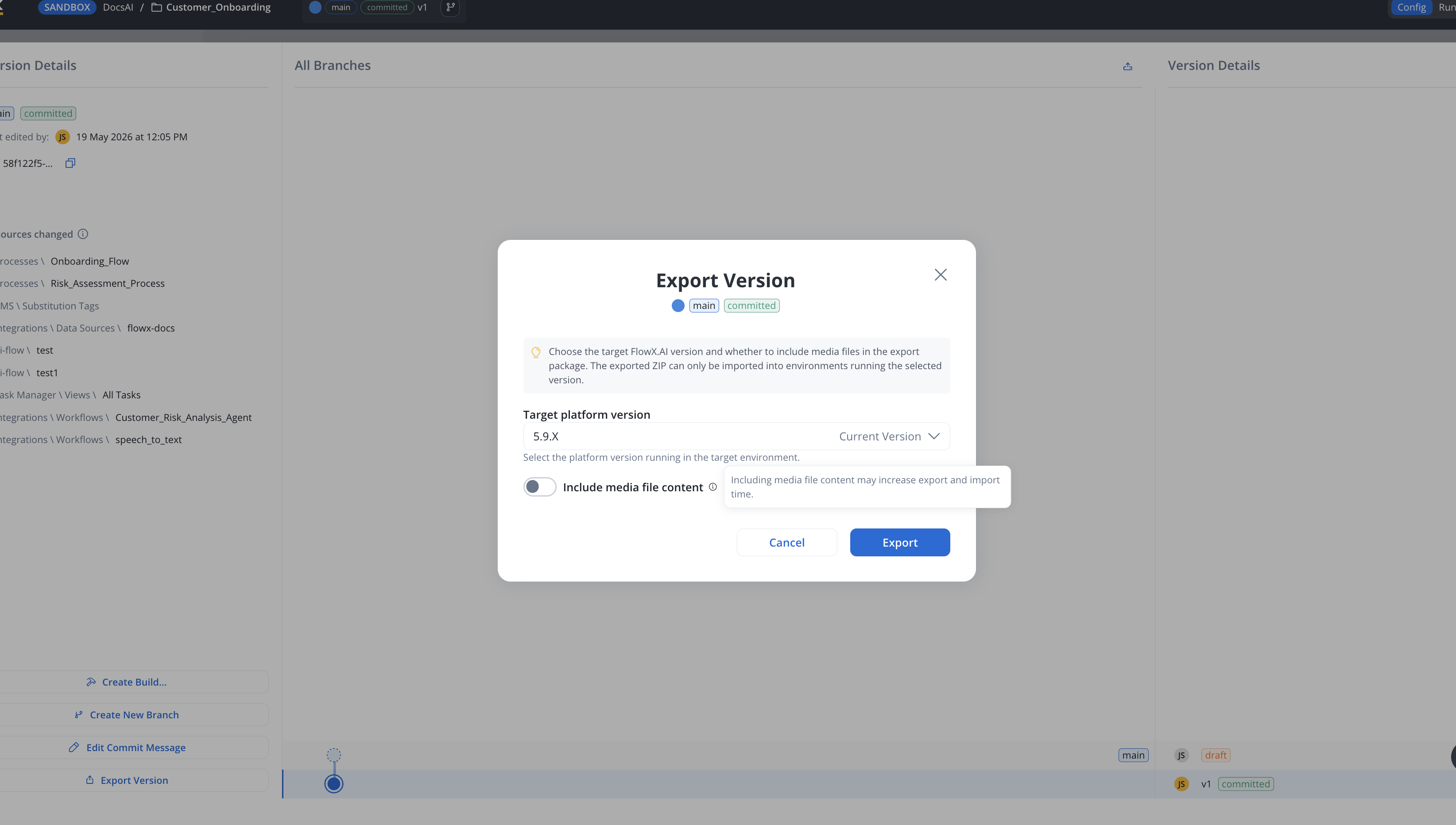
Include media file content - toggle ON to bundle media assets (for example, images and documents) into the export package. Toggle OFF to export only the project structure and configuration, which produces a smaller file and a faster import.
Including media file content may significantly increase the export file size and the time required to import the version in another environment. Only include it if the target environment needs those assets.
Export Version dialog with the Target platform version selector
Include media file content option
4
Complete the Export
Click Export to generate the export package
The system generates a downloadable file containing your project version
Save this file to your local system
Use a clear naming convention for your export files to help identify their contents later, such as [project-name]_[version]_[environment]_[date].zip.
For more information about versioning and managing project versions, see the Versioning documentation.
Knowledge Base stores are exported as definitions only. A version export carries the Knowledge Base data-source configuration (system, endpoints, metadata keys), but not the store contents — uploaded documents and their indexed embeddings stay on the source workspace. After importing on another workspace or environment, the stores appear empty: re-upload and re-index the content there. The media file content option above covers media assets, not Knowledge Base content.
Available on SaaS with FlowX.AI 5.13. This feature is live on managed (SaaS) deployments now. Self-hosted deployments will receive it with the next LTS release family.
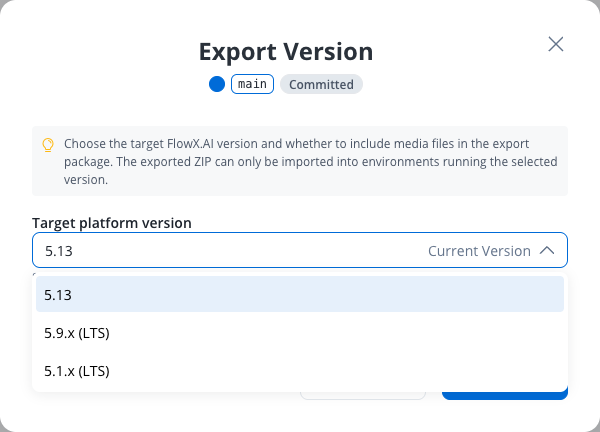
In the Export Version and Export Build dialogs, Target platform version lists the platform version your environment runs by its version number, for example 5.13, marked Current Version and pre-selected. The older LTS lines you can export for are listed as 5.9.x and 5.1.x. Keep the pre-selected version when the target environment runs the same platform version, or pick an LTS line for an older environment, as described in Cross-version export and import.The downloaded ZIP is named after the package it contains:
Version export: {project-name}_{version-id}_flowx{target-version}_{media}.zip
{version-id} is the last 12 characters of the version ID, {target-version} is the target platform version you selected, and {media} is media or no-media depending on the Include media file content toggle. Characters in the project name other than letters, numbers, . and - are replaced with -. Exporting the same version or build with the same options always produces the same file name, so you can tell from the name alone which export files contain the same package.
You can also export builds directly from the Builds section. This is useful when you want to transfer a specific build (rather than a version) between environments.
1
Navigate to Builds Section
Open FlowX.AI Designer and go to the Projects section
Select your project and navigate to Runtime and then to the Builds section
2
Select Build to Export
Locate the build you want to export in the builds list
Click the Export icon (box with upward arrow) for the desired build
3
Complete Export
The build export follows the same process as version export, including the target platform version and media file content options. The exported build can be imported into other environments or workspaces.
Builds are immutable snapshots of committed project versions. When exporting a build, you’re exporting a deployable package that can be directly used in runtime environments. For more information about builds, see the Builds documentation.
Open FlowX.AI Designer in the target environment and go to the Projects section.
2
Open the Import menu
Click the three-dots (kebab) menu at the top right of the Projects list and choose one of:
Import Version — restores a project version (and its full version history) into the target environment. Use this when promoting work between environments.
Import Build — imports a build (an immutable snapshot of a committed version) into the Builds section. Use this when promoting a deployable package.
The menu only shows the items you have permission for.
You can also start an Import Version from inside an open project: open the All Branches view in the Version Details panel and click the upload icon in the panel header. This is functionally equivalent to Import Version from the Projects list.
3
Select the .zip file
The Designer opens your operating system’s file chooser. Select the .zip you exported earlier and confirm.
4
Wait for the import to complete
The import runs asynchronously. A toast notification confirms success or reports an error. There is no in-app preview, no confirmation dialog, and no manual conflict-resolution step between picking the file and the import completing — see Import scenarios below for what happens when the target environment already has the project.
If the target environment has versions on the same lineage as the import file, those versions are silently stashed during the import. There is no preview or confirmation step before this happens. See Existing project with additional versions for the consequences and the recommended workflow.
When importing a project, you may encounter different scenarios depending on whether the project already exists in the target environment and what versions are present.
If the project exists but doesn’t have versions beyond those in the import file, the system will update the existing project with any changes from the import file.
Importing restores the version history and parent–child relationships exactly as they exist in the import file. There is no merge functionality on import.
Versions become stashed, not merged
If the target environment has versions on the same lineage that are not in the import file, those versions become stashed: they remain in the database but are no longer accessible in the Designer. There is no UI to retrieve stashed versions — recovery requires direct database intervention by FlowX support and is not always feasible.
Importing on top of diverged work is destructive. If two environments committed different versions on the same branch, importing one over the other stashes the target version. The previous content cannot be restored from the Designer. Always export the target project before importing on top of it, and contact FlowX support if recovery is needed.
Recommended workflow: Use a separate branch per environment. On import, new branches are added alongside existing ones instead of overwriting versions on a shared lineage.
You can import the same project into multiple workspaces on the same environment. This removes the previous limitation that restricted a project (identified by its UUID) to exist in only one workspace per environment.
Cross-Workspace Import
Import a project build (and optionally a version) into a different workspace on the same environment. The imported project maintains its own independent lifecycle with separate active policies and access controls.
Key behaviors for cross-workspace import:
Aspect
Behavior
Lifecycle
The imported project has its own independent lifecycle in the new workspace
Active Policy
The imported build is automatically set as the active policy, regardless of what was active in the original workspace
Access Controls
Separate access controls and policies are defined for each workspace
No Impact on Original
The import does not affect the original project’s settings, policies, or process instances
User Access
Workspace users must be granted appropriate project rights (for example, project viewer) to interact with the imported project
Process Instances
Process instances are workspace-specific; the imported project starts with no instances until processes run in the new workspace
Database
Projects across workspaces on the same environment share the same database
Use case: Use this feature to represent different operational environments (UAT, Staging, Pre-production) as separate workspaces on a single FlowX deployment, reducing infrastructure and DevOps costs.
Workspaces documentation
Learn more about cross-workspace project management
Available starting with FlowX.AI 5.9.0Environments are not always on the same platform version. During a phased upgrade, lower environments (dev, test) are usually upgraded first, while upper environments (staging, production) stay on the previous version until the upgrade is validated and scheduled. Cross-version compatibility lets you export a project version or build from a higher platform version in a format that an environment running a lower platform version can import — so you can still ship fixes to an environment that hasn’t been upgraded yet.
When a problem is found in an upper environment during an upgrade window, the source-of-truth project version often already lives on an upgraded environment. Cross-version export and import lets you deliver the fix to the older environment without rolling back the upgrade on lower environments or rushing the upgrade of the upper ones.An older-line export always imports into a newer line: a 5.1.x export imports into any 5.9.x environment with no extra steps. Going the other way is the case that needs handling — a newer-line export reaches an older line only when it is produced targeting that older version, which is what this section covers.
Available starting with FlowX.AI 5.9.4When you import a project build or version exported from an older line, the imported theme is completed from the destination environment’s system theme. Theme components and tokens introduced after the export was taken are filled in, so newer components are not left unthemed. Values already set in the exported file are never overwritten, at any depth, so your customizations survive.Icons are not carried in the export file. Theme components reference them by key, and those assets are seeded per environment, so the destination environment supplies them.
Cross-version compatibility is supported between LTS lines — currently the 5.1.x and 5.9.x lines — and is patch-agnostic in each supported direction: any 5.1.x export imports into any other 5.1.x environment and into any 5.9.x environment, and a 5.9.x export that targets 5.1 imports into any 5.1.x patch. The target version is chosen at export time; a 5.9.x export left on its native 5.9.x version cannot be imported into 5.1.x.
A cross-version export works only when the exported content stays within what the target (lower) platform version can understand. When you export targeting an older version, resources whose type doesn’t exist on that version are handled automatically:
Incompatible resources are excluded from the export and from the manifest, rather than failing the export.
Resources that reference an excluded resource are still exported. Their usages are kept as-is and point to the now-missing resource; references are not removed and dependents are not cascade-excluded.
The excluded resources are listed in a separate manifest_excluded.json file in the archive. Kept resources stay in manifest.json. The excluded-list file is informational only and is ignored on import.
The export still imports successfully into the older environment.
Keep the fix on the upgraded environment limited to functionality that also exists on the older target version. Resource types, properties, or behaviors introduced after the target version cannot be carried over — they are excluded from the export and must wait until the target environment itself is upgraded.As a rule of thumb, the lowest platform version in the export/import path defines the set of functionality usable for that fix. As long as the fix uses only features available on the target version, the round trip is lossless.
Consider a phased upgrade where the lower environments are already on 5.9 but production is still on 5.1:
Environment
Platform version
dev
5.9
uat
5.9
production
5.1
A defect is reported in production (still on 5.1) and must be fixed before production is upgraded. The source-of-truth project version now lives on the upgraded dev/uat environments.
1
Apply the fix on the upgraded environment
Make the change in the project version on dev/uat (5.9), keeping it strictly within functionality that also exists on 5.1 — no resources, nodes, actions, or fields introduced after 5.1.
2
Validate the fix
Test the change on the upgraded environment as usual.
3
Export targeting the lower version
Export the project version or build targeting 5.1 so the artifact is produced in a format the 5.1 runtime can import. Anything incompatible with 5.1 is excluded and listed in manifest_excluded.json, so you can review or rework it before proceeding.
4
Import into production
Import the compatible artifact into the 5.1 production environment. The fix is applied without upgrading production or rolling back the upgrade on dev/uat.
Provided the fix uses only functionality available in 5.1, no information is lost in the round trip. Anything that depends on post-5.1 functionality cannot be carried over and must wait until production is upgraded.
Plan your promotion path - Establish a clear workflow for moving from development to testing to production
Use consistent naming - Name your projects, versions, and export files consistently across environments
Pre-stage library dependencies for version imports - On FlowX.AI 5.9.x, and for any export that targets 5.9.x or 5.1.x, a project version export records its library dependencies only as references to specific library builds; unlike a build export, it does not bundle the libraries themselves (see Version exports that bundle dependencies for the SaaS behavior). Make sure those library builds already exist in the target environment before importing a version, or the import succeeds but the dependencies land as broken references.
Test after import - Always validate your project in the new environment after import
Version control - Consider using external version control systems in addition to FlowX.AI’s built-in versioning
Incremental imports - For large projects, consider importing incrementally rather than all at once
Export the target project before importing - Importing on top of diverged work stashes the target version, and stashed versions cannot be recovered from the Designer. Exporting the target first gives you a recovery point.
Issue: An export from a newer environment contains resources that the older target environment does not support.Solution: Export targeting the older platform version by selecting the target version when you export. A cross-version export automatically excludes resources that the target version can’t interpret and records them in a separate excluded-resources file inside the archive. The export imports successfully; review the excluded list and adjust any resources that referenced them. A 5.9.x export left on its native version cannot be imported into 5.1.x. See Cross-version export and import.
Missing Dependencies
Issue: Imported project references libraries or resources not present in the target environment.Solution: Import the required library builds into the target environment before importing the project version (on 5.9.x, or when the export targets 5.9.x or 5.1.x, a version archive references library builds but does not contain them; a build archive does include them), or update the project to use libraries already available in the target. Dependencies that can’t be resolved on import are flagged as broken references, and resources that use them become broken links.
Conflict Resolution
Issue: Conflicts between imported versions and existing versions.Solution: Carefully review the differences and decide whether to overwrite or preserve existing versions. Consider merging changes manually for complex conflicts.
Environment-Specific Configurations
Issue: Hard-coded environment-specific values in processes or configurations.Solution: Use environment variables and configuration parameters instead of hard-coded values to ease transitions between environments.