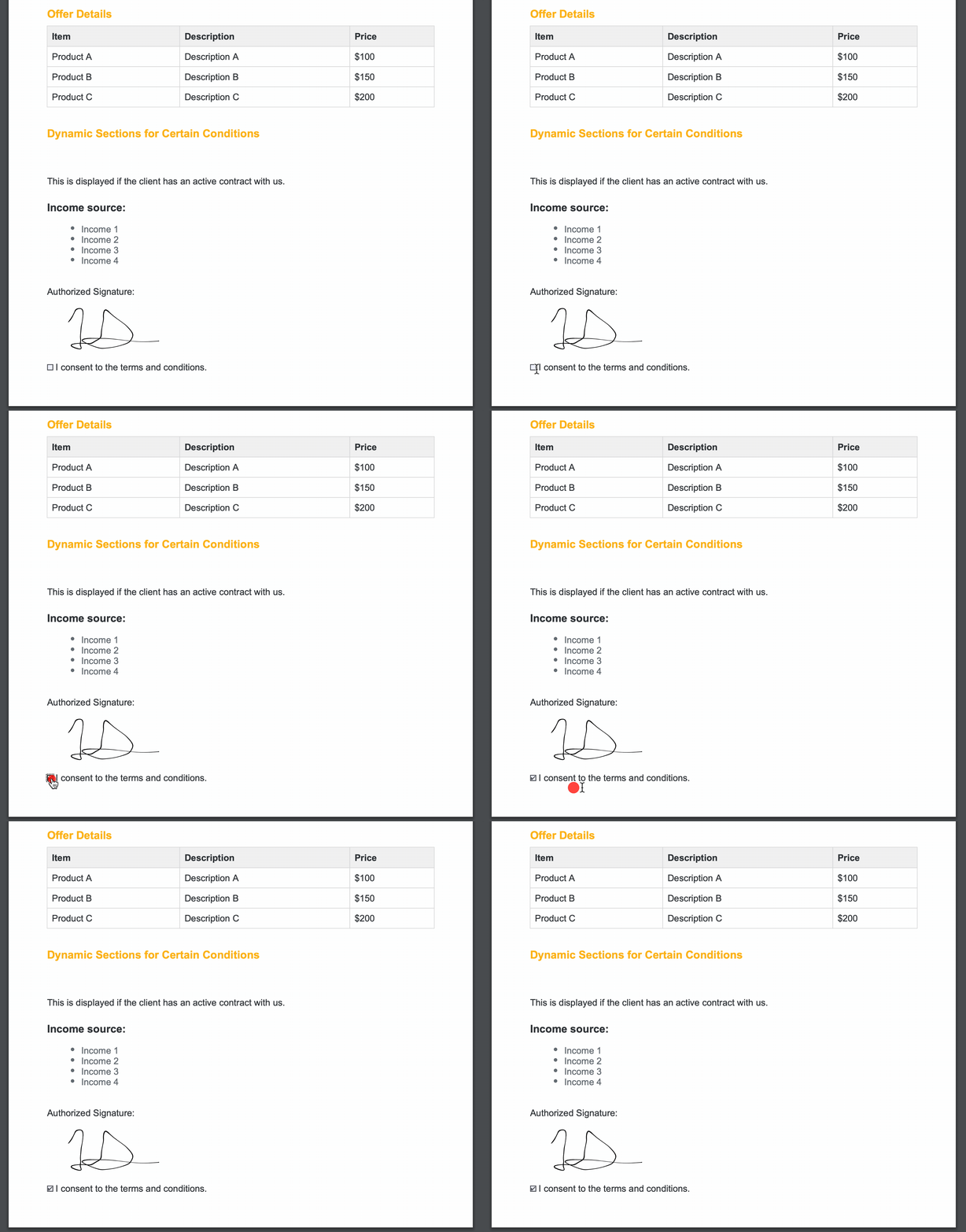
The Documents plugin provides the flexibility to define and manage HTML templates for document generation, enabling customization through various parameter types.
Additionally, the platform incorporates a What You See Is What You Get (WYSIWYG) editor, allowing users to have a real-time, visual representation of the document or content during the editing process. Furthermore, you have the capability to test and review your template by downloading it as a PDF.
A WYSIWYG editor, typically provides two main views:
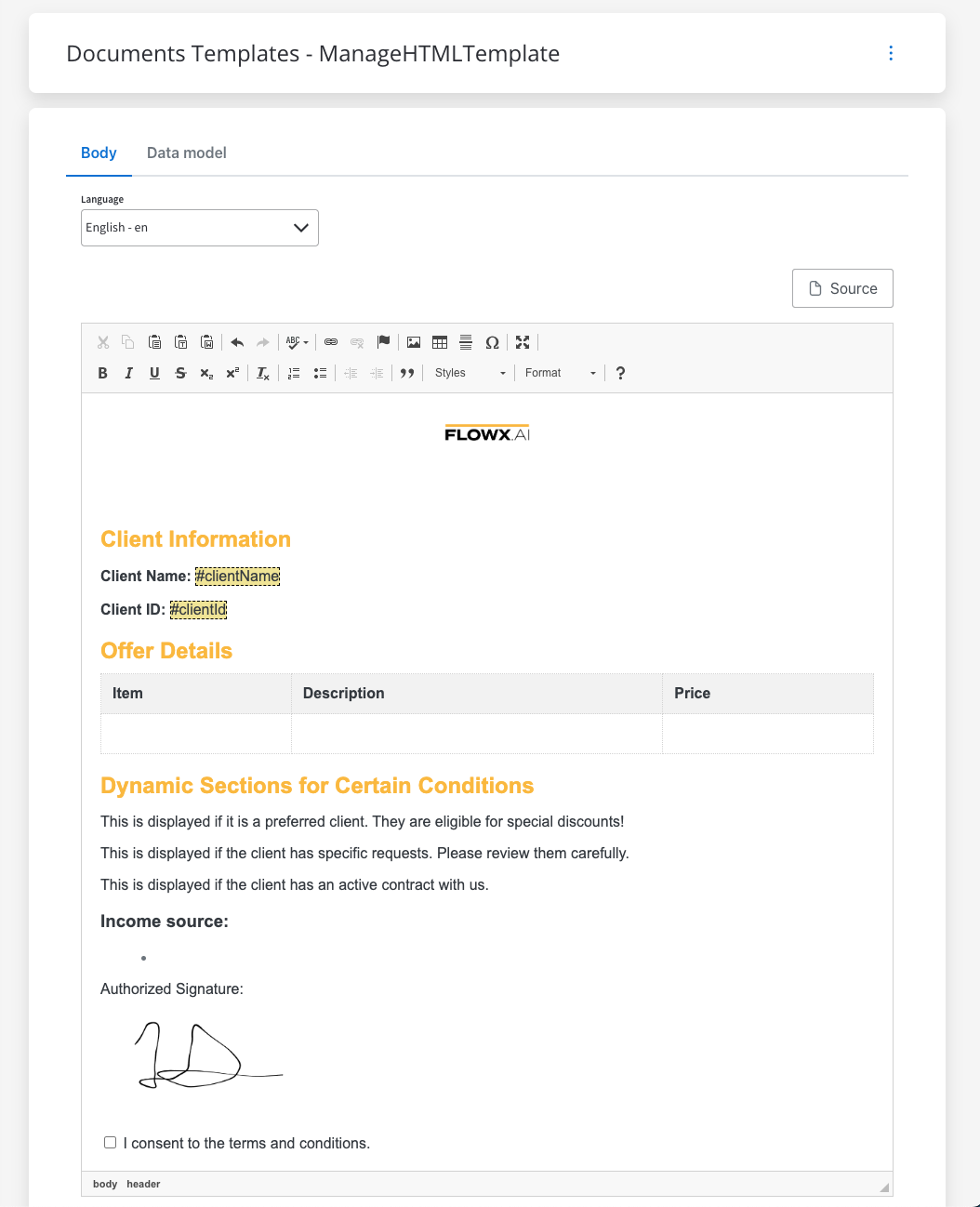
Design View (Visual View): In this view, you can see a visual representation of their content as it would appear when rendered in a web browser or other output medium. It resembles the final output closely, allowing you to format text, add images, and apply styles directly within the visual interface. This view aims to provide a real-time preview of the document’s appearance.
HTML View (Source View): In this view, you can see and edit the underlying HTML code that corresponds to the content displayed in the Design View. It shows the raw HTML markup, providing a more detailed and technical representation of the document. You can manually edit the HTML code to make precise adjustments or to implement features not available in the visual interface.
Explore the different parameter types and their specifications:
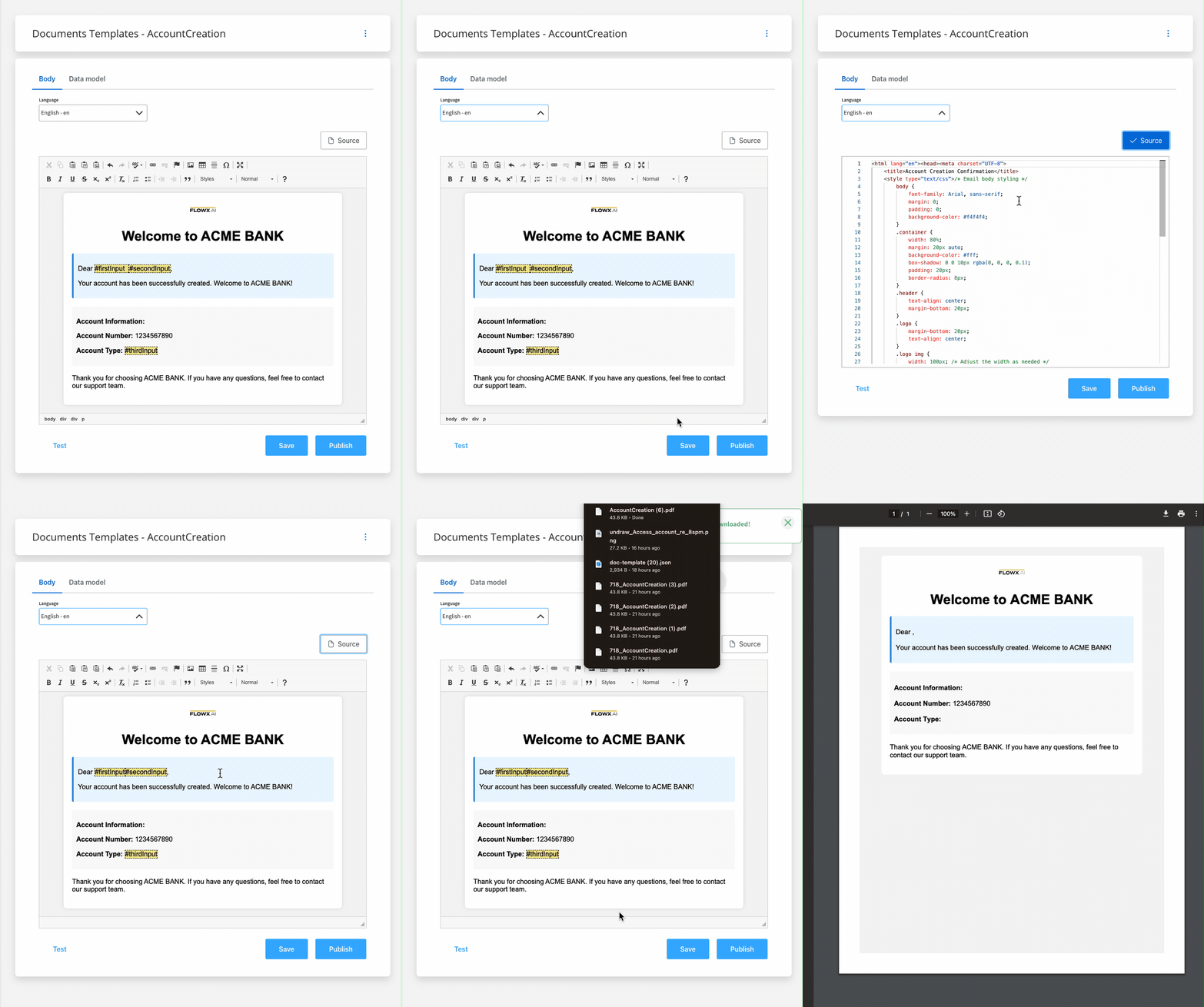
In the following example, we will create an example of a template using the HTML View (Source View).To create a document template, navigate to the Document Templates section in the Designer, select ”New document” from the menu in the top-right corner, name your template, and click Create.Now follow the next steps to design a new template:
Open the WYSIWYG editor:
Access the WYSIWYG editor within the Document Management Plugin, found in the FlowX Designer → Plugins → Document templates section.
Language Configuration: Create a dedicated template for each language specified in your system.
To confirm the installed languages on the platform, go to FLOWX.AI Designer → Content Management → Languages.
Design the document header:
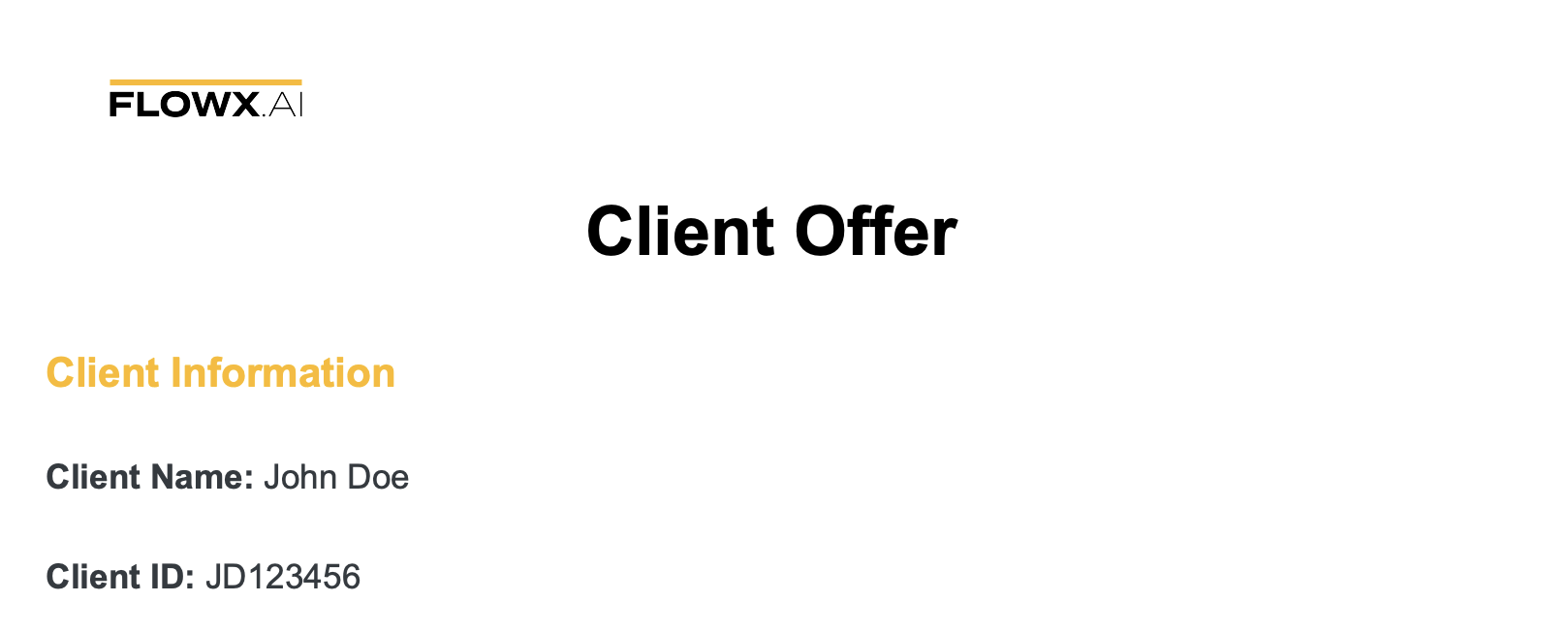
Begin by creating a header section for the document, including details such as the company logo and title.
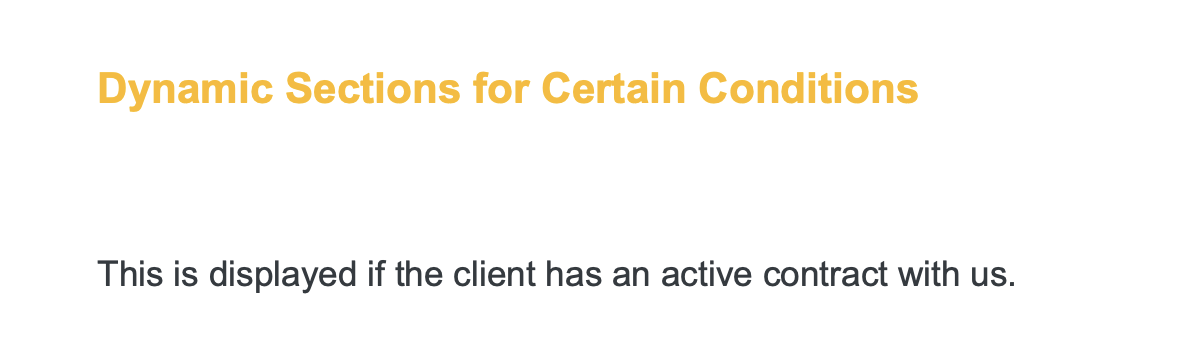
Dynamic sections allow displaying specific content based on certain conditions. For example, you can display a paragraph only when a certain condition is met.
<!-- Source: --><section><h2>Dynamic Sections for Certain Conditions</h2><span th:if="${isPreferredClient}"> </span><p><span th:if="${isPreferredClient}">This is displayed if it is a preferred client. They are eligible for special discounts! </span></p><span th:if="${isPreferredClient}"> </span> <span th:if="${hasSpecialRequest}"> </span><p><span th:if="${hasSpecialRequest}">This is displayed if the client has specific requests. Please review them carefully.</span></p><span th:if="${hasSpecialRequest}"> </span> <span th:if="${isActiveContract}"> </span><p><span th:if="${isActiveContract}">This is displayed if the client has an active contract with us.</span></p><span th:if="${isActiveContract}"> </span></section>
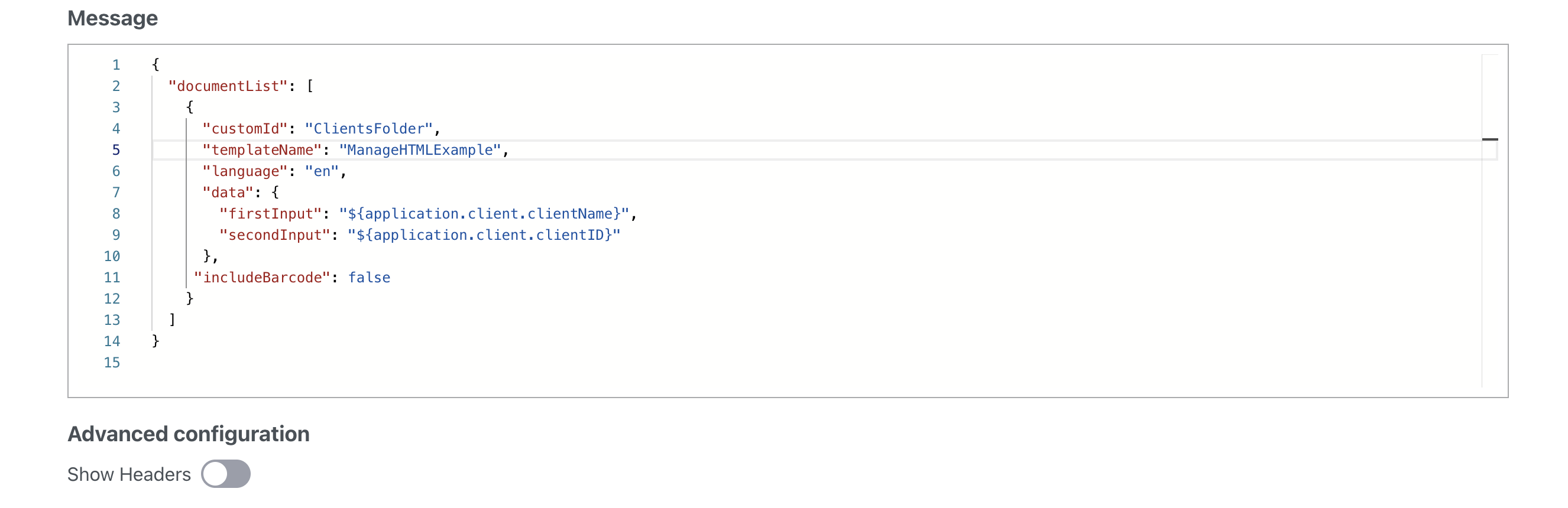
Set the includeBarcode parameter to true if you want to include a barcode. For information on how to use barcodes and OCR plugin, check the following section:
OCR plugin
Checkboxes for Consent:
Consent checkboxes in HTML templates are commonly used to obtain explicit agreement or permission from users before proceeding with certain actions or processing personal data.
<!--Source:-->
    <section>
        <label for="consent-checkbox">
            <input type="checkbox" id="consent-checkbox" name="consent" value="consent">
            I consent to the terms and conditions.
        </label>
    </section>
Data Model:
SaaS · 5.11
Available on SaaS with FlowX.AI 5.11. This feature is live on managed (SaaS) deployments now. Self-hosted deployments will receive it with the next LTS release family.
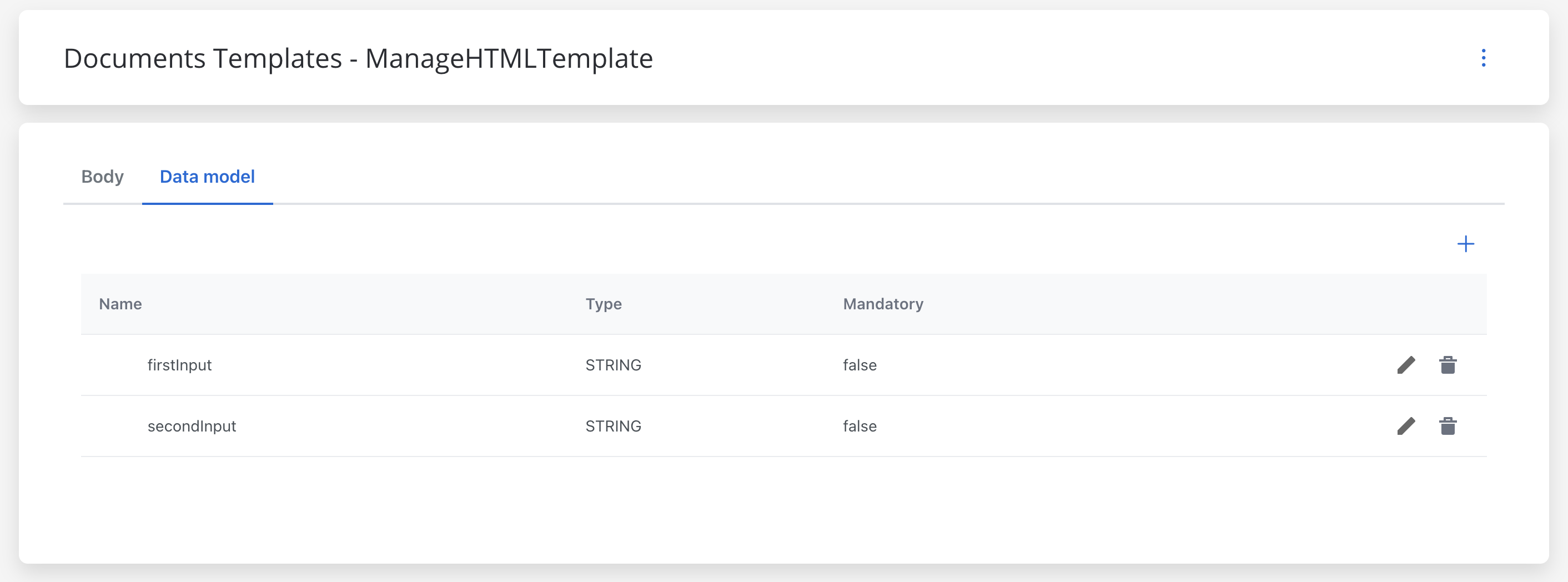
With the structured data model, the documents template Data Model tab is the shared structured builder. You define typed attributes (String, Number, Boolean, Enum, Date, Currency, object, or Array), add validations, and optionally reference data types from the Project Data Model or a Library. You then use the Input Parameters tab to select which attributes the template expects. At generation time the values you send in the payload are substituted for those attributes, such as first name or company name.
For the full data model builder reference, see the Project data model documentation.
In the documents template we have the Data Model tab. Here you define parameters, which are dynamic data fields that will be replaced with the values you define in the payload, like first name, or company name.
HTML template styling plays a crucial role in enhancing the visual appeal, readability, and user experience of generated documents.
The PDF generation engine only supports CSS 2.1. Modern CSS features such as Flexbox, Grid, CSS variables, and advanced selectors are not supported. Ensure your styles are compatible with CSS 2.1 specifications.
We will apply the following styling to the previously created HTML template using Source view of the editor.


 Explore the different parameter types and their specifications: