Control UI element visibility and interaction based on user roles, usernames, and process data for granular access control.
Control what users see and edit within the same process instance based on their roles, usernames, or process data. One process definition automatically adapts to different users, providing role-specific interfaces and access control.
Customize UI per role: Different roles see different UI elements within the same process
Enable read-only access: Users view and navigate process instances without making changes
Support concurrent work: Multiple users with different permissions work on the same instance
Adapt dynamically: UI changes in real-time based on user permissions and process data
Use case examples: A loan application where applicants see only input fields, reviewers see approval buttons, and managers see all data but in read-only mode. One process definition serves all roles.
Enable users to view and navigate process instances without modification:
Users can navigate through user tasks and view data
All input fields and buttons are non-interactive
Hide and disable conditions continue to apply
Navigation between tasks remains available
Configuration required: Enable “Allow Read-Only Process Configuration” in process General settings, then assign View permission to appropriate roles at the swimlane level.
When both hide and disable conditions exist on the same element, disable takes precedence. The element will be shown in a disabled state rather than hidden.
Follow these steps to set up permission-based UI control for your process:
1
Enable multiple executors
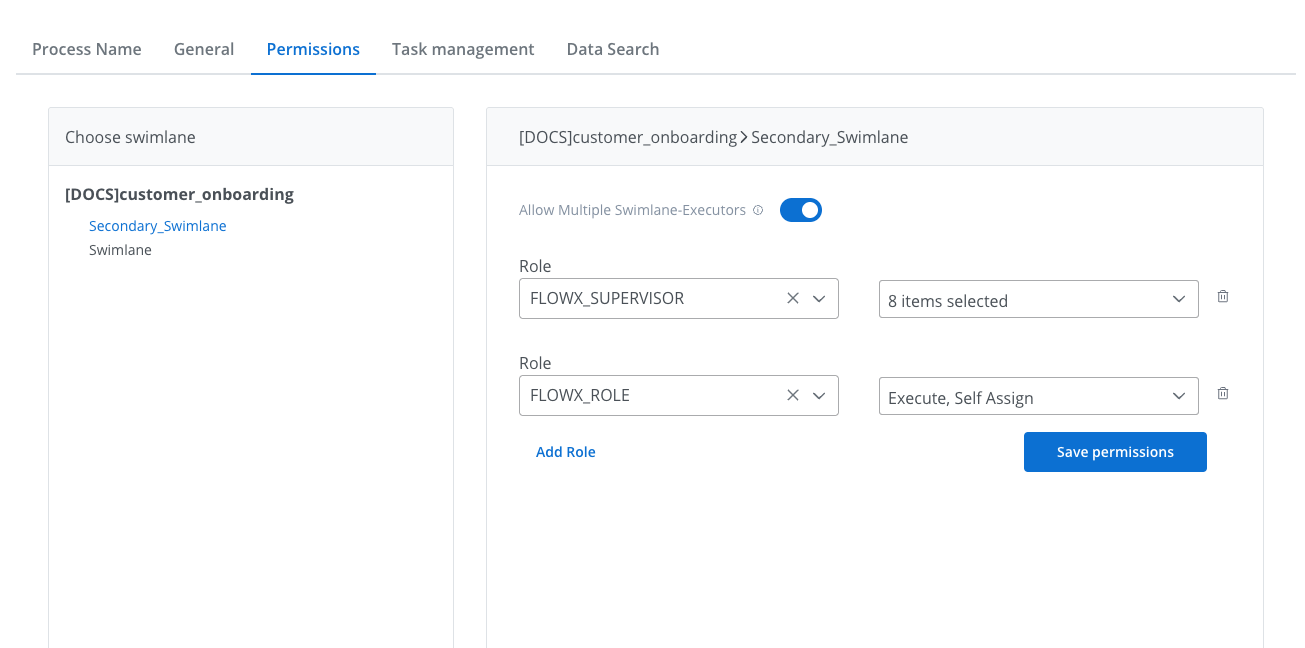
Navigate to Process Settings → Permissions tab and enable Allow multiple executors for your swimlane.
Enable multiple executors at the swimlane level
Configure role permissions (Execute, Self-assign, View) for each role that will access this swimlane.
2
Open UI Designer
Navigate to the UI Designer tab and select the component you want to configure with permission-based visibility or interaction controls.
3
Access permissions configuration
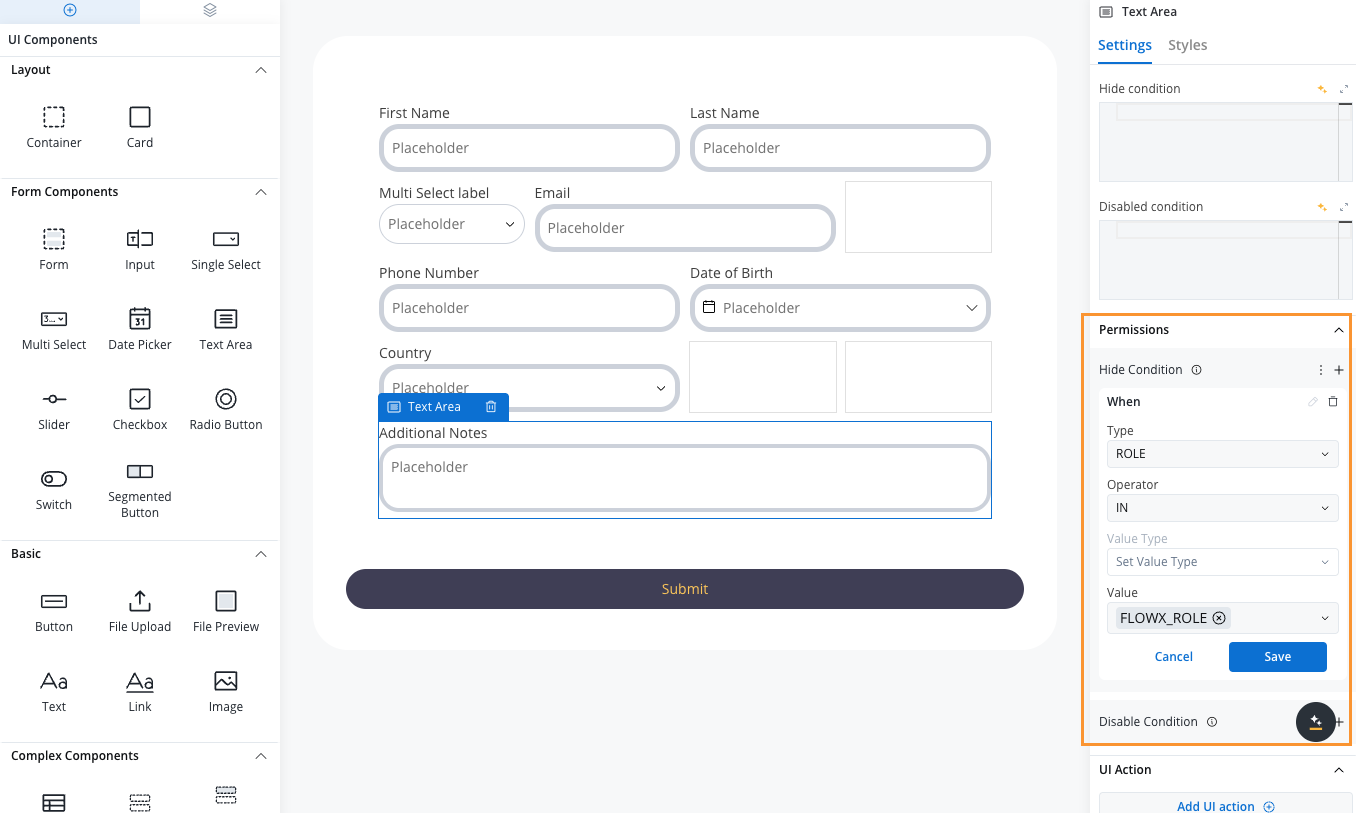
In the component properties panel, expand the Permissions section.
Permission configuration interface
4
Add condition
Click the + button next to your desired condition type:
Hide Condition: Available for all component types
Disable Condition: Available for forms, form elements, and buttons
5
Configure condition parameters
Define the permission logic using these parameters:Type: Who the condition applies to
USERNAME: Target specific usernames
ROLE: Target users with specific roles
Operator: How to evaluate the condition
IN: Condition applies when user matches the value
NOT_IN: Condition applies when user does NOT match the value
Value Type: Where permission data comes from
SWIMLANE_OWNER: Current swimlane owner (automatic, no value needed)
PROCESS_DATA: Reference data stored in the process instance
CONFIGURATION_SWIMLANE_ROLE: Use roles configured at swimlane level
Value: The actual permission data (depends on Value Type)
PROCESS_DATA: Process data keypath (e.g., ${app.client.userList})
CONFIGURATION_SWIMLANE_ROLE: Array of role names (e.g., ["ROLE_1", "ROLE_2"])
SWIMLANE_OWNER: Not applicable (determined automatically)
Use CONFIGURATION_SWIMLANE_ROLE for static role-based permissions. Use PROCESS_DATA for dynamic, context-dependent permissions determined during process execution.
6
Save configuration
Click Save to apply your permission-based expression. Test the behavior by accessing the process with different user roles.
There is no value type for hardcoding a username directly in the expression. To restrict an element for one exact user, store that username in process data and reference it with PROCESS_DATA:
// Business rule before the user taskoutput.put("app", {"restrictedUser": "john.doe@company.com"});
Use case: Gray out an action button for one named user chosen at runtime. Switch the operator to NOT_IN to invert the rule — the element is disabled for everyone except that user.
The platform assigns swimlane ownership automatically as the process runs:
Process start: the user who starts the process instance becomes the owner of every swimlane their roles give them access to.
First action in a swimlane: if a swimlane has no owner yet, the first user who executes an action in it becomes its owner. This requires the Self-assign permission on that swimlane.
No automatic transfer: ownership stays with that user. With Allow multiple executors enabled, other permitted users can act in the swimlane without taking over ownership. When it is turned off, only the current owner can execute actions in the swimlane.
Reassignment: assigning or unassigning the task from Task Manager updates the swimlane owner. Unassigning also removes the inherited owner from active subprocesses.
To reference users from other swimlanes, explicitly store their information in process data during swimlane transitions:
// Map during swimlane transitions or process start{ "swimlaneOwners": { "frontOffice": "john.doe@company.com", "backOffice": "jane.smith@company.com", "supervisor": "manager@company.com" }}
// Use in permission expression on any swimlane{ "type": "USERNAME", "operator": "IN", "valueType": "PROCESS_DATA", "value": ["${app.swimlaneOwners.frontOffice}"]}
Cross-swimlane owner references require explicit data mapping. Design your process to capture user information during swimlane transitions or use business rules to populate owner data.
Implementation approach:
Add a Business Rule node at the start of each swimlane
Capture the current user’s username
Store it in your process data structure (e.g., swimlaneOwners.{swimlaneName})
Reference this stored data in permission expressions on other swimlanes