

Documentation Index
Fetch the complete documentation index at: https://docs.flowx.ai/llms.txt
Use this file to discover all available pages before exploring further.
Available starting with FlowX.AI 5.7.0AI provider configuration allows organizations to manage their own LLM providers and model assignments.
Overview
FlowX supports configuring AI providers at three levels:- Organization level: Add and manage AI providers, set API keys, whitelist specific models
- Organization level (per workspace type): Assign default and fallback models for each AI capability, scoped by workspace type (Sandbox, Staging, Production)
- Node level: Override the default model on individual workflow nodes
Organization-level: Model providers
Access model providers from Organization Settings → AI Settings → Model Providers.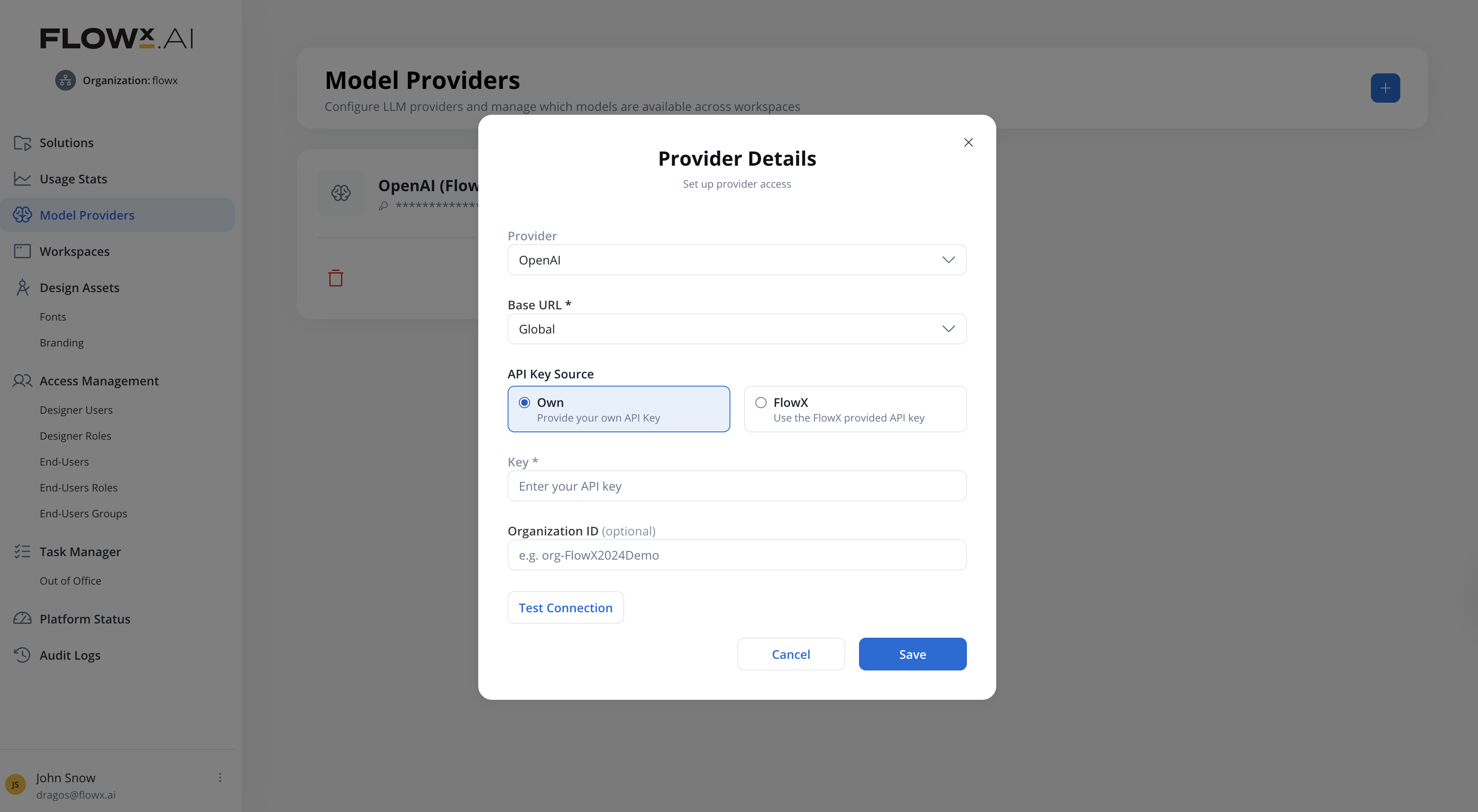
Adding a provider
Navigate to Model Providers
In FlowX Designer, go to your organization settings and select Model Providers.
Add a provider
Click the + button to open the Provider Details dialog. Configure:
| Field | Description |
|---|---|
| Provider | Select from the provider catalog (e.g., OpenAI) |
| Base URL | API endpoint (required). OpenAI offers presets (Global, EU, US) or select Custom URL to enter any OpenAI-compatible endpoint. |
| API Key Source | Select Own to provide your own API key, or FlowX to use the FlowX-provided API key |
| Key | Your provider API key (required, shown when Own is selected) |
| Organization ID | Provider organization ID (optional) |
You cannot add the same provider type twice. The system validates against the provider catalog and shows an error if a duplicate is attempted.
Test the connection
Click Test Connection to validate your credentials against the provider API.
- Success: “Connection successful. X models discovered.”
- Failure: Error details are shown (e.g., invalid API key for 401, insufficient permissions for 403).
API Key Source
The API Key Source radio buttons control how the provider authenticates:| Option | Description |
|---|---|
| Own | Provide your own API Key. You have full control over the key, Organization ID, and which models are enabled. |
| FlowX | Use the FlowX-provided API key. The Key and Organization ID fields are hidden and cannot be edited. |
Model whitelisting
The model whitelisting modal (opened from Manage Models) lets you control which discovered models are available downstream. Models are grouped by capability:| Category | Description | Example models |
|---|---|---|
| Text Generation | Text responses, summaries, translations, extraction | gpt-4o, gpt-4o-mini, gpt-4-turbo |
| Code Generation | Automated code generation for Developer Agents | gpt-4o, gpt-4o-mini |
| Embeddings | Vector representations for knowledge base indexing and RAG | text-embedding-3-large, text-embedding-3-small |
| Speech to Text | Audio transcription for the Speech to Text workflow node | whisper-1 |
| Text to Speech | Audio generation for the Speech to Text workflow node (TTS operation) | tts-1-hd |
- Use Search to filter models by name
- Use Select All / Deselect All for bulk actions
- A counter at the bottom shows “X of Y models enabled”
- Click Save Whitelist to persist your selection
Model whitelisting is not available when using the FlowX-managed key for OpenAI.
Editing a provider
When editing an existing provider (API key or Organization ID changed):- The Save button is disabled after any field edit
- Click Test Connection to validate the new credentials
- On success, Save becomes enabled
- If the newly discovered model list differs from the previous one:
- New models are added to the whitelist automatically
- If any previously enabled models are no longer available, a replacement wizard guides you through selecting alternatives
- Skipping the wizard removes the missing models from all dropdowns where they were used, and the fallback mechanism activates
Deleting a provider
All providers except the default OpenAI (FlowX-managed) can be deleted. Deleting a provider:- Shows a confirmation with the impact: nodes and knowledge bases using this provider’s models switch to their fallback model
- If the fallback model is also from the deleted provider, a warning indicates that all LLM-related activities using those models will fail
Provider card
Each provider card shows:- Provider name and icon
- Masked API key (last 4 characters visible, e.g.,
••••••••••••1234) - Model count: “Models enabled: X / Y”
- Organization ID (if configured)
- Connection status
- Available actions: Manage Models, Edit, Delete
Defaults & Fallbacks
Access model assignments from Organization Settings → AI Settings → Defaults & Fallbacks.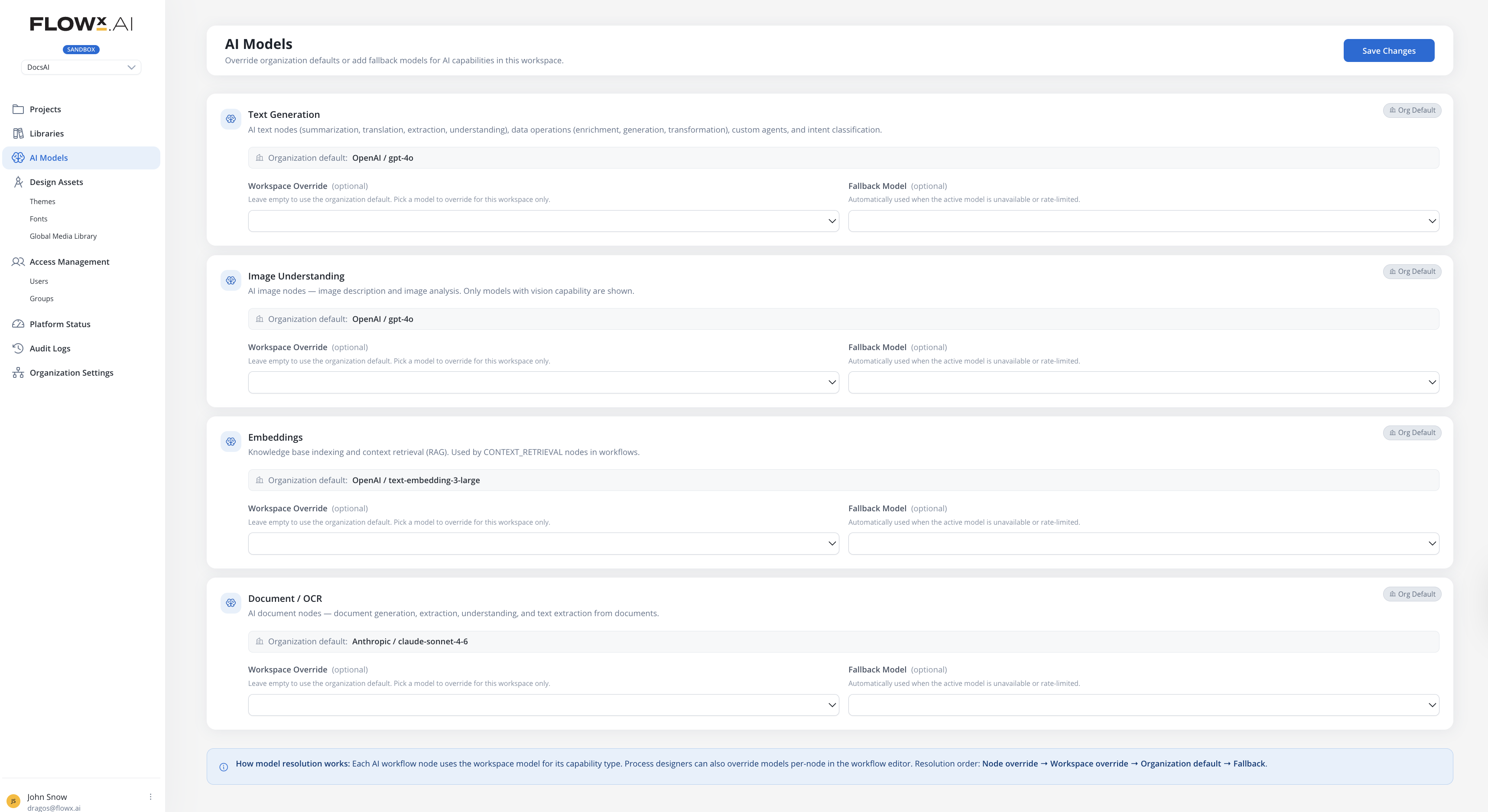
| Capability | Used for |
|---|---|
| Text Generation | Text operations (summarization, translation, extraction), data operations (enrichment, generation, transformation), custom agents, and intent classification |
| Image Understanding | AI image nodes — image description and image analysis. Only models with vision capability are shown. |
| Embeddings | Knowledge base indexing and context retrieval (RAG). Used by context retrieval nodes in workflows. |
| Document / OCR | AI document nodes — document generation, extraction, understanding, and text extraction from documents. |
| Developer Agents | AI planner, developer, analyst, and designer agents. Used for automated code generation and analysis workflows. For best performance, this capability uses the FlowX tested and optimized model configured at the organization level. |
| Audio | Audio processing — speech-to-text transcription, text-to-speech synthesis, and real-time audio interactions. Used by the Speech to Text workflow node. |
Assigning models
For each capability:- Select a Default model from org-whitelisted models matching that capability, or use the provider default
- Optionally select a Fallback model, used if the default model is unavailable or rate-limited
When Use provider default is selected, the assignment inherits the catalog default model. Changes to the catalog default automatically propagate.
Fallback behavior
When a primary model is unavailable, rate-limited, or disabled at the organization level, the system automatically switches to the configured fallback model. The resolution order is:- Node-level override (if configured) → its fallback model
- Workspace default → its fallback model
- Error if all options exhausted
| Scenario | Behavior |
|---|---|
| Primary model unavailable | Fallback model is used automatically |
| Node override model not found | Falls back to workspace default model |
| API key expired or revoked | Nodes using this provider’s models fail with “API key invalid” in the execution log. Provider shows a warning at the organization level. |
| Both primary and fallback unavailable | Node fails with error: “Primary and fallback models unavailable. Contact your organization admin.” |
Per-node model override
Workflow designers can override the default model on individual AI nodes (Custom Agent, Intent Classification, etc.) in the Integration Designer. This allows different nodes in the same workflow to use different models. For example, a fast model for intent classification and a more capable model for complex reasoning.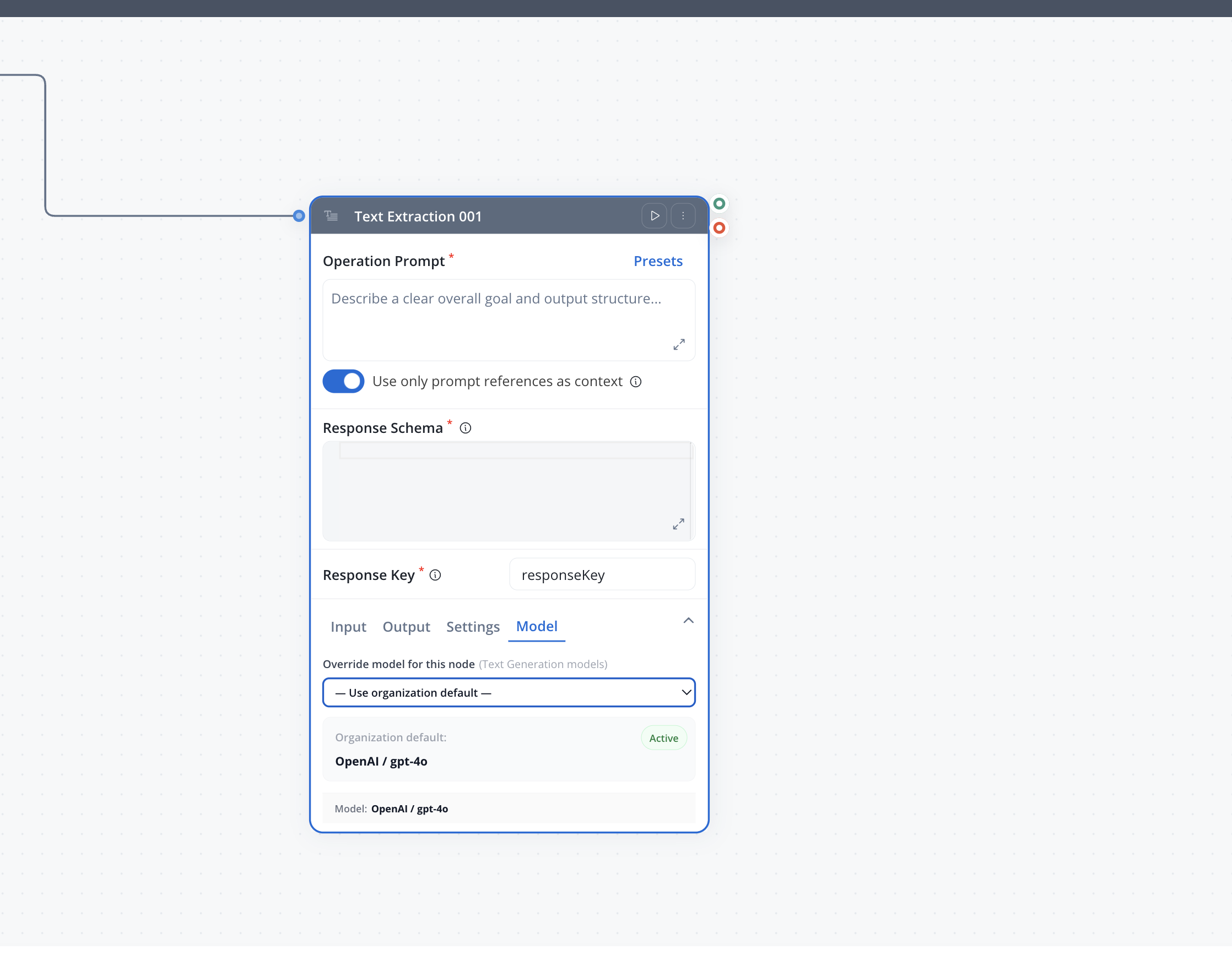
How it works
When configuring an AI node, an optional Model Override section lets you select a specific model:| Field | Description |
|---|---|
| Provider type | The provider to use (e.g., OPENAI) |
| Model | The specific model (e.g., gpt-4o) |
| Fallback provider type | Optional fallback provider if the primary is unavailable |
| Fallback model | Optional fallback model |
providerType + modelIdStr) that resolve at runtime against the organization’s available models. Only models enabled in the organization’s whitelist can be selected.
When no override is set, the node uses the workspace default model for its capability (text generation, embeddings, etc.).
Per-node model overrides apply to the text generation capability only. Other capabilities (image understanding, embeddings, document/OCR) always use the workspace defaults.
Supported providers
FlowX maintains a provider catalog with pre-configured provider types. Each provider type includes display metadata (name, icon) and optional base URL presets.| Provider | Key mode | Notes |
|---|---|---|
| OpenAI | FlowX Managed or BYOK | EU, US, and Global base URL presets |
Permissions
| Permission | Description |
|---|---|
org_ai_providers_read | View AI providers and model assignments at organization level |
org_ai_providers_write | Add, edit, delete providers, manage model whitelists, and configure Defaults & Fallbacks |
Related resources
AI in FlowX
Overview of AI capabilities in the FlowX platform
Agent Builder
Build AI agents that use the configured models
Conversational Workflows
Create chat experiences powered by AI models
Organization Settings
Manage organization-level settings