

Before proceeding, make sure you understand how to send basic notifications.
For new processes, use the Send Notification action instead. It provides typed configuration fields and validation, and runs through the same notification backend. This Kafka-based guide is preserved for existing flows and advanced cases where the payload must be hand-crafted.
Overview
This guide explains how to send emails with document attachments through the notification plugin. You’ll learn how to:- Configure email templates with dynamic content
- Reference generated documents as attachments
- Implement the complete email notification flow in your processes
Prerequisites
- A configured notification template (see Managing notification templates)
- Properly defined Kafka topics for the notification plugin
- Files to attach (such as generated documents or uploaded files)
Implementing email notifications with attachments
Let’s walk through a common scenario: sending a customer a copy of their account details document via email.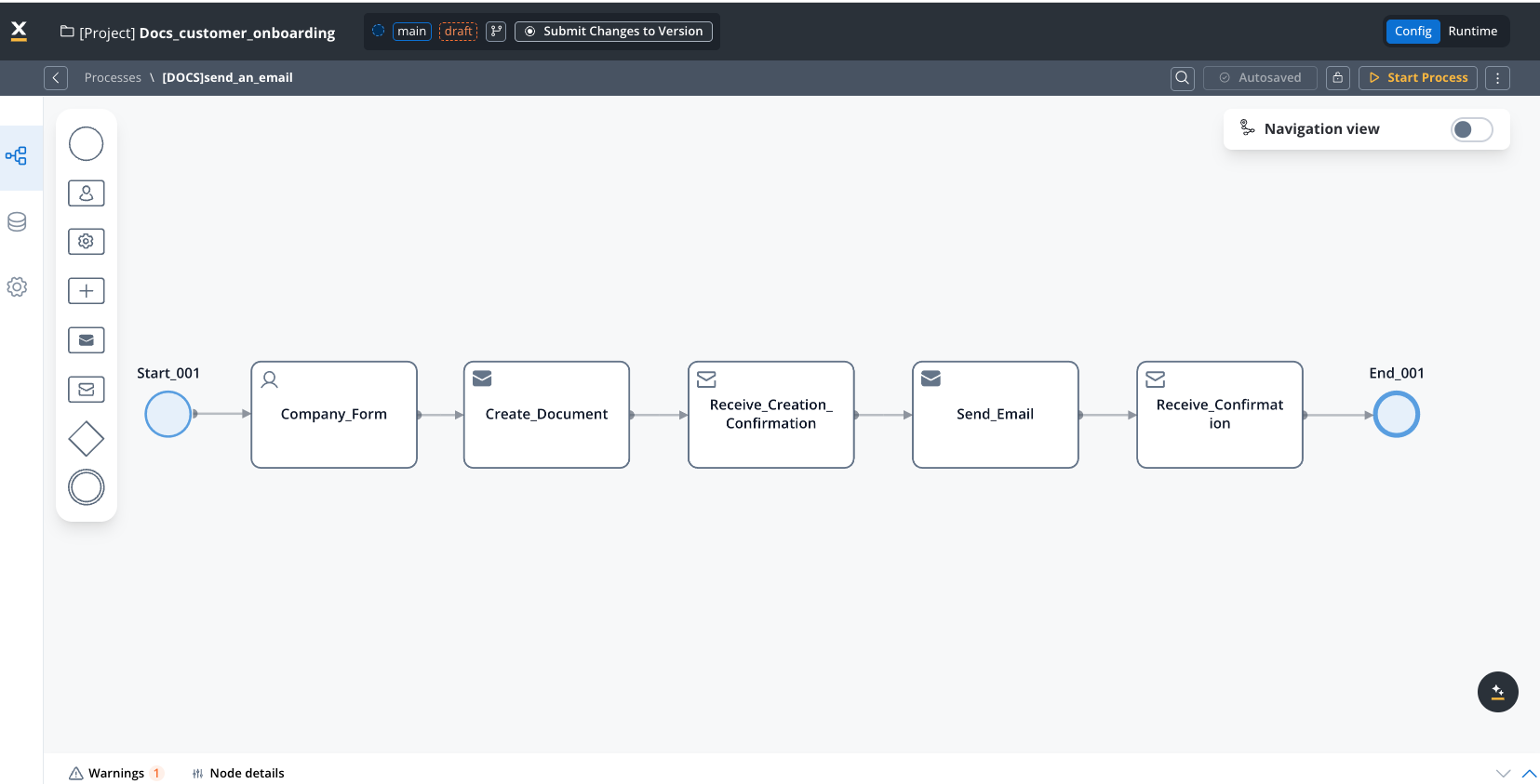
Document Generation
If you need to generate the document first, see the document generation guide.
Understanding document references
When you generate a document, as explained in the Generating documents guide, you need to reference two key pieces of information:- minioPath: The storage location of the generated document
- documentType: The type identifier used to create the attachment filename
- customId: “ClientsFolder”
- templateName: “AccountCreation”
You can verify these values in the process instance details: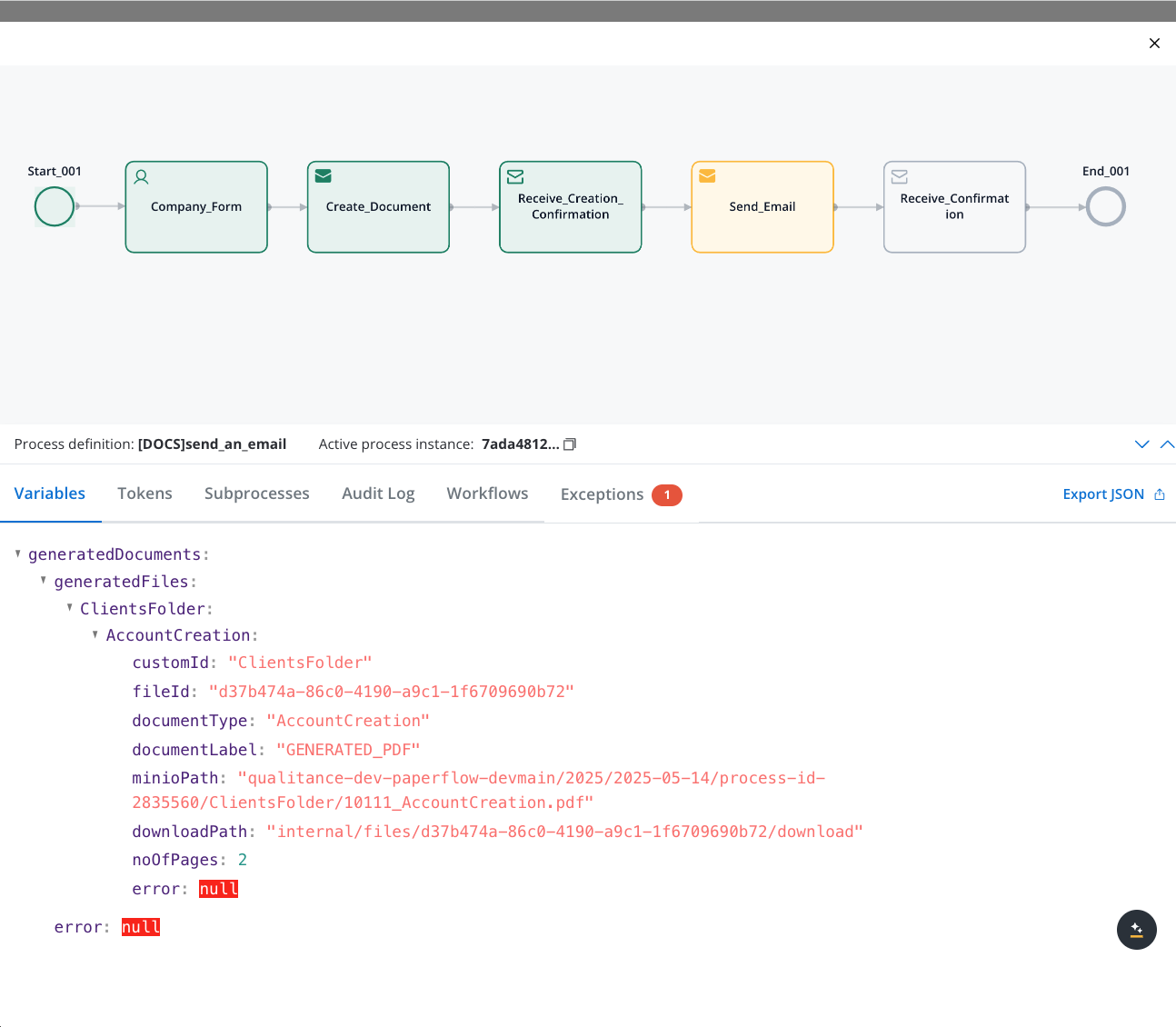
Step-by-step implementation
1
Prepare your email template (notification template)
Configure the template you’ll use for the email: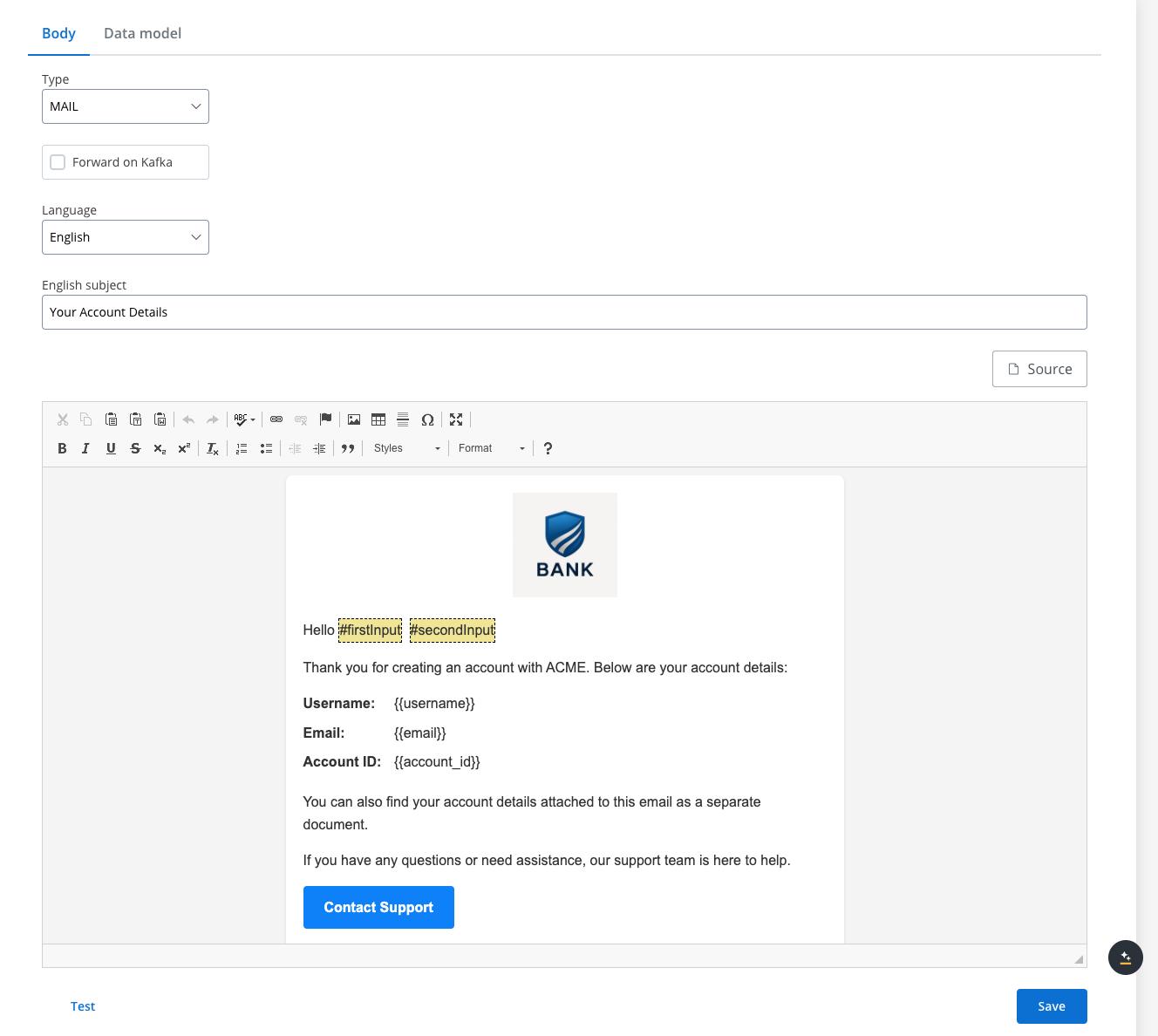 See Managing notification templates for detailed instructions.
- Define subject line, body text, and placeholders for dynamic content
- Set proper HTML formatting if needed
- Test the template to ensure it displays correctly
2
Verify Kafka topic configuration
Confirm that the required Kafka topics are properly defined: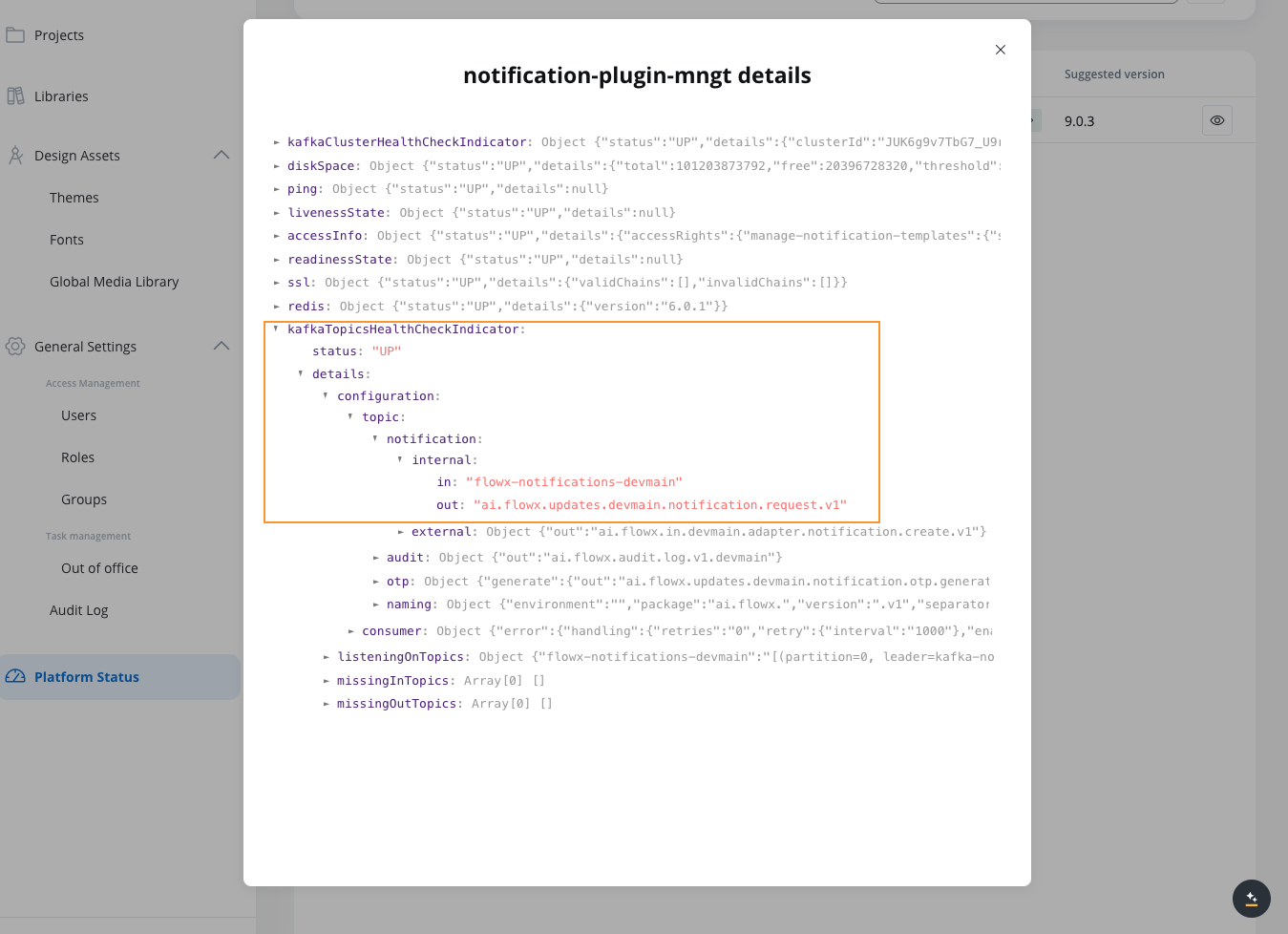
- Navigate to FlowX Designer → Platform Status
- Select notification-plugin-mngt
- Expand kafkaTopicsHealthCheckIndicator → details → configuration → topic → notification → internal
- Verify that the input and output topics for email notifications are listed
3
Add a Send Message Task (Kafka) and Receive Message Task (Kafka)
In your process definition: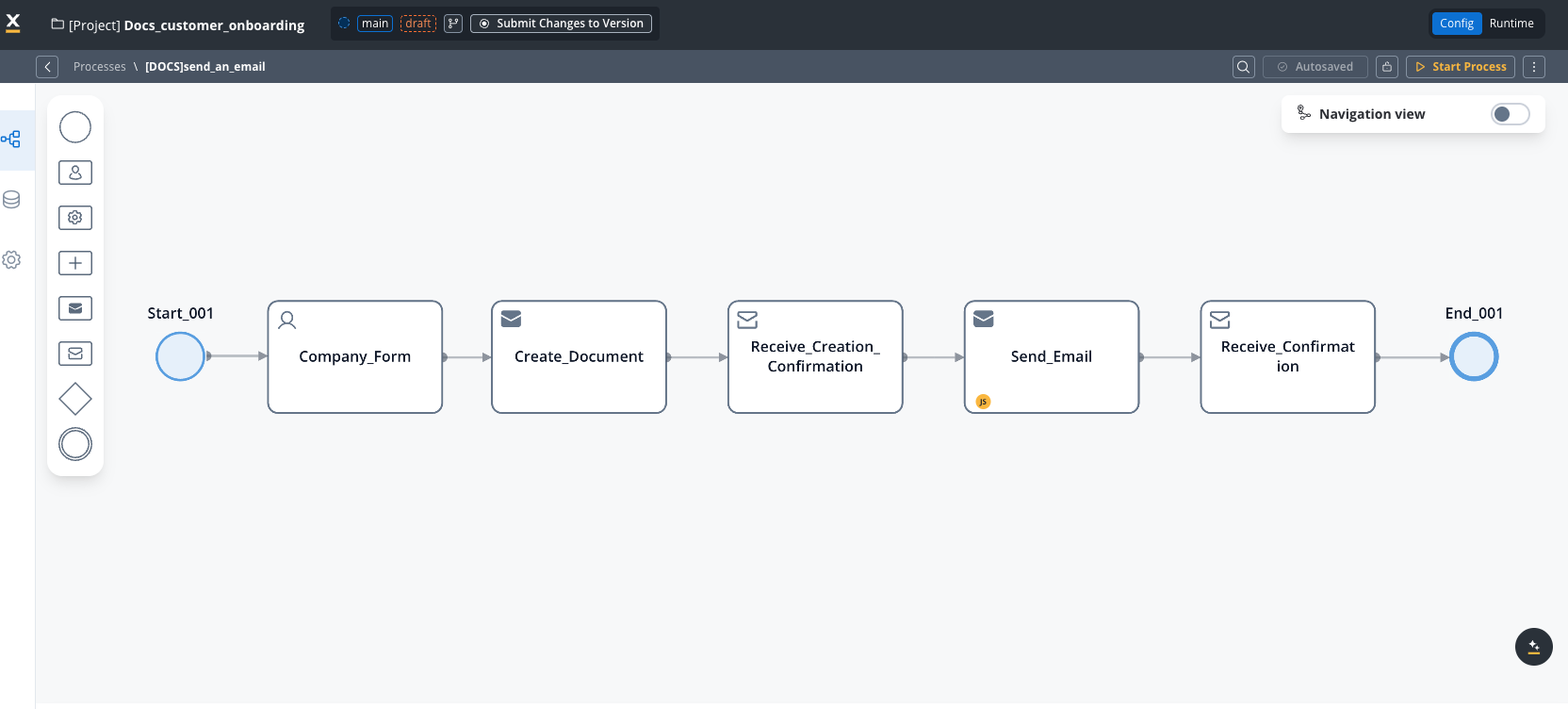
- Open the process definition in your project in FlowX Designer
- Add a Send Message Task (Kafka) after the document generation step
- Add a Receive Message Task (Kafka) after the Send Message Task
4
Configure the email request payload (Send Message Task)
On the Send Message Task, add a Kafka send action, add the corresponding Kafka topic and create the JSON payload containing all information needed for the email: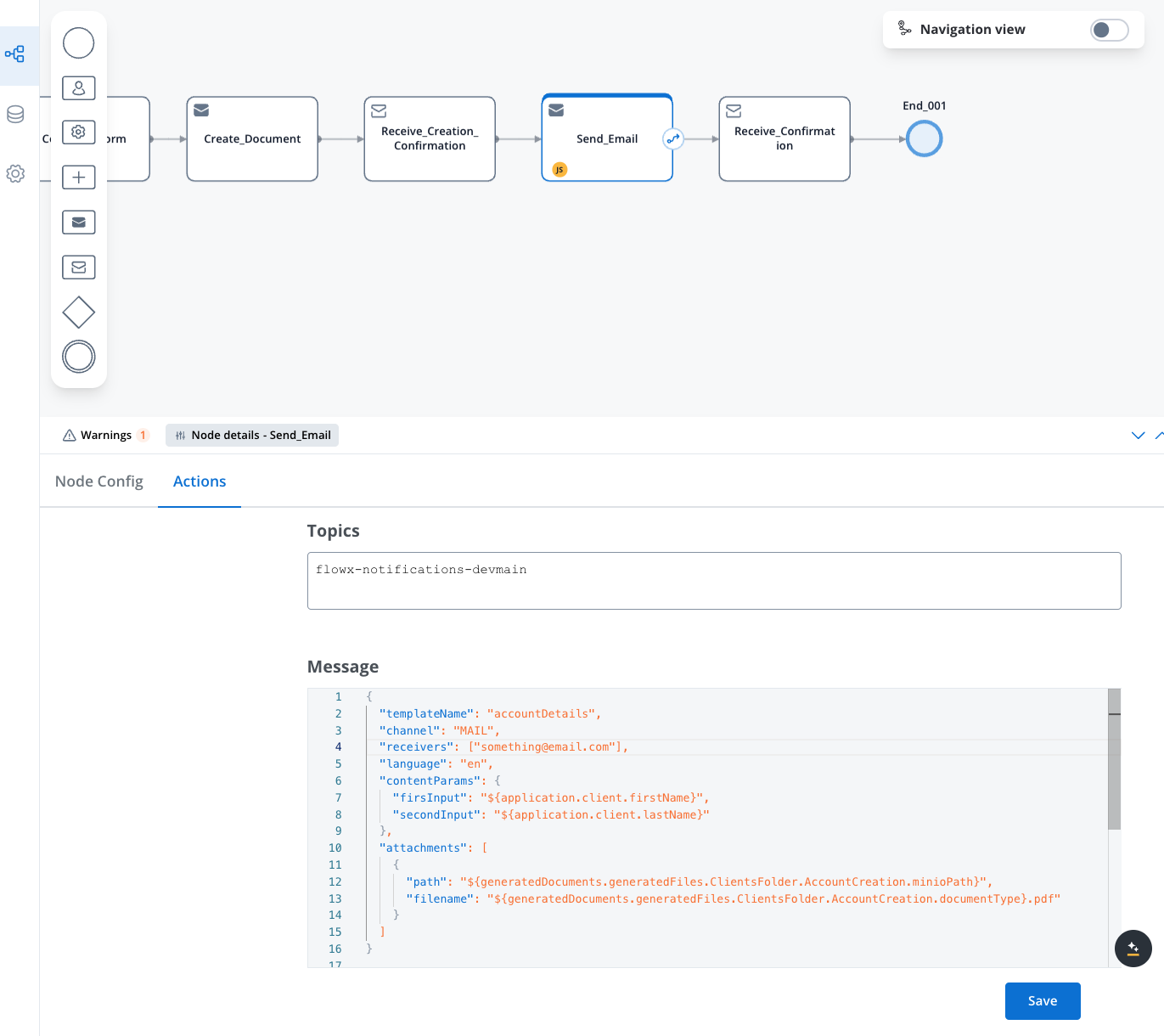 Key parameters:
- templateName: The name of your configured email template
- language: The language code matching your template’s language version
- receivers: Array of email addresses (can use process data variables)
- ccReceivers: Array of email addresses to be added as CC (can use process data variables)
- bccReceivers: Array of email addresses to be added as BCC (can use process data variables)
- data: Values to replace template placeholders (the older
contentParamskey is still accepted but deprecated) - attachments: Array of files to attach, with filename and minioPath/storage path
5
Configure the email success handler (Receive Message Task)
On the Receive Message Task, add a Kafka receive action, add the corresponding Kafka topic and configure the node with the following properties: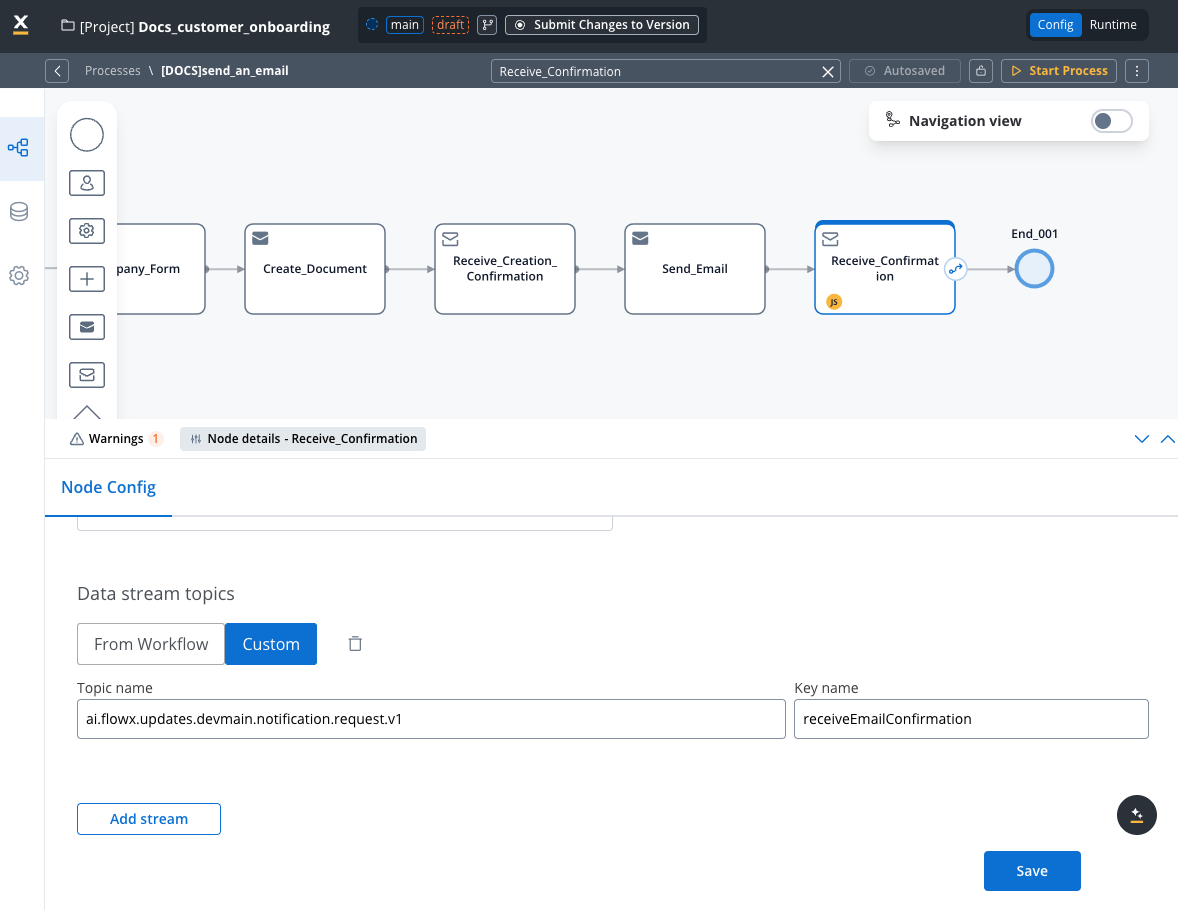
- Go to Node config tab
- Under Integration Output, add a data stream (Add Stream) and set its Source to Custom Topic
- Add the topic name
- Click Save
6
Run the process
Run the process and check the result in the process instance details: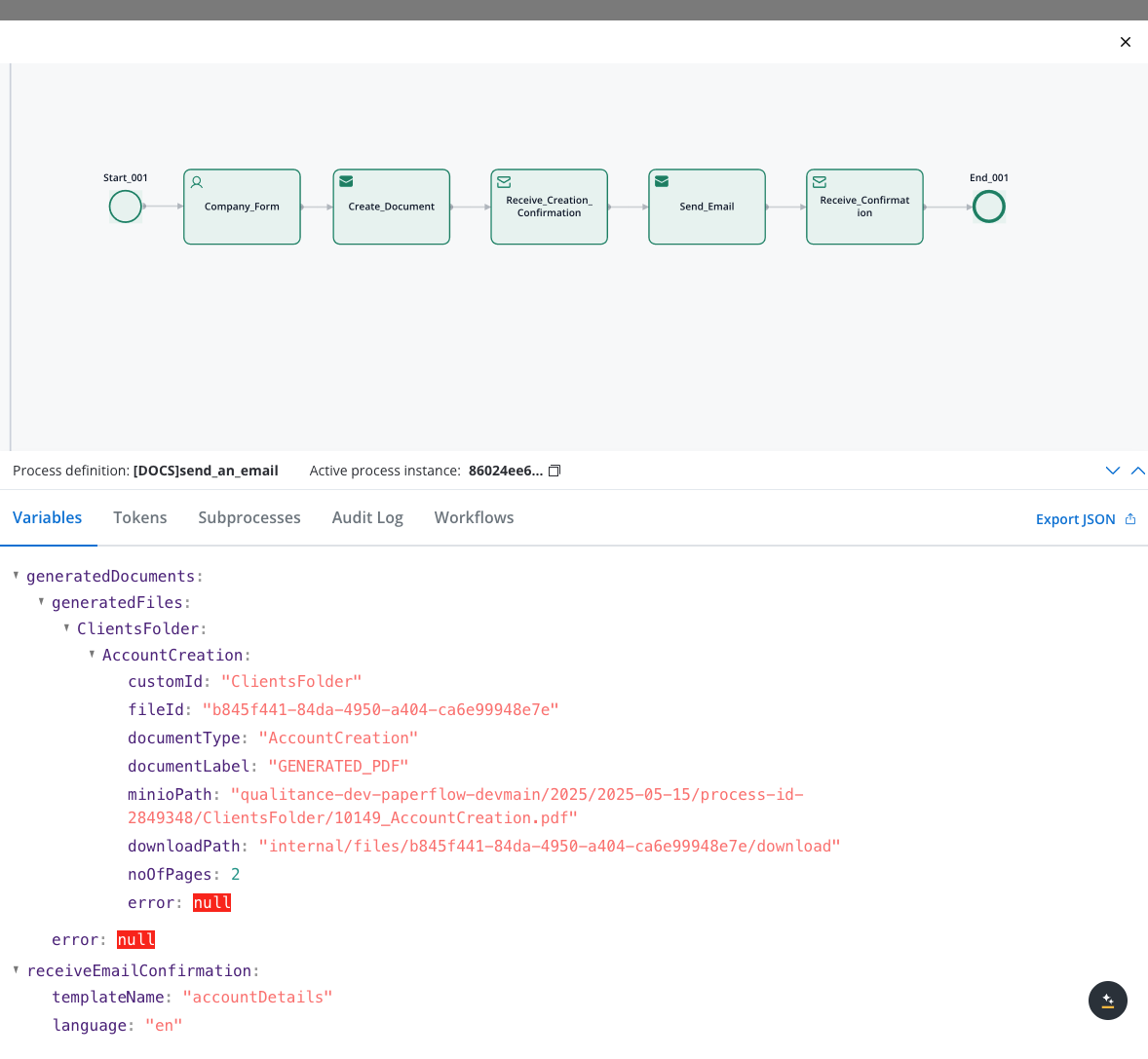
Request payload reference
Required fields
Optional fields
Attachment structure
Each attachment requires:- path: References the storage location (usually a MinIO path from document generation)
- filename: The name recipients will see for the attached file (can include process variables)
Testing and troubleshooting
After configuring your email notification:- Verify that variables resolve correctly in the template and attachment references
- Check email delivery to test recipients
- Review notification plugin logs if issues occur
Common issues
For further assistance, check the notification plugin logs in your environment.