

Available on SaaS with FlowX.AI 5.12. This feature is live on managed (SaaS) deployments now. Self-hosted deployments will receive it with the next LTS release family.
Overview
The Designer can check the resources in your project version and list what it finds in one place. Findings are listed in the Issues Console, and marked where they occur so you can go straight to them. Open the console from the Issues button in the bottom bar of the project, which shows how many findings the version has. That count covers every finding in the version, whatever filters you apply in the console. The console is a floating window. Drag it by its title bar, resize it from any edge or corner, and close it with the close button. It belongs to the project rather than to a single page, so it stays open, at the same size and position, as you move between the project’s pages.What is validated. Processes, UI Flows and integration workflows are checked. Other resource types are listed as not validated rather than reported as clean, so an empty result never means more than it should.
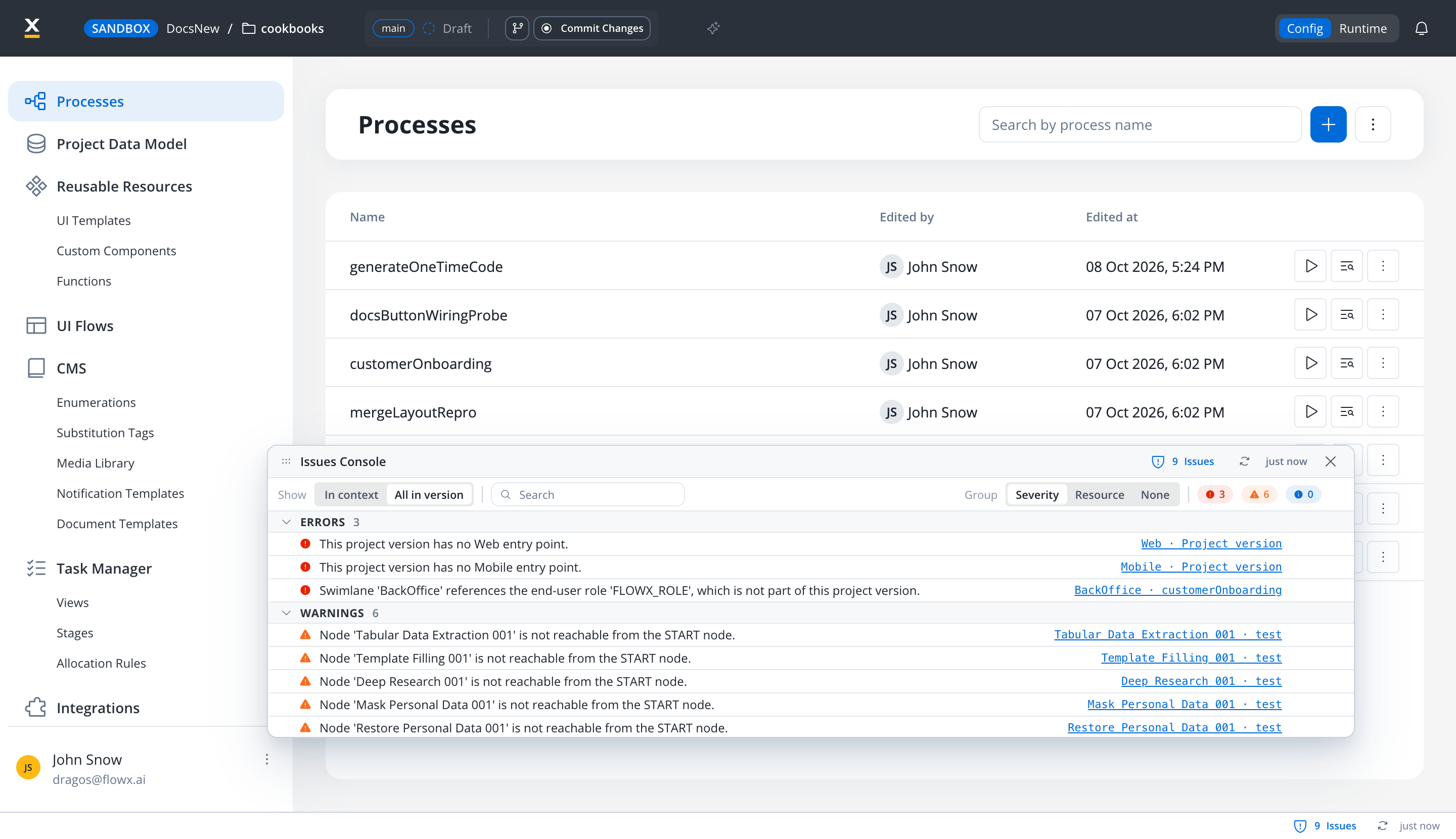
In the workflow editor, the console also has a Run Logs tab for the workflow’s test runs.
Running a check
A version that has been checked before opens with the results of its last check, whoever ran it. A version that has never been checked shows Nothing checked yet. Run a check to validate every resource in this version. and a Check for issues button. To check again, select the refresh button next to the Issues count in the bottom bar, or in the console’s title bar. Both places show how long ago the last check ran, for example5 min ago, so you can tell a current result from a stale one.
Reading the list
Every finding is reported at one of three severities, error, warning, or info, and names the element and the resource it came from. Select that name to go straight to the element. Hover over a finding to show its lightbulb button. Select it to expand a Suggested Fix with the remediation and a Go to button that opens the element. The filter row above the list narrows what you see:
Your severity and grouping choices are remembered in your browser, across versions. Search is not.
Markers
Findings are also marked where they live: on workflow list rows, on the page title, and on nodes in the workflow canvas. Markers show errors and warnings only, never info, and the page title marks errors only. Selecting a marker opens the Issues Console; on a canvas node, it also focuses that node. To turn markers off, open the settings popover in the filter row and clear Show on canvas and lists. The console keeps working; only the markers elsewhere are hidden.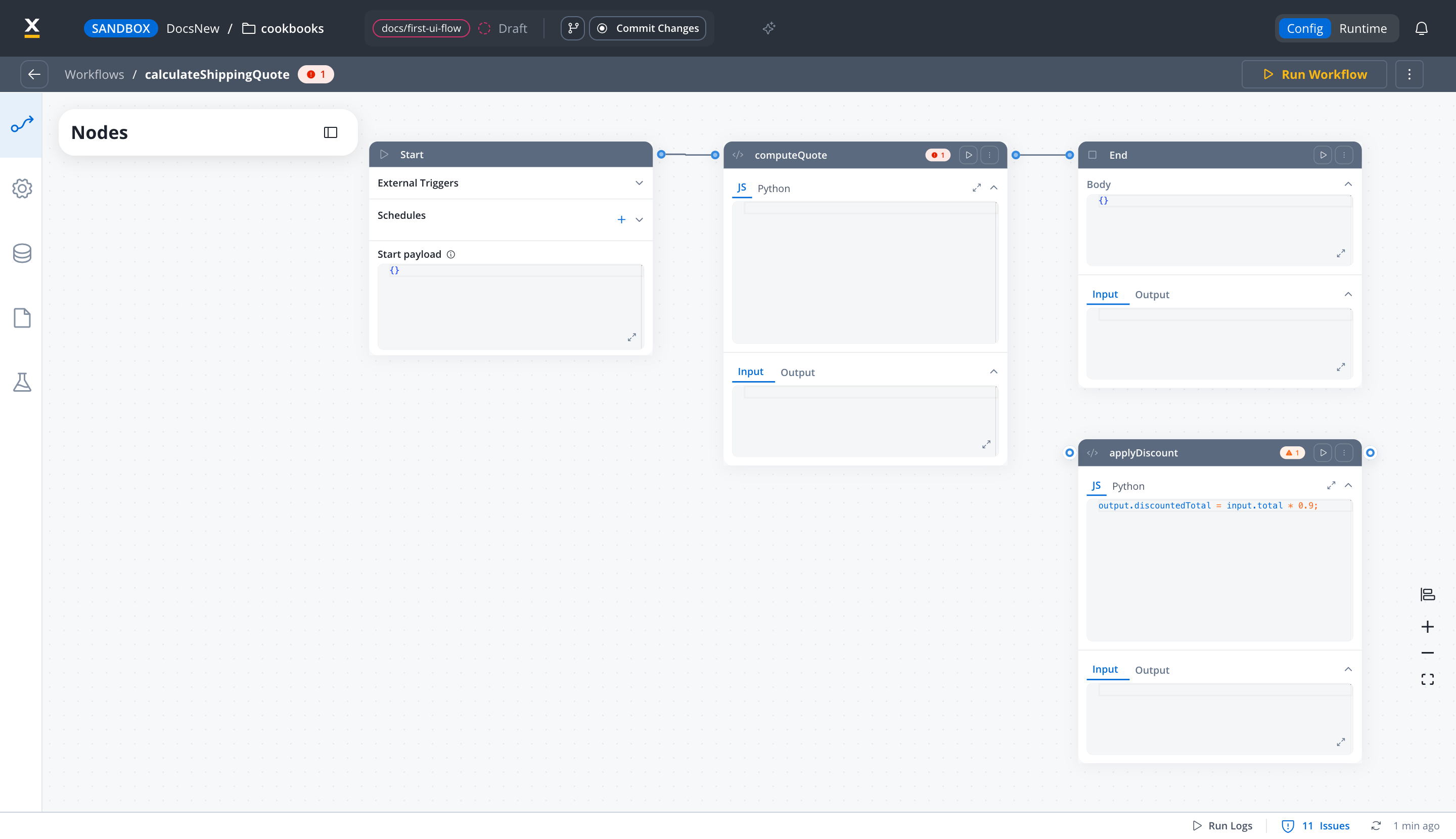
Before you commit
Opening Commit Changes runs a check on its own, and each changed resource in the modal shows what the check found: its errors and warnings, a check mark when it has no issues, or a minus sign when its type is not validated yet. A resource you are deleting is shown as not validated, since it is not part of the version being described. Above the commit button, a summary reads Issues found or No issues found for the changed resources.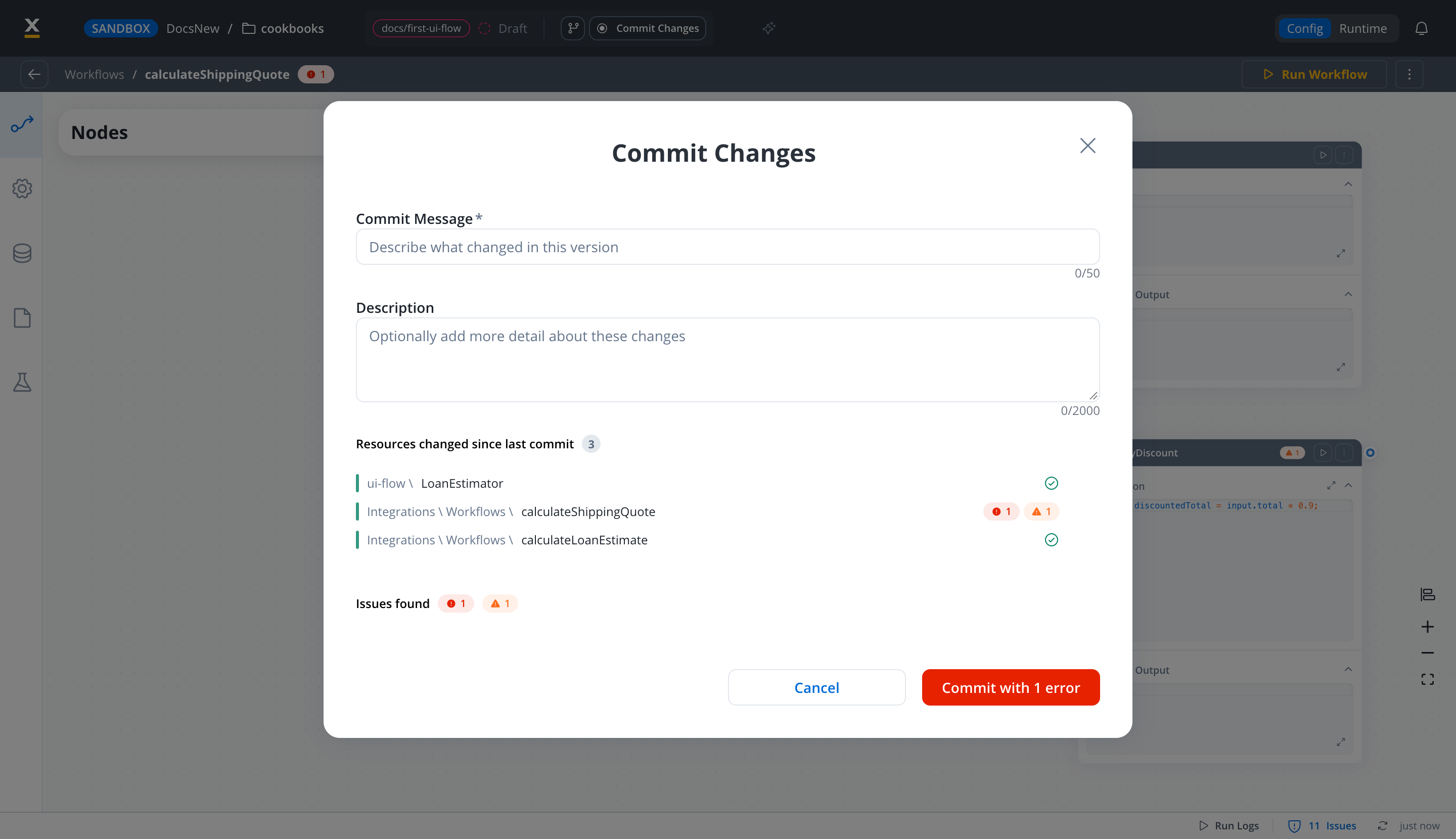
Related resources
Versioning
Project versions, committing changes, branches and builds
Integration Designer
Building the workflows this check validates