

Built and run by the FlowX docs team on a live FlowX environment. The workflow ran end to end: a Script node's output was mapped into the Template Filling node, the PDF was generated with the mapped values, and the download URL returned the file with a token and rejected the request without one.
- How do I pass a Script node’s output into the Template Filling node?
- Why does the Template Filling node show no mapping options?
- How do I build the download URL for the generated document?
Prerequisites: a project with an integration workflow, and a document template in the project’s Document templates. For creating and editing templates, see Managing templates.
How do I pass a Script node’s output into the Template Filling node?
SaaS · 5.10Available on SaaS with FlowX.AI 5.10. This feature is live on managed (SaaS) deployments now. Self-hosted deployments will receive it with the next LTS release family.
output is merged into the root of the workflow data, with no prefix for the node name. A key the script writes as output.customer is available to every later node as customer, and its fields as customer.fullName. The Template Filling node reads its template values from that workflow data.
1
Write the values from the Script node
Assign each value the template needs to a key on Later nodes reference these values as
output:${customer.fullName} and ${customer.contractNumber}. For the expression rules, see Referencing workflow data in node configurations.2
Declare the keys in the workflow data model
The data mapper in the Template Filling node lists the attributes of the workflow’s Data Model as its source, and a key the Script node writes isn’t offered until it’s declared there. Add the keys to the workflow data model with the same names and nesting (in this example, a
customer object with fullName and contractNumber). See Workflow data models.3
Define the template's input parameters
The mapper fills only the template attributes selected as input parameters. Open the document template and:A bare 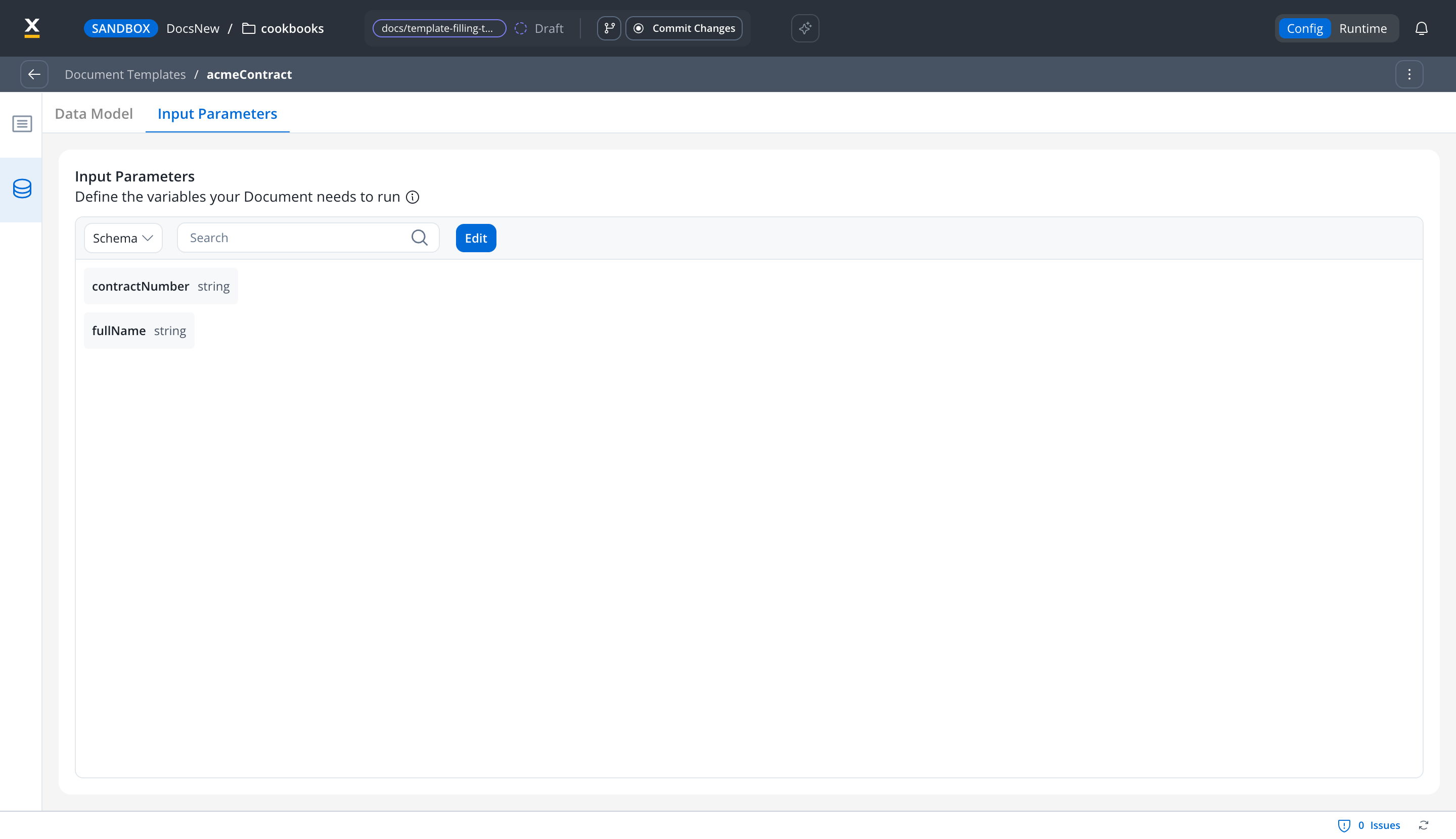
- On the Data Model tab, add an attribute for each value, for example
fullNameandcontractNumberof type string. - On the Input Parameters tab, click Define parameters, select the attributes, and click Done.
th:text attribute:${fullName} outside a th: attribute is printed as is in the generated document.4
Add and configure the Template Filling node
Add Template Filling from the node palette after the Script node and set:
- Template: the document template to fill, from this project or one of its library dependencies
- Language: the template language
- Document Tag: the tag stored with the generated file, for example
ContractTemplate - Document format: PDF (default) or DOCX
- Response Key: the key that holds the generated file’s details, for example
generatedContract
5
Map the workflow attributes onto the template
Under Input Mapping, click the wrench icon (Configure mapping) on the Template Input card. In the Input Mapping window: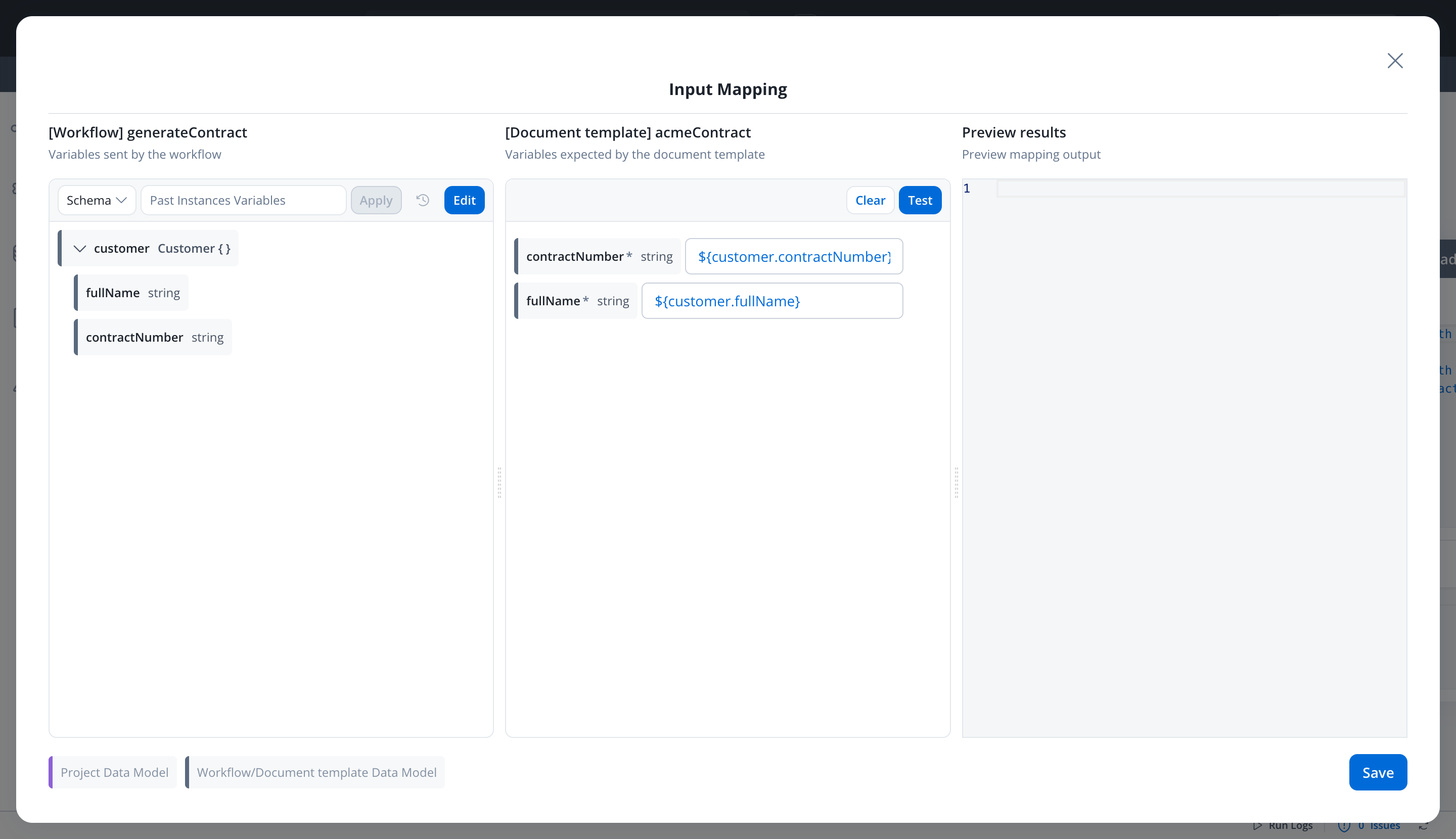 The Template Input card then shows how many attributes are mapped, for example 2 mapped.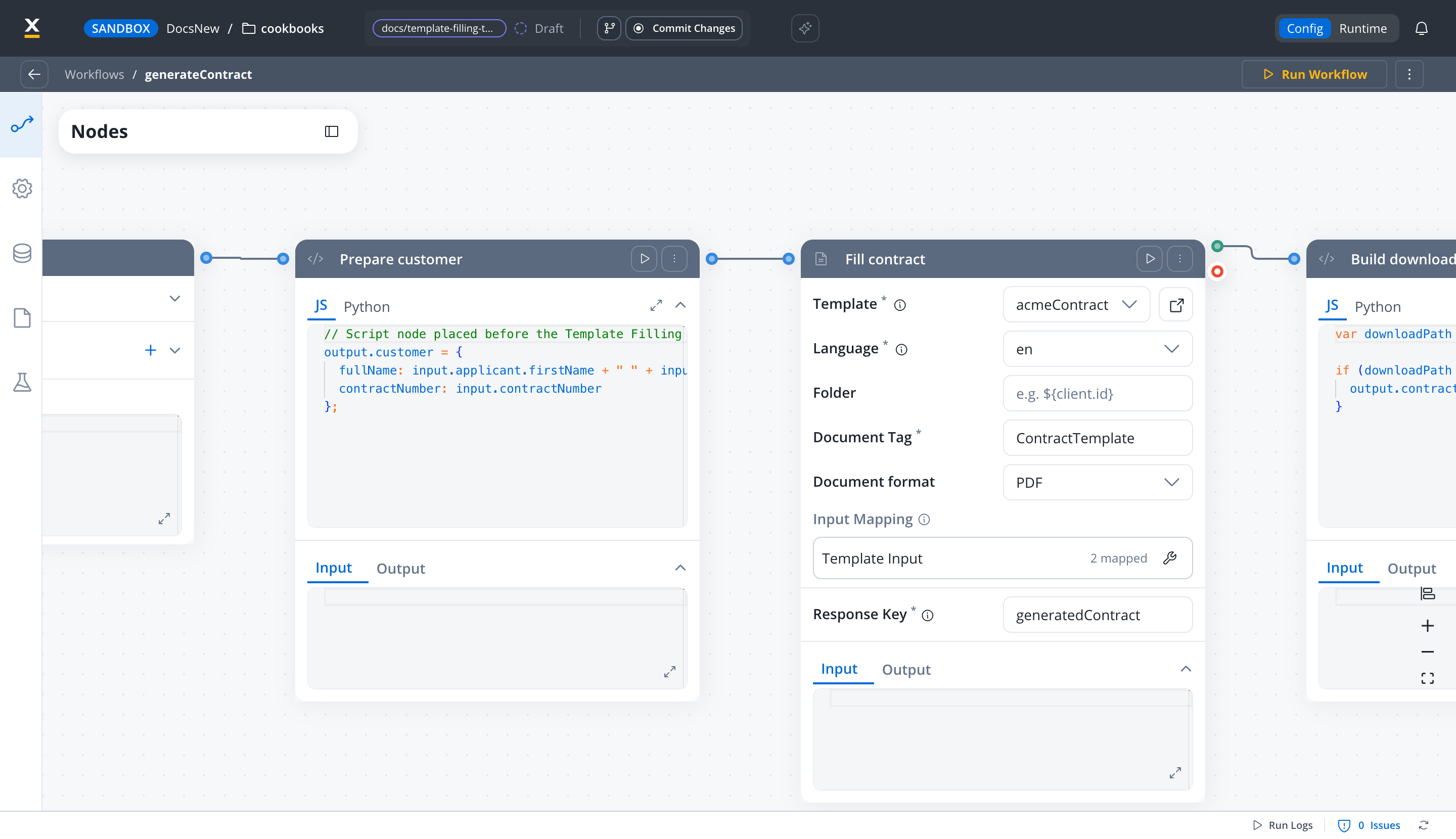
- In the workflow panel on the left, click Define parameters, select the workflow attributes to map (for example
customer), and click Done. - In the field next to each template attribute, type
${customer.and pick the suggested path, for example${customer.fullName}. - Optionally, click Test to see the mapped output under Preview results.
- Click Save.
Template Filling nodes created before data mapping
SaaS · 5.13Available on SaaS with FlowX.AI 5.13. This feature is live on managed (SaaS) deployments now. Self-hosted deployments will receive it with the next LTS release family.
- On: the node uses the data mapper (Configure mapping on the Template Input card). Values typed by hand are ignored.
- Off: under Template Variables, click Configure Variables and enter a value for each template variable, either fixed text or an expression such as
${customer.fullName}.
Why does the Template Filling node show no mapping options?
SaaS · 5.10Available on SaaS with FlowX.AI 5.10. This feature is live on managed (SaaS) deployments now. Self-hosted deployments will receive it with the next LTS release family.
For the template data model and the Input Parameters tab, see Managing templates.
How do I build the download URL for the generated document?
All Deployments The download URL is the Documents plugin base URL followed by thedownloadPath the plugin returns:
downloadPath is relative, for example internal/files/{fileId}/download, so the complete URL has the form https://{your-flowx-api-host}/document/internal/files/{fileId}/download. The /document prefix is the route the Documents plugin is exposed on, as listed in the ingress service route reference. Keep the trailing slash after document, because downloadPath doesn’t start with one.
What does the Template Filling node return?
SaaS · 5.10Available on SaaS with FlowX.AI 5.10. This feature is live on managed (SaaS) deployments now. Self-hosted deployments will receive it with the next LTS release family.
generatedContract, the workflow data contains:
customId holds the Folder value, and is null when Folder is empty. The response also carries minioPath, which is deprecated: use filePath instead. filePath is the object path in file storage, not a URL.
If generation fails, the node run fails. The Documents plugin error is returned under the response key, or, when the node can’t reach the plugin, the output holds an error message and an errorType.
Build the URL in the workflow
SaaS · 5.10Available on SaaS with FlowX.AI 5.10. This feature is live on managed (SaaS) deployments now. Self-hosted deployments will receive it with the next LTS release family.
downloadPath:
contractUrl in the End node output, then map it into process data in the process that started the workflow. For the round trip from process to workflow and back, see Call an external API from a process.
Build the URL in a process
On self-hosted FlowX.AI 5.9.x and 5.1.x, you generate documents from a process through the Documents plugin, and the reply carries the samedownloadPath. Build the complete URL in a business rule:
- 5.9.x: see Generating documents for the request and reply, and Preview an uploaded file for the business rule.
- 5.1.x: see Generating documents and Creating and uploading a new document for the same business rule.
The download endpoint requires authentication. The FlowX renderer recognizes a Documents plugin download by the URL ending in
download, which is how downloadPath ends, and fetches it with the user’s token. A plain browser link to the same URL has no token and is rejected. For linking to a stored file from a File download component, see File download.Related resources
Template Filling node
Every field of the Template Filling node.
Script node
How Script node output merges into workflow data.
Managing templates
Create document templates and define their data model.
Generating documents
Generate documents from a process through the Documents plugin.