

Configure document templates using the WYSIWYG editor. Access and manage your templates through the Document Templates section in your Project in FlowX Designer.
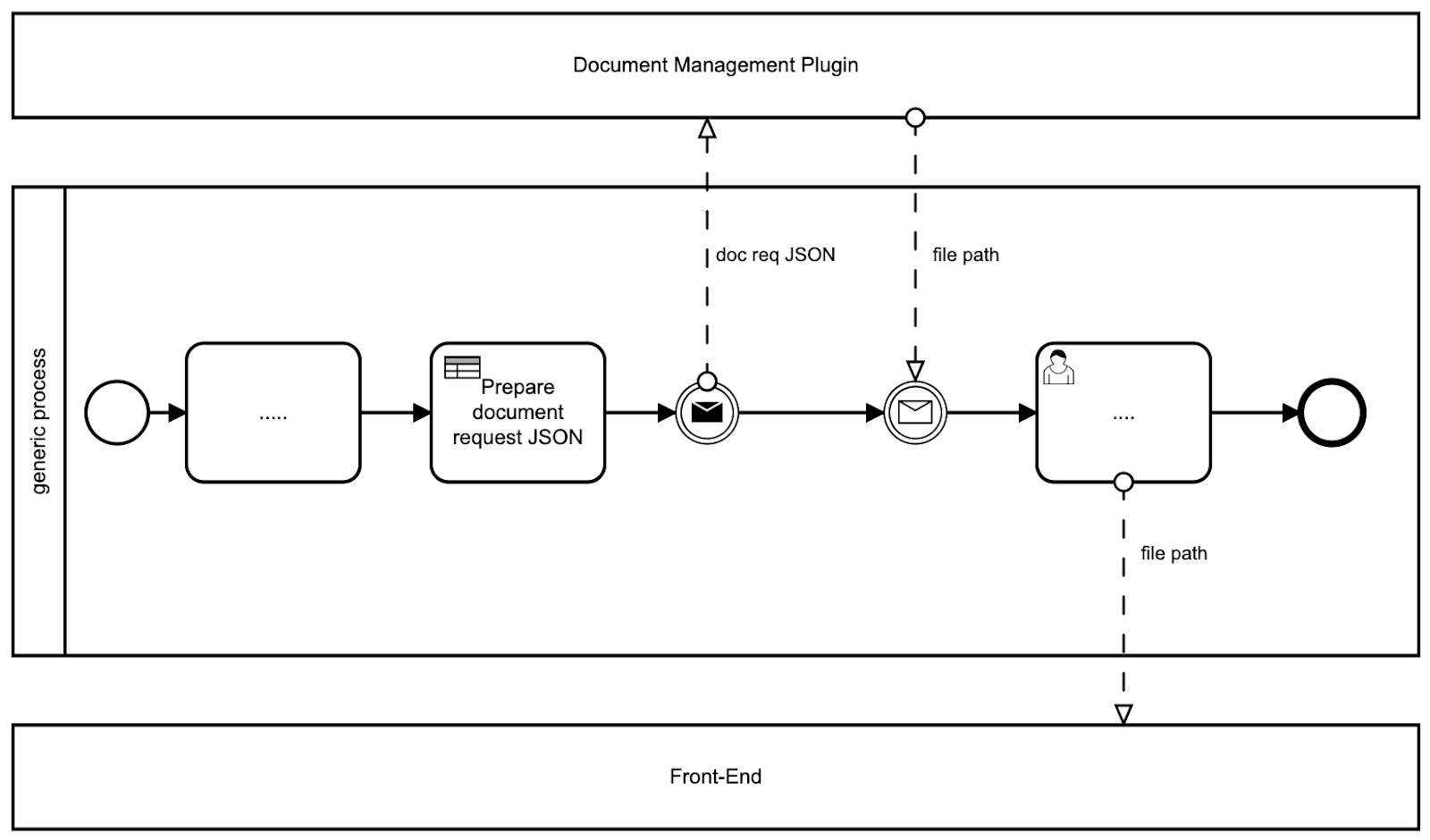
Generating documents from HTML templates
The Documents plugin simplifies document generation through predefined templates. This guide focuses on generating documents using HTML templates.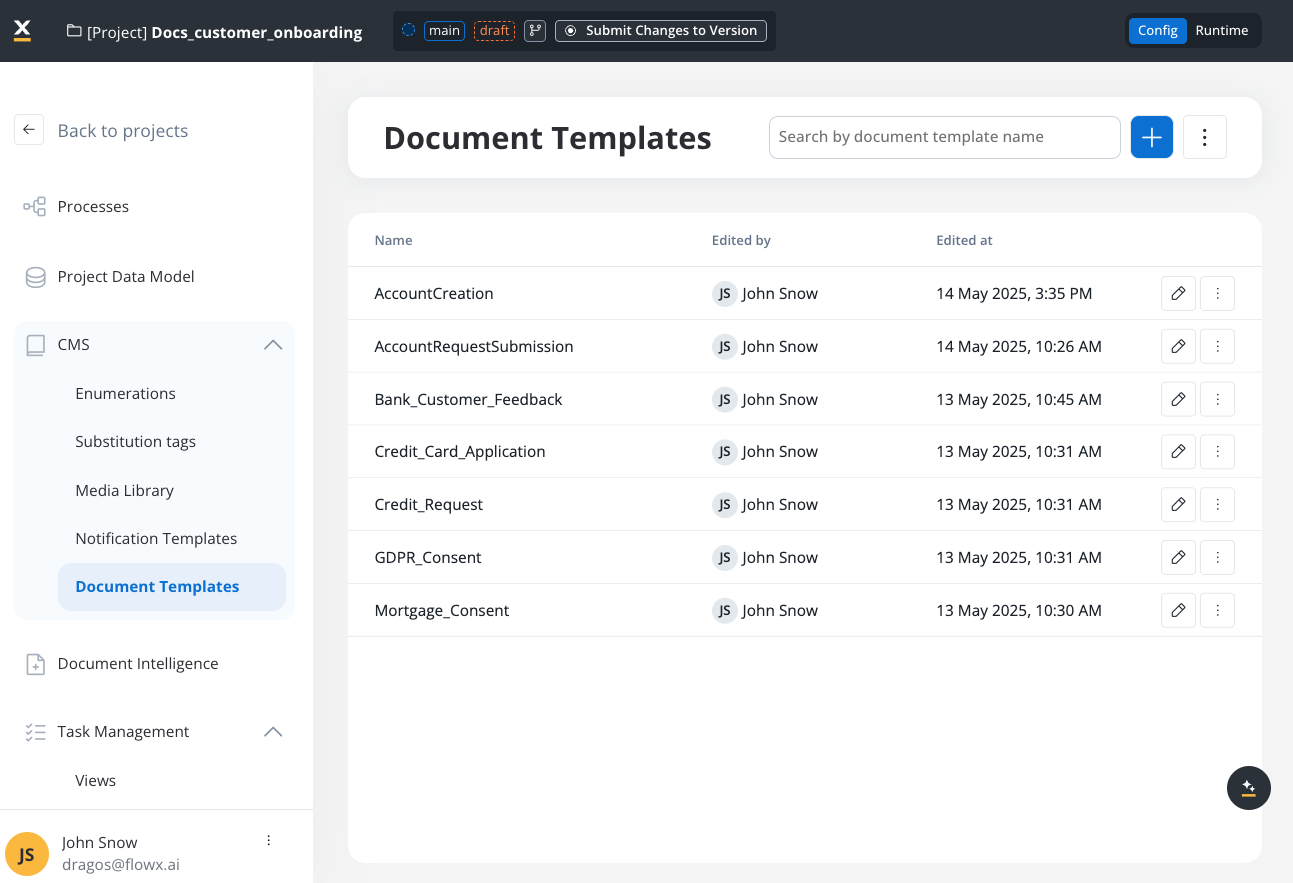
Before you begin
- Verify access permissions: Ensure you have the necessary permissions to manage document templates.
- Check Kafka configuration: Confirm that Kafka is properly configured and accessible:
- The document plugin relies on Kafka for communication between nodes
- Familiarize yourself with the required Kafka topics (detailed later in this guide)
Creating an HTML template
- Access the WYSIWYG editor through FlowX Designer → Plugins → Document templates
- Create or import your HTML template
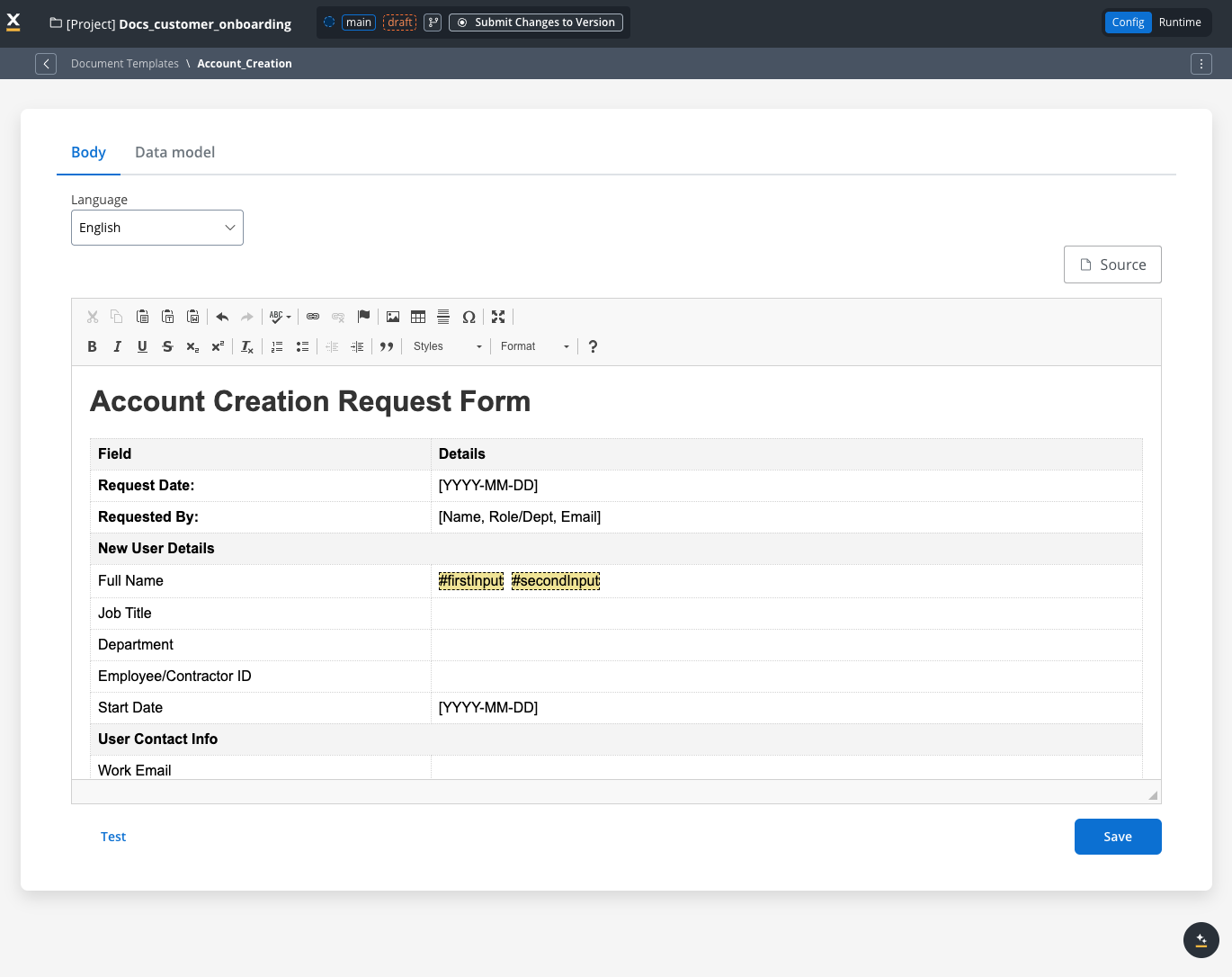
Managing HTML templates
Implementing document generation in a process
Let’s build a document generation flow that creates personalized documents based on user input: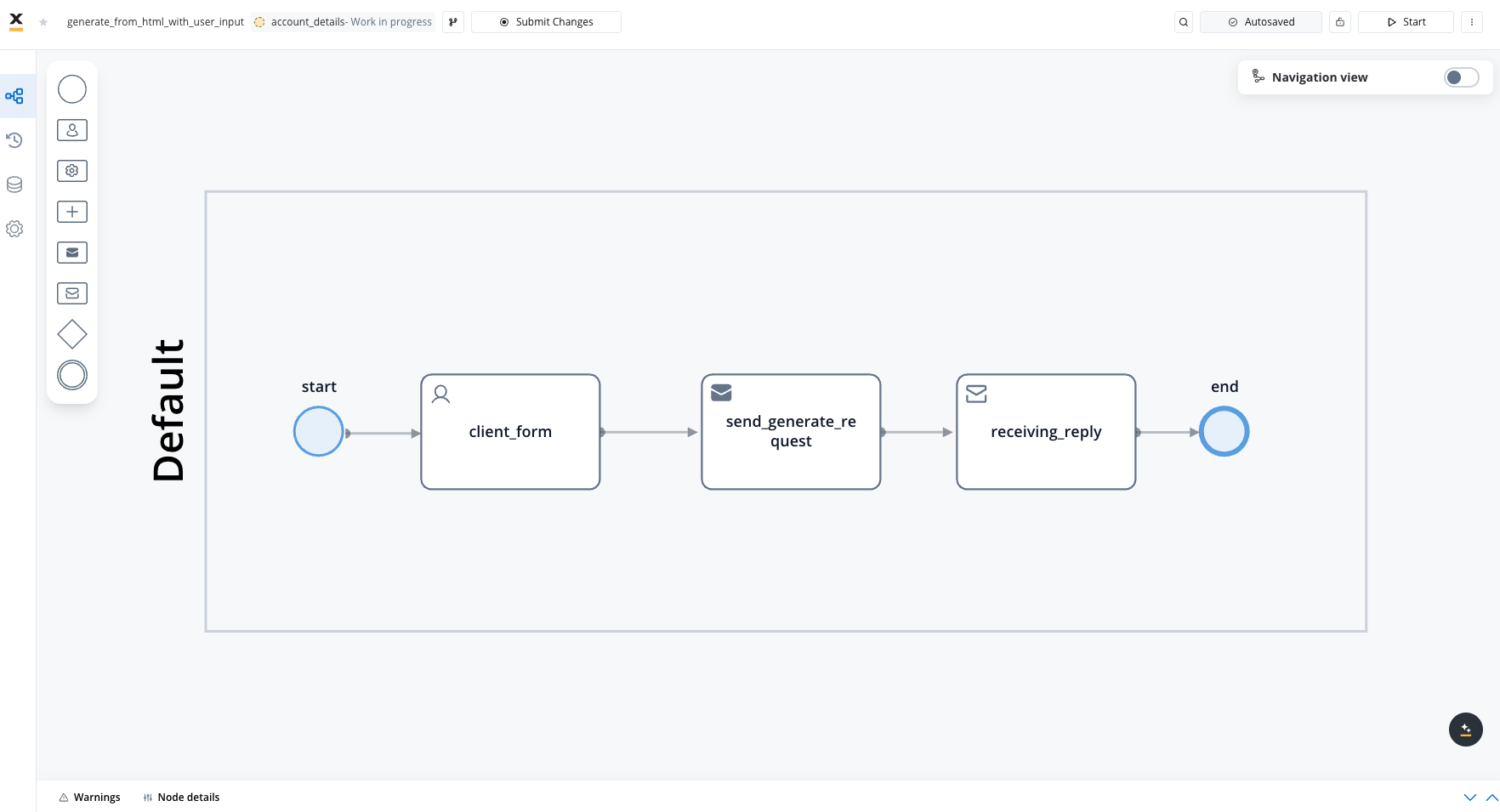
Step 1: Create a user input form
- Add a User Task node to your process
- Configure UI elements to collect the information needed for your document:
- Input fields (text, numbers, dates, etc.)
- Make sure to set appropriate keys for each field that match your template variables
Step 2: Configure the document generation request
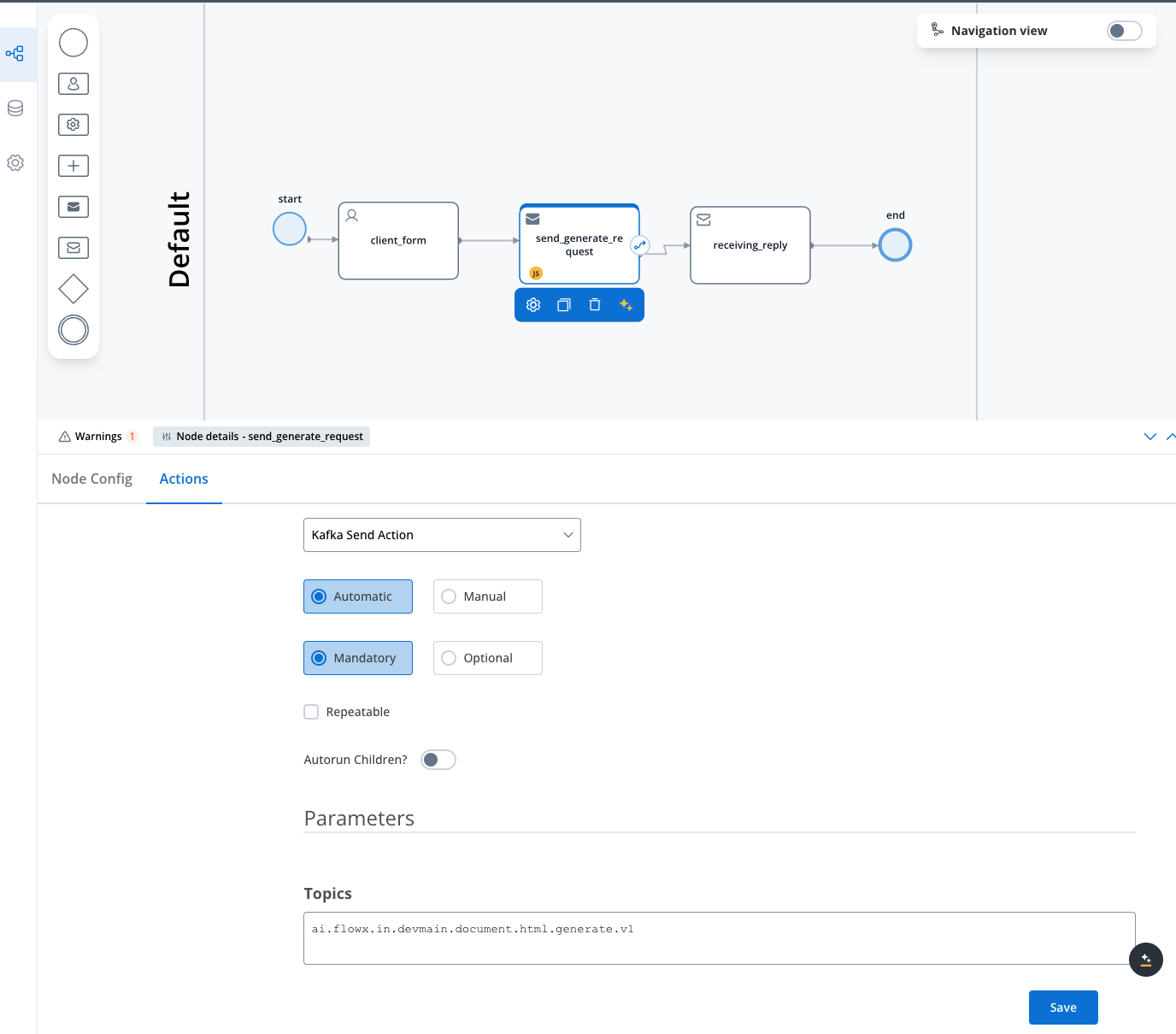
- Add a Send Message Task (Kafka) node
- Configure the Kafka send action with the appropriate topic:
- For HTML template generation, use
ai.flowx.plugin.document.trigger.generate.html.v1(or your configured equivalent, set viaKAFKA_TOPIC_DOCUMENT_GENERATE_HTML_IN)
- For HTML template generation, use
To find your environment’s configured topics: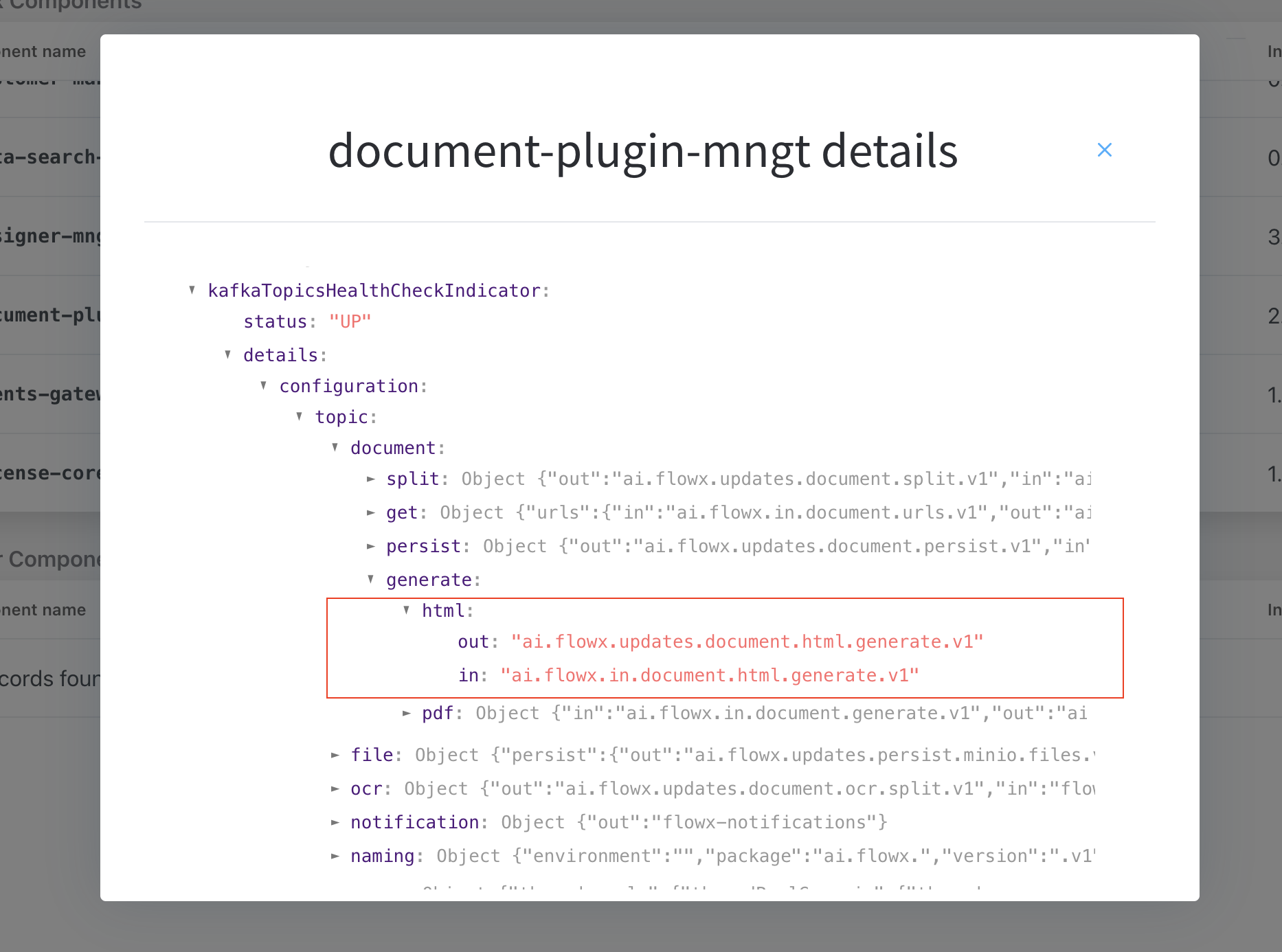
- Navigate to FlowX Designer → Platform Status
- Find the document-plugin-mngt component and click the eye icon
- Expand
KafkaTopicsHealthCheckIndicator → details → configuration → topic → document → generate - Look under HTML and PDF sections for your in/out topics
- Create the request payload with the following structure:
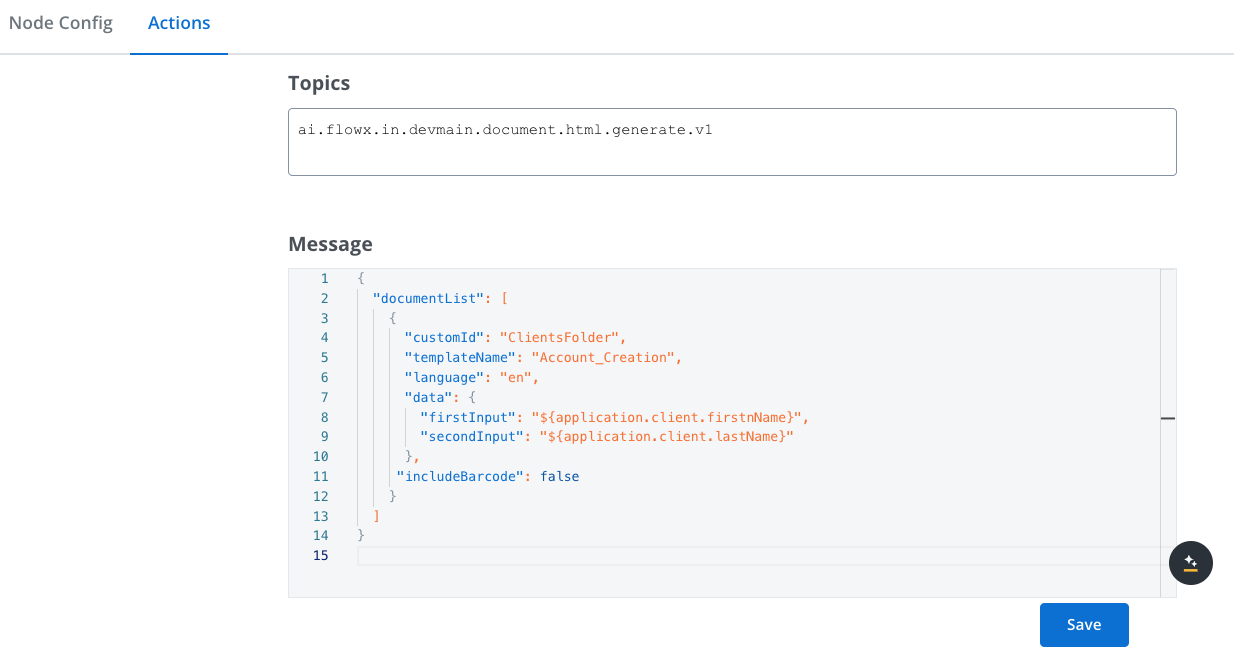
- customId: Folder name where the file will be saved
- templateName: Name of the template defined in Document templates
- language: Must match the language configured on the template
- data: Key-value pairs mapping template variables to process data
- includeBarcode: Set to true if you need a barcode on the document
When using templates in a process, the system uses default values from the default project language. For example, if English is your default project language, the template will use values from the English version.To check your default language: FlowX Designer → Project Settings → Languages
Step 3: Receive the generated document
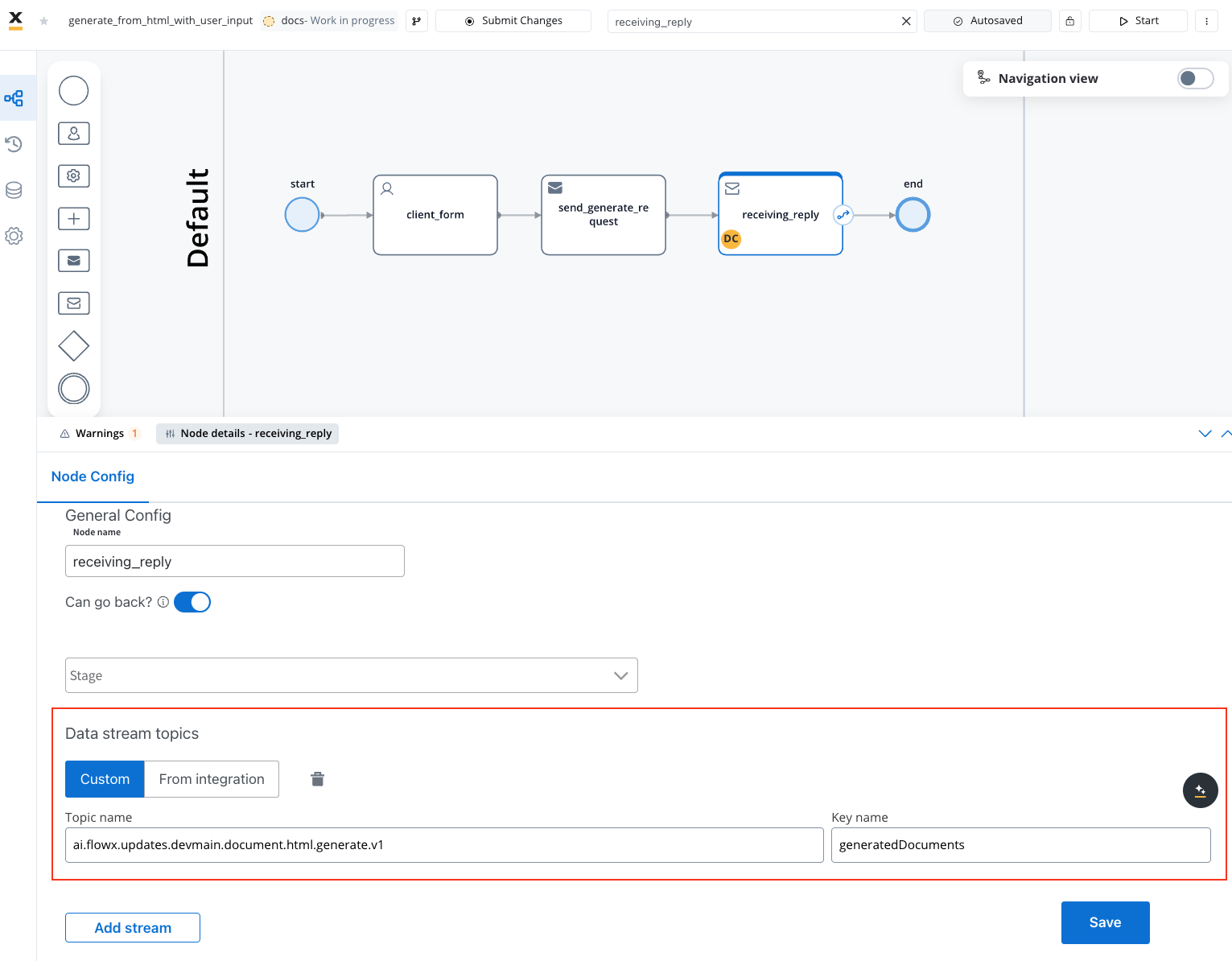
- Add a Receive Message Task (Kafka) node
- Configure it with:
- The response topic:
ai.flowx.engine.receive.plugin.document.generate.html.results.v1(or your configured equivalent, set viaKAFKA_TOPIC_DOCUMENT_GENERATE_HTML_OUT) - Key for storing the response:
generatedDocuments
- The response topic:
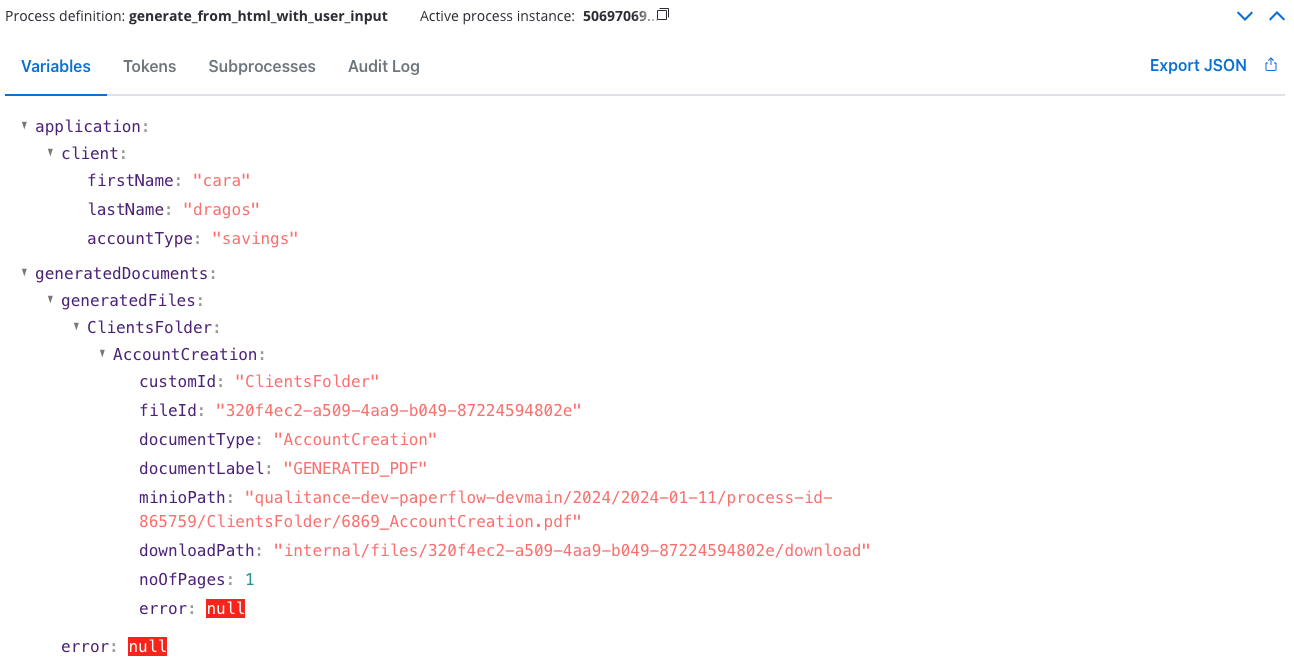
- fileId: Unique identifier for the generated file
- documentType: Template name used for generation
- minioPath: Storage location (MinIO or S3)
- downloadPath: Download path relative to the Documents plugin base URL, for example
internal/files/{fileId}/download. It is not a complete URL. - noOfPages: Document page count
- error: Error information (null if successful)
Error responses
When generation fails,error is populated as an object with three fields:
The error appears at one of two levels, never both:
- Request-level (
errorat the root): the whole request was rejected before any document was processed, for example a malformed payload or an emptydocumentList.generatedFilesis not populated.
- Per-document (
errorinside ageneratedFilesentry): that document failed while the rest of the request proceeded. A missing template or failed input validation returns400; a rendering or storage failure returns500. Other documents in the same response can still succeed, so check theerrorfield of each entry. The rooterrorstaysnullin this case.
Displaying the generated document
To display the generated document to the user:- Add a Task Node with a business rule that prefixes
downloadPathwith the Documents plugin base URL and stores the complete URL under a new key - Add a User Task with the File Preview UI Element:
- Set its Source Type to Process Data and its key to the key that holds the complete URL
downloadPath is relative, so File Preview can’t load it on its own. For the business rule and the binding, see Preview an uploaded file.
For detailed instructions on displaying documents, see: