

Documentation Index
Fetch the complete documentation index at: https://docs.flowx.ai/llms.txt
Use this file to discover all available pages before exploring further.
Renamed in FlowX.AI 5.7.0 — the Content Sources tab is now called Stores. The underlying concept is unchanged: each store still represents a collection of ingested, indexed content.
Overview
Stores are the building blocks of a Knowledge Base. Each store represents a collection of related information that has been ingested, processed, and indexed for semantic search.Store types
There are two types of stores:Manual
Files uploaded directly through the Knowledge Base admin interface
Workflow
JSON content ingestion through workflows (planned for future release)
Viewing stores
Navigate to your Knowledge Base to see all stores. The Stores tab displays: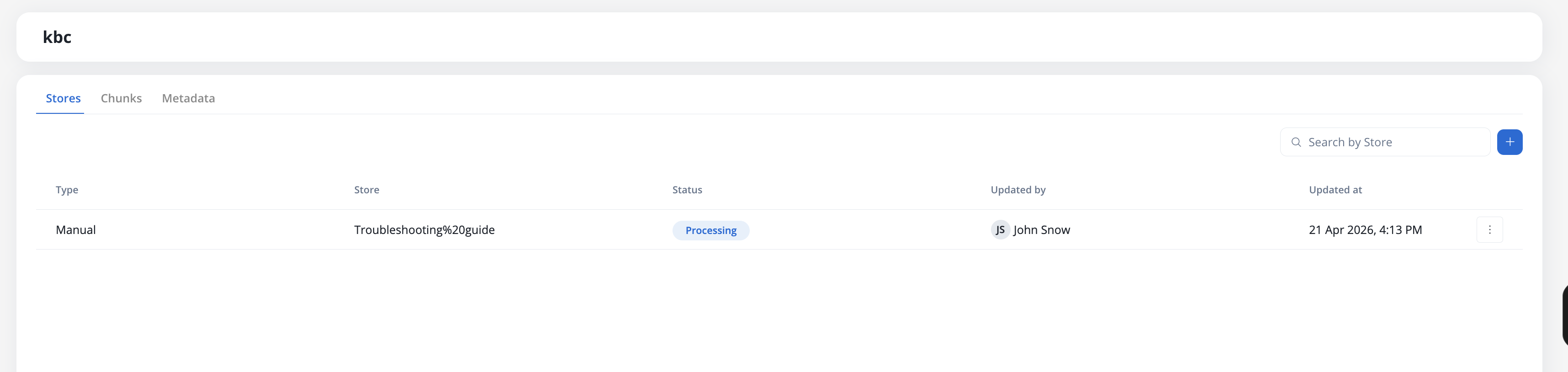
Store information
Each row shows:- Manual: Files uploaded in the Knowledge Base page
- Workflow: Content ingestion through workflow variables (planned for future release)
The unique name of the store within the Knowledge Base
Current processing state:
- New: Store created, awaiting content upload
- Processing: Content is being uploaded, chunked, and indexed
- Ready: Content is fully processed and available for queries
- Failed: An error occurred during processing, or content is partially degraded
- Username: For files uploaded in the Knowledge Base page
- Workflow name: For content ingested through workflows (planned for future release)
Timestamp of the last upload or workflow operation execution
Uploading documents
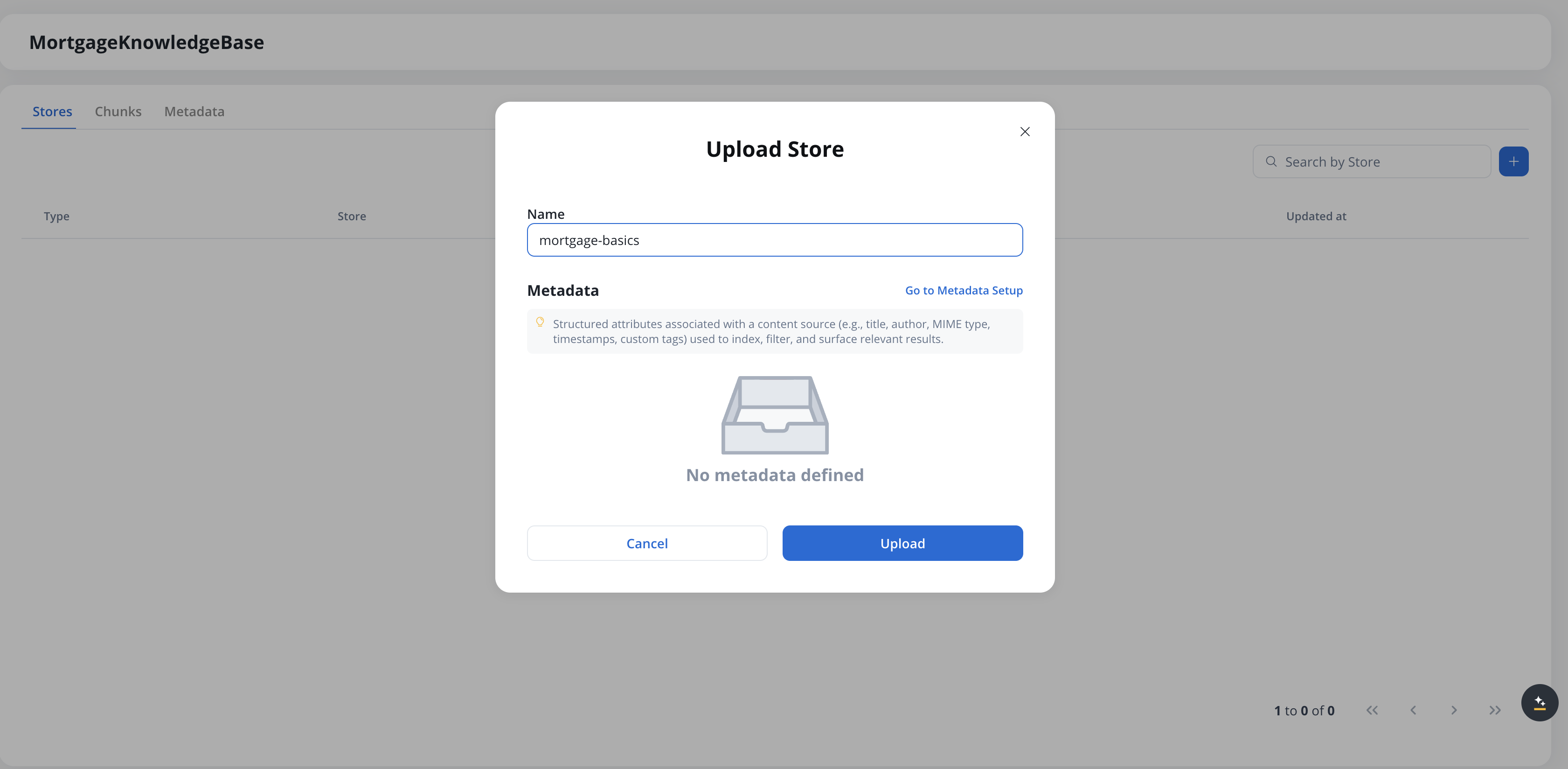
Set the store name
The Name field is pre-filled with the file name (without extension). Edit it if needed — the name must be unique within the Knowledge Base.
Review metadata (optional)
The Metadata section shows the metadata schema defined for this Knowledge Base. If no metadata is defined, a “No metadata defined” placeholder appears — click Go to Metadata Setup to configure a schema on the Metadata tab before uploading. See User-defined metadata for details.
File requirements
Store naming
When uploading a document, you must provide a unique store name:Duplicate stores
If you select a file with the same name as an existing store, you’ll see a warning:- Append Content: Add the new document’s content to the existing store
- Replace Content: Replace the existing content with the new document
- Cancel: Choose a different name or file
Managing stores
Once content is uploaded and processed, you can perform the following operations: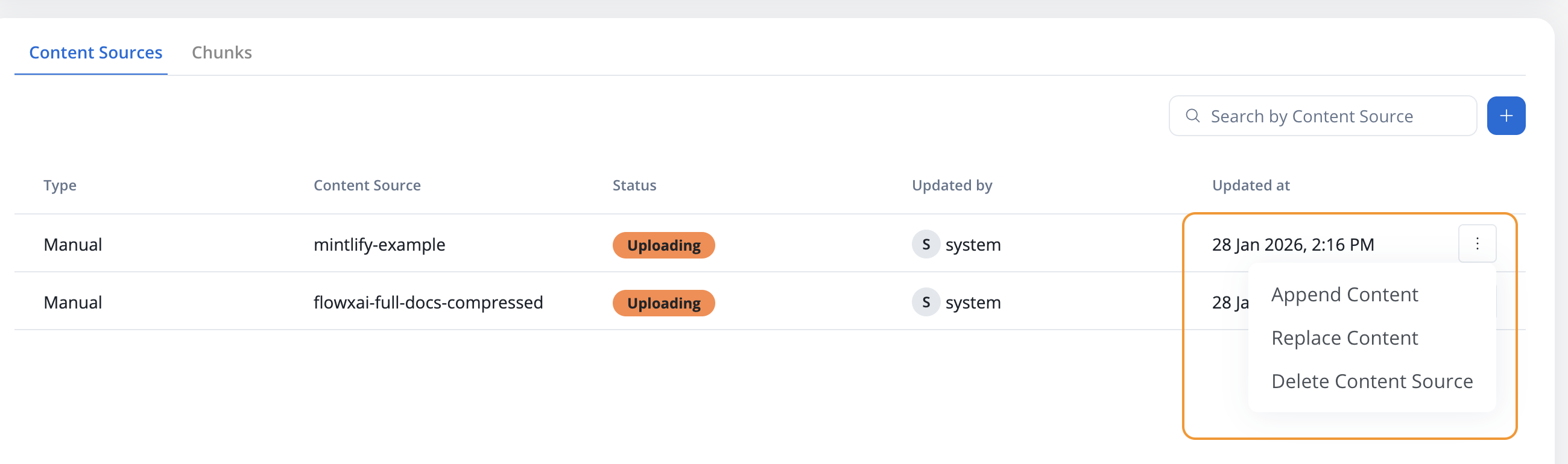
Append content
Add new content to an existing store without removing the existing chunks.
Use case: Adding a new chapter to existing documentation or supplementing information without losing the original content.
Replace content
Replace all existing content in a store with new content.
Use case: Updating documentation to a new version where the old content is no longer relevant.
Delete store
Remove a store and all its associated chunks from the Knowledge Base.Store states
Stores progress through different states during their lifecycle. Status badges update in real-time — you don’t need to refresh the page to see transitions.New
The initial state after content is uploaded to the Knowledge Base. What’s happening:- File has been transferred to the FlowX platform
- Content is being validated and queued for processing
Processing
Content is being chunked, embedded, and indexed in the vector database. What’s happening:- Content is being extracted from the document
- Text is being split into semantically meaningful chunks
- Chunks are being embedded and indexed in the vector database
Ready
Store is fully processed and available for queries. What you can do:- Query the store in AI agents
- View individual chunks
- Append or replace content
- Delete the store
Failed
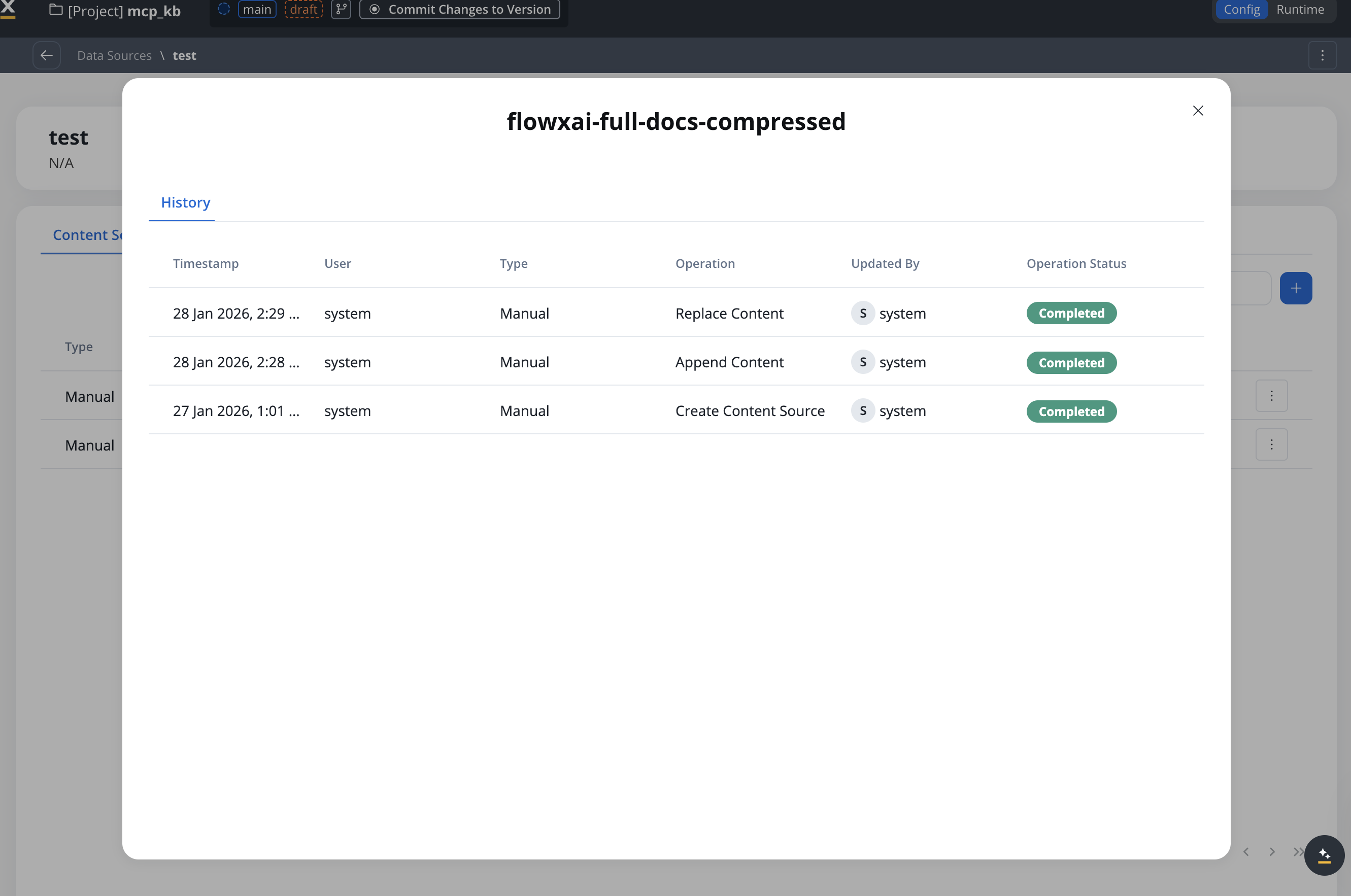
An error occurred during processing, or the store is partially degraded. What to do:- Check the error message in the Store History modal
- Verify the file format and content
- Retry the operation
Error handling
When processing fails, the store will show a warning indicator.Error states and recovery
Upload failed
Upload failed
Cause: File upload was interrupted or the file format is invalidSolution:
- Verify the file format (must be PDF)
- Check your network connection
- Try uploading again
Chunking failed
Chunking failed
Cause: Error occurred while processing the contentSolution:
- Check the Store History for specific error details
- Verify the file is not corrupted
- Contact support if the issue persists
Retry behavior
Retry behavior
When retrying a failed operation:
- Any chunks already created will be deleted
- The content will be processed entirely from the beginning
- No duplicate chunks will be created
Warning indicators
When a store has a failed update:- Yellow warning icon appears on the store row
- Tooltip message: “Last Store update failed. Check history.”
- Dismiss trigger: The warning is automatically dismissed after a successful update
Viewing store history
Store History is a low-priority feature that may be available in future releases.
| Operation | Description |
|---|---|
| Upload Document | Creates store and inserts content |
| Append Content | Adds new content to existing chunks |
| Replace Content | Deletes existing content and inserts new content |
| Delete Store | Removes the store and all chunks |
- Timestamp
- User or workflow name
- Operation type (Manual/Workflow/Test)
- Operation performed
- View option (for uploaded files or JSON payloads)
Working with chunks
Chunks are the individual pieces of content that AI agents query. To view and test chunks: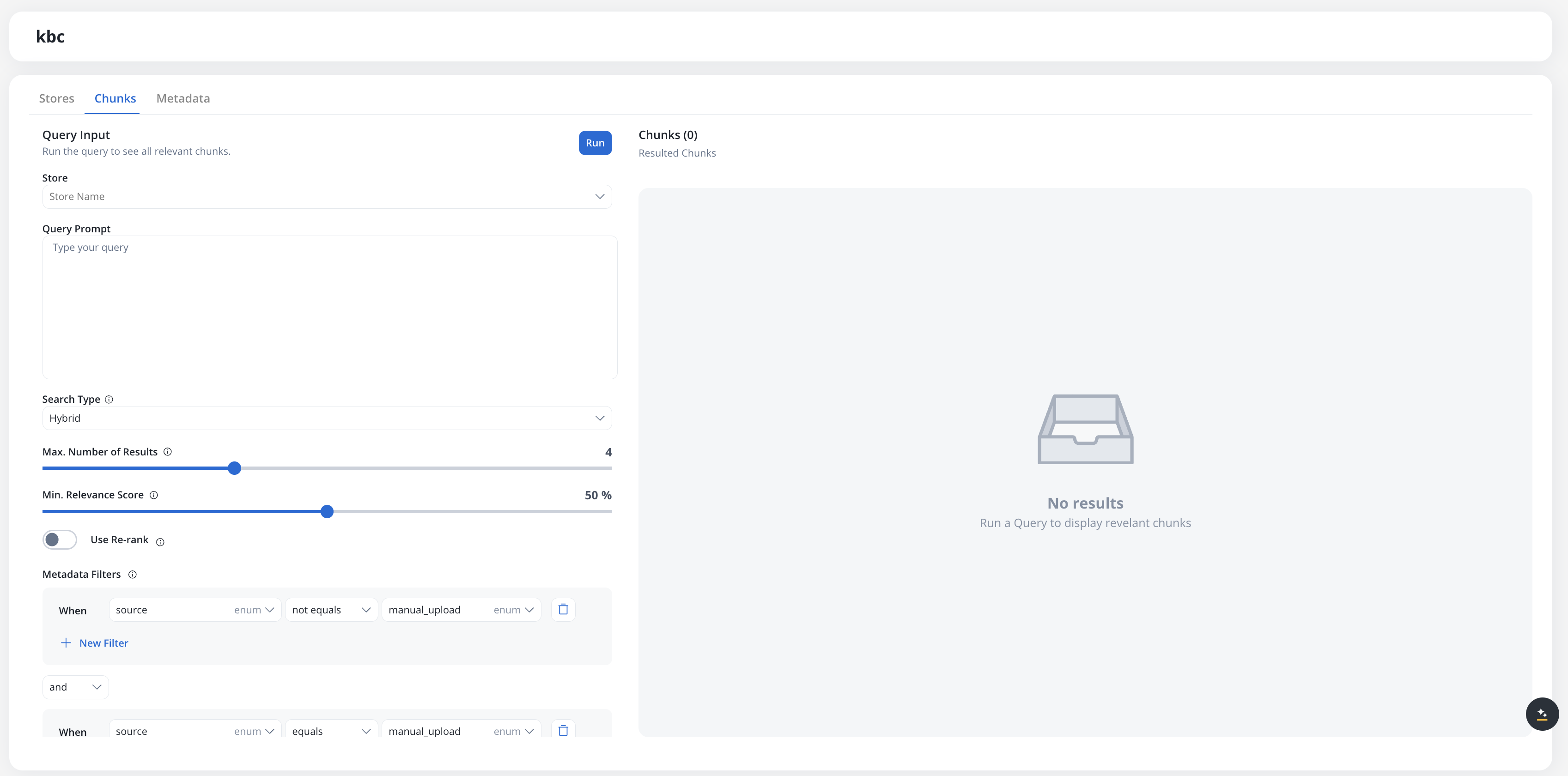
Chunk information
Each chunk displays:How relevant the chunk is to your query (0-100%)
The store that generated this chunk (clickable link)
Link to the original document or JSON payload that created this chunk
The actual text content of the chunk
System metadata associated with the chunk:
source: manual_upload or from_workflowpath: Document filepath or JSON payloadchunk_id: UUID from the vector databaseknowledge_base: Knowledge Base ID
User-defined metadata
Available starting with FlowX.AI 5.6.0
Defining metadata keys
Metadata keys are managed on the Metadata tab of the Knowledge Base data source.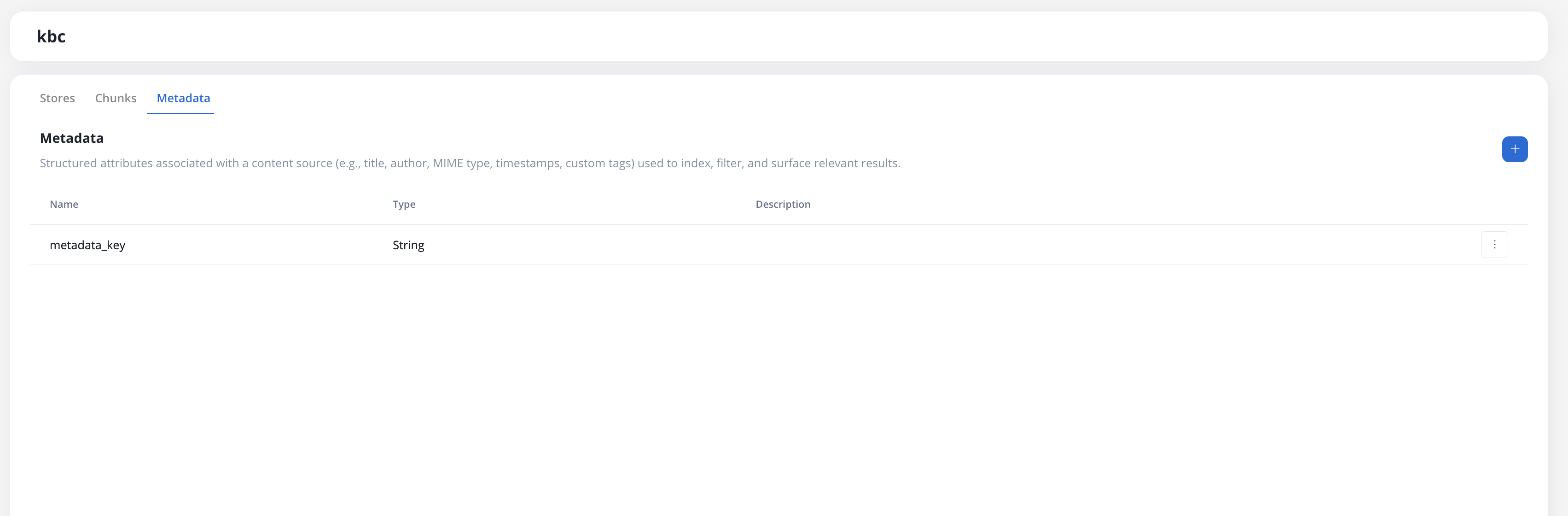
| Field | Description |
|---|---|
| Name | Unique key name. Cannot be changed after creation. |
| Type | Data type: String, Number, Boolean, Enum, or Date. Cannot be changed after creation. |
| Enum values | Allowed values (only visible when Type is Enum). Values defined at creation cannot be removed. |
| Description | Optional free-text description of the key’s purpose. |
Assigning metadata values
When uploading or appending a store (manually or through the Update Knowledge Base workflow node), a Metadata section appears in the upload modal listing all defined keys for the Knowledge Base. Assign a value to each relevant key before uploading. The values are stored alongside the content and propagated to the vector database.Filtering by metadata
When searching chunks (in the Chunks tab or through the Context Retrieval workflow node), you can add metadata filters using the query builder. The system metadata keysource (values: manual_upload, from_workflow, test_operation) is always available as a filter option alongside any user-defined keys.
Enhanced in FlowX.AI 5.7.0 — the metadata filter UI now supports a full query builder with typed operators, AND/OR logic, and grouping. Previous releases supported only equality filters combined with AND.
| Type | Available operators |
|---|---|
| String | equals, not equals, contains, starts with, ends with, matches regex, in, not in, exists, is null |
| Number | equals, not equals, greater than, greater or equal, less than, less or equal, between, in, exists, is null |
| Boolean | is true, is false, exists |
| Date | equals, before, after, between, exists, is null |
| Enum | equals, not equals, in, not in, exists |
and or or. Groups themselves are also combined with and or or, which lets you express non-trivial logic such as (region = "EU" AND tier IN ["gold", "platinum"]) OR priority >= 5.
Use New Filter to add a condition and New Group to add a nested group.
Searching chunks
Use the Chunks tab to test how chunks will be retrieved by AI agents:Filter by a specific store. Default: all stores
Enter a natural language question or search query
Strategy used for retrieving context:
- Hybrid (default) — combines semantic and keyword search
- Semantic — vector similarity only
- Keywords — lexical match only (hides Min. Relevance Score)
Maximum number of chunks to return. Range: 1-10. Default: 4.
Only return chunks with relevance score above this threshold. Range: 0-100%. Hidden when Search Type is Keywords.
Reorders results to surface the best matches. Improves quality but takes slightly longer.
Refine results using the query builder (see Filtering by metadata)
Best practices
Content organization
Content updates
Error prevention
Next steps
Using in Workflows
Learn how to query Knowledge Bases from workflows
Related resources
Knowledge Base Overview
Understanding Knowledge Base capabilities