Overview
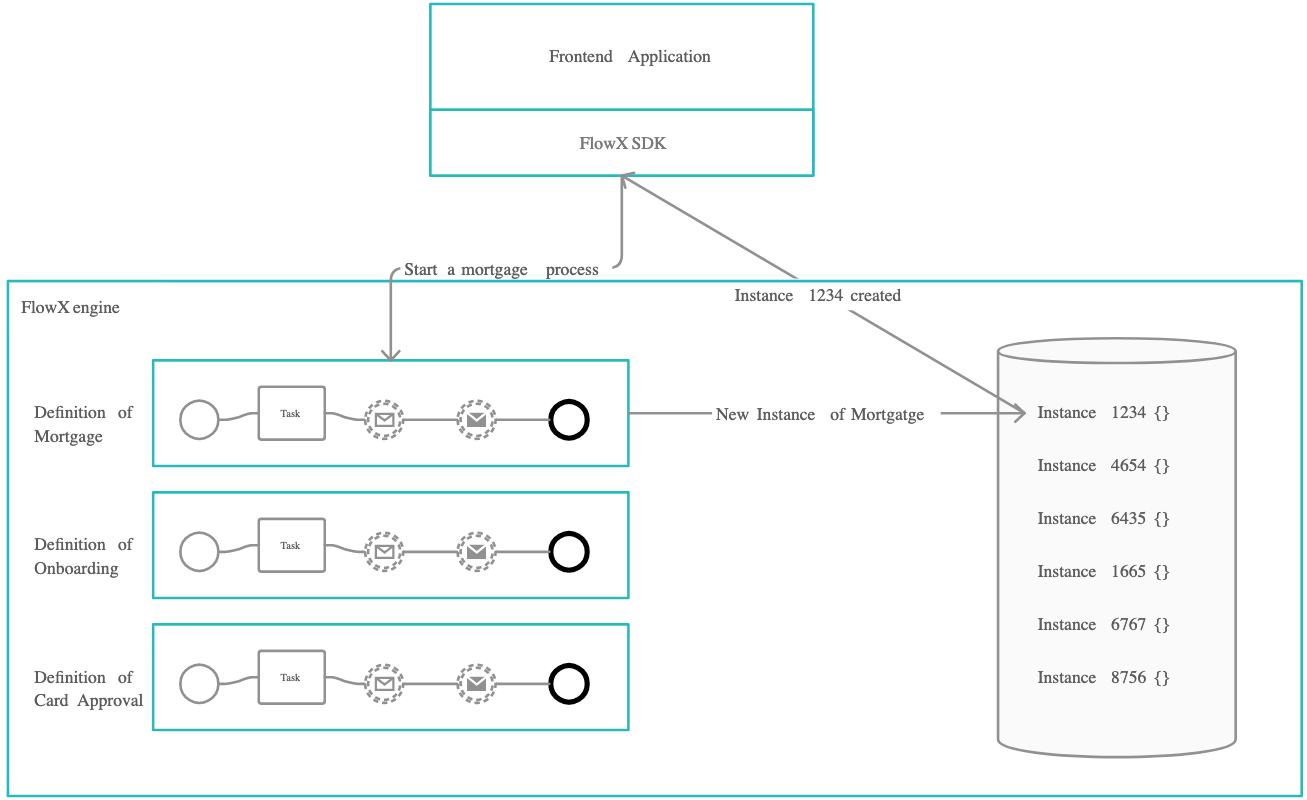
Once the desired processes are defined in the platform, they are ready to be used. Each time a process needs to be used, for example each time a customer wants to request a new credit card, a new instance of the specified process definition is started in the platform. Think of the process definition as a blueprint for a house, and of the process instance as each house of that type being built.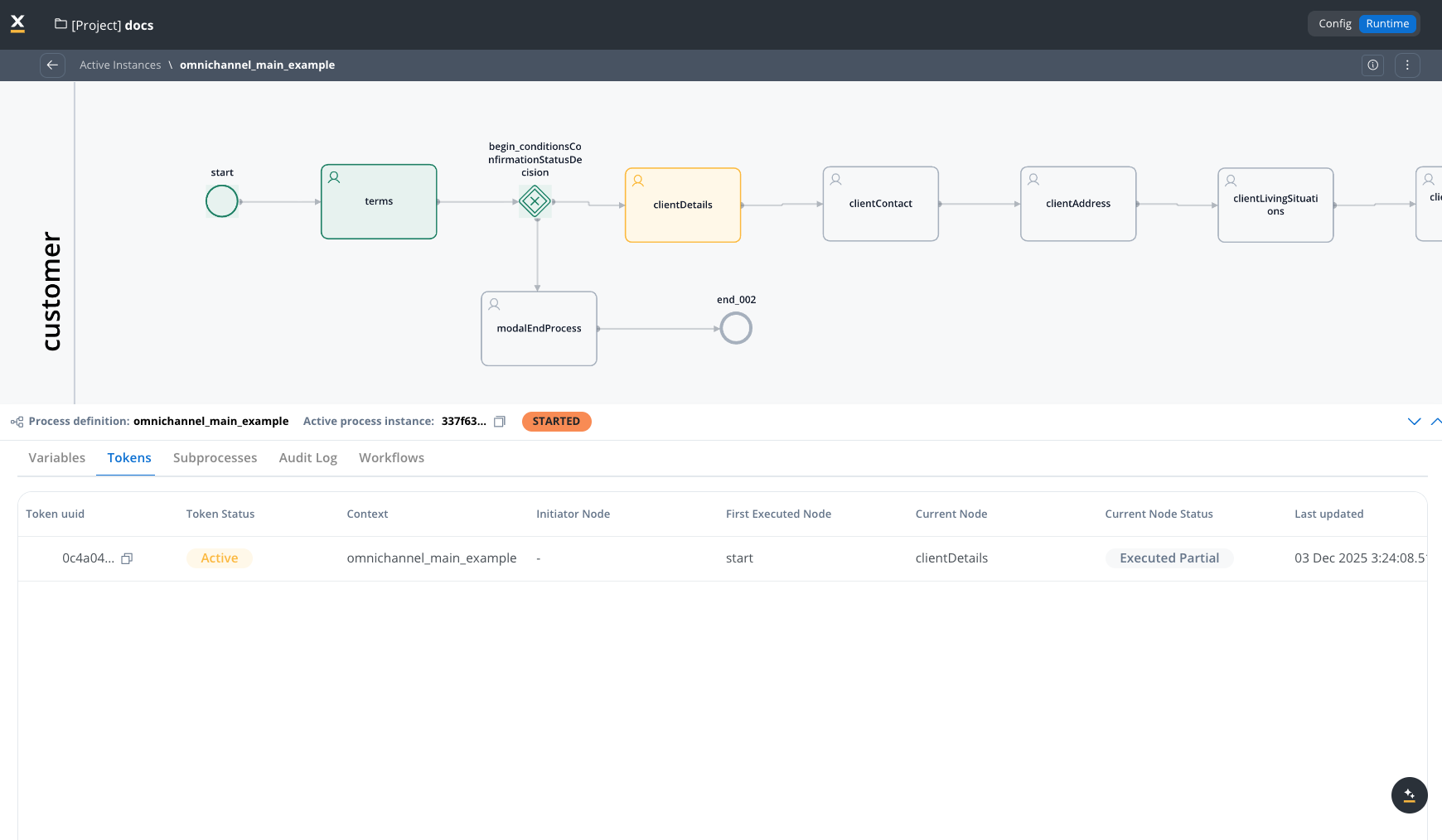
More about Kafka
Checking the Process Status
To check the status of a process or troubleshoot a failed process, follow these steps:- Open FlowX.AI Designer.
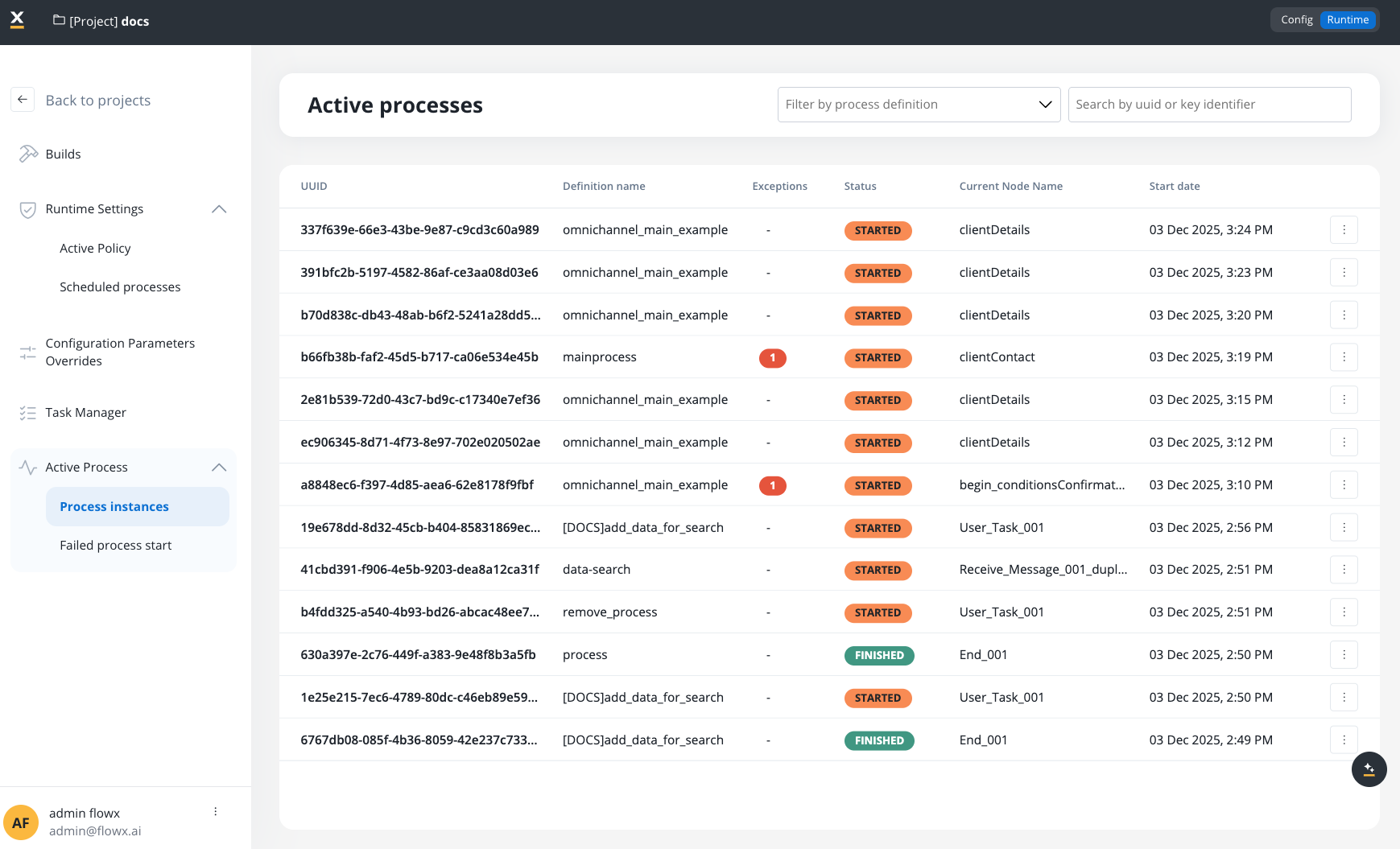
- Go to Projects → Your Project → Runtime → Active Process → Process instances.
Understanding the Process Status data
Understanding the various elements within process status data is crucial. Here’s what each component entails:- The Status field indicates the state of the process instance, offering distinct values:
Process instance details
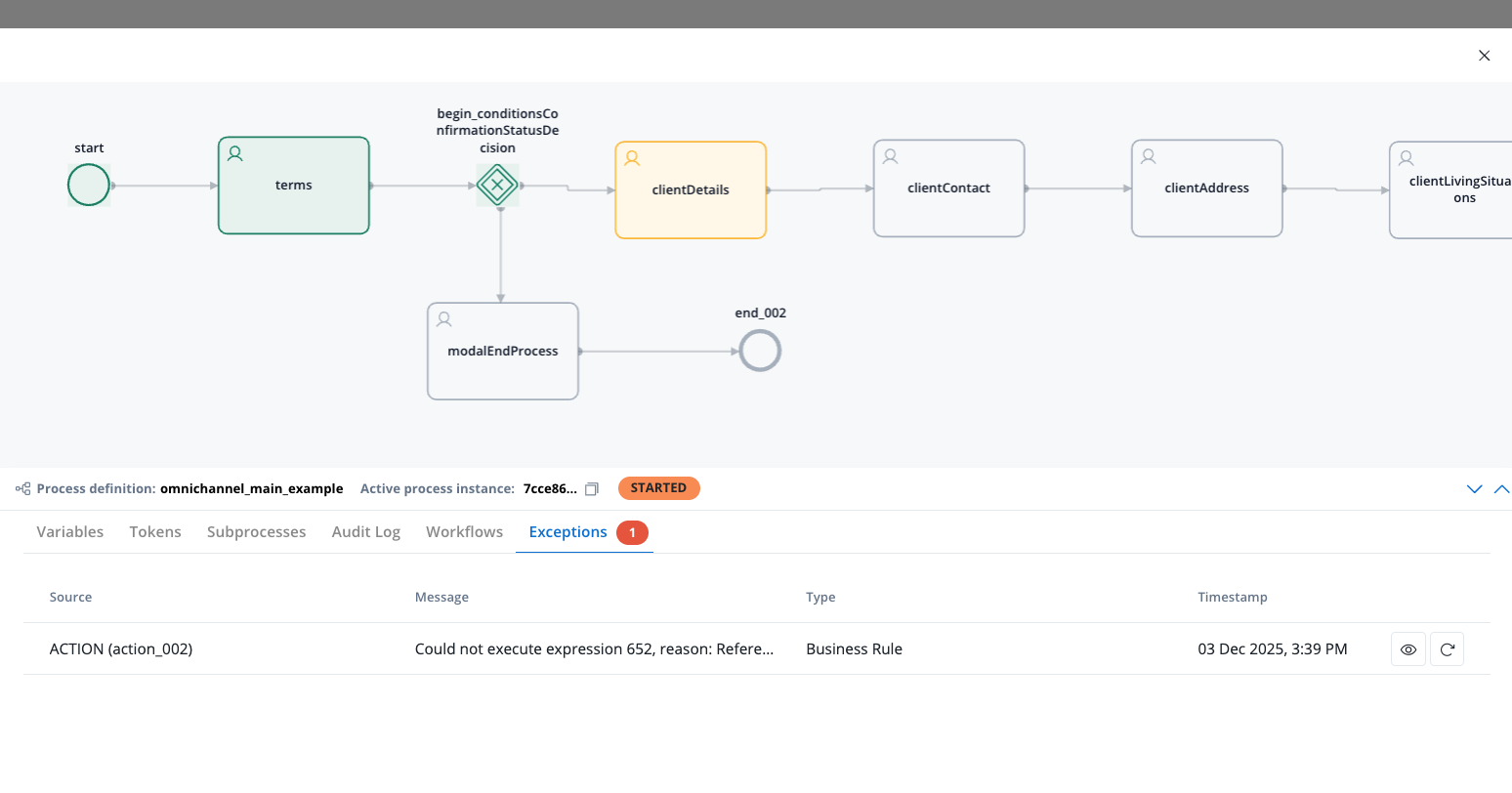
Click on a process instance to view the details.- Active process instance: The UUID of the process instance, with a copy action available.
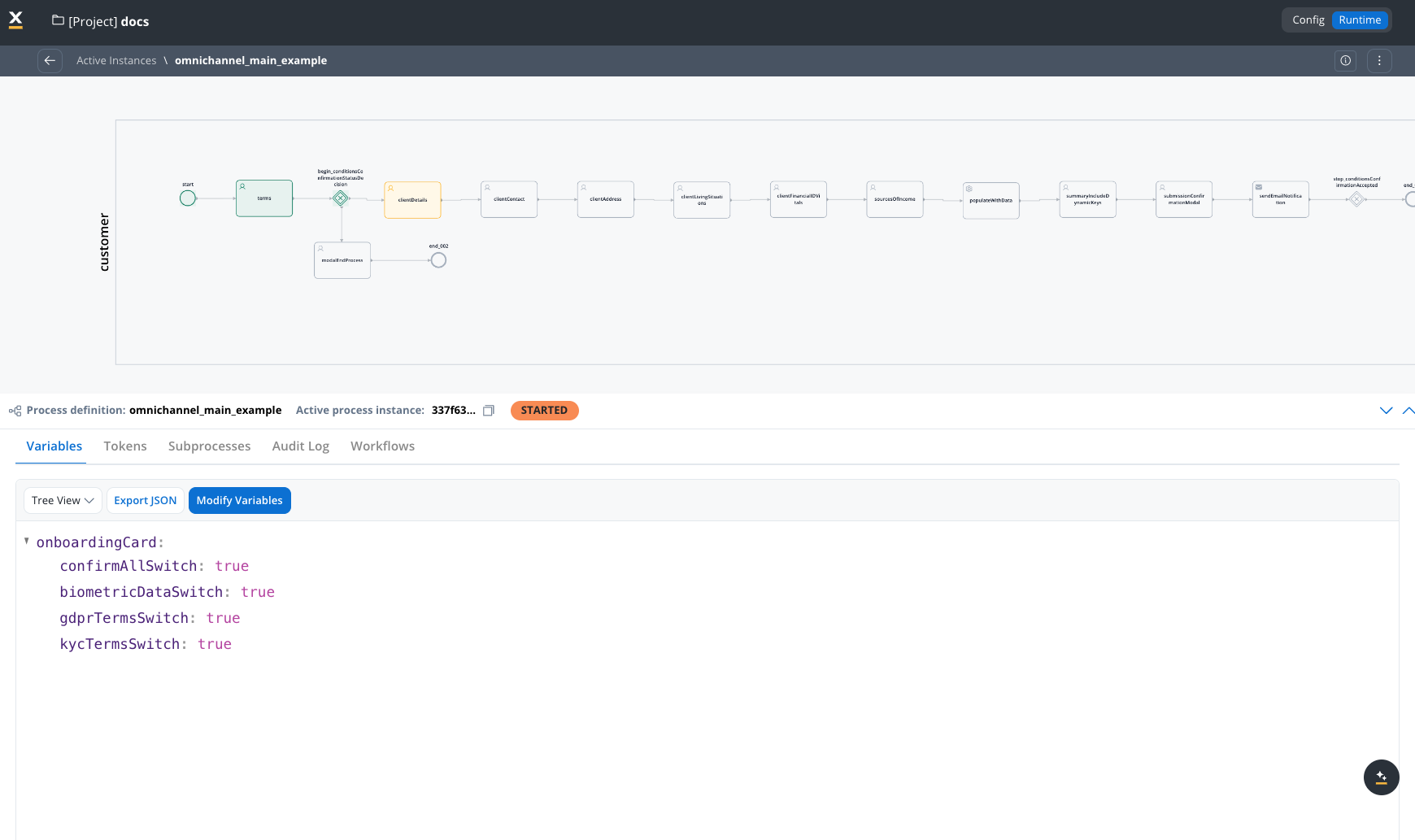
- Variables: Displayed as a tree view or a JSON view. You can modify the variables using the JSON editor (available for STARTED or ON HOLD process instances).
- Tokens: A token represents the state within the process instance and describe the current position in the process flow.
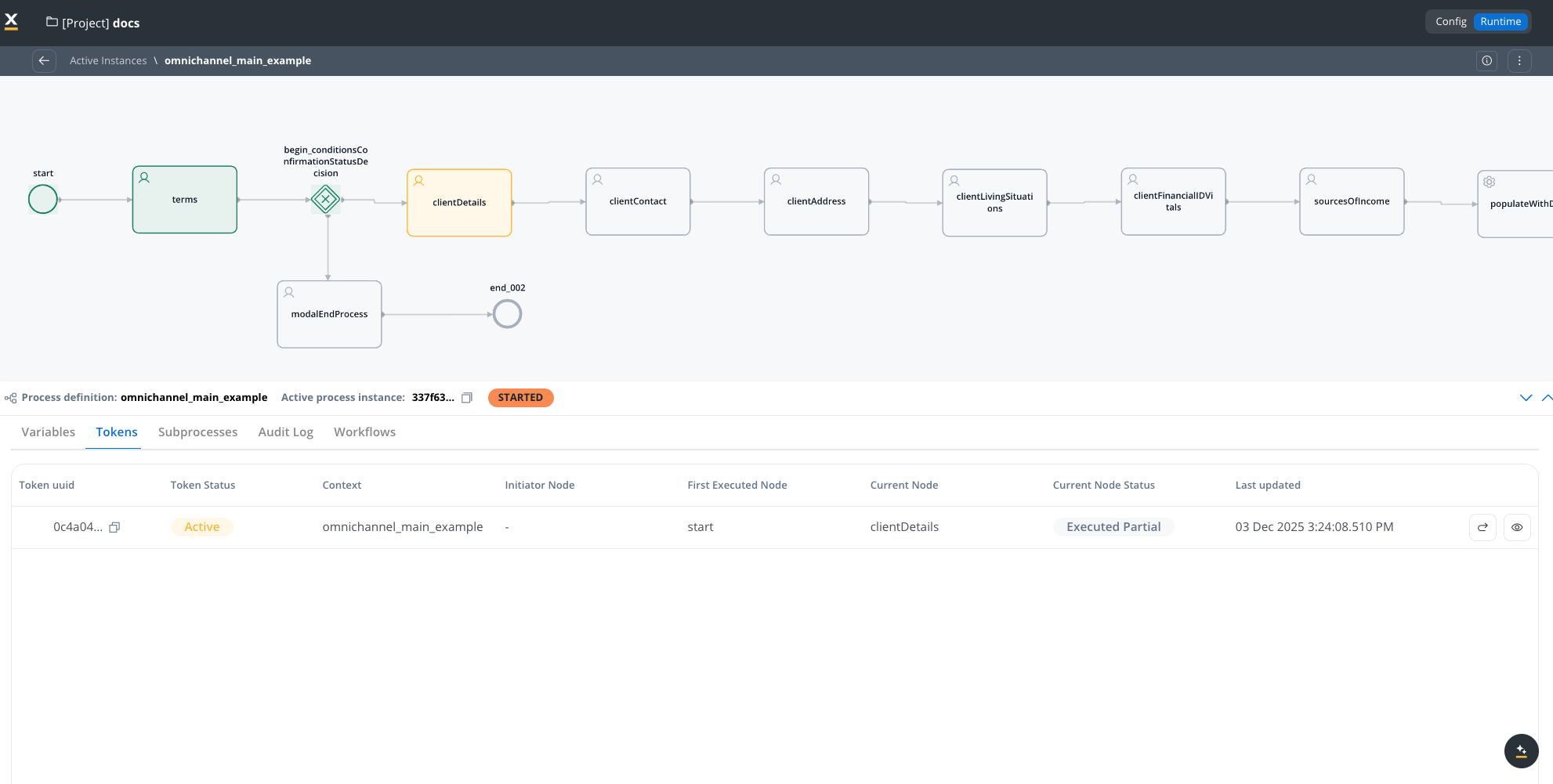
For more information, see the token documentation.
- Subprocesses: Displayed only if the current process instance generated a subprocess instance.
- Exceptions: Errors that let you know where the process is blocked, with a direct link to the node where the process is breaking for easy editing.
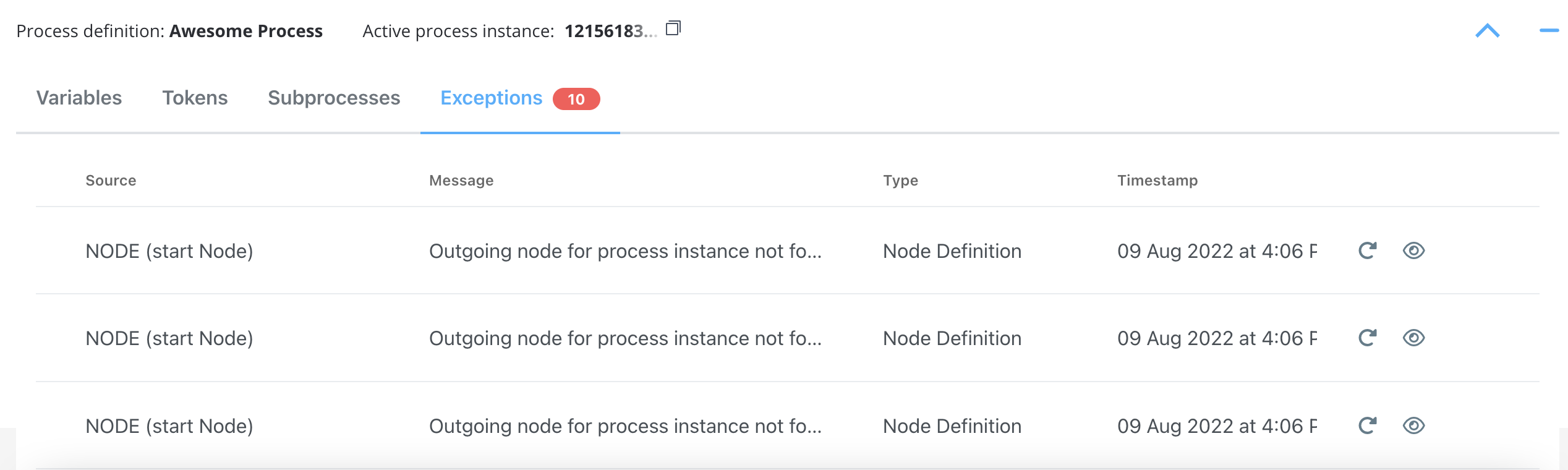
For more information on exceptions, check the following section:Exceptions
- Audit Log: The audit log displays events registered for process instances, tokens, tasks, and exceptions in reverse chronological order by timestamp.
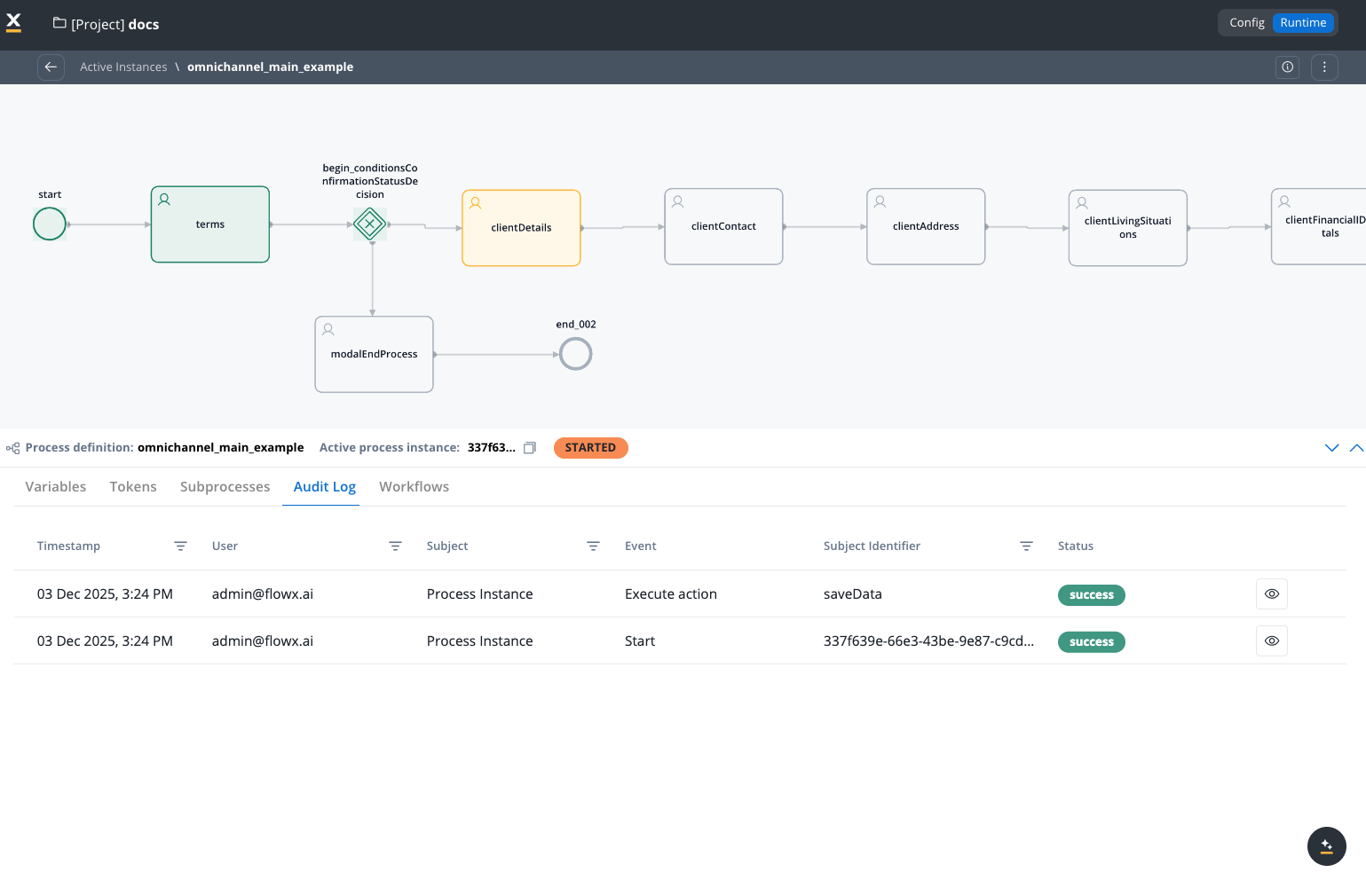
Audit
- Workflows: If process instance has a Start Workflow node, the workflow will be displayed here.
- Trigger: Displayed for process instances started by an event-based trigger (such as an email trigger). Shows the following details:
- Notifications: Displays email notifications sent from this process instance. The table includes the following columns:
Color coding
In the Process Status view, some nodes are highlighted with different colors to easily identify any failures:- Green: Nodes highlighted with green mark the nodes passed by the token.
- Red: The node highlighted with red marks the node where the token is stuck (process failure).
Starting a new process instance
To start a new process instance, a request must be made to the FlowX.AI Engine. This is handled by the web/mobile application. The current user must have the appropriate role/permission to start a new process instance.