

Available starting with FlowX.AI 5.7.0Oracle Database integration supports Oracle 19c, 21c, and 23ai. The integration uses the ojdbc11 driver, the same driver used by other FlowX services.
Overview
Oracle Database is a relational data source type that lets you connect FlowX workflows to Oracle databases that your organization manages independently. You configure a connection, save named SQL queries against the schema, and call those queries from workflows.Connect to your Oracle instance
Connect via Service Name or SID, with an optional SSL toggle
Schema-aware SQL editor
Monaco editor with SQL syntax highlighting, schema-aware autocomplete, and a side panel that lists tables, columns, primary keys, and foreign keys
Test before you ship
Run any saved query with sample parameters and inspect the response: table view for SELECT, affected-row count for INSERT / UPDATE / DELETE
Reusable in workflows
Reference Oracle queries from the Database Operation node alongside other data sources
Prerequisites
- An Oracle Database 19c, 21c, or 23ai instance accessible from your FlowX deployment
- A database user with the privileges your queries require (typically
SELECT,INSERT,UPDATE,DELETEon the target schema, plusSELECTon data dictionary views for schema discovery) - Network connectivity between the
nosql-db-runnerservice and the Oracle instance - For SSL connections: appropriate certificates configured on the Oracle instance and trusted by the FlowX deployment
Creating an Oracle Database data source
Add a new data source
Click the + button to open the Add Data Source dialog. In the Databases category, select Oracle Database.
Configure the connection
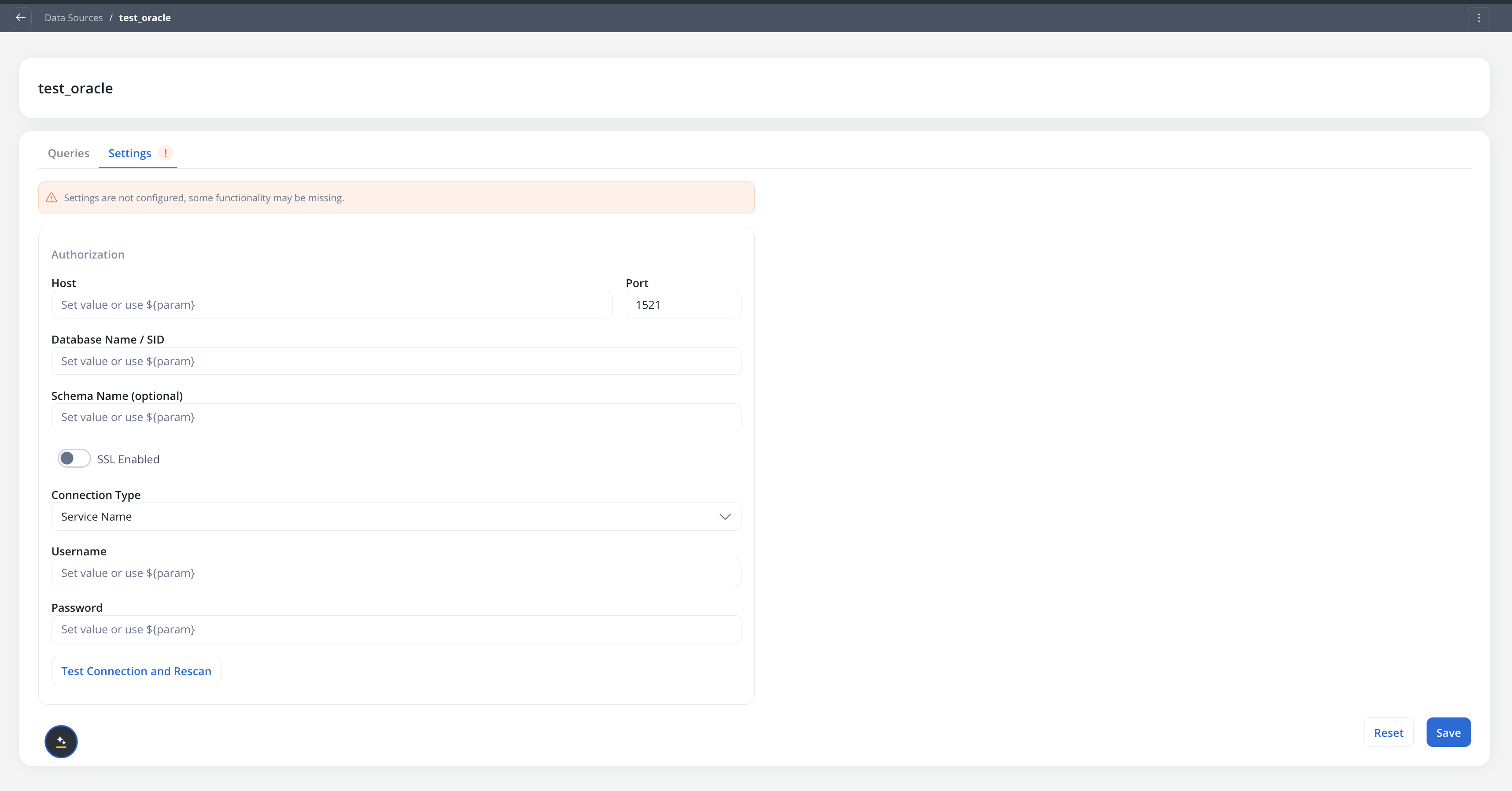
Fill in the connection fields:
Each field accepts configuration parameters for environment-specific values.
| Field | Description |
|---|---|
| Host | Oracle server hostname or IP |
| Port | Oracle listener port (default 1521) |
| Database Name / SID | The service name or SID, depending on the connection type |
| Schema Name | Optional. The schema to use for queries and discovery |
| SSL Enabled | Toggle SSL on or off for the connection |
| Connection Type | Service Name or SID |
| Username | Database username |
| Password | Database password |
Test the connection
Click Test Connection and Rescan to verify connectivity and refresh the schema cache.
The data source is created even if the connection test fails, so you can save partial configuration and resolve connectivity later. Return to the Settings tab and click Test Connection and Rescan once the issue is fixed.
Queries
Each Oracle Database data source holds a list of named SQL queries. A query is a single parameterized SQL statement that you can call from a workflow.SQL editor
Open the Queries tab on the data source, then click New query to open the editor:- Query area: Monaco editor with SQL syntax highlighting and schema-aware autocomplete. Use Oracle-native bind variables (
:paramName); they’re auto-detected from the query text and surfaced in the parameters panel. - Parameters panel (left): declare each bind parameter with a type. Supported types are
STRING,NUMBER,BOOLEAN,DATE, andCURRENCY. - Schema browser (right): pick a table from the dropdown to inspect its columns. Primary-key and foreign-key badges appear next to column names. Hover a foreign-key badge to see the referenced table and column.
Testing a query
Click Test query to open the test modal:- Parameters: supply values for declared bind parameters.
- Query and tables: view the SQL and the resolved schema context.
- Response: for
SELECT, results render as both a table and JSON, withtotalCountandexecutionTimeMs. ForINSERT/UPDATE/DELETE, the response isaffectedRows. Errors include the OraclesqlStateand message (for example,ORA-00942: table or view does not exist).
Using in workflows
Oracle queries are called from the existing Database Operation node in workflows.Add a Database Operation node
On the workflow canvas, drag a Database Operation node onto the workspace.
Select the data source and query
In the node configuration panel, pick the Oracle data source. The query picker then lists only the queries saved on that data source.
Deployment
No new microservices are required. Oracle Database queries run inside the existingnosql-db-runner service, which bundles the Oracle JDBC driver. Each Oracle data source uses its own HikariCP connection pool.
Configuration defaults
The following defaults apply to all Oracle data sources and can be tuned via environment variables on thenosql-db-runner service:
| Environment Variable | Description | Default |
|---|---|---|
FLOWX_JDBC_CONNECTIONS_CACHE_MAX_ENTRIES | Maximum cached JDBC connection pools | 100 |
FLOWX_JDBC_CONNECTIONS_CACHE_TTL | Time-to-live for cached connection pools | 1d |
FLOWX_SQL_DEFAULTS_MAX_POOL_SIZE | Maximum HikariCP pool size per data source | 5 |
FLOWX_SQL_DEFAULTS_CONNECTION_TIMEOUT_SECONDS | JDBC connection timeout | 10 |
FLOWX_SQL_DEFAULTS_ROW_LIMIT | Default row cap on SELECT responses | 1000 |
FLOWX_SQL_DEFAULTS_QUERY_TIMEOUT_SECONDS | Query execution timeout | 30 |
nosql-db-runner service has network access to your Oracle instance. If Oracle is behind a firewall, configure the appropriate network rules.
Related resources
FlowX Database
Managed MongoDB data storage within FlowX
Unmanaged MongoDB
Connect to externally managed MongoDB instances
Integration Designer
Overview of all data source types and workflow building
NoSQL DB Runner setup
Deployment configuration for the database runner service