

Overview
UI actions establish connections between UI components or custom elements and predefined actions. These connections ensure that processes are executed efficiently while defining the UI’s response. Examples include:- Showing a loader during an action execution.
- Automatically dismissing a modal after a task is completed.
- Sending default data back to the process.
Types of UI actions
UI actions can be categorized into two main types:- Process UI Actions: Directly interact with process nodes and manual actions.
- External UI Actions: Perform actions that link to external URLs or open new tabs.
Process UI actions
Process UI Actions (labeledACTION) define how a Button, whether generated or custom, interacts with a manual process action. Before configuring a UI action, ensure the corresponding manual action is set up.
Adding a node action
To configure a UI action, first add a node action (type: manual) to a process node. For detailed steps, refer to:Adding an action to a node
- Add an Action: Attach an action to a node.
- Select the Action Type: Choose Save Data, for instance.
- Action Type: Set it to manual.
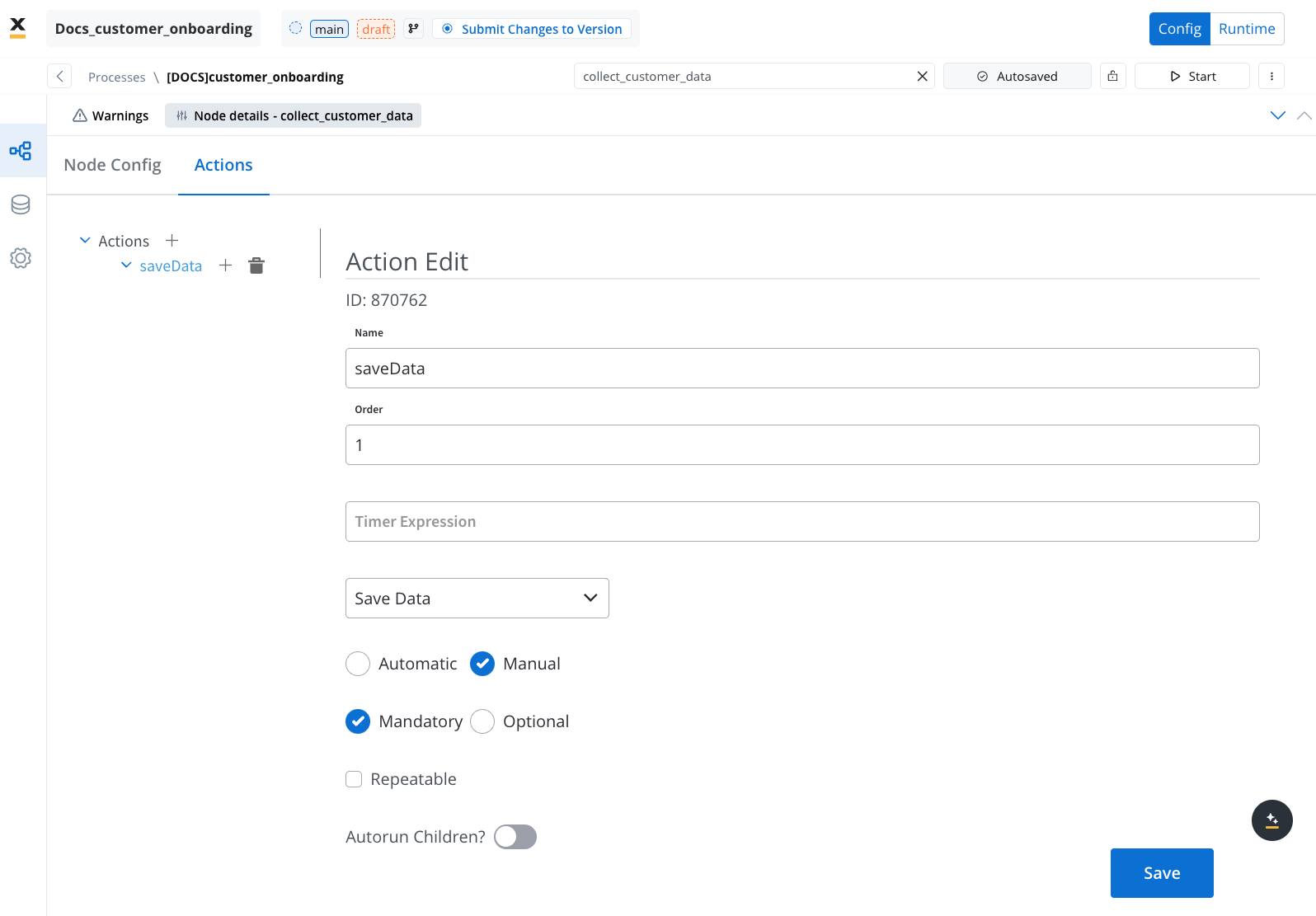
Both UI actions and node actions must be configured on the same user task node.
Configuring a UI action
Below are the key configuration options for defining a UI action:- Event: Define when the action should trigger (Learn about Events).
- Action Type: Specify the type of action (Explore Action Types).
- Node Action Name: Select the corresponding manual action from the dropdown.
- Use a different name for UI action: Optionally, define a unique name to trigger the action in Custom Components.
- Add custom keys: Restrict the submitted payload to specific data-model paths — an include-list of dot-separated keys (e.g.
application.client.firstName). Available on Action, Upload, and Start Project action types. - Exclude keys: Remove specific data keys from the submitted payload (applied after the include-list).
- Add custom body: A JSON body attached to the action’s request; supports
${...}placeholders resolved from process data at runtime. A custom body on its own is not included in the node output — to keep its data, also list those keys under Add custom keys. - Add form to submit: Link the action to specific UI elements for validation. Only fields within the selected forms are validated when the action triggers. See Form validation behavior for details.
- Hide Subprocess Navigation: Disable navigation to subprocesses.
- Show loader: Display a loader until a server-side event (SSE) updates the data or screen.
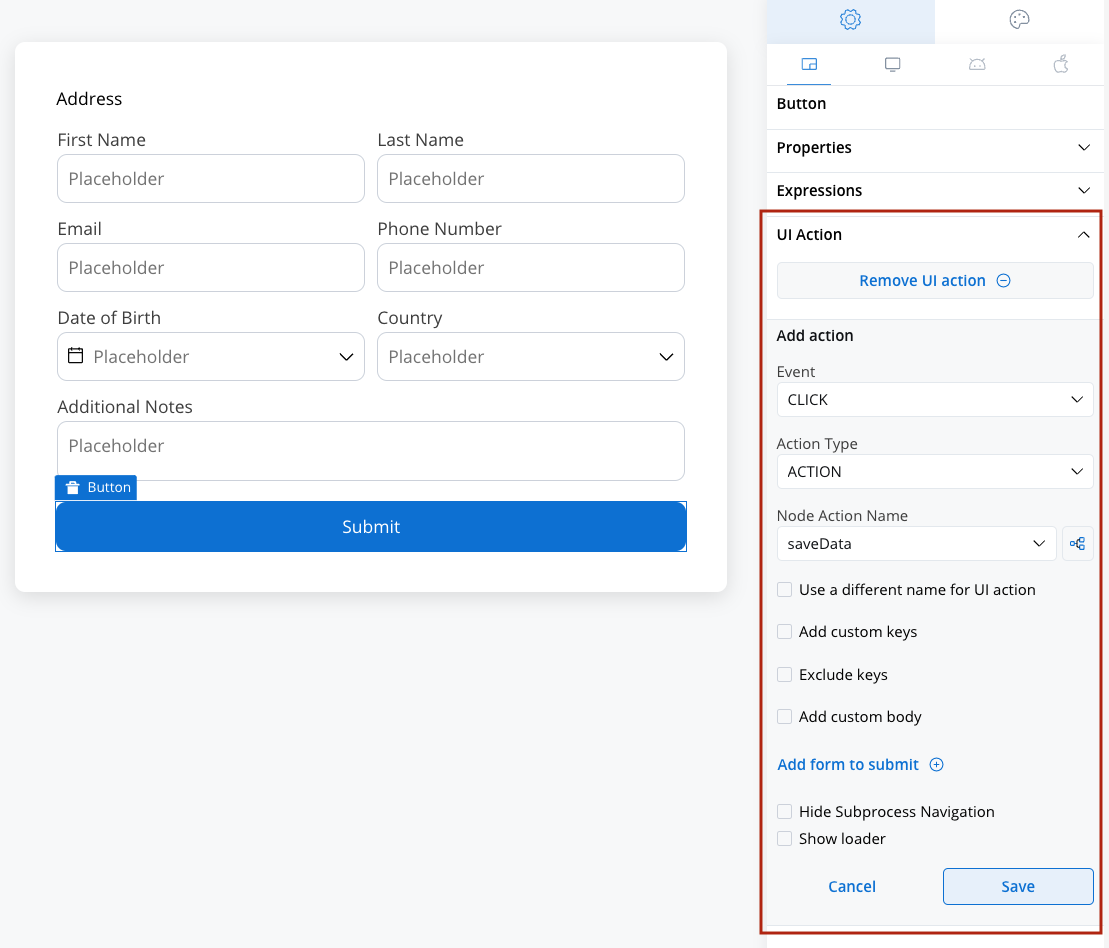
UI actions elements
Events
Events define how user interactions trigger UI actions. The available event types are:- CLICK: Triggered when a button is clicked.
- CHANGE: Triggered when input fields are modified.
Events are not applicable for UI actions on Custom Components.
Action types
The Action Type dropdown includes several predefined options:- DISMISS: Dismisses a subprocess or closes a modal. Fires immediately with no form validation or data submission. Sets the process and all subprocesses to DISMISSED state (terminal).
- ACTION: Links a UI action to a manual node action.
- START_PROJECT: Initiates a new project instance. This action type is used to trigger a completely new process flow within a different project or application, based on the selected project and process configurations.
- UPLOAD: Initiates an upload action.
- EXTERNAL: Opens a link in a new browser tab or window.
Dismiss action details
The DISMISS action is the simplest action type. When triggered, it:- Calls the backend to dismiss the current process instance
- Sets the process and all active subprocesses to DISMISSED state — a terminal state with no further processing
- Sets all active tokens to DISMISSED
name and optional analytics parameters are required. Unlike other action types, DISMISS does not support form submission, UI blocking, or custom keys.
Permissions: DISMISS is authorized against the swimlane that owns the node the active token sits on. Three conditions are checked, in this order:
- Swimlane ownership — the user must be the current owner of that swimlane on this process instance. If someone else holds it, or no owner has been recorded yet, the call is rejected.
- Business filters — any business filters configured on the swimlane must match the user.
- Execute operation — the user’s runtime roles must grant Execute on that swimlane. View or Self-assign alone is not enough.
You don't have the rights to perform this action, so check ownership first when troubleshooting — it is the condition that most often fails.
For the swimlane permission model, see Swimlanes and Configuring access roles for processes.
The DISMISS action type is only available in process context (User Tasks). It is not available in UI Flows.
For design guidance on modal lifecycle and when a modal should be dismissed, see Process design principles: Modals are dismissed only by user interaction. Dismiss-on-completion patterns that follow from a user’s click are compliant, since the close is downstream of the user’s action.
Start Workflow action details
TheSTART_WORKFLOW action type is configured with the following options:
How it works:
When a user clicks a button configured with
START_WORKFLOW, the process engine sends a request to the application manager, which locates and starts the specified integration workflow. The workflow runs independently of the current process instance.
Form validation behavior
When a UI action has one or more forms linked via Add form to submit, the platform validates all visible, enabled fields in those forms before executing the action. If any field fails validation, the action is blocked and error messages are displayed.How it works
1
Action triggers
The user clicks a button (or another event fires) that is linked to a UI action with forms to submit.
2
Forms are resolved
The platform collects all form controls from the UI elements listed in the Add form to submit configuration.
3
Validation runs
Each form field is checked against its configured validators. Only fields that are visible and enabled are validated.
4
Action executes or blocks
If all validated fields pass, the action executes and sends data to the process. If any field fails, the action is blocked and validation errors are shown.
Hidden fields and validation
This behavior is intentional — it prevents invisible fields from blocking user progress. However, it has an important implication: if you rely on validation for data integrity, ensure that hidden fields either have valid default values or are validated through a separate mechanism (such as a business rule on the backend). Example scenario:Disabled fields and validation
Fields that are explicitly disabled (not via hide condition, but via the disabled property) also skip validation. Both Angular and React SDKs treat disabled fields as valid during form submission.Scoping validation to specific forms
The Add form to submit option lets you select which UI elements (forms) are validated when the action triggers. This is useful when a screen has multiple forms but only one should be validated for a specific action.External UI actions
External UI Actions enable linking to external URLs and opening links in a new tab or the same tab. When configuring an external UI action, additional options become available:- URL: Specify the web URL for the action. Supports dynamic values from process data using the
${variableName}syntax. - Open in New Tab: Choose whether to execute the action in the current tab or a new tab.
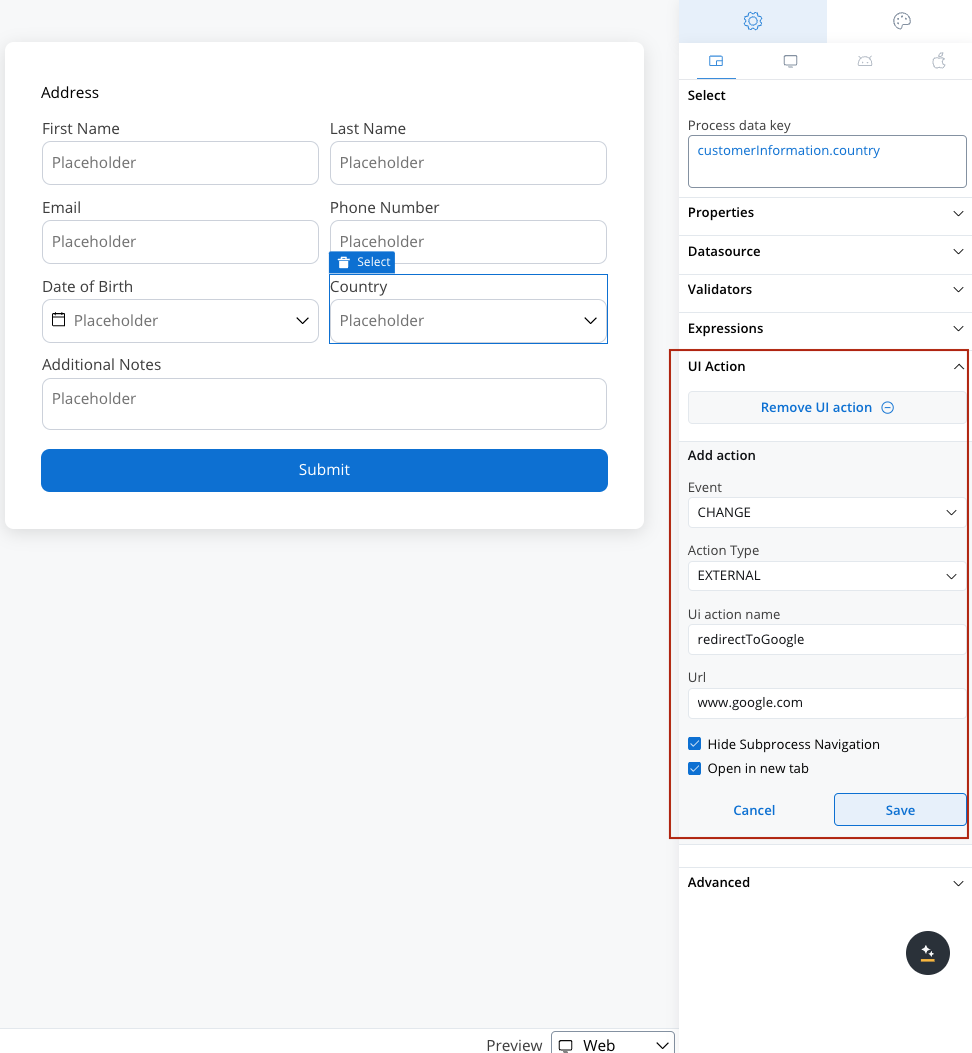
Dynamic URL values
You can include process data values in the URL using the${variableName} syntax. The placeholders are replaced with actual values from the process data model at runtime.
Examples:
https://example.com/users/${userId}- Includes a user ID from process datahttps://example.com/documents/${documentId}/view?lang=${language}- Multiple dynamic values${externalSystemUrl}/api/resource- Dynamic base URL from process data
If a referenced variable is not found in the process data, it will be replaced with
null.Troubleshooting
Validation is not blocking form submission
Validation is not blocking form submission
Symptom: You added validators to form fields but the action still executes with invalid data.Possible causes:
- The form containing the fields is not listed in Add form to submit on the UI action. Add it to enable validation.
- The fields are hidden by a hide condition. Hidden fields have their validation disabled automatically. Make the fields visible or add backend validation via a business rule.
- The fields are disabled. Disabled fields skip validation.
- No forms are selected in Add form to submit — this means no client-side validation runs at all.
Action not appearing in the dropdown
Action not appearing in the dropdown
Symptom: The node action name dropdown is empty when configuring a UI action.Possible causes:
- No manual action has been added to the current user task node. UI actions can only link to actions of type manual.
- The action is on a different node. Both the UI action and the node action must be on the same user task node.
Related resources
Adding an action to a node
How to add and configure node actions
Validators
Configure validation rules for form fields
Buttons
Configure button components that trigger UI actions
Dynamic & computed values
Use expressions for hide conditions and dynamic behavior
Hide and Disable course
Academy course on building dynamic UI logic with hide and disable conditions