

Data Sources
A data source is a collection of resources—endpoints, authentication, and variables—used to define and run integration workflows.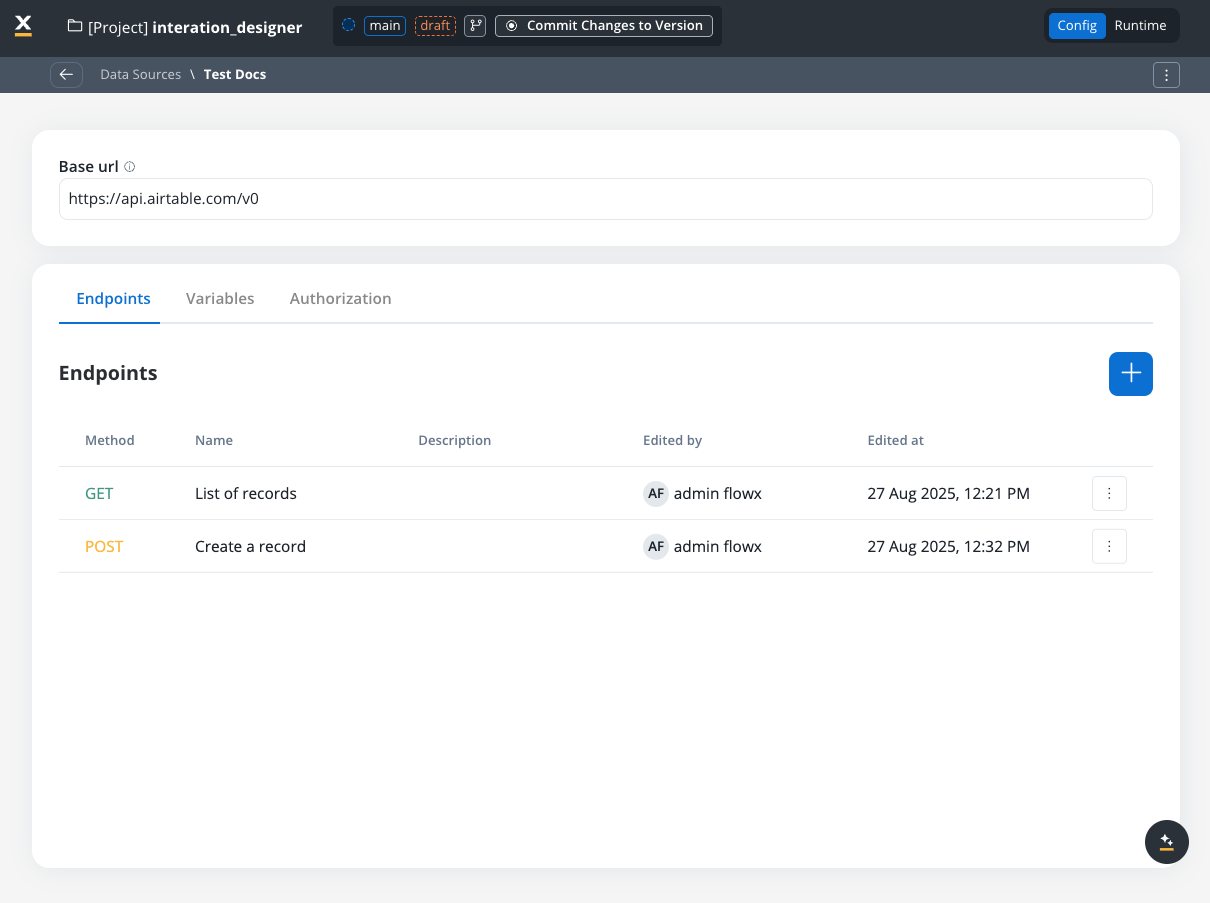
Creating a new data source definition
With Data Sources feature you can create, update, and organize endpoints used in API integrations. These endpoints are integral to building workflows within the Integration Designer, offering flexibility and ease of use for managing connections between systems. Endpoints can be configured, tested, and reused across multiple workflows, streamlining the integration process. Go to the Data Sources section in FlowX Designer at Workspaces -> Your workspace -> Projects -> Your project -> Integrations -> Data Sources.The data sources resource page uses a tile-based creation flow and a unified details view.
- Creation modal: clicking New Data Source opens a modal where each connector type appears as its own tile with an icon. Use the search box to filter tiles by name. Pick a tile, give the data source a name, and click Create to open the configuration page.
- List view: each entry shows the connector’s icon and type. Use the type filter at the top to scope the list to a specific connector (REST, FlowX Database, Email, MCP Server, Knowledge Base, etc.).
- Unified settings layout: every data source type now uses the same card-based settings layout, so the configuration experience is consistent across connectors.
- Save with incomplete configuration: you can create and save a data source even when some fields (credentials, endpoints) are not yet available. The data source can be referenced in workflows and processes immediately, but it will only operate at runtime once required fields are filled in.
Data sources types
There are multiple types of data sources available: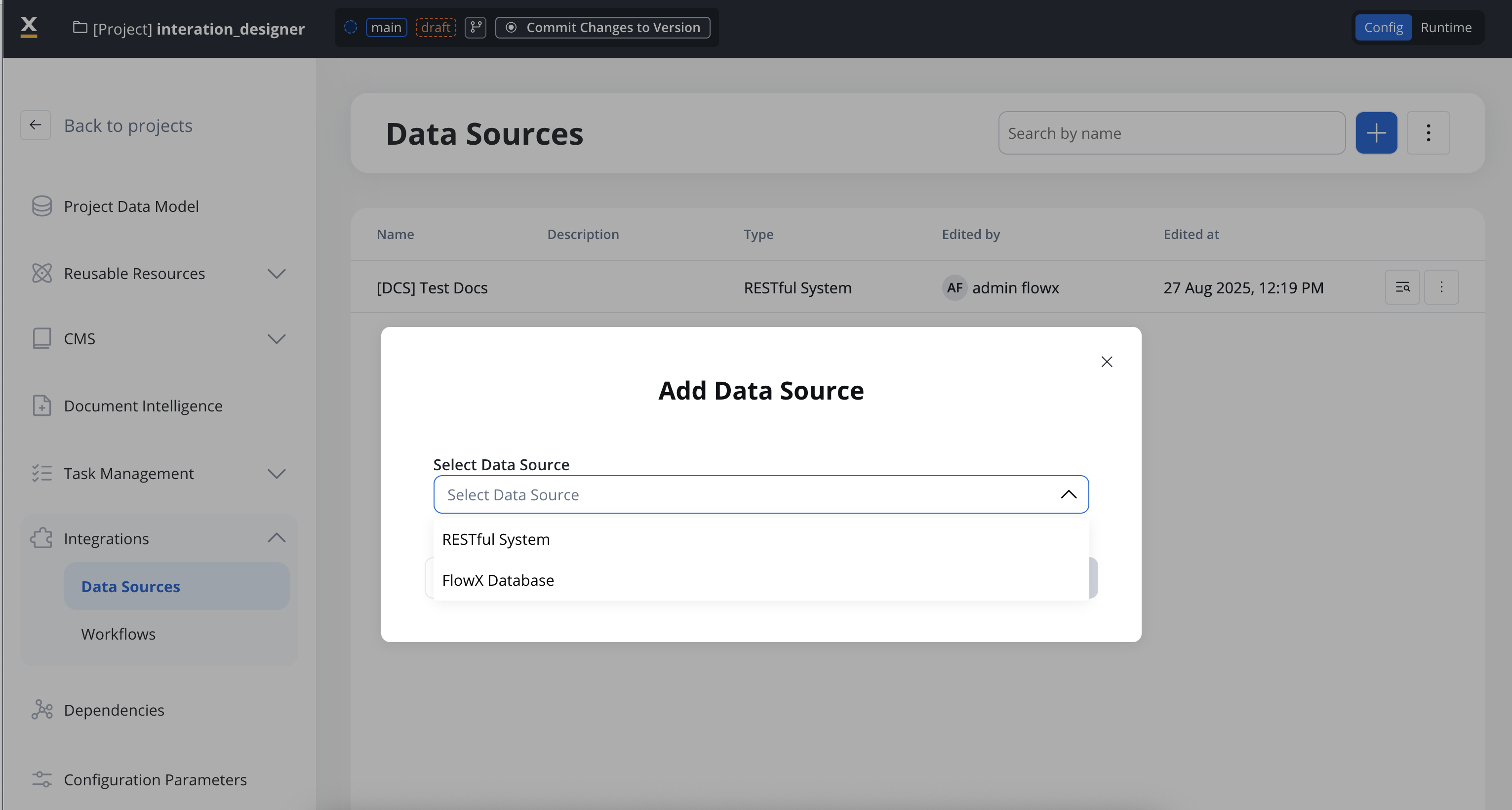
RESTful System
Connect to external REST APIs. Configure endpoints, authentication, and parameters for HTTP-based integrations. Detailed in this document below.
SOAP System
Connect to SOAP web services by importing a WSDL and invoking the discovered operations from workflows.
FlowX Database
Store and retrieve structured data within FlowX using MongoDB collections. Share data across processes without external dependencies.
Unmanaged MongoDB
Connect to externally managed MongoDB instances. Use your existing MongoDB infrastructure with the same CRUD operations as FlowX Database.
Oracle Database
Connect to independently managed Oracle databases and run saved SQL queries from workflows.
PostgreSQL Database
Connect to independently managed PostgreSQL databases and run saved SQL queries from workflows.
Db2 Database
Connect to independently managed IBM Db2 databases and run saved SQL queries from workflows.
MCP Integration
Connect Model Context Protocol servers to enable AI agents to use external tools, databases, and services.
FlowX Knowledge Base
AI-powered contextual knowledge repositories for intelligent document search and retrieval in workflows.
Email Trigger
Start process instances automatically when emails are received. Connect to IMAP servers and monitor mailboxes for event-driven automation.
Email Sender
Configure SMTP connections to send emails directly from processes, including replies to received emails.
Incoming Webhook
Trigger processes from external systems via HTTP POST requests with API key authentication.
RESTful System
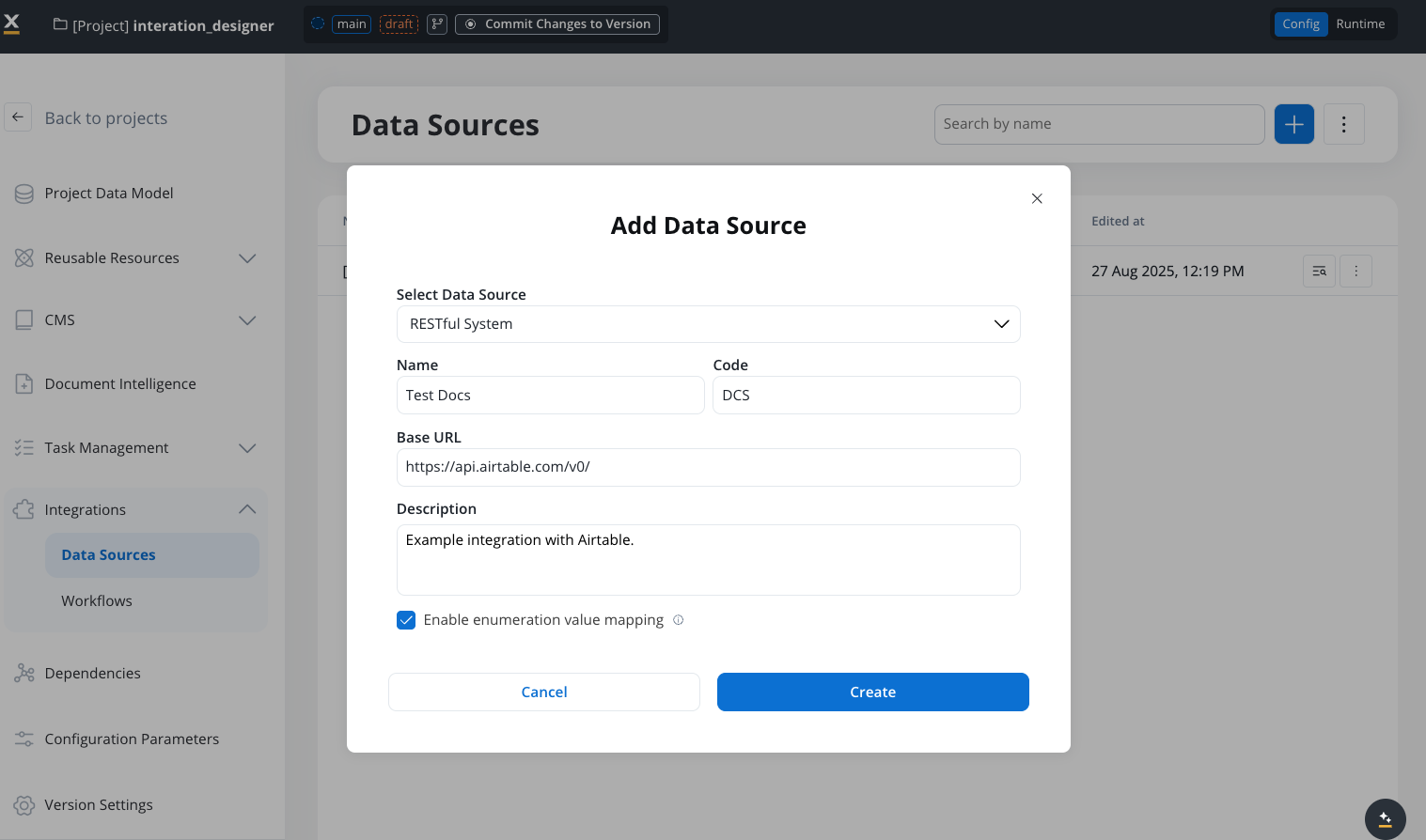
Add a New Data Source, set the data source’s unique code, name, and description:- Select Data Source: RESTful System
- Name: The data source’s name.
- Code: A unique identifier for the external data source.
- Base URL: The base URL is the main address of a website or web application, typically consisting of the protocol (
httporhttps), domain name, and a path. - Description: A description of the data source and its purpose.
- Enable enumeration value mapping: If checked, this system will be listed under the mapped enumerations. See enumerations section for more details.
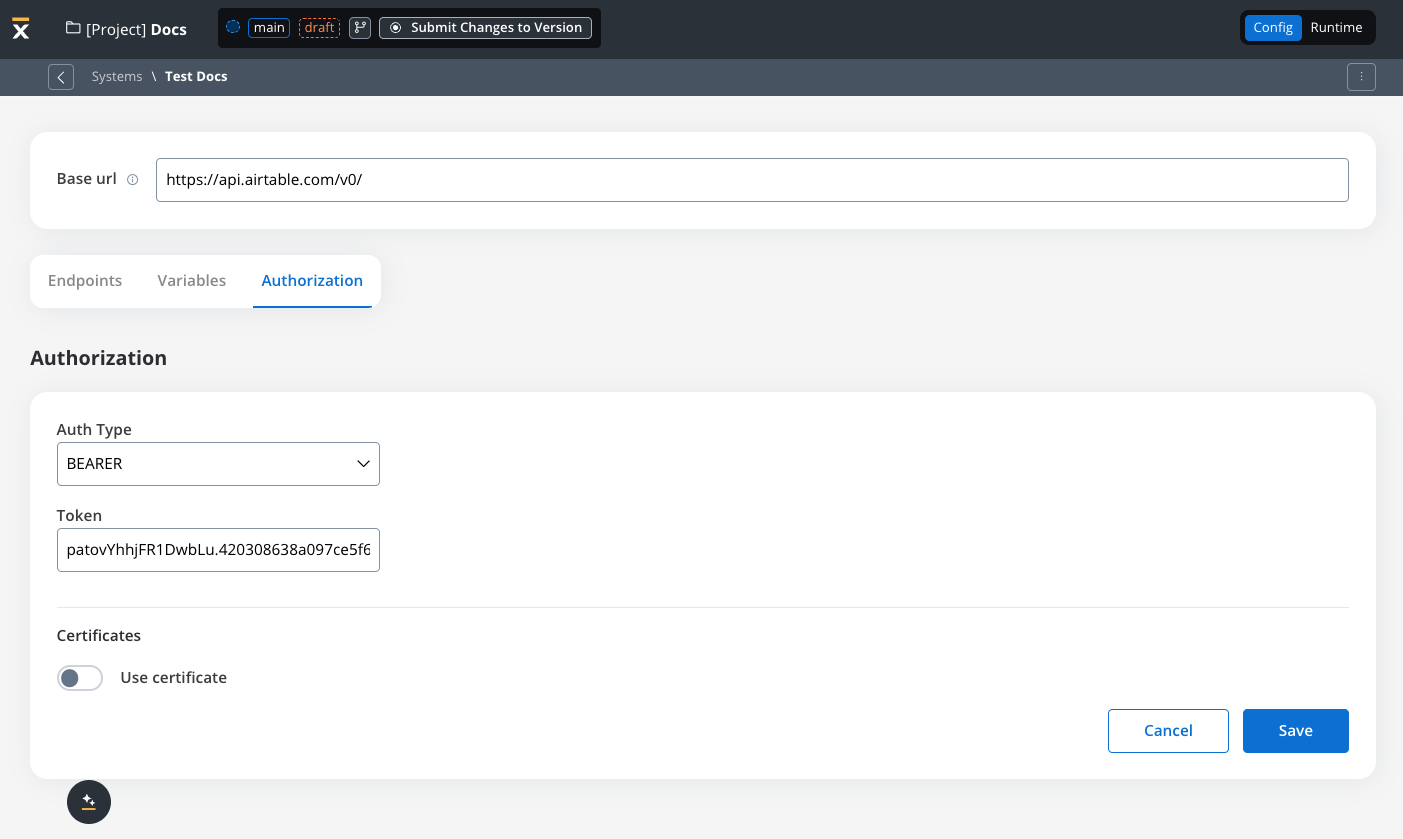
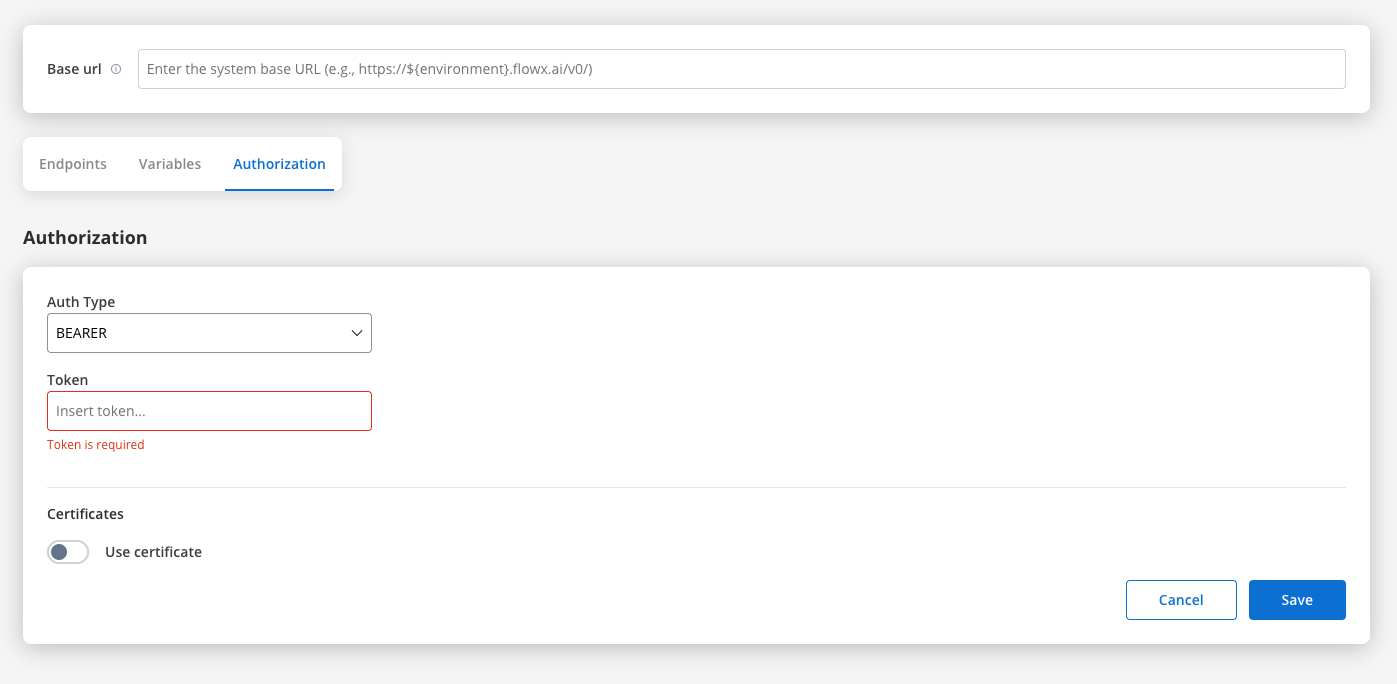
- Set up authorization (Service Token, Bearer Token, or No Auth). In our example, we will set the auth type as a bearer and we will set it at system level:
Defining REST integration endpoints
In this section you can define REST API endpoints that can be reused across different workflows.- Under the Endpoints section, add the necessary endpoints for system integration.
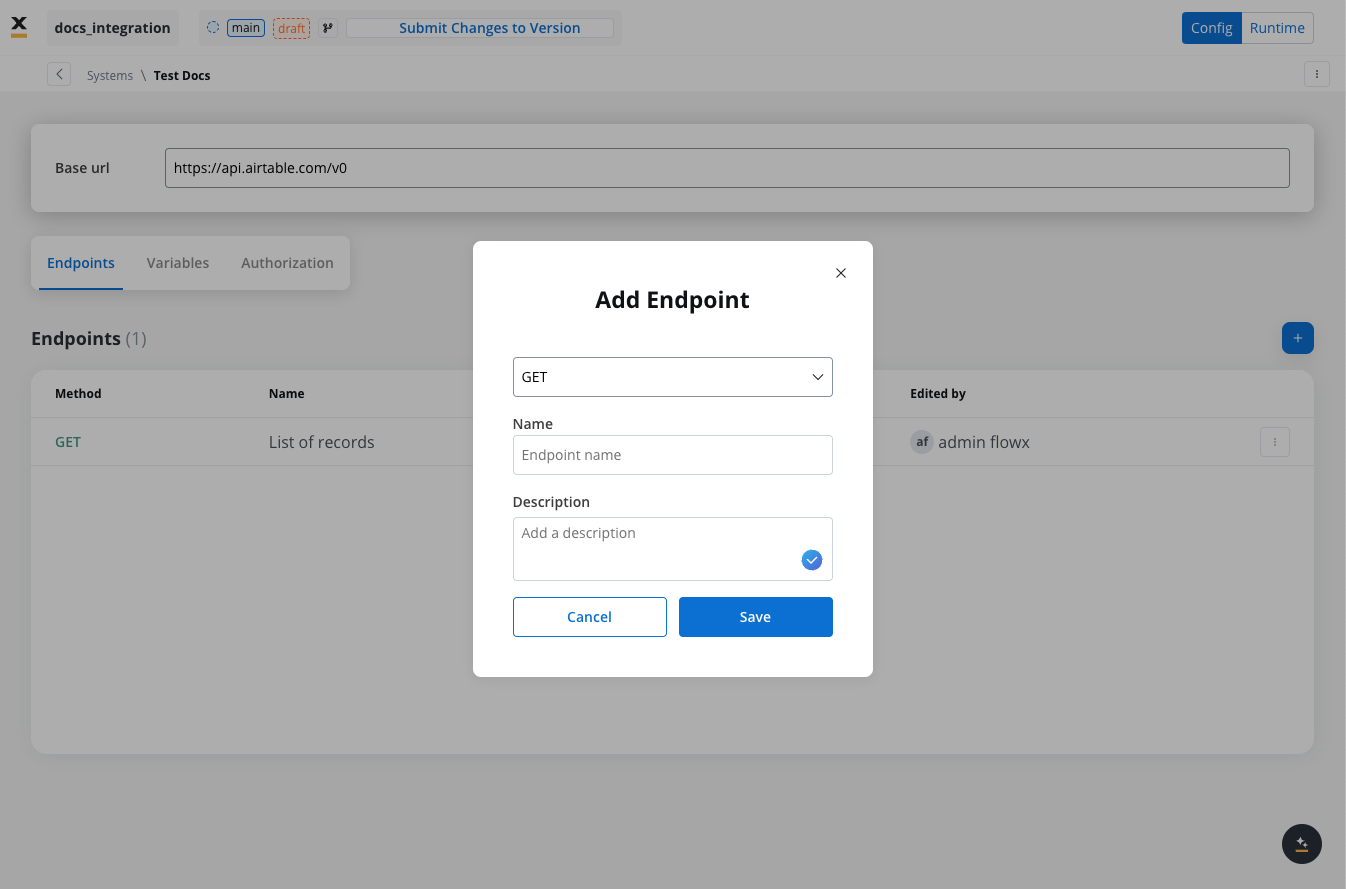
- Configure an endpoint by filling in the following properties:
- Method: GET, POST, PUT, PATCH, DELETE.
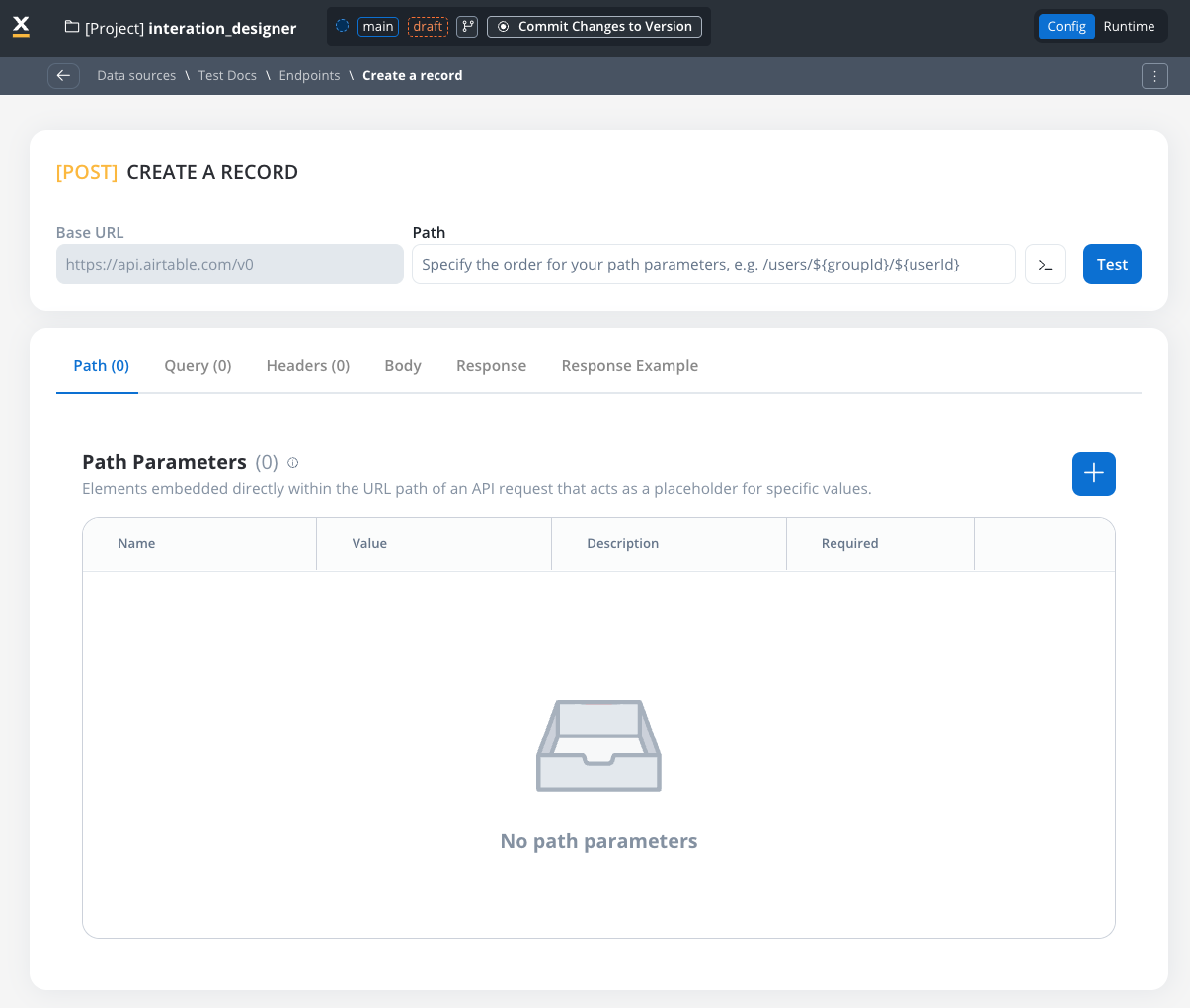
- Path: Path for the endpoint.
- Parameters: Path, query, and header parameters.
- Content type (POST endpoints): JSON, Raw, Multipart/Form-Data, or Binary.
- Response: JSON or Single binary file.
- Response example: Body or headers.
REST endpoint caching
For GET endpoints, you can configure response caching to reduce redundant API calls, avoid rate limits, and lower operational costs. When data is stable for a defined period, caching eliminates unnecessary external API calls and improves workflow performance.Configuring cache Time-To-Live (TTL)
Choose between two TTL policies based on your use case:- Expires After (Duration-Based)
- Expires At (Time-Based)
Cache responses for a specific duration after each request.Configuration Options:
- ISO Duration: Use ISO 8601 duration format
PT1H- Cache for 1 hourPT30M- Cache for 30 minutesP1D- Cache for 1 dayP1W- Cache for 1 week
- Dynamic Duration: Reference configuration parameters using
${myConfigParam} - Default:
R/P1D(1 day)
Cache visibility and management
Testing Modal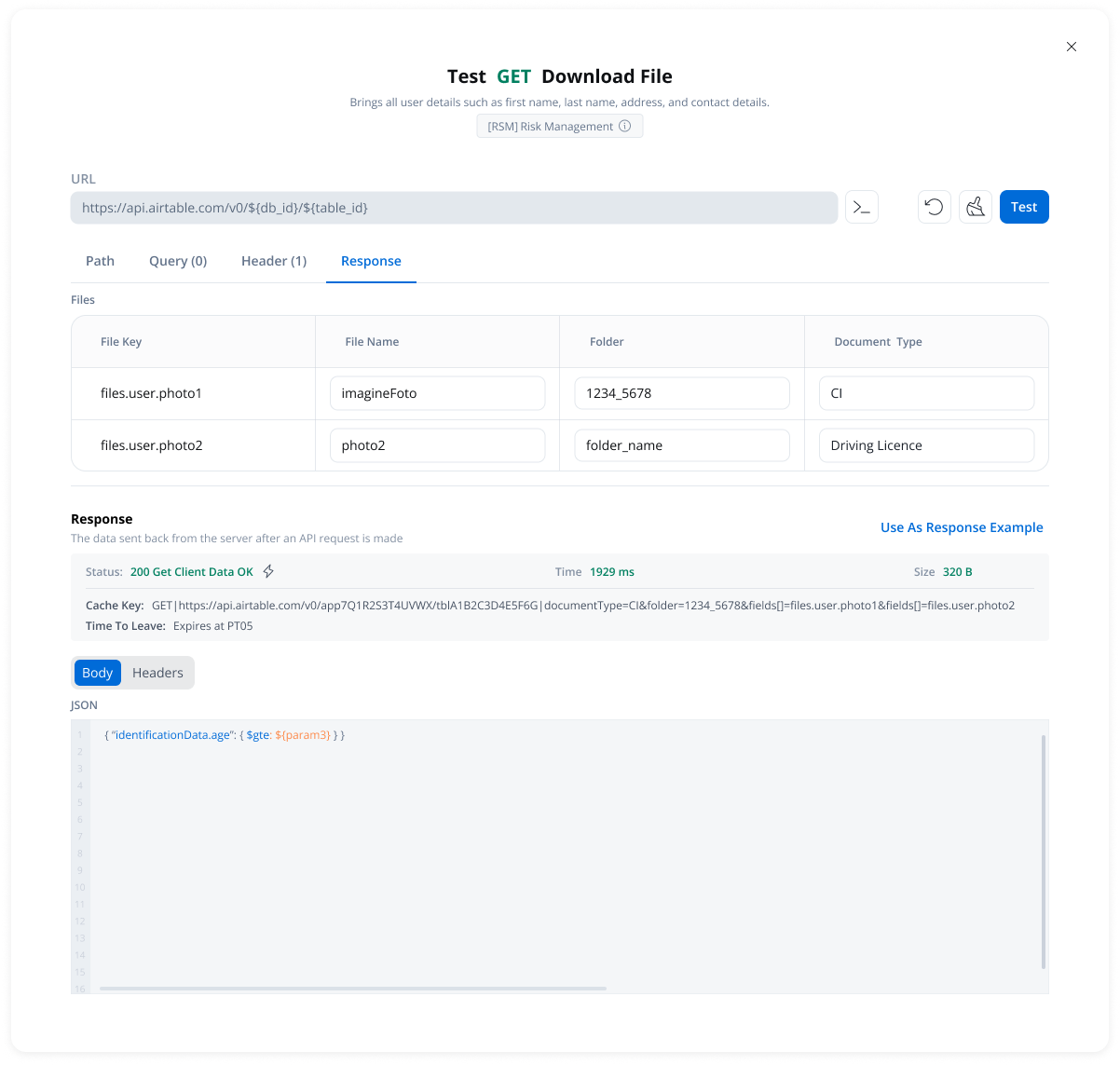
- Cache Status: Whether results came from cache (hit) or external API (miss)
- Cache Key: Unique identifier for the cached response
- TTL Information: When the cache will expire
- Duration-based: “Expires after PT10M” (10 minutes)
- Time-based: “Expires at 23:00 on 2025-11-04”
- Available in the endpoint testing modal
- Available from the endpoint definition page
- Only visible when caching is configured
How caching works
1
First Request
When a GET endpoint is called for the first time, FlowX.AI:
- Calls the external API
- Stores the response in cache with the configured TTL
- Returns the response to the workflow
2
Subsequent Requests
If the cache is still valid (within TTL):
- FlowX.AI returns the cached response immediately
- No external API call is made
- Response time is significantly faster
3
Cache Expiration
Once the TTL expires:
- Next request fetches fresh data from the external API
- Cache is updated with the new response
- New TTL period begins
Error handling
Automatic fallback scenarios:- Cache service unavailable → Direct API call
- Cache corruption or invalid data → Direct API call
- Cache storage failure → Direct API call (with warning logged)
Use cases
Reference Data
Cache country lists, product catalogs, currency rates, or other reference data that changes infrequently
Rate Limit Compliance
Stay within third-party API rate limits by reducing the number of requests
Cost Optimization
Lower operational costs by reducing billable API calls to external services
Performance
Improve workflow execution speed by eliminating network latency for cached responses
SQL operation caching
SQL data source operations support response caching with the same TTL policies as REST endpoints. On a SQL operation’s details page, open the Response Caching section and toggle Caching Enabled, then choose a return policy (Expires After duration or Expires At time-based), exactly as for REST GET endpoints above. A Clear cache button invalidates cached responses on demand. Caching is governed by three platform-wide settings on theintegration-designer service:
Per-operation caching only takes effect when
FLOWX_SQL_CACHE_ENABLED is true. If an operation has caching enabled while the global switch is off, the query runs live and a warning is logged.Extended response caching
Response caching extends beyond GET REST endpoints and SQL operations to cover POST endpoints, Mongo read operations, and file storage read operations. These surfaces reuse the same TTL policies, Clear cache control, and automatic fallback behavior described above.POST endpoint caching
You can enable response caching on POST endpoints as well as GET endpoints. For a POST endpoint, the request body is part of the cache key, so calls to the same URL with different bodies are cached as separate entries and never return one another’s response. GET requests carry no body, so their cache keys are unchanged.Mongo read caching
Database data source caching also applies to Mongo read operations:FIND, FIND_ONE, and AGGREGATE, alongside the SQL queries already covered above. Mutating operations (for example inserts, updates, and deletes) cannot be cached. Enable caching per operation in the Response Caching section of the operation’s details page, exactly as for SQL operations. The same payload-size and duration caps apply to both SQL and Mongo caching.
File operation caching
File storage data source operations support response caching with the same TTL policies and controls as REST endpoints and database operations. Caching applies to read operations only:
On a
LIST or DOWNLOAD operation’s details page, open the Response Caching section, toggle Caching Enabled, and choose a return policy (Expires After duration or Expires At time-based). A Clear cache button invalidates cached responses on demand, exactly as for REST endpoints and database operations.
For a
DOWNLOAD, FlowX caches the document reference rather than the file content. On a cache hit, the workflow receives a fresh document created from the retained copy, so the read from remote storage is skipped while your workflow still gets a valid document to work with.Defining variables
The Variables tab allows you to store system-specific variables that can be referenced throughout workflows using the format${variableName}.
These declared variables can be utilized not only in workflows but also in other sections, such as the Endpoint or Authorization tabs.
For example: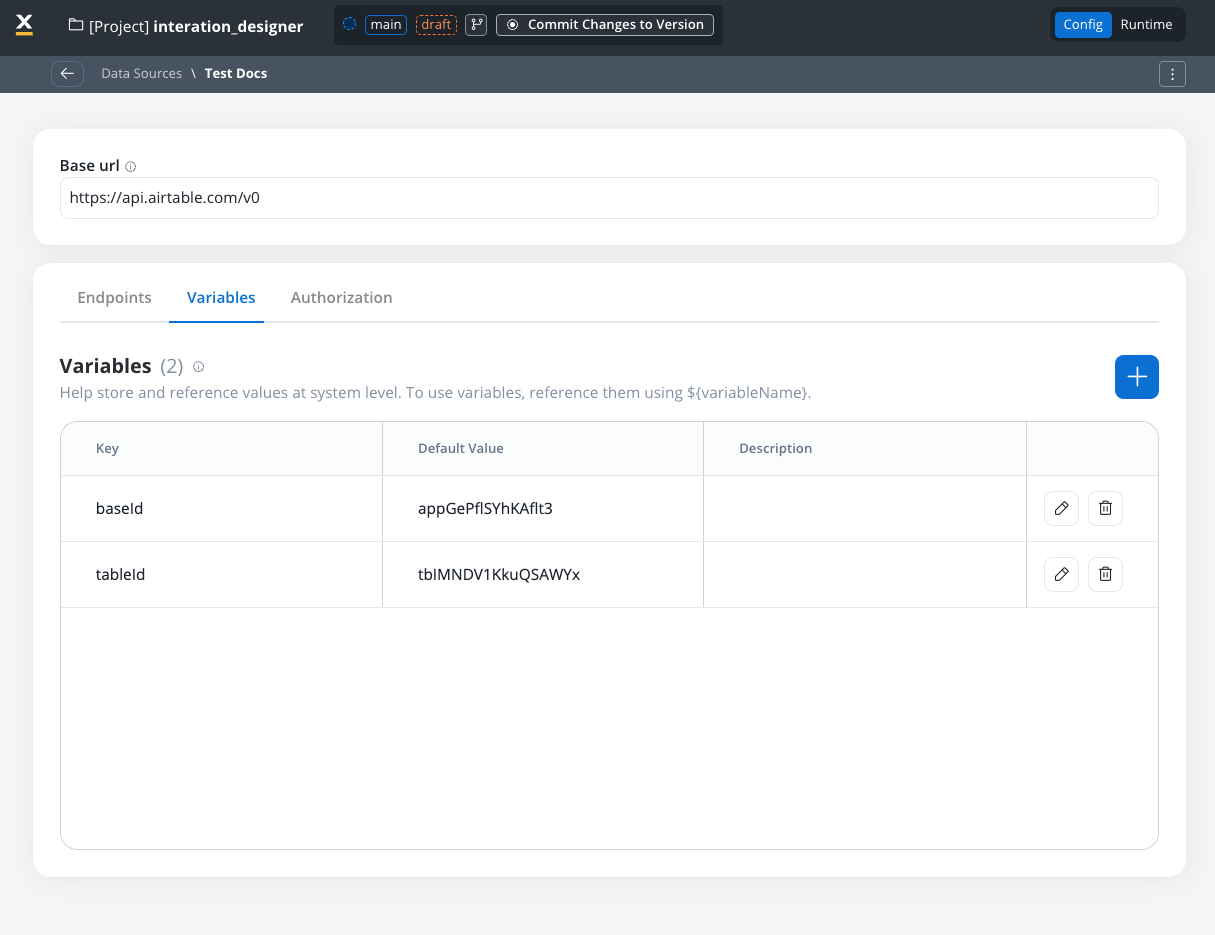
- For our integration example, you can declare configuration parameters and use the variables to store your
tableIdandbaseIdand reference them the Variables tab.
- Use variables in the Base URL to switch between different environments, such as UAT or production.
Endpoint parameter types
When configuring endpoints, several parameter types help define how the endpoint interacts with external systems. These parameters ensure that requests are properly formatted and data is correctly passed.Path parameters
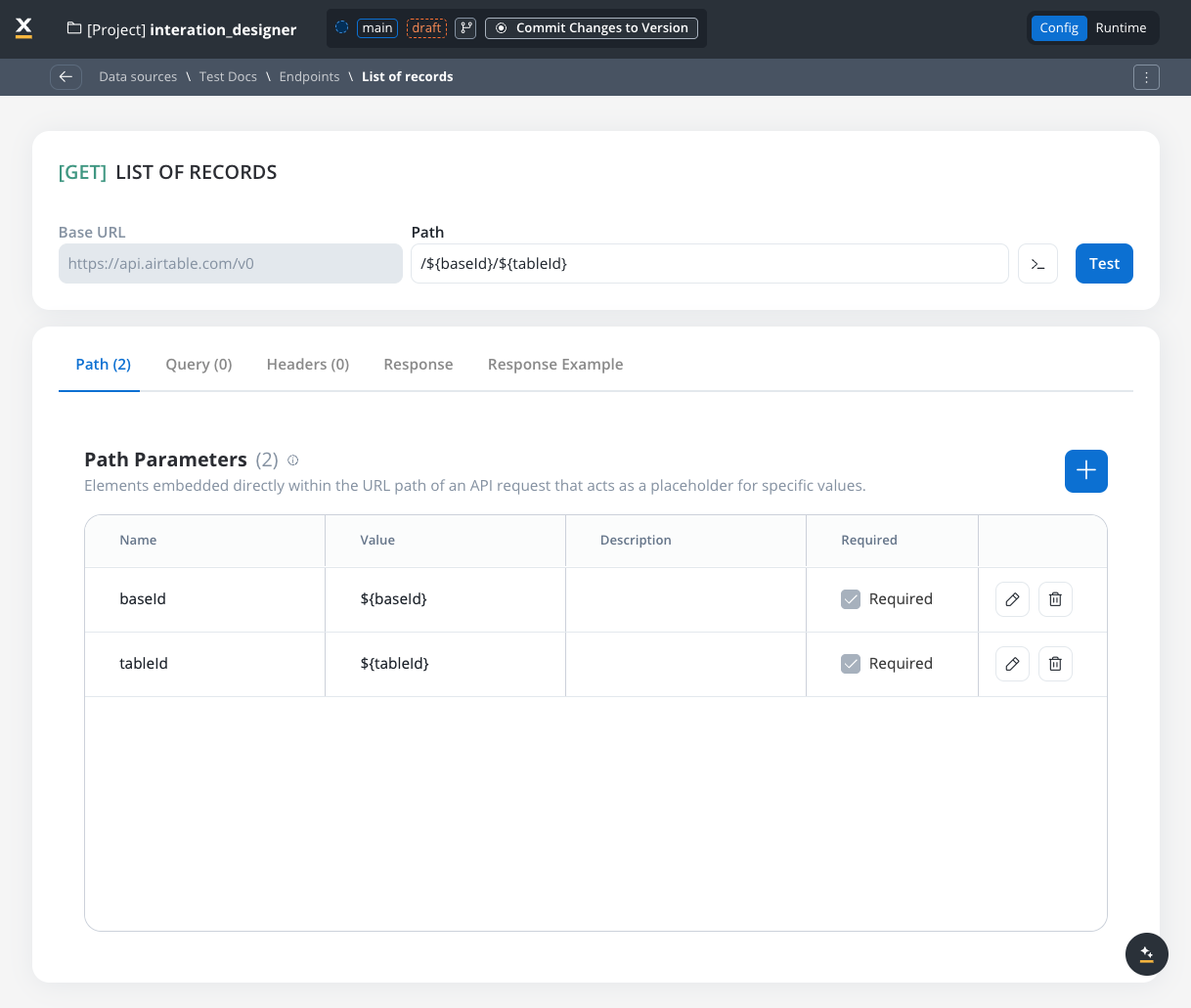
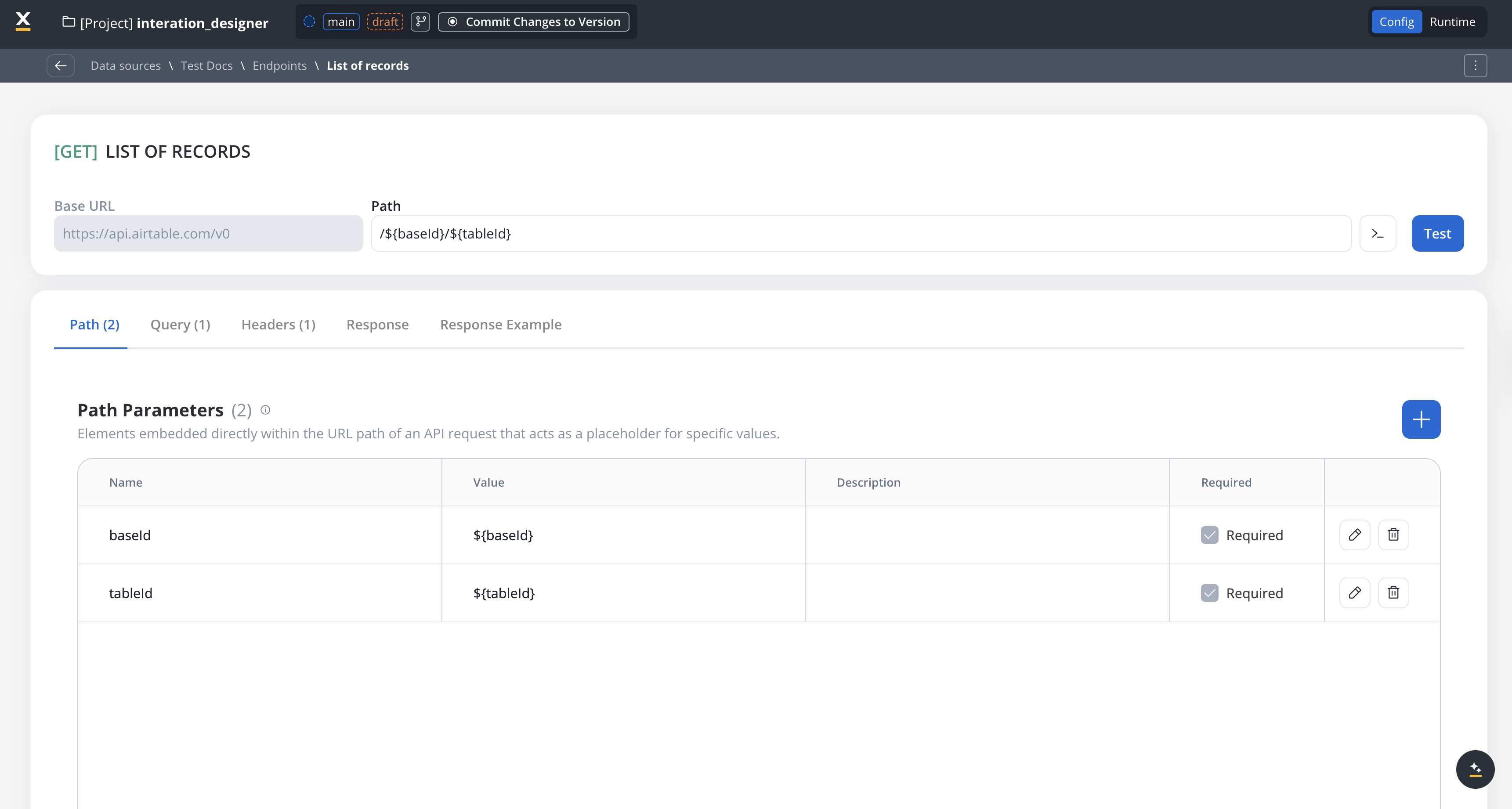
Elements embedded directly within the URL path of an API request that acts as a placeholder for specific value.- Used to specify variable parts of the endpoint URL.
- Defined with
${parameter}format. - Mandatory in the request URL.
Query parameters
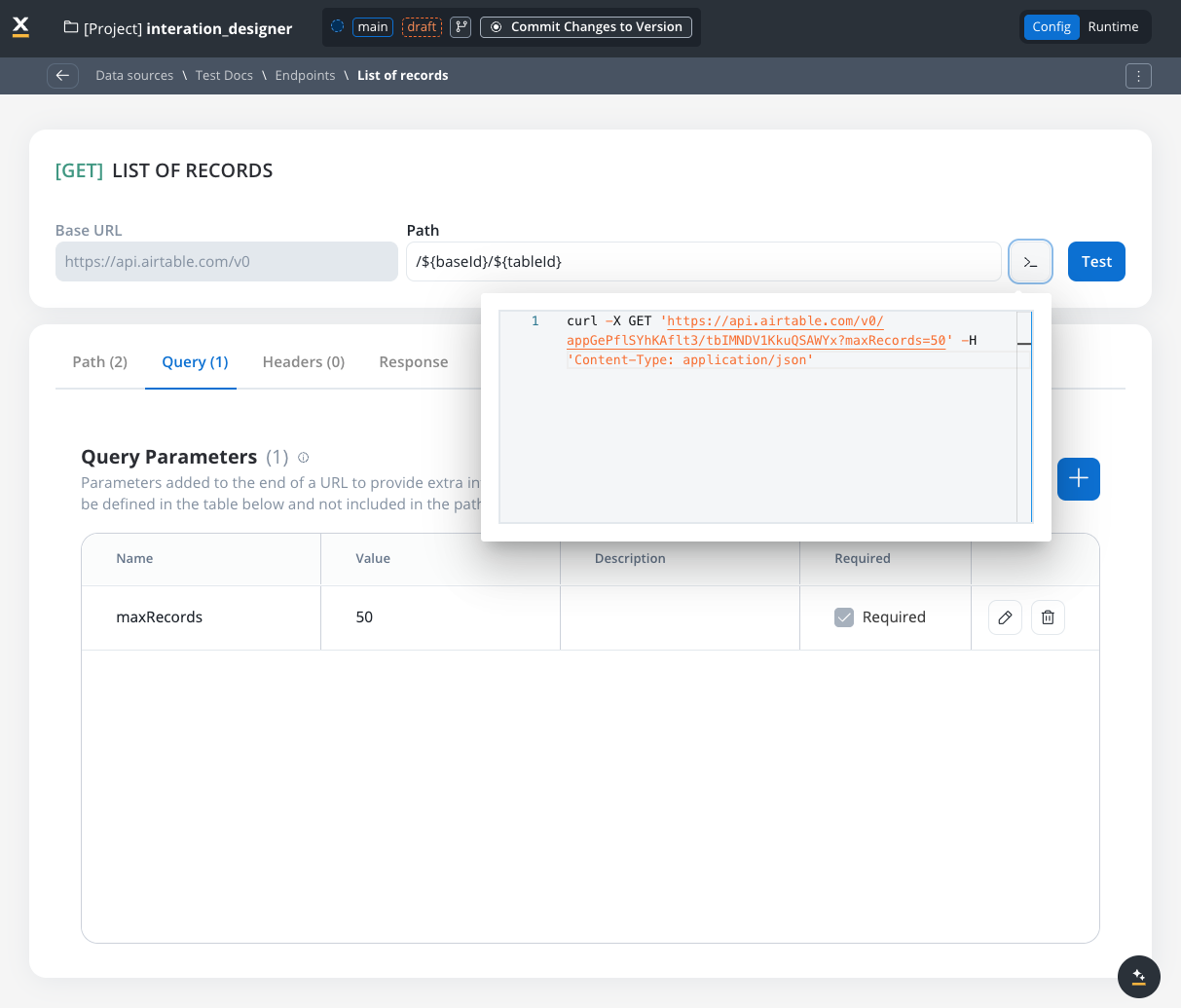
Query parameters are added to the end of a URL to provide extra information to a web server when making requests.- Query parameters are appended to the URL after a
?symbol and are typically used for filtering or pagination (for example,?search=value) - Useful for filtering or pagination.
- Example URL with query parameters: https://api.example.com/users?search=johndoe&page=2.
URL encoding option
Each query parameter has an Encode option that controls whether the value is URL-encoded before being sent:- Encode enabled: The system automatically URL-encodes the parameter value (special characters like spaces,
&,=are converted to their encoded equivalents like%20,%26,%3D) - Encode disabled (default): The value is sent as-is, allowing you to provide pre-encoded values
To preview how query parameters are sent in the request, you can use the Preview feature to see the exact request in cURL format. This shows the complete URL, including query parameters.
Header parameters
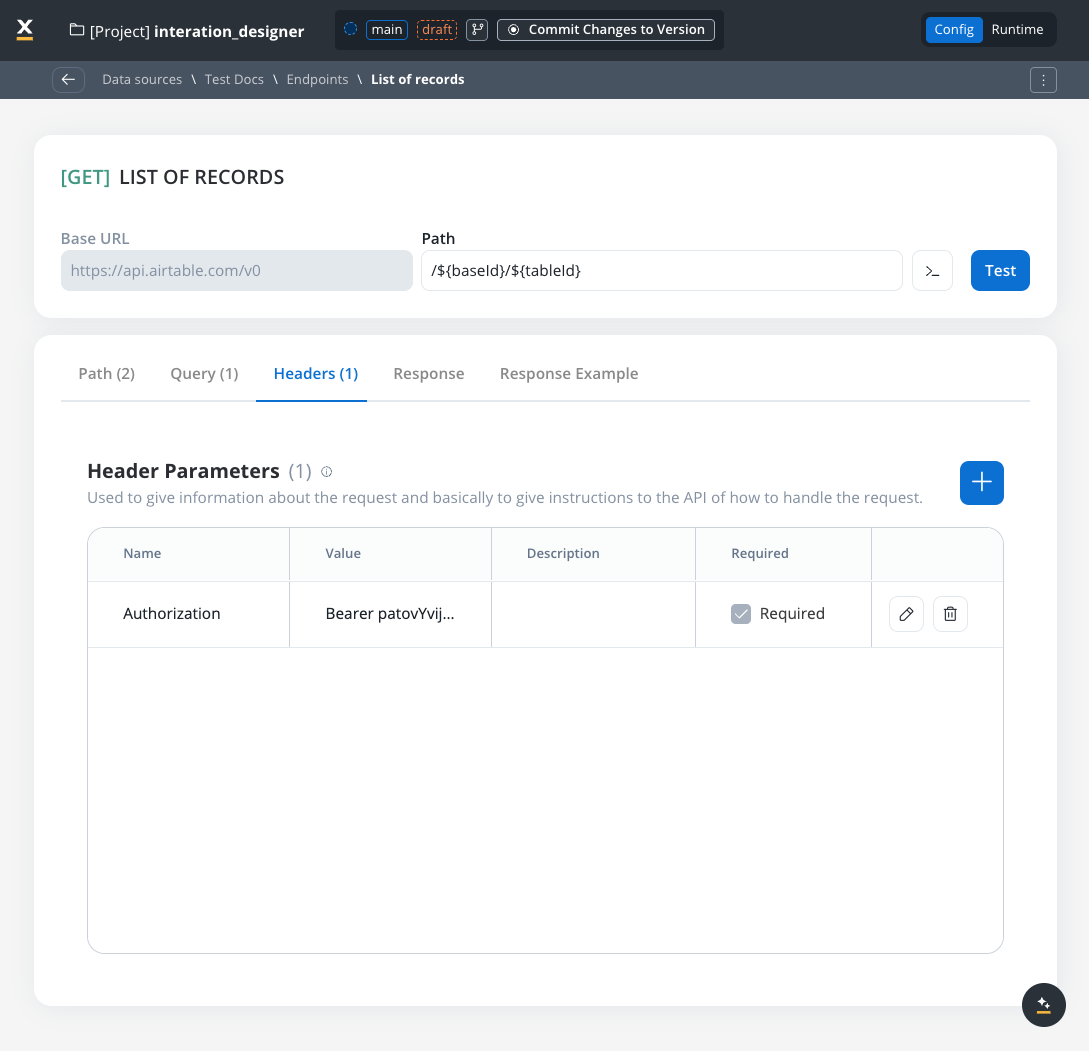
Used to give information about the request and to give instructions to the API of how to handle the request- Header parameters (HTTP headers) provide extra details about the request or its message body.
- They are not part of the URL. Default values can be set for testing and overridden in the workflow.
- Custom headers sent with the request (for example,
Authorization: Bearer token). - Define metadata or authorization details.
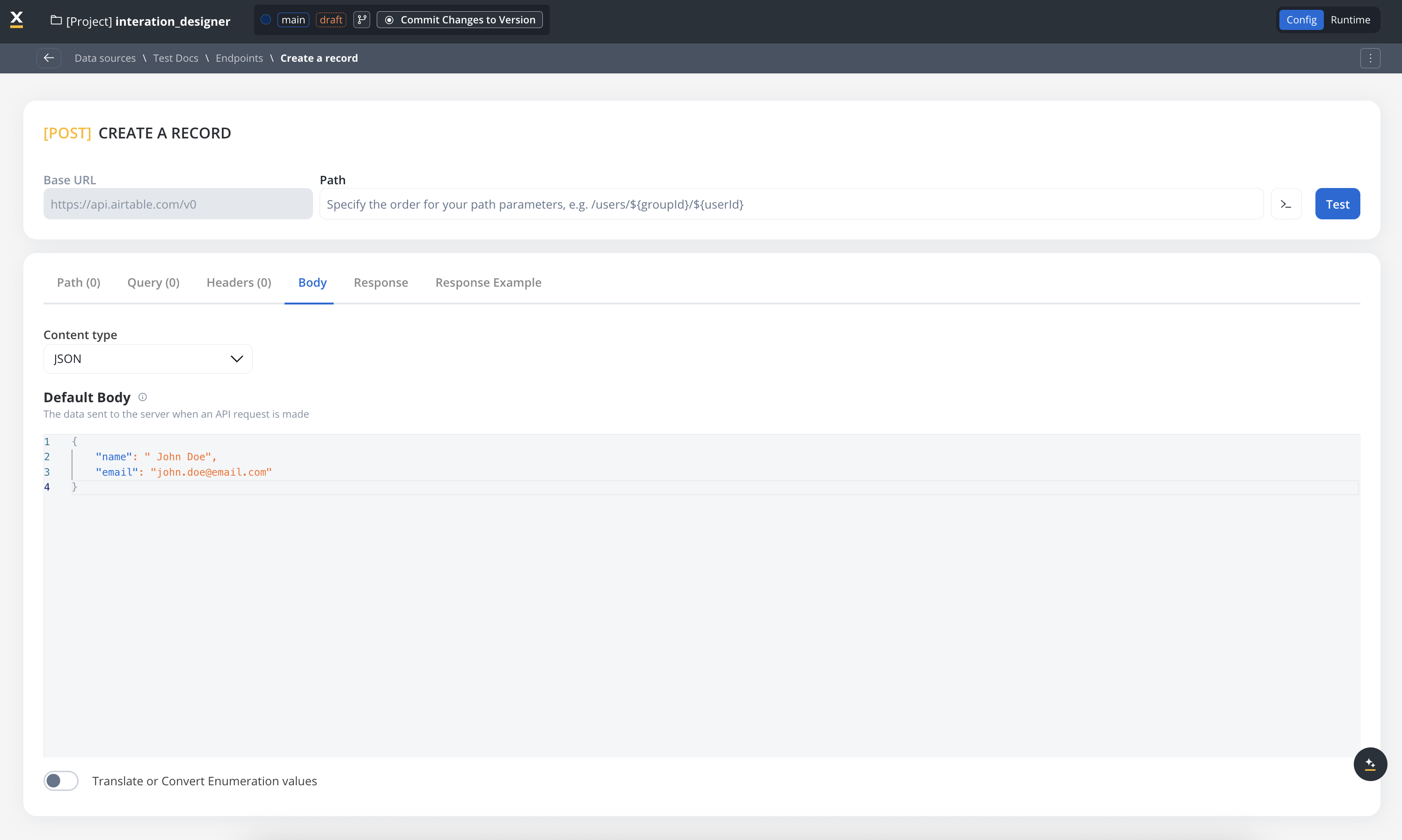
Body parameters
The data sent to the server when an API request is made.- These are the data fields included in the body of a request, usually in JSON format.
- Body parameters are used in POST, PUT, and PATCH requests to send data to the external system (for example, creating or updating a resource).
Response body parameters
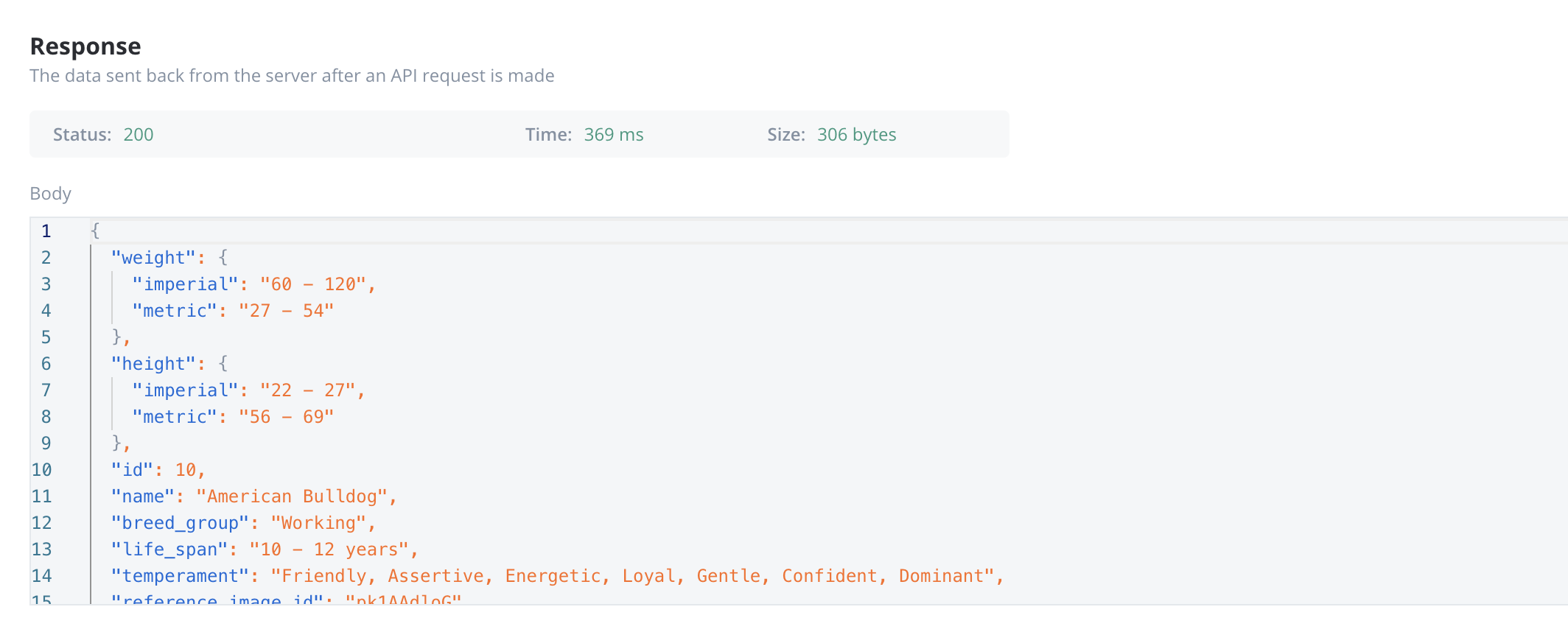
The data sent back from the server after an API request is made.- These parameters are part of the response returned by the external system after a request is processed. They contain the data that the system sends back.
- Typically returned in GET, POST, PUT, and PATCH requests. Response body parameters provide details about the result of the request (for example, confirmation of resource creation, or data retrieval)
Enum mapper
The enum mapper for the request body enables you to configure enumerations for specific keys in the request body, aligning them with values from the External System or translations into another language.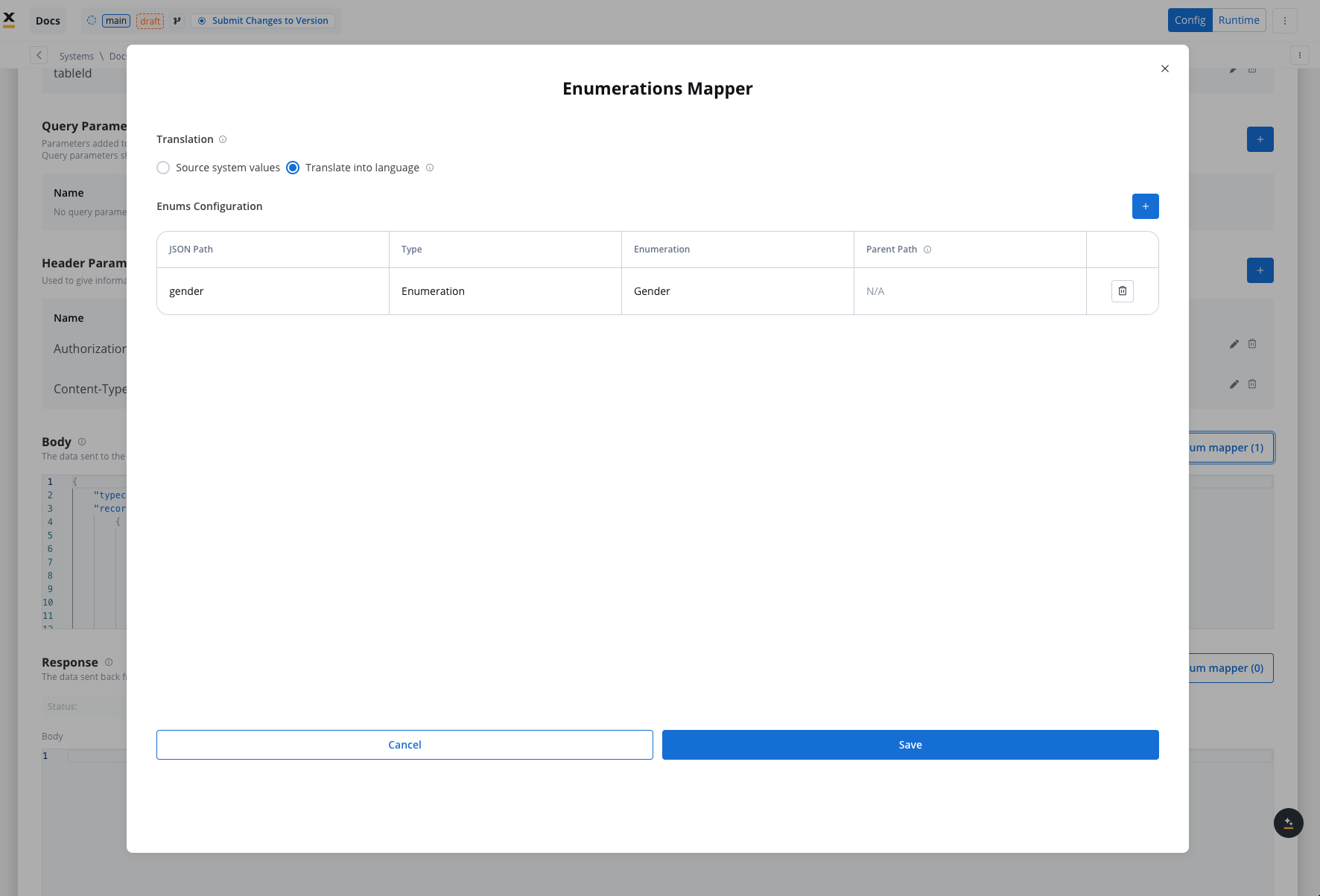
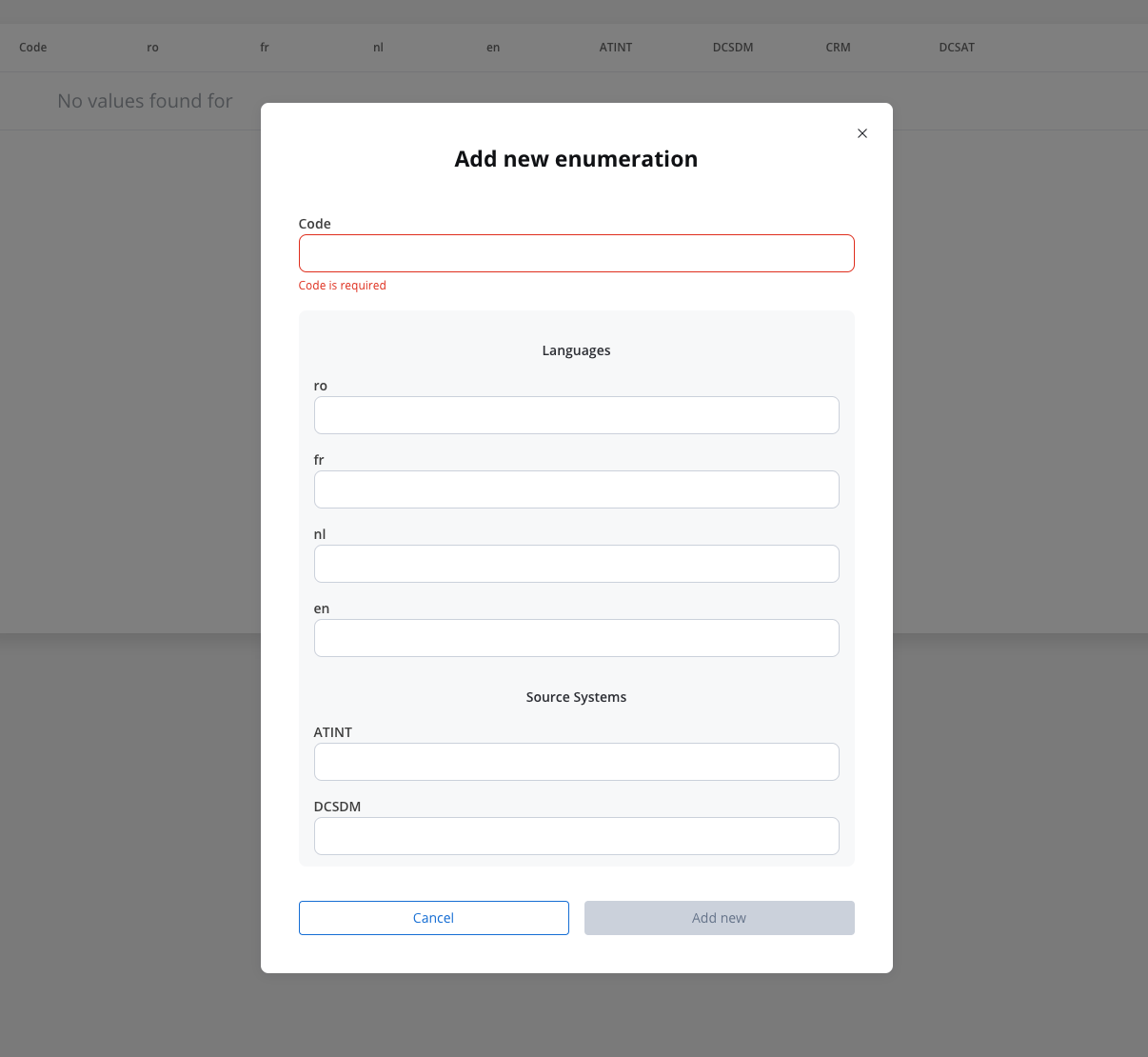
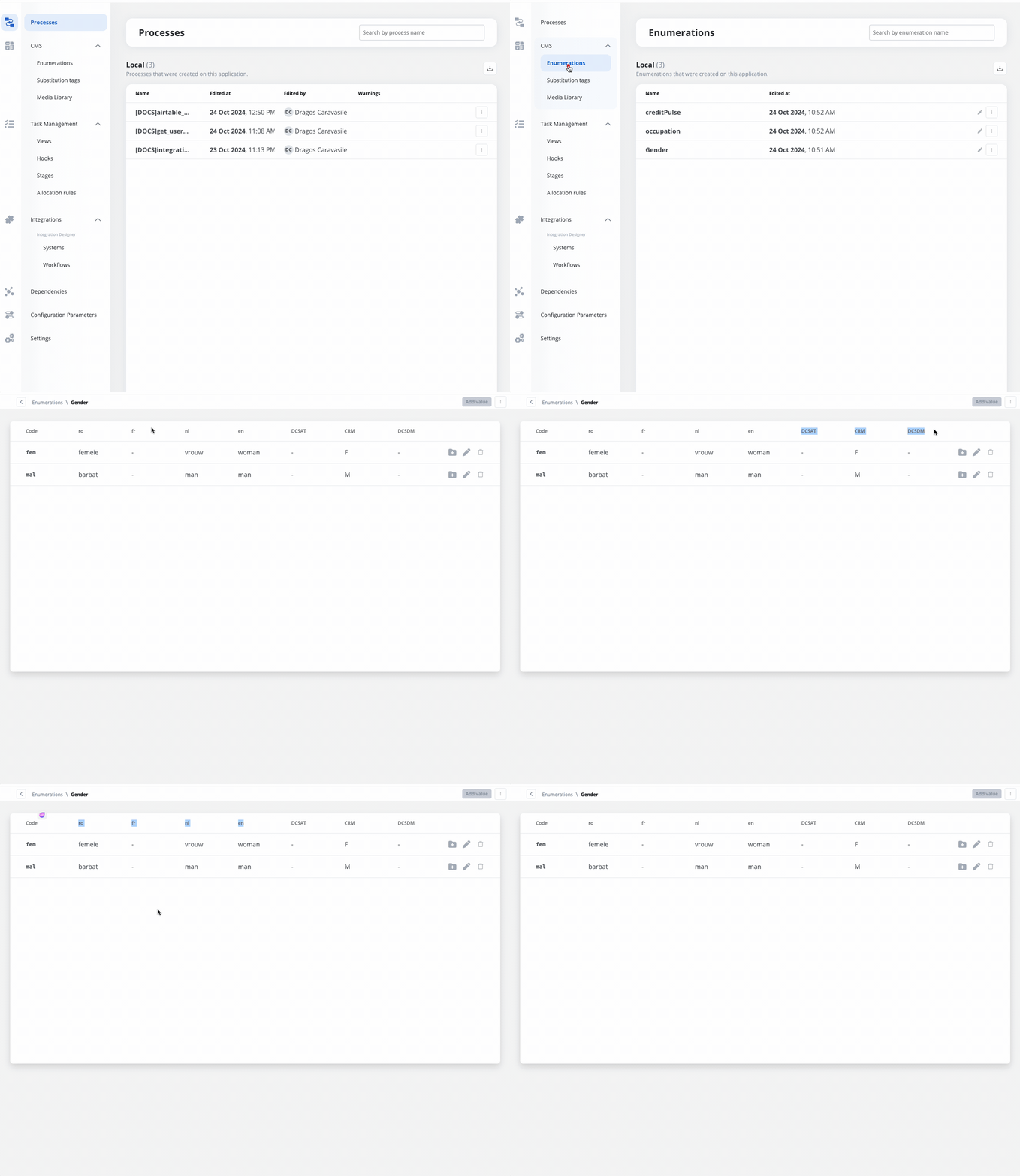
Select whether to use in the integration the enumeration value corresponding to the External System or the translation into another language.For translating into language a header parameter called ‘Language’ is required to specify the language for translation.
Configuring authorization
- Select the required Authorization Type from a predefined list.
- Enter the relevant details based on the selected type (for example, Realm and Client ID for Service Accounts).
- These details will be automatically included in the request headers when the integration is executed.
Authorization methods
The Integration Designer supports several authorization methods, allowing you to configure the security settings for API calls. Depending on the external system’s requirements, you can choose one of the following authorization formats: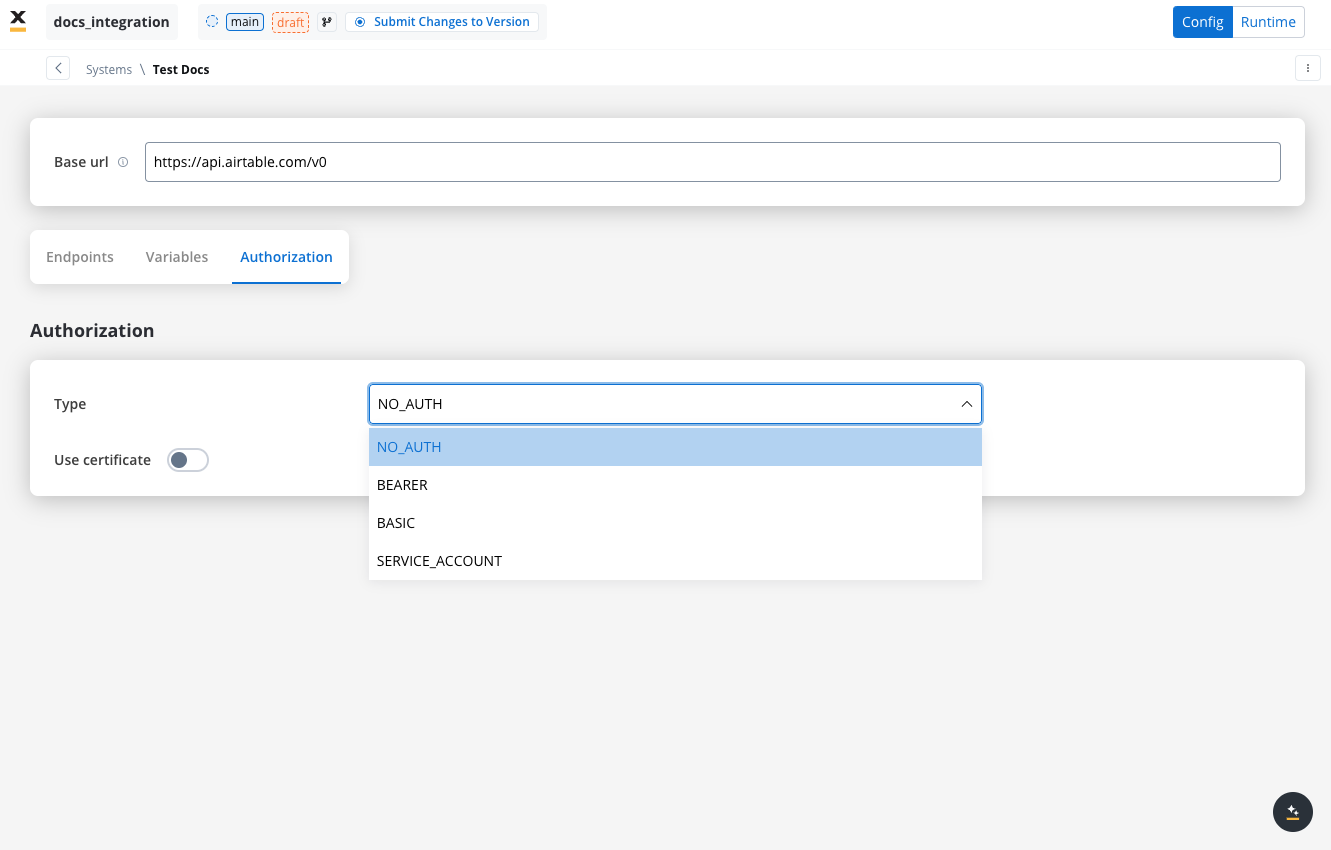
Service account
Service Account authentication requires the following key fields:- Identity Provider Url: The URL for the identity provider responsible for authenticating the service account.
- Client Id: The unique identifier for the client within the realm.
- Client secret: A secure secret used to authenticate the client alongside the Client ID.
- Scope: Specifies the access level or permissions for the service account.
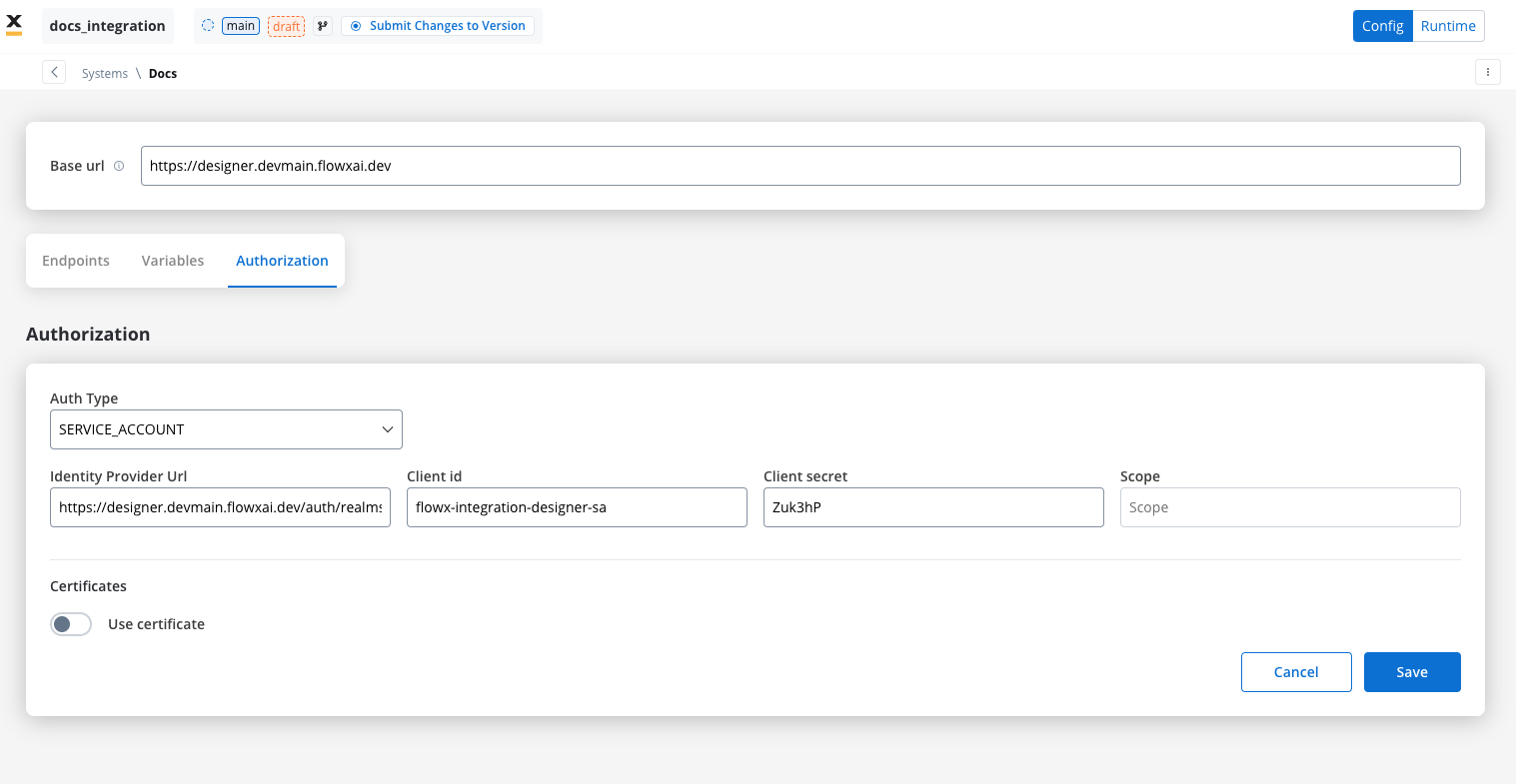
When using Entra as an authentication solution, the Scope parameter is mandatory. Ensure it is defined correctly in the authorization settings.
Basic authentication
- Requires the following credentials:
- Username: The account’s username.
- Password: The account’s password.
- Suitable for systems that rely on simple username/password combinations for access.
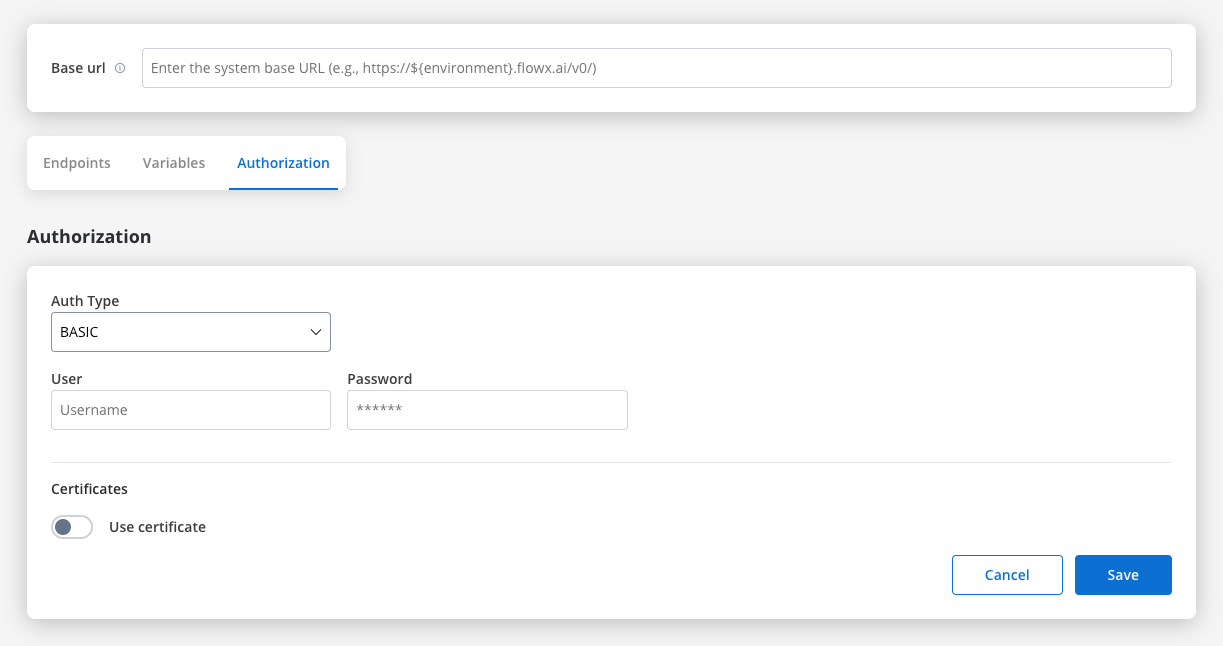
Bearer
- Requires an Access Token to be included in the request headers.
- Commonly used for OAuth 2.0 implementations.
- Header Configuration: Use the format
Authorization: Bearer {access_token}in headers of requests needing authentication.
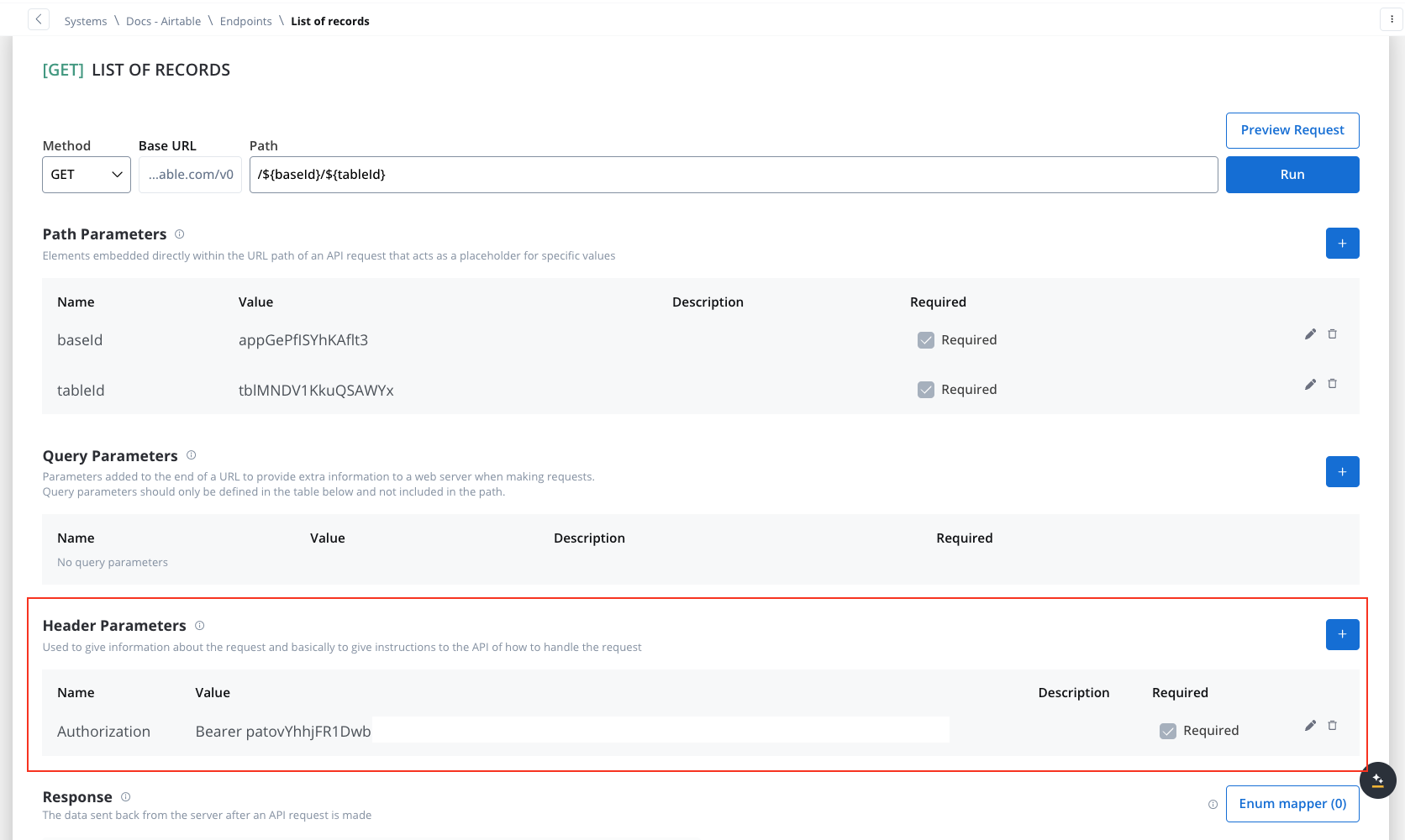
- System-Level Example: You can store the Bearer token at the system level, as shown in the example below, ensuring it’s applied automatically to future API calls:
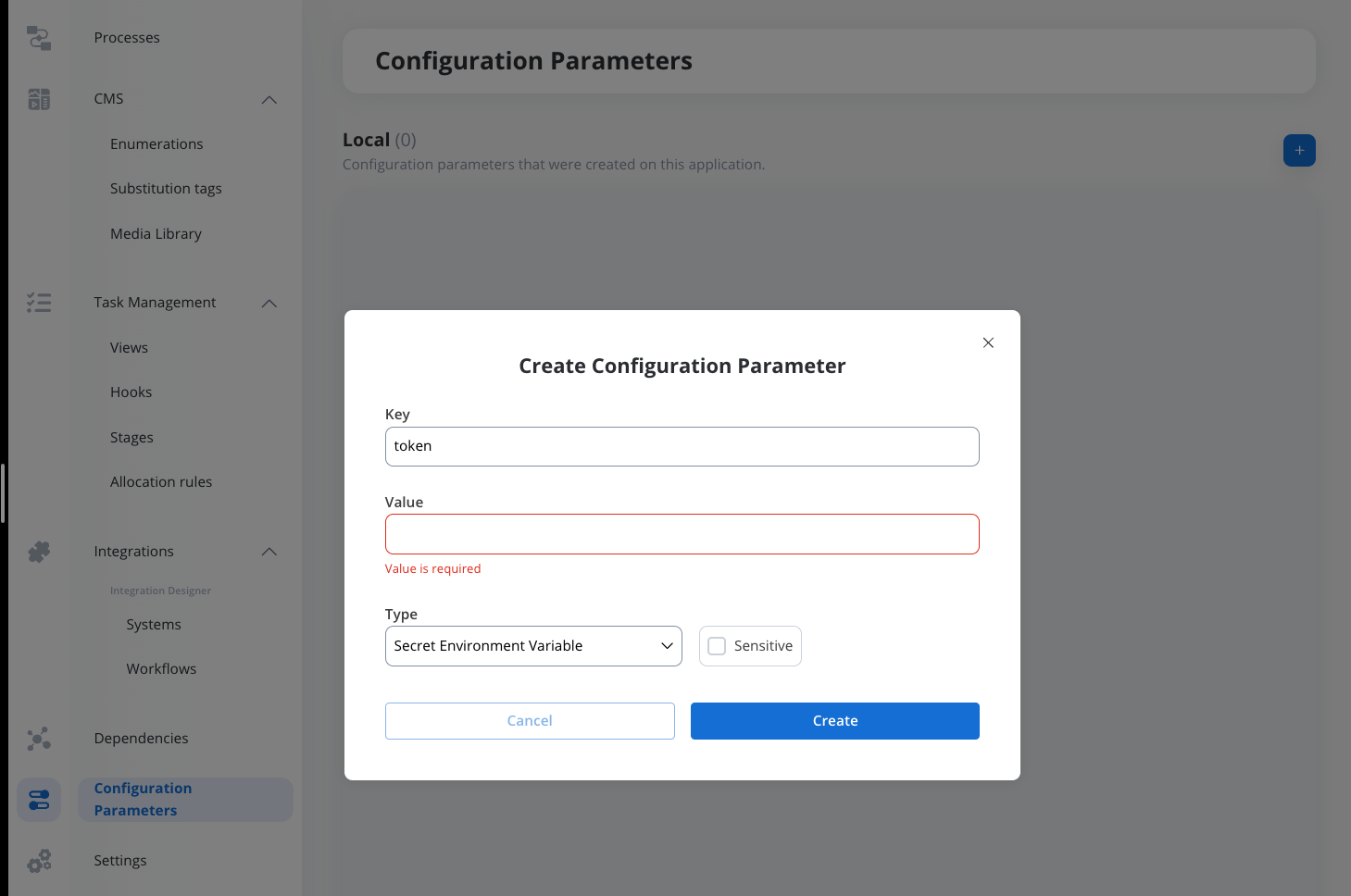
Store tokens in a configuration parameter so updates propagate across all requests when tokens are refreshed or changed.
Certificates
The Certificates panel in the Settings of a REST data source has two independent parts. Trust decides what the certificate the host presents is checked against. Identity is the client certificate FlowX presents back to the host (mutual TLS), which most hosts don’t ask for. When to use what
Trust
Under Verify the host’s certificate against, select one option:
The trust setting belongs to a single data source, so changing it for one connector leaves every other call verified as before. None (insecure) is accepted only by REST and File Storage data sources.
Identity
Toggle Present a certificate ON to send a client certificate when the host asks for one, then fill in the certificate fields below. Leave it OFF when the host doesn’t use mutual TLS.
Certificate fields
Custom CA and Present a certificate each take one certificate, with these fields:
A PEM certificate for Custom CA is a public certificate, so it takes no password.
Path points to the filesystem of the Integration Designer service, not to your local machine: the file must be mounted into the service container (for example, through a Kubernetes secret and volume mount). On SaaS deployments, use Inline.
${configParam} placeholders for dynamic per-environment resolution.
Preparing the files
PEM files work as you receive them: use the CA certificate (for example ca.crt) for Custom CA, and the client certificate and its key (client.crt and client.key) for Present a certificate. No keytool or openssl step is needed.
To use PKCS12 instead, package a PEM certificate and its key as a keystore:
Exporting for 5.9.x
When you export for the 5.9.x LTS line in Target platform version, certificate settings are written in the format 5.9.x reads. The export stops with an error that names the data source (
System '<name>' cannot be exported to this FlowX version, which does not support ...) when a data source uses something 5.9.x can’t store:
- a Custom CA without a client certificate
- a PEM certificate
- a CA and a client certificate in different formats, or one Inline and the other Path