

Overview
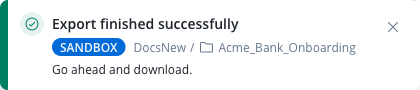
Some Designer operations keep running after you start them: a version or build export is assembled in the background, an imported version or build is unpacked into the workspace, and a process instance migration settles batch by batch. The notification center tells you when each of those operations starts and how it ended, lets you act on the result from the notification itself, and keeps a history so a result you missed is still there when you come back. Notifications reach you in two ways:- Pop-up notifications appear in the corner of the Designer as soon as an operation finishes, on any page.
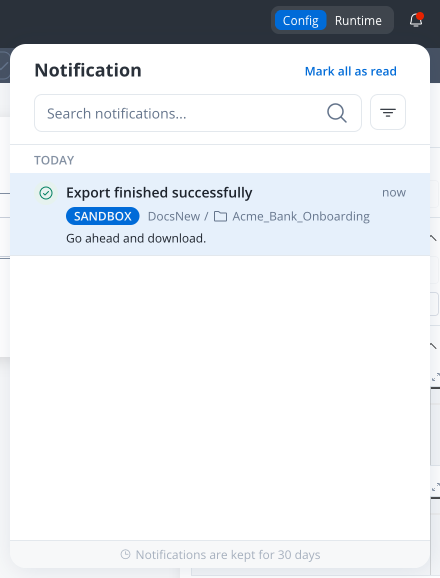
- The notification center is a panel behind the bell in the app header. It lists every notification from the last 30 days, with read state, search, and filters.
What sends a notification
A notification is sent to the user who started the operation. Exports and imports send one when they start and another when they finish. A process instance migration sends one when it finishes.Only exports, imports, and process instance migrations send notifications. Other operations, such as moving tokens on running instances, finish without one.
In-progress notifications
When an export or import starts, you get an in-progress notification with a blue clock icon. When the operation finishes, the result replaces the in-progress notification, both on screen and in the notification center, so each operation is listed once. If an export finishes quickly, you only see the result.What a notification shows
Each notification, in the pop-up and in the panel, shows:- A status icon: a green check for success, an orange warning for a partial result, a red icon for a failure, and a blue clock for an operation still in progress.
- The title of the notification.
- A tag with the environment type of the workspace the operation ran in (SANDBOX, STAGING, or PRODUCTION), followed by the workspace name and the app name.
- A summary line:
- For exports: the branch, the version ID, the target FlowX version, and whether media was included (media included or media excluded).
- For imports: the branch and the version ID.
- For migrations: the source and target build tags and an instance count.
- A short message when the operation has one to add, for example the reason an export failed.
- An action button for exports and imports, described in Acting on a notification.
- In the panel only, the age of the notification:
now, then minutes (5m), hours (3h), days (2d), or weeks (1w).
Using the notification center
Open the panel
The bell sits at the top right of the header, next to your avatar, on every Designer page. A red dot on the bell means you have unread notifications.1
Click the bell
The panel opens with your notifications, newest first, grouped into TODAY, THIS WEEK, and OLDER. Unread notifications have a blue background.
2
Close the panel
Click anywhere outside the panel to close it.
While the panel is open, new notifications appear directly in the list instead of as pop-ups. Opening the panel also clears any pop-ups on screen.
Mark notifications as read
- One notification: hover over an unread row and click the check mark (Mark as read) next to its age.
- From a pop-up: click anywhere on the pop-up notification, including its close button.
- All notifications: click Mark all as read in the panel header.
Search notifications
Type in the Search notifications… field. The search starts after 2 characters and matches the notification title, message, workspace type, workspace name, app name, and the migration build and count details.Filter notifications
Click the filter button next to the search field and pick one option:
The filter button turns blue while a filter other than All Notifications is active. Search and filter combine: the search applies to the filtered list.
Pop-up notifications
Pop-up notifications appear at the edge of the screen when an operation finishes, on any Designer page:- Each pop-up closes on its own after 5 seconds, or after 7 seconds when it offers an action. Click the close button to dismiss it sooner.
- Up to 3 pop-ups show at once. Further notifications wait and appear as space frees up.
- Hovering over the pop-ups, or moving focus into them, pauses the countdown. The countdown also pauses while the Designer tab is in the background.
Acting on a notification
Export and import notifications carry an action button, in the pop-up and in the panel. The button works from any Designer page: you don’t need to open the app the operation ran in.- Version and build export
- Version and build import
- Process instance migration
Review an export that left resources out. Some resources don’t exist on the FlowX version you exported for, so the export leaves them out of the archive. Review opens the Download export window, which lists the Excluded resources with a count. Then choose:
- Download anyway to download the archive without those resources.
- Change Target Version to open the export window again and pick another target FlowX version.
Scope and retention
Personal. A notification goes only to the user who started the operation. Other users in the same workspace do not see it. Organization-wide. The notification center shows your notifications for the organization you are signed in to, from every workspace and app in it. The bell shows the same list from any app. 30-day history. The panel lists notifications from the last 30 days. Older notifications no longer appear. The panel footer shows this as Notifications are kept for 30 days. Not missed while signed out. Notifications are stored when they are sent. If an operation finishes while you are signed out, its notification appears in the panel the next time you open the Designer.Troubleshooting
I moved tokens on running instances and got no notification
I moved tokens on running instances and got no notification
This is expected. Only exports, imports, and process instance migrations send notifications. A token move finishes without one. Check its result on the Corrective Actions page.
My migration finished but no pop-up appeared
My migration finished but no pop-up appeared
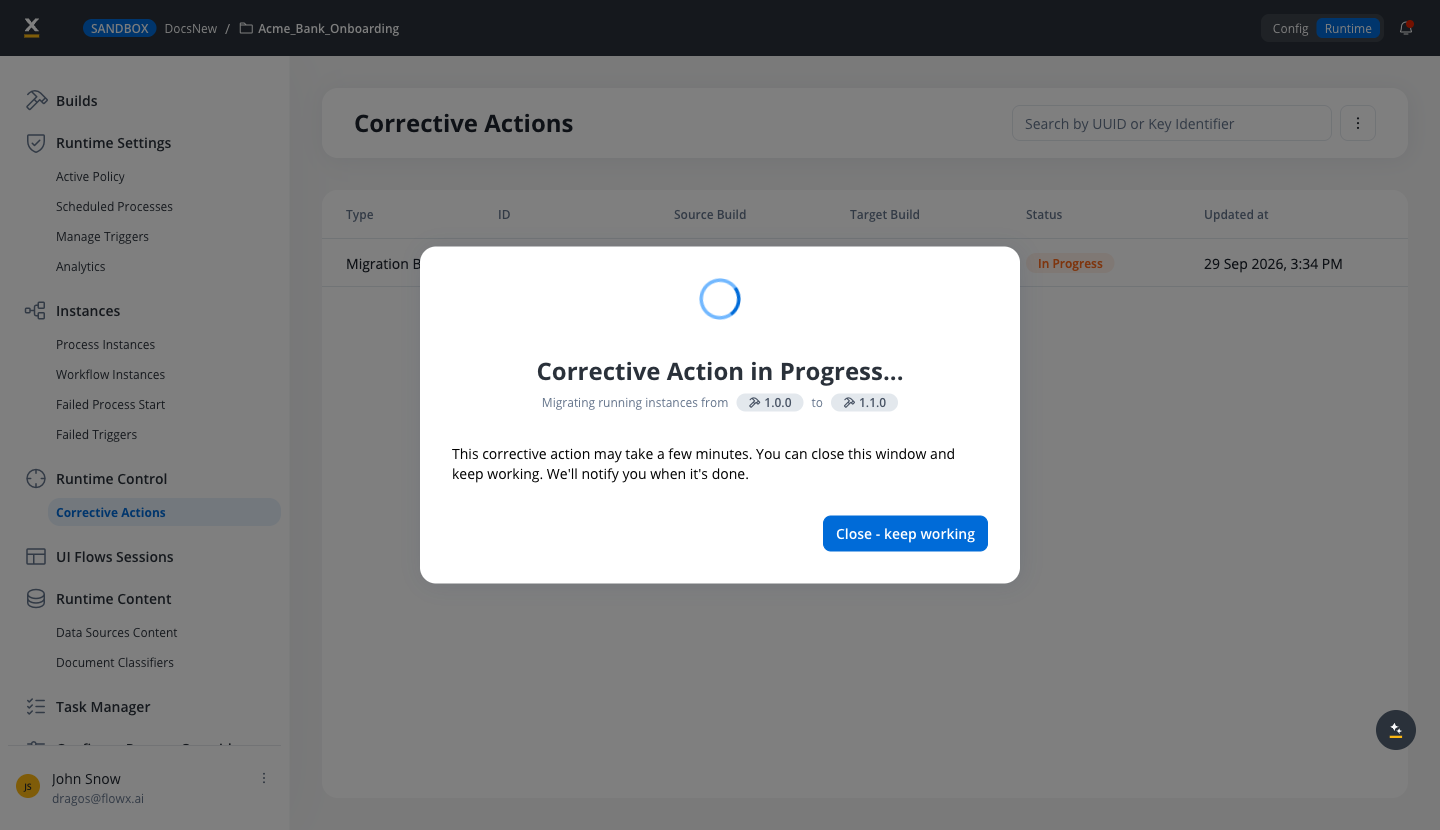
Two cases skip the pop-up:
- The Corrective Action in Progress… dialog was still open. The Designer opened the migration’s details instead.
- The notification center panel was open. New notifications go straight into the list while the panel is open.
A notification I expected is not in the panel
A notification I expected is not in the panel
Check the following:
- Filter and search: switch the filter back to All Notifications and clear the search field.
- Age: notifications older than 30 days are no longer listed.
- Recipient: notifications go only to the user who started the operation. If a colleague started the export or migration, the notification is in their notification center.
- Connection: the live connection does not replay notifications sent while it was interrupted. Reload the Designer to load the full history again.
Notifications from other workspaces were marked as read
Notifications from other workspaces were marked as read
Mark all as read applies to all your unread notifications in the organization, regardless of the active filter or search. To mark only some notifications, use the check mark on each row.
Related resources
Versioning
Export a version and download the export file
Migrate process instances
Move running instances to another build and review the result
Workspaces
Workspace environment types used by the notification filter
FlowX.AI Designer
Overview of the Designer and its main areas