

- Define a data source with a tested REST endpoint
- Build a workflow from REST API Call, Script, and End nodes and run it
- Start a workflow from a process and map data in and out of it
- Find the result in the finished process instance
- Access to FlowX Designer
- A workspace and project set up (create one here)
- Outbound internet access from your FlowX environment, so the workflow can reach the public API
What you’ll build
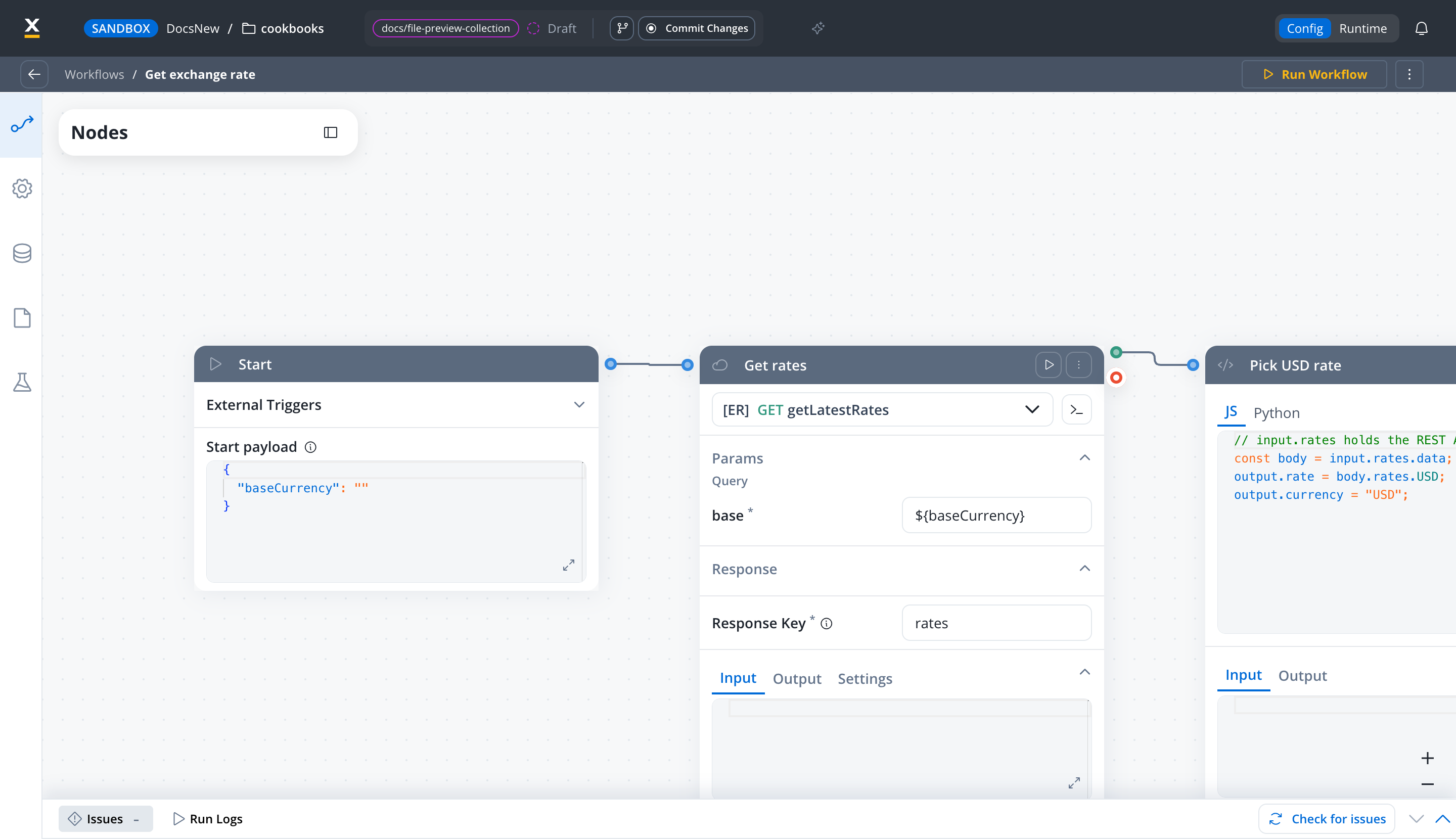
A currency lookup. A process holds the currency a customer picked, starts a workflow with it, and waits. The workflow calls the Frankfurter exchange-rates API (free, no API key), extracts the USD rate, and returns it. The process stores the result underexchangeResult.
The API is a stand-in. Swap in any REST API you have access to and the steps stay the same.
This is how the finished workflow looks in the Integration Designer:
Step 1: Create the data source
A data source is a reusable connection to an external system: its base URL, authorization, and the endpoints you call on it. Every workflow in the project can use it.Create a RESTful system
- Name:
Exchange Rates - Description:
Frankfurter exchange-rates API
Set the base URL
https://api.frankfurter.dev/v1.Check the authorization
NO_AUTH, BEARER, BASIC, SERVICE_ACCOUNT, PRIVATE_KEY, and ACCESS_KEY. Frankfurter needs no credentials, so leave NO_AUTH. For a real API, pick what it requires. Token values are best defined here at system level and overridden per environment.Add an endpoint
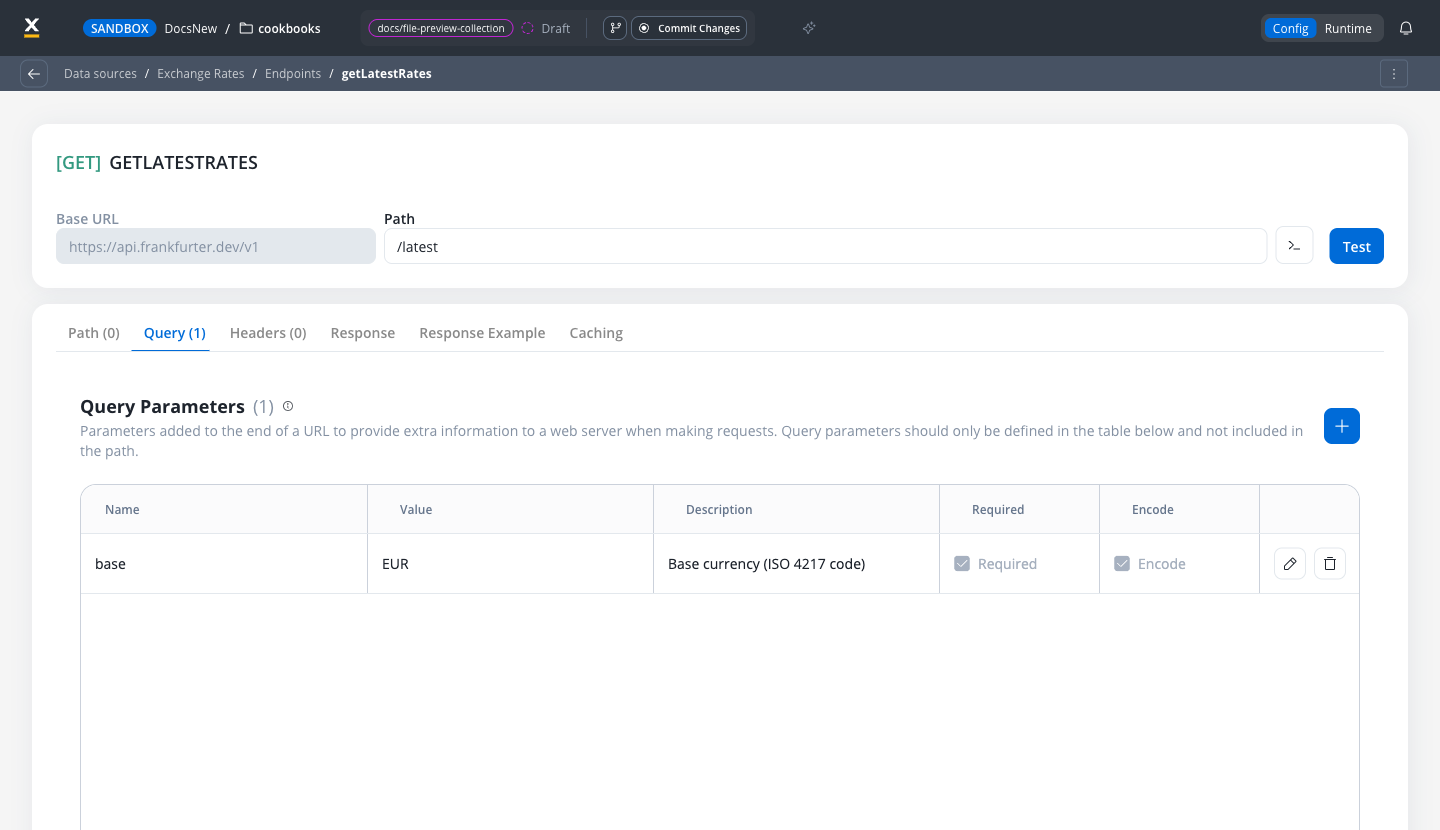
GET method and set the Name to getLatestRates, then confirm. On the endpoint page:- Path:
/latest - On the Query tab, add one parameter: Name
base, ValueEUR, then click the green check to add the row. The value is the default the endpoint test uses; the workflow overrides it at runtime.
getLatestRates.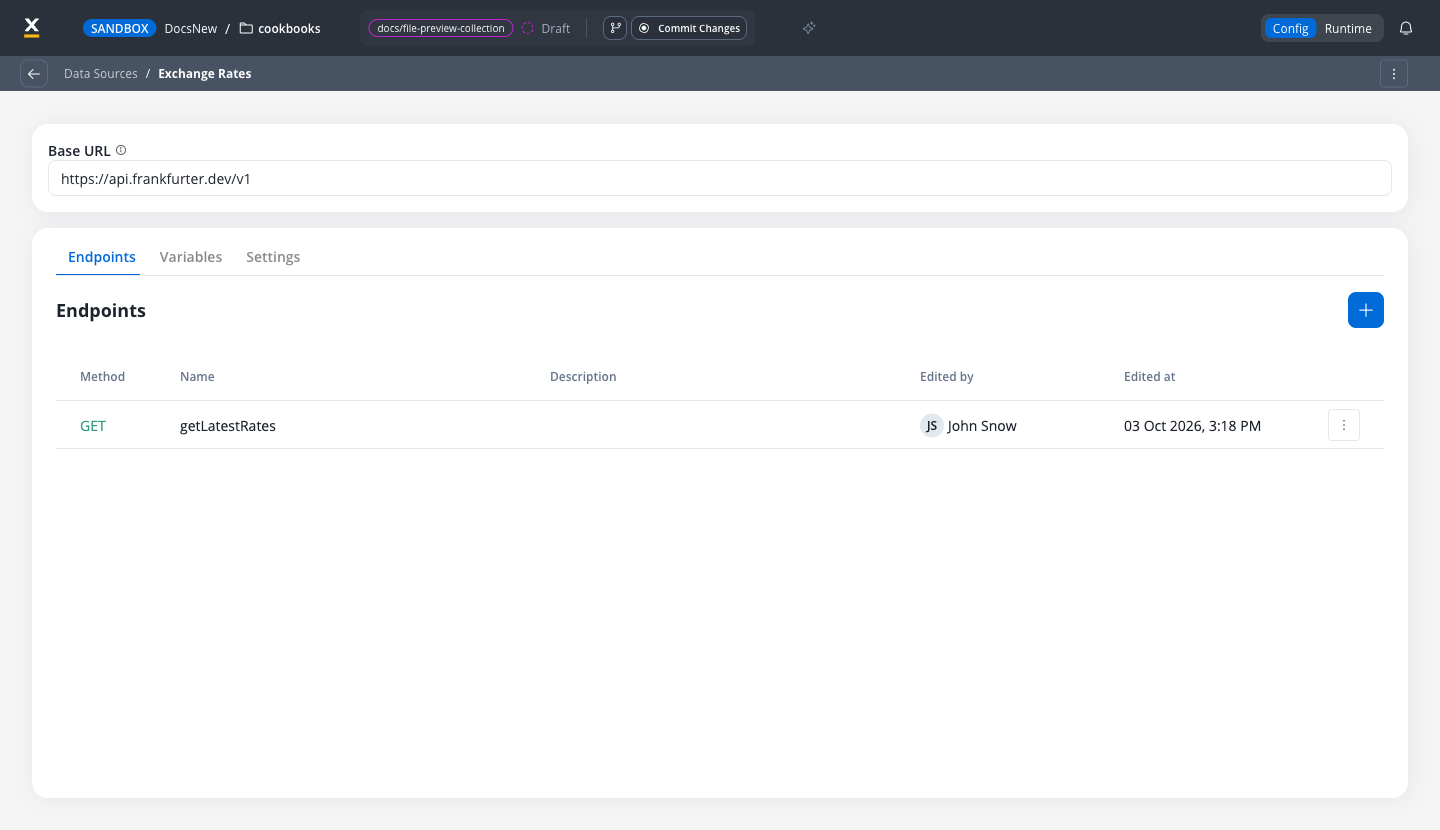
Test the endpoint
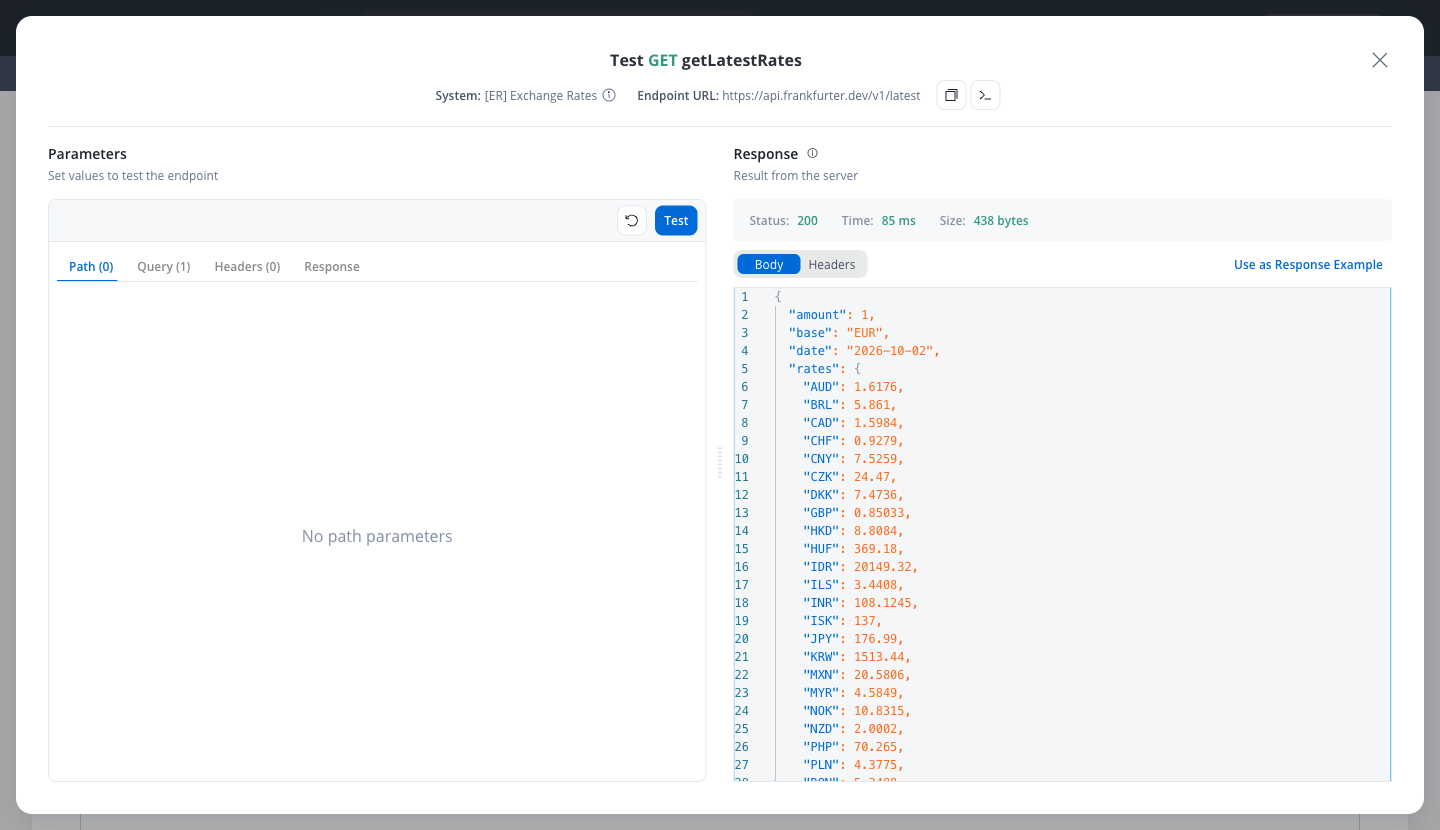
rates object contains USD. If it does, the data source is ready for the workflow.Learn more about data sources
Learn more about REST endpoints
Step 2: Build the workflow
Create the workflow
Get exchange rate, add a description, under Set Workflow Type keep Output Focused, and click Save. The workflow editor opens with a Start node already on the canvas.Place the End node
End Flow 001; that is the name Step 3 shows for it.The End node comes first because output parameters belong to it: until it exists, the Output Parameters tab of the Data Model page says No End node present in the workflow.Declare the data model, inputs, and outputs
baseCurrency (String), rate (Number), and currency (String). Select rate and, in Attribute Settings, set Subtype to Floating Point. Then:- On the Input Parameters tab, add
baseCurrency. - On the Output Parameters tab, with
End Flow 001selected in the node dropdown, click Define parameters, tickrateandcurrency, and click Done.
Set the Start node sample input
{"baseCurrency": ""}. Set it to:Add the REST API Call node
Get rates (double-click the node title to rename it). Configure it:- Endpoint: pick
GET getLatestRatesunder the Exchange Rates system (the dropdown groups endpoints by system). - Query Parameters →
base: enter${baseCurrency}in the field that reads Add value or variable. This replaces the test default with the workflow input. - Response Key:
rates
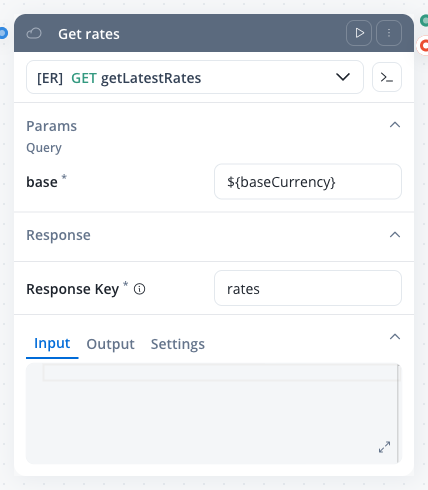
input.rates, and the JSON body sits at input.rates.data.Pick the rate with a Script node
Get rates, connect the two, and name it Pick USD rate. Keep the JS language tab and paste:input and publish their result by assigning keys on output. There is no return statement.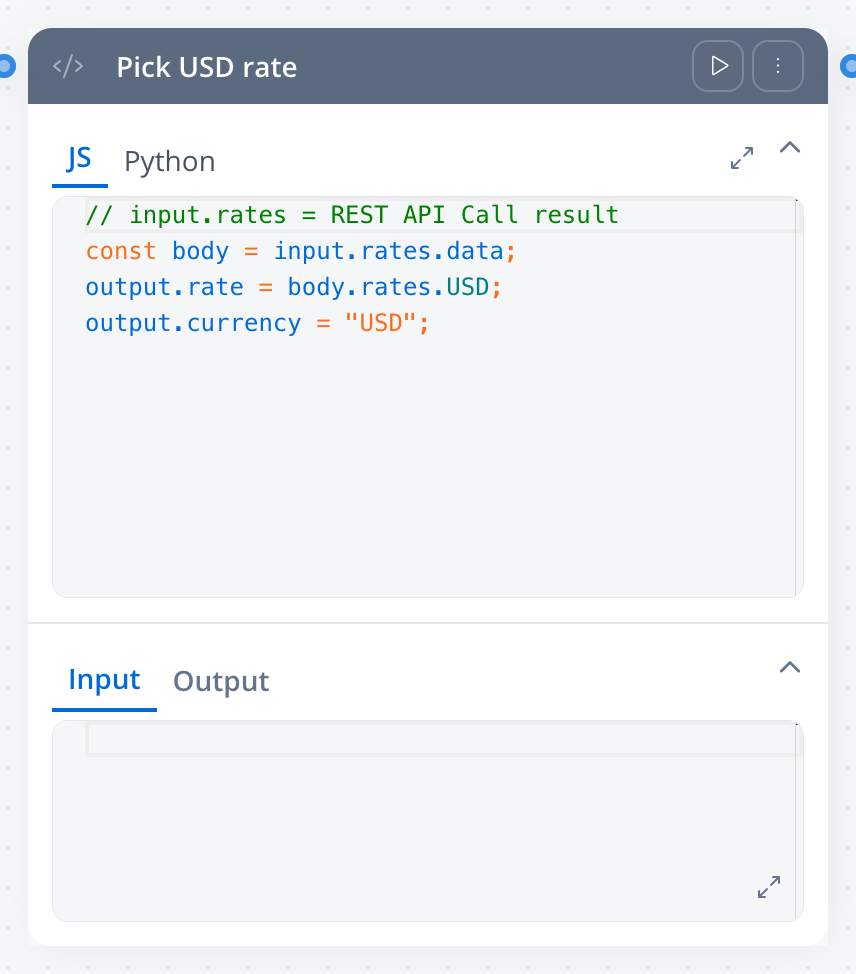
Connect the End node
Pick USD rate to End Flow 001. The End node’s card shows an Output Schema with rate and currency. Whatever the previous nodes wrote under those keys is the workflow’s output, and it is what the calling process receives.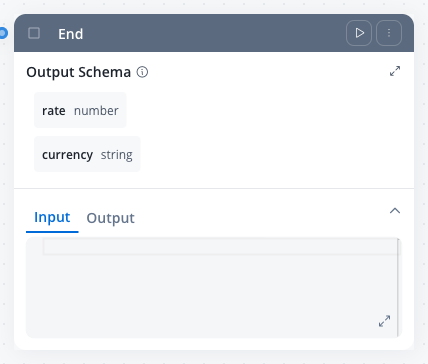
Run the workflow
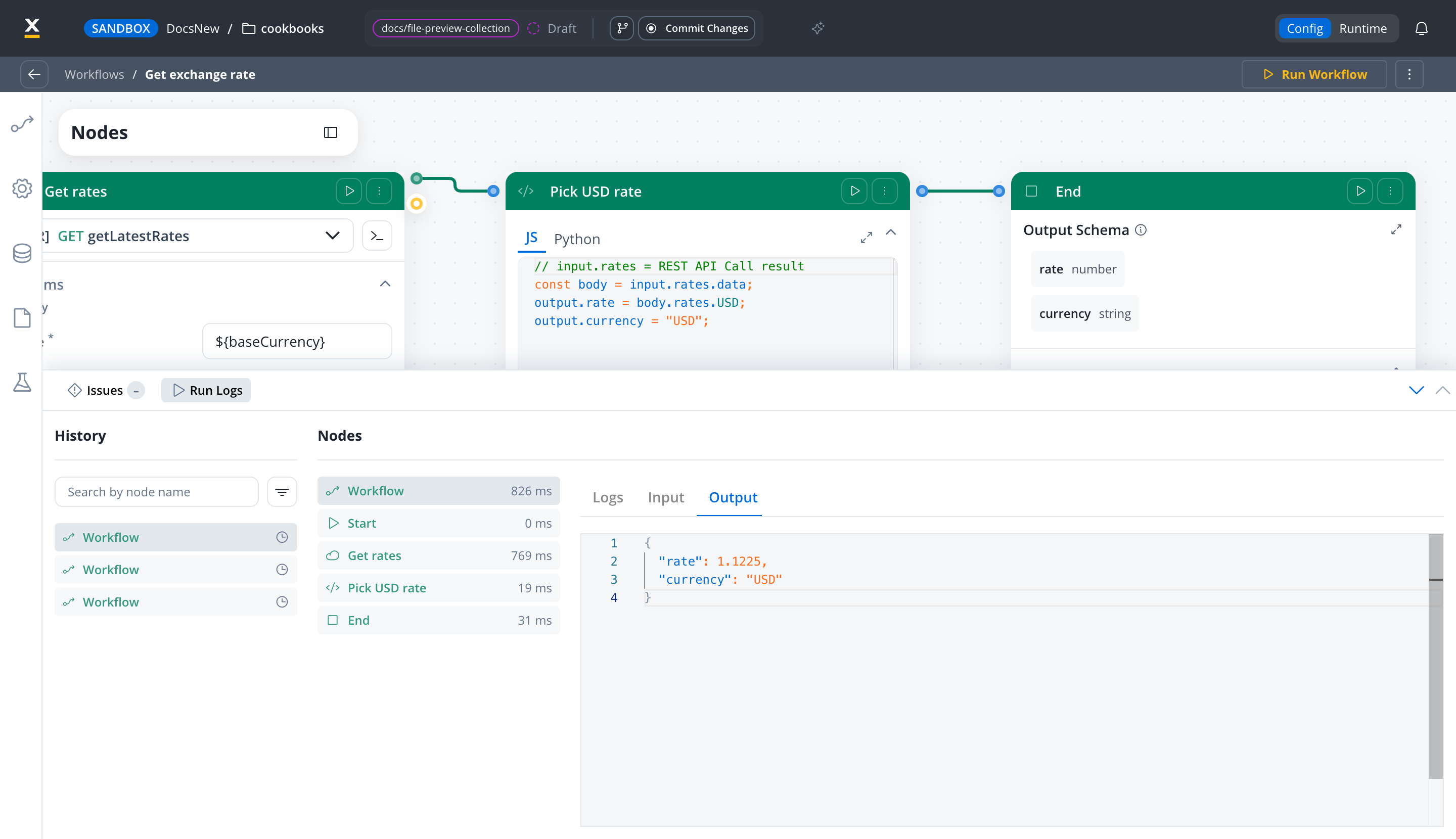
rate and "USD". The rate differs from the one above, because the API publishes new rates every working day.Learn more about workflows
Learn more about workflow data models
Step 3: Call the workflow from a process
The process needs two things: a place to keep the input and the result, and a pair of nodes that start the workflow and wait for its answer.Create the process and its data model
currencyLookup. Open its Data Model page from the left rail and set up two attributes:selectedCurrency(String): the input the process passes to the workflowexchangeResult: where the workflow’s output lands. It is an object withrateandcurrency, and objects are built from a data type:- In the Data Types panel, click + and name the new type
ExchangeResultin Data Type Settings. - Add two attributes to
ExchangeResult:rate(Number, with Subtype set to Floating Point, as in the workflow) andcurrency(String). - Add the
exchangeResultattribute and, in its type menu, click Custom data type, then pickExchangeResultunder Existing → Process.
- In the Data Types panel, click + and name the new type
Add the nodes
Get exchange rate → Receive Message Task named Receive exchange rate → End Process. Connect them in that order. To rename a node, select it and, in Node settings → Node Config, change Node name and click Save. The start and end nodes keep their default names, Start_001 and End_001.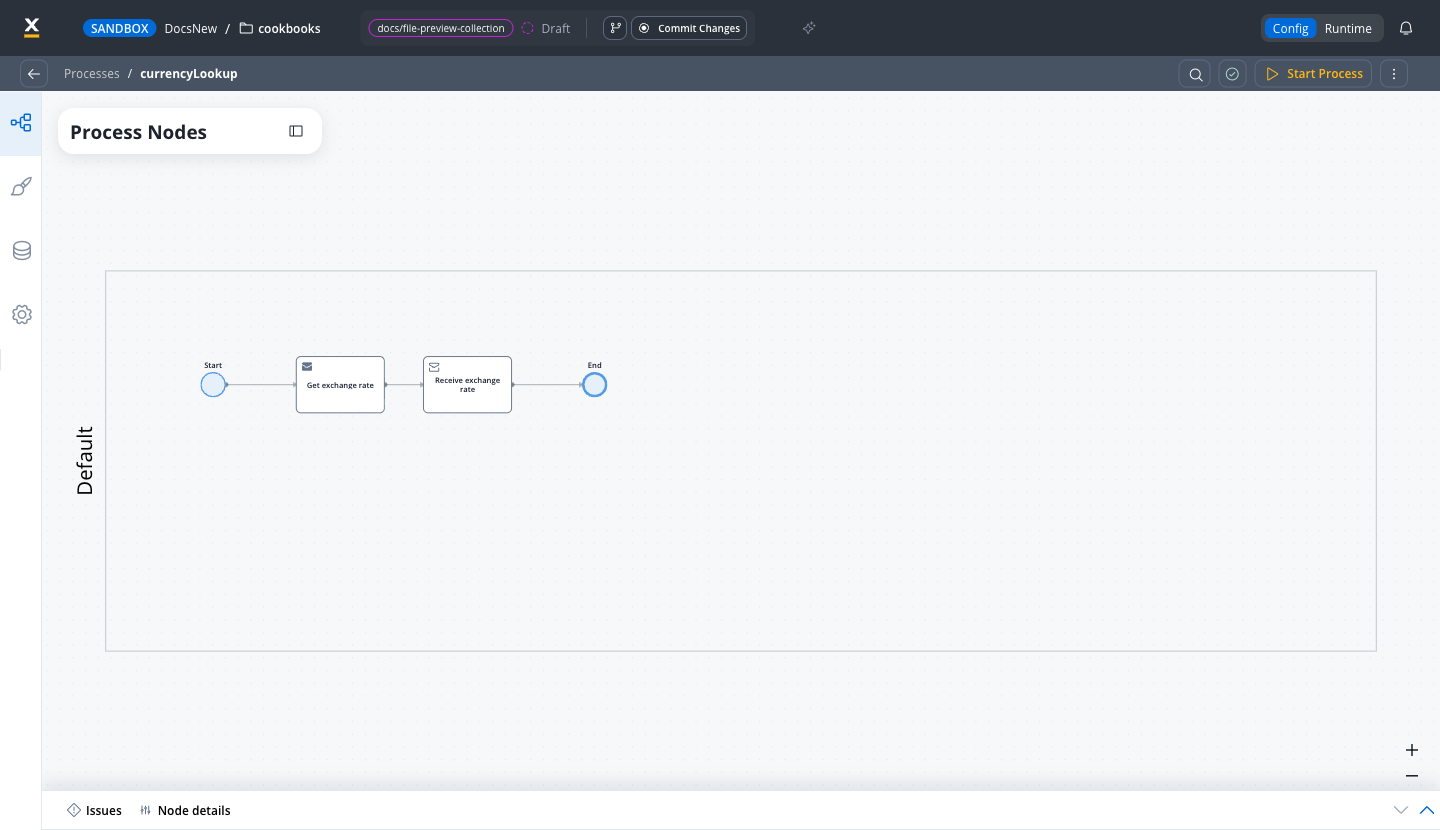
Add the Start Integration Workflow action
Get exchange rate, open Node settings → Actions, and click +. Give the action a name, check that Action Type is Start Integration Workflow (the default on a Send Message Task), and leave Trigger, Execution, and Navigation at their defaults, so the action runs on its own when the token arrives.In the workflow field (Search workflow by name), pick Get exchange rate. Under Data mapping, leave Legacy mapping off. The Input Mapping section lists the Workflow nodes that take input: click the wrench on the Start row.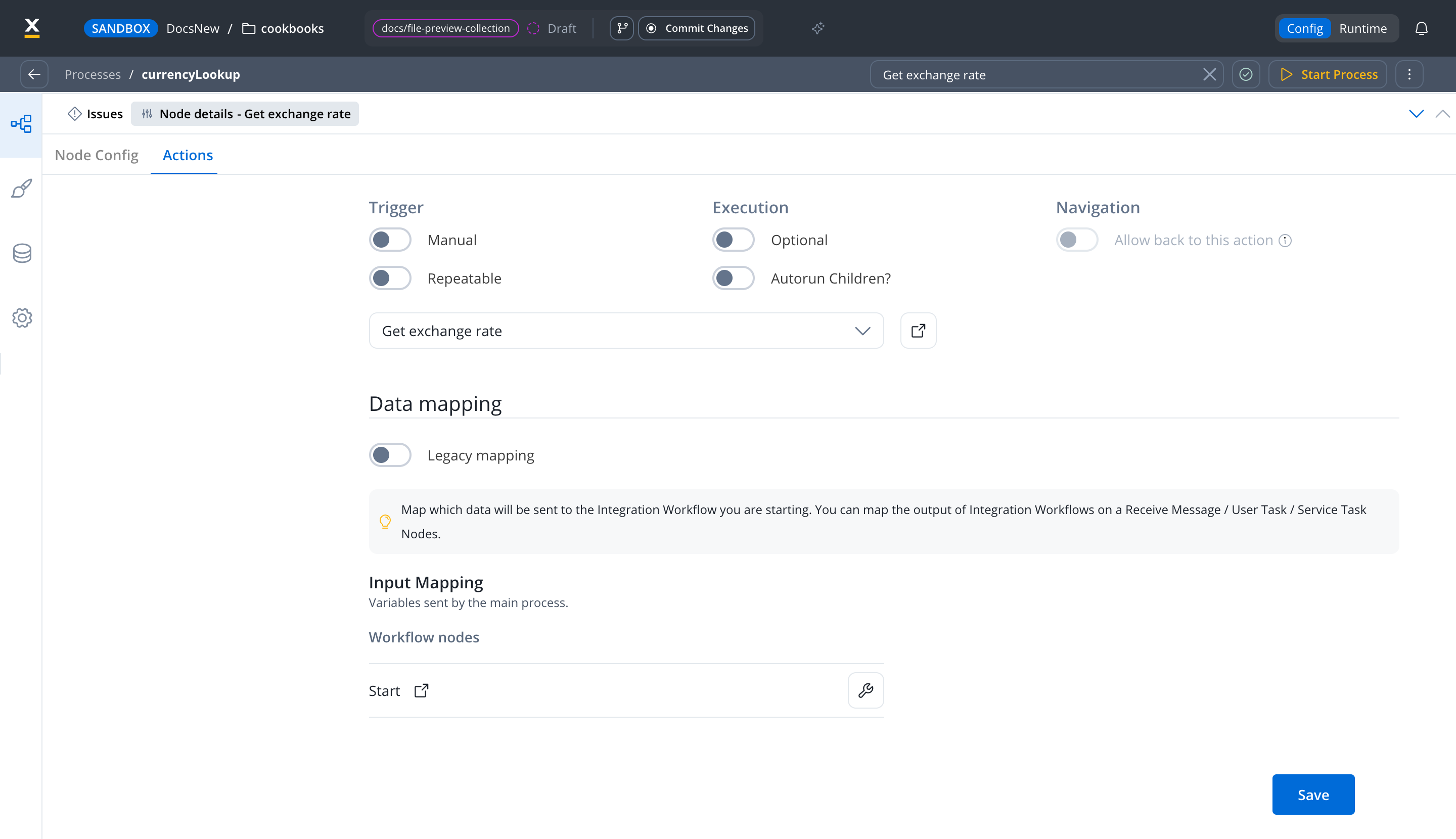
Map the process data to the workflow input
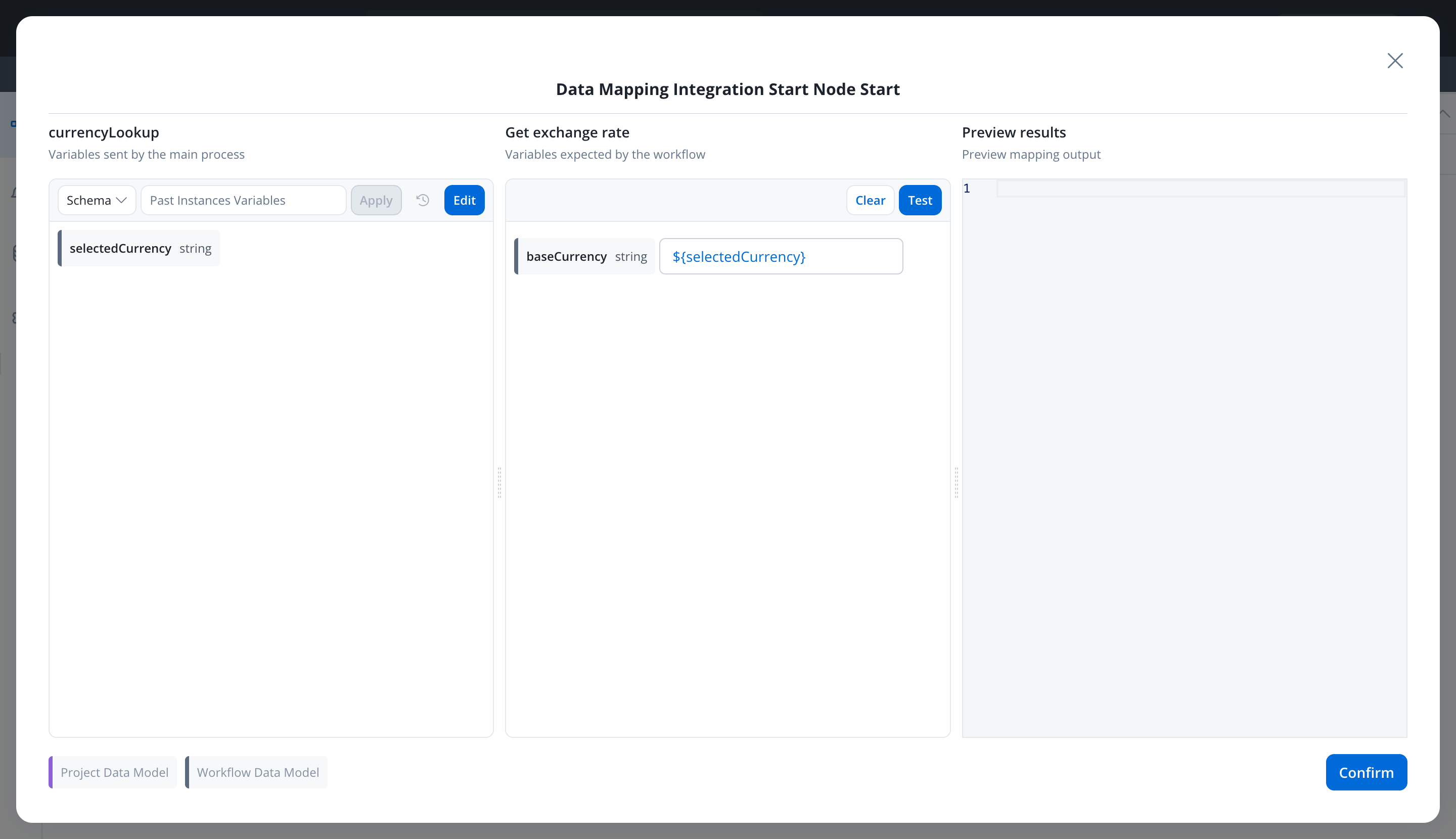
- If the left pane says No process Parameters, click Define parameters, tick
selectedCurrency, and click Done. - In the right pane, click the field next to
baseCurrency, type${selectedCurrency}, and pick the suggestion that appears. - Click Confirm, then Save on the action form.
Receive the workflow output
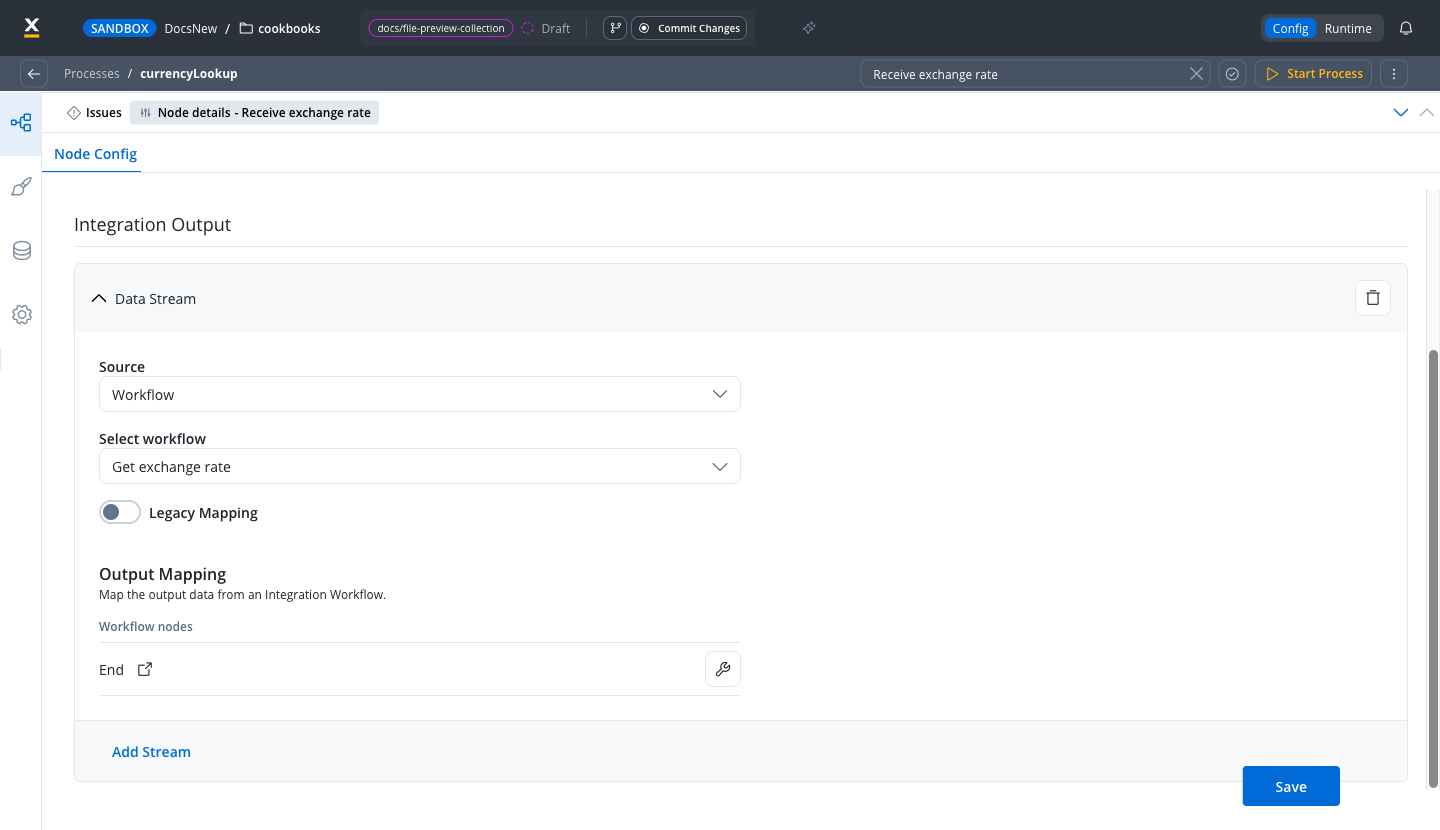
Receive exchange rate and open Node settings → Node Config. Under Integration Output, click Add Stream and configure the Data Stream:- Source: Workflow (the default)
- Select workflow:
Get exchange rate - Legacy Mapping: leave off
Map the workflow output to the process
- Add the targets to the right pane: it says No process Parameters, so click Select from data model, tick
rateandcurrencyunderexchangeResult, and click Done. - Next to
exchangeResult.ratetype${rate}and pick the suggestion; next toexchangeResult.currencytype${currency}and pick the suggestion. - Click Confirm, then Save on the node.
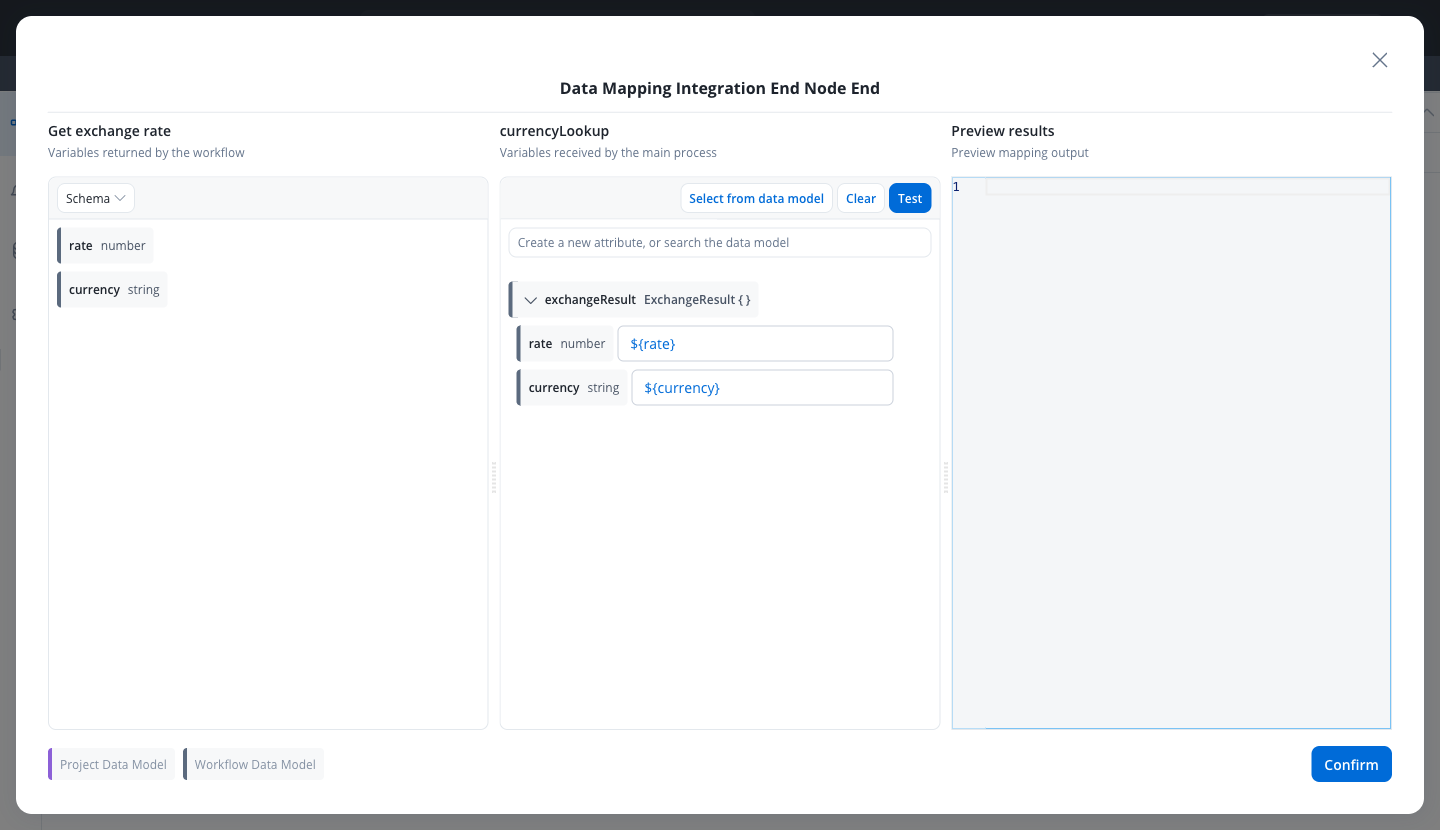
Learn more about the Start Integration Workflow action
Step 4: Run it end to end
Start the process
}.There is no screen to fill in: the token runs through the four nodes on its own. The editor switches to a preview that keeps loading; you can leave it and go on to Runtime.Inspect the instance
currencyLookup instance is FINISHED with End_001 as its current node. Open it: the diagram highlights the path Start → Get exchange rate → Receive exchange rate → End, the Variables tab shows the data, and the Tokens tab shows the single token with End_001 as its current node.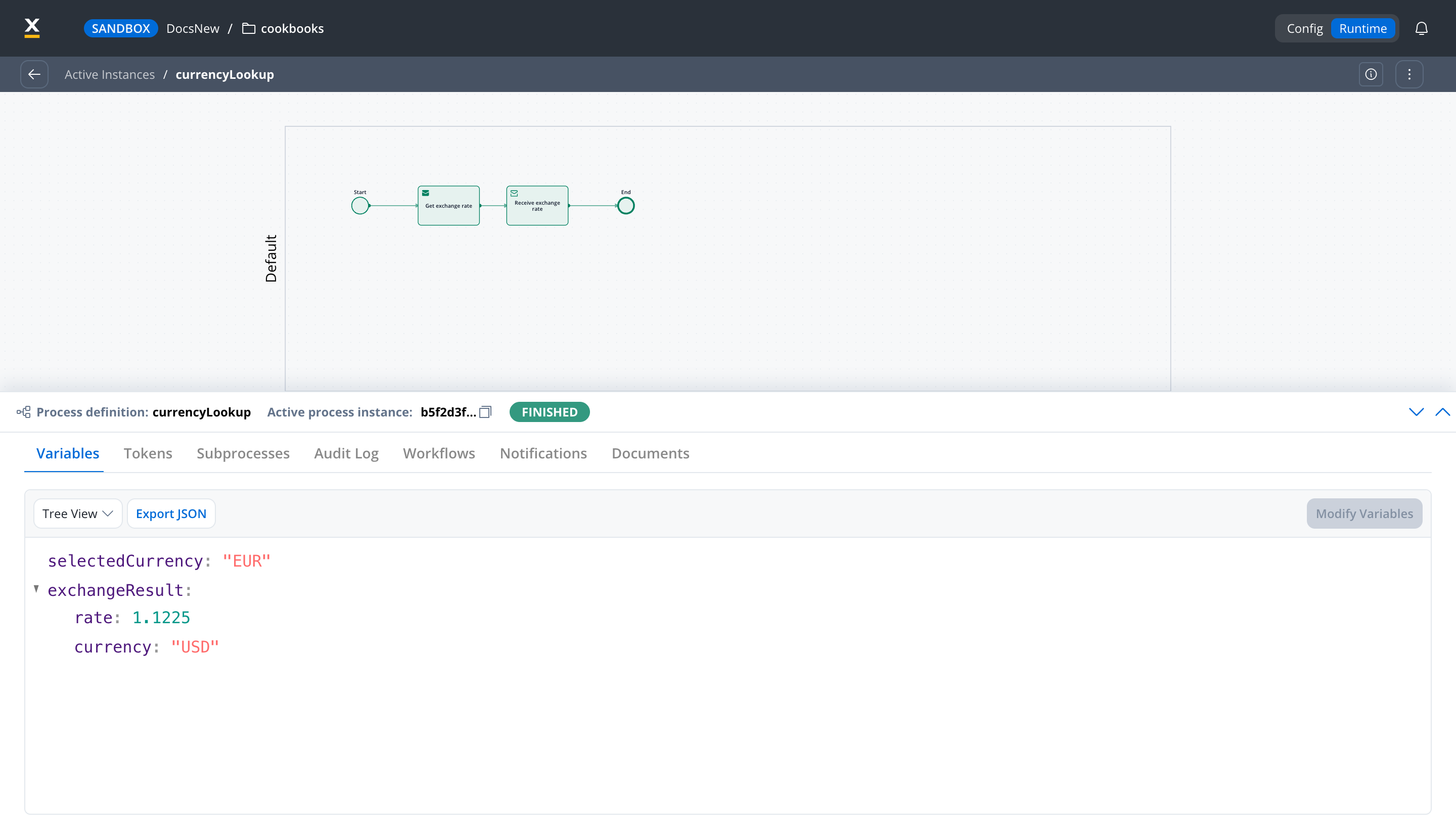
exchangeResult.rate holds a number and exchangeResult.currency holds USD. That round trip, process to workflow to external API and back into the process data, is the pattern behind most FlowX integrations.Troubleshooting
The input mapper's left pane says No process Parameters
The input mapper's left pane says No process Parameters
selectedCurrency, and click Done. The attribute then appears and can be mapped.The input mapper's right pane is empty
The input mapper's right pane is empty
baseCurrency under Input Parameters, then reopen the mapper.Typing the attribute name only offers Add new attribute
Typing the attribute name only offers Add new attribute
${selectedCurrency} (with the dollar sign and braces) and pick the suggestion that appears below the field.The rate comes back as a whole number, such as 1
The rate comes back as a whole number, such as 1
rate, and set Subtype to Floating Point in Attribute Settings. Do the same for rate in the process’s ExchangeResult data type, then run again.The Output Parameters tab says No End node present in the workflow
The Output Parameters tab says No End node present in the workflow
The script fails reading rates
The script fails reading rates
input.rates.data, so the REST API Call node’s Response Key must be exactly rates. If you used another key, change either the key or the first line of the script to match. Open the Get rates node’s Output tab after a run to see the exact shape it produced.