

Did you know?
Overview
Integration Designer facilitates the integration of the FlowX platform with external systems, applications, and data sources.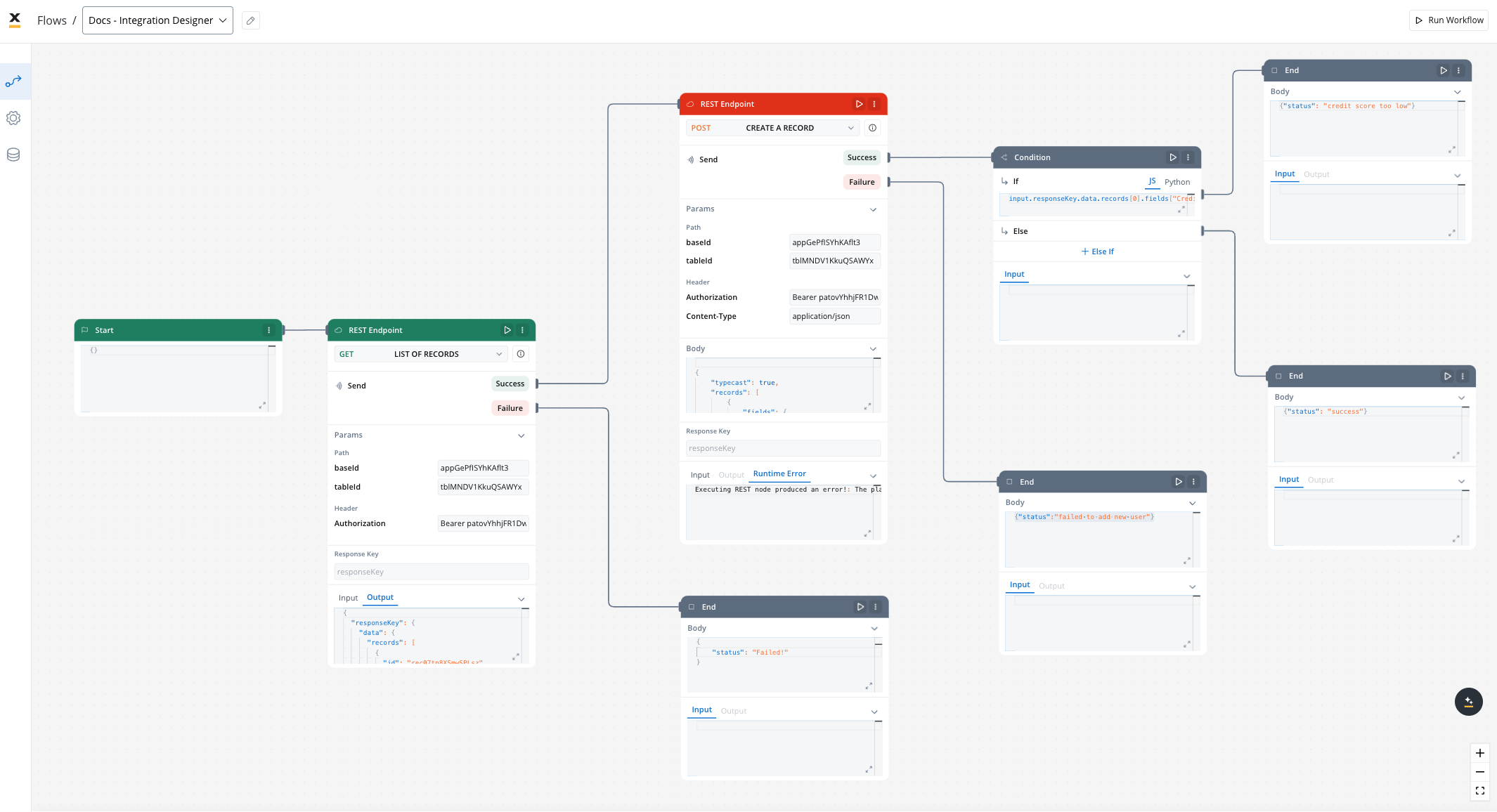
Key features
Drag-and-Drop Simplicity
Visual REST API Integration
Real-Time Testing and Validation
Managing integration endpoints
Data Sources
A data source is a collection of resources—endpoints, authentication, and variables—used to define and run integration workflows.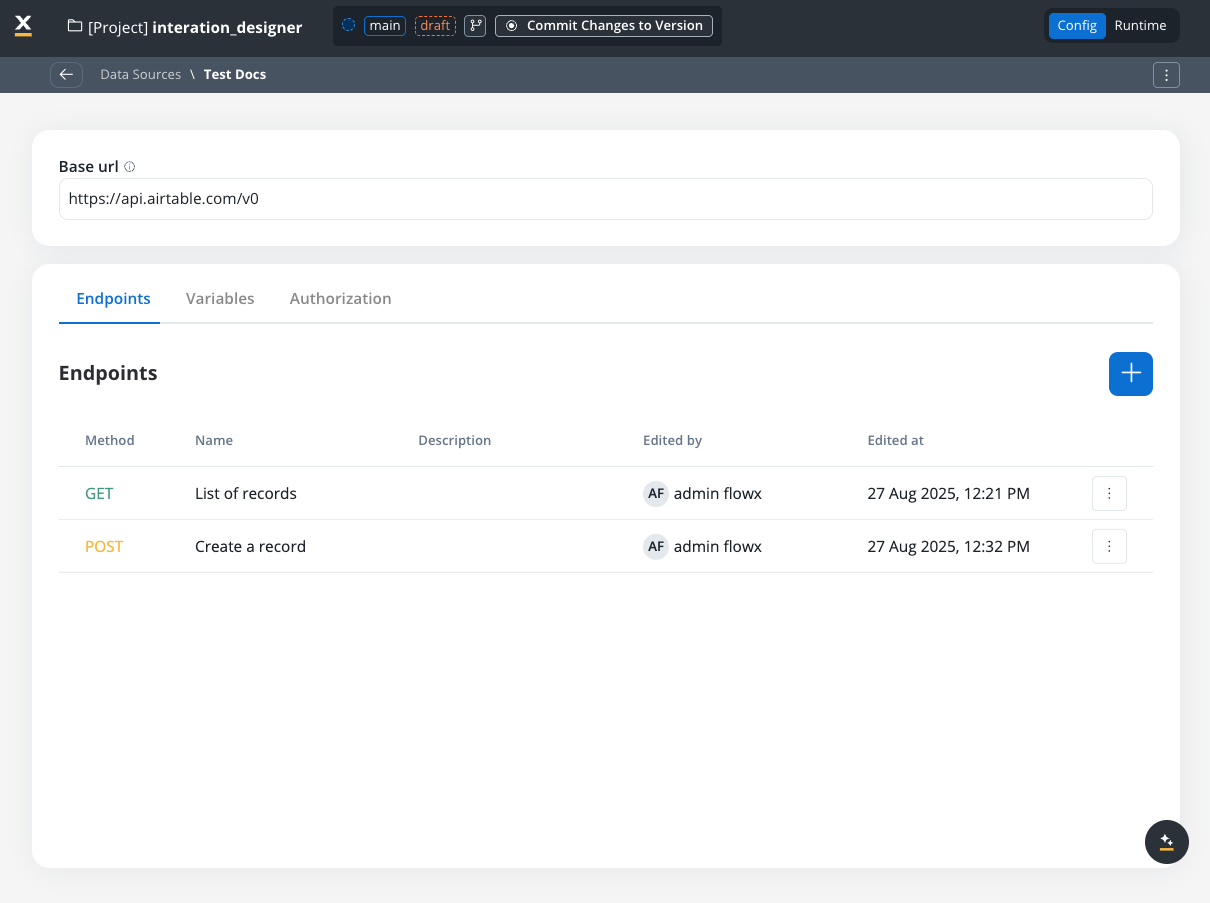
Creating a new data source definition
With Data Sources feature you can create, update, and organize endpoints used in API integrations. These endpoints are integral to building workflows within the Integration Designer, offering flexibility and ease of use for managing connections between systems. Endpoints can be configured, tested, and reused across multiple workflows, streamlining the integration process. Go to the Data Sources section in FlowX Designer at Workspaces -> Your workspace -> Projects -> Your project -> Integrations -> Data Sources.- Creation modal: clicking New Data Source opens a modal where each connector type appears as its own tile with an icon. Use the search box to filter tiles by name. Pick a tile, give the data source a name, and click Create to open the configuration page.
- List view: each entry shows the connector’s icon and type. Use the type filter at the top to scope the list to a specific connector (REST, FlowX Database, Email, MCP Server, Knowledge Base, etc.).
- Unified settings layout: every data source type now uses the same card-based settings layout, so the configuration experience is consistent across connectors.
- Save with incomplete configuration: you can create and save a data source even when some fields (credentials, endpoints) are not yet available. The data source can be referenced in workflows and processes immediately, but it will only operate at runtime once required fields are filled in.
Data sources types
There are multiple types of data sources available: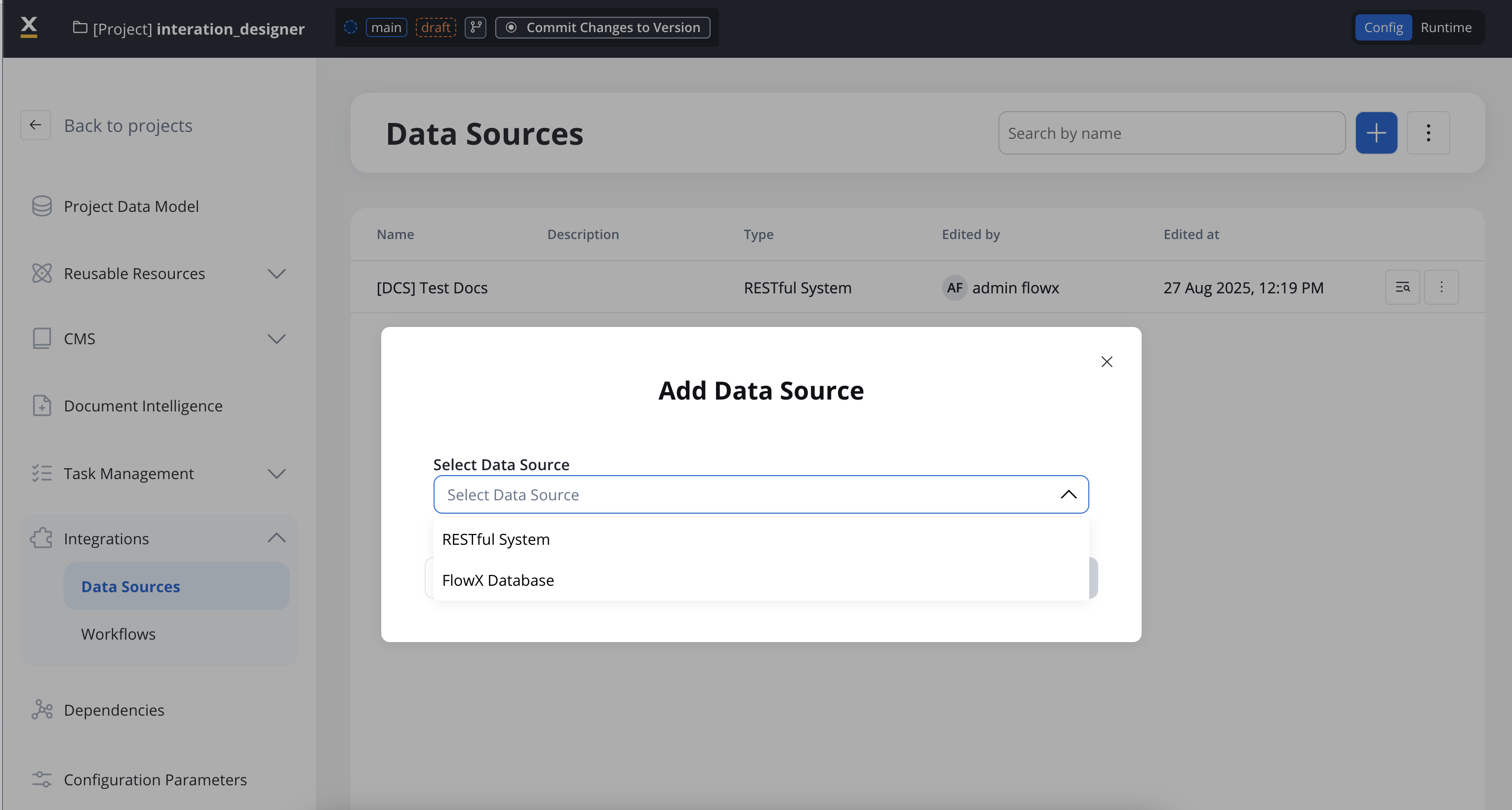
RESTful System
SOAP System
FlowX Database
Unmanaged MongoDB
Oracle Database
PostgreSQL Database
Db2 Database
MCP Integration
FlowX Knowledge Base
Email Trigger
Email Sender
Incoming Webhook
RESTful System
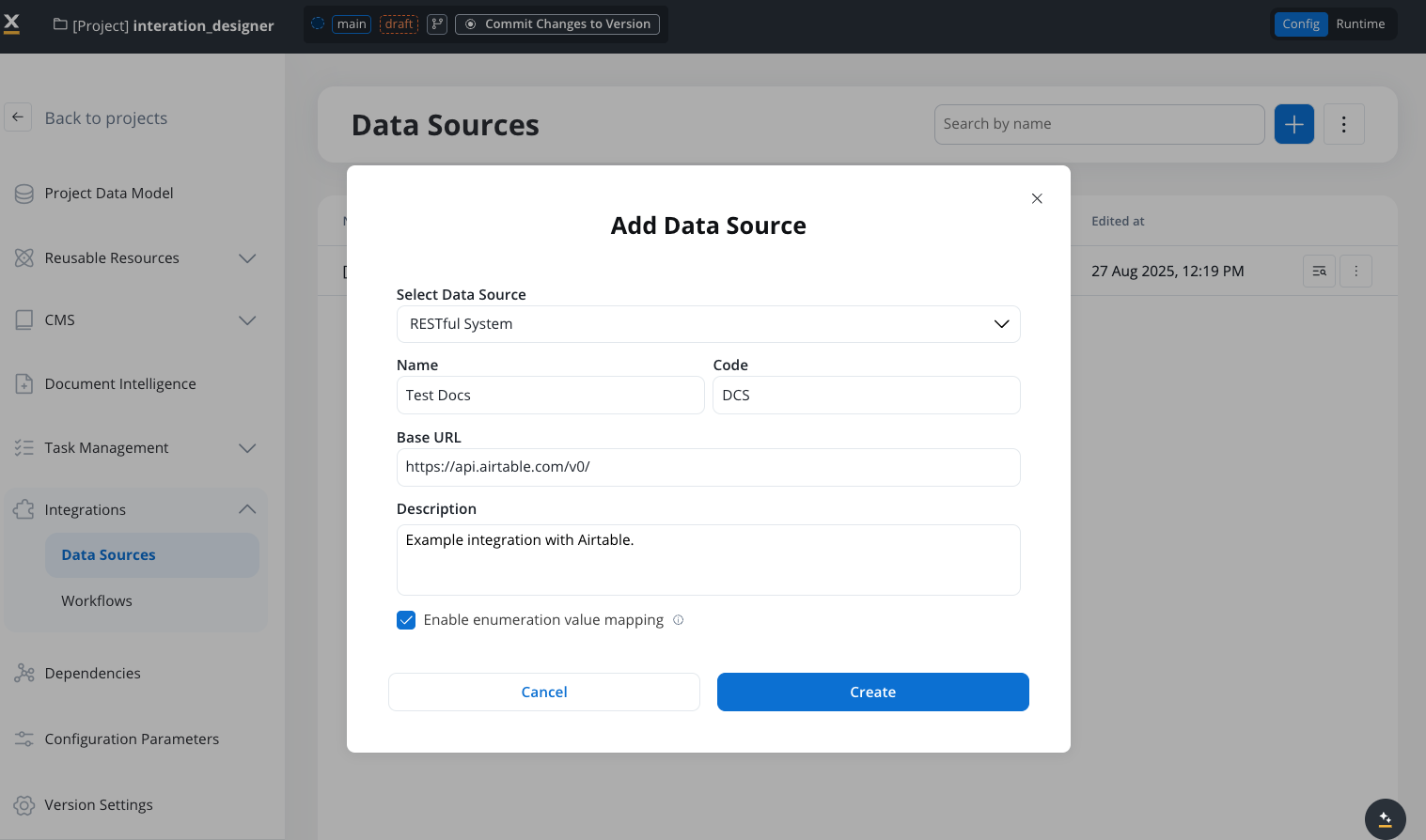
Add a New Data Source, set the data source’s unique code, name, and description:- Select Data Source: RESTful System
- Name: The data source’s name.
- Code: A unique identifier for the external data source.
- Base URL: The base URL is the main address of a website or web application, typically consisting of the protocol (
httporhttps), domain name, and a path. - Description: A description of the data source and its purpose.
- Enable enumeration value mapping: If checked, this system will be listed under the mapped enumerations. See enumerations section for more details.
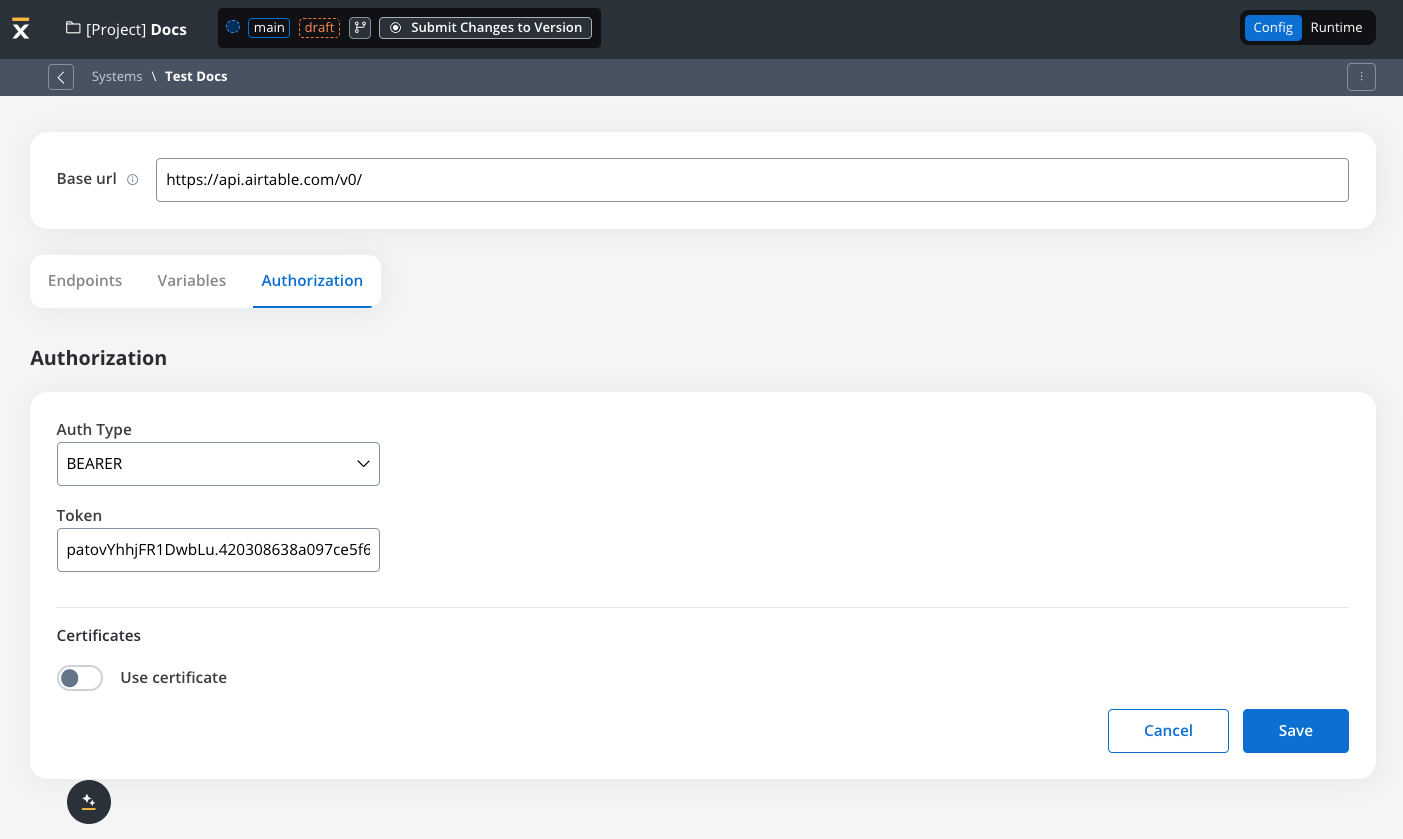
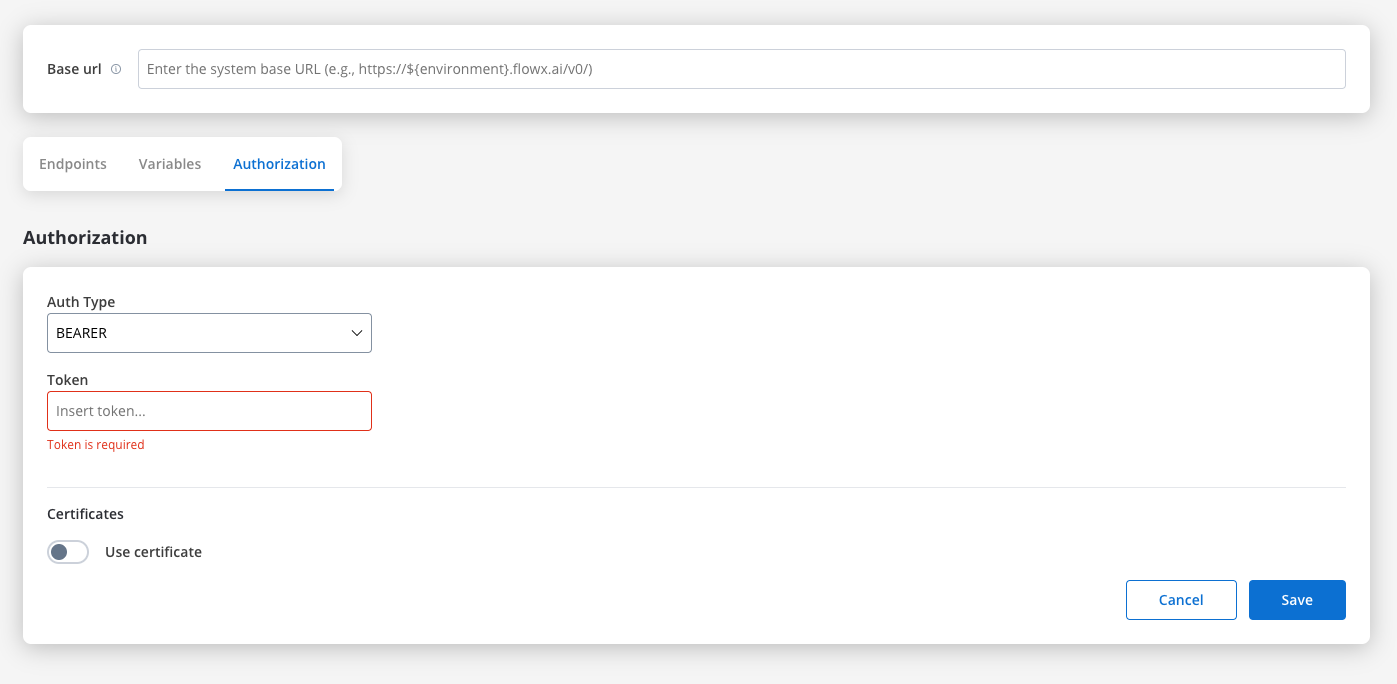
- Set up authorization (Service Token, Bearer Token, or No Auth). In our example, we will set the auth type as a bearer and we will set it at system level:
Defining REST integration endpoints
In this section you can define REST API endpoints that can be reused across different workflows.- Under the Endpoints section, add the necessary endpoints for system integration.
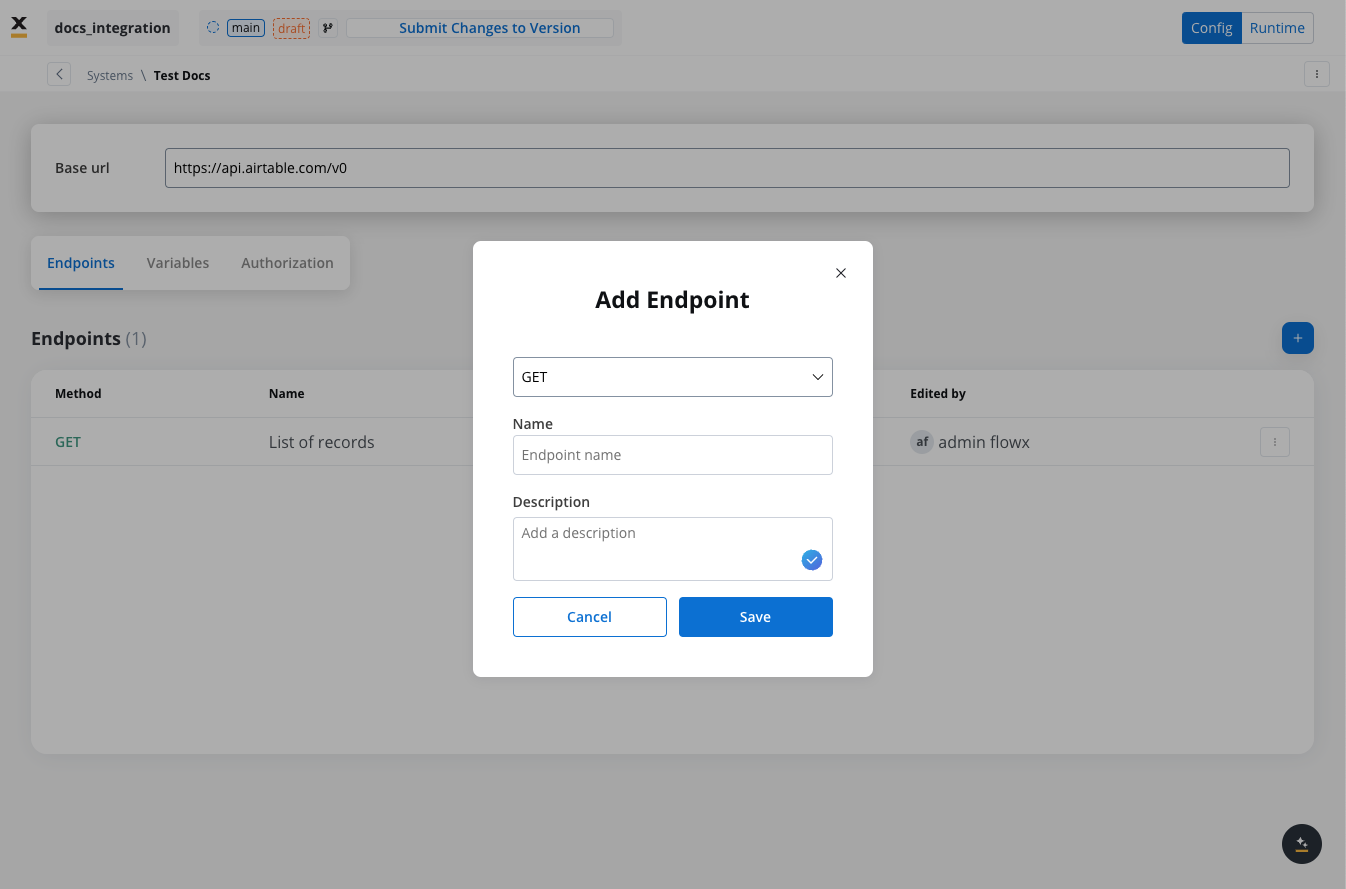
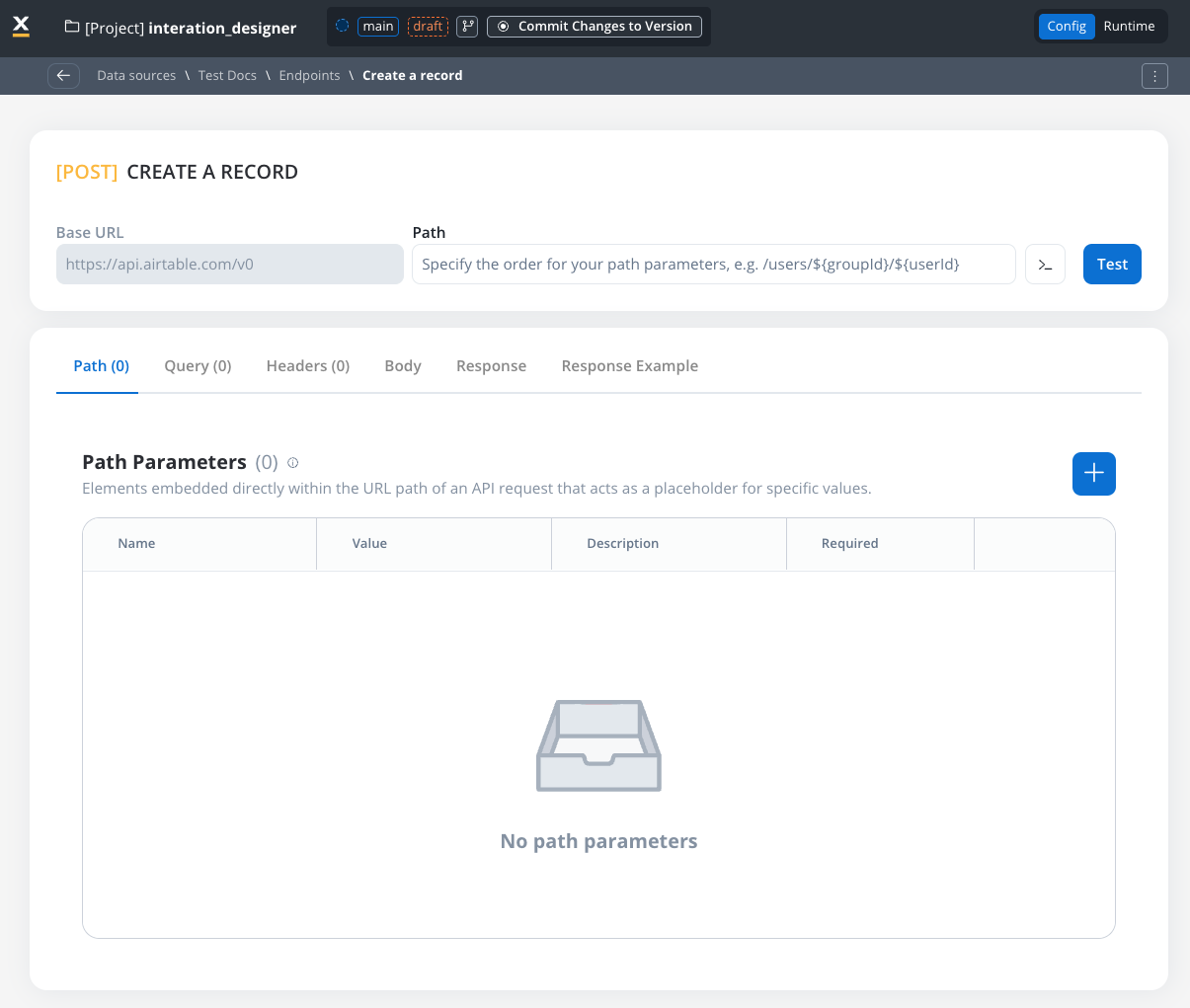
- Configure an endpoint by filling in the following properties:
- Method: GET, POST, PUT, PATCH, DELETE.
- Path: Path for the endpoint.
- Parameters: Path, query, and header parameters.
- Content type (POST endpoints): JSON, Raw, Multipart/Form-Data, or Binary.
- Response: JSON or Single binary file.
- Response example: Body or headers.
REST endpoint caching
For GET endpoints, you can configure response caching to reduce redundant API calls, avoid rate limits, and lower operational costs. When data is stable for a defined period, caching eliminates unnecessary external API calls and improves workflow performance.Configuring cache Time-To-Live (TTL)
Choose between two TTL policies based on your use case:- Expires After (Duration-Based)
- Expires At (Time-Based)
- ISO Duration: Use ISO 8601 duration format
PT1H- Cache for 1 hourPT30M- Cache for 30 minutesP1D- Cache for 1 dayP1W- Cache for 1 week
- Dynamic Duration: Reference configuration parameters using
${myConfigParam} - Default:
R/P1D(1 day)
Cache visibility and management
Testing Modal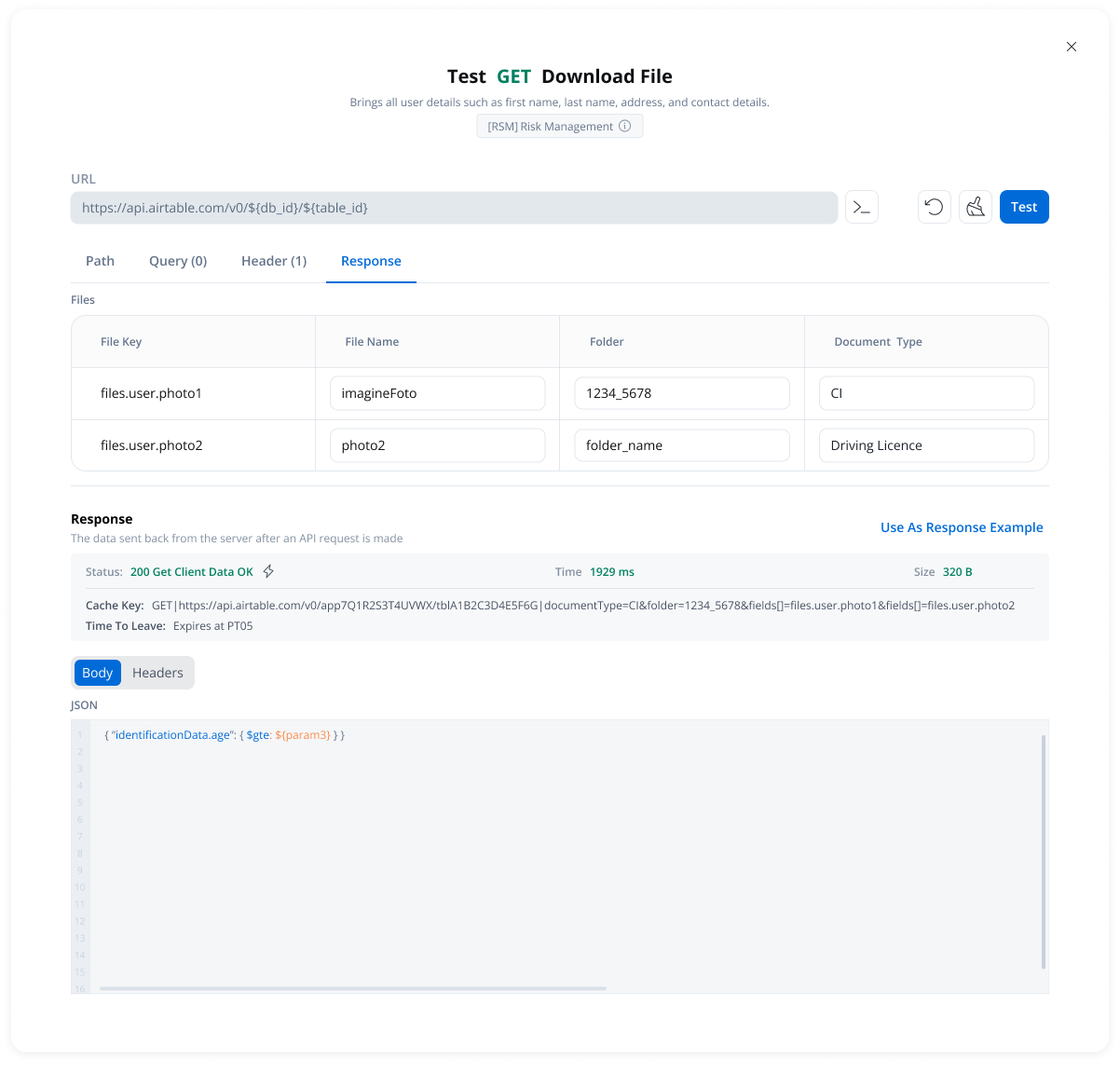
- Cache Status: Whether results came from cache (hit) or external API (miss)
- Cache Key: Unique identifier for the cached response
- TTL Information: When the cache will expire
- Duration-based: “Expires after PT10M” (10 minutes)
- Time-based: “Expires at 23:00 on 2025-11-04”
- Available in the endpoint testing modal
- Available from the endpoint definition page
- Only visible when caching is configured
How caching works
First Request
- Calls the external API
- Stores the response in cache with the configured TTL
- Returns the response to the workflow
Subsequent Requests
- FlowX.AI returns the cached response immediately
- No external API call is made
- Response time is significantly faster
Cache Expiration
- Next request fetches fresh data from the external API
- Cache is updated with the new response
- New TTL period begins
Error handling
Automatic fallback scenarios:- Cache service unavailable → Direct API call
- Cache corruption or invalid data → Direct API call
- Cache storage failure → Direct API call (with warning logged)
Use cases
Reference Data
Rate Limit Compliance
Cost Optimization
Performance
SQL operation caching
SQL data source operations support response caching with the same TTL policies as REST endpoints. On a SQL operation’s details page, open the Response Caching section and toggle Caching Enabled, then choose a return policy (Expires After duration or Expires At time-based), exactly as for REST GET endpoints above. A Clear cache button invalidates cached responses on demand. Caching is governed by three platform-wide settings on theintegration-designer service:
FLOWX_SQL_CACHE_ENABLED is true. If an operation has caching enabled while the global switch is off, the query runs live and a warning is logged.Extended response caching
Response caching extends beyond GET REST endpoints and SQL operations to cover POST endpoints, Mongo read operations, and file storage read operations. These surfaces reuse the same TTL policies, Clear cache control, and automatic fallback behavior described above.POST endpoint caching
You can enable response caching on POST endpoints as well as GET endpoints. For a POST endpoint, the request body is part of the cache key, so calls to the same URL with different bodies are cached as separate entries and never return one another’s response. GET requests carry no body, so their cache keys are unchanged.Mongo read caching
Database data source caching also applies to Mongo read operations:FIND, FIND_ONE, and AGGREGATE, alongside the SQL queries already covered above. Mutating operations (for example inserts, updates, and deletes) cannot be cached. Enable caching per operation in the Response Caching section of the operation’s details page, exactly as for SQL operations. The same payload-size and duration caps apply to both SQL and Mongo caching.
File operation caching
File storage data source operations support response caching with the same TTL policies and controls as REST endpoints and database operations. Caching applies to read operations only:LIST or DOWNLOAD operation’s details page, open the Response Caching section, toggle Caching Enabled, and choose a return policy (Expires After duration or Expires At time-based). A Clear cache button invalidates cached responses on demand, exactly as for REST endpoints and database operations.
DOWNLOAD, FlowX caches the document reference rather than the file content. On a cache hit, the workflow receives a fresh document created from the retained copy, so the read from remote storage is skipped while your workflow still gets a valid document to work with.Defining variables
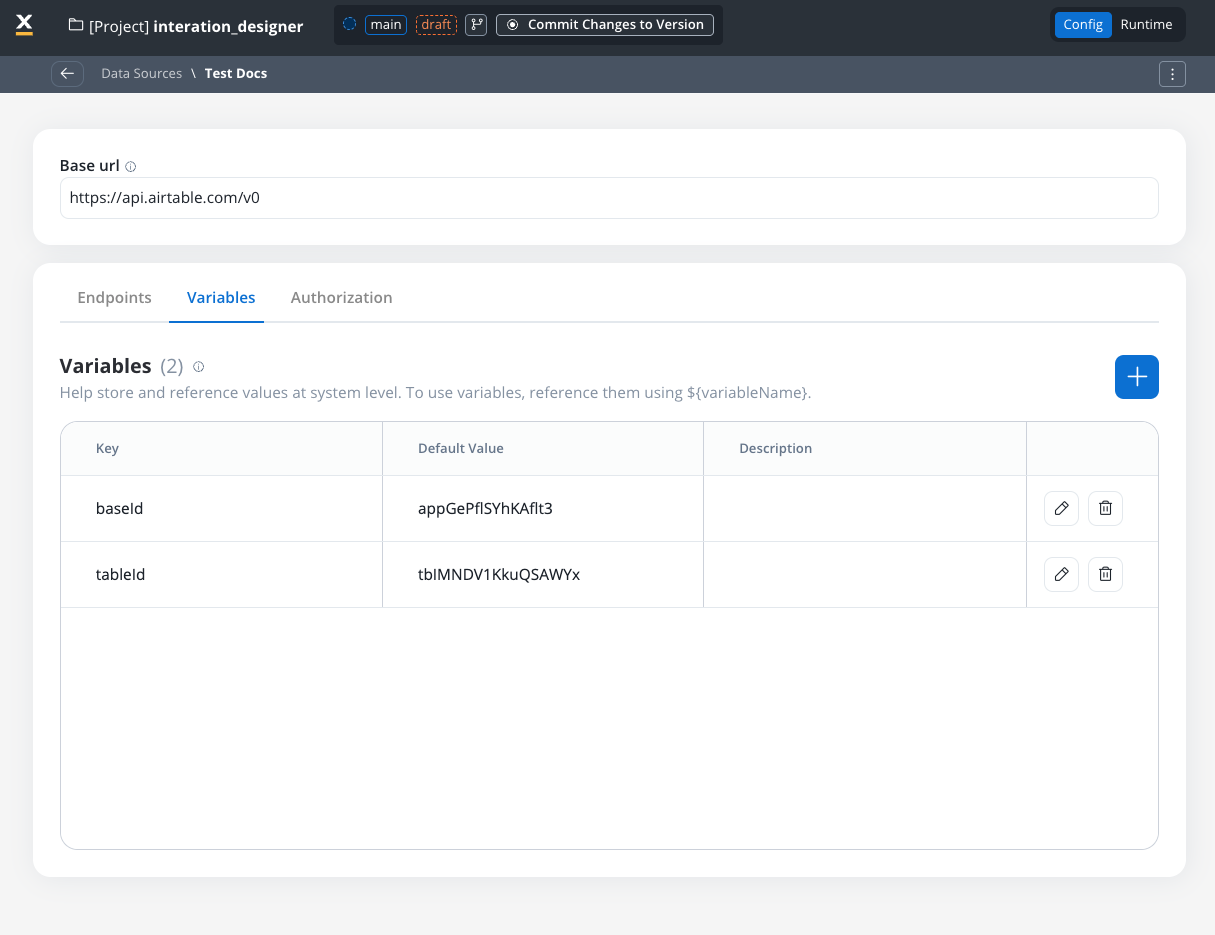
The Variables tab allows you to store system-specific variables that can be referenced throughout workflows using the format${variableName}.
These declared variables can be utilized not only in workflows but also in other sections, such as the Endpoint or Authorization tabs.
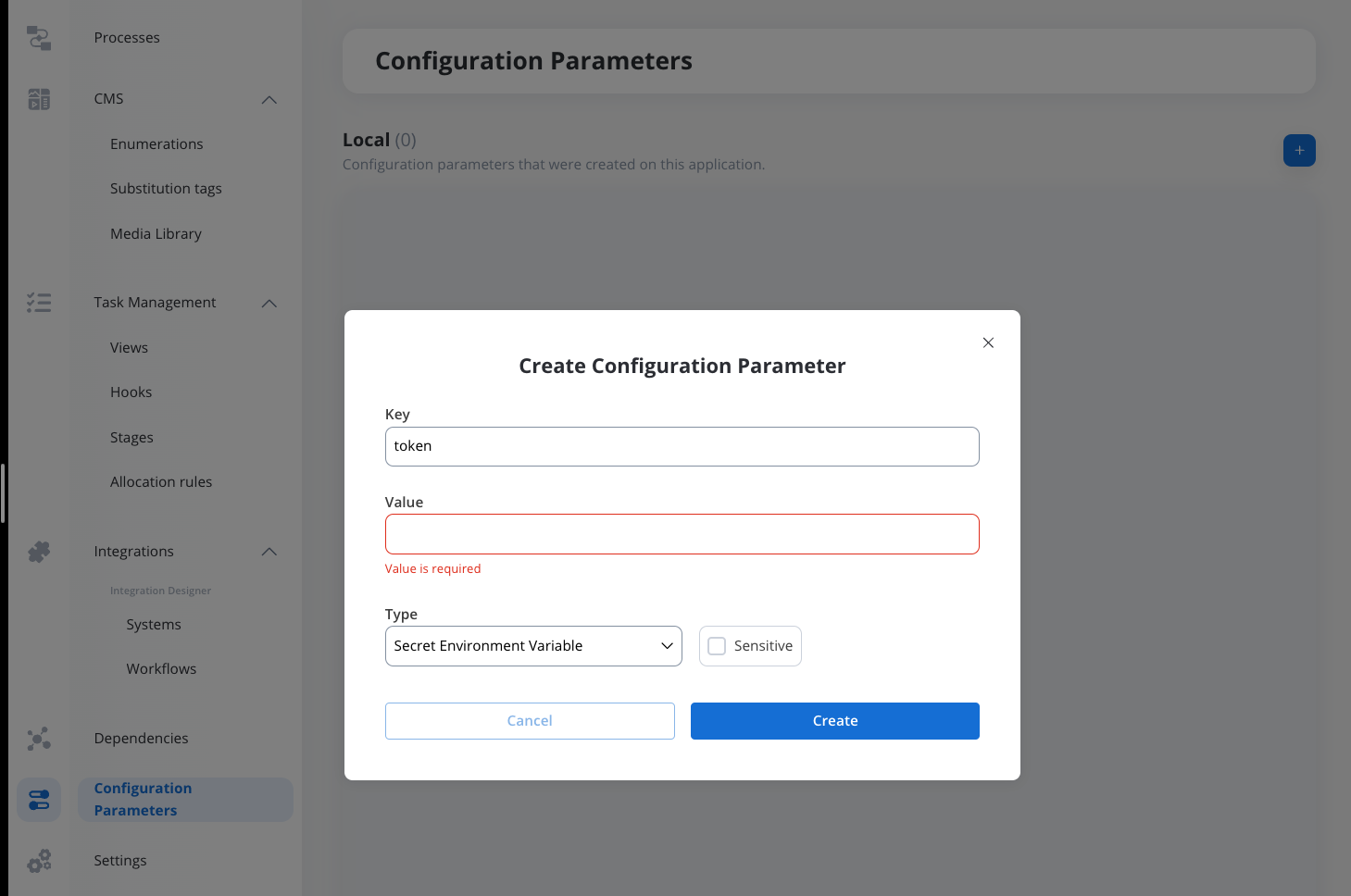
- For our integration example, you can declare configuration parameters and use the variables to store your
tableIdandbaseIdand reference them the Variables tab.
- Use variables in the Base URL to switch between different environments, such as UAT or production.
Endpoint parameter types
When configuring endpoints, several parameter types help define how the endpoint interacts with external systems. These parameters ensure that requests are properly formatted and data is correctly passed.Path parameters
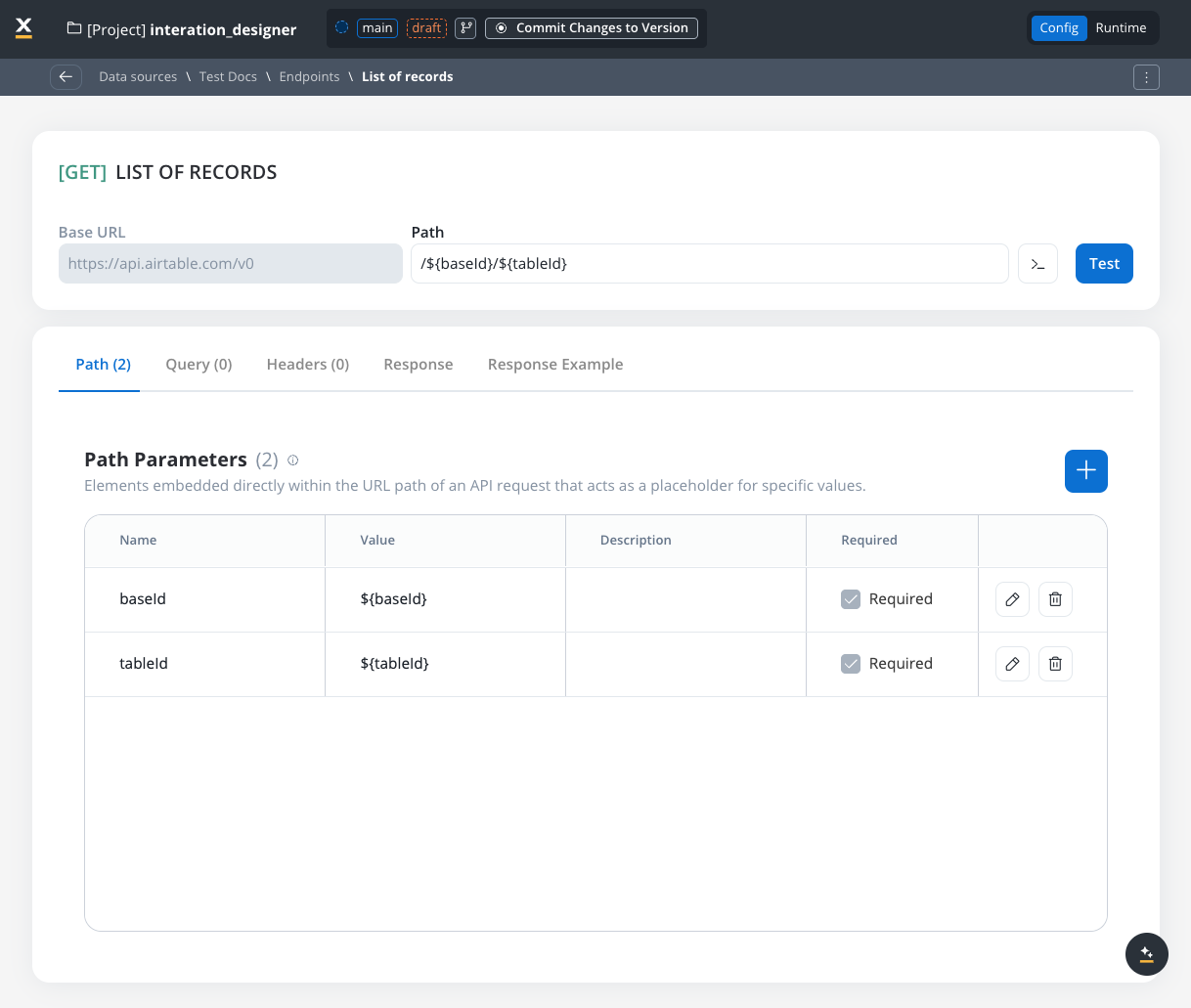
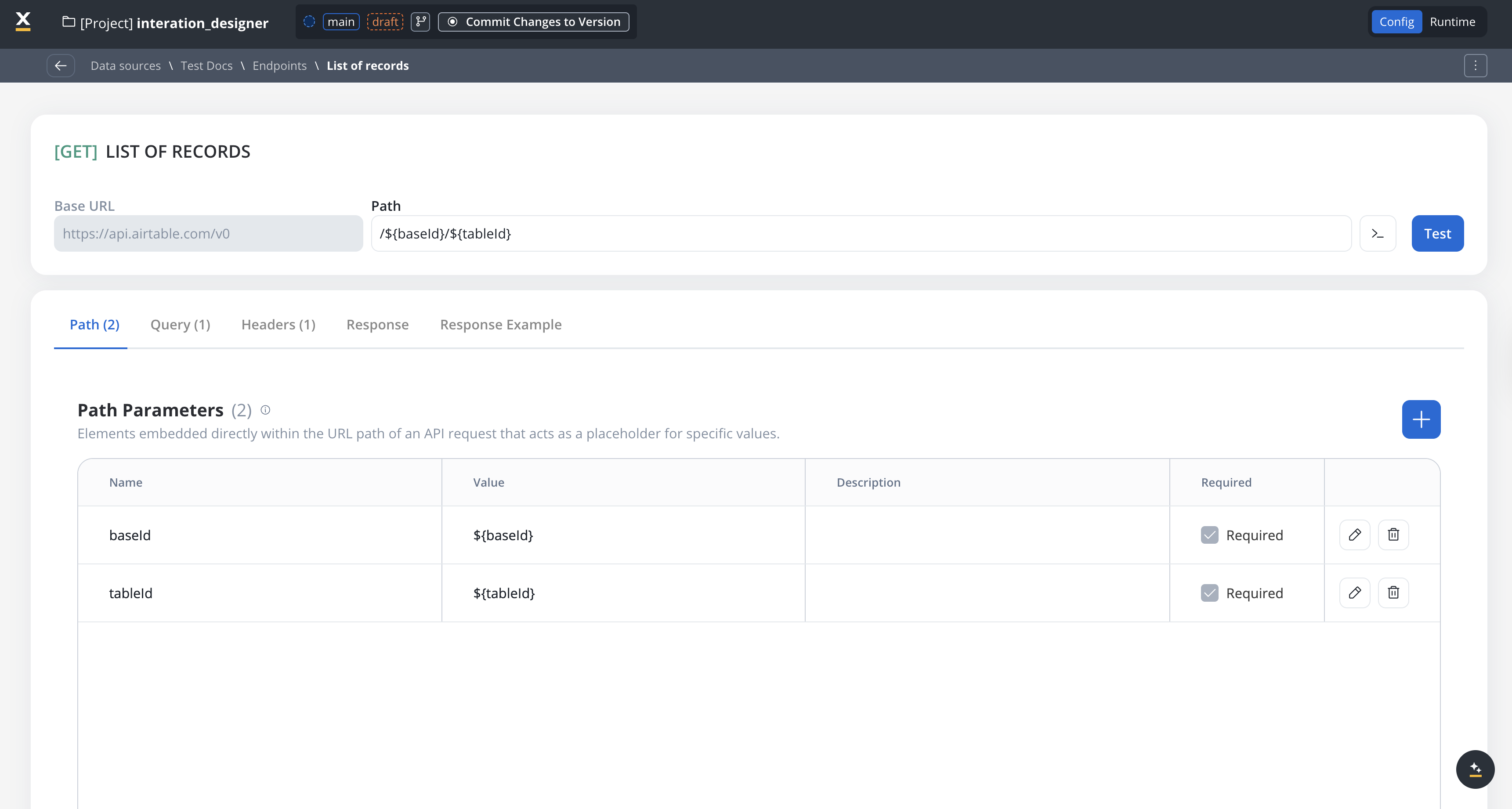
Elements embedded directly within the URL path of an API request that acts as a placeholder for specific value.- Used to specify variable parts of the endpoint URL.
- Defined with
${parameter}format. - Mandatory in the request URL.
Query parameters
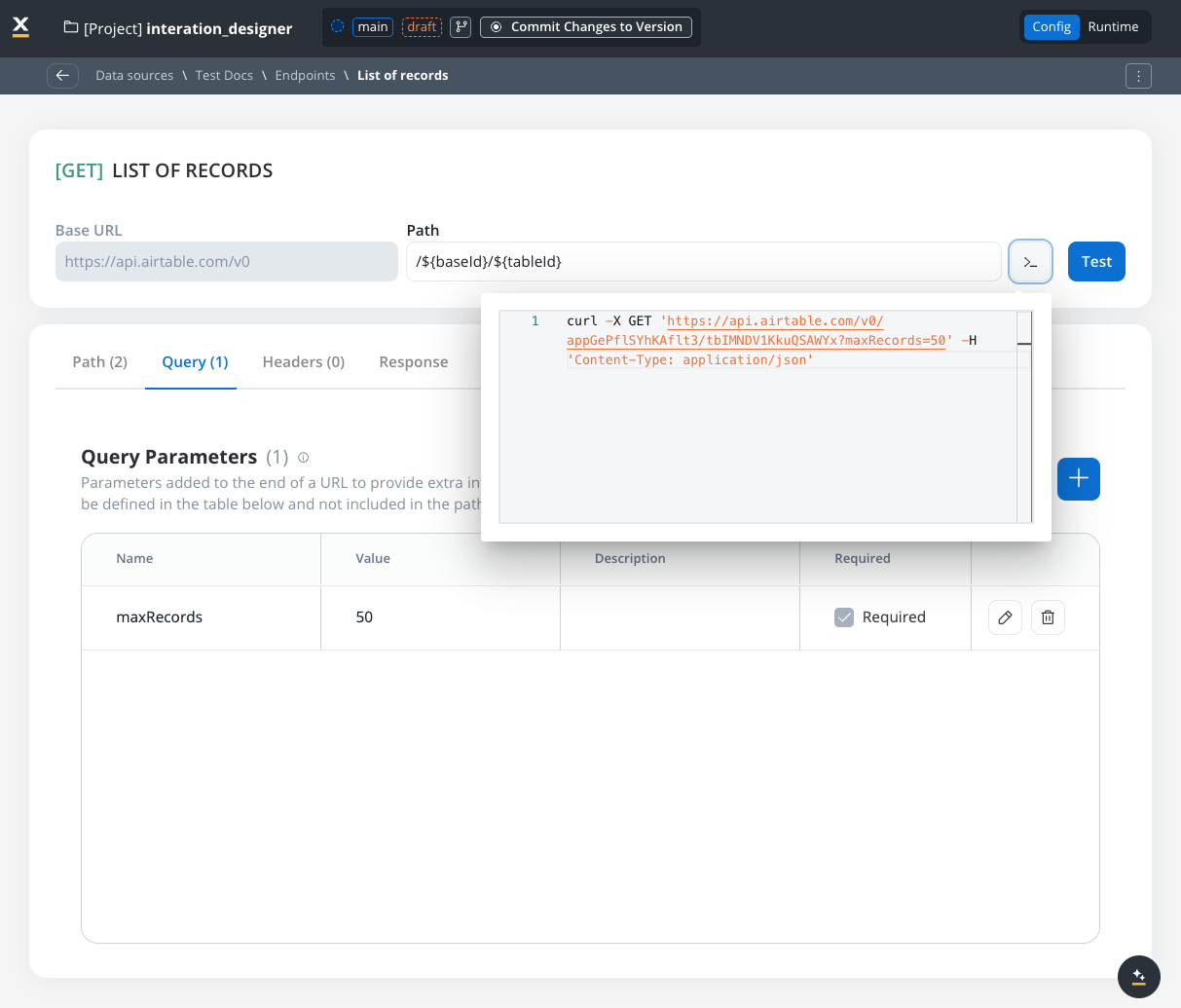
Query parameters are added to the end of a URL to provide extra information to a web server when making requests.- Query parameters are appended to the URL after a
?symbol and are typically used for filtering or pagination (for example,?search=value) - Useful for filtering or pagination.
- Example URL with query parameters: https://api.example.com/users?search=johndoe&page=2.
URL encoding option
Each query parameter has an Encode option that controls whether the value is URL-encoded before being sent:- Encode enabled: The system automatically URL-encodes the parameter value (special characters like spaces,
&,=are converted to their encoded equivalents like%20,%26,%3D) - Encode disabled (default): The value is sent as-is, allowing you to provide pre-encoded values
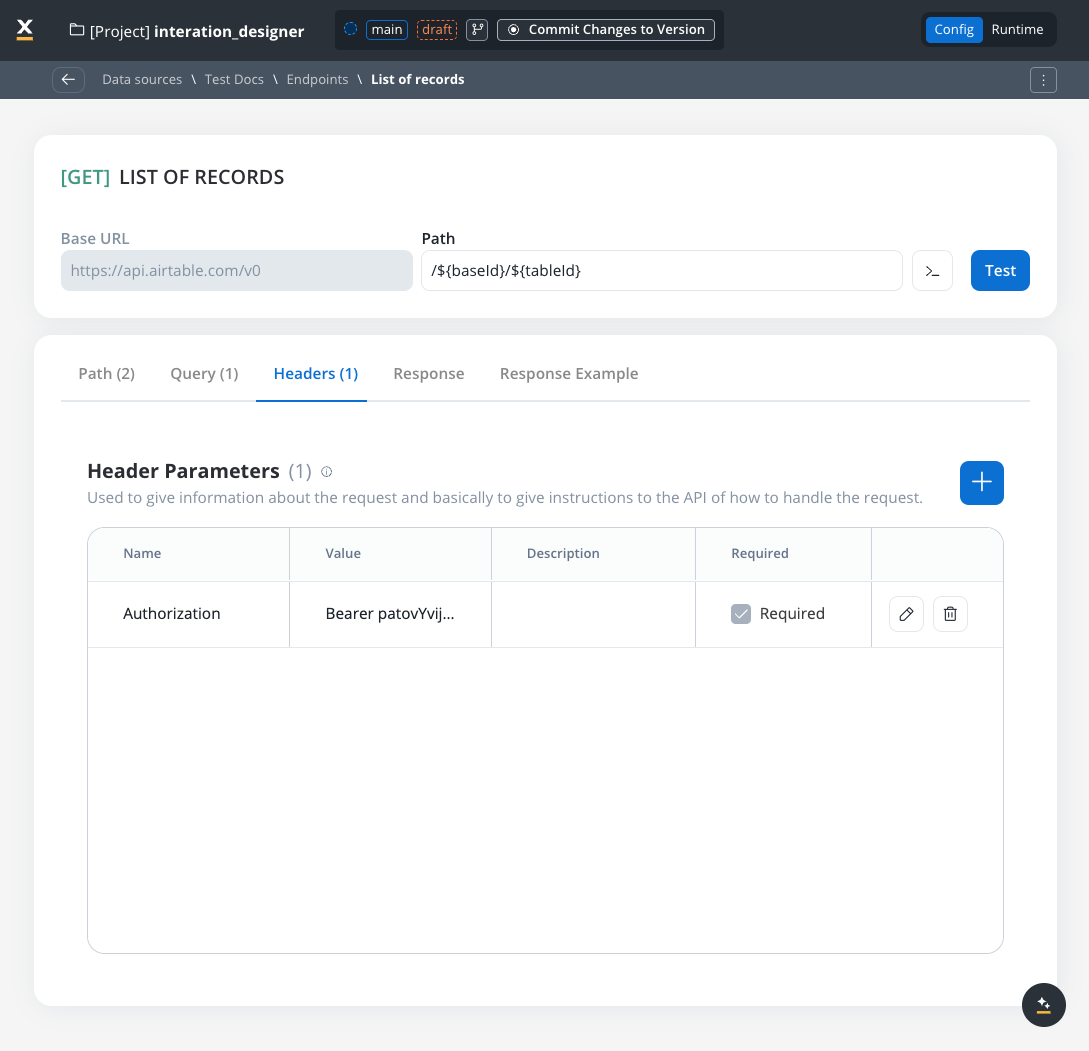
Header parameters
Used to give information about the request and to give instructions to the API of how to handle the request- Header parameters (HTTP headers) provide extra details about the request or its message body.
- They are not part of the URL. Default values can be set for testing and overridden in the workflow.
- Custom headers sent with the request (for example,
Authorization: Bearer token). - Define metadata or authorization details.
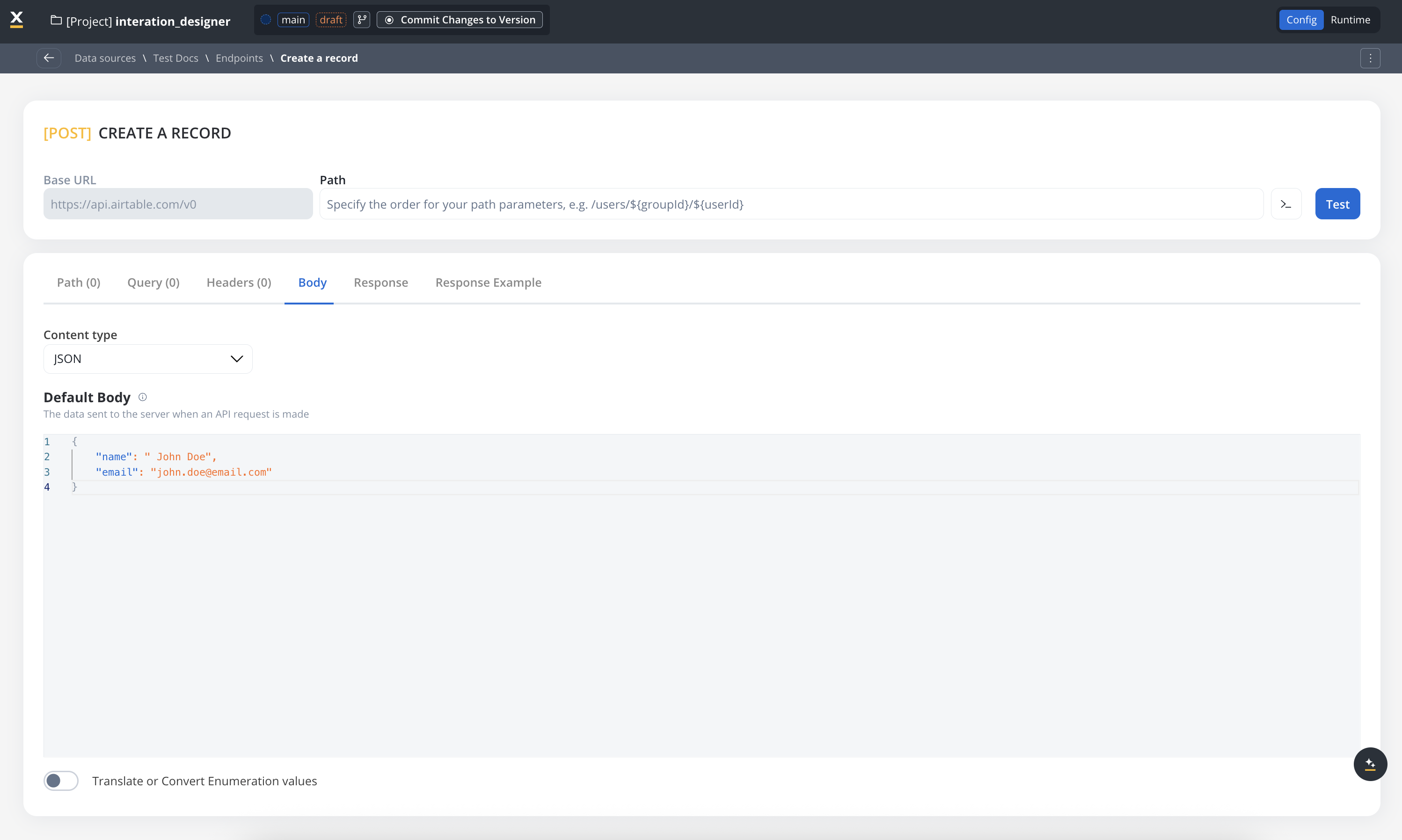
Body parameters
The data sent to the server when an API request is made.- These are the data fields included in the body of a request, usually in JSON format.
- Body parameters are used in POST, PUT, and PATCH requests to send data to the external system (for example, creating or updating a resource).
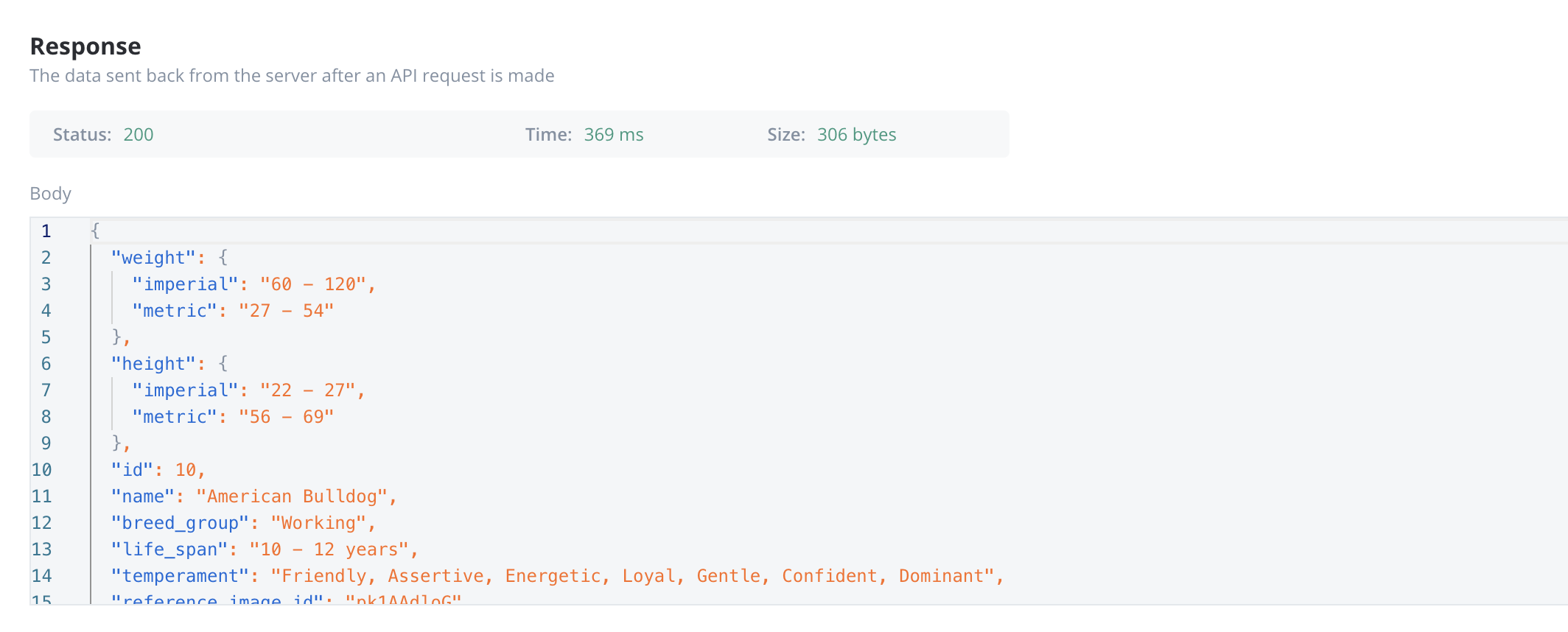
Response body parameters
The data sent back from the server after an API request is made.- These parameters are part of the response returned by the external system after a request is processed. They contain the data that the system sends back.
- Typically returned in GET, POST, PUT, and PATCH requests. Response body parameters provide details about the result of the request (for example, confirmation of resource creation, or data retrieval)
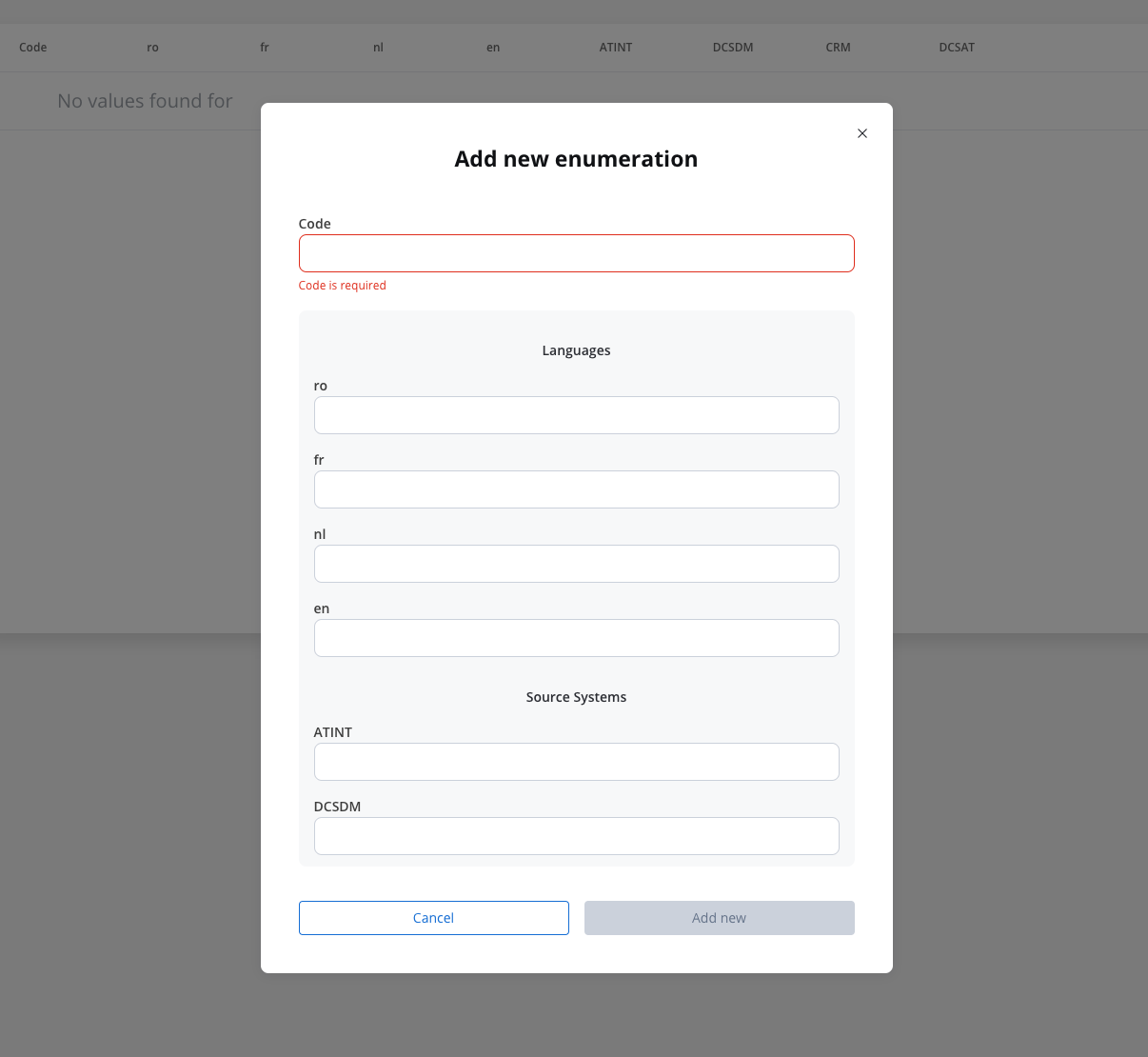
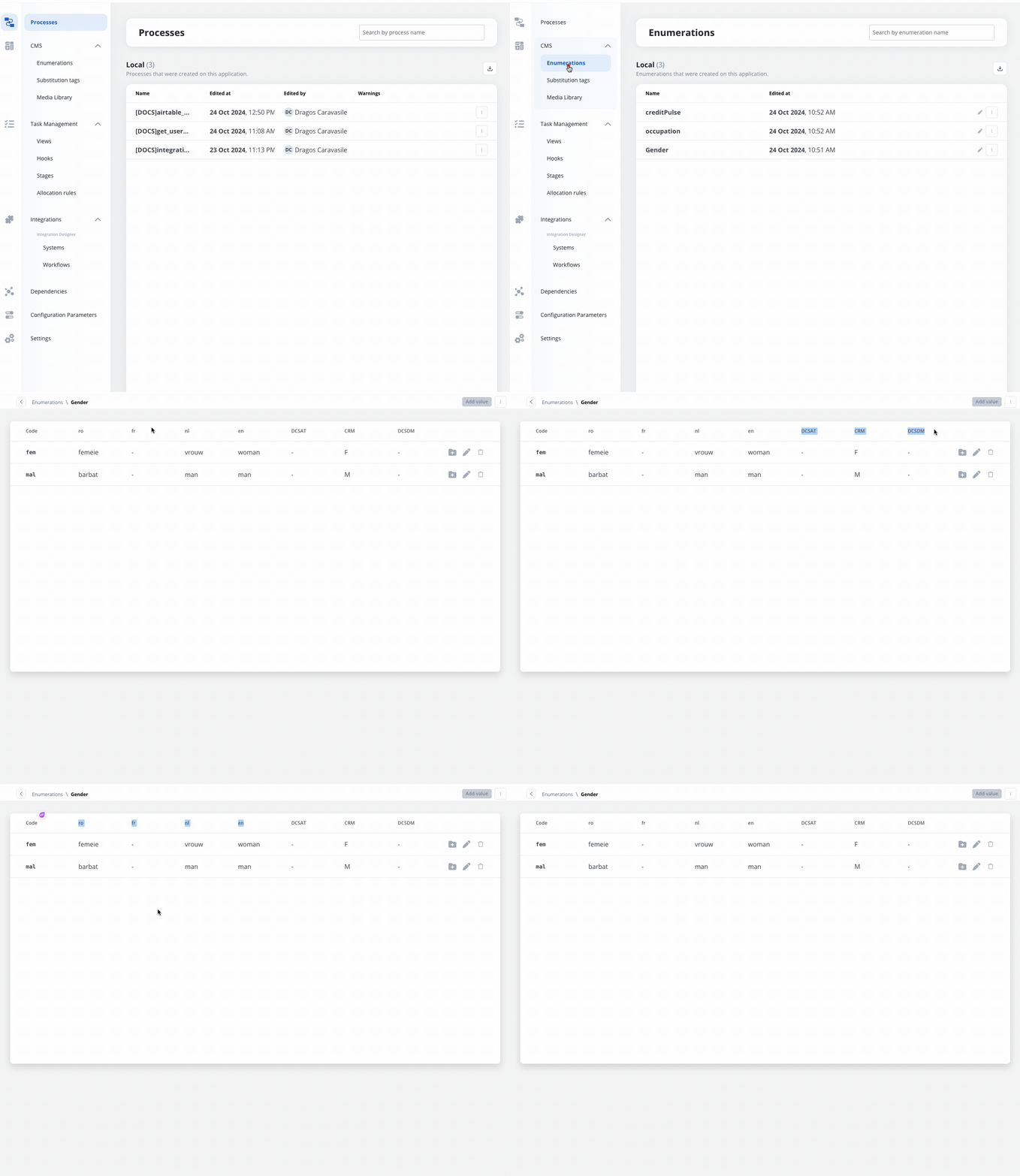
Enum mapper
The enum mapper for the request body enables you to configure enumerations for specific keys in the request body, aligning them with values from the External System or translations into another language.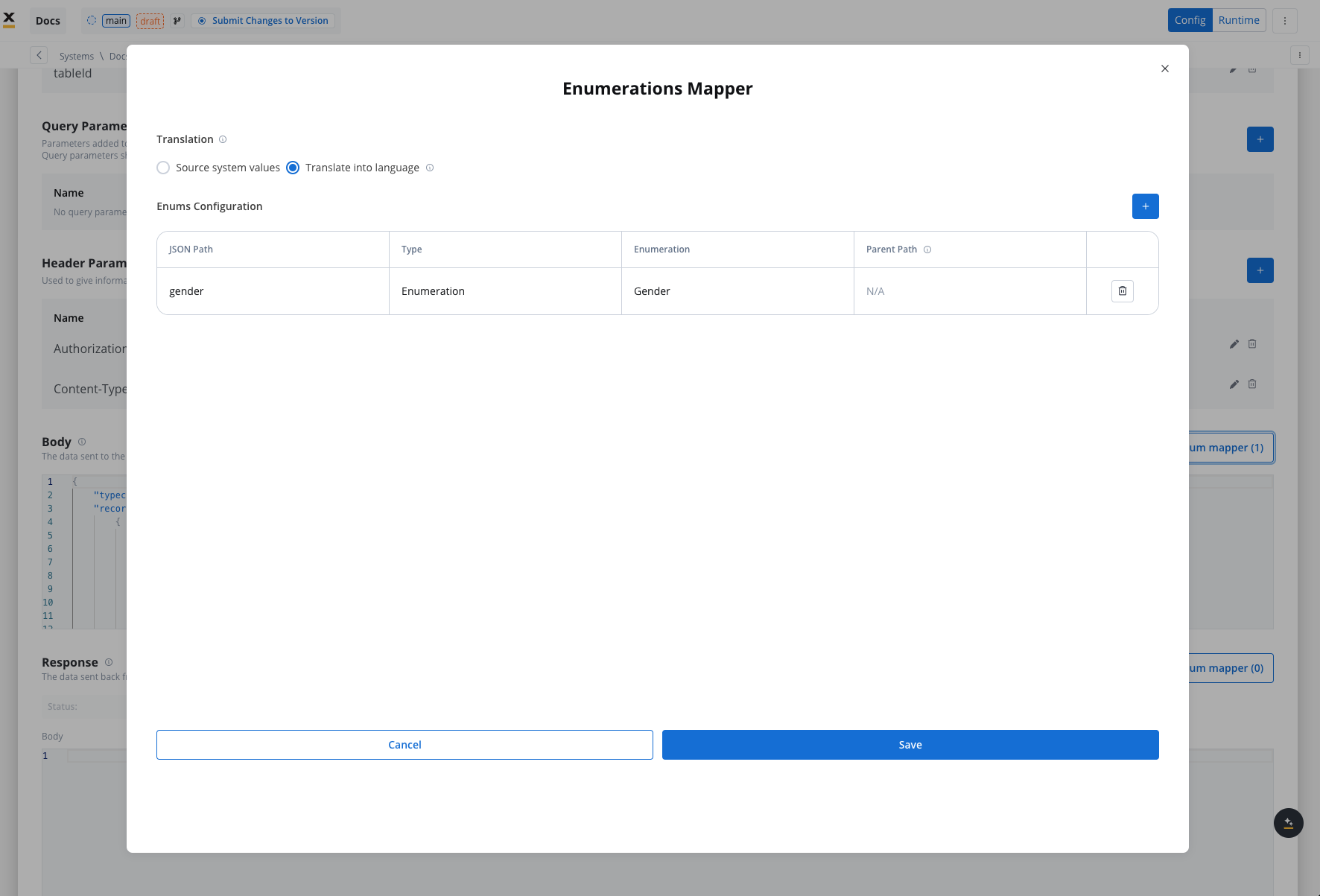
Configuring authorization
- Select the required Authorization Type from a predefined list.
- Enter the relevant details based on the selected type (for example, Realm and Client ID for Service Accounts).
- These details will be automatically included in the request headers when the integration is executed.
Authorization methods
The Integration Designer supports several authorization methods, allowing you to configure the security settings for API calls. Depending on the external system’s requirements, you can choose one of the following authorization formats: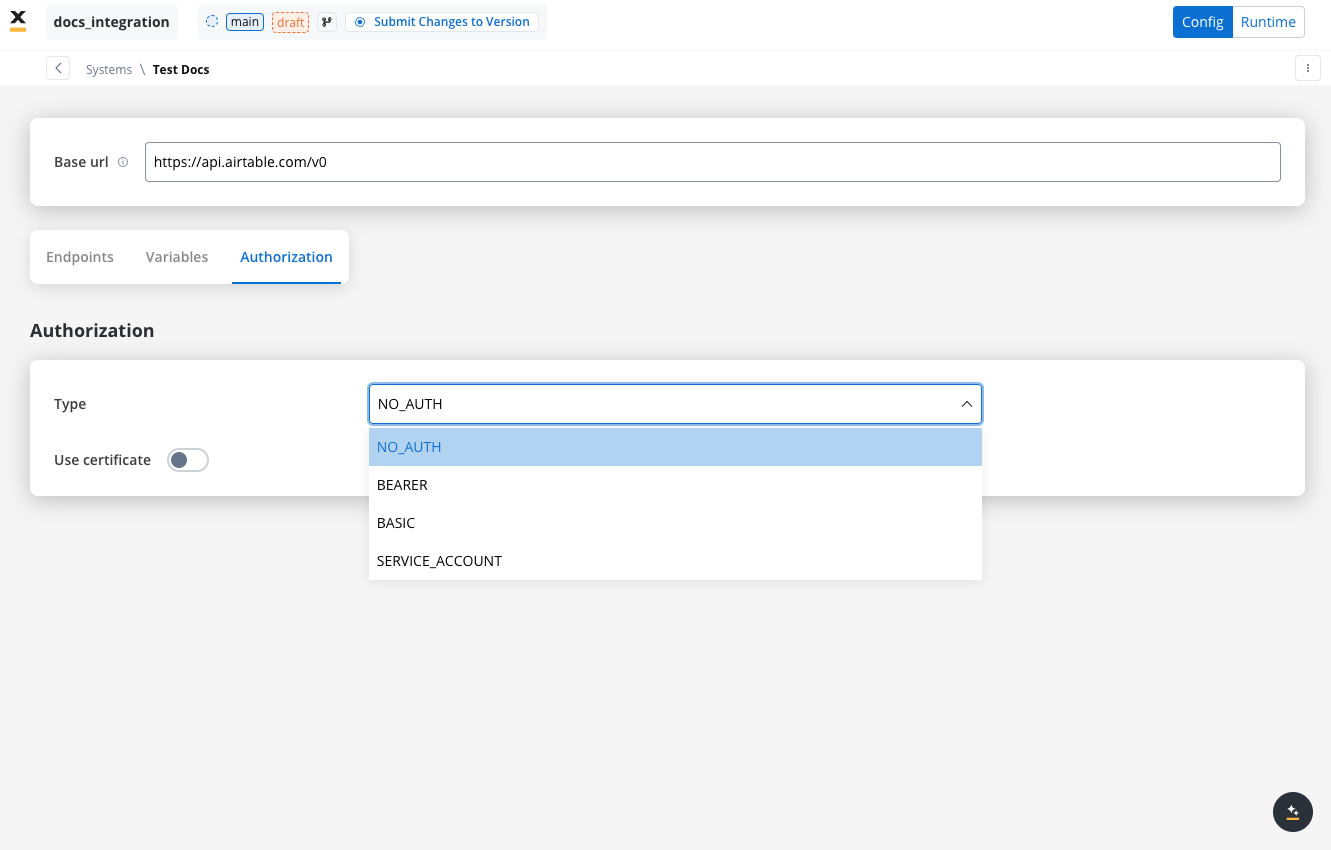
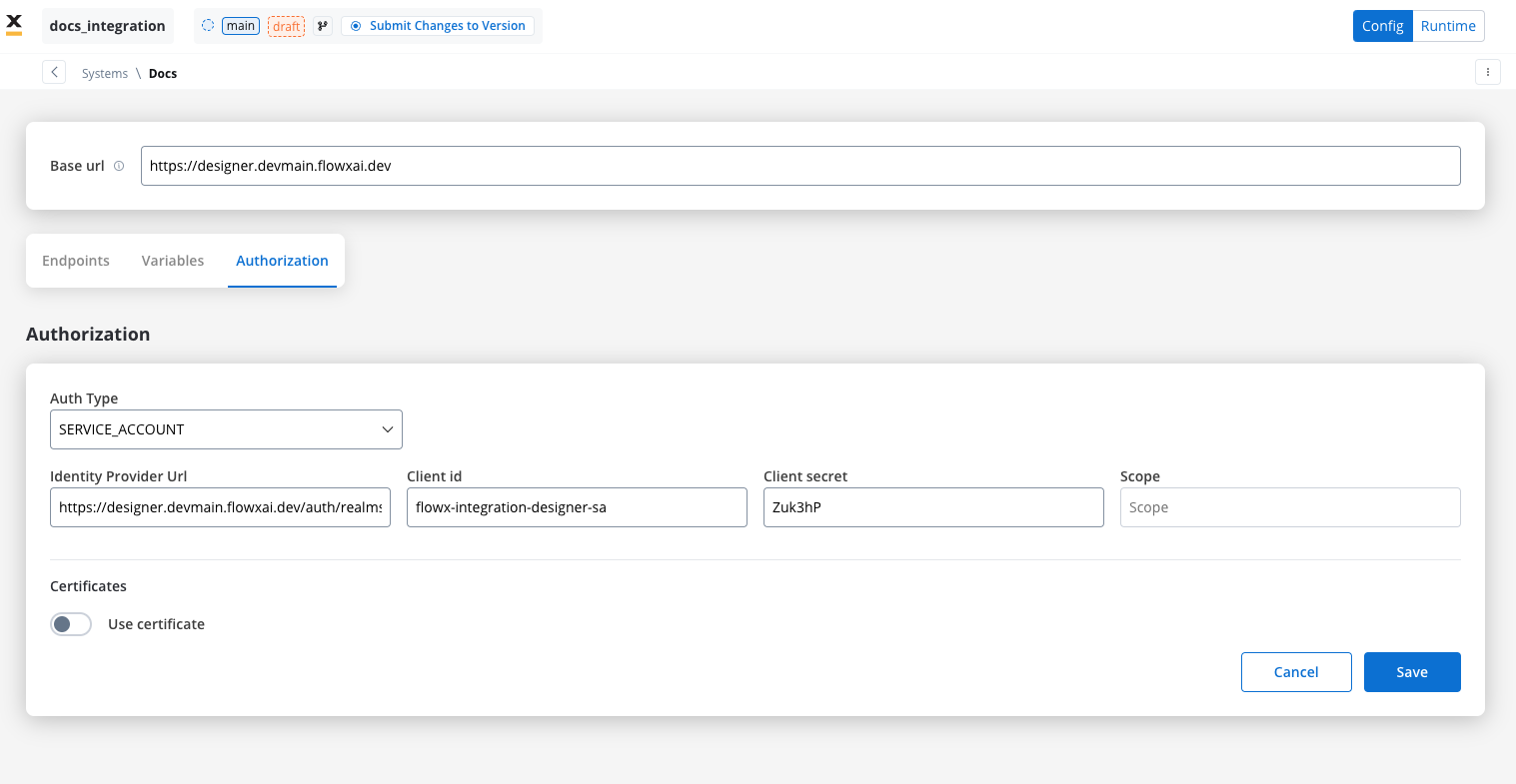
Service account
Service Account authentication requires the following key fields:- Identity Provider Url: The URL for the identity provider responsible for authenticating the service account.
- Client Id: The unique identifier for the client within the realm.
- Client secret: A secure secret used to authenticate the client alongside the Client ID.
- Scope: Specifies the access level or permissions for the service account.
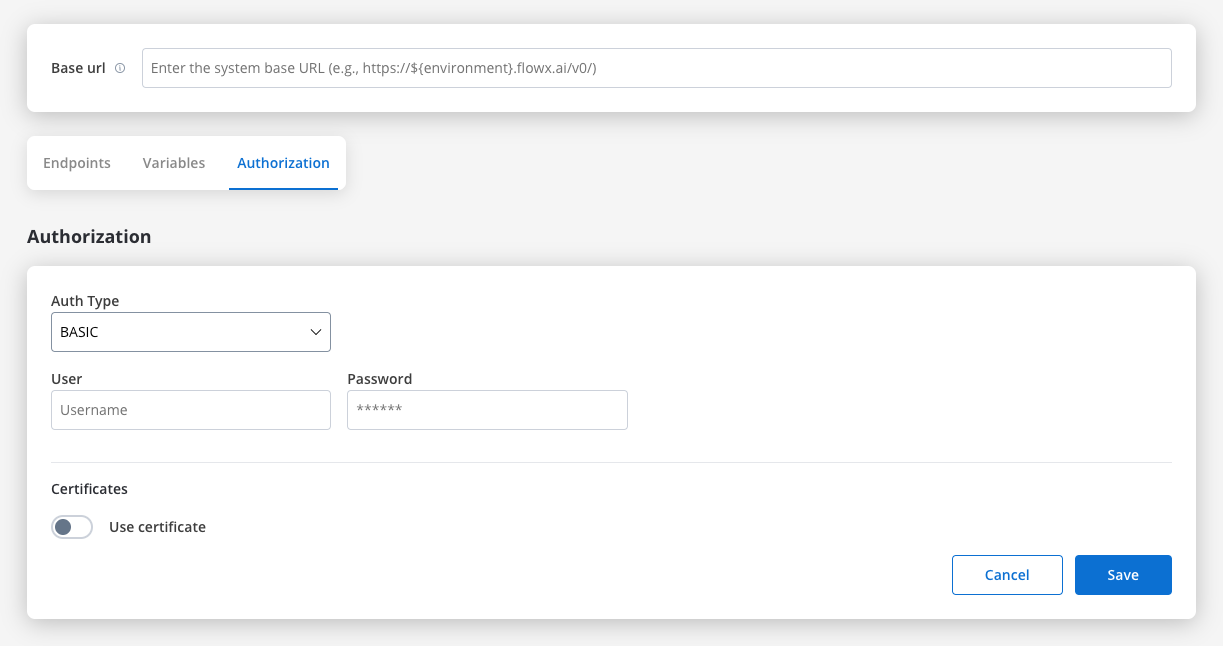
Basic authentication
- Requires the following credentials:
- Username: The account’s username.
- Password: The account’s password.
- Suitable for systems that rely on simple username/password combinations for access.
Bearer
- Requires an Access Token to be included in the request headers.
- Commonly used for OAuth 2.0 implementations.
- Header Configuration: Use the format
Authorization: Bearer {access_token}in headers of requests needing authentication.
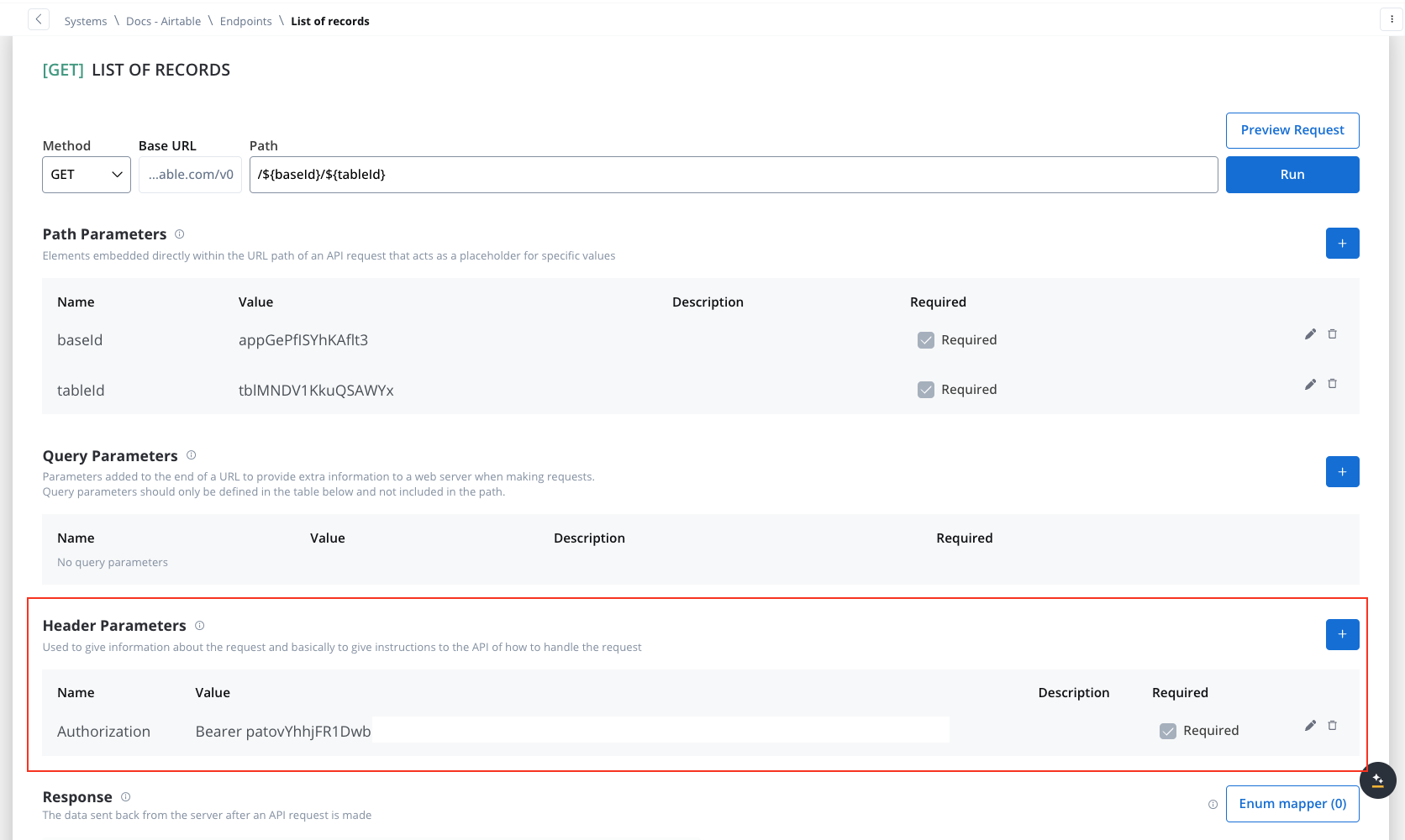
- System-Level Example: You can store the Bearer token at the system level, as shown in the example below, ensuring it’s applied automatically to future API calls:
Certificates
The Certificates panel in the Settings of a REST data source has two independent parts. Trust decides what the certificate the host presents is checked against. Identity is the client certificate FlowX presents back to the host (mutual TLS), which most hosts don’t ask for. When to use what${configParam} placeholders for dynamic per-environment resolution.
Preparing the files
PEM files work as you receive them: use the CA certificate (for example ca.crt) for Custom CA, and the client certificate and its key (client.crt and client.key) for Present a certificate. No keytool or openssl step is needed.
To use PKCS12 instead, package a PEM certificate and its key as a keystore:
System '<name>' cannot be exported to this FlowX version, which does not support ...) when a data source uses something 5.9.x can’t store:
- a Custom CA without a client certificate
- a PEM certificate
- a CA and a client certificate in different formats, or one Inline and the other Path
File handling
You can now handle file uploads and downloads with external systems directly within Integration Designer. This update introduces native support for file transfers in RESTful connectors, reducing the need for custom development and complex workarounds.Core scenarios
Integration Designer supports two primary file handling scenarios:Downloading Files
GET or POST) and receives a response containing one or more files. Integration Designer saves these files to a specified location and returns their new paths to the workflow for further processing.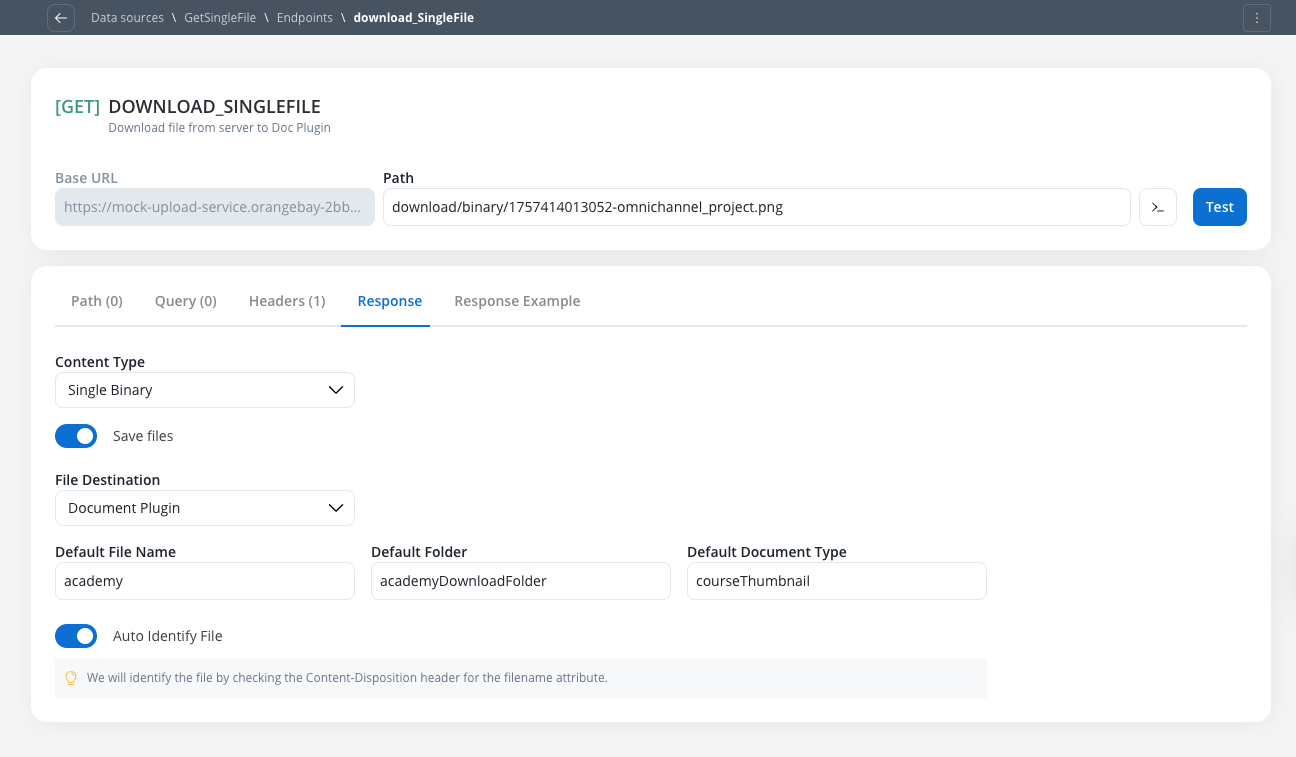
Uploading Files
POST request. The workflow transmits the file path, enabling file transfer without manual handling.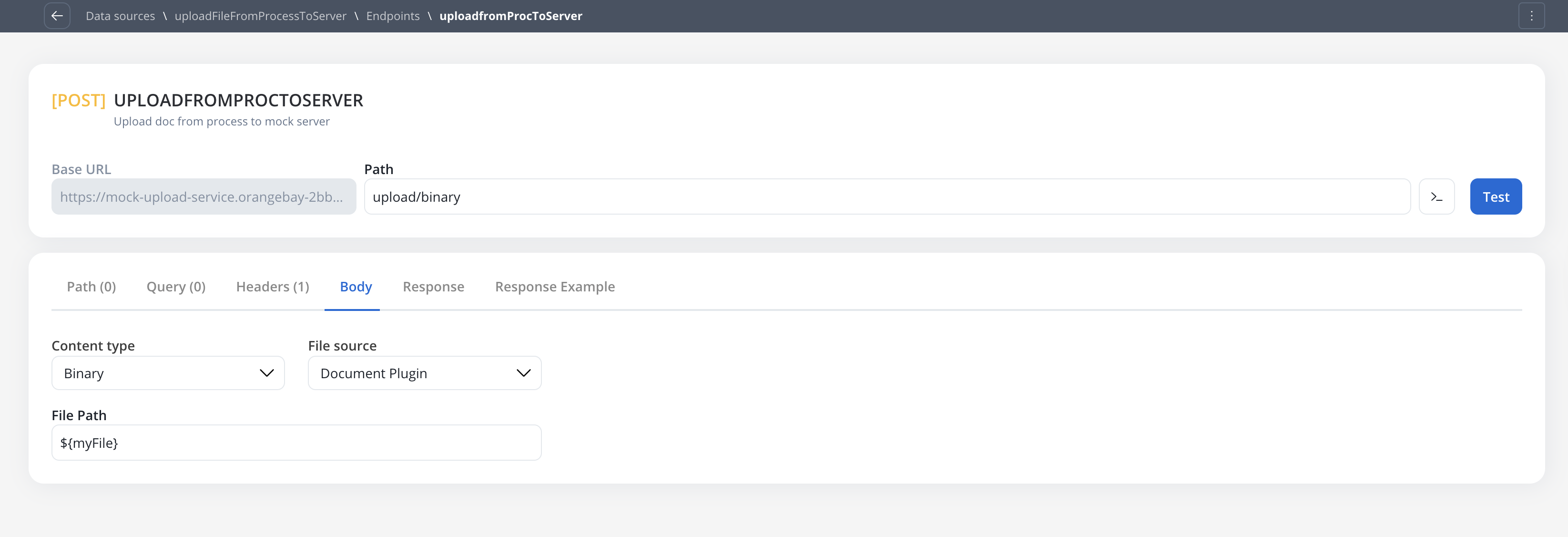
Receiving XML and SOAP responses
2xx. From 5.9.0, the engine honours the content type the endpoint declares and parses XML responses automatically.- The
Acceptheader wins (what the integration expects back). - If
Acceptis absent, the requestContent-Typeis used as a fallback. - If neither is set, the engine runs in automatic mode and infers the format from the upstream’s response
Content-Type. - Wildcard
Acceptvalues (*/*,application/*,text/*) are treated as automatic — they don’t commit to a format.
${response.body.Envelope.Body.result}). The original XML is preserved alongside the parsed object, so flows that need the raw markup can still access it.
XML parsing is XXE-safe: external entity resolution and DTD processing are disabled, so XXE and entity-expansion payloads cannot read local files or exhaust memory.
XML bodies larger than 5 MiB are returned as raw strings without parsing.
Content-Type header — see Defining REST integration endpoints above.Receiving files (endpoint response configuration)
To configure an endpoint to handle incoming files from an external system, navigate to its Response tab. This functionality is available for bothGET and POST methods.
Enabling and configuring file downloads
Activate File Processing
Configure Content-Type
JSON(Default): For responses containing Base64 encoded file dataSingle Binary: For responses where the body is the file itself
Handling JSON content-type
This option is used when the API returns a JSON object containing one or more Base64 encoded files. File Destination Configuration:- Document Plugin
- S3 Protocol
${processInstanceId} to be mapped dynamically at runtime.Translate or Convert Enumeration Values toggle can be used in conjunction with the Save Files feature.Handling Single Binary content-type
This option is used when the entire API response body is the file itself. The Single Binary content-type is ideal for endpoints that return raw file data directly in the response body.Configure Content-Type
- Enable the Save Files toggle
- Select Single Binary from the Content-Type dropdown
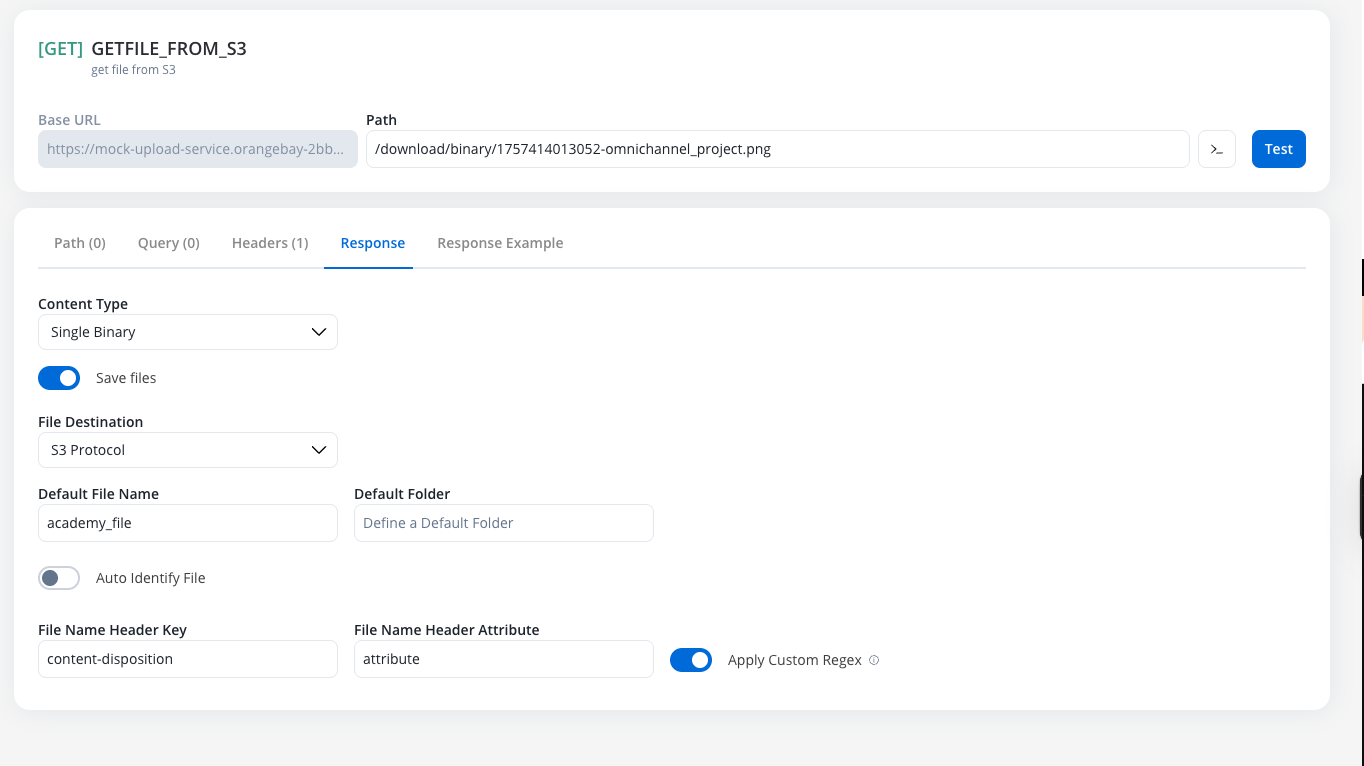
Choose File Destination
- S3 Protocol
- Document Plugin
Configure File Name Identification
- Auto Identify (Recommended)
- Manual Configuration
Content-Disposition HTTP header to extract the filename attribute. This is the standard approach for most file download endpoints.Content-Disposition header.document.pdf as the filename.- Document Plugin
- S3 Protocol
Sending files (endpoint POST body configuration)
To configure an endpoint to send a file, navigate to the Body tab and select the appropriate Content Type.Content Type: Multipart/Form-data
Use this to send files and text fields in a single request. This format is flexible and can handle mixed content types within the same POST request.Configure File Source
Document PluginS3 Protocol
Define Form Parts
- Key Type: Choose
FileorText - Value:
- For files: Provide the
filePath(Minio path for S3 or Document Plugin reference) - For text: Provide the string value or variable reference
- For files: Provide the
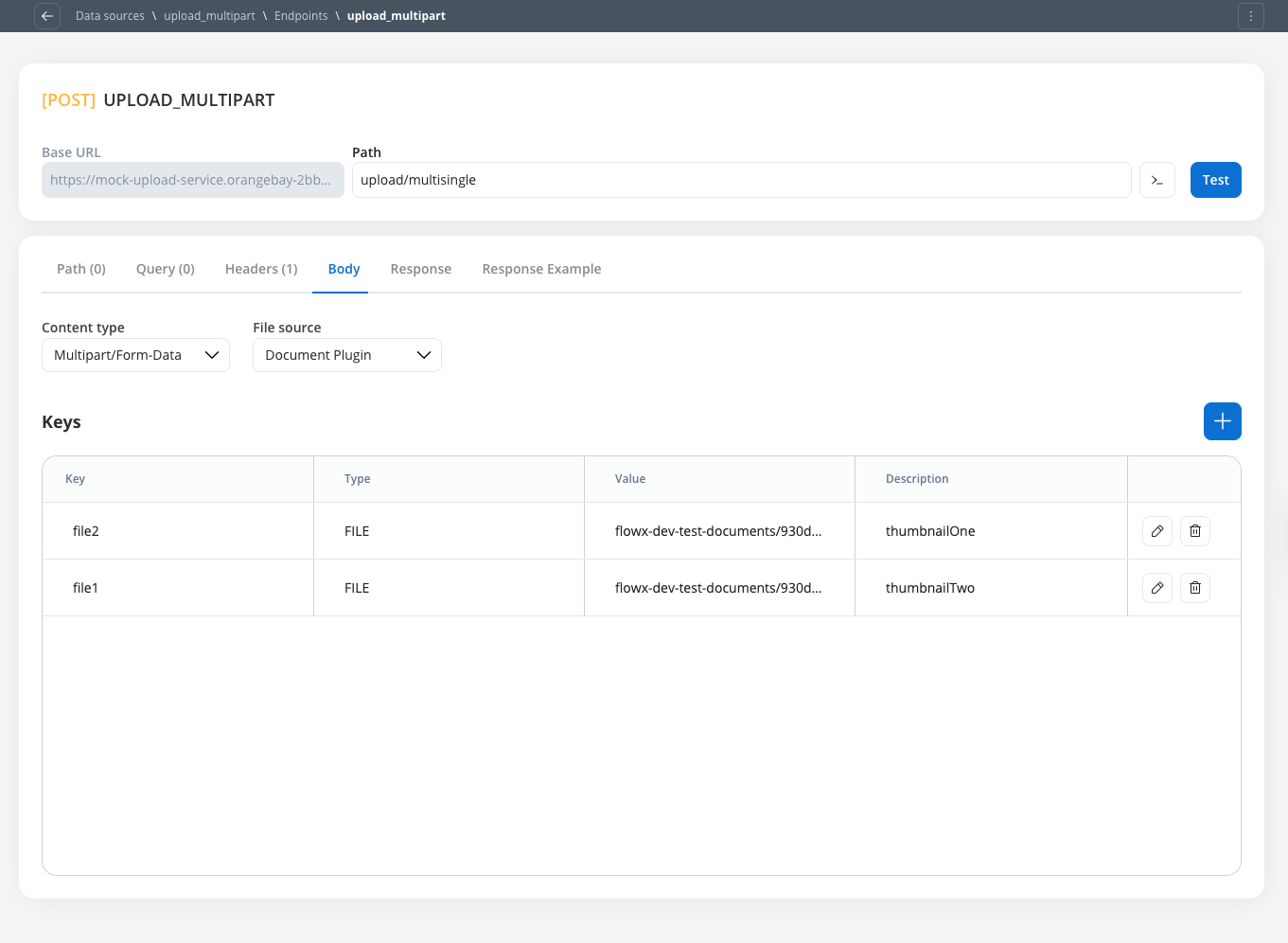
Text. The difference between content types is primarily in how data is packaged for transmission to the target server.Content Type: Single binary
Use this to send the raw file as the entire request body. This method sends only the file content without any additional form data or metadata.Document Plugin or S3 ProtocolContent Type: JSON
Use this option for standard JSON payloads. To send a file as the whole request body or as a form part, useSingle Binary or Multipart/Form-Data.
Multipart/Form-Data or Single Binary.@@base64File(<path>), where <path> is the file’s path in the Document Plugin. When the node runs, the marker is replaced with the file content encoded as base64:
- The path can come from a workflow variable, such as
${filePath}from an earlier node. Variables are resolved before the marker is read. - Only string values are replaced. A marker used as a JSON key is left as it is.
- The file content is added only to the request that is sent. The saved request body and the generated curl command keep the marker.
- Downloading the file from the Document Plugin is cancelled after 5 minutes by default. On self-hosted deployments, change the limit with
FLOWX_DOCUMENTPLUGIN_DOWNLOADTIMEOUT(see the Integration Designer setup guide).
Runtime behavior & testing
Workflow node configuration
All configured file settings (for example,File Path, Folder, Process Instance ID) are exposed as parameters on the corresponding workflow nodes, allowing them to be set dynamically using process variables at runtime.
Response payload & logging
filePath to the stored file, not the raw Base64 string or binary content.filePath, not the raw file content.Error handling
If a node is configured to receive aSingle Binary file but the external system returns a JSON error (for example, file not found), the JSON error will be correctly passed through to the workflow for handling.
If Save Files is on with the JSON content type (Base64 files) and the external system returns a success status (2xx) with a response that isn’t JSON or XML, the node fails with Unsupported content type "text/html". Make sure system is configured correctly. (the message names the content type actually received). The external system’s response causes this error, not the endpoint configuration.
Error status (non-2xx), starting with FlowX.AI 5.9.6: the node keeps the response body as text, with its status code, for both JSON (Base64 files) and Single Binary. Nothing is saved as a file, and the error response isn’t stored in the endpoint response cache. The status code then drives the node: with Allow Retry on, a 408, 429, 500, 502, 503, or 504 is retried, and once retries are done the node completes with the error status, so a failure path on the node can handle it. For example, an HTML 504 Gateway Timeout page from a gateway or proxy is now retried instead of failing the workflow.
Error status on 5.9.5 and earlier: with JSON (Base64 files), an HTML error page fails the node, for example Content type 'text/html' not supported for bodyType=com.fasterxml.jackson.databind.JsonNode. Changing the request Accept header doesn’t help, because the upstream gateway decides the response format. To avoid the gateway’s error page, set the node’s Timeout on its Settings tab (default 10000 ms) lower than the gateway’s timeout. The node then stops waiting before the gateway responds and returns a 408 status, which is retried when Allow Retry is on. Switching the response to Single Binary doesn’t avoid the problem on these versions: Single Binary doesn’t check the status code, so an HTML error page is saved as a file.
Testing guidelines
Body and Headers sections for better clarity.Example: sending files to an external system after uploading a file to the Document Plugin
Upload a file to the Document Plugin
- Configure a User Task node where you will upload the file to the Document Plugin.
- Configure an Upload File Action node to upload the file to the Document Plugin.
- Configure a Save Data Action node to save the file to the Document Plugin.
Configure the Integration Designer
- Configure a REST API Call node to send the file to an external system.
Workflows
A workflow defines a series of tasks and processes to automate system integrations. Within the Integration Designer, workflows can be configured using different components to ensure efficient data exchange and process orchestration.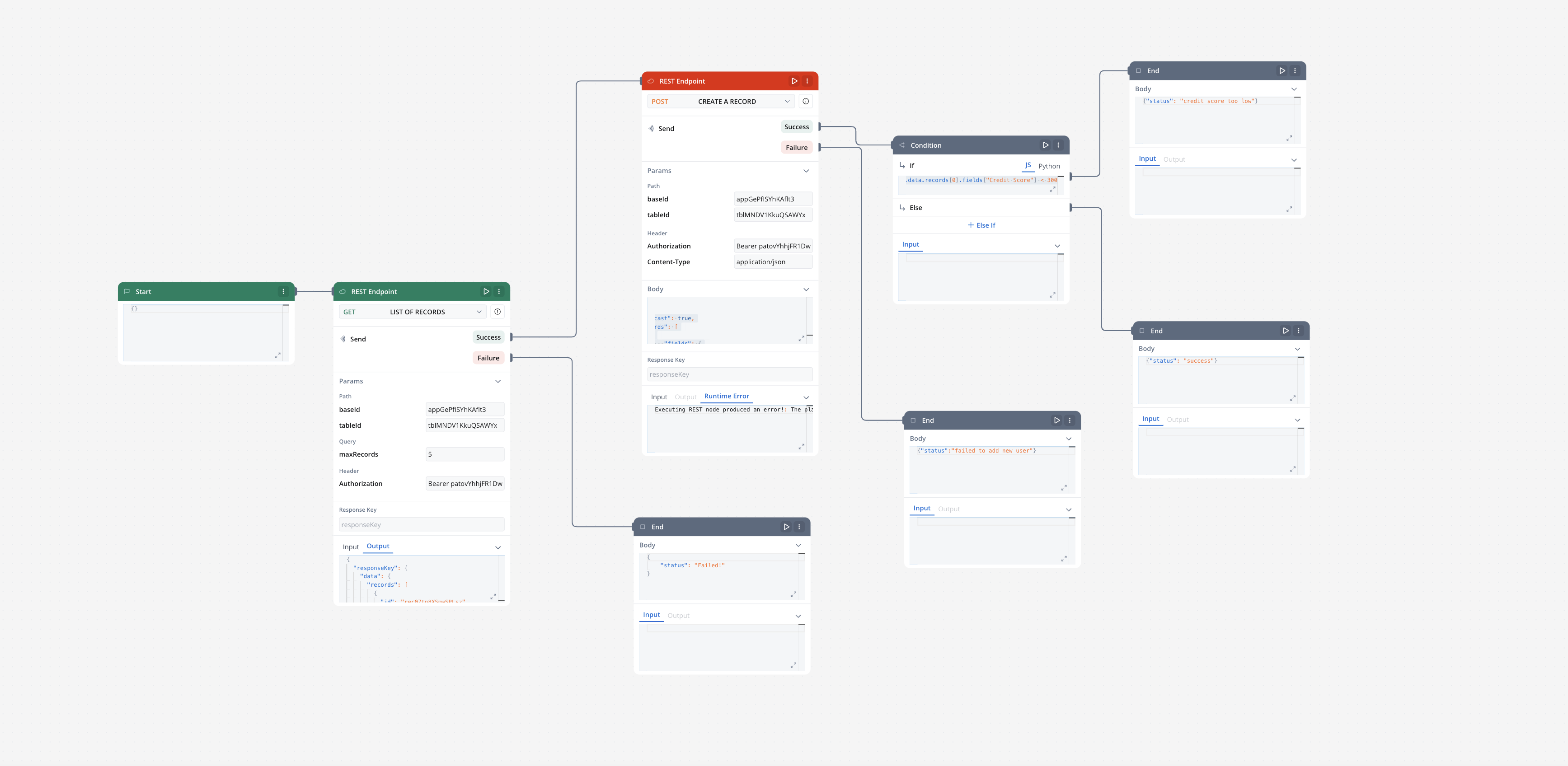
Workflow, process, or UI Flow: which one do I use?
Use a workflow to call external systems and transform data, a process to run a multi-step business journey that keeps state, and a UI Flow to show screens that don’t need a process behind them. A workflow is not a BPMN process: it is a separate resource built here, in the Integration Designer. The three are often combined, for example a process or a UI Flow starts a workflow to fetch data and uses the result.Creating a workflow
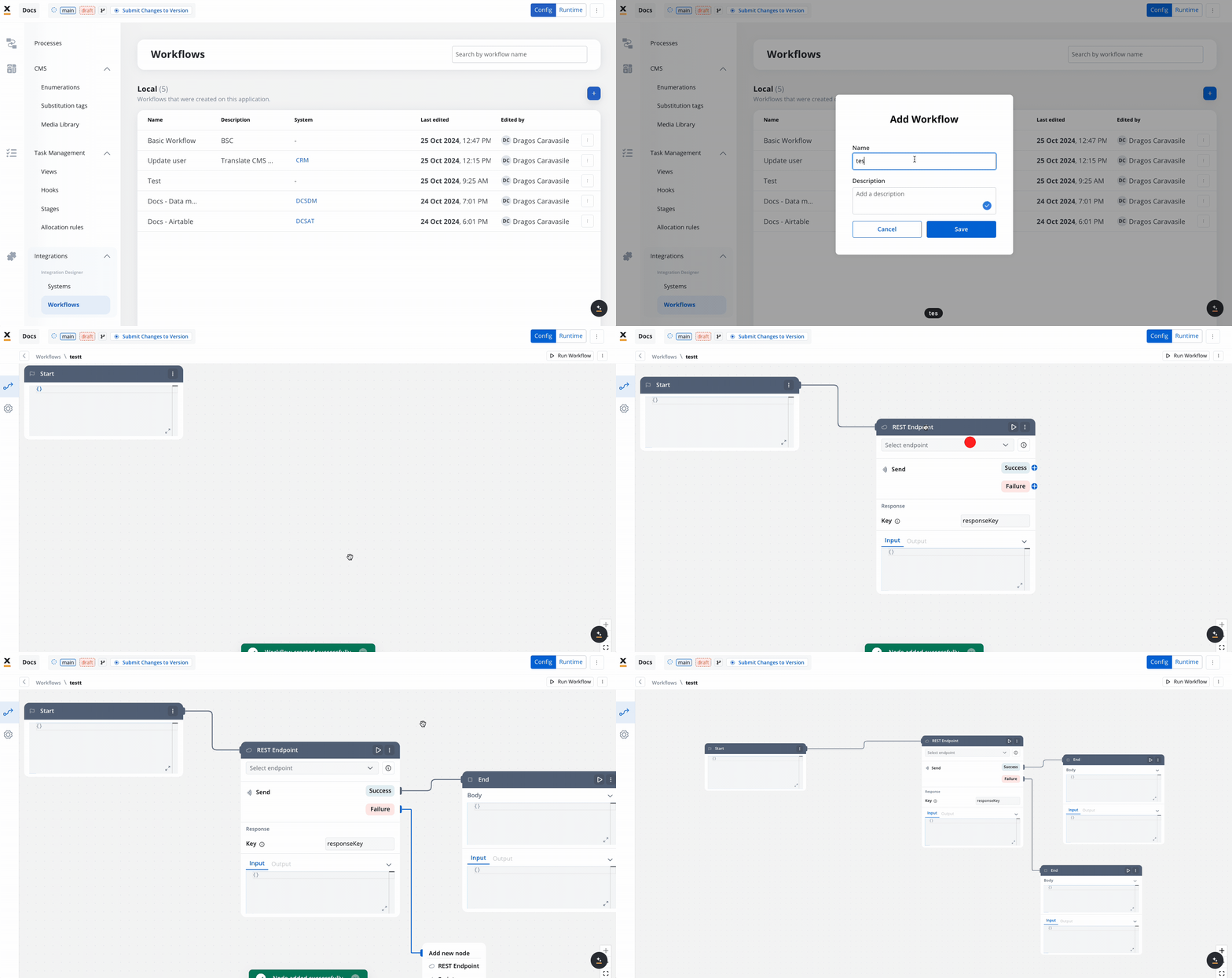
- Navigate to Workflow Designer:
- In FlowX.AI Designer to Projects -> Your application -> Integrations -> Workflows.
- Create a New Workflow, provide a name and description, and save it.
- Start to design your workflow by adding nodes to represent the steps of your workflow:
- Start Node: Defines where the workflow begins and also defines the input parameter for subsequent nodes.
- REST API Call nodes: Add REST API calls for fetching or sending data.
- FlowX Database nodes: Read and write data to FlowX Database collections.
- Custom Agent nodes: Enable AI agents to use MCP tools for intelligent task automation.
- Intent Classification Agent nodes: Classify user messages using AI and route the workflow to the matching intent branch.
- Context Retrieval nodes: Perform RAG searches against Knowledge Bases to retrieve relevant chunks without calling an LLM.
- Start Parallel and End Parallel nodes: Run several branches of the workflow at the same time and merge their results when all branches finish.
- Fork nodes (conditions): Add conditional logic for decision-making.
- Data mapping nodes (scripts): Write custom scripts in JavaScript or Python.
- Subworkflow nodes: Invoke other workflows as reusable components.
- Navigate in UI Flow nodes: Navigate users to specific UI Flow screens from chat-driven workflows, passing dynamic parameters.
- Web Page Extractor nodes: Crawl web pages, follow links up to a configurable depth, and extract content for use in workflows or Knowledge Bases.
- End Nodes: Capture output data as the completed workflow result, ensuring the process concludes with all required information.
- Update Knowledge Base: Update the Knowledge Base with the results of the workflow.
How do I auto-arrange the workflow canvas?
Click Auto-arrange in the bottom-right corner of the canvas, above the zoom controls, to lay out every node of the workflow from left to right, starting from the Start node. Nothing is saved until you apply the new layout.Open the layout preview
Compare the layouts
Apply or cancel
- Auto-arrange always arranges the whole workflow, not a selection.
- There is no undo after you apply a layout, so compare the two layouts first.
- If the workflow changes after the preview is built, Apply becomes Refresh preview.
- The button is unavailable when the workflow is read-only, for example when you don’t have edit rights or while a running instance is shown on the canvas.
Workflow nodes overview
Workflow data models
Workflow Data Models bring structured data management to Integration Designer workflows, enabling you to define input and output parameters at the workflow level, similar to Process Data Models.Key benefits
Automatic Input Management
Consistent Data Lineage
Type Safety
Better Integration
Quick start
Define Data Model
Configure Input Parameters
Automatic Pre-fill
Map to Processes
Complete Workflow Data Models Guide
Referencing workflow data in node configurations
Node configuration fields (file paths, messages, request payloads) reference workflow data with${...} expressions:
${firstFile.filePath}.
This applies to every array, including the uploadedFiles array that chat file uploads deliver to a chat-driven workflow.
Start node
The Start node is the mandatory first node in any workflow. It defines the input data model and passes this data to subsequent nodes.External triggers
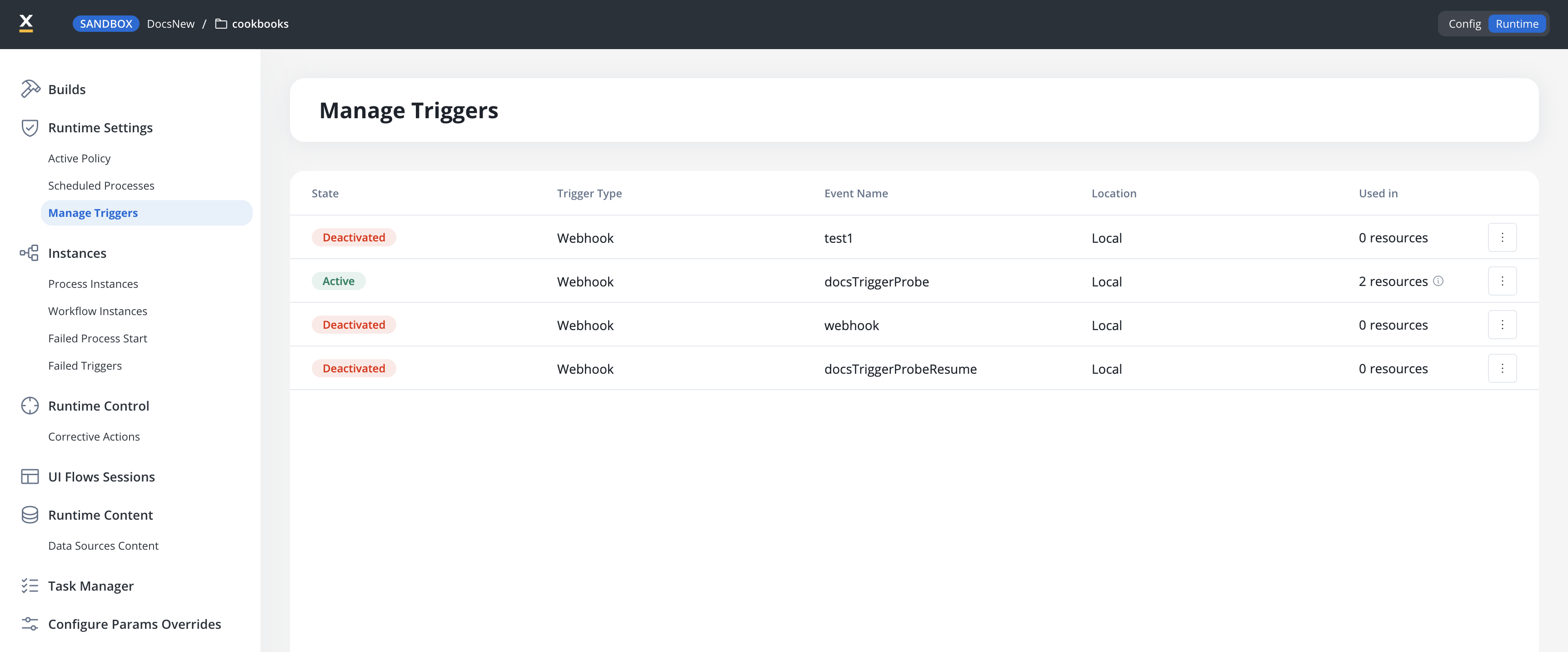
A workflow normally runs when something calls it: a process, a parent workflow, or the run button. Turn on an external trigger and it starts on its own, when a webhook is called or an email arrives. Open the Start node, expand External Triggers, switch Enable trigger on, then choose Webhook or Email and pick the data source that receives the event.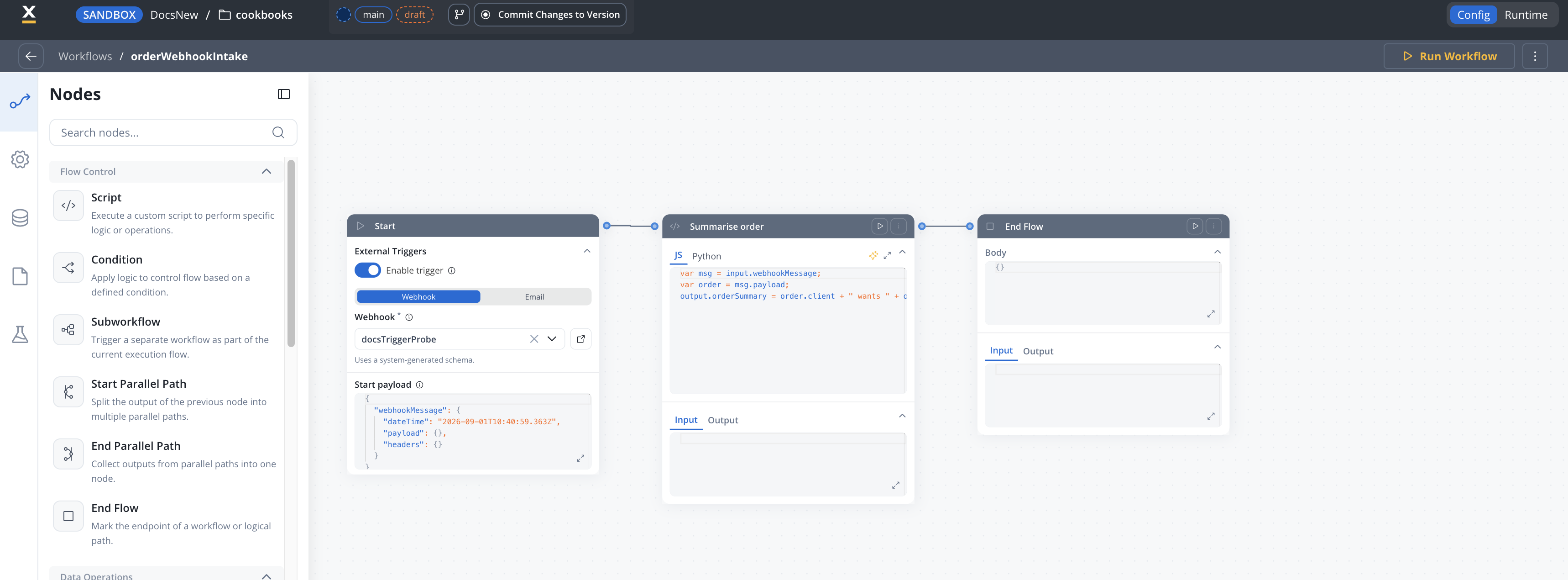
payload holds the request body as sent, nested structure intact. headers holds each header as a list of strings, so a single-valued header still arrives as a one-element list.
A script node can then read it directly:
Incoming webhooks
Email trigger
How do I run a workflow on a schedule?
Add a schedule to the workflow’s Start node, then activate it in Runtime → Runtime Settings → Schedules. From then on the workflow starts by itself at each fire time, with no process or caller involved. Schedules are available on Output Focused workflows. A workflow can have up to 50 schedules, and each one needs a name that is unique on that workflow.Add a schedule
Set when it fires
- Date fires once, at the Fire at date and time, entered in your local time.
- Cycle fires repeatedly. Pick a Format, ISO or Cron, then build the expression with Guided fields or type it under Expression.
Activate the schedule
REST API Call node
Enables communication with external systems via REST API calls. Supports GET, POST, PUT, PATCH, and DELETE methods. Endpoints are selected from a dropdown, grouped by system.- Params: Configure path, query, and header parameters.
- Input/Output: Input is auto-populated from the previous node; output displays the API response.
When does a REST API Call node take its failure exit?
A REST API Call node has a success exit and a failure exit. It takes the success exit only for a2xx response without errors. Everything else takes the failure exit:
- a non-
2xxresponse; - a timeout, stored as status
408withdata.timeout: true(set the limit with Timeout on the node’s Settings tab, default10000ms); - a connection error;
- a response body declared as JSON or XML that can’t be parsed.
408, 429, 500, 502, 503, or 504 is retried first, and the node takes the failure exit only once the retries are used up.
On both exits the node writes its result under its response key: data (the parsed body), metadata (statusCode and headers), hasError and errorMessage. hasError only flags connection and parsing errors: a 4xx or 5xx with a readable body has hasError: false even though the node took the failure exit, and on a timeout it isn’t set. To branch on the outcome, use the exits or metadata.statusCode, not hasError.
Errors while building the request, such as a failed input mapping or a missing endpoint, don’t use the failure exit. They fail the workflow instance.
FlowX database node
Allows you to read and write data to the FlowX Database within your workflow.FlowX Database Documentation
Tabular Data Extraction node
Reads a CSV or spreadsheet file and returns its rows as structured JSON, so extracted data can drive conditions, script logic, and data operations downstream. Available under Tools in the workflow node palette. Configuration:- Use Test File — toggles where the file comes from. OFF: provide File Path, the download path of a file available at run time (for example, produced by a previous node or a file upload); supports
${}expressions. ON: select an uploaded test file — useful while building and testing the workflow - Sheet (Excel only) — the sheet name to extract from; leave empty to use the first sheet
- Response Key — where the node writes its output; the extracted rows are stored under
<responseKey>.data
id, name, and role and response key rows:
error object is returned on the same key. An empty file returns an empty data array.
Data Parse: XML and JSON support
The node appears in the Tools palette as Data Parse, described as “Parse CSV, spreadsheet, XML or JSON files into structured JSON.” Workflows that already use the node keep working: the node type and its configuration fields are unchanged.- Accepted files: CSV, XLS, XLSX, and XLSM spreadsheets, plus XML and JSON files. Test file uploads are still capped at 15 MB. Uploaded XML and JSON test files are listed with the Structured Data type.
- Sheet: applies to Excel files only (
.xls,.xlsx,.xlsm) and is ignored for CSV, XML, and JSON. - Output: always under
<responseKey>.data. Spreadsheets return rows as described above. XML and JSON files return an object tree. - Size and depth limits: XML and JSON files are parsed up to 5 MB. XML nested deeper than 64 levels is rejected.
- The root element is unwrapped:
dataholds its content, not an object keyed by the root name. - An element with only text becomes a string. An empty element becomes an empty string.
- Attributes become keys. When an element has both attributes and text, the text is stored under
value. - Sibling elements with the same name become an array. A single occurrence stays an object, so plan for both shapes when the count can vary.
- Namespaces are dropped and only local names are kept. All values are strings.
- Document type definitions (DTDs) and external entities are not processed.
customers:
.xml or .json) on the stored file. Malformed XML or JSON, a file over the size limit, or XML nested too deeply makes the node run fail with an error message.
Generate Tabular File node
Turns workflow data into a CSV or XLSX file and stores it as a document linked to the current workflow run, so a workflow can produce an export without a Script node. Available under Tools in the workflow node palette. Configuration:- File name: the name of the generated file, up to 255 characters; supports
${}expressions (for example,${reportDate}). The extension is added from Format, so a typed.csv,.xlsx, or.xlsextension is replaced. The characters\ / : * ? " < > |are replaced with_. - Document Tag (optional): the tag stored on the generated document; supports
${}expressions. When left empty, the file name without its extension is used. - Format:
CSV(default) orXLSX. - Row format: the shape of each row in Data.
- Arrays (default): each row is a list of values, such as
["FP-1001", "Closed"]. The first row is the header row, and each following row is written in the same column order. - Objects: each row is an object, such as
{"invoice": "FP-1001", "status": "Closed"}. The keys become the column headers, in the order they first appear. A missing key leaves the cell empty.
- Arrays (default): each row is a list of values, such as
- Data: a single workflow variable that holds the rows, such as
${data}or${dbResult.sheets}. The variable must resolve to an array; inline JSON is not accepted. - Response Key: where the node writes the generated file’s metadata.
${employees} variable set to:
CSV, File name set to team-export, and response key export, the node writes a CSV file with the columns id, name, and role, and returns:
rowCount counts data rows only, never the header row, and fileSize is in bytes. The generated file also appears in the Document tab of the run’s console log.
How values are written:
- CSV files are UTF-8 encoded with a byte order mark, so spreadsheet apps read non-ASCII characters correctly. XLSX files have a single sheet named
Sheet1, and numbers and booleans keep their type. - Text that starts with
=,+,-,@, a tab, or a carriage return is written as text, never as a formula. - In Arrays mode, a row shorter than the header row is padded with empty cells, and extra values become extra columns with an empty header.
- Rows with no values are left out. An empty array still produces a file, with
rowCountset to0.
Template Filling node
Generates a document from a document template populated with workflow data. Available under Tools in the workflow node palette. Configuration:- Template — select a document template defined in your project’s Document templates; Open template jumps to the template definition
- Language — enabled once a template is selected, and defaults to the template’s first available language
- Template Variables — click Configure Variables to fill the template’s data-model variables with values from the workflow; changing the template resets the language and variables
- Input Mapping — new nodes map workflow data onto the template’s input parameters in the data mapper (Configure mapping on the Template Input card) instead of Template Variables. Nodes created before FlowX.AI 5.13 show an Enable data mapping toggle: on uses the data mapper, off keeps Template Variables
- Folder — optional folder for the generated file; supports
${}expressions (e.g.,${client.id}) - Document Tag — the tag under which the generated document is stored (e.g.,
ContractTemplate) - Document format — PDF (default) or DOCX
error object is returned on the same key.
To map a Script node’s output into the template, fix a node that shows no mapping options, or build the download URL from downloadPath, see Fill a document template from a workflow and download it.
Managing document templates
Send Notification node
Sends a notification built from one of your project’s notification templates, directly from a workflow. Available under Tools in the workflow node palette. Until now this took a round trip through a process: the workflow had no way to reach the Notifications plugin on its own. Configuration:- Template — the notification template to send, from your project’s notification templates; Open notification template jumps to its definition. Language unlocks once a template is picked. Variables fills the template’s data-model variables from workflow data, the same mapping as the Template Filling node.
- Recipients — To (required), Cc and Bcc. Each takes a recipient address, a JSON array of addresses, or a
${}expression resolving to either. - Email options — all optional: Subject override (leave empty to use the template subject), Sender name and Sender email, Attachments (one file path or
${}key per line), and Custom headers, which must be a JSON object or a${}expression that resolves to one.
When does a Send Notification node take its failure exit?
A Send Notification node has a success exit and a failure exit. It takes the success exit only when the Notifications plugin accepts the message with a2xx response. Everything else takes the failure exit:
- A configuration problem caught before sending, such as no template or language, an empty To after
${}expressions resolve, an attachment given as a URL instead of a file path, or custom headers that aren’t valid JSON - The Notifications plugin rejecting the message
- An authorization error (
401or403) - The plugin being unreachable, timing out, or answering with a
5xx
Workflow is missing outgoing sequences. It doesn’t fall through to the success exit.
On both exits the node writes its result under its response key: sent, hasError, errorType, errorMessage, template (name and ID), language, recipients (to, cc, and bcc counts), and metadata.statusCode. errorType is VALIDATION (caught before sending), DELIVERY (rejected by the plugin), AUTH, or TRANSPORT. metadata is absent for VALIDATION and TRANSPORT, because no status code reached the node.
Managing notification templates
Combine Files node
Merges multiple PDF files into a single output file, in the order you specify. Available under Tools in the workflow node palette. Configuration:- Files — add two or more source files, each by path (or a test file). Set the order and choose which pages to include per file: All pages or a custom page range.
- Folder — optional folder for the combined file; supports
${}expressions. - Document Tag — the tag under which the combined file is stored.
Split File node
Splits a single PDF into multiple output files — by page ranges or one file per page. Available under Tools in the workflow node palette. Configuration:- Source file — the PDF to split, by path (or a test file).
- Output files — define each output by its pages using a range grammar such as
1-3,5, or a${}expression that resolves to one at runtime. Each output can set its own Folder and Document Tag.
Context Retrieval node
Retrieves relevant data from Knowledge Bases or conversation memory using semantic and keyword search. Available under Data Operations in the workflow node palette. Configuration:- Source — choose between Knowledge Base or Memory (Memory is available only in chat-driven workflows)
- Knowledge Base — select a Knowledge Base to search (when source is Knowledge Base)
- User Query — the search query, supports process variable expressions (e.g.,
${userMessage}) - Search Type — Hybrid (default), Semantic, or Keywords
- Max Number of Chunks — how many chunks to return (1-10, default: 5)
- Min Relevance Score — minimum relevance threshold (0-100%, default: 70%)
- Metadata Filters — filter chunks by metadata properties using the query builder: typed operators per key type and AND/OR grouping
- Use advance metadata filters — toggle to enable expression-based filtering for complex logic
- Use Re-rank — toggle to re-rank retrieved chunks before returning
Using Knowledge Base in Workflows
Custom Agent node
Enables AI agents to perform intelligent, autonomous tasks using Model Context Protocol (MCP) tools within your workflow. Custom Agent nodes apply ReAct (Reasoning and Acting) to decide which tools to use and execute multi-step operations. Key capabilities:- Access external systems through MCP servers
- Execute complex, multi-step operations autonomously
- Make intelligent decisions based on available tools
- Return structured responses for downstream processing
- Customer support automation with CRM integration
- Data analysis across multiple systems
- Dynamic integration orchestration
- Autonomous problem-solving workflows
Custom Agent Node Documentation
Intent Classification Agent node
Classifies user messages using an LLM and automatically routes the workflow to the matching intent branch — combining AI classification and conditional branching in a single node. Works like a Condition (Fork) node, but uses natural language intent descriptions instead of code expressions. Key capabilities:- Define up to 10 intents as plain-text descriptions
- Automatic “If No Intent Matches” fallback branch
- Optional conversation memory for context-aware classification
- Optional rationale output explaining the classification decision
- Chatbot message routing
- Email triage and classification
- Customer support ticket categorization
Intent Classification Agent Documentation
Context Retrieval node
Performs a RAG (Retrieval-Augmented Generation) search against a Knowledge Base and returns relevant chunks — without calling an LLM. Use this node when you need to retrieve information from a Knowledge Base and pass it to downstream nodes for further processing. Key capabilities:- Query Knowledge Bases using semantic, keyword, or hybrid search
- Configure relevance thresholds and result limits
- Apply property-based filters to narrow results
- Optional re-ranking for improved result quality
- Returns structured chunk data (content, metadata, relevance score, store)
- Feeding context into a downstream Custom Agent or Text Generation node
- Building multi-step RAG pipelines with custom processing between retrieval and generation
- Retrieving relevant documentation chunks for further analysis
Context Retrieval Documentation
AI Nodes
AI nodes enable intelligent processing of text, documents, images, and data directly within your Integration Designer workflows.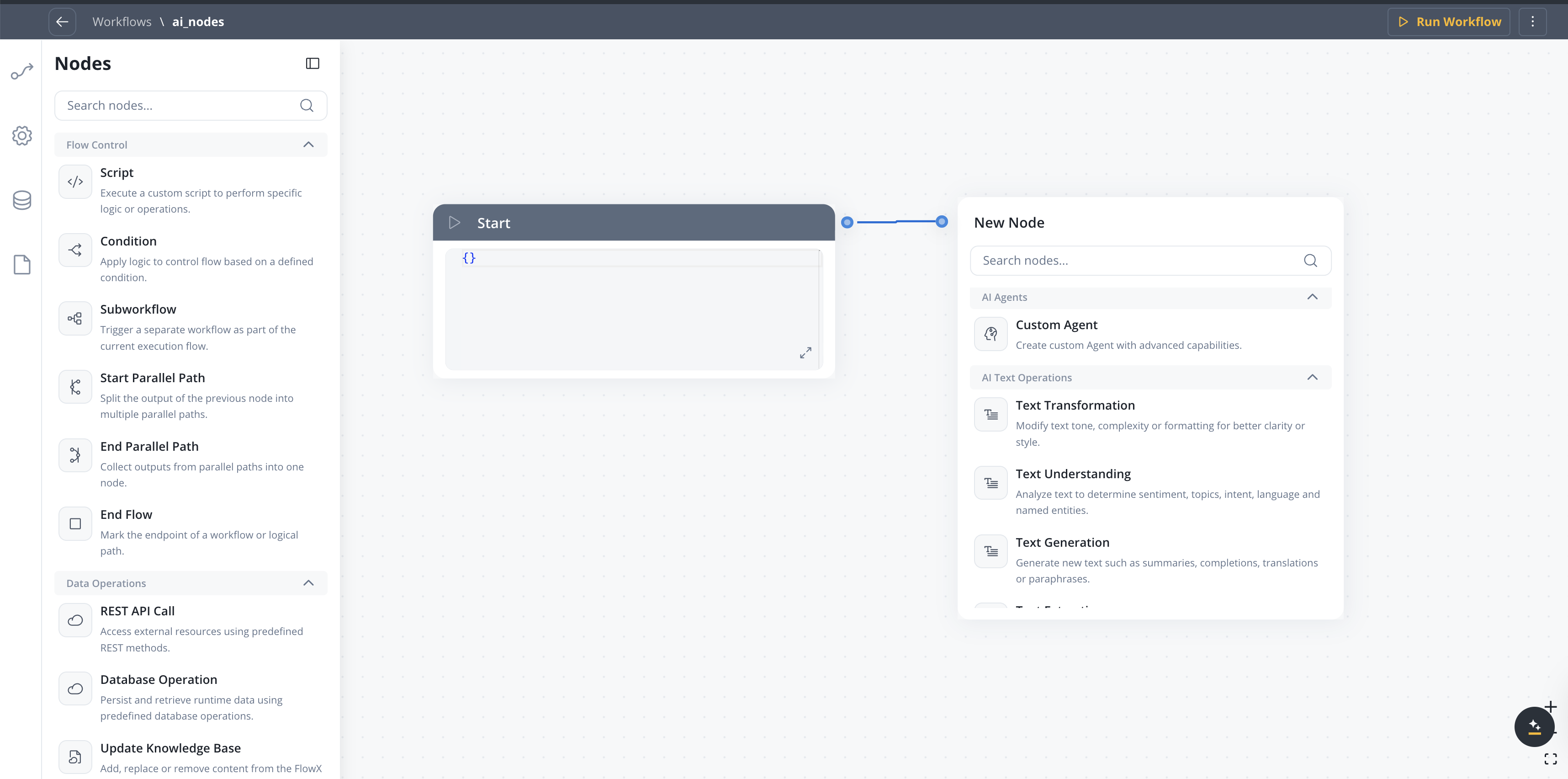
AI Text Operations
AI Document Operations
AI Image Operations
AI Data Operations
AI Node Types
Personal Information Guard
Personal Information Guard detects and redacts PII on AI workflow nodes before the payload reaches the model, and restores it in the response. It is configured per node (sensitivity preset, input/output scan direction, entity types) and runs in the fail-closed data-privacy service. For the full reference — configuration, scan flow, supported entity types, and run-log fields — see Personal Information Guard.Condition (Fork) node
Evaluates logical conditions (JavaScript or Python) to direct workflow execution along different branches.- If/Else: Routes based on condition evaluation.
- One branch per run: The node follows the first branch whose condition passes, or the Else branch. To run branches at the same time, use the Start Parallel and End Parallel nodes.
Available bindings
Condition expressions have access to the following data bindings:Condition examples
- JavaScript
- Python
Calling reusable functions in conditions
Condition expressions can call the reusable functions defined in your project, so branch routing can reuse the same business logic as your processes. Call a function inside a condition using the standard syntax:- JavaScript
- Python
Start Parallel and End Parallel nodes
Run several steps of a workflow at the same time with a pair of nodes: Start Parallel splits the flow into branches that all run at once, and End Parallel waits for every branch, merges what the branches wrote, and continues. In the node palette they sit under Flow Control as Start Parallel Path and End Parallel Path. Dropped on the canvas, they are named Start Parallel and End Parallel. These nodes are the only way to run branches concurrently. A Condition (Fork) node evaluates its conditions and follows one branch.How do I run steps in parallel?
Add a Start Parallel node
Create one sequence per branch
Build each branch
Close every branch on the same End Parallel node
What data does each branch see?
Each branch starts with a deep copy of the workflow data as it was when the Start Parallel node ran. Branches work on independent copies: a branch cannot read what another branch writes while they run.How are the branches merged?
When a branch reaches the End Parallel node, the keys that branch wrote are merged into the parent data with a recursive deep merge, in the order the branches finish:- Keys written by only one branch are kept.
- A key written by two branches ends up with the value from the branch that finished last.
- Nested objects are merged key by key, so only the conflicting leaf values are overwritten.
- Arrays and all other non-object values are replaced whole. There is no element-level merge, so two branches cannot each fill a different element of the same array.
What happens when a branch fails?
- A node that fails inside a branch follows the same rules as anywhere else in the workflow. If its failure exit is connected, the branch continues on that path and must still reach the End Parallel node. If the failure exit is not connected, the workflow instance fails.
- When the instance fails, the other branches stop at the next node they reach. Nothing they already executed is rolled back.
- If the branches of one Start Parallel node end on different End Parallel nodes, or one End Parallel node receives branches from two different Start Parallel nodes, the run fails with
Missing end parallel gatewayand the causeParallel branches merge failed: missing or incompatible end parallel node. - A Start Parallel node with no outgoing sequence fails the run with
Workflow is missing outgoing sequences.
Runtime view
Console logging
Console logging
- Start Parallel node: the Input tab shows the data handed to the branches.
- End Parallel node: the Output tab shows the merged result of all branches.
- Path grouping: the nodes of each branch are grouped by path, so you can follow one branch at a time.
Path timing
Path timing
- Path time: sum of the execution times of the nodes in that branch.
- End Parallel time: the node’s own processing time plus the longest path time.
- Example: if branch A takes 2s and branch B takes 5s, the End Parallel node completes after 5s plus its own processing time.
Use cases
Multiple API calls
Data enrichment
Notification broadcasting
Document processing
Limitations
- Same End Parallel node for all branches: every branch of a Start Parallel node must end on the same End Parallel node, and that node allows one outgoing sequence.
- Last-write-wins merge: write to distinct keys per branch and combine them in a Script node afterwards.
- No element-level array merge: you cannot process the first element of an array in one branch and the second in another.
- No cross-branch reads: branches run on independent data copies and cannot see each other’s writes until the merge.
- Nesting is allowed: a branch can contain its own Start Parallel and End Parallel pair.
Script node
Executes custom JavaScript or Python code to transform, map, or enrich data between nodes. The node’soutput is merged into the workflow data, the same way business rule output is merged into process data: keys the script doesn’t write keep their values, and writing {} to an existing object changes nothing. To clear a key, set it to null. For the full merge rules, see How output is merged into process data.
Calling reusable functions
A Script node can call the reusable functions defined in your project, the same way a process Business Rule action does. Write the call directly in the node’s code using the standard syntax:Testing a script in isolation
A Script node ships with a Test modal that lets you exercise the script against sample input without running the full workflow. Open it with the expand icon at the top-right corner of the code editor, next to the expand/collapse chevron. The modal has three side-by-side panels:Run instance IDs in the Logs tab
The Logs tab of a workflow run displays the node run instance ID alongside the workflow instance ID for each Script node execution. A copy button is rendered next to every instance ID. Use this to grab a node-run identifier and paste it into the Test modal’s input selector to replay the exact past run.Subworkflow node
The Subworkflow node allows you to modularize complex workflows by invoking other workflows as reusable subcomponents. This approach simplifies process design, promotes reuse, and simplifies maintenance.Add a Subworkflow Node
Configure the Subworkflow Node
- Workflow Selection: Pick the workflow to invoke.
- Open: Edit the subworkflow in a new tab.
- Preview: View the workflow canvas in a popup.
- Response Key: Set a key (e.g.,
response_key) for output. - Input: Provide input in JSON format.
- Output: Output is read-only JSON after execution.
Data mapping
By default, a Subworkflow node forwards the whole parent context to the subworkflow and nests the result under the response key. Data mapping lets you instead pass only selected fields into the subworkflow and land its results directly into named parent variables, using visual input and output mappers rather than raw JSON. In the node config panel, expand Data mapping and turn Enable data mapping on.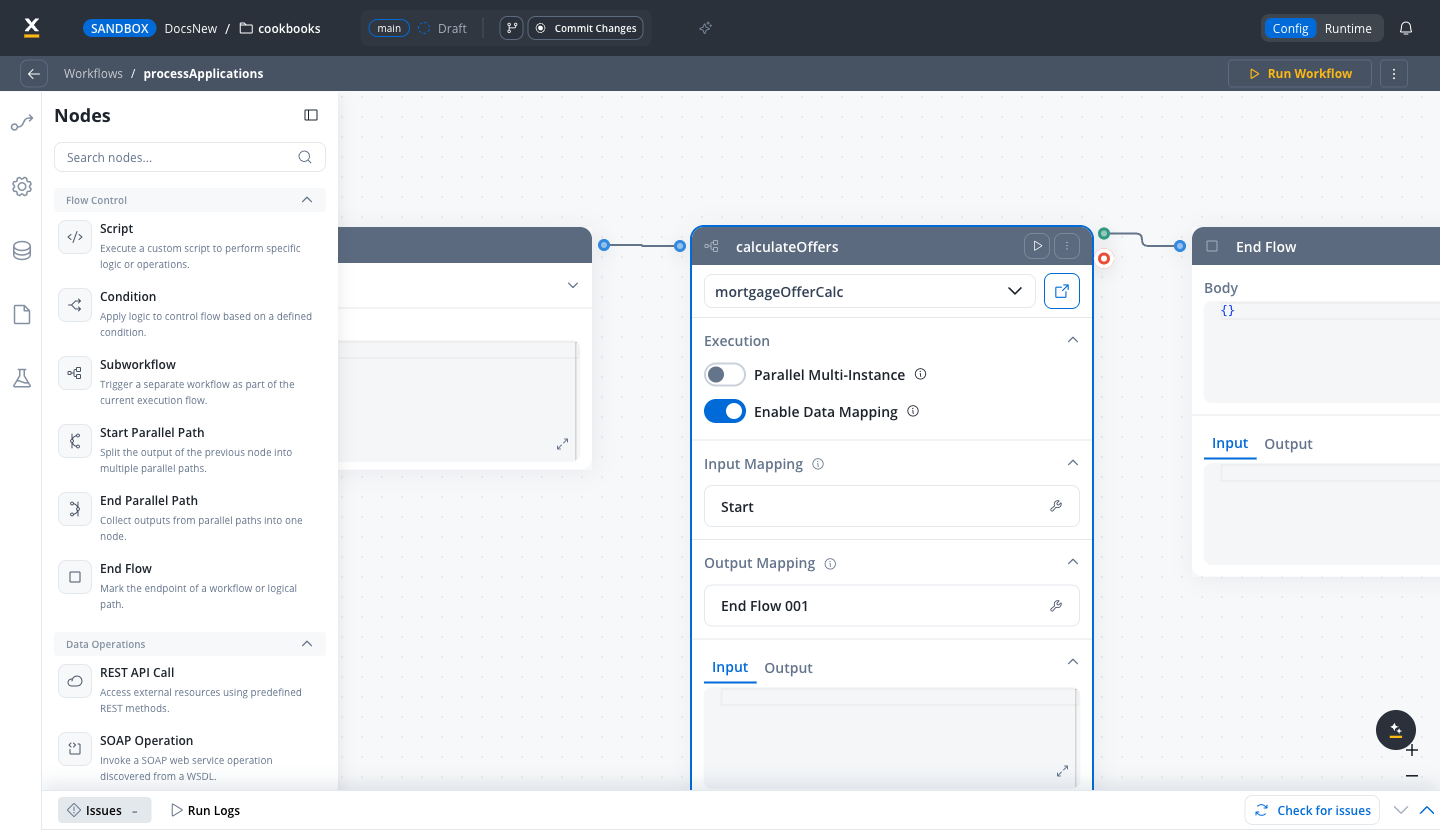
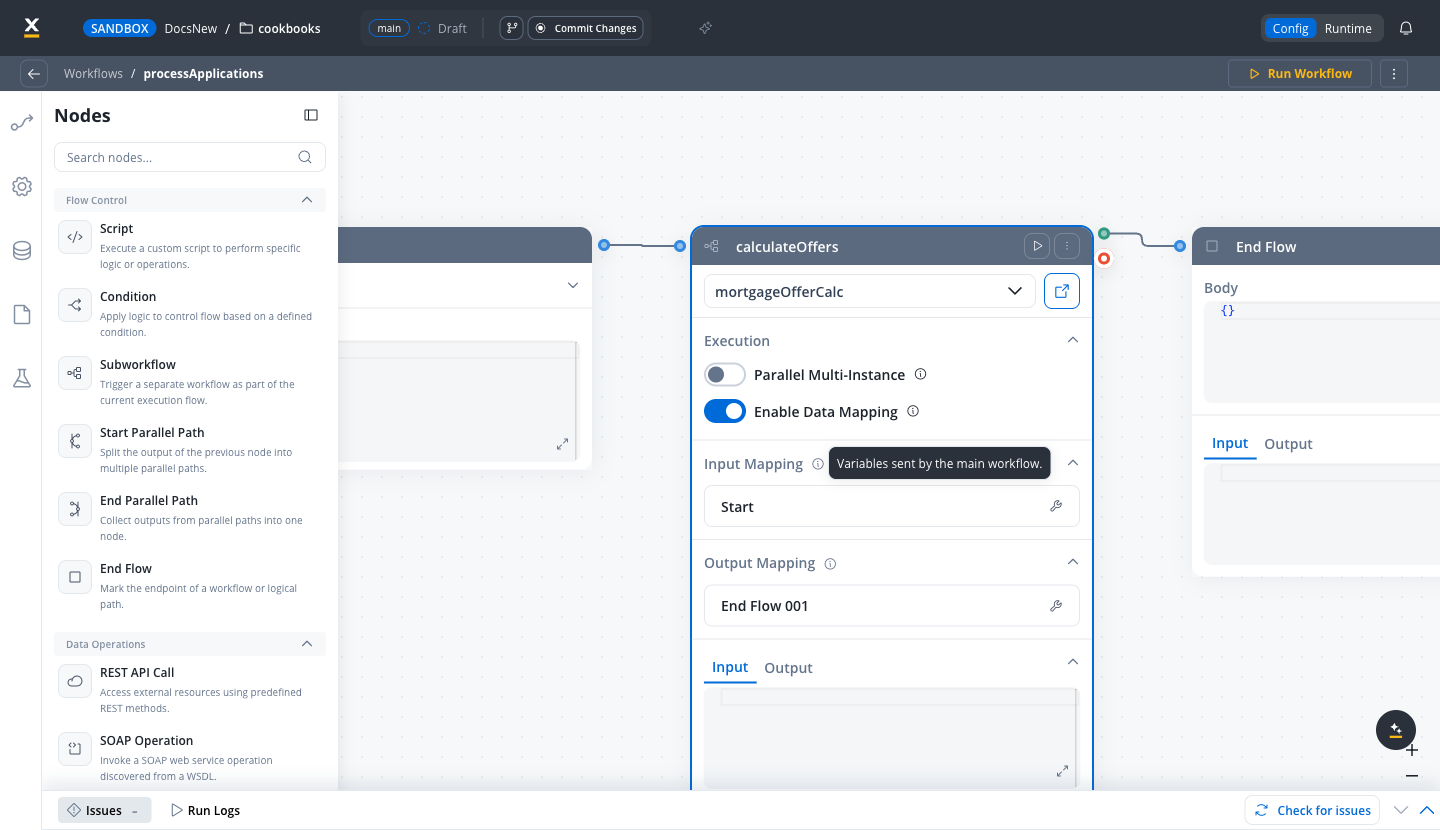
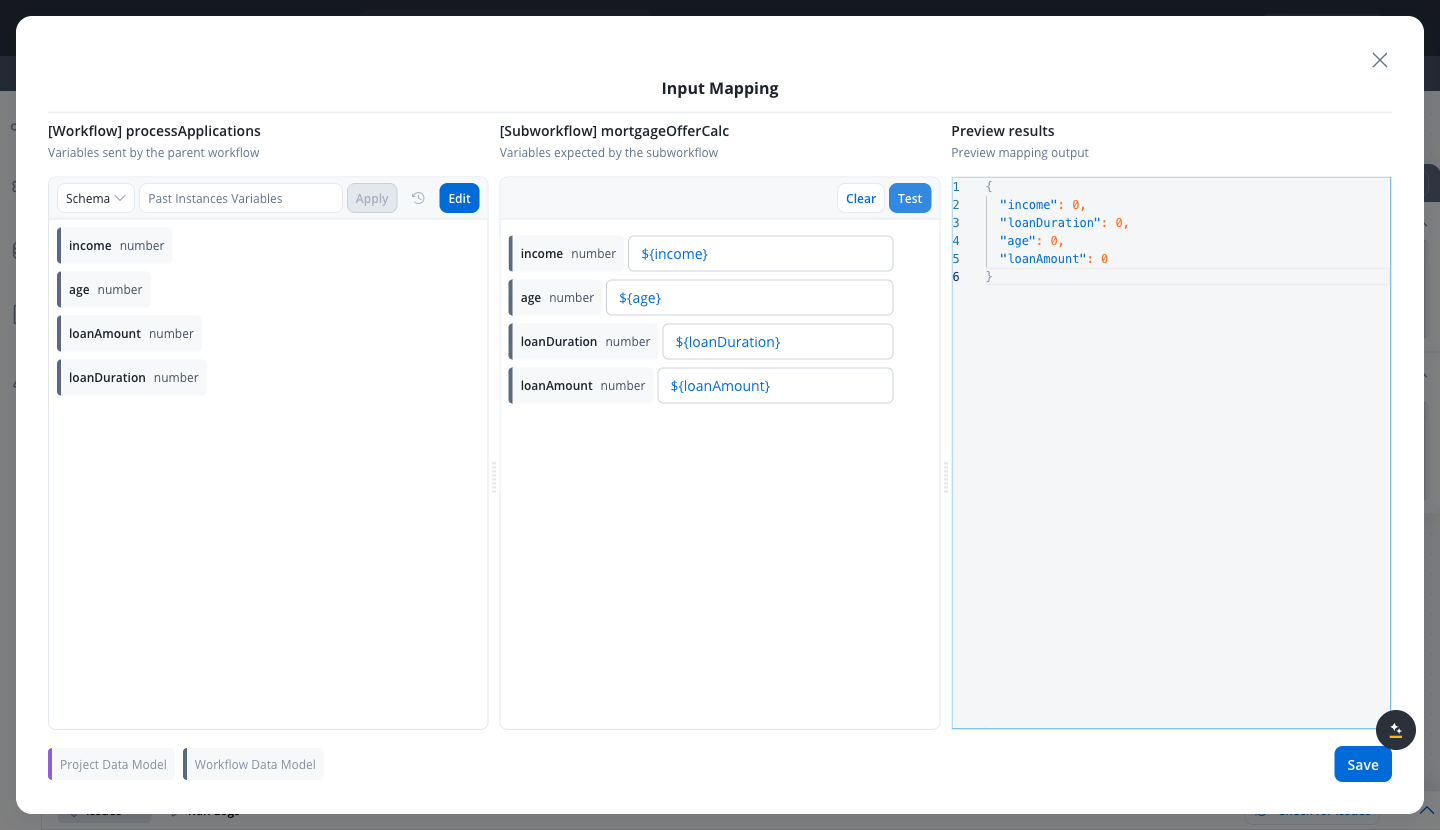
Open the mapper
Map fields between the two data models
Test the mapping
Apply values from a past run (optional)
Save
Parallel multi-instance
A Subworkflow node normally runs the child workflow once. Turn on Parallel Multi-Instance to run it once for every element of an array instead, in parallel, and collect the results back into a second array. This keeps fan-out inside the Integration Designer. Previously, running a workflow once per item meant wrapping it in a process and fanning out with a multi-instance Call Activity. In the node config panel, expand Execution and turn Parallel Multi-Instance on.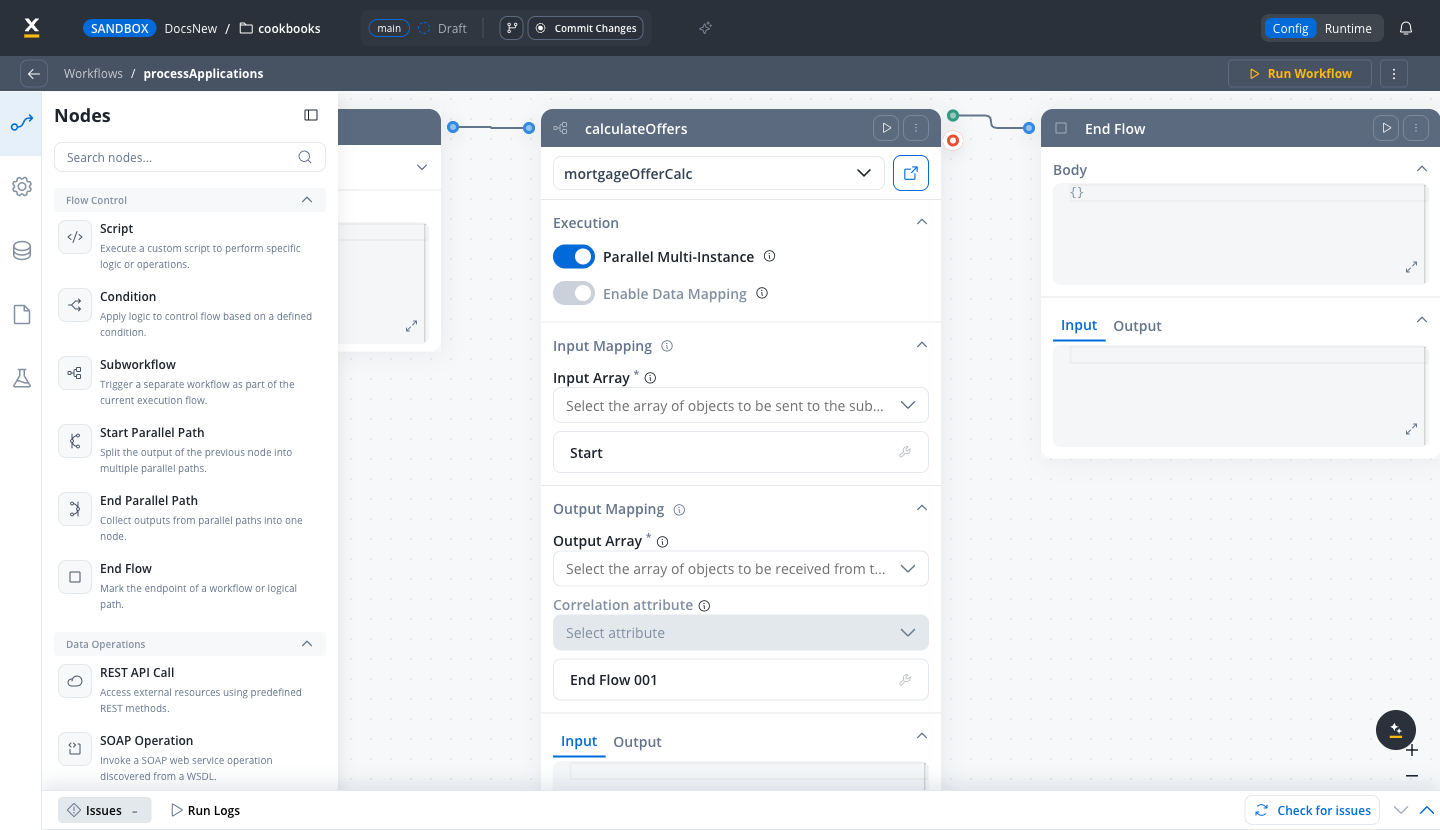
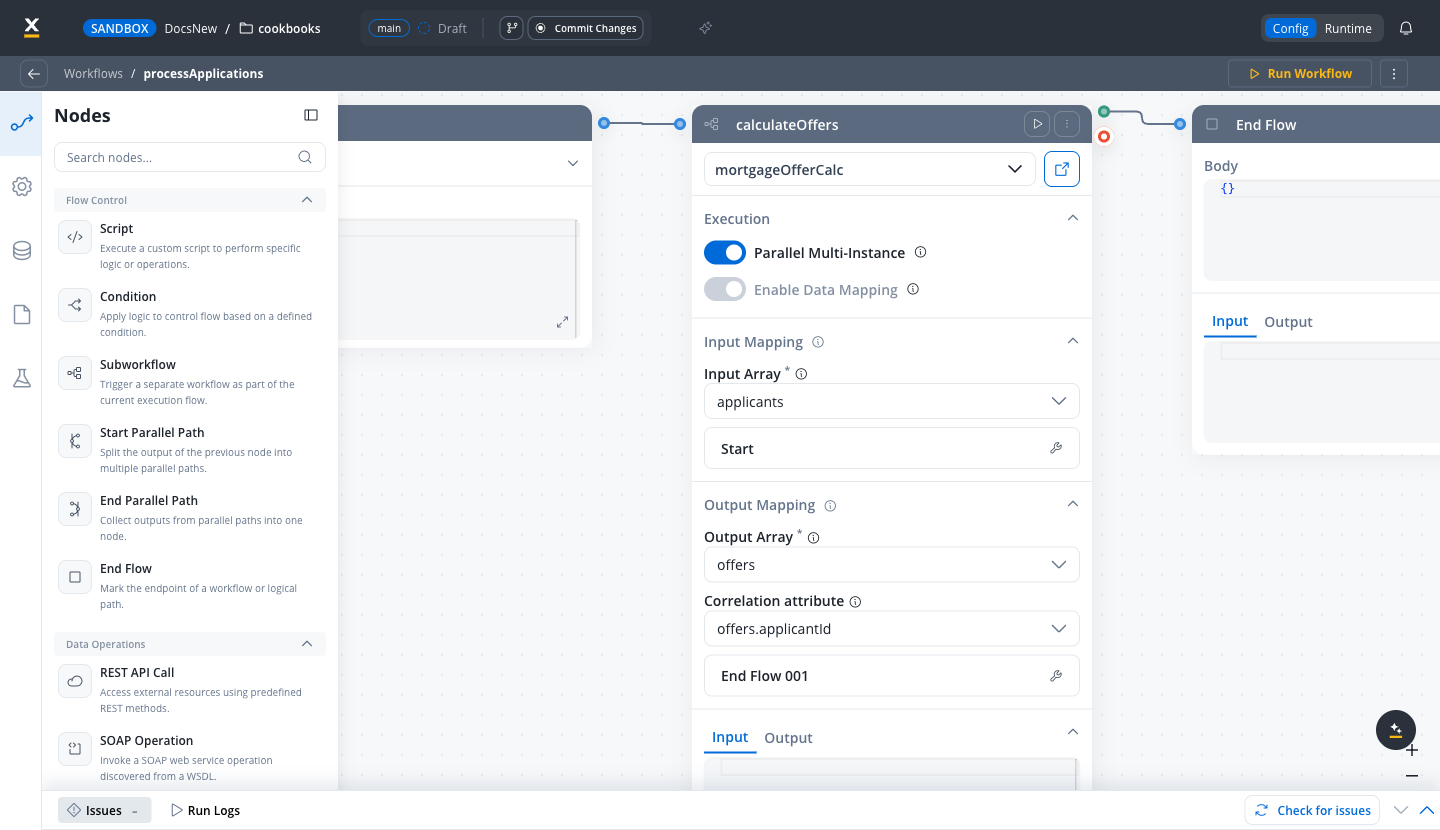
- A result whose correlation value matches an existing element of the output array updates that element.
- A result that matches no element is appended.
- With no correlation attribute set, every result is appended.
Execution logic and error handling
- Parent workflow waits for subworkflow completion before proceeding.
- If the subworkflow fails, the parent workflow halts at this node. Connecting the node’s failure exit routes the failure down its own branch instead. See Routing a subworkflow failure.
- Subworkflow output is available to downstream nodes via the response key.
- Logs include workflow name, instance ID, and node statuses for both parent and subworkflow.
Routing a subworkflow failure
A Subworkflow node has two exits, drawn as a green connector for success and a red one for failure. Connect the red exit to send a failed run down its own branch instead of stopping the parent workflow. This is opt-in per node. A node whose red exit is not connected fails and blocks exactly as it did before, and nothing is changed for existing workflows. Only a mapping failure is routed, because that is the kind of failure a workflow can be built to handle: the same workflow succeeds for records that carry the right fields.subWorkflowError key, separate from its response key:
Console logging, navigation, and read-only mode
- Console shows input/output, workflow name, and instance ID for each subworkflow run.
- Open subworkflow in a new tab for debugging from the console.
- Breadcrumbs enable navigation between parent and subworkflow details.
- In committed/upper environments, subworkflow configuration is read-only and node runs are disabled (preview/open only).
Use case: CRM Data Retrieval with subworkflows
Suppose you need to retrieve CRM details in a subworkflow and use the output for further actions in the parent workflow.Create the Subworkflow
Add a Subworkflow Node in the Parent Workflow
Use Subworkflow Output in Parent Workflow
responseKey.Monitor and Debug
End node
The End node signifies the termination of a workflow’s execution. It collects the final output and completes the workflow process.- Receives input in JSON format from the previous node.
- Output represents the final data model of the workflow.
- Multiple End nodes are allowed for different execution paths.
The mandatory output parameters of the <workflow> workflow are missing at runtime - see the error glossary.Running and stopping workflows
You can run a workflow directly from the editor to test and debug it, and stop it while it is running.- Run Workflow: Click Run Workflow in the workflow editor toolbar to start a new workflow instance. You can provide start data in JSON format before running.
- Stop Run: While a workflow instance is running, the button changes to Stop Run. Click it to cancel the instance. All in-progress and scheduled nodes are marked as cancelled.
Integration with external systems
This example demonstrates how to integrate FlowX with an external system, in this example, using Airtable, to manage and update user credit status data. It walks through the setup of a data source, defining API endpoints, creating workflows, and linking them to BPMN processes in FlowX Designer.- Create your own base and table in Airtable. For more information, see the Airtable base creation guide.
- Review the Airtable Web API documentation to get familiarized with the Airtable API.
Integration in FlowX.AI
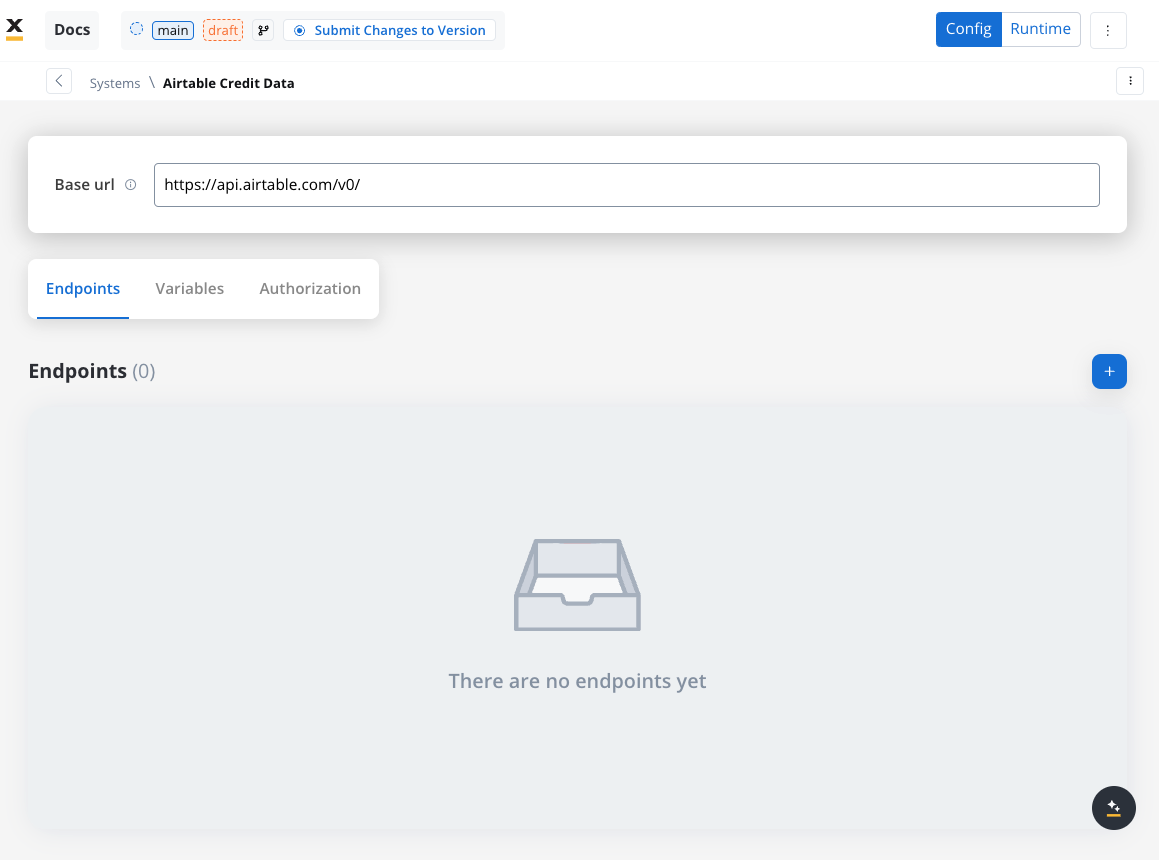
Define a Data Source
- Name: Airtable Credit Data
- Base URL:
https://api.airtable.com/v0/
Define Endpoints
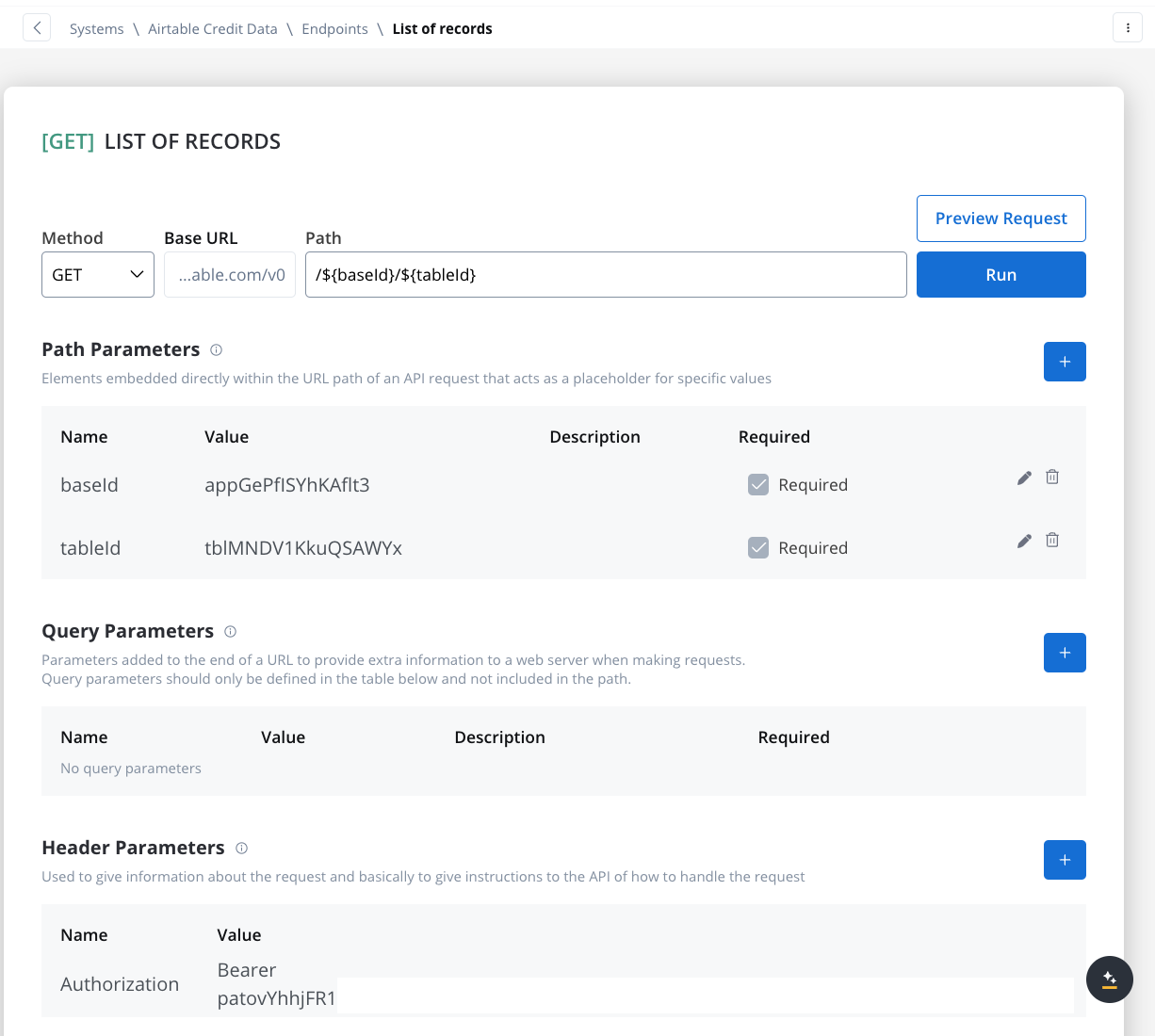
- Get Records Endpoint:
- Method: GET
- Path:
/${baseId}/${tableId} - Path Parameters: Add the values for the baseId and for the tableId so they will be available in the path.
- Header Parameters: Authorization Bearer token
- Create Records Endpoint:
- Method: POST
- Path:
/${baseId}/${tableId} - Path Parameters: Add the values for the baseId and for the tableId so they will be available in the path.
- Header Parameters:
Content-Type: application/json- Authorization Bearer token
- Body: JSON format containing the fields for the new record. Example:
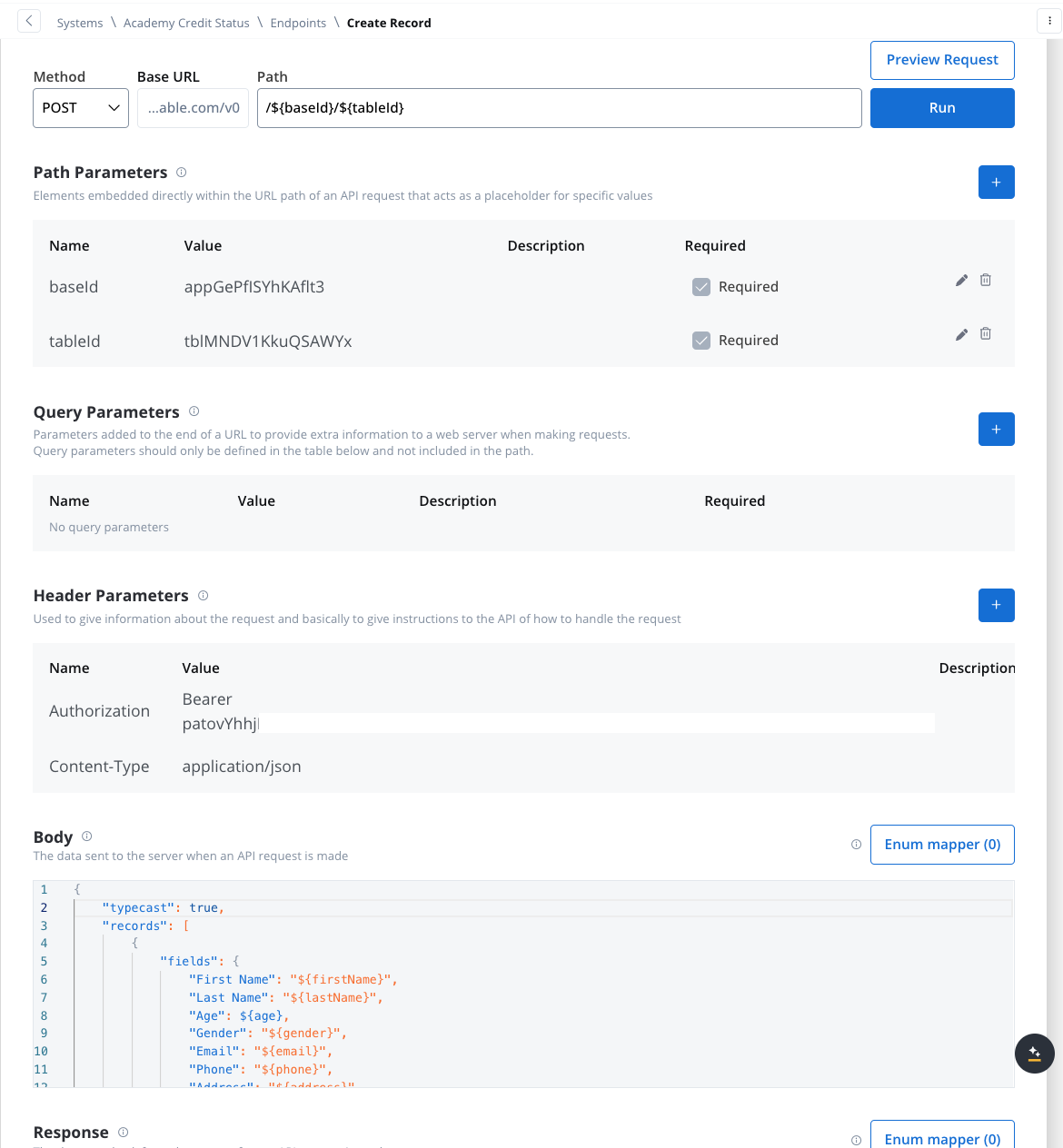
Design the Workflow
-
Open the Workflow Designer and create a new workflow.
- Provide a name and description.
-
Configure Workflow Nodes:
- Start Node: Initialize the workflow.
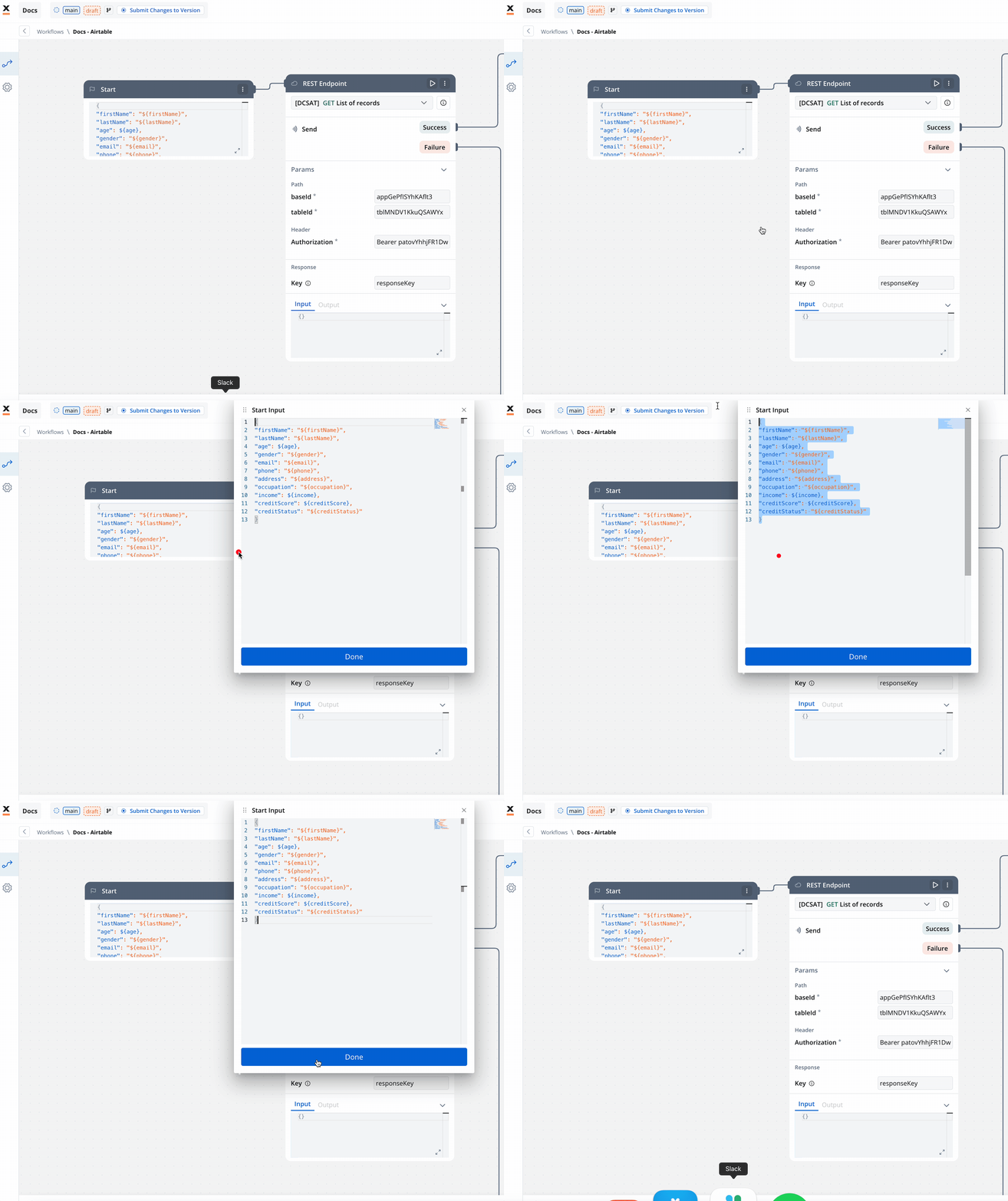
- REST Node: Set up API calls:
- GET Endpoint for fetching records from Airtable.
- POST Endpoint for creating new records.
- Condition Node: Add logic to handle credit scores (e.g., triggering a warning if the credit score is below 300).
- Script Node: Include custom scripts if needed for processing data (not used in this example).
- End Node: Define the end of the workflow with success or failure outcomes.
Link the Workflow to a Process
- Integrate the workflow into a BPMN process:
- Open the process diagram and include a User Task and a Receive Message Task.
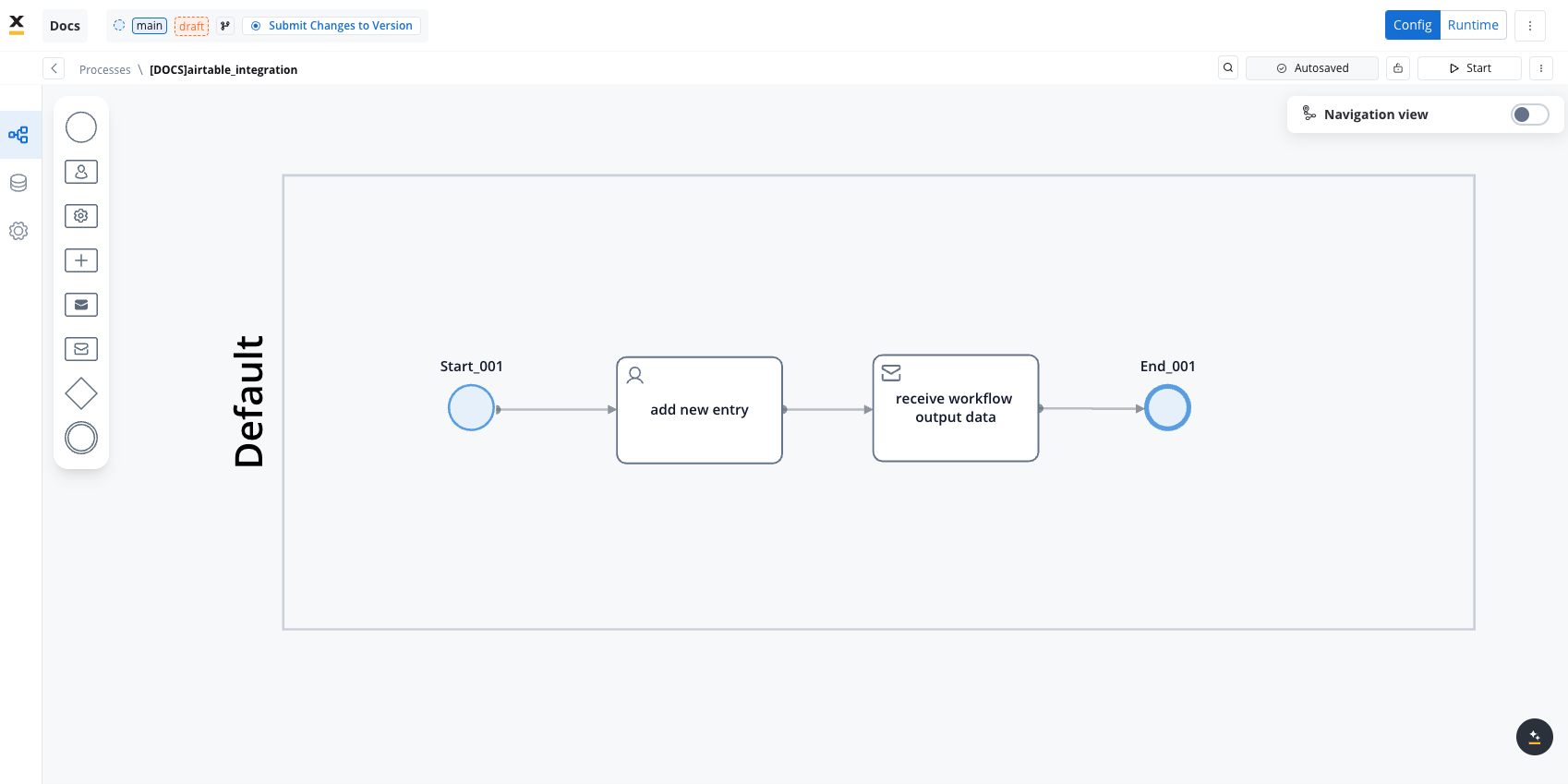
- Map Data in the UI Designer:
- Create the data model
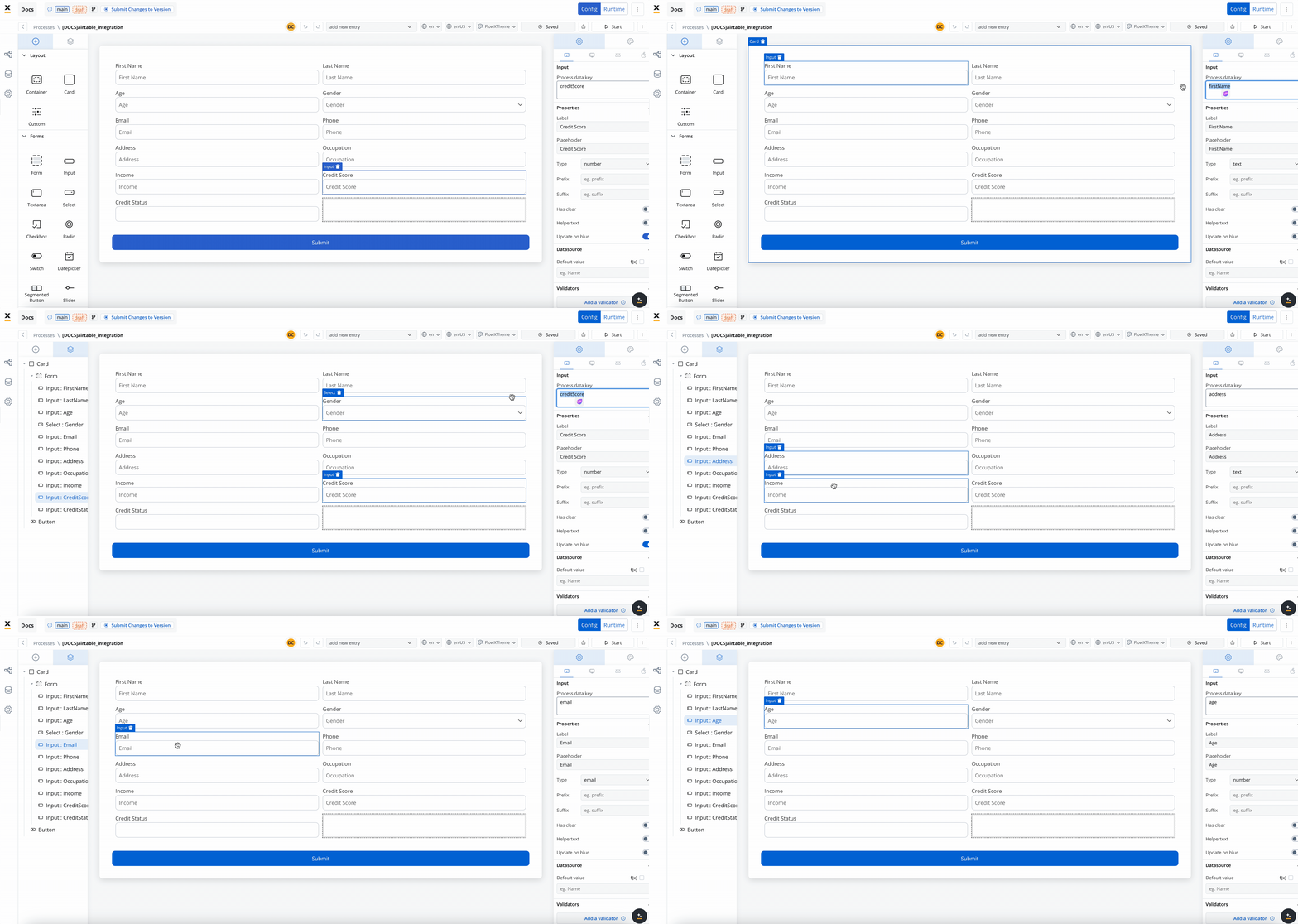
- Link data attributes from the data model to form fields, ensuring the user input aligns with the expected parameters.
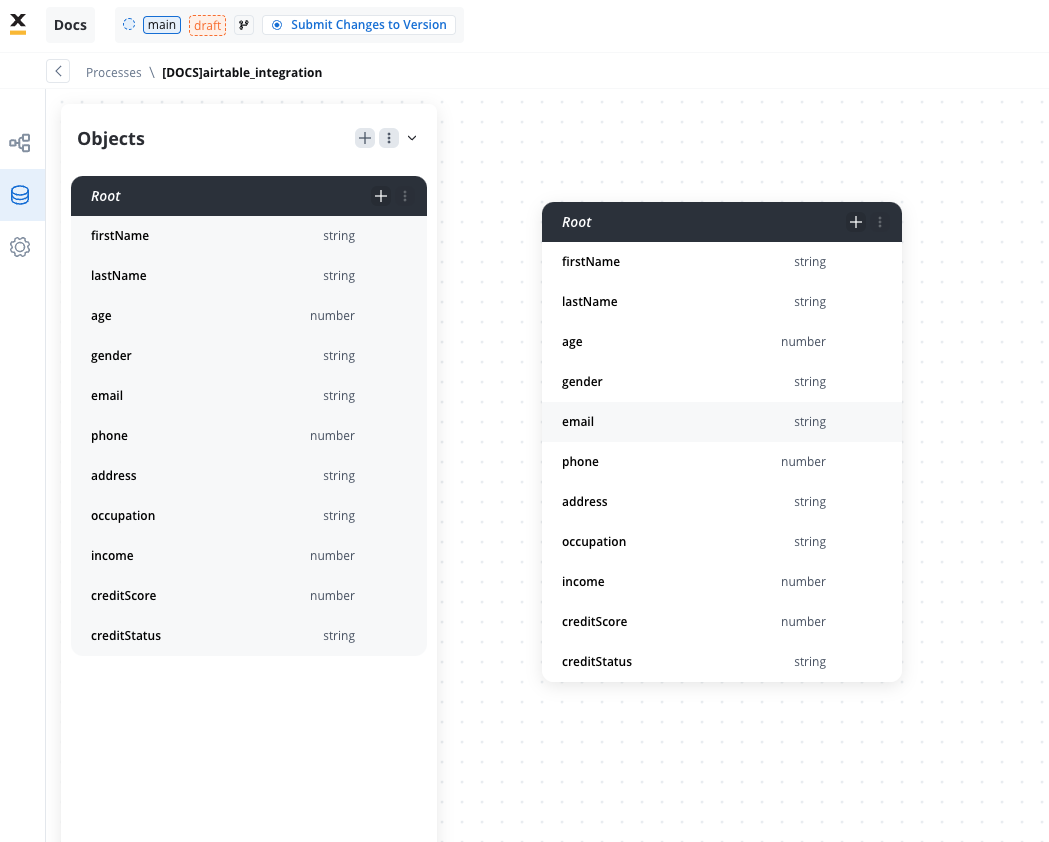
- Add a Start Integration Workflow node action:
- Make sure all the input will be captured.
Monitor Workflow and Capture Output
- Use the Receive Message Task to capture workflow outputs like status or returned data.
- Set up a data stream in the node’s Integration Output section to ensure workflow output is mapped to a predefined key.
- Inside the workflow, the REST node stores its result under its Response Key - the body is at
${responseKey.data}. - The End node maps that value into the workflow’s declared output parameter.
- The Receive Message Task maps the returned output into a process attribute through its data stream output mapping.
${...} placeholder resolves silently to nothing rather than raising an error. If the result never reaches the process, check the error glossary for the two runtime errors that pinpoint which hop is broken.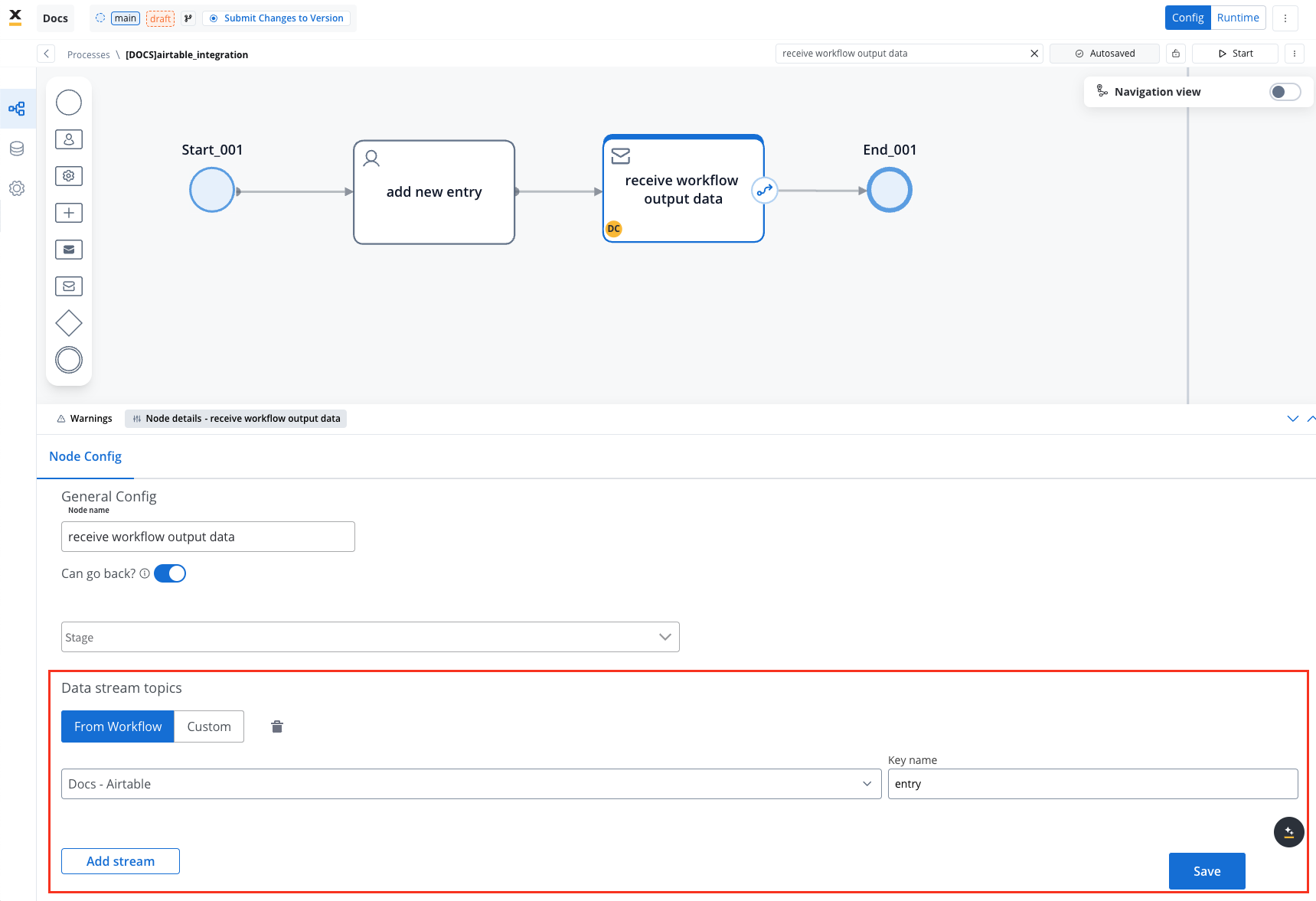
Start the integration
- Start your process to initiate the workflow integration. It should add a new user with the details captured in the user task.
- Check if it worked by going to your base in Airtable. You can see, our user has been added.
This example demonstrates how to integrate Airtable with FlowX to automate data management. You configured a data source, set up endpoints, designed a workflow, and linked it to a BPMN process.
Export and import
You can export and import both data sources and workflows as ZIP files to transfer them between projects or environments (for example, from development to UAT to production).Exporting
To export a data source or workflow:- Navigate to the Data Sources or Workflows list in Integration Designer
- Open the context menu for the resource you want to export
- Select Export
- The resource is downloaded as a ZIP file containing the full configuration
- Data Sources - data source configuration, endpoints, NoSQL operations, MCP tools
- Workflows - workflow nodes and their configurations
Importing
To import a data source or workflow:- Navigate to the Data Sources or Workflows list in Integration Designer
- Open the context menu and select Import from ZIP
- Select the ZIP file exported from another project or environment
- If resources with the same identifiers already exist, a Review Resource Identifiers Conflicts modal appears
- Choose a strategy for each conflicting resource (or use Apply to all):
- Keep both - imports the resource as a new copy alongside the existing one
- Replace - overwrites the existing resource with the imported version
- Skip this one - keeps the existing resource unchanged
- Click Continue to complete the import
FAQs
Can I call GraphQL, SOAP, or gRPC endpoints?
Can I call GraphQL, SOAP, or gRPC endpoints?
application/json and map the response as you would for any REST call.For SOAP, there is a dedicated SOAP System data source with WSDL import and automatic envelope composition; see SOAP System. You can also call a SOAP web service through REST: configure a POST REST endpoint, set the Content type to Raw, put the SOAP envelope in the request body, and add the Content-Type (text/xml or application/soap+xml) and SOAPAction request headers. The XML response is parsed automatically, so you can map its fields like any JSON response — see Receiving XML and SOAP responses. With the REST approach there is no WSDL import or automatic envelope/fault generation; you build the envelope yourself.gRPC and JDBC are not supported — they are not HTTP-based and have no data source type.The Integration Designer also supports specialized data source types beyond REST: FlowX Database, Unmanaged MongoDB, MCP Server, Knowledge Base, Email Trigger, Email Sender, Incoming Webhook, and Microsoft Outlook. See Data sources for details.How is security handled in integrations??
How is security handled in integrations??
How are errors handled?
How are errors handled?
Can I import endpoint specifications in the Integration Designer?
Can I import endpoint specifications in the Integration Designer?
Can I cache responses from all endpoint methods?
Can I cache responses from all endpoint methods?
What happens if the cache service fails?
What happens if the cache service fails?
Can I use different cache policies for the same endpoint in different workflows?
Can I use different cache policies for the same endpoint in different workflows?
How do I know if my workflow is using cached data?
How do I know if my workflow is using cached data?