

Core scenarios
Integration Designer supports two primary file handling scenarios:1
Downloading Files
Can call an external API (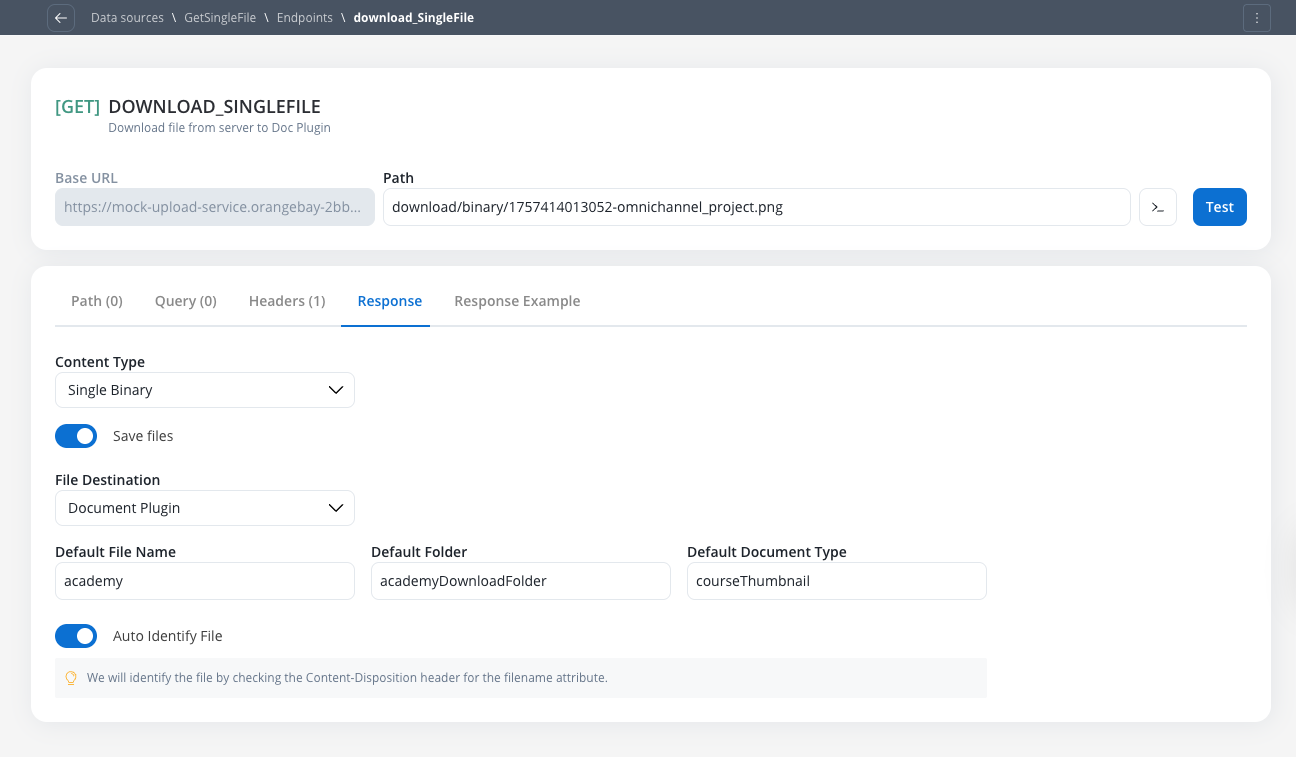
GET or POST) and receives a response containing one or more files. Integration Designer saves these files to a specified location and returns their new paths to the workflow for further processing.2
Uploading Files
Can send a file that is already stored in the Document Plugin or a custom S3 Bucket to an external API via a 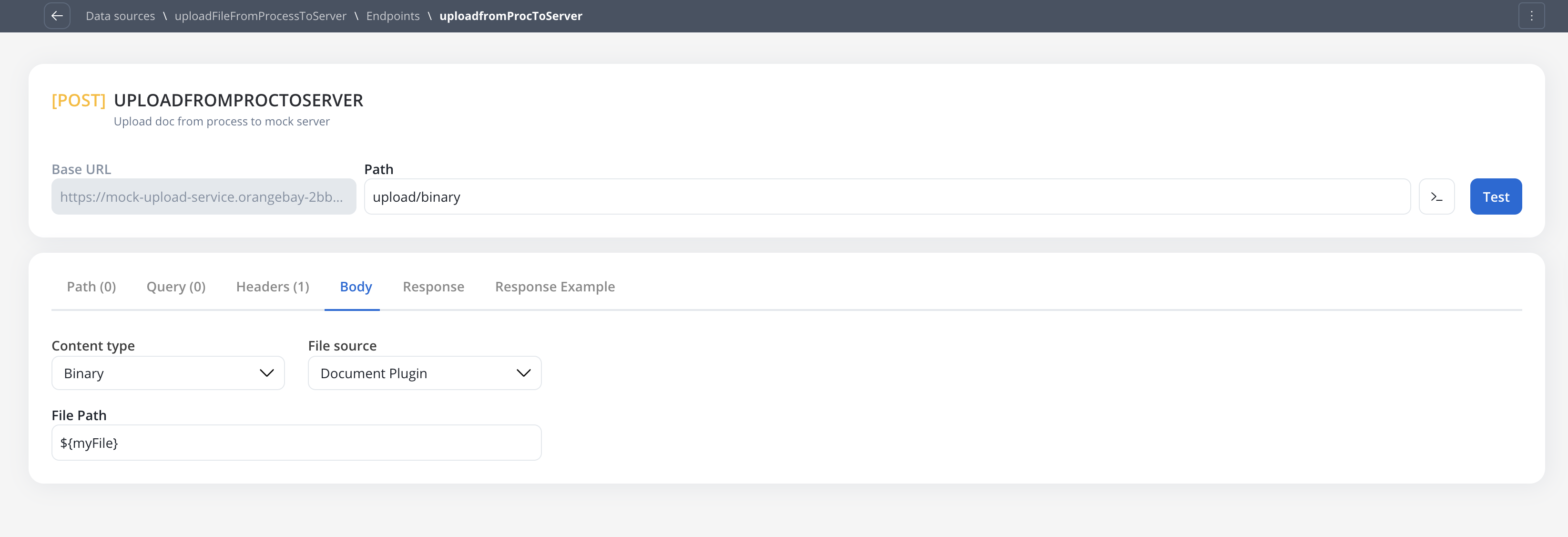
POST request. The workflow transmits the file path, enabling file transfer without manual handling.Common use cases include contract generation workflows where data is sent to external document services and the generated files are retrieved back into the process.
Receiving XML and SOAP responses
Available starting with FlowX.AI 5.9.0Earlier releases assumed every response body was JSON — any other format failed the node even on a valid
2xx. From 5.9.0, the engine honours the content type the endpoint declares and parses XML responses automatically.- The
Acceptheader wins (what the integration expects back). - If
Acceptis absent, the requestContent-Typeis used as a fallback. - If neither is set, the engine runs in automatic mode and infers the format from the upstream’s response
Content-Type. - Wildcard
Acceptvalues (*/*,application/*,text/*) are treated as automatic — they don’t commit to a format.
When an XML or SOAP response is parsed, you map its fields exactly like a JSON response (for example
${response.body.Envelope.Body.result}). The original XML is preserved alongside the parsed object, so flows that need the raw markup can still access it.
XML parsing is XXE-safe: external entity resolution and DTD processing are disabled, so XXE and entity-expansion payloads cannot read local files or exhaust memory.
XML bodies larger than 5 MiB are returned as raw strings without parsing.
To send a SOAP or XML request body, set the endpoint Content type to Raw and add the matching
Content-Type header — see Defining REST integration endpoints.Receiving files (endpoint response configuration)
To configure an endpoint to handle incoming files from an external system, navigate to its Response tab. This functionality is available for bothGET and POST methods.
Enabling and configuring file downloads
1
Activate File Processing
Switch the Save Files toggle to the “on” position to activate file processing for the response.
2
Configure Content-Type
Select the expected format of the successful API response from the Content-Type dropdown:
JSON(Default): For responses containing Base64 encoded file dataSingle Binary: For responses where the body is the file itself
Handling JSON content-type
This option is used when the API returns a JSON object containing one or more Base64 encoded files. File Destination Configuration:- Document Plugin
- S3 Protocol
Saves files to the platform’s managed storage, linking them to a specific process instance. The Document Plugin acts as a wrapper over the file system and provides special integration capabilities with document templates.Files Mapping Table:
string
required
The ID of the process instance. This field defaults to
${processInstanceId} to be mapped dynamically at runtime.The
Translate or Convert Enumeration Values toggle can be used in conjunction with the Save Files feature.Handling Single Binary content-type
This option is used when the entire API response body is the file itself. The Single Binary content-type is ideal for endpoints that return raw file data directly in the response body.1
Configure Content-Type
In the Response tab of your endpoint configuration: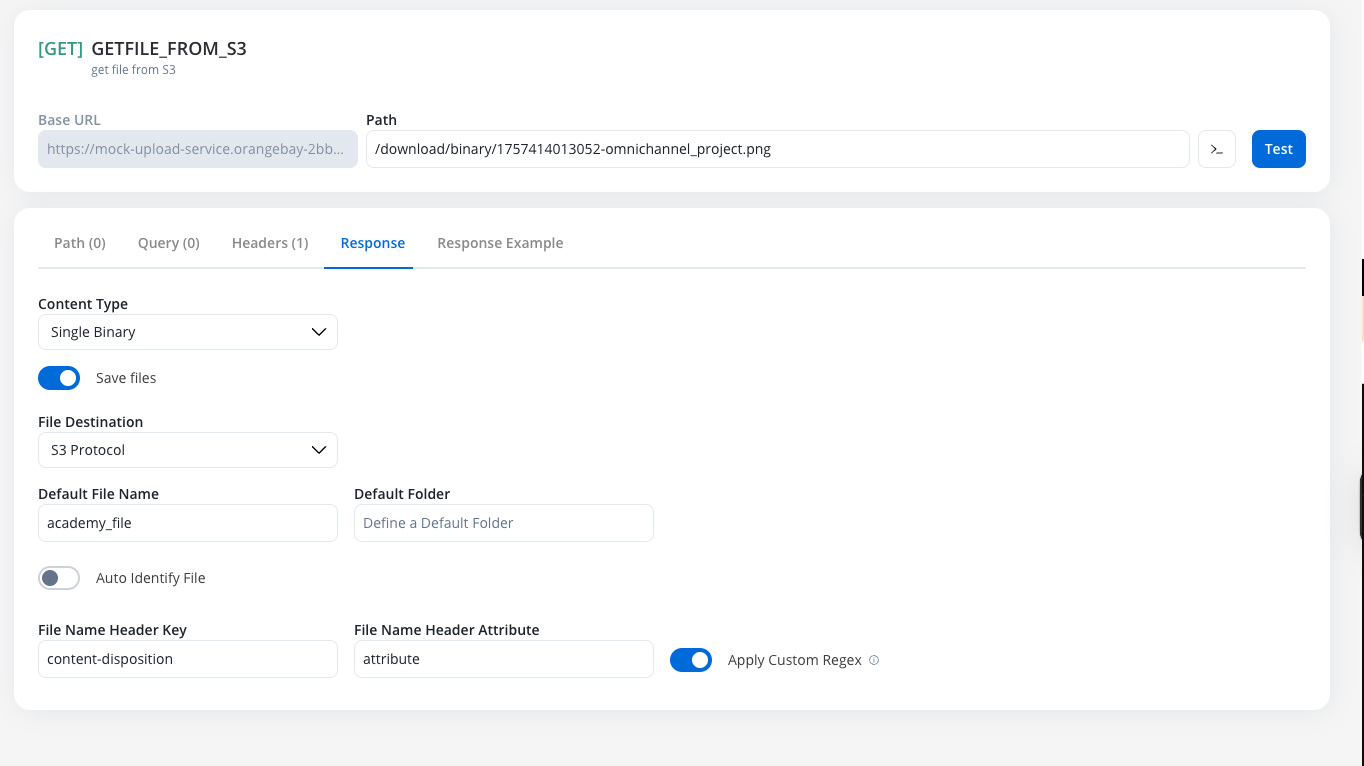
- Enable the Save Files toggle
- Select Single Binary from the Content-Type dropdown
2
Choose File Destination
Select your preferred file storage destination:
- S3 Protocol
- Document Plugin
For files stored in custom S3 buckets, ideal for files not tied to specific process instances.
3
Configure File Name Identification
Choose how the system should identify the filename from the response.
- Auto Identify (Recommended)
- Manual Configuration
The system automatically parses the Example of standard Content-Disposition header:The system will automatically extract
Content-Disposition HTTP header to extract the filename attribute. This is the standard approach for most file download endpoints.When to use: When the external API follows standard HTTP conventions and includes file information in the
Content-Disposition header.document.pdf as the filename.- Document Plugin
- S3 Protocol
For files managed within FlowX’s document system with full process integration:
string
required
Fallback filename if header extraction fails
string
required
Business context folder (e.g., client ID, case number)
string
required
Document classification for the Document Plugin
Files stored via Document Plugin are automatically linked to process instances and can be used with document templates and other FlowX document features.
Sending files (endpoint POST body configuration)
To configure an endpoint to send a file, navigate to the Body tab and select the appropriate Content Type.Content Type: Multipart/Form-data
Use this to send files and text fields in a single request. This format is flexible and can handle mixed content types within the same POST request.1
Configure File Source
Select where the file originates:
Document PluginS3 Protocol
2
Define Form Parts
Add rows to the resource table, defining each part of the form: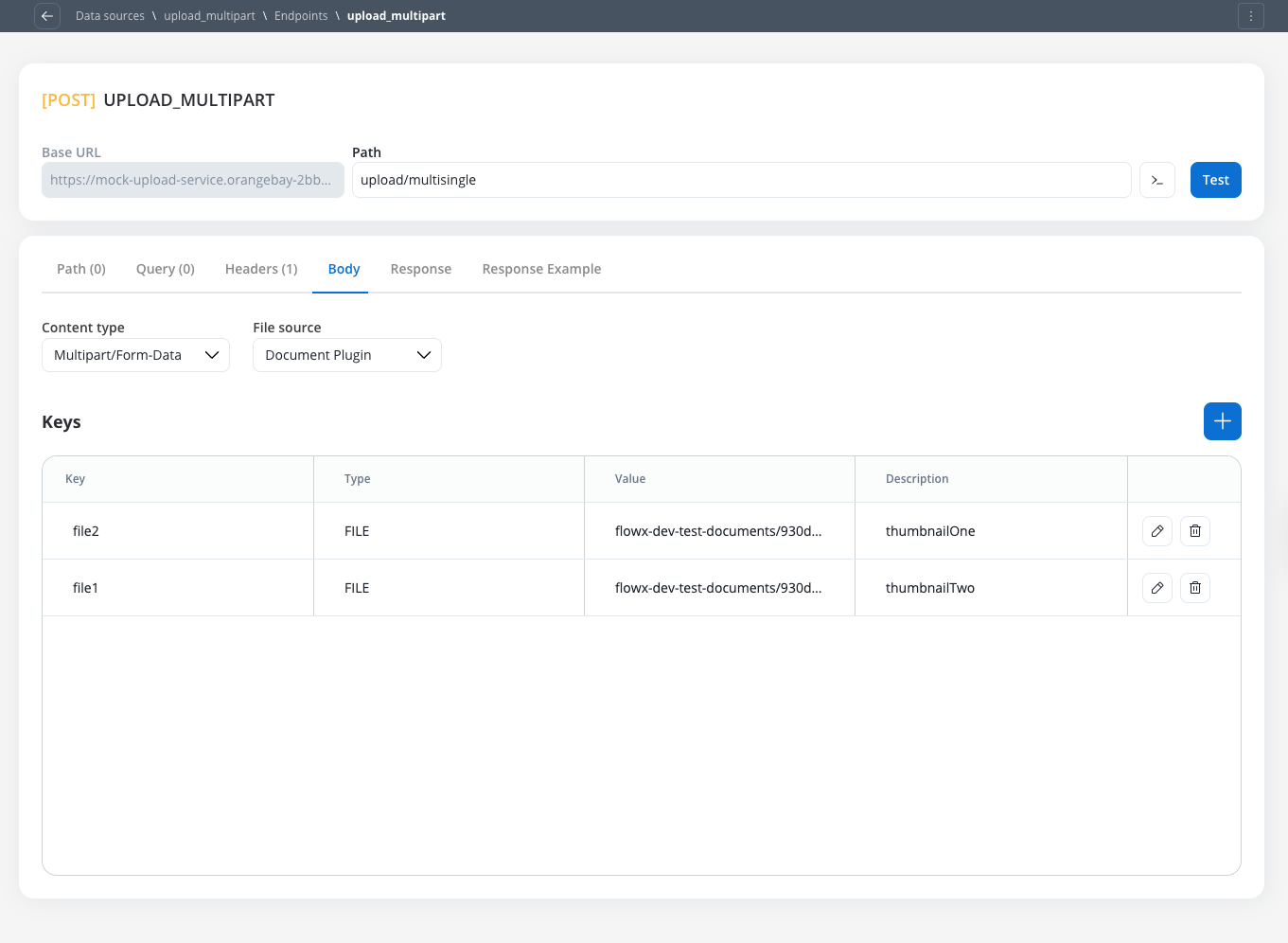
- Key Type: Choose
FileorText - Value:
- For files: Provide the
filePath(Minio path for S3 or Document Plugin reference) - For text: Provide the string value or variable reference
- For files: Provide the
Multipart requests can be sent even without files - you can include only text fields by setting all Key Types to
Text. The difference between content types is primarily in how data is packaged for transmission to the target server.Content Type: Single binary
Use this to send the raw file as the entire request body. This method sends only the file content without any additional form data or metadata.string
required
Select
Document Plugin or S3 Protocolstring
required
Specify the path of the file to be sent (Minio path for the file location)
Content Type: JSON
Use this option for standard JSON payloads. To send a file as the whole request body or as a form part, useSingle Binary or Multipart/Form-Data.
Available starting with FlowX.AI 5.9.6A JSON body can carry a file from the Document Plugin as a base64 string. In 5.9.5 and earlier, a JSON body cannot carry a file: use
Multipart/Form-Data or Single Binary.@@base64File(<path>), where <path> is the file’s path in the Document Plugin. When the node runs, the marker is replaced with the file content encoded as base64:
- The path can come from a workflow variable, such as
${filePath}from an earlier node. Variables are resolved before the marker is read. - Only string values are replaced. A marker used as a JSON key is left as it is.
- The file content is added only to the request that is sent. The saved request body and the generated curl command keep the marker.
- Downloading the file from the Document Plugin is cancelled after 5 minutes by default. On self-hosted deployments, change the limit with
FLOWX_DOCUMENTPLUGIN_DOWNLOADTIMEOUT(see the Integration Designer setup guide).
Runtime behavior & testing
Workflow node configuration
All configured file settings (for example,File Path, Folder, Process Instance ID) are exposed as parameters on the corresponding workflow nodes, allowing them to be set dynamically using process variables at runtime.
Response payload & logging
When a node successfully downloads and saves a file, its output will contain the
filePath to the stored file, not the raw Base64 string or binary content.For security and performance, runtime logs will also only contain the
filePath, not the raw file content.Error handling
If a node is configured to receive aSingle Binary file but the external system returns a JSON error (for example, file not found), the JSON error will be correctly passed through to the workflow for handling.
If Save Files is on with the JSON content type (Base64 files) and the external system returns a success status (2xx) with a response that isn’t JSON or XML, the node fails with Unsupported content type "text/html". Make sure system is configured correctly. (the message names the content type actually received). The external system’s response causes this error, not the endpoint configuration.
Error status (non-2xx), starting with FlowX.AI 5.9.6: the node keeps the response body as text, with its status code, for both JSON (Base64 files) and Single Binary. Nothing is saved as a file, and the error response isn’t stored in the endpoint response cache. The status code then drives the node: with Allow Retry on, a 408, 429, 500, 502, 503, or 504 is retried, and once retries are done the node completes with the error status, so a failure path on the node can handle it. For example, an HTML 504 Gateway Timeout page from a gateway or proxy is now retried instead of failing the workflow.
Error status on 5.9.5 and earlier: with JSON (Base64 files), an HTML error page fails the node, for example Content type 'text/html' not supported for bodyType=com.fasterxml.jackson.databind.JsonNode. Changing the request Accept header doesn’t help, because the upstream gateway decides the response format. To avoid the gateway’s error page, set the node’s Timeout on its Settings tab (default 10000 ms) lower than the gateway’s timeout. The node then stops waiting before the gateway responds and returns a 408 status, which is retried when Allow Retry is on. Switching the response to Single Binary doesn’t avoid the problem on these versions: Single Binary doesn’t check the status code, so an HTML error page is saved as a file.
Testing guidelines
The Response Example tab is now separate from the Response configuration tab and includes both
Body and Headers sections for better clarity.Example: sending files to an external system after uploading a file to the Document Plugin
In this example, we’ll send a file to an external system using the Integration Designer.
1
Upload a file to the Document Plugin
Configure a process where you will upload a file to the Document Plugin.
- Configure a User Task node where you will upload the file to the Document Plugin.
- Configure an Upload File Action node to upload the file to the Document Plugin.
- Configure a Save Data Action node to save the file to the Document Plugin.
2
Configure the Integration Designer
Configure the Integration Designer to send the file to an external system:
- Configure a REST API Call node to send the file to an external system.