

🌐 Global Media Library
This section is accessible from the left-side navigation under:FlowX.AI Designer → Design Assets → Global Media Library
📁 Media Library overview
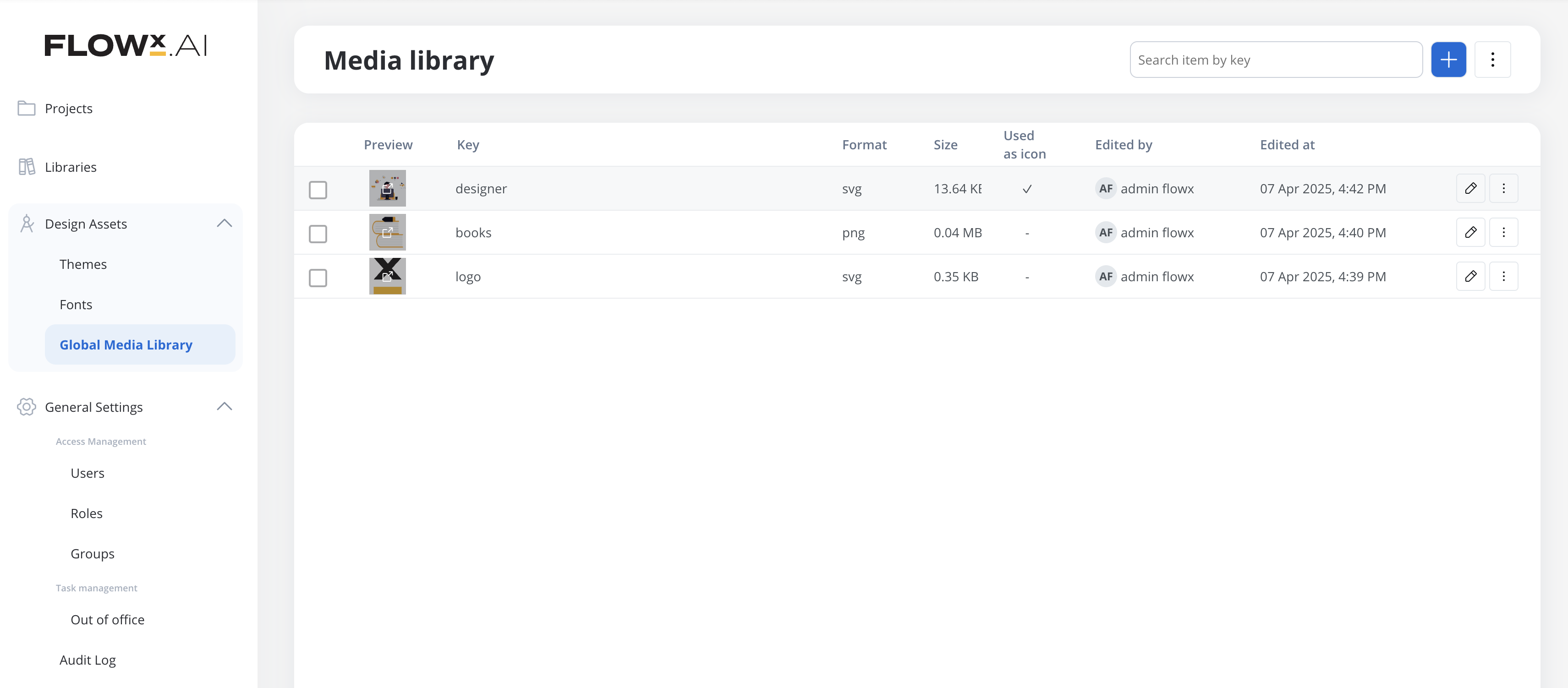
The main Media Library interface displays all uploaded media assets in a table format with the following columns:- Preview: Thumbnail preview of the asset.
- Key: A unique identifier for the asset.
- Format: File type (e.g., SVG, PNG).
- Size: File size.
- Used as icon: Indicates if the asset is used as a global icon (✓ if true).
- Edited by: User who last modified the asset.
- Edited at: Timestamp of the last modification.
- ✏️ Edit icon: To update the asset.
- ⋮ More actions menu: For additional options.
➕ Adding a New Asset
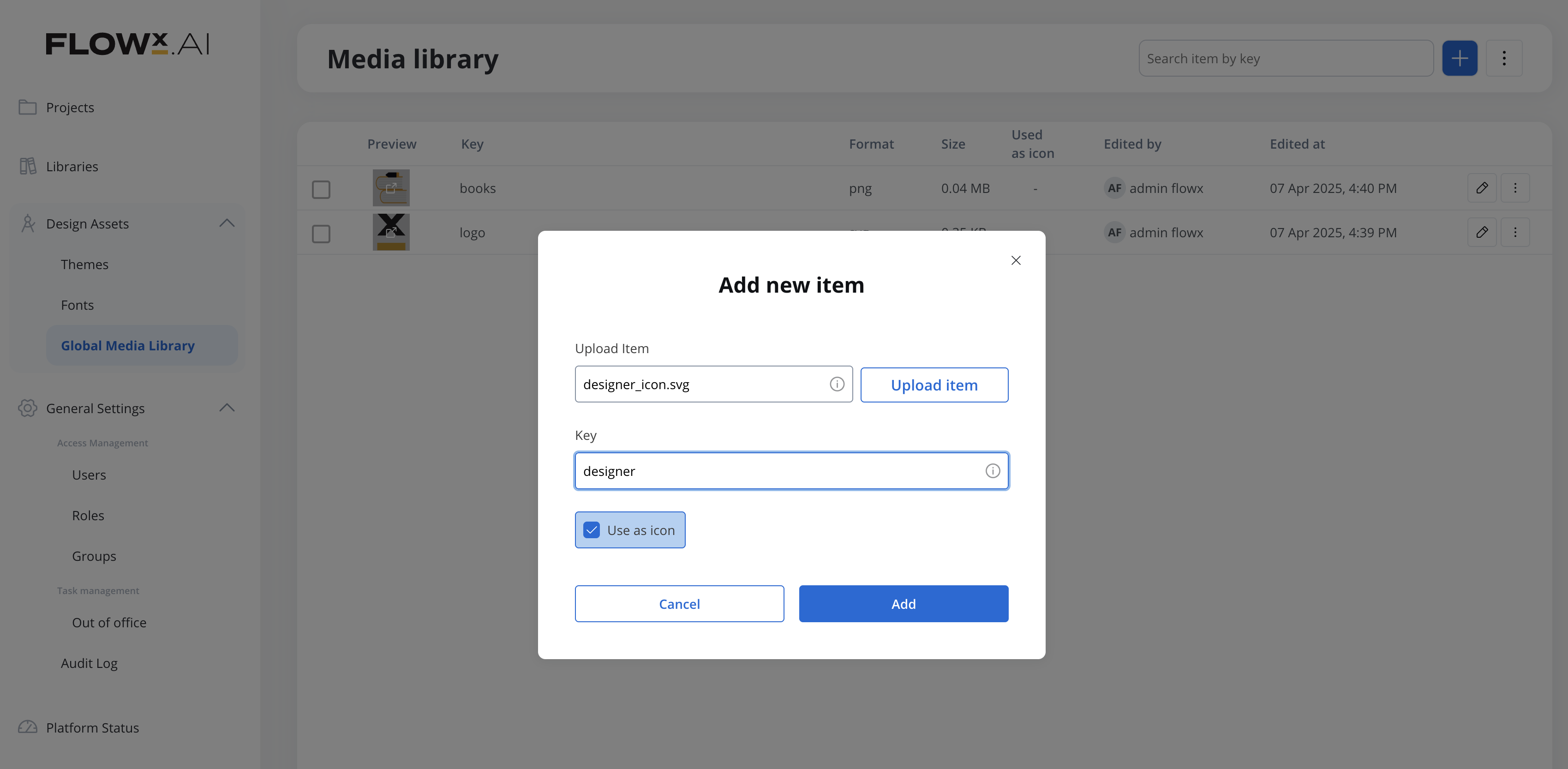
To add a new media asset:- Click the blue plus (+) button in the top-right corner.
- In the Add new item dialog:
- Click Upload item to select a file from your device.
- Enter a Key for the asset.
- Click Add to upload the item to the library.
📥 Import and Export
Click the ⋮ menu next to the + button to access:- Import media assets: Bulk upload multiple media files.
- Export all: Download all media assets as a ZIP archive. You can choose whether to include media file content (binaries) in the export — include them when moving assets to an environment that cannot reach this environment’s storage; leave them out for a lighter, metadata-only archive.
The global Media Library is a separate, organization-level library with its own content. It is not a way to re-export the assets of a specific project — for project assets, use the project Media Library or a project version/build export.