


A swimlane can hold only one start node of any kind (Start Event, Message Start Event, or Timer Start Event). A process with several swimlanes can therefore have several Timer Start Events, one per swimlane, and each appears as its own row on the Schedules page.
Configuration
The Timer Start Event supports two timer types:The Start Timer Event supports either ISO 8601 formats or Spring cron expressions for defining timer values. The value must be static: the Process variable mode (reading the value from the process data) is not available on this node, because no process instance exists yet when the timer fires.
Starting a process via registered timers requires sending a process start message to Kafka, necessitating a service account and authentication. For detailed guidance, refer to:Service Accounts
Timer type details
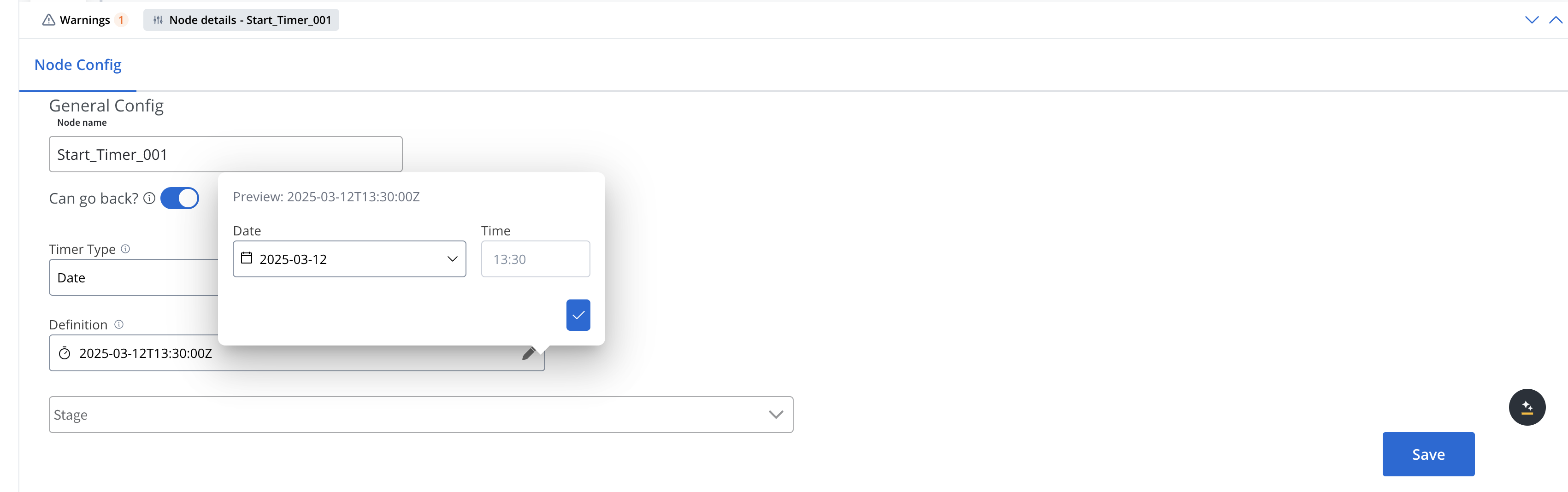
Date
Specifies an exact date and time for triggering the event. You can use ISO 8601 date format for accurate date-time representation. Pick the date and time in the Fire at field (yyyy-MM-dd HH:mm, 24-hour clock). The time you pick is in your local time. The Designer converts it to UTC when it saves: 15:30 picked in a UTC+2 time zone is stored as 2025-03-12T13:30:00Z.
Cycle
Specifies a repeating interval for triggering the event. Select ISO or Cron under Format to choose the format. For the Cycle timer definition, you can use either:ISO 8601 repeating intervals
For standardized time intervals (e.g., “R5/PT10M” for repeating 5 times with 10 minutes between each). Build the value with Guided fields, or switch to Expression and type it.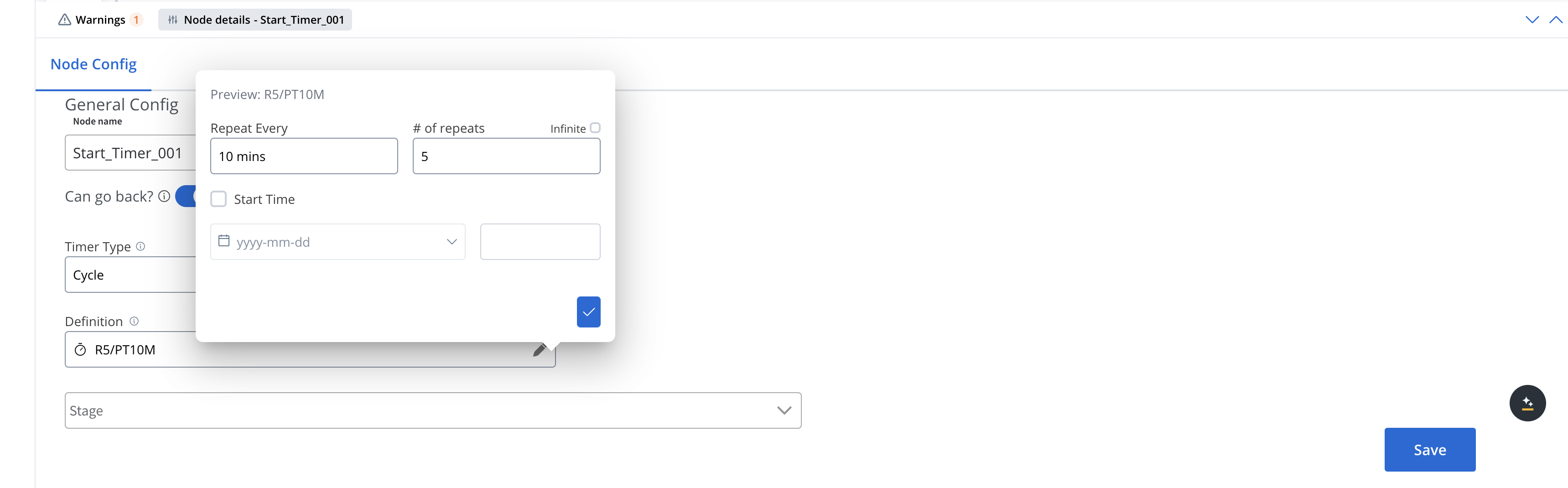
Cron expressions
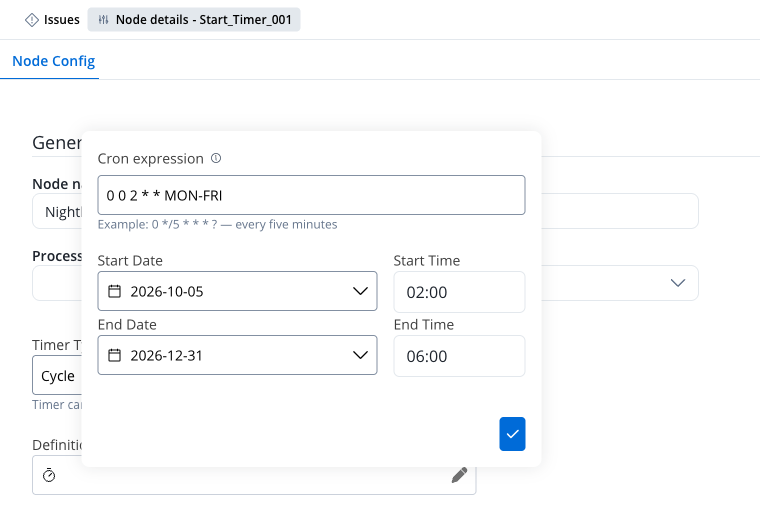
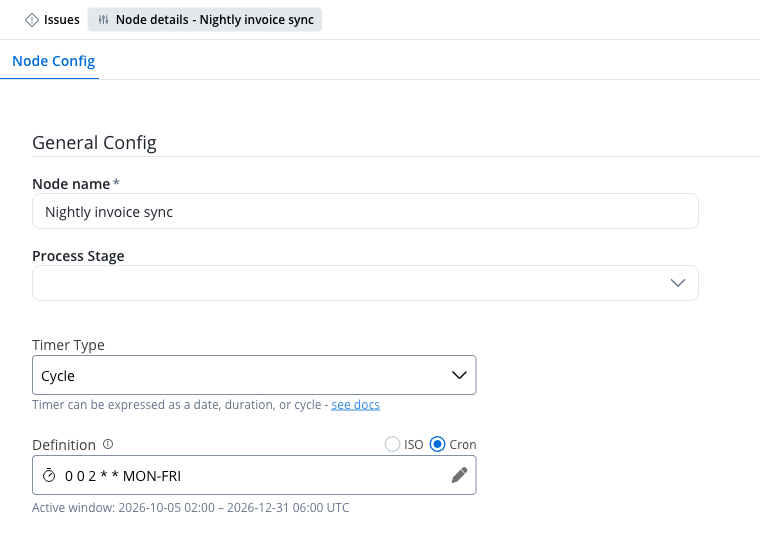
For more complex scheduling patterns (e.g., “0 0 12 * * MON-FRI” for 12:00 UTC every weekday). Type the Spring cron expression in the Definition field. Cron expressions are read in UTC. Under Active window, set a Start and an End date and time. The timer fires only between them. Both are required, and both are in your local time.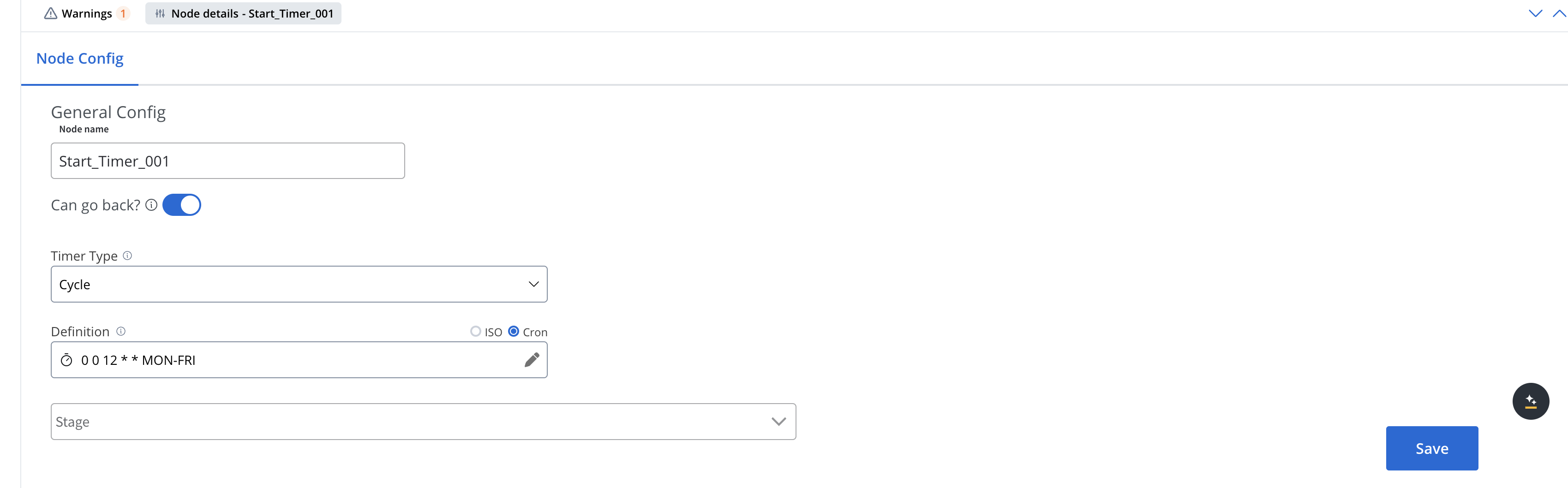
Cron editor with required schedule window
The cron expression uses the six-field Spring format (second, minute, hour, day of month, month, day of week), for example0 */5 * * * ? for every five minutes. The Start and End of the active window are required on Timer Start Events. Once both are set, the preview under the definition shows the window in your local time zone, for example Active window: 2026-11-02 09:00 – 2026-12-31 18:00 EET, and the next three fire times. Next fires are counted from when you activate the schedule on the Schedules page.
?, L, W, #, month and weekday names, and the @hourly, @daily, @midnight, @weekly, @monthly, @yearly, and @annually macros. A seventh field is rejected with Invalid cron expression.
Activate/deactivate start timer events
All timers can be activated/deactivated in Runtime → Runtime Settings → Schedules: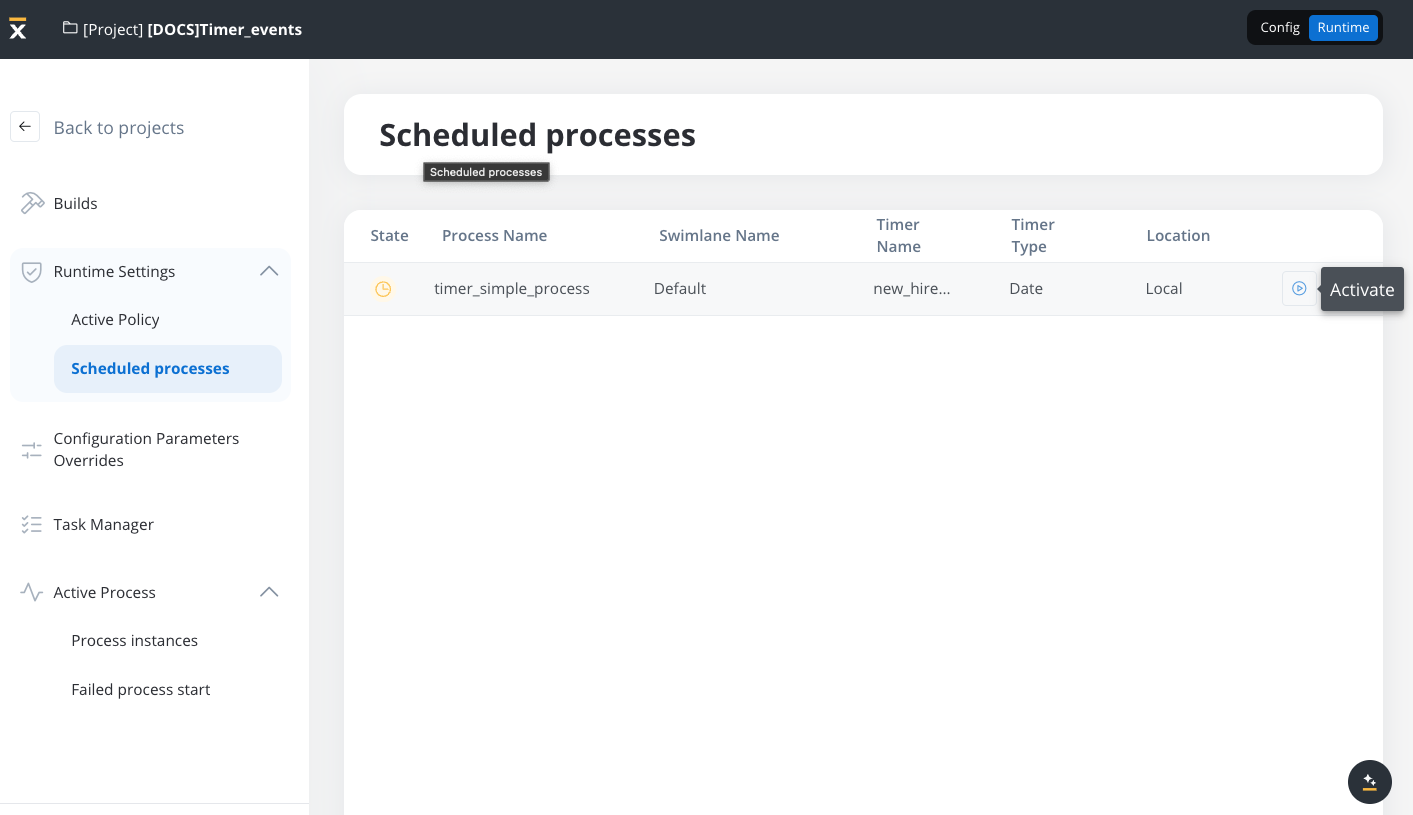
If a project contains multiple versions with Start Timer Event nodes, a scheduler will be generated only for the ones included in the version set in the active policy.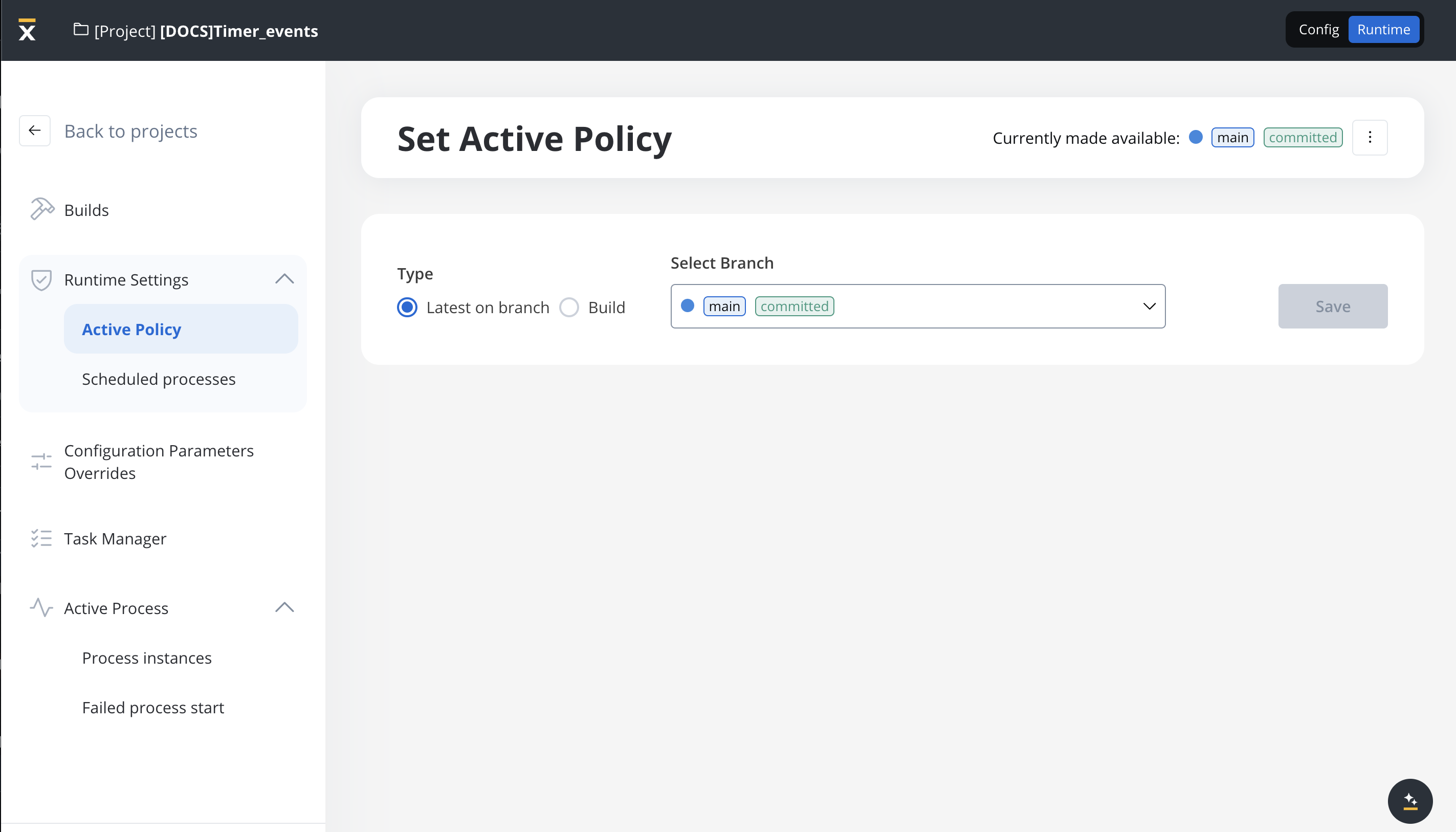
Usage examples
Date timer example: Employee Onboarding Reminder
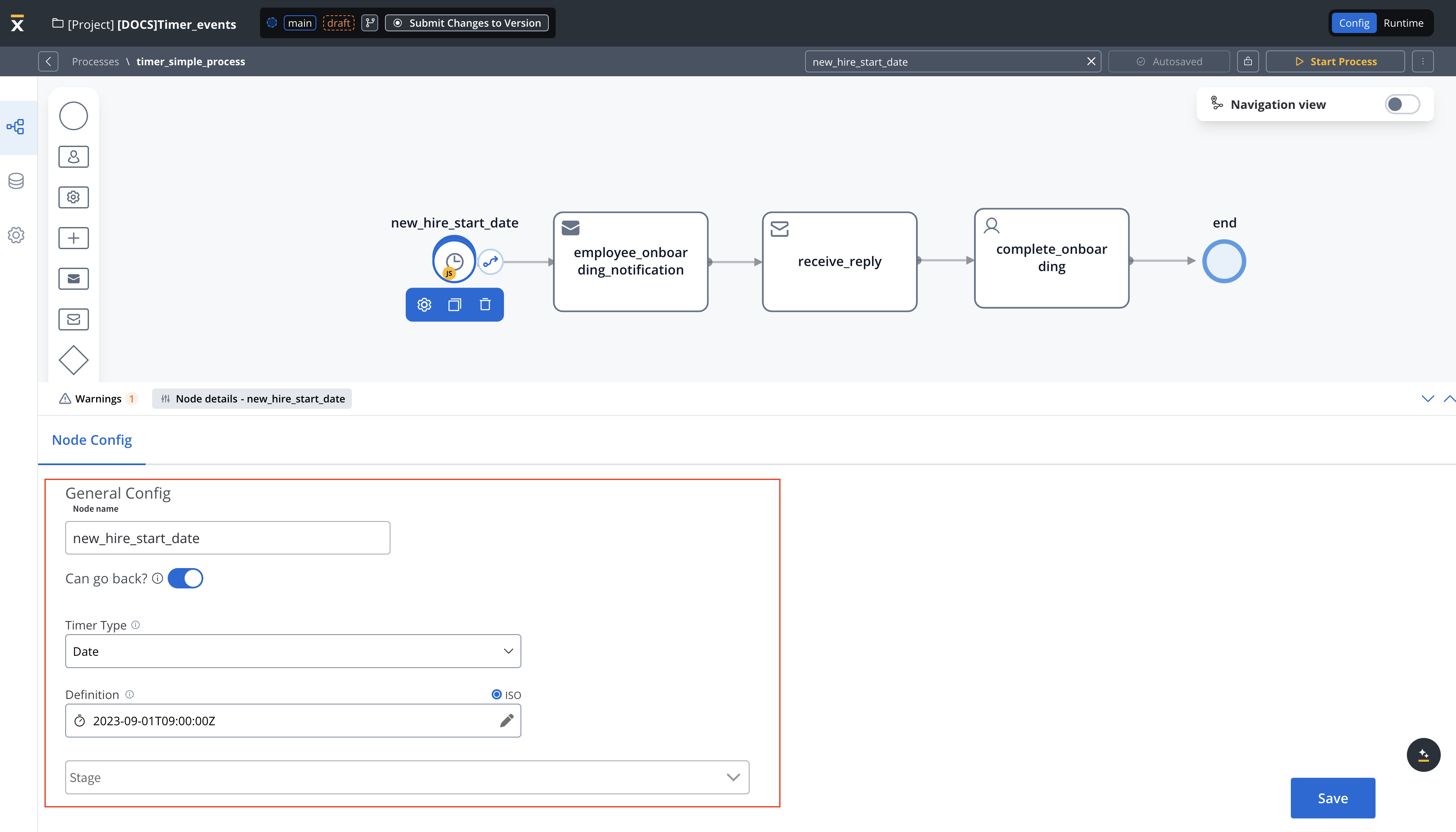
In this scenario, the Timer Start Event triggers an employee onboarding process at a specific date and time.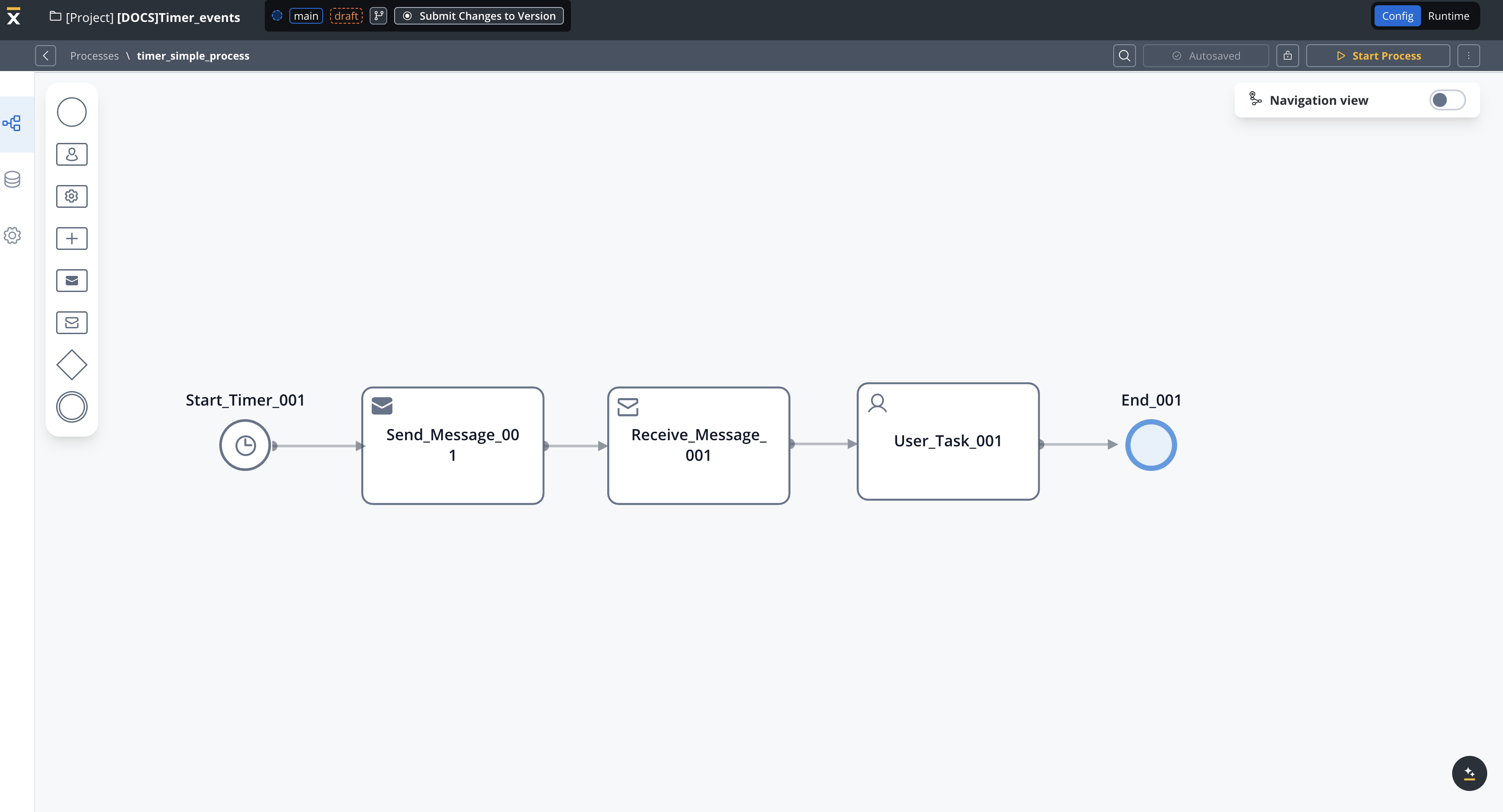
- Start Event (Timer Start Event) - New Hire Start Date
- Timer Definition: 2023-09-01T09:00:00Z (ISO 8601 format) → This means the process will initiate automatically at the specified date and time.
- This event serves as the trigger for the entire process.
- Transition → Employee Onboarding Notification
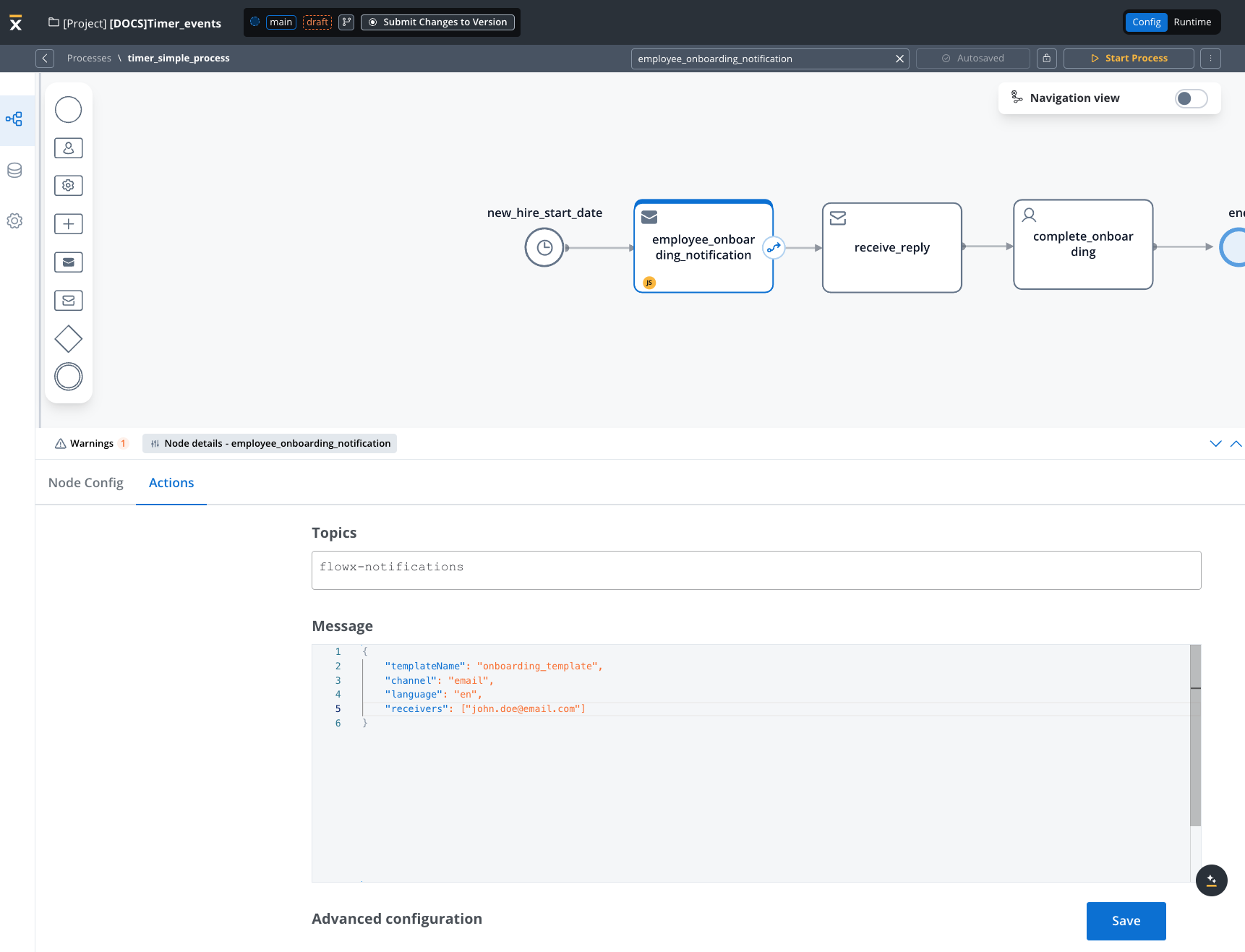
- Employee Onboarding Notification
- Notify new employee about onboarding requirements by sending an email notification with a template called “Important Onboarding Information”
- Actions: The HR team or automated system sends out necessary email information/documents, and instructions to the new employee.
- After the notification is sent, the process transitions to the Complete Onboarding node.
- Complete Onboarding
- Employee onboarding completed
- At this point, the employee’s onboarding process is considered complete.
- Actions: The employee may have completed required tasks, paperwork, or orientation sessions.
General rules
- Schedulers are generated only for builds that are part of the active policy.
- If you change the active policy, processes with Timer Start Event nodes might appear or disappear from the Schedules list if they aren’t part of the active build.
- You can view scheduled timers in Runtime → Runtime Settings → Schedules.
- When a build in the active policy is updated with new Timer Start Event settings:
- The scheduler is updated based on the new settings.
- The scheduler state (active or suspended) remains the same as before.
Related resources
Timer expressions
ISO 8601 and cron syntax for timer definitions
Schedules
Activate, suspend, and review Timer Start Events at runtime
Timer intermediate event
Pause a running process for a duration or until a date
Starting a process
All the ways a process instance can start