

- Timer Start Event: This node initiates a process instance at a scheduled time. It allows you to set a specific date or a repeating cycle for the process to start, so a process can be triggered once or repeatedly.
- Timer Intermediate Event: This node introduces time-based triggers within a process. It’s used to pause the process execution until a specified time duration or date is reached. Once triggered, the process continues its execution.
- Timer Boundary Event (interrupting/non-interrupting): Attached to a task or subprocess, this node monitors the passage of time while the task is being executed. When the predefined time condition is met, the boundary event triggers an associated action, interrupting or non-interrupting the ongoing task or subprocess.
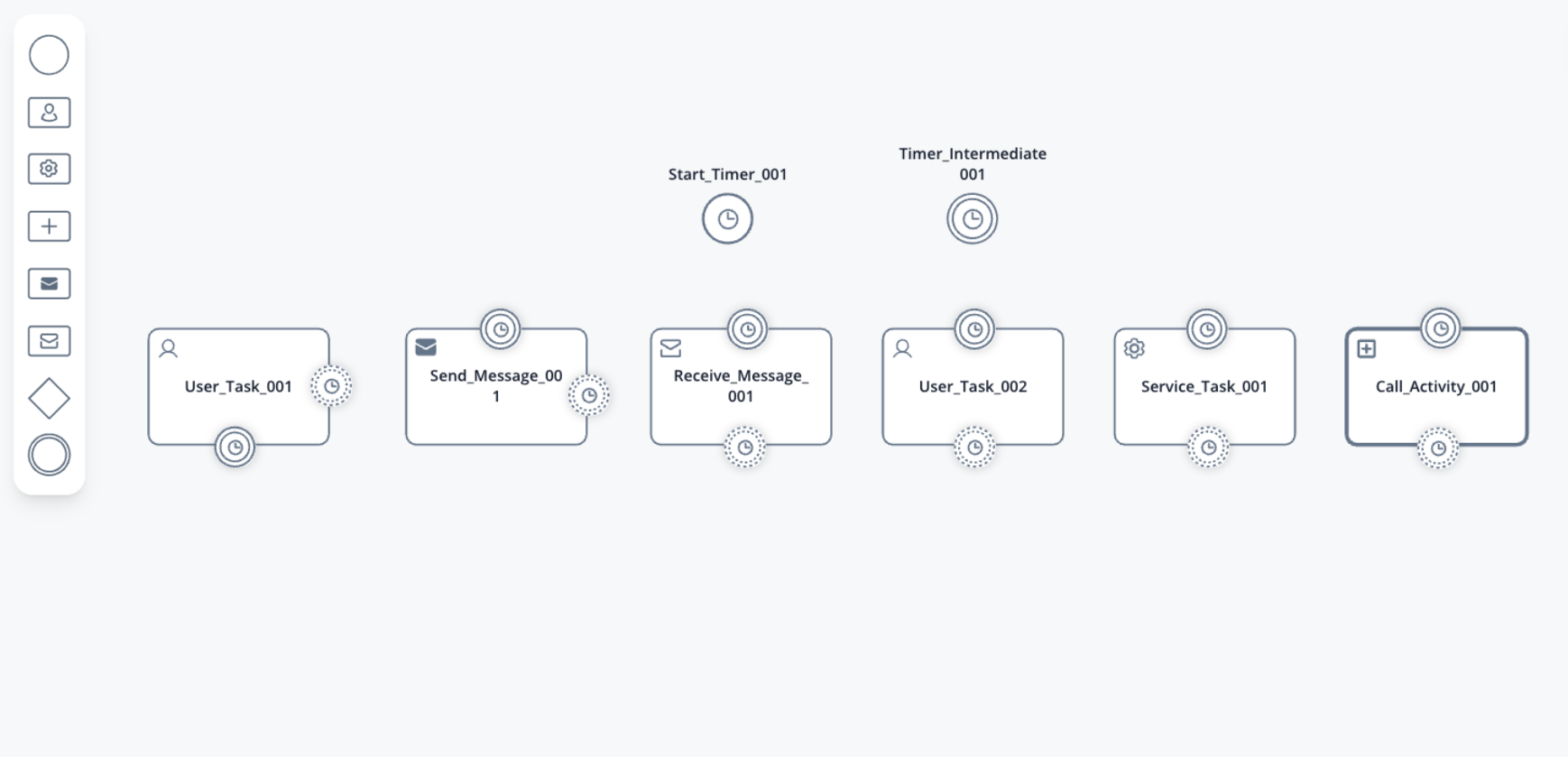
Timers
Timers introduce the ability to trigger events at specific time intervals. They can be configured in three different ways: as a date, a duration, or a cycle. These configurations can use static values or dynamic values read from the process data.-
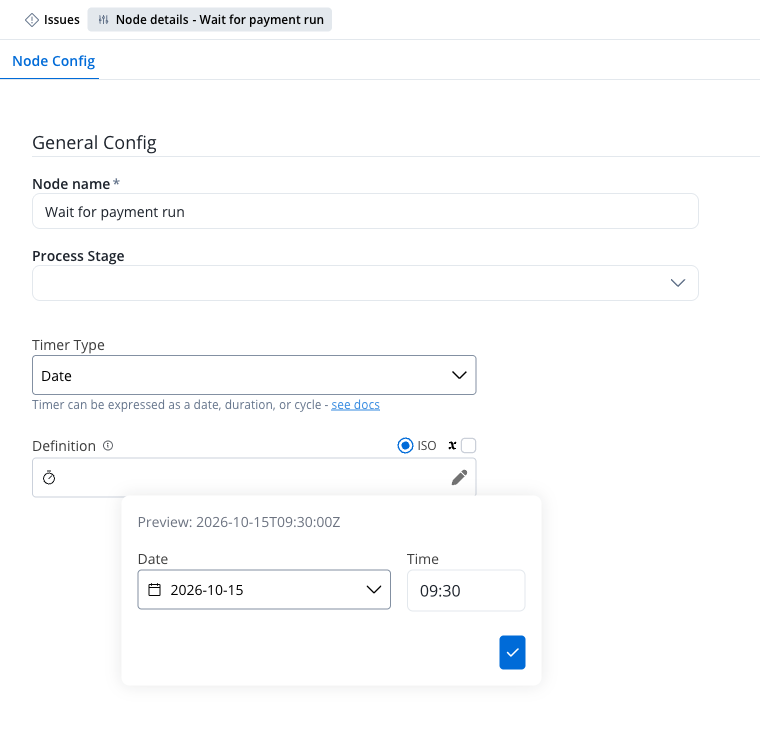
Date: Events triggered on a specific date and time.
- Format: ISO 8601 (e.g.,
2019-10-01T12:00:00Zor2019-10-02T08:09:40+02:00). Seconds and a time zone (Zor an offset) are required.
- Format: ISO 8601 (e.g.,
-
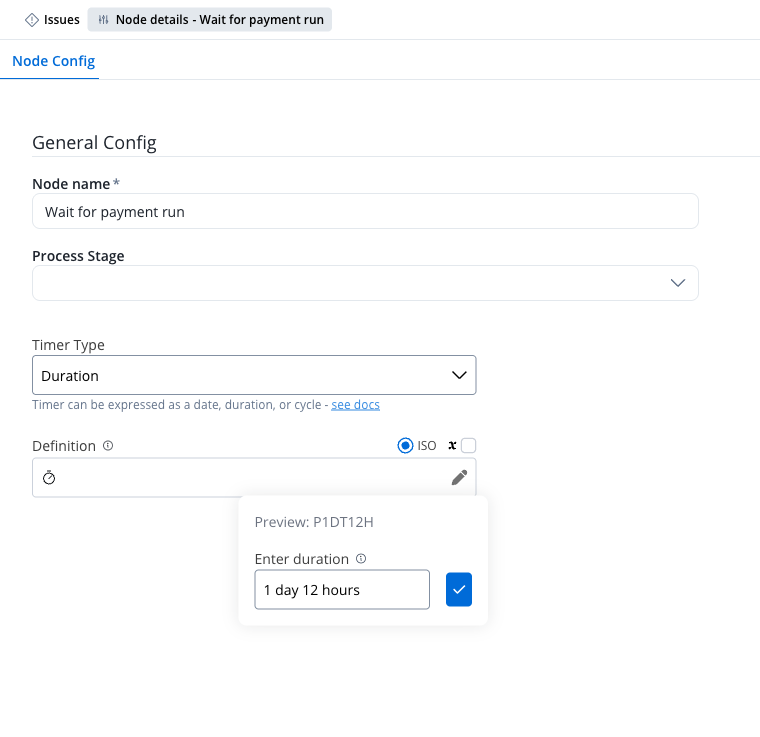
Time Duration: Events triggered after a specified duration.
- Format: ISO 8601 duration expression (
P(n)Y(n)M(n)DT(n)H(n)M(n)S)- P: Duration designator
- Y: Years
- M: Months
- D: Days
- T: Time designator
- H: Hours
- M: Minutes
- S: Seconds
- Format: ISO 8601 duration expression (
PT15S- 15 secondsPT1H30M- 1 hour and 30 minutesP14D- 14 daysP3Y6M4DT12H30M5S- 3 years, 6 months, 4 days, 12 hours, 30 minutes, and 5 seconds
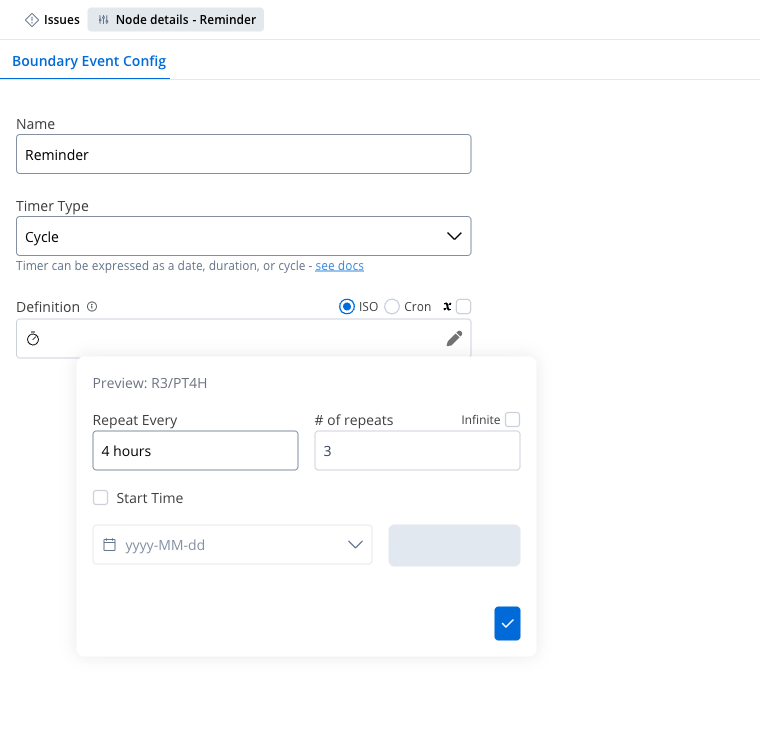
- Time Cycle (available for Timer Start Events and non-interrupting Timer Boundary Events): Events triggered at repeating intervals.
- Option 1: ISO 8601 repeating intervals format (
R)- Examples:
R5/2023-08-29T15:30:00Z/PT2H: Every 2 hours, up to five times, starting with 29 August, 15:30 UTC timeR/P1D: Every day, infinitely
- Examples:
- Option 1: ISO 8601 repeating intervals format (
- Option 2: Using cron expressions
- Example:
0 0 9-17 * * MON-FRI: Every hour on the hour from 9 a.m. to 5 p.m. UTC, Monday to Friday
- Example:
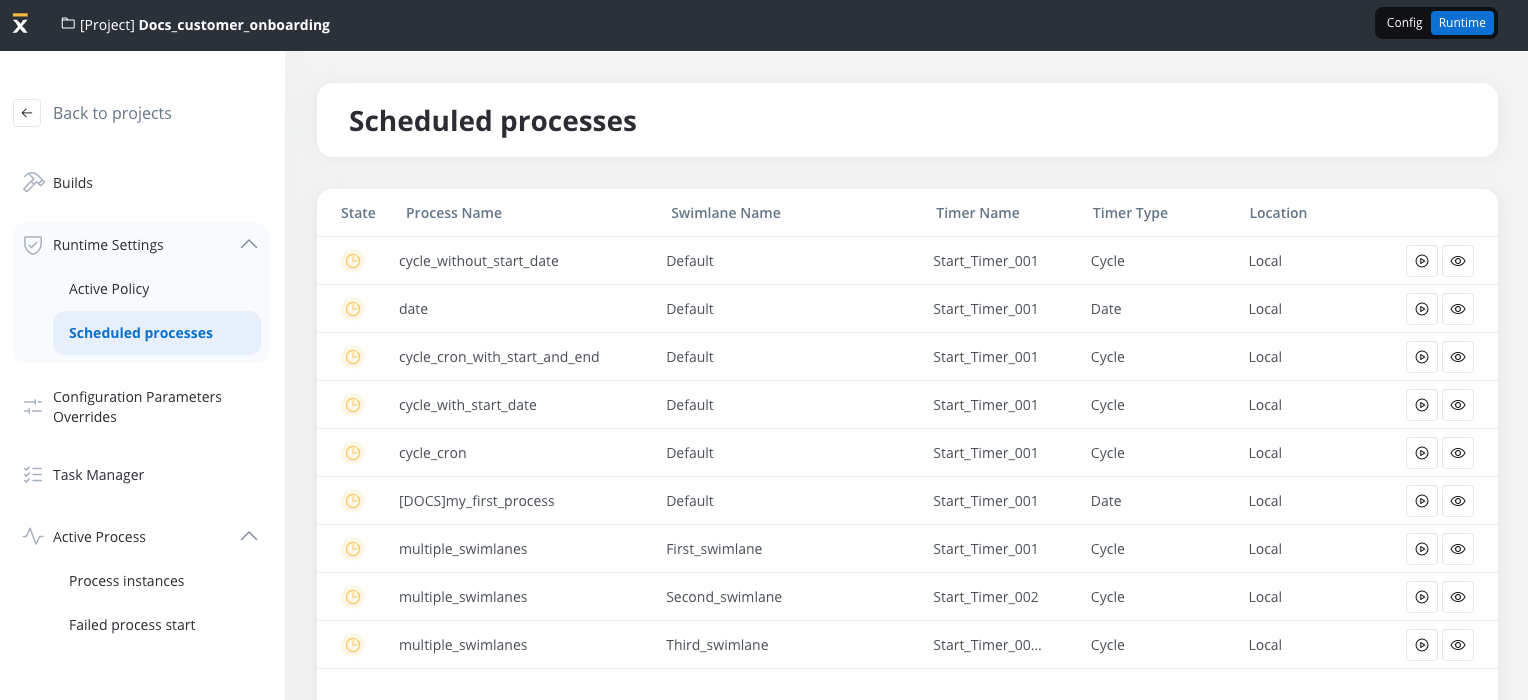
Schedules
Configure a timer
Select a timer node on the canvas (or a timer boundary event on its parent activity) to open its configuration panel. The panel has the following fields:
Changing the timer type or the format clears the current value, and so does switching to or from Process variable. Switching between Guided and Expression keeps it.
Which entry modes can I use?
In Guided mode, the fields depend on the timer type:
- Date: pick the date and time in Fire at. The Designer converts your local time to UTC when it saves, so 13:30 picked in a UTC+3 time zone is stored as
...T10:30:00Z. To fire at a time computed per instance, use Process variable instead. - Duration: type the length in plain words, for example
2 hours,1h30m,3 days and 4 hours, or1.5 weeks. A Preview line under the field shows the ISO 8601 value (PT2H).mmeans minutes, durations must be longer than zero, and they must come out in whole seconds, so500msand1.5 monthsare rejected. - Cycle (ISO): Repeat Every (the same plain-language input as Duration), # of repeats or Infinite, and an optional Start Time. The start time is in your local time and must be in the future.
- Cycle (Cron): there are no guided fields. Type the six-field Spring cron expression (second, minute, hour, day of month, month, day of week). On Timer Start Events you also set an active window, see Timer Start Event.
How do I check when a cycle timer fires?
For Cycle timers, the panel shows a preview under the definition:- the expression, with a copy button
- for cron, a plain-language summary marked (UTC)
- the next three fire times, in your browser’s time zone
15W or LW, the panel shows Next fires can’t be previewed for this expression. The expression can still be saved.
Timers saved before FlowX.AI 6.0 with the old date and time pickers stored your local time marked as UTC. The panel now shows a stored value converted to your local time, so such a timer can look shifted by your UTC offset. The stored value, and the time the timer fires, don’t change until you edit the timer.
Configuration
For each node type, the following timer types can be configured:
For comprehensive details on each timer event node in this section, please refer to the corresponding documentation: