

Documentation Index
Fetch the complete documentation index at: https://docs.flowx.ai/llms.txt
Use this file to discover all available pages before exploring further.
Available starting with FlowX.AI 5.7.0Custom Components allow you to write React code directly in FlowX Designer and use it in your UI Flows. This is Phase 1 (browser-side bundling). Phase 2 (server-side bundling with dependency governance) is planned for a future release.Updated in 5.8.0: Custom Components can now also be placed on Process User Tasks. Each Custom Component carries its own data model with explicit INPUT and OUTPUT mappings, applied at runtime by the React SDK.
What are Custom Components?
Custom Components are developer-defined React components that you create in FlowX Designer and reference in UI Flows. Unlike Reusable UI Templates which use the visual component builder, Custom Components let you write actual React code to build complex, interactive UI elements.Code-based
Write React TypeScript/JavaScript directly in the Designer code editor
Data-connected
Receive process data through input keys and trigger process actions
Reusable
Define once in Reusable Resources, use across multiple User Tasks
Import/Export
Export as ZIP and import into other projects
When to use Custom Components
| Use case | Recommended approach |
|---|---|
| Standard forms, layouts, navigation | Built-in components or Reusable UI Templates |
| Complex interactive widgets (charts, maps, custom inputs) | Custom Components |
| Third-party library integration | Custom Components |
| Custom business logic in the UI | Custom Components + Reusable Functions |
| Reusable visual patterns without code | Reusable UI Templates |
Creating a Custom Component
Custom Components are managed under Reusable Resources in your project.Navigate to Custom Components
In the Designer, open your project and go to Reusable Resources → Custom Components.
Create a new component
Click the + button to create a new Custom Component. Fill in the creation modal: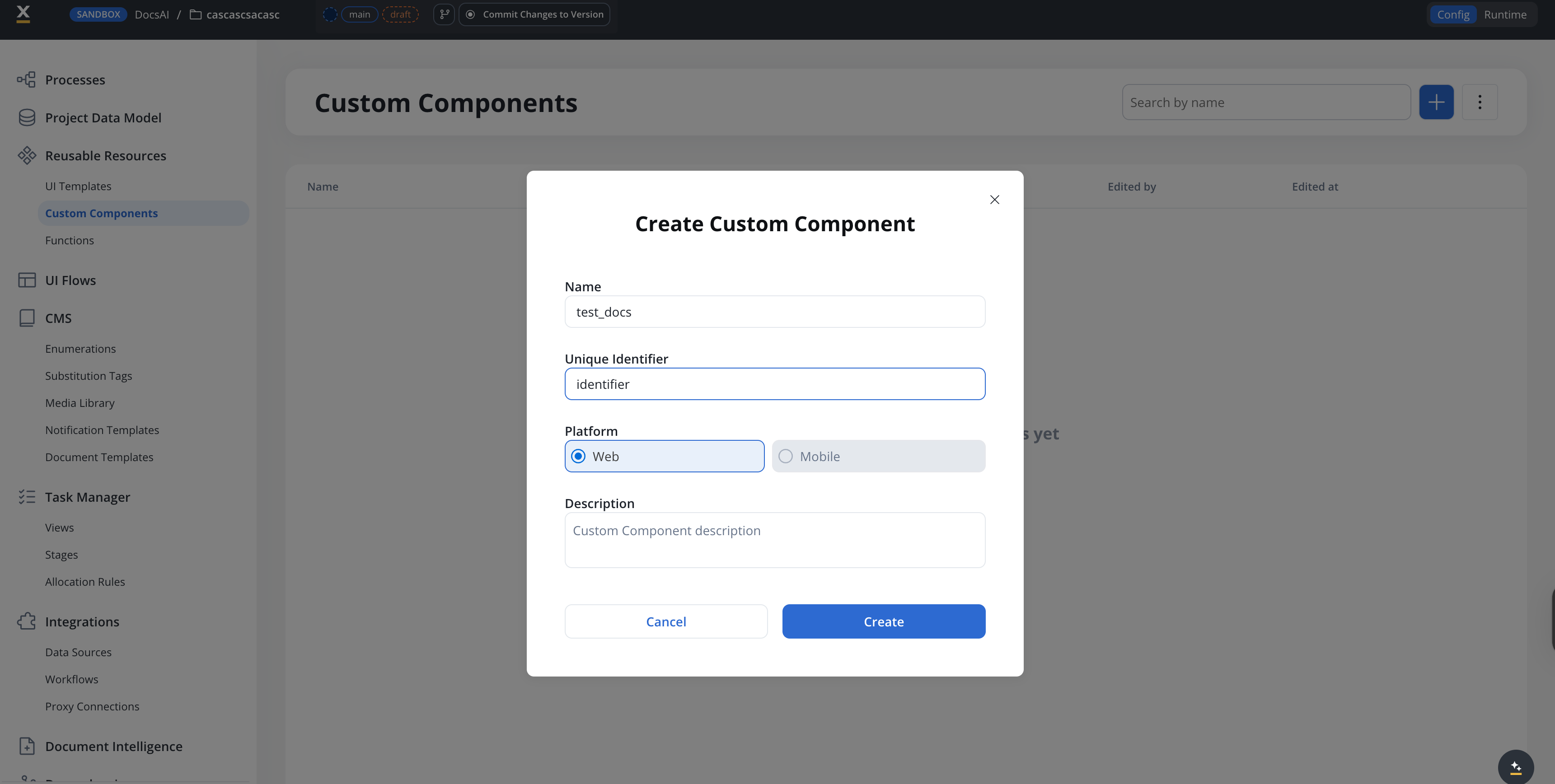
| Field | Description |
|---|---|
| Name | Display name for the component |
| Unique Identifier | A unique string identifier used to reference the component in UI Flows |
| Platform | Web or Mobile |
| Description | Optional description of the component’s purpose |
Write your component code
The component editor has three panels:
- Source Files (left) — a file tree with your component’s JSX, CSS, and
package.json - Code editor (right) — edit the selected file
- Dependencies (bottom-left) — lists available packages
identifier.jsx— your React component codeidentifier.css— component stylespackage.json— dependency declarations
| Package | Version | Purpose |
|---|---|---|
react | 18.3.1 | Core React library |
react-dom | 18.3.1 | DOM rendering |
@emotion/css | 11.13.5 | CSS-in-JS styling |
lodash | 4.17.21 | Utility functions |
axios | 1.13.2 | HTTP requests |
date-fns | 2.30.0 | Date manipulation |
Configure input keys
Define Input Keys to specify which process data paths the component receives. These map process data model attributes to the component’s
data prop.For example, if your process data model has application.metrics.revenue, add it as an input key. The component receives it as data['application.metrics.revenue'].Using Custom Components in UI Flows
Once defined, Custom Components can be added to User Tasks in your UI Flows.Add to a User Task
In the UI Designer, drag a Custom Component element from the component palette into your User Task layout.
Select the component
In the properties panel, select your Custom Component by its Identifier (e.g.,
MyCustomChart).Map input keys
Configure which process data paths are passed to the component. Use data model paths like 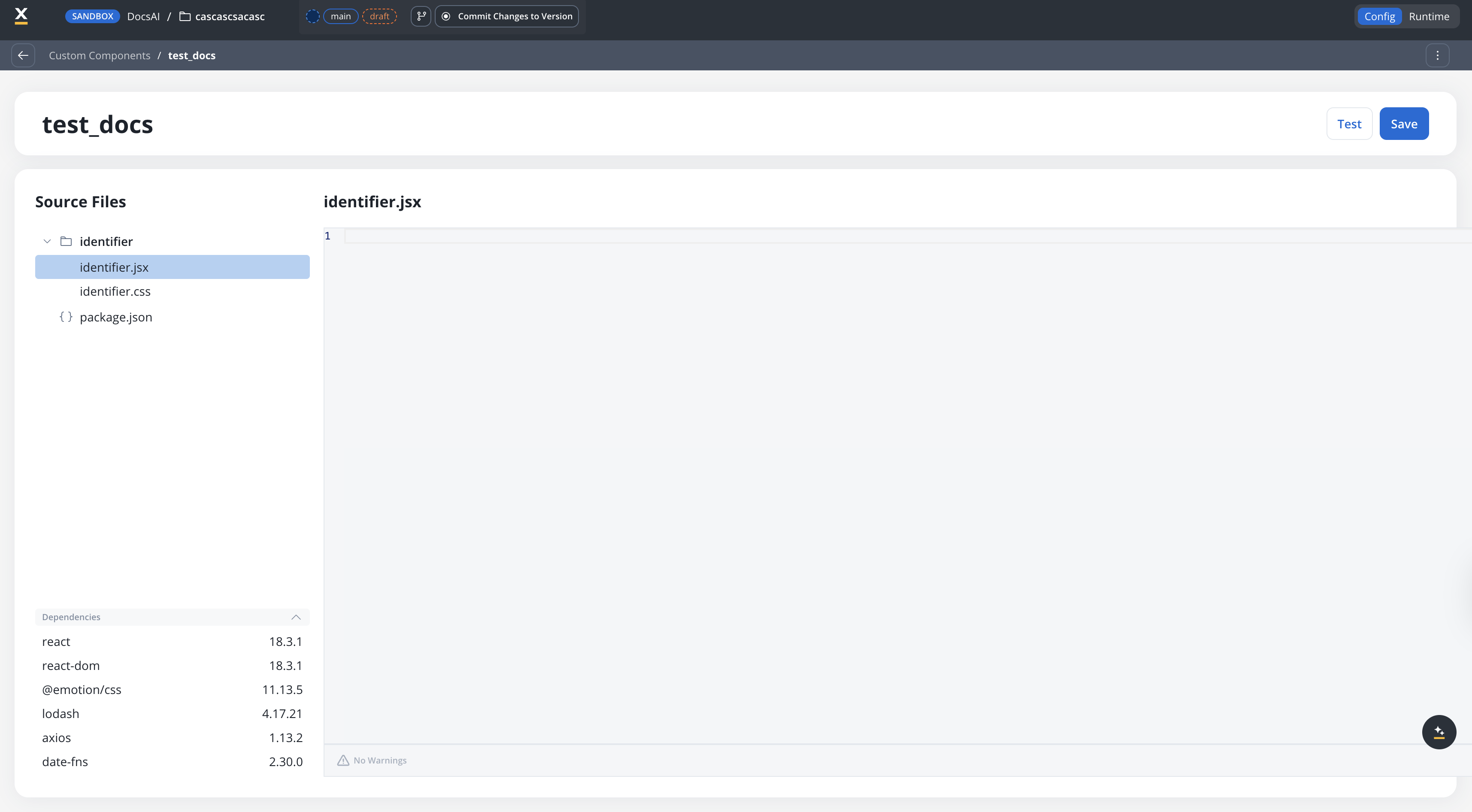
${application.user.profile} to bind process data.Using Custom Components in Process User Tasks
Available starting with FlowX.AI 5.8.0Bundled Custom Components now render on Process User Tasks. Each component carries its own data model with INPUT and OUTPUT slices that are mapped to and from process variables at runtime.
Drop the Custom Component onto a User Task
In the Designer, open a Process and select a User Task node. From the component palette, drag the Custom Component element into the User Task layout, and pick your component by its identifier.
Configure INPUT mappings
On the Custom Component’s properties panel, define how process data flows into the component. Map process attributes onto the slots declared on the component’s input data model. The React SDK applies these mappings at runtime and the component receives only the data it declared.
Configure OUTPUT mappings
For components that trigger actions, define how the component’s
saveData is remapped back to process variables. The React SDK applies the OUTPUT mappings before the action’s saveData is piped into the process state.Process User Tasks are rendered by the React SDK only in 5.8.0. The Phase 1 React-only limitation in the section below still applies: there is no Angular SDK support for Custom Components yet.
Example: Onboarding checklist
A progress tracker that displays a list of onboarding steps with completion status, driven by process data.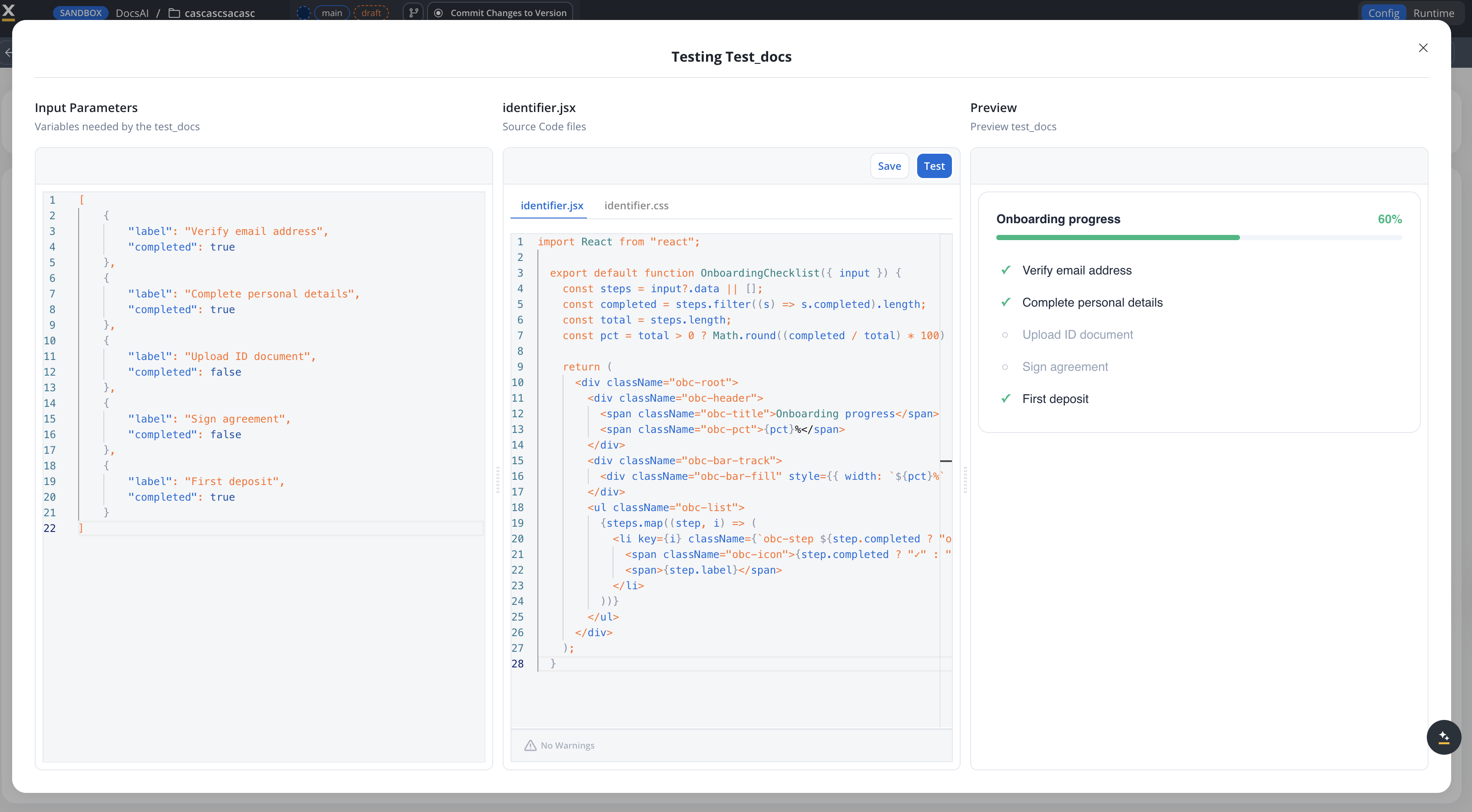
- identifier.jsx
- identifier.css
- Sample data
Key patterns in this example
| Pattern | How it’s used |
|---|---|
| Guard against undefined | input?.data || [] prevents errors before process data loads |
| Scoped CSS | All classes prefixed with obc- to avoid style conflicts |
| No CSS import | The CSS file is loaded automatically by the runtime |
| Derived state | Progress percentage calculated from the data, not stored separately |
| Minimal dependencies | Only React — no additional packages needed |
Available starting with FlowX.AI 5.8.0The AI Developer pre-built agent now generates and edits Custom Components directly from the Designer — JSX, CSS,
package.json, and sample input data are produced in one response. See AI Developer → Generate Custom Component for the in-product flow.Component API reference
Custom Components receive the following props:| Prop | Type | Description |
|---|---|---|
data | Record<string, any> | Process data mapped through the configured input keys |
actions | ProcessAction[] | List of available process actions |
actionsFn | Record<string, () => Observable> | Bound action functions keyed by action name |
Custom Components run in the React SDK runtime. They have access to standard React APIs and a set of pre-defined packages (React, Emotion, Lodash, Axios, date-fns). Custom npm packages cannot be added in Phase 1.
Import and export
Custom Components support the standard FlowX import/export workflow:- Export: Select components and export as a ZIP file
- Import: Import ZIP files into other projects
- Conflict resolution: When importing, choose to Keep both, Replace, or Skip for each component
Permissions
Custom Components are controlled by theCUSTOM_COMPONENT resource type in the authorization system.
| Permission | Description |
|---|---|
CUSTOM_COMPONENT read | View custom components in a project |
CUSTOM_COMPONENT write | Create and edit custom components |
CUSTOM_COMPONENT delete | Delete custom components |
| Import/Export | Requires standard resource import/export permissions |
Limitations (Phase 1)
Related resources
Reusable UI Templates
Visual, no-code reusable UI patterns
Reusable Functions
Reusable business logic functions
UI Flows
Building user interfaces with FlowX
UI Actions
Configuring UI actions on components