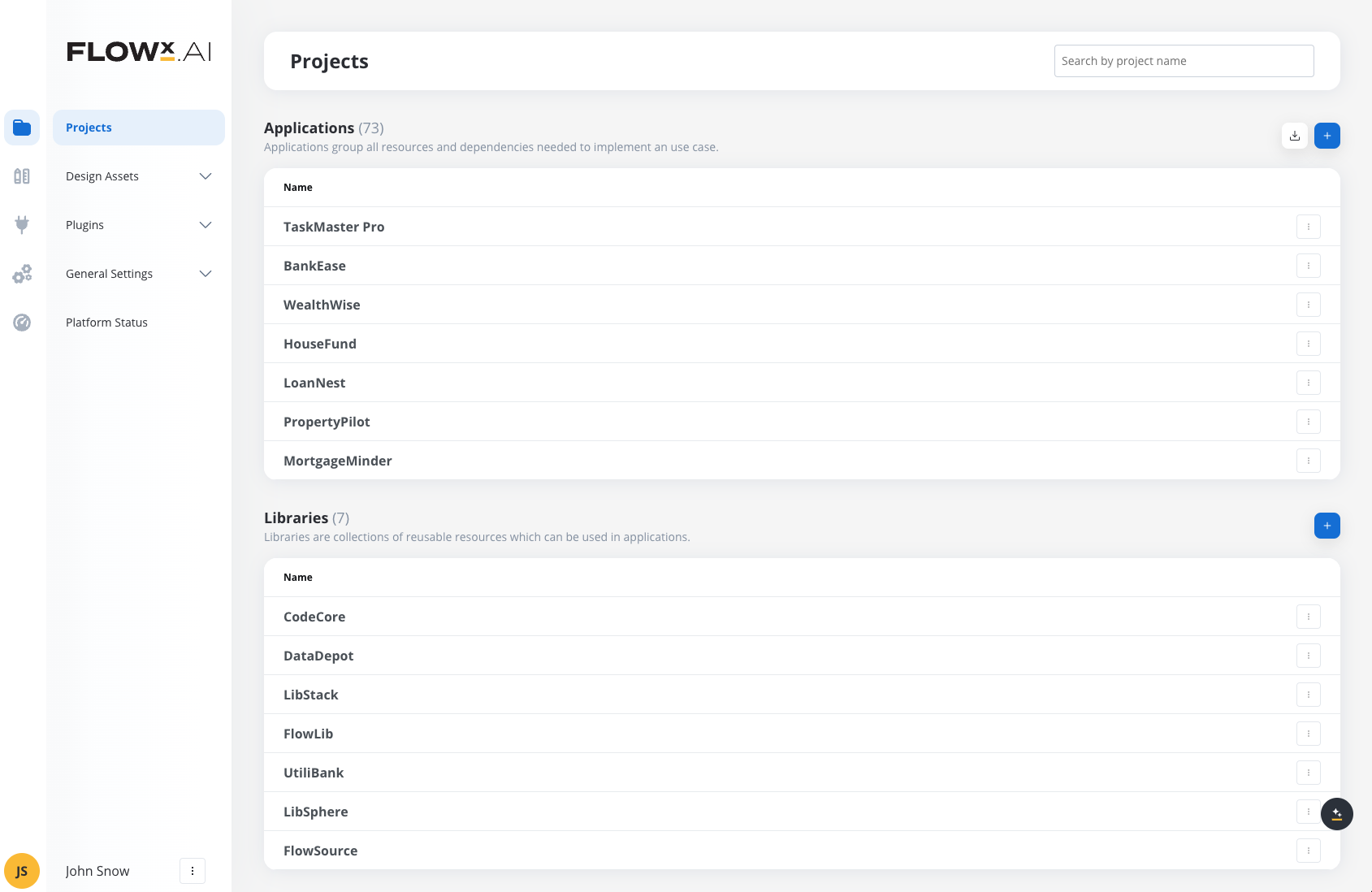
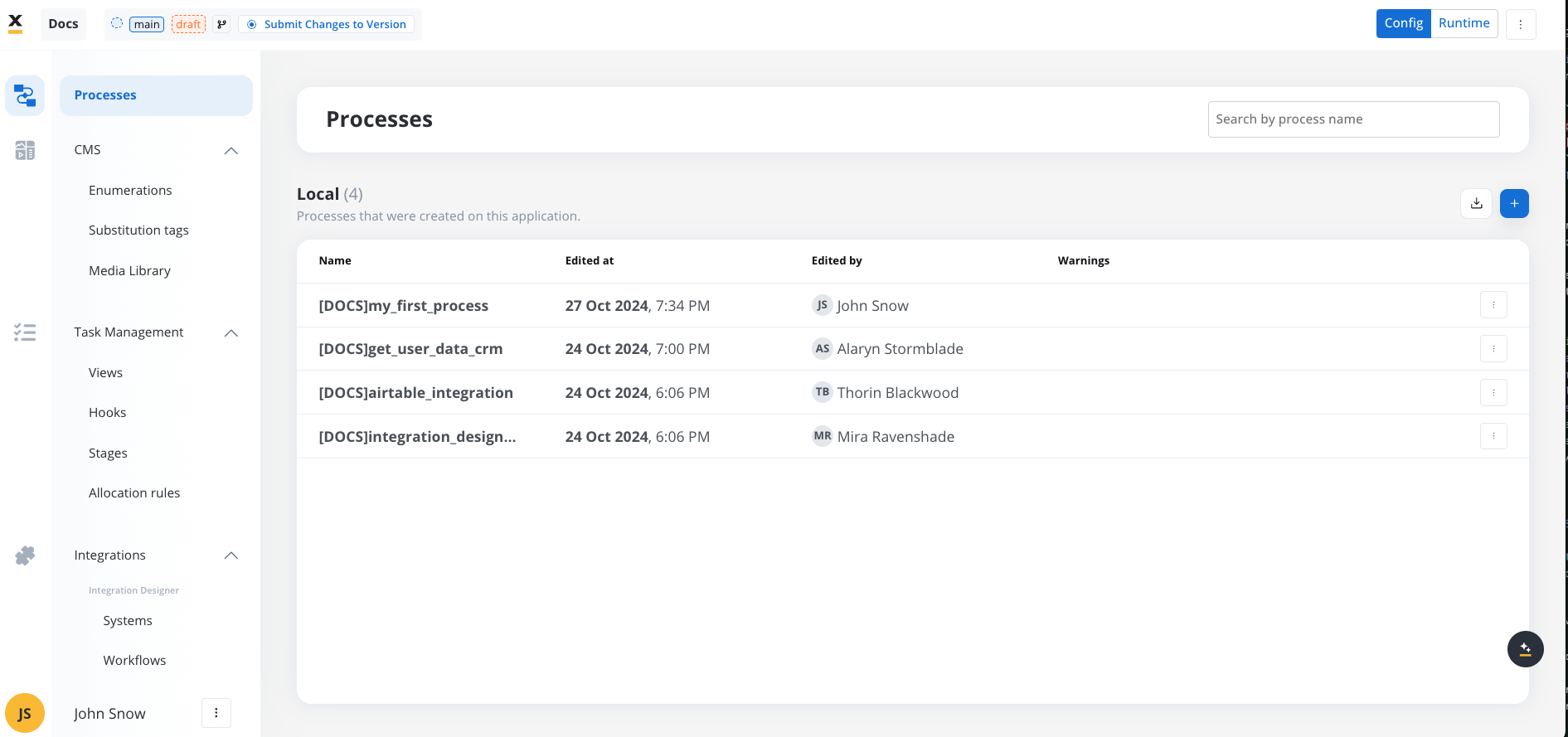
The Applications feature in FlowX AI v4.5.0 is a new structure that organizes all dependencies and resources required for a project into a single deployable view. This enhancement simplifies configuration, deployment, and maintenance by layering applications on top of processes, offering a centralized workspace that encapsulates everything needed for project execution.
Several key configuration changes impact how resources and dependencies are managed, deployed, and maintained. This guide provides a breakdown of the configuration changes, automatic migration processes, and manual steps required to ensure a smooth transition.
Change: All resources that were previously managed individually within processes are now grouped within Applications. This includes content management elements, integrations, themes, task configurations, and permissions.
Impact: Resources like enumerations, substitution tags, and generic parameters are now managed within Applications, allowing centralized configuration and version control.
Migration: All process-related resources will be migrated automatically into a default application, ensuring continuity of functionality in the new framework. After migration, you should verify that all critical resources are correctly configured within this default application.
Enhanced version control and dependency management
Impact: Applications support dependency management through Libraries and enforce version-controlled resources. Setting up an application now requires careful dependency management and versioning to prevent unintended updates.
Benefit: Allows for modular, reusable resources and stable deployments across applications, reducing resource duplication and enhancing project compatibility.
To ensure a smooth transition, complete the following steps:
Verify Process Migration: Confirm that all existing process definitions have been correctly migrated into the default application.
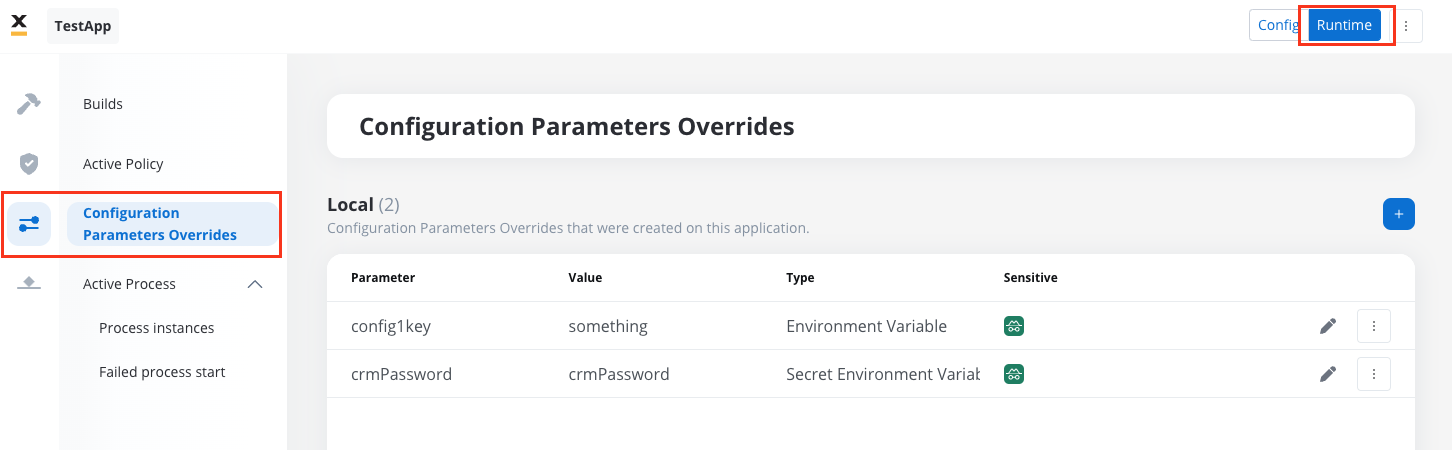
Set Configuration Parameter Overrides: Post-deployment, adjust environment-specific Configuration Parameters in the default application.
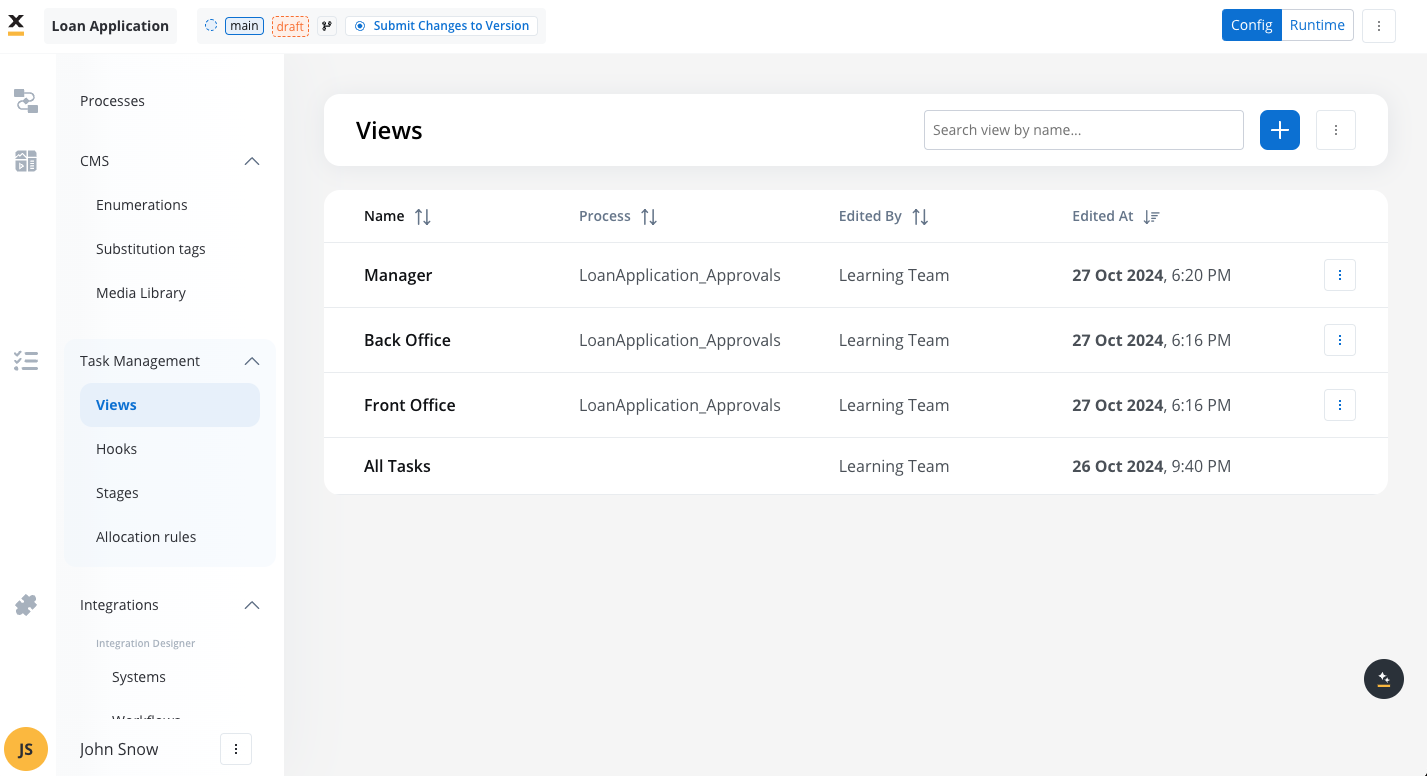
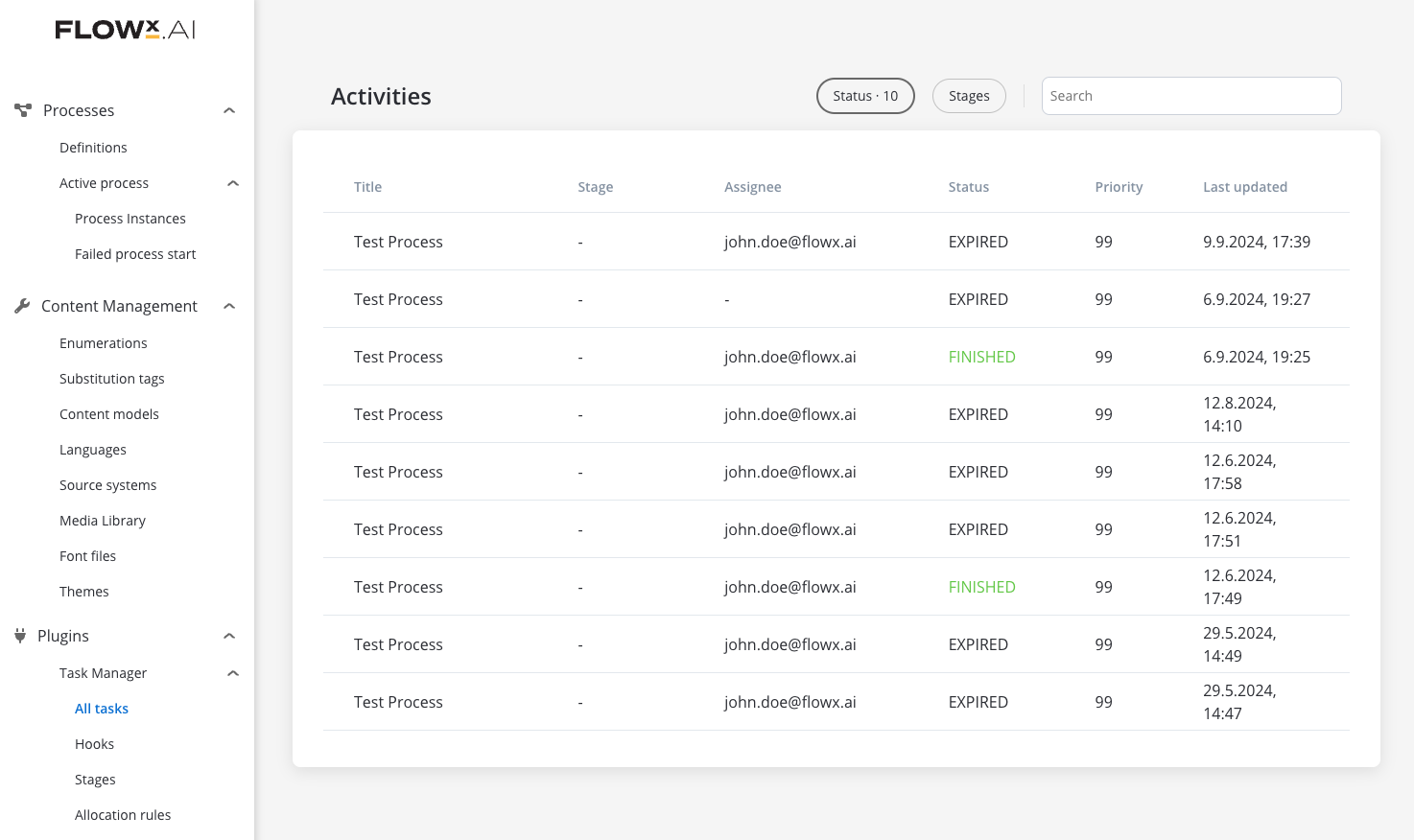
Update Task Views: Replace the global “All Tasks” feature with application-specific Views in each application.
Transfer Processes and Dependencies Manually: If moving a process from the default application to another application, manually transfer associated resources and re-check dependencies.
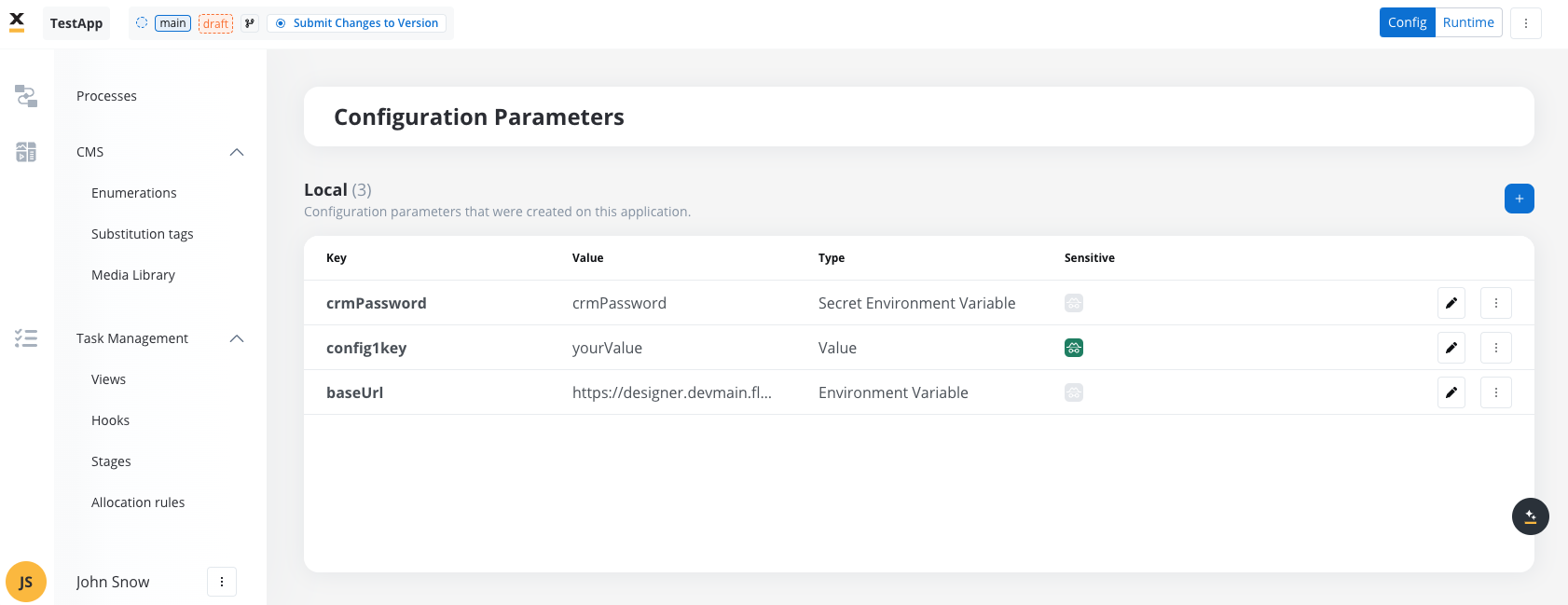
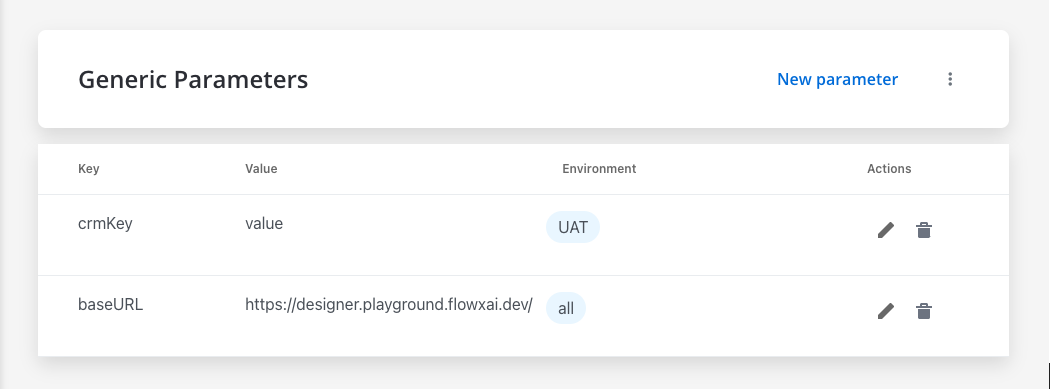
Overview: In version 4.5.0, global generic parameters (from versions prior to 4.5.0) have been migrated to application-level as Configuration Parameters, consolidating parameter management within specific applications for improved organization and control.
Migration: All generic parameters will be automatically migrated to Configuration Parameters section under a default application.
Business Rules Unaffected: There is no impact on existing business rules; they will continue to function as before without requiring updates.
Process Export Considerations: If you export a process from one application to another, ensure that you also transfer the associated configuration parameters. This step is crucial to maintain process functionality and consistency across applications.
Important Note: Only values of generic parameters associated with the specific environment, or where env = null (displayed as “all” in the interface in versions prior to 4.5.0), will be migrated. You must ensure that you have correctly set the values for generic parameters, paying attention to environment values (which are case-sensitive), and export these generic parameters before migration to avoid any potential data loss.
Post-Deployment Step: After the first deployment to an upper environment, you will need to create configuration parameter overrides with the specific values required for that environment. This ensures that all environment-specific configurations are accurately maintained and applied across different deployment stages.
To set configuration parameter overrides, navigate to Your App -> Runtime -> Configuration Parameters Overrides.
During migration, resources will be transferred into a single default application with one committed version.
Process Definitions: Only the last committed process version on the main branch will migrate. If no committed version exists, the latest WIP version will be used.
Enumerations, Substitution Tags, and Task Manager: These resources will be migrated to the default application.
Generic Parameters: Migrated as Configuration Parameters within the default application, covering only values where env = null or that match the platform’s environment setting.
Languages: Language settings (available languages and default) will be moved to application settings. Languages remain globally available.
In version 4.5, significant updates have been introduced to the Datepicker component to ensure compatibility with ISO 8601 date formats and enhanced handling of date attributes within the Data Model. This migration affects both newly created and existing processes.
Standard Date: Stores and displays date values in ISO 8601 format, respecting the application’s locale and timezone settings.
Legacy Date: Retains previous formatting to ensure compatibility with existing business rules and processes.
Properties Updates:
The Datepicker now supports dependent properties such as minDate, maxDate, and defaultValue. These properties:
Follow the formatting rules of the selected date type (Standard or Legacy).
Ensure that dynamic date values pulled from the Data Model are displayed correctly.
Backward Compatibility:
Existing Processes: All migrated processes with legacy Datepicker components will default to Legacy Date type. This preserves the original formatting and ensures no disruption in business rules or workflows.
New Processes: Newly created processes will default to Standard Date type, saving values in ISO 8601 format.
For complex projects with multiple use cases, do not use the default application for ongoing development or production builds. Instead:
Create Branches within the Default Application: Organize and streamline resources by creating branches. This enables a lightweight build focused on production.
Split the Default Application into Smaller Applications: Use the import/export feature to separate the default application into individual applications by use case.
Note: When importing processes into a new application, resource references may need to be manually reconfigured.
Last modified on July 7, 2026
Assistant
Responses are generated using AI and may contain mistakes.