

Write test cases for an AI node in a workflow, check its output with deterministic asserts, score its quality with LLM evaluators, and run an experiment over a tagged set of cases. Judge scoring runs asynchronously in the
evals-judge service.Overview
An evaluation (eval) checks how an AI node behaves on a known input. Use evals to:- Tune prompts and retrieval. Change a system prompt or a knowledge base setting, rerun the same test cases, and see whether the results improved.
- Guard against regressions. Before you commit a new agent version, run your set of hard past inputs and compare the results with the previous run.
- Pick a model. Run the same test cases against two LLMs and compare the verdicts and quality scores.
Core concepts
A test case needs at least one check: an assert, an evaluator, or both.
Get started
1
Open the Test Cases page
In a workflow that contains an AI node, select the flask icon (Test Cases) in the left sidebar. You can also select the flask button on an AI node on the canvas, which opens the Cases tab filtered to that node.
2
Create a test case
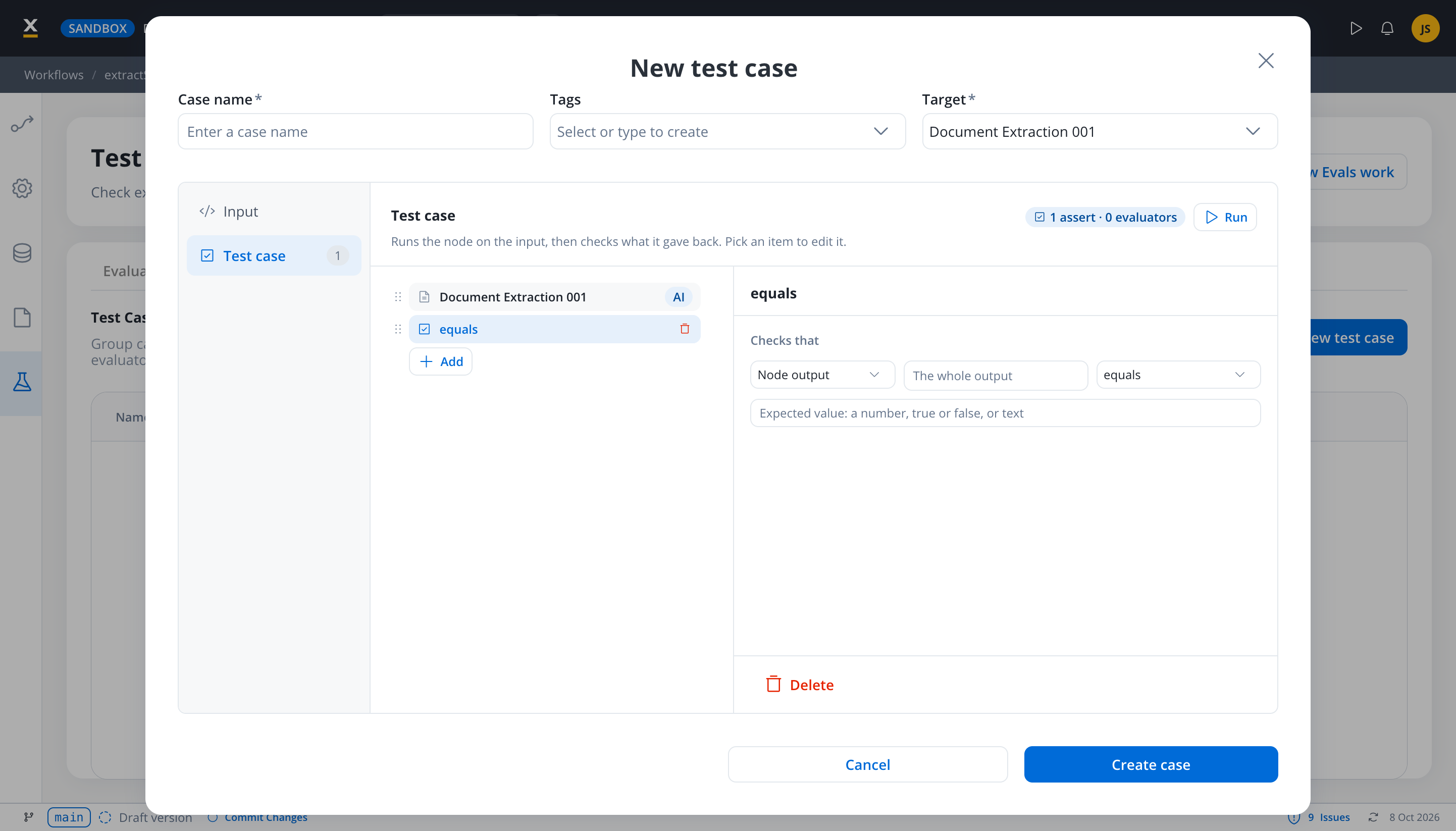
On the Cases tab, click New test case. Enter a Case name, pick the Target node, and add Tags to group the case with others.
3
Enter the input and add checks
Enter the JSON Input. Under Test case, use Add to add an Assert, an Eval, or both.
4
Run the case and save it
Click Run to run the node on its own over the input. Saving keeps the output as the case output. Click Create case.
5
Run an experiment
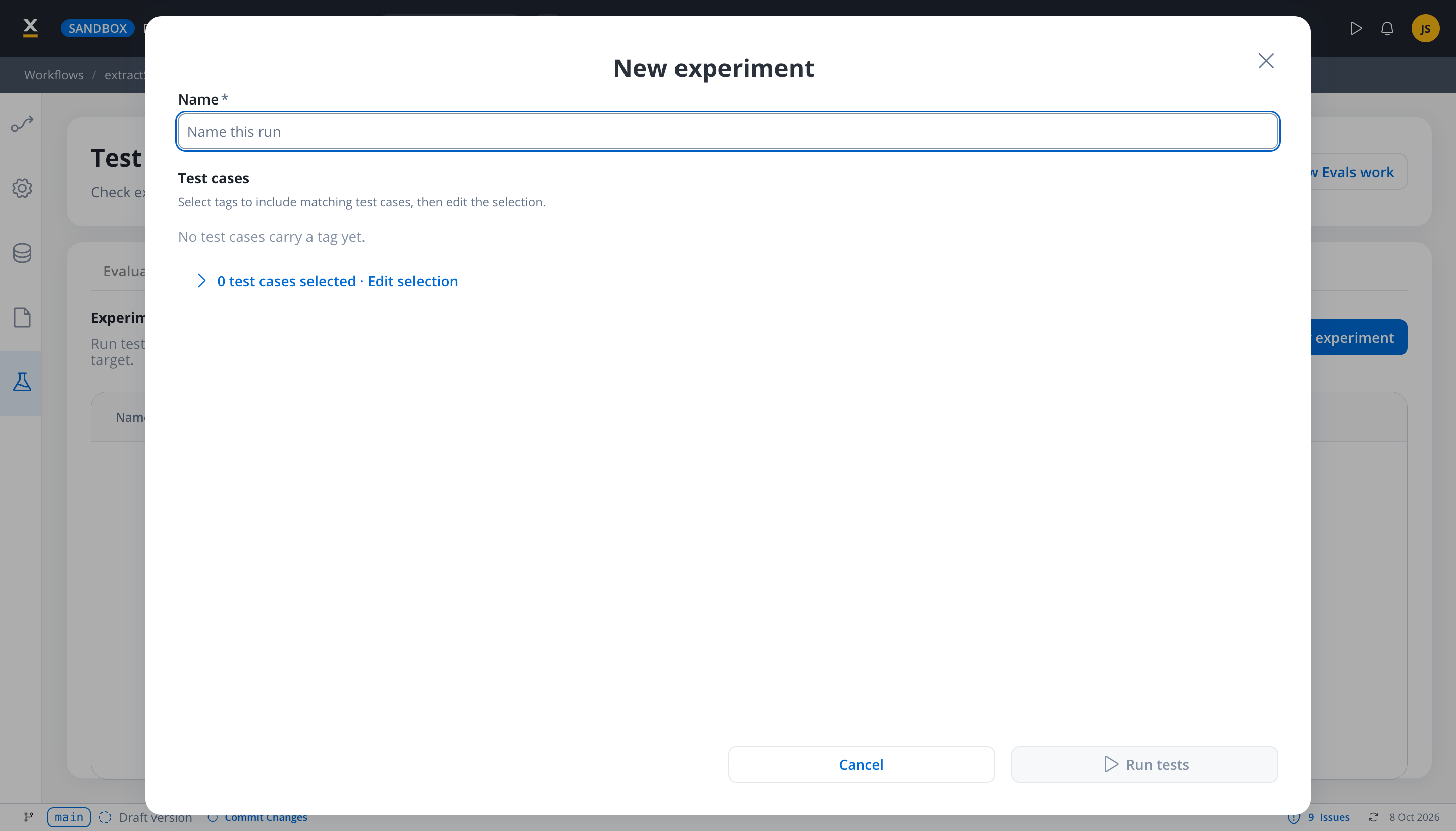
On the Experiments tab, click New experiment, name the run, select the tags or test cases to include, and click Run tests.
6
Read the results
Open the experiment to see assert verdicts and evaluator scores per target, with a result for every case.
Create test cases
A test case belongs to one workflow and tests one AI node. Every AI node type supports test cases except Document Generation, Context Retrieval, and Deep Research.
You can add test cases in three ways:
- Manually
- From a workflow run
- From the canvas
On the Cases tab, click New test case and fill in the fields. Under Test case, click Run to run the node on its own over the input, then add asserts and evaluators that are checked against that output.If you save without running, the case has no output yet. The asserts and evaluators are checked when the case runs in an experiment.
Add asserts
An assert checks the node output against a value you expect and gives a verdict: met or not met. Asserts don’t call an LLM.
Mark an assert Soft to report it without failing the case. A soft assert that isn’t met shows in the report under Soft not met.
The Code evaluators are now asserts. The Exact match and JSON match evaluators from earlier versions are replaced by the equals and equals as JSON asserts. Levenshtein similarity has no replacement.
Add evaluators
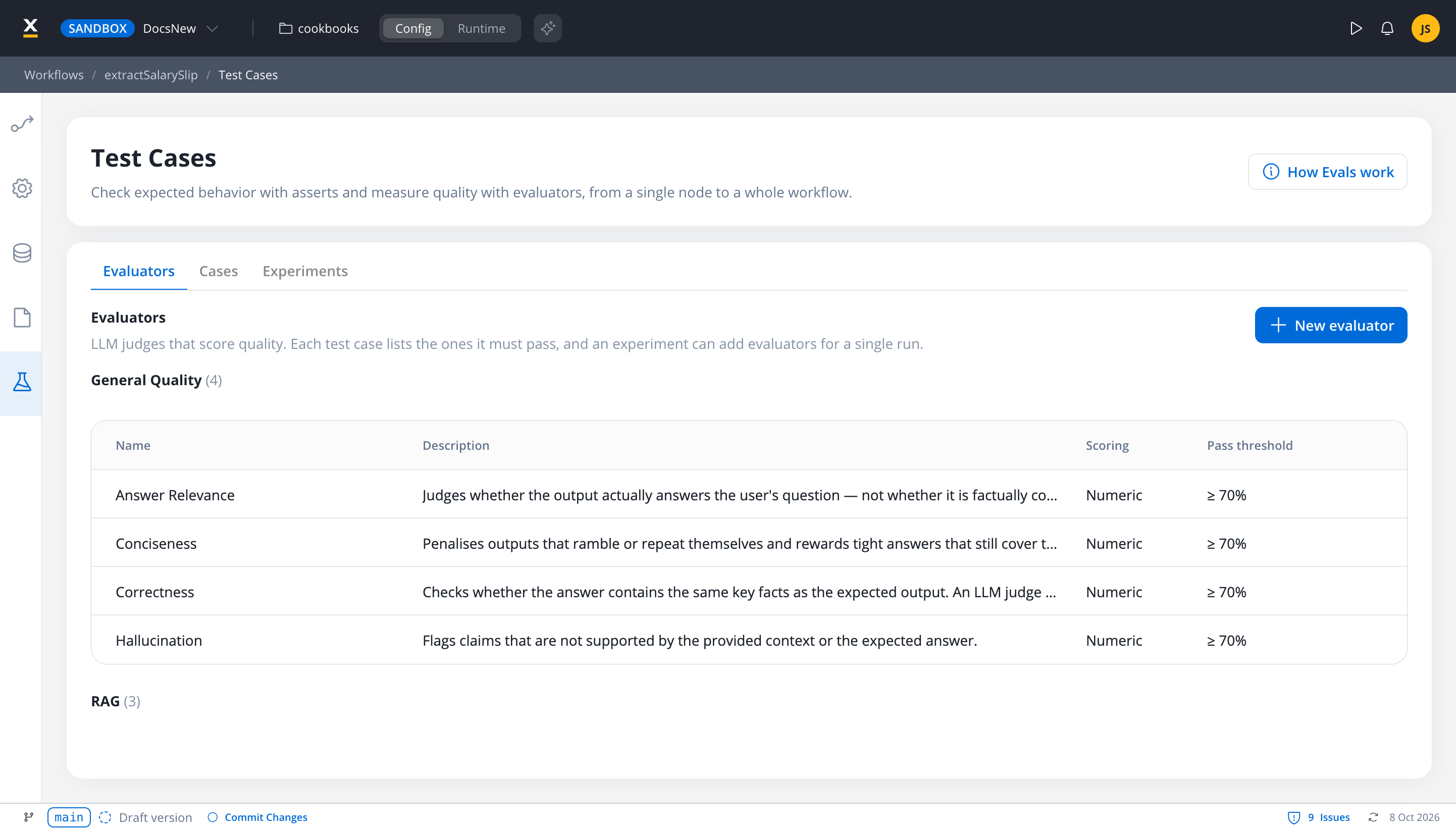
An evaluator is an LLM judge that scores the output from 0 to 1 against a pass threshold. In a test case, add one with Add → Eval, pick the evaluator, and optionally change the pass threshold for that case. The Evaluators tab lists the evaluators available in the workflow: the built-in ones, grouped by category, and any you create. The built-in evaluators can’t be edited or deleted.General quality
A judge LLM reads the node output, and the expected output when there is one, and scores it on a single rubric. All four use Numeric scoring with a default pass threshold of 70%.RAG
Evaluators for retrieval-augmented generation, covering both retrieval and the answer. They apply to a Custom Agent node that uses a knowledge base. All three use Numeric scoring with a default pass threshold of 70%.
RAG Groundedness and RAG Retrieval Relevance need retrieved context. Without it, the check errors instead of scoring.
Custom
Write your own evaluator when none of the built-in rubrics measures what you care about. A custom evaluator is scored by the judge LLM following instructions you supply, and appears under the Custom group on the Evaluators tab, after the built-in ones. Custom evaluators belong to one workflow. Click New evaluator on the Evaluators tab to create one.Binary scoring has no threshold. Switch Scoring to Binary and the Pass threshold field is turned off, since pass or fail is already the result.
Run an experiment
An experiment runs a selected set of test cases. Each case runs against its own target node, so one experiment can cover several AI nodes in the workflow. The report groups the results by target.1
Start a new experiment
On the Experiments tab, click New experiment and enter a Name for the run.
2
Select the test cases
Select tags to include the test cases that carry them, then use Edit selection to add or remove individual cases. Cases whose target node was deleted are skipped.
3
Run the tests
Click Run tests. The configuration of each target node is frozen for this run, and the report fills in live as the checks complete.
You can cancel an experiment only while it is running. Deleting an experiment removes its results and keeps the test cases.
View results
Open an experiment to see its report. Asserts give verdicts and evaluators give quality scores.- Case results: one row per test case with its verdict, filterable by Asserts not met, Evaluators not met, Soft not met, or All cases. Open a row to see the case output, the expected value, and each check’s result.
- Asserts and Evaluators: the share of asserts met, and the average evaluator score against its threshold.
- Configuration: how each target node was configured for this run.
- Passed: every check that isn’t soft was met.
- Failed: at least one check that isn’t soft wasn’t met.
- Errored: a check that isn’t soft couldn’t be run, or every check was skipped.
Improvement suggestions
Available starting with FlowX.AI 5.9.2
Regression testing between agent versions
Every experiment freezes each target node’s configuration at launch, so two experiments on the same test cases give you a before and after comparison of an agent change: a new prompt, a different model, or tuned retrieval.1
Establish the baseline
Tag the test cases that make up your regression set, then run an experiment on that tag before changing the agent.
2
Change the agent
Edit the prompt, swap the model, or adjust retrieval on the AI node.
3
Re-run the same test cases
Start a new experiment on the same tag. The new run freezes the changed node configuration.
4
Compare the reports
Open both experiments from the Experiments tab and compare their results. A drop in asserts met or in an evaluator score is a regression; open the case results to see which inputs got worse.
Datasets from earlier versions
Test cases replace datasets. On upgrade, existing datasets are converted:- Each test case keeps its input and is bound to the dataset’s AI node as its target.
- The dataset name becomes a tag on its test cases, so you can still select them together in an experiment.
- The expected output and retrieved context become the case output.
- Test cases captured from a node execution keep that reference.
Judge model resolution
Evaluators need a judge LLM to run their scoring prompts. The model is resolved per organization via an LLM capability:- The
EVALcapability is part of the org-manager LLM catalogue (display order 7, alongside the existing capabilities). - The platform-default judge model is
gpt-5.4-mini, backfilled onto every org’s catalogue on upgrade. - An admin can change the judge model per org by assigning
EVALto a different model in Settings → AI Providers → Models.
The judge LLM is not the same as the LLM your agent uses. The agent under test can use any provider; the judge runs separately and can be a cheaper, faster model dedicated to scoring.
Permissions
Evals reuse existing workflow-level permissions. There is no new role.
Permissions are enforced per workflow resource ID. A user with
WORKFLOW_EDIT on Workflow A but not Workflow B cannot start an experiment on B’s test cases.
How it works
The runtime side has three pieces:integration-designerowns the test case, evaluator, assert, and experiment REST APIs and the experiment orchestration. It checks asserts itself, publishes judge job requests to Kafka, and writes results to MongoDB.evals-judgeis a small Python service that consumes judge job requests, resolves the judge LLM viaorganization-manager, calls the LLM provider, and publishes scored responses.organization-managerowns the LLM catalogue and resolves the model bound to theEVALcapability for the org.
integration-designerpublishes a request onai.flowx.ai-platform.evals-judge.job.request.v1with the test case, the evaluator id, and the node-config snapshot.evals-judgeconsumes the request, resolves the judge model, runs the scoring prompt, and publishes the result onai.flowx.ai-platform.evals-judge.job.response.v1.integration-designerconsumes the response, records the score on the case result, and pushes a progress event over SSE to any open Designer report.- Permanent failures (no judge model resolvable, invalid request shape, repeated timeouts) end up on
ai.flowx.ai-platform.evals-judge.job.dlq.v1for manual operator review — the report shows the test-case row asERROR.
REST API surface
The Designer is the primary entry point, but the same endpoints are usable from your own tooling. All are scoped to a workspace and to the workflow resource, and requireWORKFLOW_READ or WORKFLOW_EDIT on that workflow.
The
/api/workflows/datasets endpoints from earlier versions are removed.
Operator setup
Evals add a service and three Kafka topics to the AI Platform deployment.evals-judge service
- Language: Python
- Container image:
{{flowx-ai}}/evals-judge - Dependencies: Kafka (request / response / DLQ),
organization-manager(LLM resolution), the LLM provider configured for theEVALcapability, S3-compatible storage (MinIO env vars on multimodal test cases). - No exposed ingress. Communication is Kafka-only.
- Storage: none of its own. State lives in
integration-designer’s MongoDB and the LLM provider.
evals-judge to your AI Platform install. See AI Platform setup for the full Python services list.
Kafka topics
Declare the following in your Kafka provisioning (kafka-topics.yaml.gotmpl for k8s, or your own topic management):
The
integration-designer consumer group for the response topic is integration-designer-evals-judge-response-group with 3 consumer threads by default.
EVAL capability backfill
The migration20260513_eval_capability.xml runs on the first organization-manager boot after upgrade and:
- Registers the
EVALcapability inllm_capability_catalog(display order 7). - Backfills
gpt-5.4-minias the model bound toEVALinllm_model_catalog(platform default). - Backfills the same binding into every existing organization’s
llm_modeltable so evals work out-of-the-box on upgrade without manual configuration.
Limitations
- Workflow-scoped only. Test cases and custom evaluators belong to a single workflow. Sharing them across workflows isn’t supported.
- AI nodes only. A test case targets one AI node. Document Generation, Context Retrieval, and Deep Research nodes don’t support test cases.
- Judge model is org-wide. Picking a different judge per evaluator or per experiment is not supported.
- No similarity assert. Asserts check exact values and JSON equality. Levenshtein similarity from earlier versions has no replacement.
- DLQ is manual. There is no automatic retry for jobs landing on the DLQ; an operator must inspect and decide whether to retry.
Related resources
AI Platform setup
Install evals-judge alongside the rest of the AI Platform.
AI providers
Configure the LLM bound to the
EVAL capability for your org.Agent Builder overview
Build the AI agents whose outputs you’ll test.
Chat-driven workflows
Chat-driven workflow nodes you can write test cases for.