

Overview
FlowX supports configuring AI providers at three levels:- Organization level: Add and manage AI providers, set API keys, whitelist specific models
- Organization level (per workspace type): Assign default and fallback models for each AI capability, scoped by workspace type (Sandbox, Staging, Production)
- Node level: Override the default model on individual workflow nodes
Organization-level: Model providers
Access model providers from Organization Settings → AI Settings → Model Providers.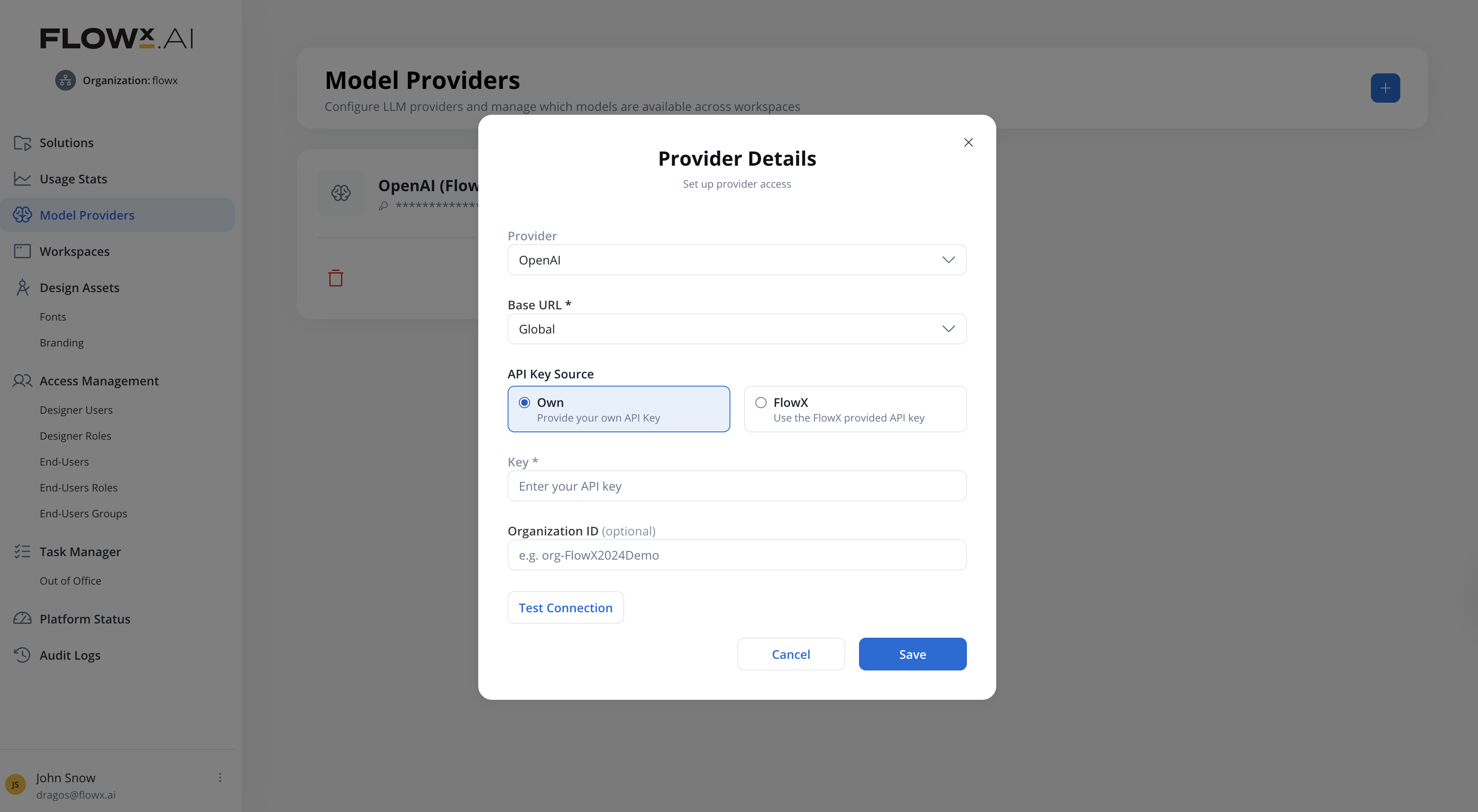
Adding a provider
1
Navigate to Model Providers
In FlowX Designer, go to your organization settings and select Model Providers.
2
Add a provider
Click the + button to open the Provider Details dialog. Configure:
You cannot add the same provider type twice. The system validates against the provider catalog and shows an error if a duplicate is attempted.
3
Test the connection
Click Test Connection to validate your credentials against the provider API.
- Success: “Connection successful. X models discovered.”
- Failure: Error details are shown (e.g., invalid API key for 401, insufficient permissions for 403).
4
Enable models
After saving, click Manage Models to open the model whitelisting modal. Enable specific models from the discovered list. Only enabled models appear in workspace-type assignments (Sandbox, Staging, Production).
Custom URL endpoints
When you point the OpenAI provider at a Custom URL, such as an API gateway or proxy in your own network, FlowX sends every AI capability to that endpoint: text generation, image understanding, embeddings, and document processing. The endpoint must implement these OpenAI API operations, relative to the Base URL:- Include the
/v1version segment in the Base URL, for examplehttps://gateway.example.com/v1. - The API key is sent as a bearer token (
Authorization: Bearer <key>). The provider doesn’t acquire or refresh OAuth tokens. - Requests use the standard OpenAI model IDs from the provider’s model list, for example
gpt-4.1ortext-embedding-3-small. The endpoint must accept these IDs, because you can’t add custom model names to the OpenAI provider.
API Key Source
The API Key Source radio buttons control how the provider authenticates:
When editing the OpenAI provider, switch between Own and FlowX under API Key Source.
Model whitelisting
The model whitelisting modal (opened from Manage Models) lets you control which discovered models are available downstream. Models are grouped by capability:
Each model row shows: model name, capability badges, context window (e.g., “128K tokens”), and indicative pricing (e.g., “$5 / $15 per 1M tokens”).
- Use Search to filter models by name
- Use Select All / Deselect All for bulk actions
- A counter at the bottom shows “X of Y models enabled”
- Click Save Whitelist to persist your selection
Model whitelisting is not available when using the FlowX-managed key for OpenAI.
Editing a provider
When editing an existing provider (API key or Organization ID changed):- The Save button is disabled after any field edit
- Click Test Connection to validate the new credentials
- On success, Save becomes enabled
- If the newly discovered model list differs from the previous one:
- New models are added to the whitelist automatically
- If any previously enabled models are no longer available, a replacement wizard guides you through selecting alternatives
- Skipping the wizard removes the missing models from all dropdowns where they were used, and the fallback mechanism activates
Deleting a provider
All providers except the default OpenAI (FlowX-managed) can be deleted. Deleting a provider:- Shows a confirmation with the impact: nodes and knowledge bases using this provider’s models switch to their fallback model
- If the fallback model is also from the deleted provider, a warning indicates that all LLM-related activities using those models will fail
Provider card
Each provider card shows:- Provider name and icon
- Masked API key (last 4 characters visible, e.g.,
••••••••••••1234) - Model count: “Models enabled: X / Y”
- Organization ID (if configured)
- Connection status
- Available actions: Manage Models, Edit, Delete
Defaults & Fallbacks
Access model assignments from Organization Settings → AI Settings → Defaults & Fallbacks.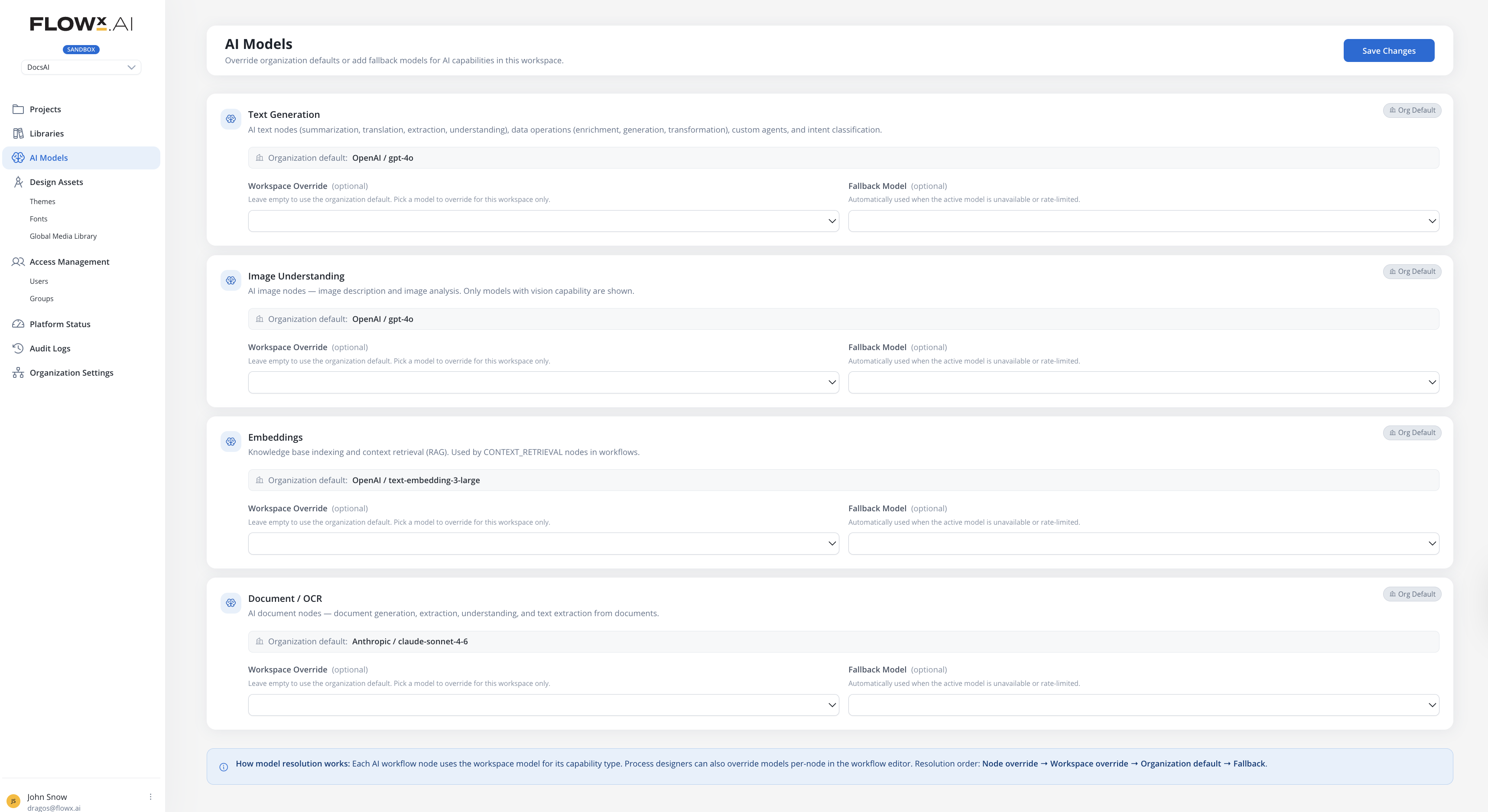
Default models from the OpenAI FlowX key are pre-assigned for each capability.
Assigning models
For each capability:- Select a Default model from org-whitelisted models matching that capability, or use the provider default
- Optionally select a Fallback model, used if the default model is unavailable or rate-limited
When Use provider default is selected, the assignment inherits the catalog default model. Changes to the catalog default automatically propagate.
Fallback behavior
When a primary model is unavailable, rate-limited, or disabled at the organization level, the system automatically switches to the configured fallback model. The resolution order is:- Node-level override (if configured) → its fallback model
- Workspace default → its fallback model
- Error if all options exhausted
Per-node model override
Workflow designers can override the default model on individual AI nodes (Custom Agent, Intent Classification Agent, etc.) in the Integration Designer. This allows different nodes in the same workflow to use different models. For example, a fast model for intent classification and a more capable model for complex reasoning.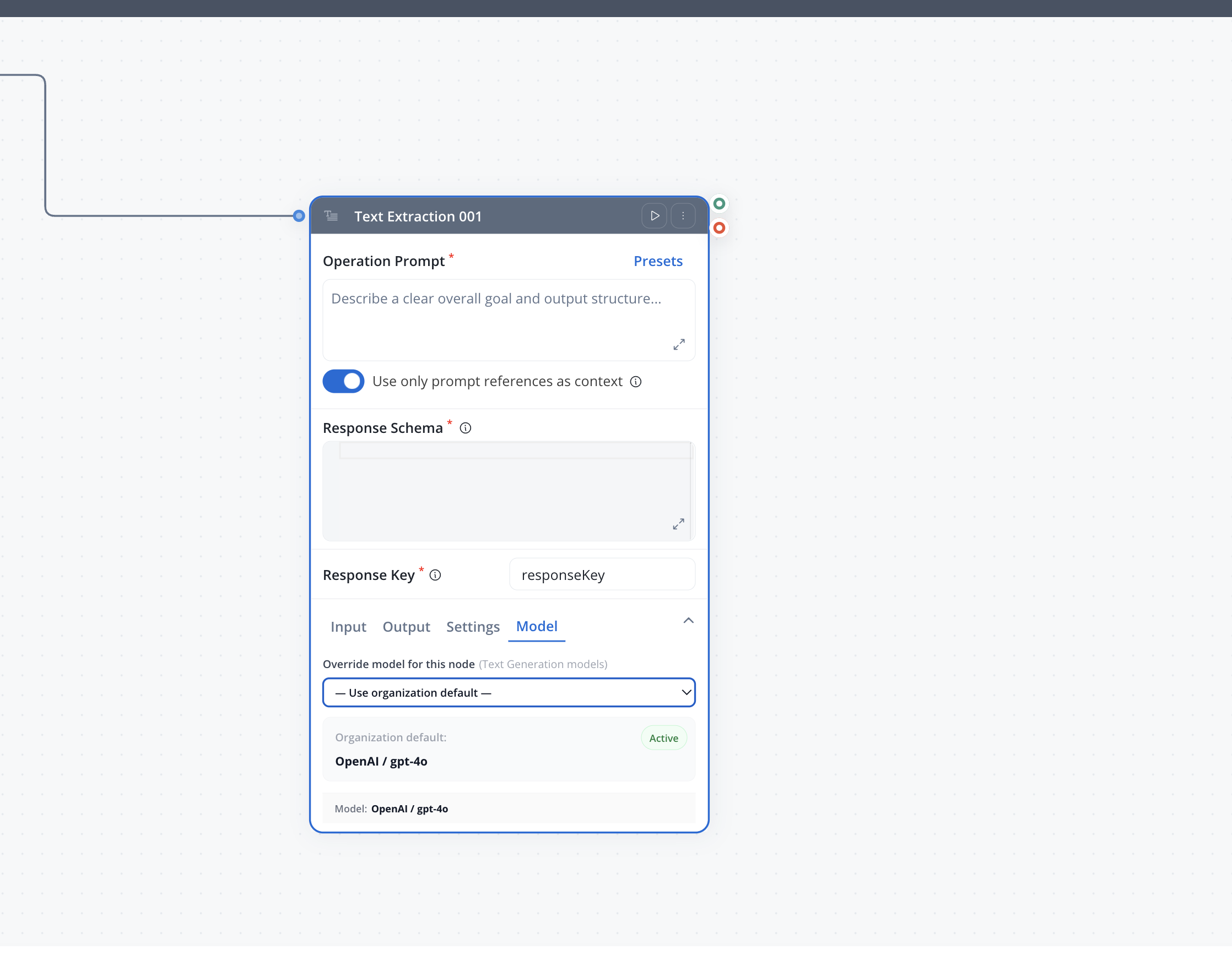
How it works
When configuring an AI node, an optional Model Override section lets you select a specific model:
The override uses portable identifiers (
providerType + modelIdStr) that resolve at runtime against the organization’s available models. Only models enabled in the organization’s whitelist can be selected.
When no override is set, the node uses the workspace default model for its capability (text generation, embeddings, etc.).
Per-node model overrides apply to the text generation capability only. Other capabilities (image understanding, embeddings, document/OCR) always use the workspace defaults.
Supported providers
FlowX maintains a provider catalog with pre-configured provider types. Each provider type includes display metadata (name, icon) and optional base URL presets.
Mistral is also available as a BYOK provider: add it with your own Mistral API key, then enable models from the seeded catalog. Mistral models cover chat, image understanding, embeddings, and document OCR (the Mistral Large, Medium, Small, Magistral, Codestral, Pixtral, OCR, and Embed lines).
Custom provider (self-hosted endpoints)
The Custom provider type connects FlowX to any self-hosted, OpenAI-compatible endpoint, for example a local text-embeddings server or an Ollama instance. It is designed for organizations that need embedding models to run on their own infrastructure so that sensitive content never leaves it. A Custom provider differs from catalog providers:- Free-form Base URL: point it at any OpenAI-compatible endpoint. No presets.
- BYOK only: there is no FlowX-managed key option.
- No seeded model catalog: you register models manually, with the model ID, its capability (embeddings), and the embedding dimensions.
Permissions
Related resources
AI in FlowX
Overview of AI capabilities in the FlowX platform
Agent Builder
Build AI agents that use the configured models
Chat-driven workflows
Create chat experiences powered by AI models
Organization Settings
Manage organization-level settings