

How it works
1
Open the agent rail
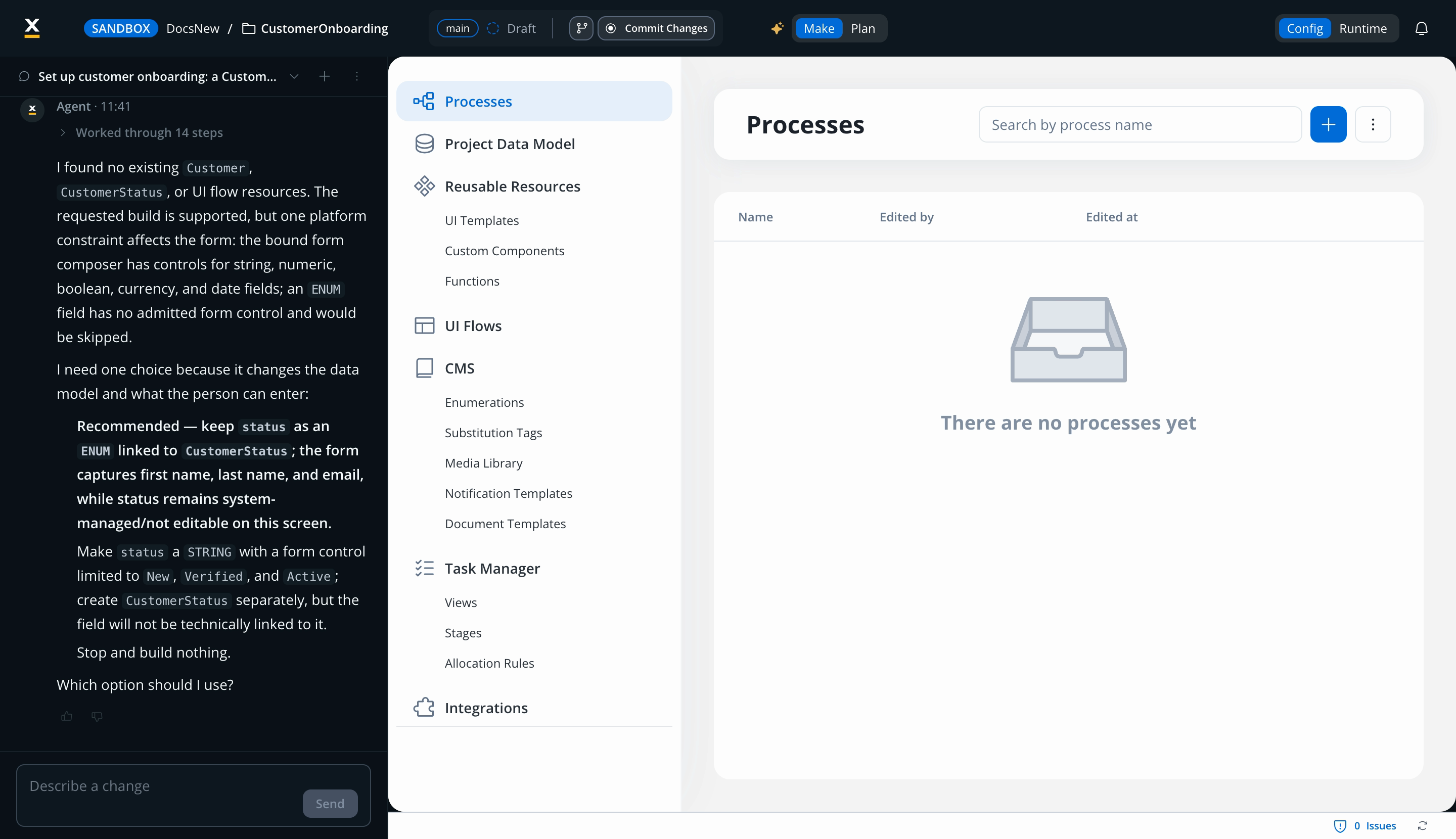
Inside your app, select the Build with AI toggle (the sparkle icon) in the header at the top of the Designer, or press ⌘K (Ctrl+K on Windows and Linux). The agent opens in a chat rail on the left side. The rail header shows where the conversation writes, for example Writes to
customer-onboarding · main. Each conversation is a separate thread: open the conversations list to search earlier threads or start a New conversation for a new piece of work. You can also open the agent from organization and workspace pages, see Can I use the agent outside a project?.2
Describe the change
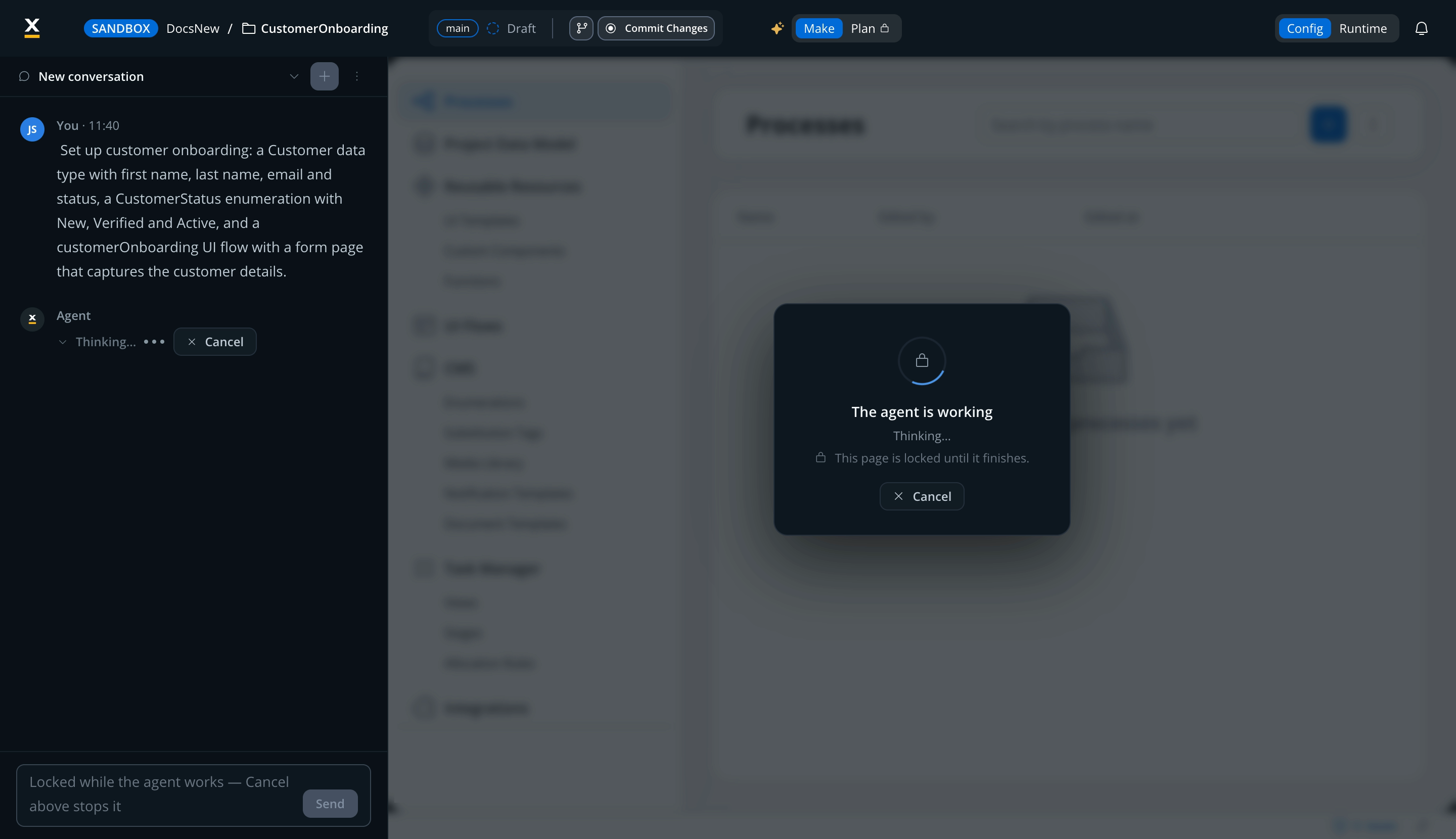
Write what you want to build or modify in plain language. The agent first surveys the app so it works with your real resources and names rather than guesses. While it works, the page is locked and shows its progress. Select Cancel at any point to ask the agent to stop: once the stop is confirmed, the conversation says Stopped. Nothing was saved. If the run can’t be stopped, it keeps going and the conversation shows it as still running.
3
Answer its questions
When a material decision is open, the agent asks instead of guessing. Questions come with selectable options, including a recommended one, and you can always answer in free text.
4
Give the go-ahead
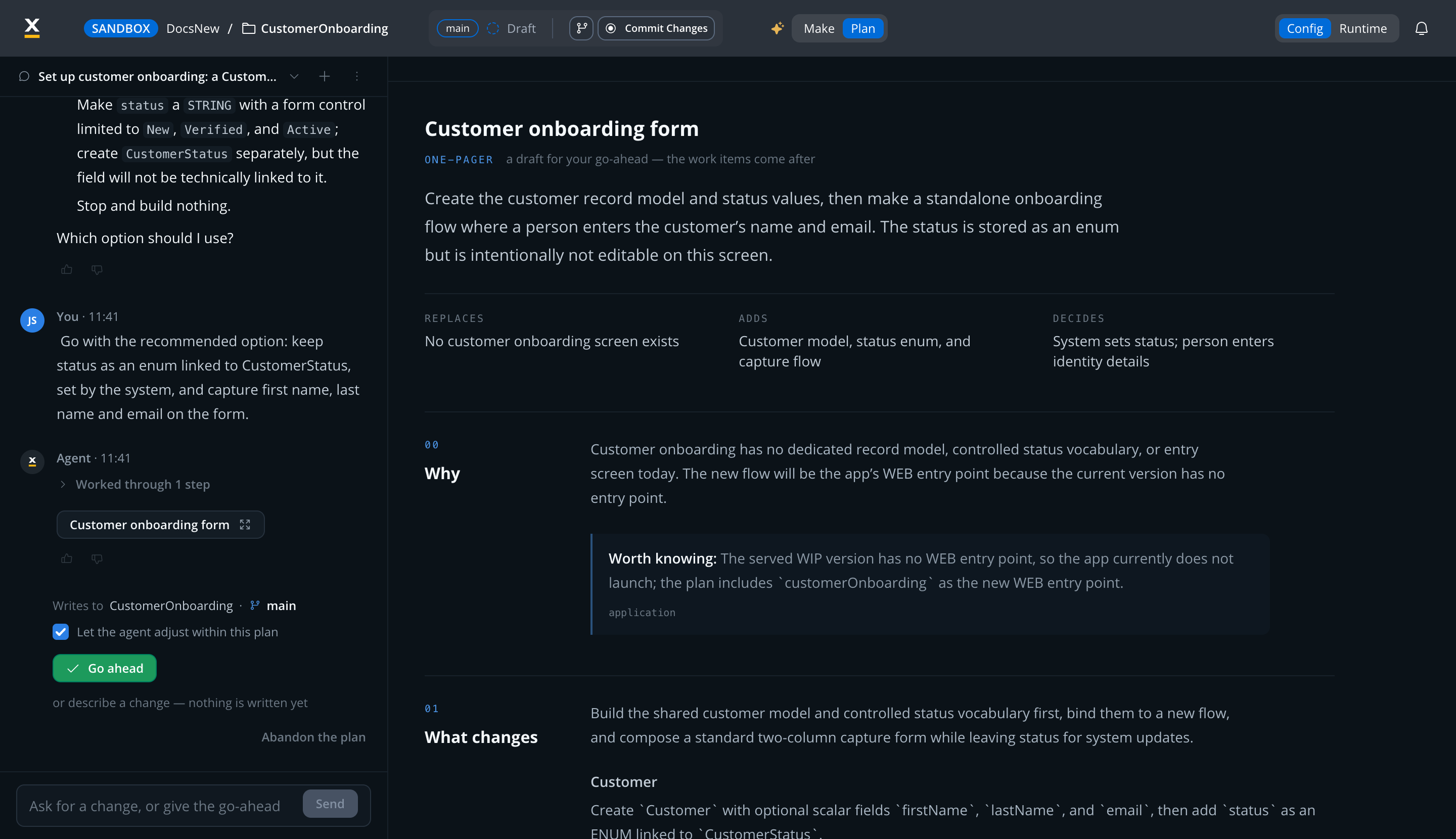
The agent presents a one-pager: why the change, what changes, and the decisions it settled on. Select Go ahead to have the agent prepare the work items, or describe a change in the conversation instead. Nothing is written to your app at this point. Keep Let the agent adjust within this plan selected to allow the agent small adjustments that stay within what you approved. If the agent still sees open questions, the button reads Go ahead anyway.
5
Choose where it runs
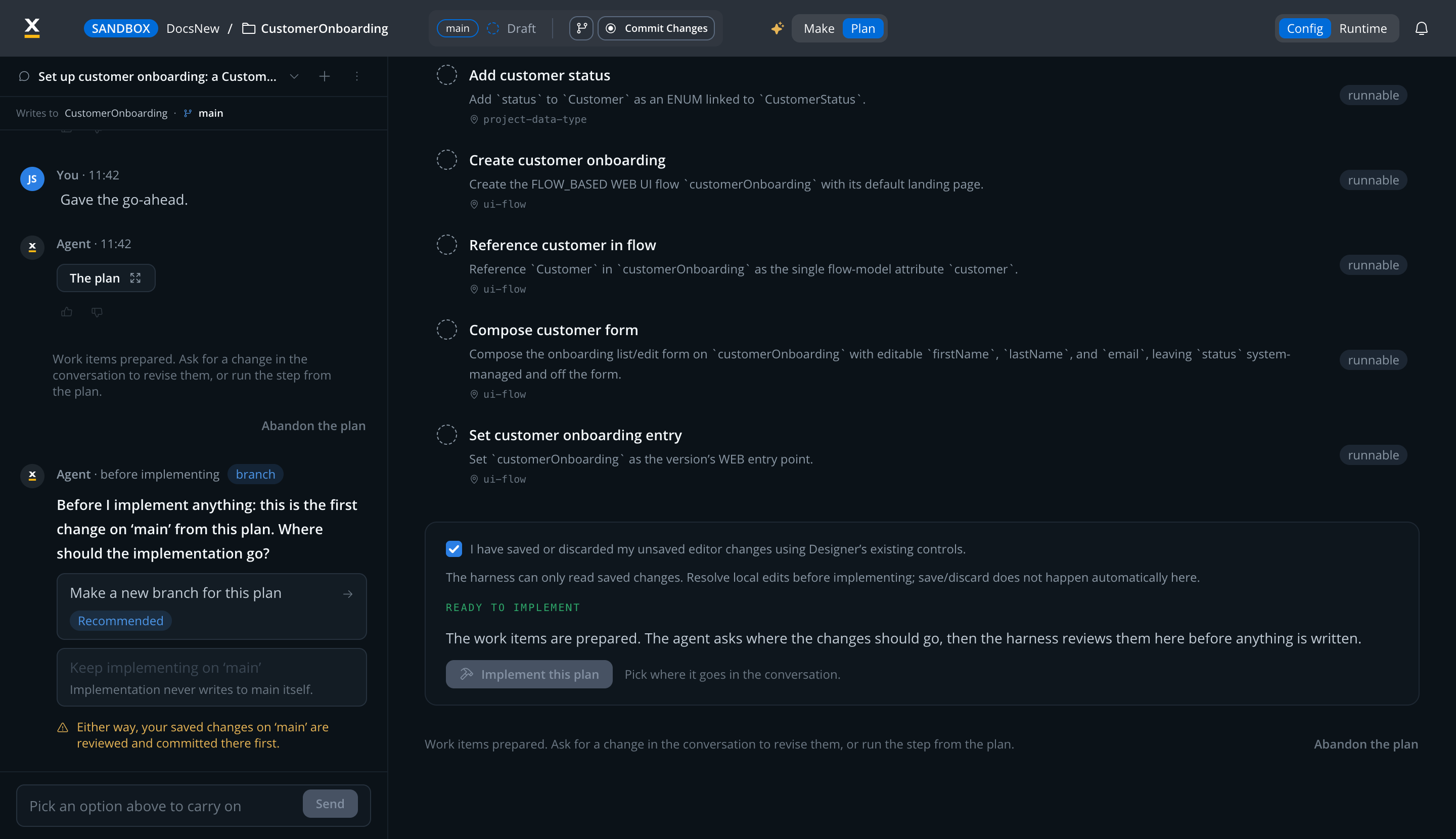
The prepared plan lists its work items with their constraints and the resources each one touches. Select Implement this plan, and the agent asks in the conversation where the implementation goes: keep implementing on the current branch, or Make a new branch for this plan. On a branch other than main, keeping it is the recommended option. On main, a new branch is the only option, because implementation never writes to the main branch itself. Either way, the review that follows shows any saved changes on the current branch, and nothing is built until you confirm committing them there.
6
Review before running
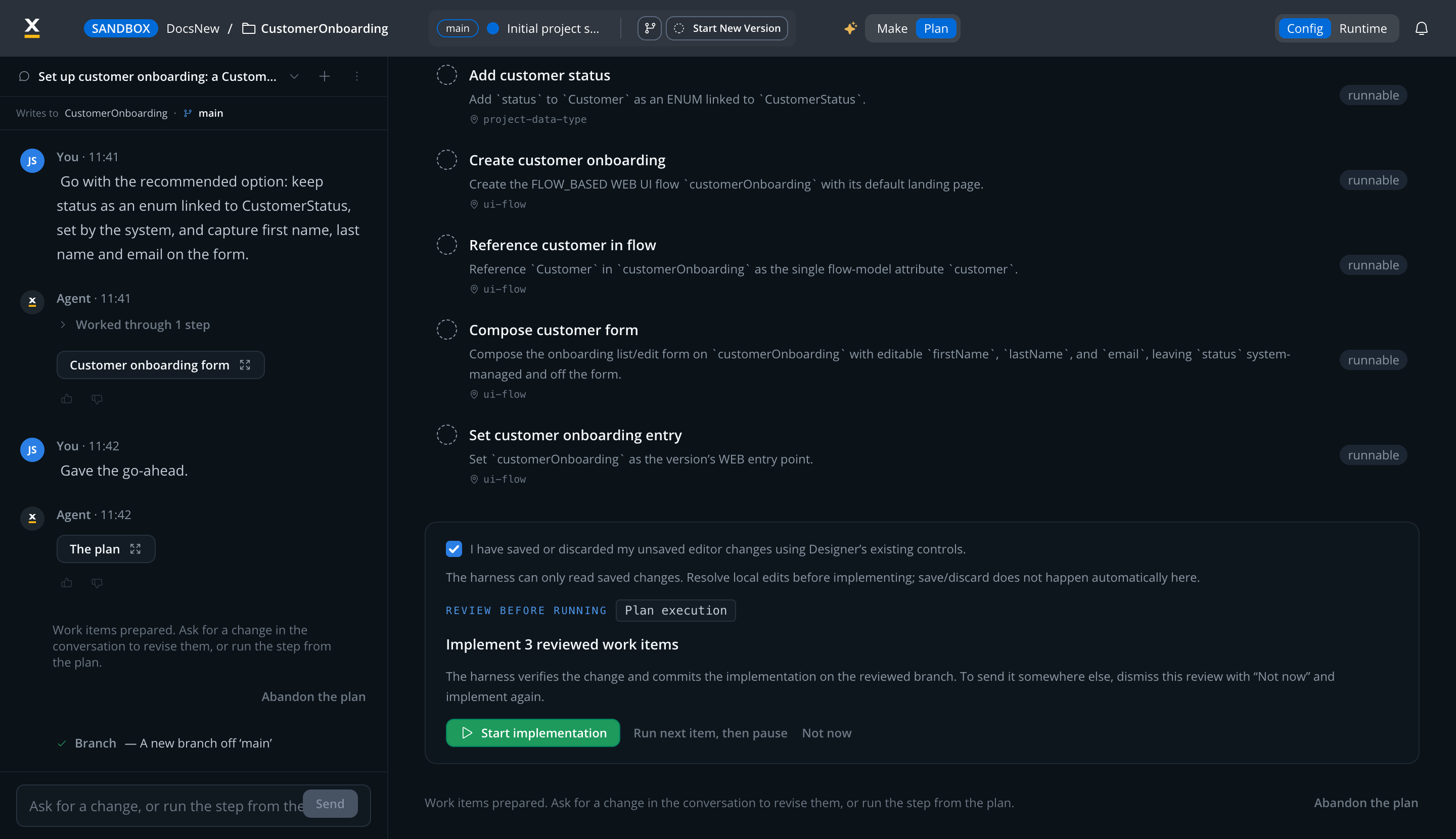
The agent can only read saved changes, so save or discard your open editor changes first, then, for a plan without stories, select the checkbox I have saved or discarded my unsaved editor changes. The review pane lists the reviewed work items with the full content of every operation. Select Start implementation to run the plan, or Run next item, then pause to run one item at a time. When saved changes need committing first, the buttons read Commit changes and start implementation and Commit changes and run next item, then pause. To send the work to a different branch, select Not now and select Implement this plan again.
7
Review the result
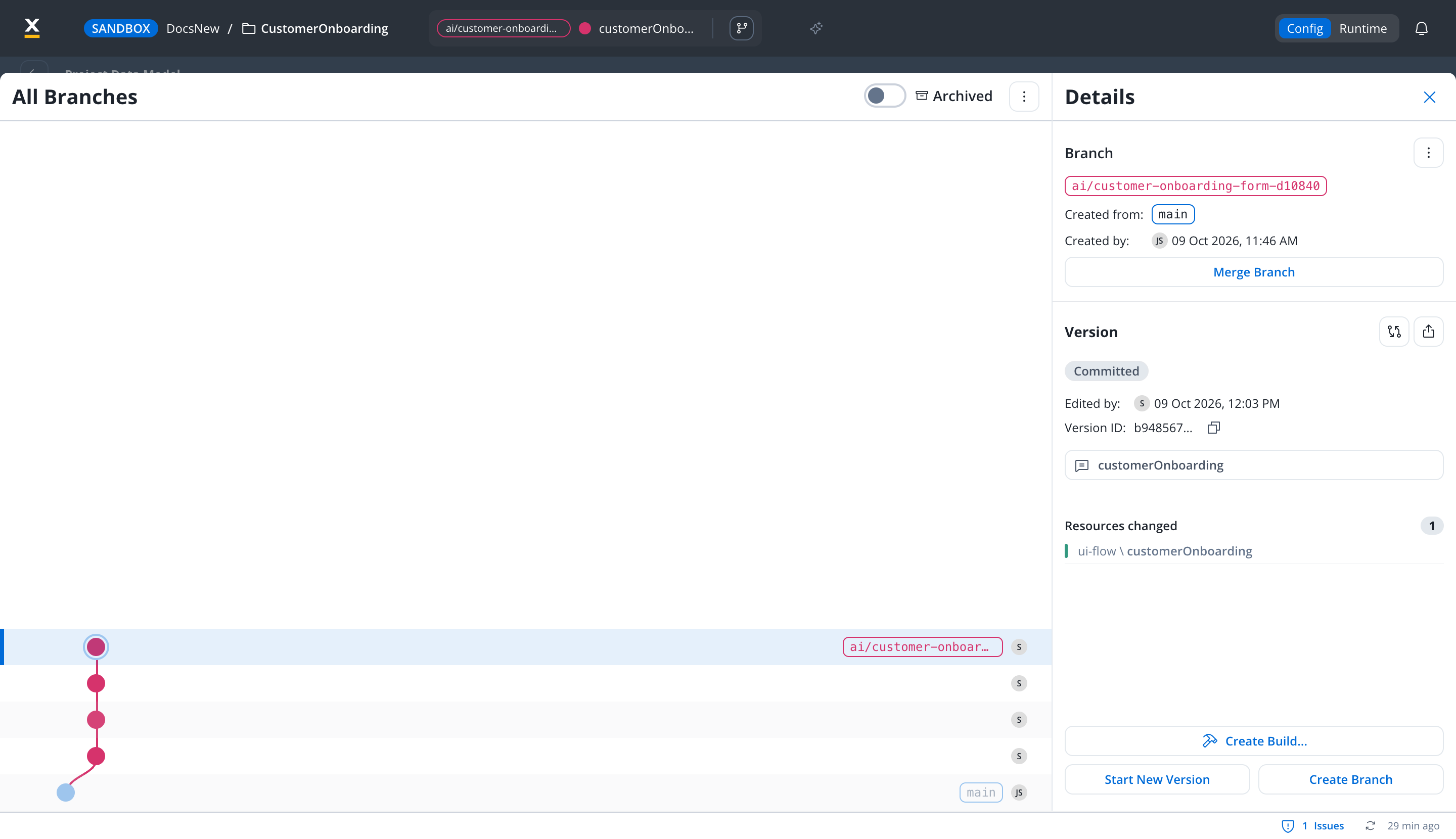
The agent carries out the plan on its own branch, verifies each item, and commits it there. The plan panel tracks progress, for example 3 of 6 implemented, and the conversation reports each step as it completes. When the run is done, review the committed version and its changed resources on that branch. Open the branch takes the Designer to the latest version of the branch the plan wrote to, from wherever you are, for example after the agent made a new branch or after you moved to another branch. Merge the branch when you are satisfied. Your users are untouched throughout: the app keeps serving the served build until you serve a new version.
Make and Plan views
The Make | Plan toggle appears next to the Build with AI toggle while the agent rail is open. It switches the main area between your app content and the agent’s plan panel. While the agent is working, Plan shows a lock icon.- Make shows the app itself: your processes, UI flows, templates, and the rest of the Designer, including any changes the agent has made.
- Plan shows the current plan: the one-pager for your go-ahead, then the work items with their constraints, what each one touches, and how many are implemented. Plan unlocks once the agent has drafted a plan in the current session.

What the agent can see and change
The agent works only with design-time resources, the things you author in the Designer. It can survey every resource type in your app, including processes, UI flows and views, workflows, systems, project data types, reusable functions and UI templates, enumerations, themes, media files, and document and notification templates. Changes it can make include:- Creating and editing processes: adding and renaming nodes, wiring sequences and gateway conditions, attaching business rules, notification steps, and workflow calls.
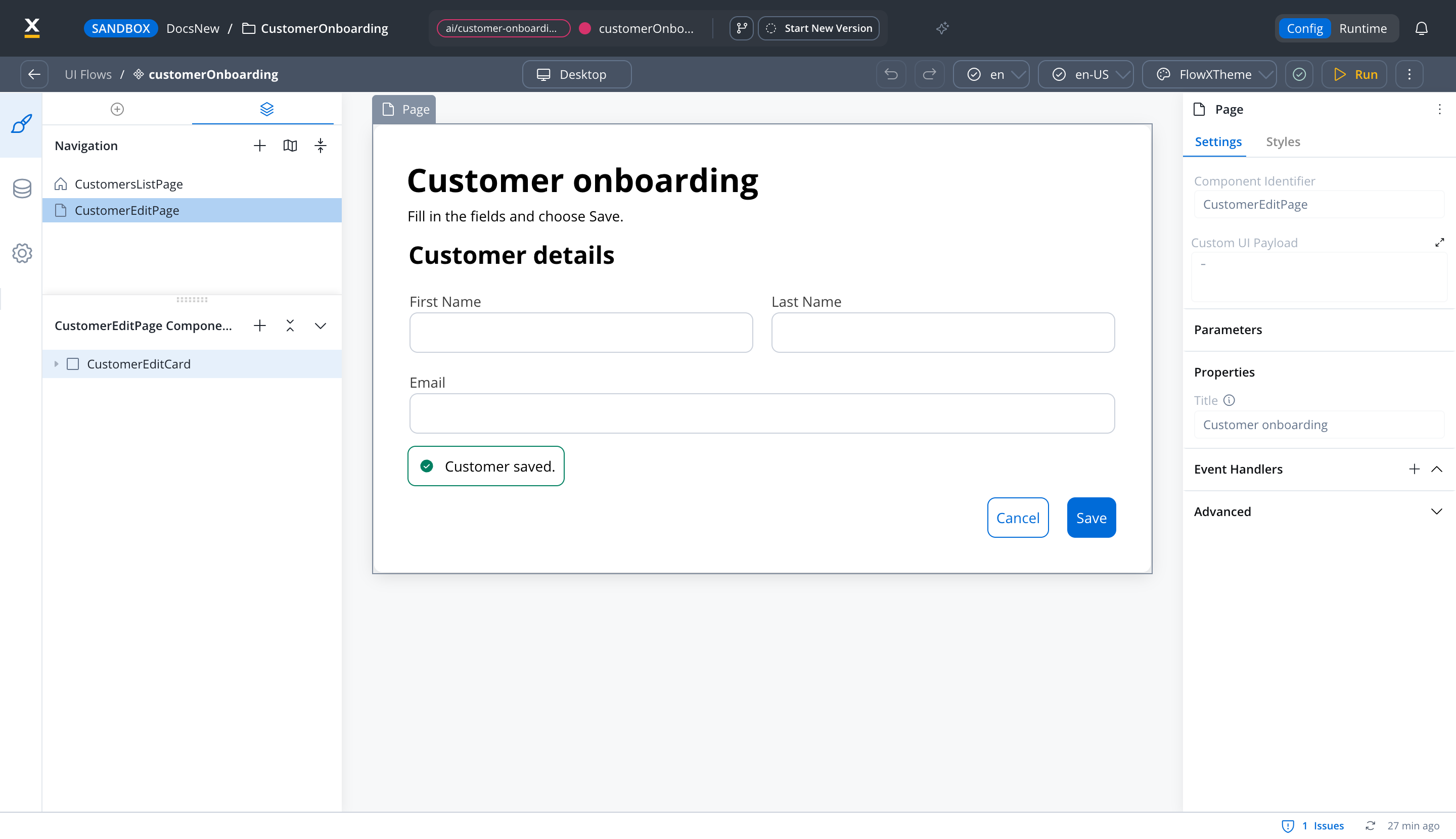
- Creating UI flows and binding components to your data model.
- Creating and editing project data types and their attributes.
- Creating workflows, including conversational workflows that back chat-based UI flows.
- Working with libraries: showing which libraries your app uses and what a library change reaches, adding, updating, or removing a library dependency, and reusing a library resource instead of building it again. Removing a dependency, or updating it to a build that drops resources, is refused while your app still uses those resources. The agent can also roll a library change out to the apps that use it: you try the change in the apps you choose, then move them to the library’s release.
- Turning Use in Reporting on or off for a process, UI flow, or workflow, and setting Use in Reporting and Sensitive data on the fields of its data model.
The agent never touches runtime data. Process instances, UI flow sessions, and other runtime records are refused by design: they are your users’ in-flight journeys, not app definitions.
Safety and review
- Never on your main branch. Implementation runs on a dedicated branch the agent creates for the plan, or on another branch you choose. Implementation on the main branch is not allowed, and the agent merges a branch only when you ask and confirm the merge. See Merging a branch.
- You approve before anything runs. The agent executes a plan only after you give its one-pager the go-ahead, choose where it runs, review the exact operations it will perform, and select Start implementation.
- You approve changes to a running plan. Changes beyond what you approved wait for your review, and work items that already ran stay as they are.
- Verified before committed. The agent validates its change and commits it on its own branch, where you review the version and its changed resources like any teammate’s work.
- Runtime stays untouched. The app’s launch link and its users keep the served build until you serve a new version. Runtime data, such as process instances and UI flow sessions, is refused by design.
- Guarded destructive operations. Deleting a process, for example, is refused while the process has running instances, is referenced by a subprocess or navigation, has start timers or triggers, or is still in use. The agent does not clean these up to force a delete through.
- Cancel at any time. A confirmed stop ends the run cleanly, and the session can be resumed later. A run that can’t be stopped keeps going, and the conversation shows its progress.
- Exact wording is preserved. Names, conditions, and scripts you give the agent are used verbatim. If something needed is missing, the agent asks instead of inventing it.
Merging a branch
When you ask the agent to merge its branch, it plans the merge as a separate step after the work it merges has run. By default it merges into the branch it was cut from; name another branch to merge there instead.- You confirm the merge itself. The merge’s review states what it changes: the destination branch changes for everyone, is locked while the merge runs, and the merge can’t be undone once it completes. The agent merges only after you confirm that review. Approving the plan doesn’t count as confirming the merge.
- Conflicts are your call. When the branches conflict, the agent asks you about each conflict, one at a time, with a recommended answer. Pick a side, or cancel to discard the merge.
- Conflicted merges are checked first. The agent makes a conflicted merge on a separate check branch, validates the result, and runs each process, workflow, and UI flow the conflicts touched. The destination changes only if the result adds no new errors. The check branch stays in the branch graph.
- Other makers’ work is safe. When someone else has work in progress on the destination, the agent refuses the merge instead of discarding their work.
Changes to a plan during a run
Plans can change after you approve them, either because you ask for a change or because the agent finds that the remaining work needs to differ.- Within what you approved: when Let the agent adjust within this plan is selected, the agent can adjust the plan and tells you in the conversation, for example “The agent adjusted the plan within what you approved — now v2.”
- Beyond what you approved: the run pauses and the rail shows A change to the remaining items is waiting for your review. Select Review the change to open it in the plan panel.
- A change to what the plan is for: the review warns that approving it gives the description the go-ahead again.
- A change you ask for while the plan runs: it is queued, the run pauses after the current item, and you review the change there.
v1 → v2) and every remaining item. Items already run stay as they are, and the rest run as shown. Select Approve the change to continue the run with the new version, or Not now to keep the plan as it was.

Entry points, handovers, timeouts, and repairs
- Entry point only with your consent, and no serve. A plan sets or replaces an entry point only when you asked for it yourself, by answering the agent’s question or by changing the plan’s description before you confirmed it. A line the agent wrote on its own doesn’t count. When a plan ends on a version with no web entry point, the agent suggests one, the resource that opens the most of what the plan changed, as its own step. Setting it changes only the plan’s branch. The plan never serves its work: it ends with a note that the work is built on its branch and not merged into main. Merge the branch, then serve the new version when you’re ready.
- Handover buttons. The agent can add a button to a user task that starts another process with prefilled data, either in this app or in another app’s active build.
- Waits for a workflow reply time out. When the agent builds a screen that waits for a workflow’s reply, it adds a timeout and an error route so a lost or failed reply doesn’t strand the user. The wait defaults to 15 minutes, and the route goes back to the nearest user task with nothing written, unless you name another step. The preview states both defaults. A step that already has a timer or error event keeps it as it is.
- Configuration errors are reported. A work item that changes a process reports the new configuration errors it leaves, then completes.
- Failed runs are repaired within budget. When a step fails at run time, the agent reads that run and proposes a repair. Repairs of a step count across plan versions, so a repair you confirm after a plan change still spends the step’s budget.
- A platform that doesn’t answer pauses the run. When the platform doesn’t answer a step, even after the agent waits and tries again, the run pauses instead of failing, and the conversation names the step that had to wait. Select Resume remaining items to try again: the agent first checks whether that step already went through, so nothing is applied twice.
- Small edits skip the one-pager. When you ask for one exact change, such as renaming a resource, the agent drafts it, checks it against your app, and opens it for review straight away. You still select Start implementation before it runs. When the name you gave matches more than one resource, the agent first asks which one you mean. A larger change, or one the agent can’t check up front, goes through the one-pager and the plan as usual.
How does a plan with stories run?
Some plans split the work into stories, each a slice of the app you can try on its own. A plan with stories is implemented one story at a time, so you can check each slice before the next one starts.- Open a story to see where it sits in the plan (for example Story 2 of 5), How to test this story, What I need from you, what was decided, What this story touches (a forecast that may change when the story starts), and the stories it depends on.
- Implement the next story. Only the next story in line offers Implement. Select Implement this story, review its operations, and run it. When saved changes need committing first, the button reads Commit changes and implement this story.
- Follow the progress. The plan counts implemented stories, and each implemented story shows the commit it landed as. The conversation reports each story as it’s built, implemented, waiting for you, or stopped.
- Run the rest. Once a run exists, Implement the remaining stories runs every story still open. When a story needs an answer from you, answer it to continue. After a reload, choose how far to continue: This story only or The remaining stories.
How do I comment on the running app?
Point at what you want changed instead of describing where it is. While the agent’s panel is open on a running UI flow or process, select Comment in the header, beside Config and Runtime.1
Pick a component
Select a component in the running app. Use the breadcrumb to pick the level you mean, for example the whole card rather than one field inside it.
2
Say what should change
The comment box quotes the component. Type what should change and select Send, or press Enter. Shift+Enter adds a new line.
3
Continue in the conversation
The comment goes to the agent with the component attached as context. It joins the open conversation when that conversation writes to the run’s branch or has no target yet. Otherwise it starts a new conversation, and a run on the main branch always starts a new one.
What happens when the agent asks to read another project?
The agent reads and writes inside the conversation’s write target. When answering needs more, for example another project in the workspace, it asks first with a Read from card that names what it would read and why. The access is read-only: nothing there is ever written.- Select Allow for this conversation to let it read. The access lasts for this conversation until it goes idle.
- Select No, and the agent answers from the write target alone.
Can I use the agent outside a project?
Yes. The Build with AI toggle also appears on organization and workspace pages, so you can start a conversation before you open a project. Each page level has its own permission, and one level never stands in for another:
A conversation outside a project can read projects but not change them:
- Ask about a project by name. The agent checks that you can read the project, then reads it as you, read-only, at its last commit on the main branch. If the name matches no project you can read, the agent says so and offers projects you can read instead.
- To change a project, open the project and work from there.
- Attaching files needs a project, so it isn’t available outside one.
Sessions
A conversation belongs to you and stays open as you move around the Designer. It writes to one project and branch, set by the first change you confirm, and the rail shows that target after Writes to. Opening other pages adds context but never moves the target: on another project, the rail notes that the conversation still writes to the first one. A paused run waits at a verified item boundary: select Resume remaining items to continue, or Run next item, then pause to step through the rest. When a failed step stops the run, the plan keeps its run card and the rail tags it run failed. When every item is implemented, Finish the run closes the run and lists what could not be proven. When the work is no longer wanted, select Abandon the plan: it closes the plan and keeps its history, and you start a new conversation for another change. After a run completes, describe the next change in the same conversation and the agent plans it there. The conversations list shows every conversation you have in the organization. Use Search conversations to find one, or filter by All, This project (on a project page), or With plan. Each conversation keeps its own plan. Start a second conversation on the same branch to run a second plan against the same work, then switch back to the first one and find its plan and its history intact.Delete a conversation
In the conversations list, open the row’s ⋮ menu and select Delete. The Delete conversation window says what is kept and what is lost:- Commits stay. Changes the agent committed, and the audit of who changed what, stay on their branch. The reasoning and anything planned but not run are lost. Select Export plan to download a plan as JSON before you delete.
- Nothing committed: deleting removes the conversation and everything planned in it.
- Attached files are listed, and they’re deleted with the conversation.
Attach files to a conversation
Give the agent your own material to work from, such as a requirements brief, a screenshot of an existing form, or a BPMN diagram. Select the paperclip (Attach files) in the composer, or drop files on it, then send them with your message. A message can also be only files: the agent summarizes what they contain and suggests next steps, without changing your app until you ask.
You can attach up to 5 files to one message and up to 20 to one conversation. The Attach files button is hidden while you answer a question the agent asked you.
What happens when you attach a file
- Before upload: files that break a rule are listed in a This file wasn’t attached notice above the composer, with the reason for each. Reasons include an unsupported file type, an empty file, a file over the size limit for its type, a file already attached to the message or the conversation, a message over 5 files, a conversation over 20 files, and a file that can’t be read. The other files still attach.
- While uploading: each file shows as a chip with its upload progress, then its size. Send waits until every upload finishes. If an upload fails because of a network or server error, select Retry, or remove the file: Send stays unavailable while a failed file is attached.
- After sending: the agent reads each file and indexes it so it can search the content while it plans and builds. A file shows Processing… until it’s ready. A file the agent can’t use shows Not searchable or Indexing failed, and the rest of the message still goes through.
Manage a conversation’s files
When a conversation has files, the conversation header shows a paperclip with the file count. Select it to open Files in this conversation. It lists every file sent in the conversation with its type, size, and when it was sent, and shows why a file couldn’t be read.- Select a file name to open it. PDF and BPMN files open in a new tab, images open in a preview, and DOCX files download.
- Select Retry on a file that failed indexing to index it again.
- Select Remove from the conversation to take a file out. The file is removed right away, without a confirmation step, and its row reads Removed from the conversation.
Related resources
The Developer Agentic Harness builds and changes your app for you in the Designer. To create AI agents that run inside your apps and serve your users, use Agent Builder instead.AI in FlowX
Overview of config-time and business agents
Agent Builder
Build business agents that run inside your apps
Versioning
Branches, commits, merging, and builds