

Documentation Index

Fetch the complete documentation index at: https://docs.flowx.ai/llms.txt

Use this file to discover all available pages before exploring further.

Angular project requirements

Your app MUST be created using Angular CLI ~20 and MUST use SCSS for styling.
npm install -g @angular/cli@20
ng new my-flowx-app
To install the npm libraries provided by FlowX.AI you will need to obtain access to the private FlowX.AI Nexus registry. Please consult with your project DevOps.
The library requires Angular ~20, npm ≥ 11.0.0 and node ≥ 24.0.0.

Installing the library

Use the following command to install the renderer library and its required dependencies:
npm install \
  @flowx/core-sdk@<version> \
  @flowx/core-theme@<version> \
  @flowx/angular-sdk@<version> \
  @flowx/angular-theme@<version> \
  @flowx/angular-ui-toolkit@<version> \
  @angular/cdk@20 \
  @types/event-source-polyfill
Replace <version> with the correct version corresponding to your platform version.To find the right version, navigate to: Release Notes → Choose your platform version → Deployment guidelines → Component versions.
A few configurations are needed in the project’s angular.json. To successfully link the PDF viewer, add the following declaration in the assets property:
{
  "glob": "**/*",
  "input": "node_modules/ng2-pdfjs-viewer/pdfjs",
  "output": "/assets/pdfjs"
}

Initial setup

Once installed, FlxProcessModule is imported in the AppModule as FlxProcessModule.withConfig({}).

Theming

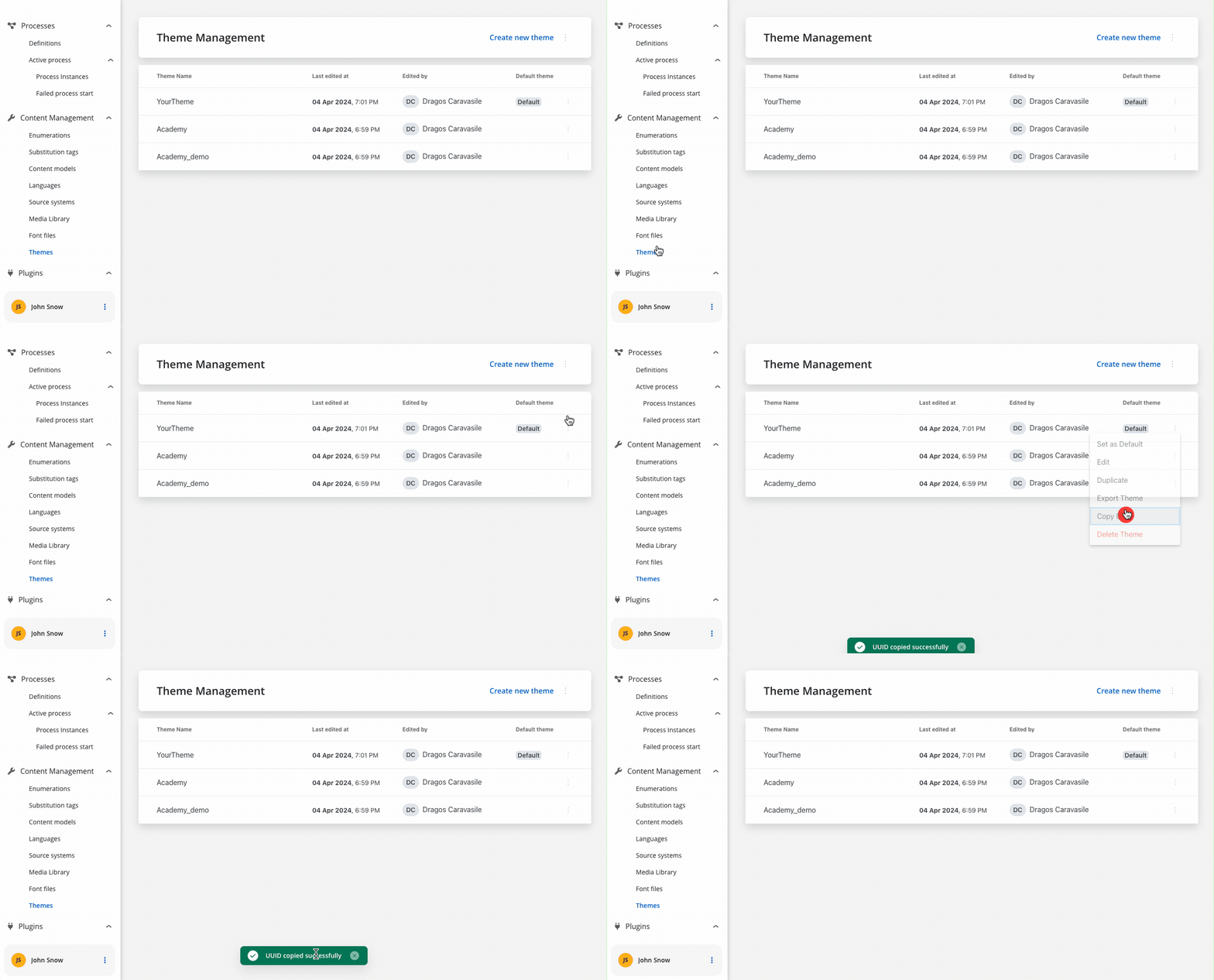
Component theming is done through the @flowx/angular-theme library. The theme id is a required input for the renderer SDK component and is used to fetch the theme configuration. The id can be obtained from the admin panel in the themes section.
Authorization

It’s the responsibility of the client app to implement the authorization flow (using the OpenID Connect standard). The renderer SDK expects the authToken to be passed to flx-process-renderer as an input.
import { BrowserModule } from '@angular/platform-browser';
import { NgModule } from '@angular/core';
import { HttpClientModule, HTTP_INTERCEPTORS } from '@angular/common/http';
import { FlxProcessModule } from '@flowx/angular-sdk';
import { AppRoutingModule } from './app-routing.module';
import { AppComponent } from './app.component';

@NgModule({
  declarations: [
    AppComponent,
  ],
  imports: [
    BrowserModule,
    AppRoutingModule,
    HttpClientModule,
    FlxProcessModule.withConfig({
      components: {},
      services: {},
    }),
  ],
  providers: [
    { provide: HTTP_INTERCEPTORS, useClass: AuthInterceptor, multi: true },
  ],
  bootstrap: [AppComponent]
})
export class AppModule {}
The withConfig() call is required in the app module where the process will be rendered. It accepts a config object where you can register custom components, services, and custom validators. Custom components are referenced by name in the template config for a user task. Custom validators are referenced by name (currentOrLastYear) in the template config panel under the validators section of each generated form field.
FlxProcessModule.withConfig({
  components: {
    YourCustomComponentIdentifier: CustomComponent,
  },
  services: {
    NomenclatorService,
    LocalDataStoreService,
  },
  validators: { currentOrLastYear },
})

Custom interceptors

Starting from FlowX SDK version 4.6, the Angular HttpClientModule is no longer used internally for HTTP requests. A new mechanism allows you to create custom interceptors.

Request interceptors

import { FLX_REQUEST_INTERCEPTORS_CONFIG } from '@flowx/angular-sdk'
import { HttpRequestInterceptor } from '@flowx/core-sdk'

const customHeaderInterceptor: HttpRequestInterceptor[] = [
  {
    onFulfilled: (response) => {
      response.headers['custom-header'] = 'custom-value'
      return response
    },
  }
]

// Add to providers in the main app module
{
  provide: FLX_REQUEST_INTERCEPTORS_CONFIG,
  useValue: customHeaderInterceptor,
}

Response interceptors

import { FLX_RESPONSE_INTERCEPTORS_CONFIG } from '@flowx/angular-sdk'
import { HttpResponseInterceptor } from '@flowx/core-sdk'

const customErrorInterceptor: HttpResponseInterceptor[] = [
  {
    onRejected: (response) => {
      if (response.status !== 200) {
        console.error('Something went wrong!', response.message)
      }
      return response
    }
  }
]

// Add to providers in the main app module
{
  provide: FLX_RESPONSE_INTERCEPTORS_CONFIG,
  useValue: customErrorInterceptor,
}

Interceptors that use dependency injection

If you need to use a service in your interceptor, use provider factories with the deps property:
const interceptorFactory = (customService: CustomService): HttpRequestInterceptor[] => [{
  onFulfilled: (response) => {
    // use customService here
    return response
  }
}]

// Add to providers in the main app module
{
  provide: FLX_REQUEST_INTERCEPTORS_CONFIG,
  useFactory: (customService: CustomService) => [
    interceptorFactory(customService),
  ],
  deps: [CustomService],
}

Using custom icons

import { FlxIconModule } from '@flowx/angular-ui-toolkit'

const customIconDictionary = {
  'custom-icon': 'custom icon svg'
}

providers: [
  importProvidersFrom(FlxIconModule),
  provideExtraIconSet(customIconDictionary),
]

Analytics

The SDK provides a mechanism for collecting analytics events through a unified CustomEvent system. These events can be used to track screens and action events.
To use analytics features, import the necessary SDK module:
import {
   ANALYTICS_EVENTS,
   AnalyticsData,
   pushAnalyticsData,
} from '@flowx/core-sdk';

Emitting analytics events

Analytics events are dispatched using the pushAnalyticsData(payload: AnalyticsData) method. The SDK defines two event types:
enum ANALYTICS_EVENTS {
  SCREEN = 'SCREEN',
  ACTION = 'ACTION',
}
Each analytics event should be an object of type AnalyticsData:
type AnalyticsData = {
  type: ANALYTICS_EVENTS;
  value: string;
  screen?: string;
  component?: string;
  label?: string;
  customPayload?: object;
}
The value property represents the identifier set in the process definition.For ACTION type events there are additional properties:
  • component - the type of component triggering the action
  • label - the label of the component
  • screen - the identifier of the screen containing the component, if set

Listening for analytics events

ngOnInit(): void {
  document.addEventListener('flowx:analytics', this.analyticsListener);
}

analyticsListener = (event: CustomEvent<AnalyticsData>) => {
  console.log('Received flowx:analytics event:', event.detail);
};

ngOnDestroy(): void {
  document.removeEventListener('flowx:analytics', this.analyticsListener);
}
Ensure that you remove the event listener on component destruction to avoid memory leaks.

Custom payload

This allows you to capture and send custom data alongside standard analytics events. When analytics custom payload is configured in FlowX Designer, the renderer automatically processes variable substitution and includes the resulting data in analytics events.
1

Receive custom payload configuration

The renderer receives the analytics configuration as a JSON string with variable placeholders:
"analyticsCustomPayload": "{\n \"name\": ${app.input}\n}"
2

Process variable substitution

The SDK replaces variables with actual values from the process data store:
{
    "name": "${app.input}",
    "client": "${app.client}",
    "amount": "${app.amount}"
}
3

Add to analytics event

The processed payload is included in the analytics event under the customPayload property:
{
    type: 'ACTION', // or 'SCREEN'
    info: {
        value: 'Save personal data',
        screen: 'Personal Data',
        component: 'BUTTON',
        label: 'Save',
        customPayload: {
            name: "john",
            client: { id: "123", name: "John Doe" },
            amount: 1500
        }
    }
}

Starting a process

Prerequisites

  • Process name: You need to know the name of the process you want to start. This name identifies the process in the system.
  • FlowX Project UUID: You need the UUID of the FlowX Project that contains the process. Obtain it from the FlowX Dashboard.
  • Locale: You can specify the locale to apply date, currency, and number formatting to data model values.
  • Language: You can specify the language used to localize enumerations inside the app.

Getting the project UUID

The project UUID can be obtained from the FlowX Dashboard. Navigate to the Projects section and select the project you want to start a process in. The UUID can be copied from the project actions popover.

Getting the process identifier

Open the FlowX Designer, navigate to the process, and copy the process name from the breadcrumbs. Use this value as processName.

Initializing the process renderer

import { Component } from '@angular/core';

@Component({
  selector: 'app-process',
  template: `
    <flx-process-renderer
      [apiUrl]="apiUrl"
      [processApiPath]="processApiPath"
      [authToken]="authToken"
      [themeId]="themeId"
      [staticAssetsPath]="staticAssetsPath"
      [processName]="processName"
      [workspaceId]="workspaceId"
      [projectInfo]="projectInfo"
      [organizationId]="organizationId"
      [locale]="'en-US'"
      [language]="'en'"
    />
  `
})
export class ProcessComponent {
  projectInfo = { projectId: 'your-project-uuid' }
}
The entry point of the library is the <flx-process-renderer> component. A list of accepted inputs is found below:
<flx-process-renderer
  [apiUrl]="baseApiUrl"
  [processApiPath]="processApiPath"
  [authToken]="authToken"
  [themeId]="themeId"
  [staticAssetsPath]="staticAssetsPath"
  [processName]="processName"
  [processStartData]="processStartData"
  [workspaceId]="workspaceId"
  [projectInfo]="projectInfo"
  [organizationId]="organizationId"
  [language]="language"
  [locale]="locale"
  [cache]="cache"
  [buildId]="buildId"
/>
Parameters:
NameDescriptionTypeMandatoryDefault valueExample
apiUrlYour base URLstringtrue-https://yourDomain.dev
processApiPathProcess subpathstringtrue-onboarding
authTokenAuthorization tokenstringtrue-'eyJhbGciOiJSUzI1NiIsIn....'
themeIdTheme id used to style the process. Can be obtained from the themes section in the adminstringtrue-'123-456-789'
staticAssetsPathPath to static assetsstringtrue--
projectInfoDefines which FlowX Project will be run. Shape: { projectId: string, appVersionId?: string }objecttrue-{ projectId: '111-222-333' }
organizationIdFlowX-issued organization UUID. On self-hosted deployments it matches the ORGANIZATION_ID configured during the backend upgrade — see License and organization configuration.stringtrue-'10000001-0001-0001-8001-100000000001'
processNameIdentifies a processstringtrue-client_identification
processStartDataData required to start the processjsontrue-{ "firstName": "John", "lastName": "Smith" }
workspaceIdWorkspace idstringtrue-'8f52744-8403-4e8d....'
languageLanguage used to localize the enumerations inside the appstringfalseen-
localeLocale used to apply date, currency, and number formatting to data model valuesstringfalsero-RO'en-US'
isDraftWhen true, starts the process in draft statebooleanfalsefalse-
cacheEnable caching of CMS resources (theme, substitution tags, enumerations, media library assets)booleanfalsetrue-
legacyHttpVersionSet to true only for HTTP versions < 2, required for SSE to work properly in those environmentsbooleanfalsefalse-
buildIdPinned build identifierstringfalse--
customLoaderCustom loader components for different loading scenariosobjectfalse-{ startProcess: StartLoaderComponent }

projectInfo shape

projectInfo: {
  projectId: string      // required
  appVersionId?: string  // pin a specific app version
}

Custom components

Custom components receive data through the data$ signal input and are registered via FlxProcessModule.withConfig({ components: {} }).
The object keys passed in components MUST match the custom component names defined in the FlowX process.
data$ is a signal holding an Observable that emits a FlxCustomComponentData object each time the process model updates:
interface FlxCustomComponentData {
  data: any                                                         // value at the configured inputKey path - object or primitive
  actions: ProcessAction[]                                          // metadata for each bound action
  actionsFn: Record<string, (params?: any) => Observable<any>>     // call to trigger a process action; returns an Observable
}
@Component({
  selector: 'my-custom-component',
  templateUrl: './custom-component.component.html',
  styleUrls: ['./custom-component.component.scss'],
})
export class CustomComponentComponent {
  data$ = input<Observable<FlxCustomComponentData> | null>(null)
}
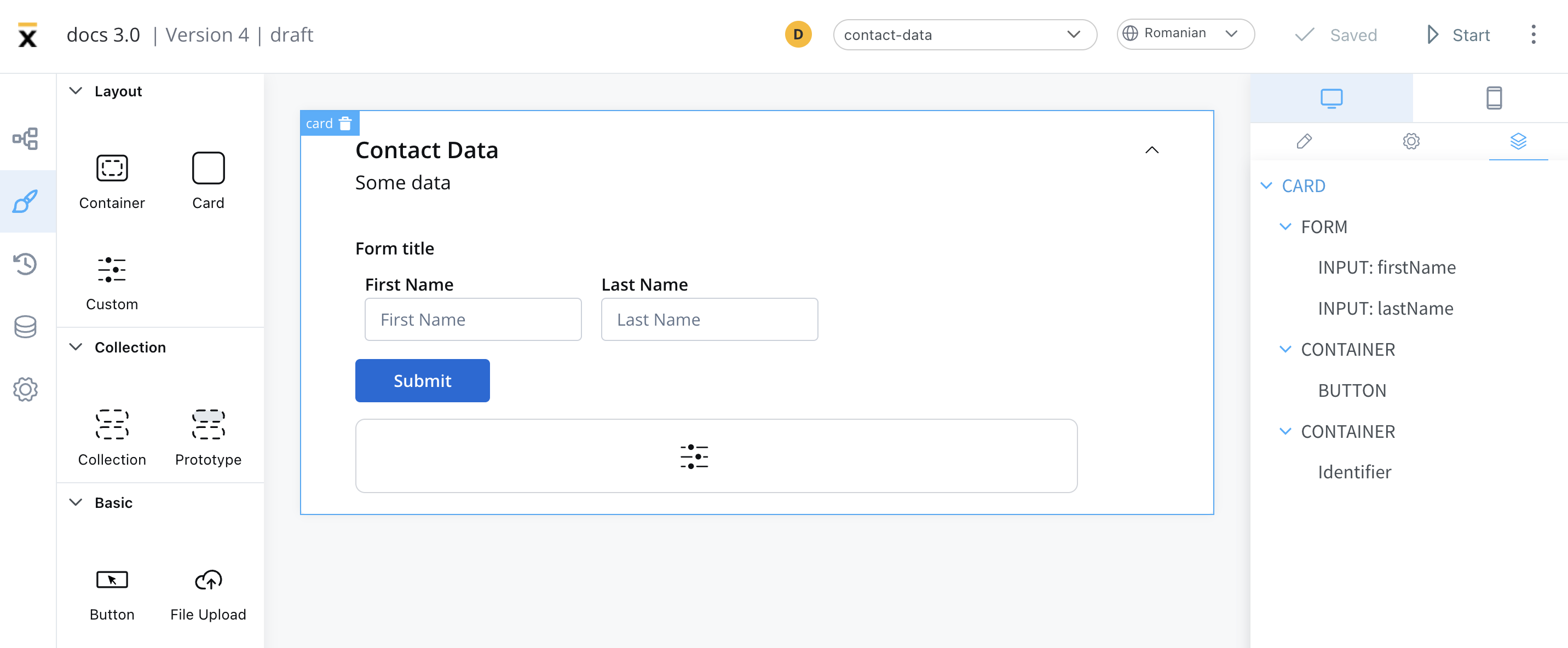
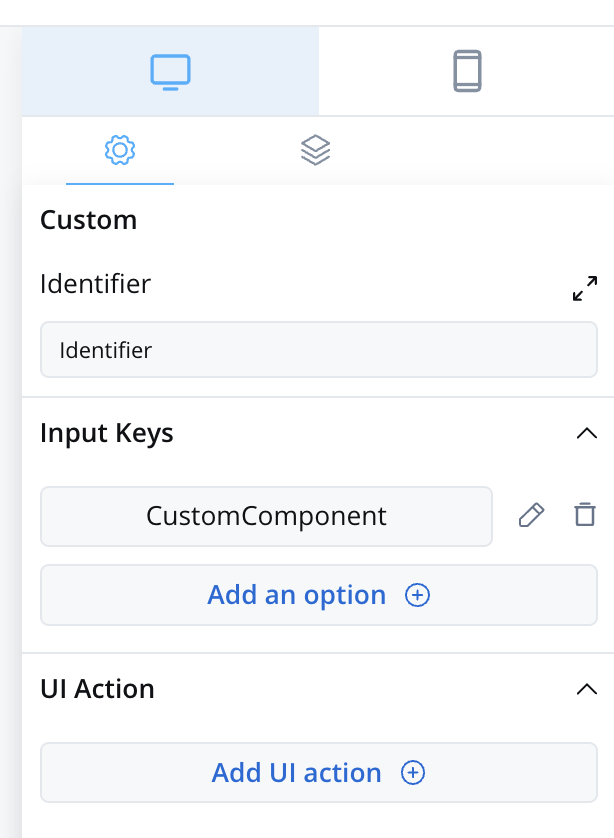
To add a custom component in the template config tree, you need its unique identifier and the data it should receive from the process model. The properties that can be configured are:
  • Identifier - enables the custom component to be displayed within the component hierarchy and determines available actions.
  • Input keys - specify the path to process data that components will use to receive their information.
  • Event Handlers - actions defined here will be made available to the custom component.
Prerequisites (before creation)

  • Angular knowledge: Custom components are created and imported using Angular.
  • Development environment: Node.js and npm set up for Angular development.
  • Component identifier: A unique identifier used to reference the component within the app.

Creating a custom component

  1. Create a new Angular component.
  2. Implement the HTML structure, TypeScript logic, and SCSS styling to define the appearance and behavior.

Importing the component

Register the component in FlxProcessModule.withConfig():
FlxProcessModule.withConfig({
  components: {
    MyCustomComponentIdentifier: MyCustomComponent,
  },
})

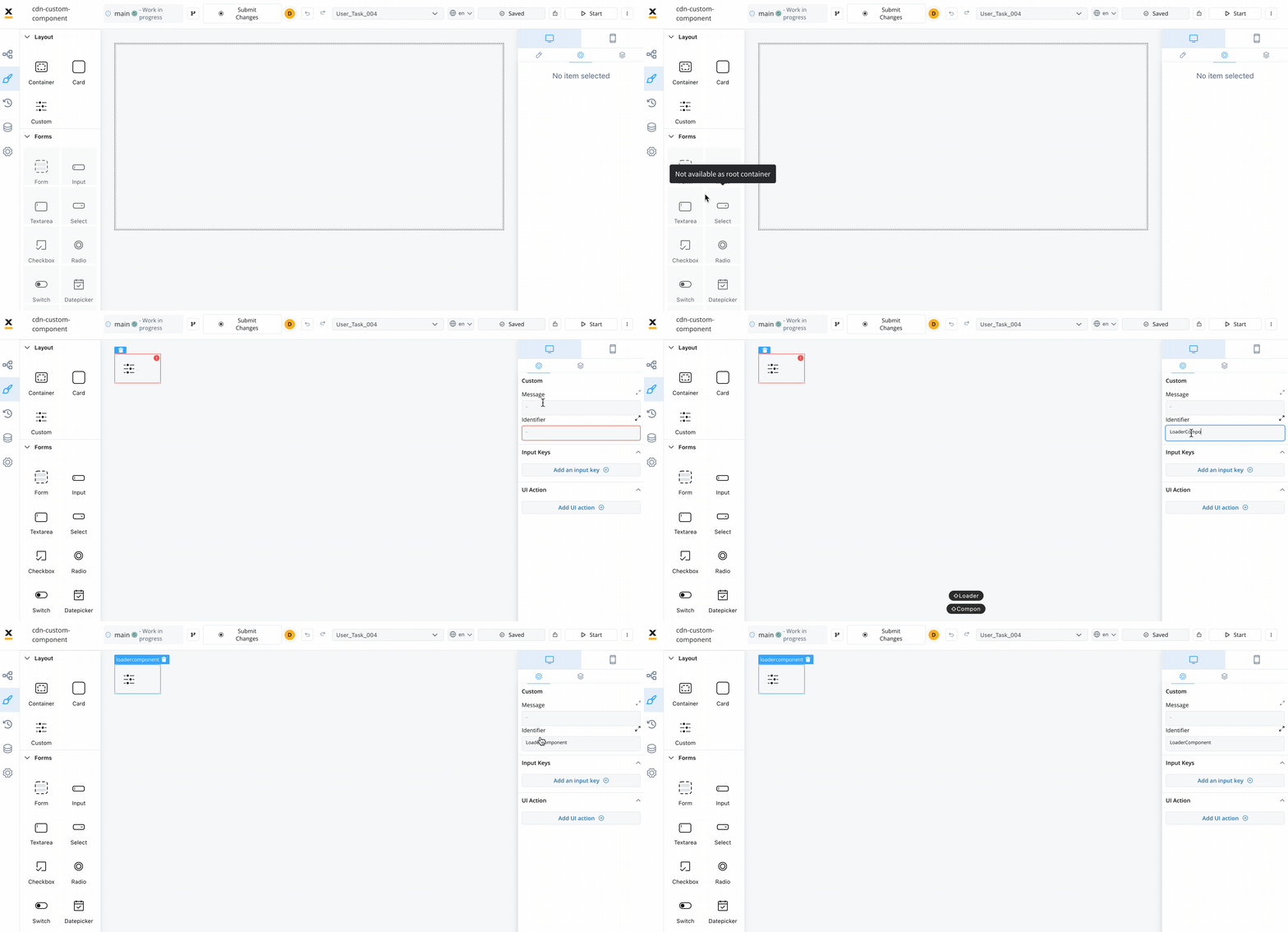
Using the custom component

Once declared, you can configure it in the FlowX Designer.
Data input and actions

The custom component receives input data from processes and can include actions extracted from a process. These allow you to configure and interact with the component dynamically.
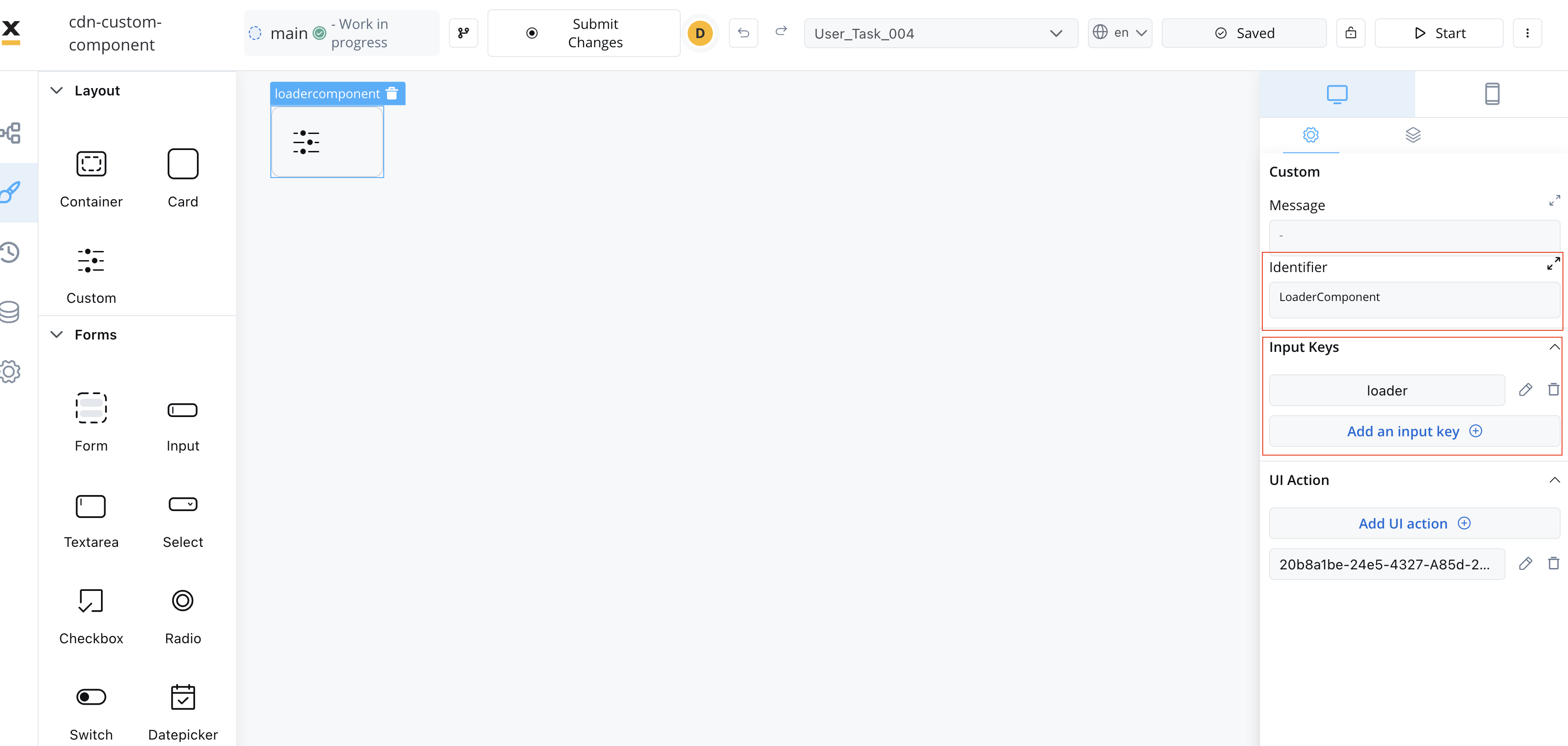
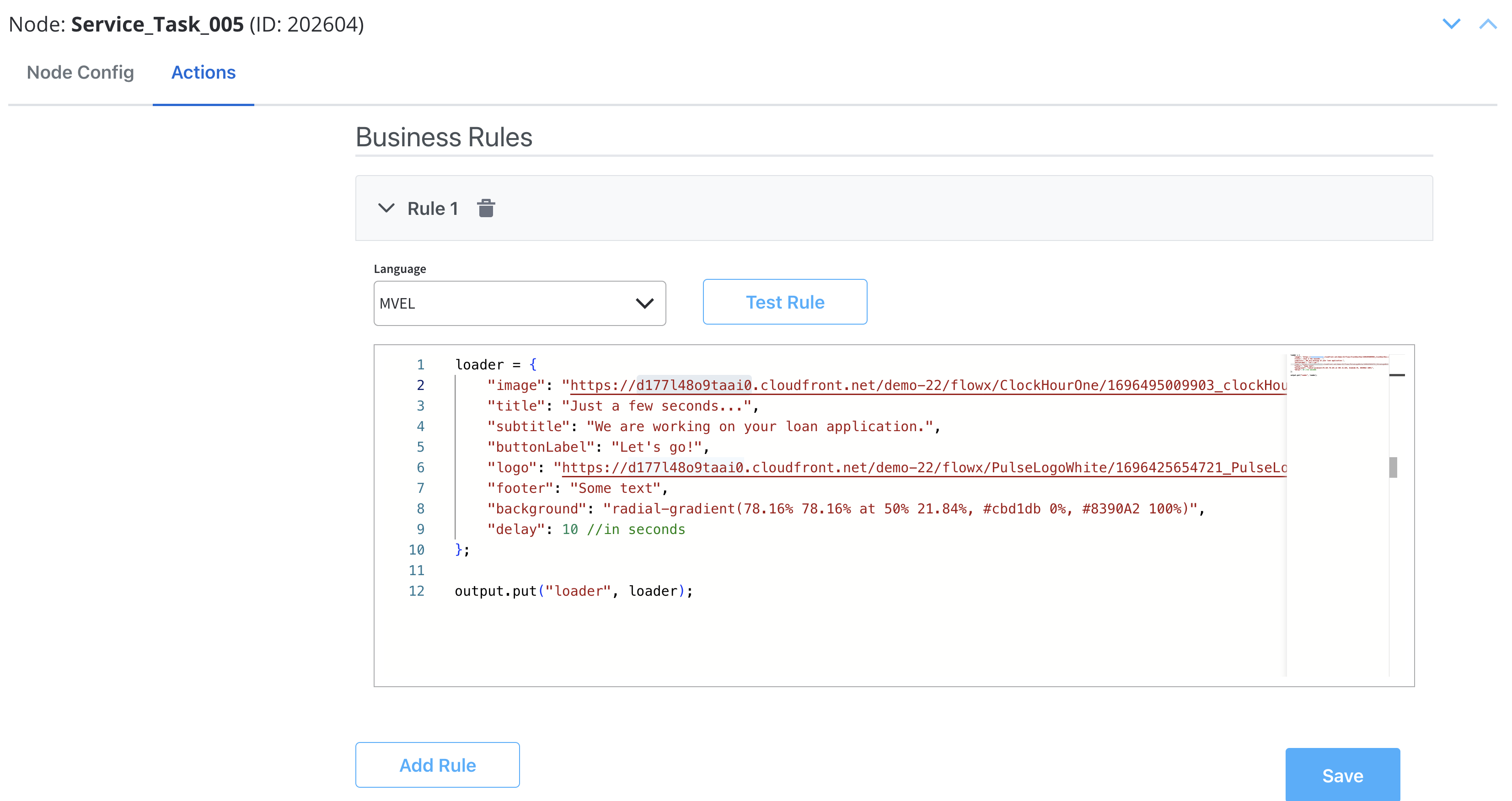
Make sure that the Angular action names match the names of the process actions.

Custom component validation

Custom components can validate their own status using the FLX_VALIDATOR_SERVICE injection token. The service exposes:
  • validate(isValid: boolean) - validates the component
  • saveData(data: any) - saves data
  • validated$ - Observable for monitoring external submission from the process
import { FLX_VALIDATOR_SERVICE } from '@flowx/angular-sdk'

@Component({
  selector: 'flx-custom-validation',
  imports: [CommonModule, ReactiveFormsModule],
  template: `
    Custom validation:
    <input [formControl]="fc" />
    @if (formSubmitted() && fc.invalid) {
      <span>error</span>
    }
  `
})
export class FlxCustomValidationComponent implements OnInit {
  data$ = input<Observable<any> | null>(null)

  validationService = inject(FLX_VALIDATOR_SERVICE)

  fc = new FormControl('', Validators.required)
  formSubmitted = signal(false)

  ngOnInit(): void {
    this.fc.statusChanges.subscribe((status) => {
      this.validationService.validate(status === 'VALID')
    })
    this.fc.valueChanges.subscribe((value) => {
      this.validationService.saveData({ app: { test1: value, test2: `${value}${value}` } })
    })
    this.validationService.validated$.subscribe(() => {
      this.formSubmitted.set(true)
    })
  }
}

Custom validators

You may define custom validators in your FlowX processes and pass their implementation via FlxProcessModule.withConfig({ validators: {} }).
The object keys passed in validators MUST match the custom validator names defined in the FlowX process.
currentOrLastYear: function currentOrLastYear(AC: AbstractControl): { [key: string]: any } {
  if (!AC) {
    return null;
  }

  const yearDate = moment(AC.value, YEAR_FORMAT, true);
  const currentDateYear = moment(new Date()).startOf('year');
  const lastYear = moment(new Date()).subtract(1, 'year').startOf('year');

  if (!yearDate.isSame(currentDateYear) && !yearDate.isSame(lastYear)) {
    return { currentOrLastYear: true };
  }

  return null;
}
The error that the validator returns MUST match the validator name.

Process end handling

The SDK provides a mechanism for handling process completion events through the (processEnd) output event. This allows you to implement custom logic when a main process reaches an end state, such as redirecting users or triggering cleanup operations. The processEnd event is triggered when the main process (not subprocesses) reaches any terminal state:
  • FINISHED - process completed successfully
  • FAILED - process encountered an error
  • ABORTED - process was manually terminated
  • Other terminal states
Only the main process triggers this event. Subprocess completions do not trigger it to avoid unnecessary interruptions during complex process flows.

Implementation

import { Component } from '@angular/core';
import { Router } from '@angular/router';

@Component({
  selector: 'app-process',
  template: `
    <flx-process-renderer
      [apiUrl]="apiUrl"
      [authToken]="authToken"
      [processName]="processName"
      [processStartData]="processStartData"
      [workspaceId]="workspaceId"
      [processApiPath]="processApiPath"
      [themeId]="themeId"
      [staticAssetsPath]="staticAssetsPath"
      [projectInfo]="projectInfo"
      [organizationId]="organizationId"
      (processEnd)="onProcessEnd()"
    />
  `
})
export class ProcessComponent {
  constructor(private router: Router) {}

  onProcessEnd(): void {
    console.log('Process has ended');
    this.router.navigate(['/dashboard']);
  }
}

Process start handling

The SDK provides a mechanism for reacting to process start events through the (processStart) output event. It emits the new processInstanceUuid once the main process instance has been created - useful for tracking, deep linking, or storing the instance reference for later resume.

Implementation

import { Component } from '@angular/core';

@Component({
  selector: 'app-process',
  template: `
    <flx-process-renderer
      [apiUrl]="apiUrl"
      [authToken]="authToken"
      [processName]="processName"
      [processStartData]="processStartData"
      [workspaceId]="workspaceId"
      [processApiPath]="processApiPath"
      [themeId]="themeId"
      [staticAssetsPath]="staticAssetsPath"
      [projectInfo]="projectInfo"
      [organizationId]="organizationId"
      (processStart)="onProcessStart($event)"
    />
  `
})
export class ProcessComponent {
  onProcessStart(processInstanceUuid: string): void {
    console.log('process started', processInstanceUuid);
  }
}

Custom loader

The SDK provides a mechanism for customizing the loader UI displayed during process execution.

Configuration

Register custom loaders via FlxProcessModule.withConfig({ customLoader: {} }):
import { FlxProcessModule } from '@flowx/angular-sdk';
import { Type } from '@angular/core';

@Component({
  selector: 'app-start-loader',
  template: `
    <div class="custom-start-loader">
      <div class="spinner"></div>
      <p>Starting process...</p>
    </div>
  `
})
export class StartProcessLoaderComponent {}

@Component({
  selector: 'app-specific-action-loader',
  template: `
    <div class="custom-specific-action-loader">
      <div class="spinner"></div>
      <p>Executing specific action...</p>
    </div>
  `
})
export class SpecificActionLoaderComponent {}

@NgModule({
  imports: [
    FlxProcessModule.withConfig({
      customLoader: {
        startProcess: StartProcessLoaderComponent,
        // reloadProcess: ReloadProcessLoaderComponent,
        // defaultAction: DefaultActionLoaderComponent,
        // defaultUpload: DefaultUploadLoaderComponent,
        actions: {
          action1: SpecificActionLoaderComponent,
        },
      },
      components: {},
      services: {},
    }),
  ],
})
export class AppModule {}

API specification

The custom loader configuration accepts an object of type CustomLoader:
type CustomLoader = {
  actions?: Record<string, Type<any>>
  startProcess?: Type<any>
  reloadProcess?: Type<any>
  defaultAction?: Type<any>
  defaultUpload?: Type<any>
}

Loader types

  • startProcess - displayed when starting or resuming a process
  • reloadProcess - displayed when reloading a process
  • defaultAction - default loader for actions when loaderType is 'action'. Used when no specific action loader is found in the actions record
  • defaultUpload - default loader for file uploads when loaderType is 'upload'
  • actions - record mapping specific action identifiers to custom loaders. When an action is executed, the SDK checks this record before falling back to defaultAction

Fallback behavior

If no custom loader is provided for a specific type, the SDK automatically falls back to the built-in FlowX loader. This ensures your app continues to function even with partial custom loader configuration.
You can use substitution tags and media library assets within your custom loader components to create rich, branded loading experiences that match your app’s design system.

Chat component

To use the FlxChatRendererComponent, import the module in your project:
import { FlxChatRendererComponent } from '@flowx/angular-sdk';

Usage

Include the component in your template:
<flx-chat-renderer
  [apiUrl]="apiUrl"
  [authToken]="accessToken()"
  [staticAssetsPath]="staticAssetsPath"
  [language]="language()"
  [locale]="locale()"
  [themeId]="themeId()"
  [projectId]="projectId()"
  [workspaceId]="workspaceId()"
  [source]="source()"
  [chatConfig]="chatConfig()"
  [cache]="cache()"
/>
Parameters:
NameDescriptionTypeMandatoryExample
apiUrlYour base API URLstringhttps://yourDomain.dev
authTokenAuthorization tokenstring(retrieved from auth provider)
staticAssetsPathPath for static resourcesstring(set via environment)
languageLanguage used to localize the chat interfacestringen
localeLocale setting for date and number formattingstringen-US
themeIdTheme identifier for stylingstring(retrieved dynamically)
projectIdThe FlowX project IDstring(retrieved dynamically)
workspaceIdThe workspace IDstring(retrieved dynamically)
sourceSource object with type and idobject{ type: 'WORKFLOW', id: '...' }
chatConfigChat configuration objectobject{ welcomeMessage: '...', ... }
cacheEnable caching for chat responsesbooleantrue
buildIdPinned build identifierstring(retrieved dynamically)

chatConfig parameters

The chatConfig object accepts the following properties:
NameDescriptionTypeDefault value
welcomeMessageMessage displayed when chat is first openedstring'Welcome to the chat!'
thinkingMessageMessage displayed while waiting for responsestring'Thinking...'
titleChat window titlestring'Chat'
subtitleChat window subtitlestring'Chat subtitle'
showChatIconWhether to display the chat iconbooleantrue
showSeparatorWhether to show separator between messagesbooleantrue
newChatLabelLabel for the new chat buttonstring'New chat'
inputPlaceholderPlaceholder text for the message input fieldstring'Enter your message'
maxInputRowsMaximum number of rows for the input fieldnumber10
historyTitleTitle displayed on the chat history panelstring-
errorMessageMessage shown when an error occursstring'Error message'
canRegenerateShow a regenerate button on responsesbooleantrue
regenerateLabelLabel for the regenerate buttonstring'Regenerate'

Task management component

To use the FlxTasksManagementComponent, import the module in your project:
import { FlxTasksManagementComponent } from '@flowx/angular-sdk';

Usage

Include the component in your template:
<flx-task-management
  [apiUrl]="apiUrl"
  [authToken]="accessToken"
  [appId]="appId()"
  [language]="language()"
  [themeId]="themeId()"
  [staticAssetsPath]="staticUrl"
  [viewDefinitionId]="viewDefinitionId()"
  [locale]="locale()"
  [buildId]="buildId()"
  [workspaceId]="workspaceId()"
/>
Parameters:
NameDescriptionTypeMandatoryExample
apiUrlEndpoint where the tasks are availablestringhttps://yourDomain.dev/tasks
authTokenAuthorization tokenstring(retrieved from local storage)
appIdThe app IDstring(retrieved dynamically)
viewDefinitionIdThe view configuration identifierstring(retrieved dynamically)
workspaceIdThe workspace IDstring(retrieved dynamically)
themeIdThe theme identifierstring(retrieved dynamically)
languageThe selected languagestringen
localeThe localization settingstring(retrieved dynamically)
buildIdThe current build identifierstring(retrieved dynamically)
staticAssetsPathPath for static resourcesstring(set via environment)
stagesPre-loaded enumeration stagesTMEnumeration[]-
cacheEnable cachingbooleantrue

Task management public API

The Angular SDK provides a comprehensive public API for building custom task management interfaces. This API allows you to fetch tasks, manage comments, handle task actions, and interact with task data programmatically.

Importing the service

Inject PublicTasksService from @flowx/angular-sdk:
import { PublicTasksService } from '@flowx/angular-sdk';
import { inject } from '@angular/core';

export class MyComponent {
  private taskService = inject(PublicTasksService);
}

Available types

import {
  PublicTasksService,
  TMView,
  TMViewTask,
  TMViewColumn,
  TMTaskComment,
  TMTaskHistory,
  TMUser,
  TMEnumerations,
  TMEnumeration,
  TMFilterOperators,
  TMFilters,
  TMSort,
  TMPaginatedResponse,
  TMSetupOptions,
  TMExecuteTaskActions,
  TMOperatorsType,
} from '@flowx/angular-sdk';

Initialization

Before using the task management API, initialize the task manager resources. This fetches the view configuration, enumerations, and filter operators.
this.taskService.getTaskManagerResources({
  apiUrl: 'https://yourDomain.dev/tasks',
  authToken: 'your-auth-token',
  appInfo: { appId: 'app-123' },
  viewId: 'view-456',
  workspaceId: 'workspace-789',
  themeId: 'theme-012', // Optional
  language: 'en', // Optional
  locale: 'en-US', // Optional
  buildId: 'build-345', // Optional
  staticAssetsPath: '/static', // Optional
}).subscribe(({ view, enumerations, filterOperators }) => {
  // Use the view, enumerations, and filterOperators
});
Parameters:
NameDescriptionTypeMandatoryExample
apiUrlEndpoint where the tasks are availablestringhttps://yourDomain.dev/tasks
authTokenAuthorization tokenstring(retrieved from local storage)
appInfoApp information containing appId{ appId: string }{ appId: "app-123" }
viewIdThe view configuration identifierstring(retrieved dynamically)
workspaceIdThe workspace IDstring(retrieved dynamically)
themeIdThe theme identifierstring(retrieved dynamically)
languageThe selected languagestring"en"
localeThe localization settingstring"en-US"
buildIdThe current build identifierstring(retrieved dynamically)
staticAssetsPathPath for static resourcesstring(set via environment)
Returns: Observable emitting an object containing:
  • view: The view configuration object (TMView)
  • enumerations: Available enumeration options for filters (TMEnumerations)
  • filterOperators: Available filter operators for each column (TMFilterOperators)

Fetching tasks

getViewTasks

Fetches tasks for a specific view with support for sorting, filtering, pagination, and search.
this.taskService.getViewTasks(
  page,      // page number (0-based)
  sort,      // array of sort configurations
  filters,   // array of filter configurations
  keyword,   // search string
  size       // page size
).subscribe((response) => {
  const tasks = response.content;
});
Parameters:
NameDescriptionTypeMandatoryExample
pagePage number (0-based)number0
sortArray of sort configurationsTMSort[][{ keyName: "priority", direction: "ASC" }]
filtersArray of filter configurationsTMFilters[]See filter examples below
keywordSearch string for task searchstring"urgent"
sizeNumber of items per pagenumber10
Returns: Observable emitting TMPaginatedResponse<TMViewTask> with content, totalElements, totalPages.

getViewTask

Fetches a specific task by ID and token UUID.
this.taskService.getViewTask(taskId, tokenUuid)
  .subscribe((task) => {
    // Use the task
  });
Parameters:
NameDescriptionTypeMandatoryExample
taskIdThe unique task IDstring"task-123"
tokenUuidThe token UUID associated with taskstring"token-uuid-456"
Returns: Observable emitting a TMViewTask object.

Task details

getTaskComments

Fetches all comments for a specific task.
this.taskService.getTaskComments(taskId)
  .subscribe((comments) => {
    // TMTaskComment[]
  });
Parameters:
NameDescriptionTypeMandatoryExample
taskIdThe unique task IDstring"task-123"
Returns: Observable emitting an array of TMTaskComment objects.

getTaskHistory

Fetches the history/audit trail for a specific task.
this.taskService.getTaskHistory(taskId)
  .subscribe((history) => {
    // TMTaskHistory[]
  });
Parameters:
NameDescriptionTypeMandatoryExample
taskIdThe unique task IDstring"task-123"
Returns: Observable emitting an array of TMTaskHistory objects.

getAssignees

Fetches available assignees for a task, with optional search filtering.
this.taskService.getAssignees(task, { keyword: 'john' })
  .subscribe((users) => {
    // TMUser[]
  });
Parameters:
NameDescriptionTypeMandatoryExample
taskThe task objectTMViewTask(task object)
querySearch options{ keyword: string }{ keyword: "john" }
Note: The keyword must be at least 4 characters long. If shorter, the Observable will emit an error. Returns: Observable emitting an array of TMUser objects.

getBulkAssignees

Fetches available assignees for multiple tasks in bulk.
this.taskService.getBulkAssignees(
  [{ id: 'task-1', tokenUuid: 'token-1' }, { id: 'task-2', tokenUuid: 'token-2' }],
  { keyword: 'john' }
).subscribe((users) => {
  // TMUser[]
});
Parameters:
NameDescriptionTypeMandatoryExample
tasksArray of task objects with id and tokenUuid{ id: string; tokenUuid: string }[][{ id: "task-1", tokenUuid: "..." }]
querySearch options{ keyword: string }{ keyword: "john" }
Returns: Observable emitting an array of TMUser objects.

Task actions

executeTaskAction

Executes an action on a specific task (e.g., assign, complete, cancel).
this.taskService.executeTaskAction(action, task, payload)
  .subscribe(() => {
    // action completed
  });
Parameters:
NameDescriptionTypeMandatoryExample
actionThe action to executeTMExecuteTaskActionsTaskActions.ASSIGN
taskThe task objectTMViewTask(task object)
payloadAdditional payload (e.g. username)any"john.doe"
Available actions:
  • TaskActions.ASSIGN - assign task to a user
  • TaskActions.COMPLETE - mark task as complete
  • TaskActions.CANCEL - cancel the task
  • TaskActions.CHANGE_PRIORITY - change task priority
  • TaskActions.VIEW - view task details

bulkUpdate

Applies an action to multiple tasks at once.
this.taskService.bulkUpdate(
  [{ id: 'task-1', tokenUuid: 'token-1' }, { id: 'task-2', tokenUuid: 'token-2' }],
  TaskActions.COMPLETE,
  'username' // Optional, for assign action
).subscribe(() => {
  // bulk action completed
});
Parameters:
NameDescriptionTypeMandatoryExample
tasksArray of task objects with id and tokenUuid{ id: string; tokenUuid: string }[][{ id: "task-1", tokenUuid: "..." }]
actionThe action to executeTMExecuteTaskActionsTaskActions.COMPLETE
usernameUsername for assign actionstring"john.doe"

updatePriority

Updates the priority of a specific task.
this.taskService.updatePriority(taskId, priority)
  .subscribe(() => {
    // priority updated
  });
Parameters:
NameDescriptionTypeMandatoryExample
taskIdThe unique task IDstring"task-123"
priorityNew priority valuenumber5

Comments management

addComment

Adds a new comment to a task.
this.taskService.addComment(taskId, { message: 'New comment text' })
  .subscribe((comment) => {
    // TMTaskComment
  });
Parameters:
NameDescriptionTypeMandatoryExample
taskIdThe unique task IDstring"task-123"
commentComment data object{ message: string }{ message: "New comment text" }
Returns: Observable emitting the created TMTaskComment object.

deleteComment

Removes a comment from a task.
this.taskService.deleteComment(taskId, commentId)
  .subscribe(() => {
    // comment deleted
  });
Parameters:
NameDescriptionTypeMandatoryExample
taskIdThe unique task IDstring"task-123"
commentIdThe unique comment IDstring"comment-456"

Service state management

getView

Gets the current view configuration.
const view = this.taskService.getView(); // TMView | null

getEnumerations

Gets the current enumerations.
const enumerations = this.taskService.getEnumerations(); // TMEnumerations

setView

Sets the view configuration manually.
this.taskService.setView(view, format);
Parameters:
NameDescriptionTypeMandatoryExample
viewThe view configuration objectTMView(view object)
formatWhether to format the viewbooleanfalse

Real-time updates (SSE)

initSse

Initializes an SSE connection for real-time task updates. Call after getTaskManagerResources().
this.taskService.initSse();

getSseEvents

Gets an Observable stream of SSE events.
this.taskService.getSseEvents()
  .subscribe((event) => {
    console.log('SSE event:', event);
  });
Returns: Observable emitting MessageEvent<string> objects.

closeSseConnection

Closes the SSE connection.
ngOnDestroy(): void {
  this.taskService.closeSseConnection();
}
Always close the SSE connection when your component is destroyed to prevent memory leaks.

UI Flow renderer

FlxUiFlowRendererComponent renders a full UI Flow (multi-view navigation, breadcrumbs, embedded processes, and an optional chat widget) from a single component.
import { FlxUiFlowRendererComponent } from '@flowx/angular-sdk'

Usage

<flx-ui-flow
  [apiUrl]="'https://yourDomain.dev'"
  [authToken]="authToken"
  [processApiPath]="'onboarding'"
  [language]="'en'"
  [locale]="'en-US'"
  [themeId]="themeId"
  [staticAssetsPath]="staticAssetsPath"
  [workspaceId]="workspaceId"
  [projectId]="projectId"
  [uiFlowName]="'my-ui-flow'"
  [isDraft]="false"
  [cache]="true"
  [buildId]="buildId"
/>

Parameters

NameDescriptionTypeMandatory
apiUrlBase API URLstring
authTokenAuthorization tokenstring
staticAssetsPathStatic resources base pathstring
workspaceIdWorkspace identifierstring
projectIdFlowX Project IDstring
uiFlowNameName of the UI Flow to startstring
themeIdTheme identifierstring
languageUI languagestring
localeDate/number formatting localestring
isDraftRender the draft version of the UI Flowboolean
cacheEnable cachingboolean
buildIdPinned build identifierstring
appVersionIdPin a specific app versionstring
processApiPathProcess subpath used by the embedded process rendererstring
startParamsInitial query parameters passed to the UI FlowRecord<string, unknown>
customComponentsCustom component registryRecord<string, Type<any>>
customValidatorsCustom validator registryRecord<string, NgSyncValidator | NgAsyncValidator>
Angular uses separate projectId and optional appVersionId? inputs rather than a nested appInfo object.

Starting a UI Flow

Prerequisites

  • UI Flow name: The name of the UI Flow to start, passed as uiFlowName.
  • FlowX Project ID: The projectId value, which identifies which project the UI Flow belongs to. Obtain it the same way as for processes: FlowX Dashboard → Projects → copy UUID from the project actions popover.
  • Process API path: The processApiPath subpath used by the embedded process renderer when the UI Flow navigates into a full-screen process.

Getting the UI Flow name

Open FlowX Designer and navigate to UI Flows. The flow name displayed in the list is the value to pass as uiFlowName.

Initializing the UI Flow renderer

Minimal working example:
import { Component } from '@angular/core';
import { FlxUiFlowRendererComponent } from '@flowx/angular-sdk';

@Component({
  selector: 'app-ui-flow',
  imports: [FlxUiFlowRendererComponent],
  template: `
    <flx-ui-flow
      [apiUrl]="'https://yourDomain.dev'"
      [authToken]="authToken"
      [processApiPath]="'onboarding'"
      [language]="'en'"
      [locale]="'en-US'"
      [themeId]="themeId"
      [staticAssetsPath]="staticAssetsPath"
      [workspaceId]="workspaceId"
      [projectId]="projectId"
      [uiFlowName]="uiFlowName"
      [isDraft]="false"
      [cache]="true"
    />
  `
})
export class UiFlowContainerComponent {
  authToken = '...'
  themeId = '...'
  staticAssetsPath = '...'
  workspaceId = '...'
  projectId = '...'
  uiFlowName = '...'
}

Passing initial parameters: startParams

Use startParams to inject query-string key/value pairs into the UI Flow at startup. The values are available inside the flow as URL query parameters.
<flx-ui-flow
  [apiUrl]="apiUrl"
  [authToken]="authToken"
  [projectId]="projectId"
  [workspaceId]="workspaceId"
  [uiFlowName]="uiFlowName"
  [themeId]="themeId"
  [language]="language"
  [locale]="locale"
  [staticAssetsPath]="staticAssetsPath"
  [isDraft]="false"
  [cache]="true"
  [startParams]="{ referralCode: 'REF123', skipIntro: true }"
/>
startParams is read once at initialization. To trigger a full re-initialization, change one of the required inputs such as uiFlowName.

Utility API

These functions and pipes are exported from @flowx/angular-sdk and can be used independently of the renderer components.
import {
  getEnumeration,
  getStaticAsset,
  getSubstitutionTag,
  FlxLocalizePipe,
} from '@flowx/angular-sdk'
These methods should only be used inside custom components and within a process context, because internal requests depend on the presence of running project details.

getEnumeration

Async function to fetch enumeration values.
// get an enumeration by name
const enumeration = await getEnumeration('enumerationName')

// get enumeration with a parent
const enumeration = await getEnumeration('enumerationName', 'parentName')

// get enumeration and cache the result for subsequent calls
const enumeration = await getEnumeration('enumerationName', null, true)
ParameterDescriptionTypeMandatory
nameEnumeration namestring
parentNameParent enumeration name for cascadingstring
cachedUse cached result when availableboolean

getStaticAsset

Resolves a static asset URL by its key.
const url = getStaticAsset(key)

getSubstitutionTag

Resolves a substitution tag value by its key.
const value = getSubstitutionTag(key)

FlxLocalizePipe

Standalone pipe for managing translations. Import it in the module or component where you want to use it:
import { FlxLocalizePipe } from '@flowx/angular-sdk'

// In your module or component imports:
imports: [
  FlxLocalizePipe
]
Use in a template:
<span>{{ 'hello' | flxLocalize }}</span>
Use in a component class:
const localize = new FlxLocalizePipe()
const translatedText = localize.transform('@@substitution_tag')

Custom CSS

The renderer SDK allows you to pass custom CSS classes on any component inside the process. These classes are applied to the component’s root element. To add a CSS custom class to a component, define the class in the process designer by navigating to the styles tab of the component, expanding the Advanced accordion and writing the CSS class.
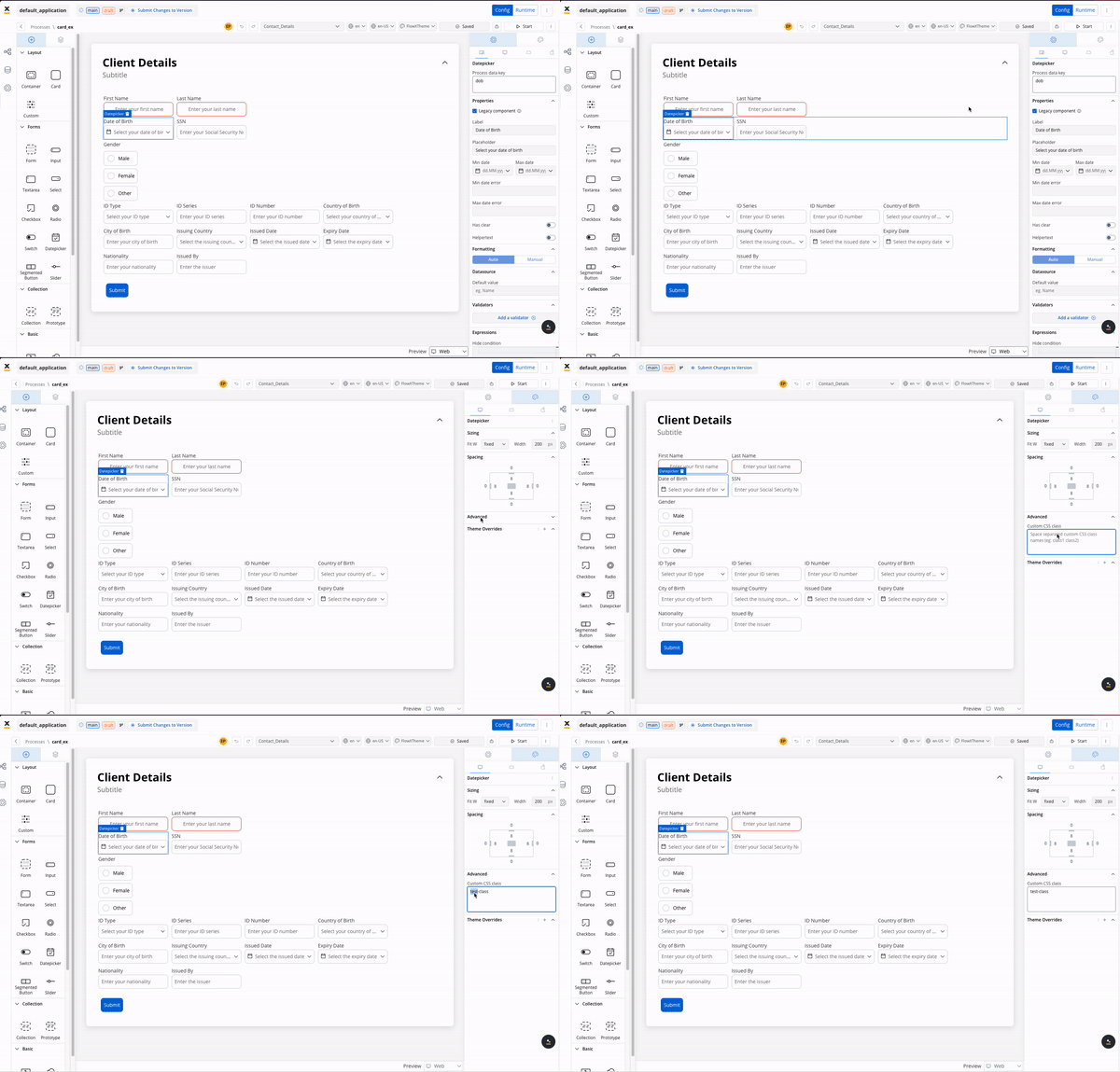
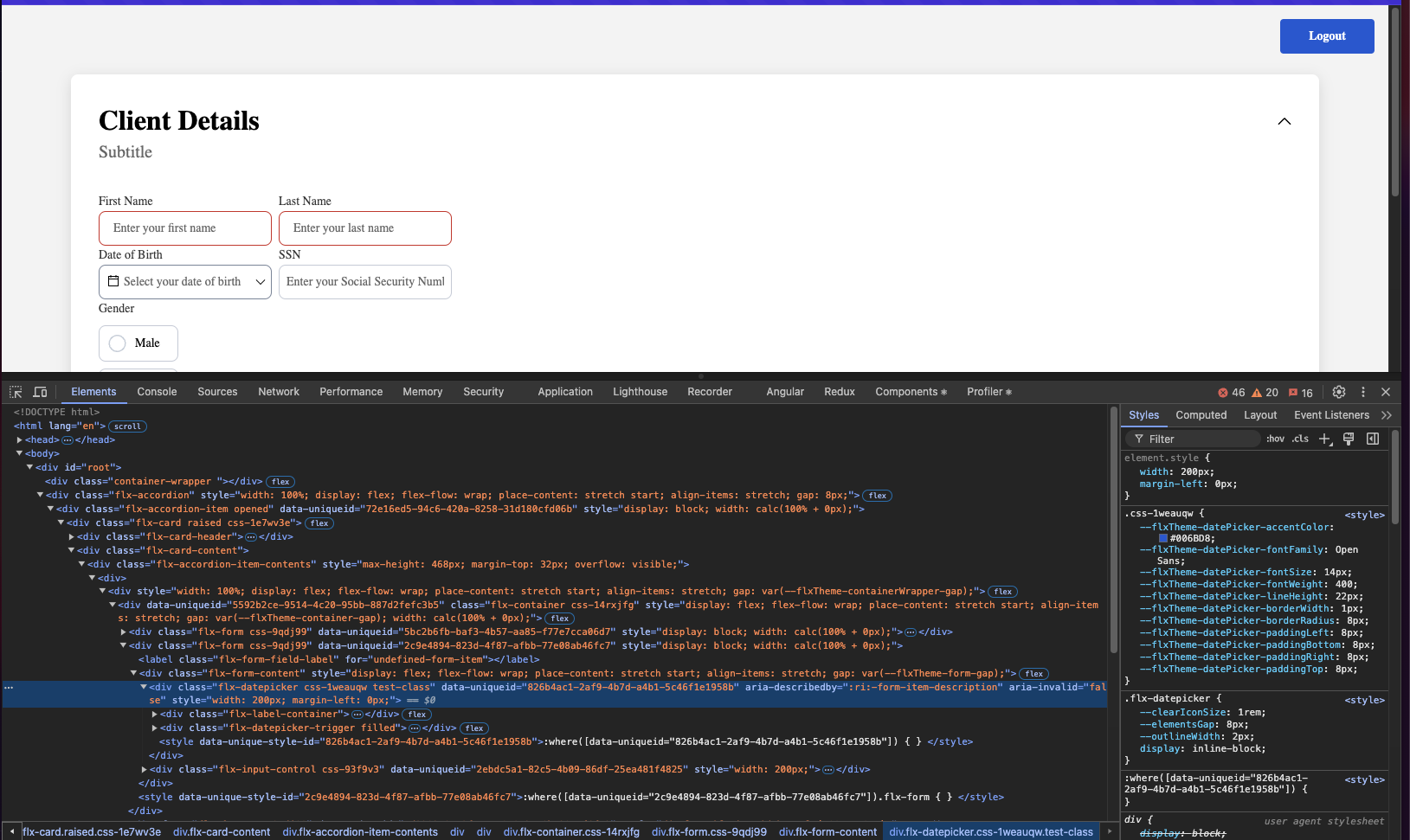
The classes will be applied last on the element, so they override the classes already defined on the element.

Storybook

Below you find a Storybook which demonstrates how components behave under different states, props, and conditions. It allows you to preview and interact with individual UI components in isolation, without the need for a full-fledged app:

Storybook

Last modified on June 2, 2026