

Login page and identity email branding are available on FlowX SaaS only.
Opening the Branding page
- Open the avatar menu at the top right of FlowX Designer and select Organization settings.
- Under Customization, select Branding.
org_config_read permission. Changing it requires org_config_edit.
The page has three tabs:
The Preview pane next to the form shows your unsaved changes. Switch it between App, Login page, and Email to see each surface.
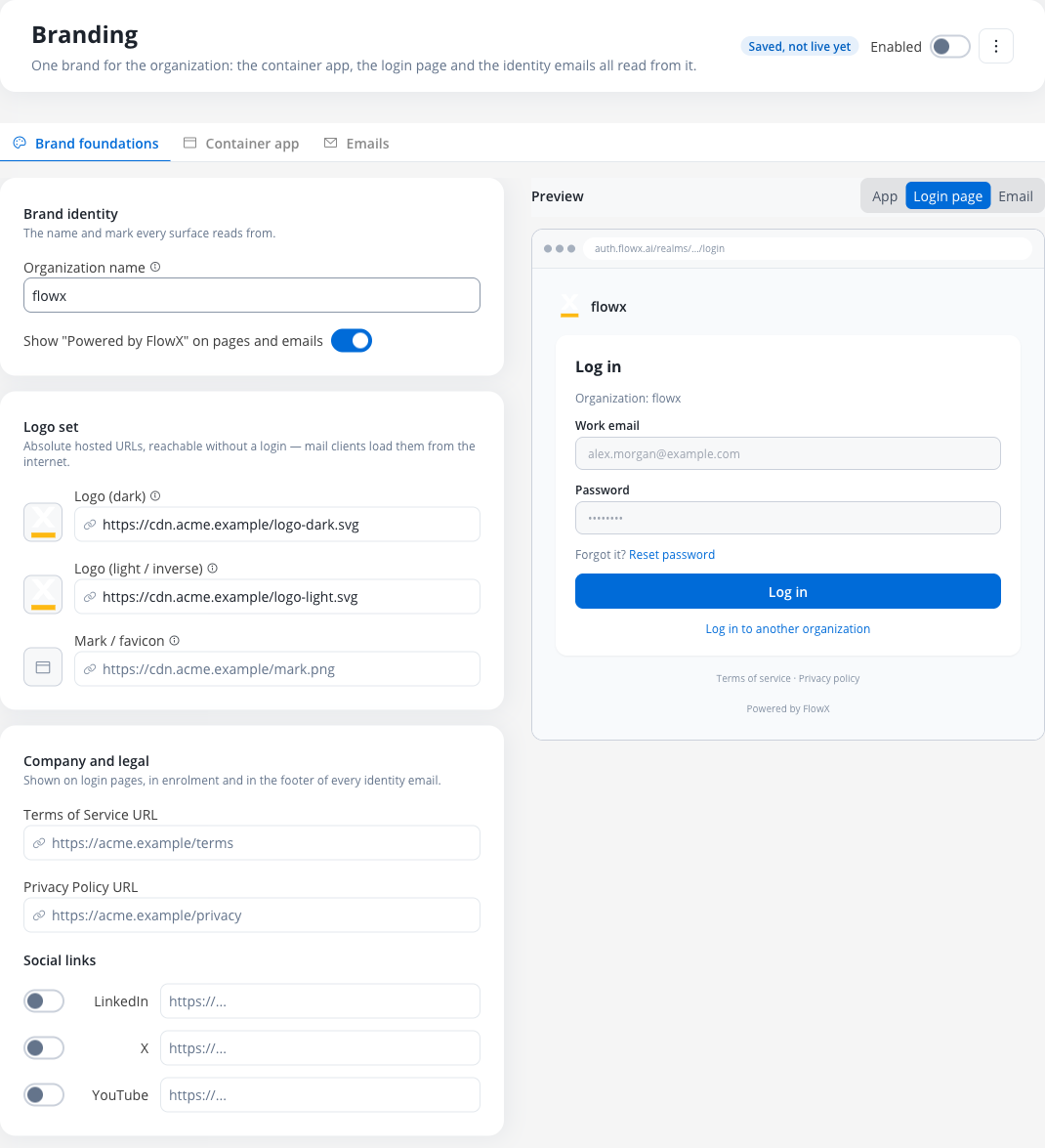
Brand foundations
Brand identity
string
Shown in the app header, on the login page, and in every identity email. It’s also the value of the
#organizationName email variable. Up to 120 characters.boolean
Shows the Powered by FlowX line at the bottom of the login page and of every identity email.
Logo set
Each logo is an image URL. The URL must be an absolutehttps:// address with no user name or password in it, and reachable without a login: mail clients load the images from the internet. FlowX doesn’t store the image.
URL
For light backgrounds: the login page and light container app headers.
URL
For dark backgrounds: dark container app headers and the header band of every identity email.
URL
A square mark, used in browser tabs, as the login page badge, and in the email footer.
Company and legal
These links are shown on login pages, during enrolment, and in the footer of every identity email.URL
Link to the organization’s terms of service.
URL
Link to the organization’s privacy policy.
toggle + URL
One toggle and URL for each of LinkedIn, X, and YouTube. A network that is turned on needs a URL before you can save.
Container app
The Container app tab sets the colors, header, and solution page background of the SaaS container app. See Container app branding.Emails
Identity email branding is available on FlowX SaaS only.
General
The settings on General apply to every identity email of the organization.email
The sending address. On FlowX SaaS it belongs to FlowX and can’t be changed. Set Reply to to receive answers in your own mailbox.
string
The sender name recipients see, on a single line. Up to 120 characters.
email
The address that receives replies. It’s also the value of the
#supportContact variable. Up to 254 characters.string
The name shown for the reply address, on a single line. Up to 120 characters.
Company name, registered address, and legal notices, shown at the bottom of every identity email. Up to 1,000 characters.
string
Signs off every identity email. Supports
#organizationName and #supportContact. Up to 1,000 characters.Default: The #organizationName team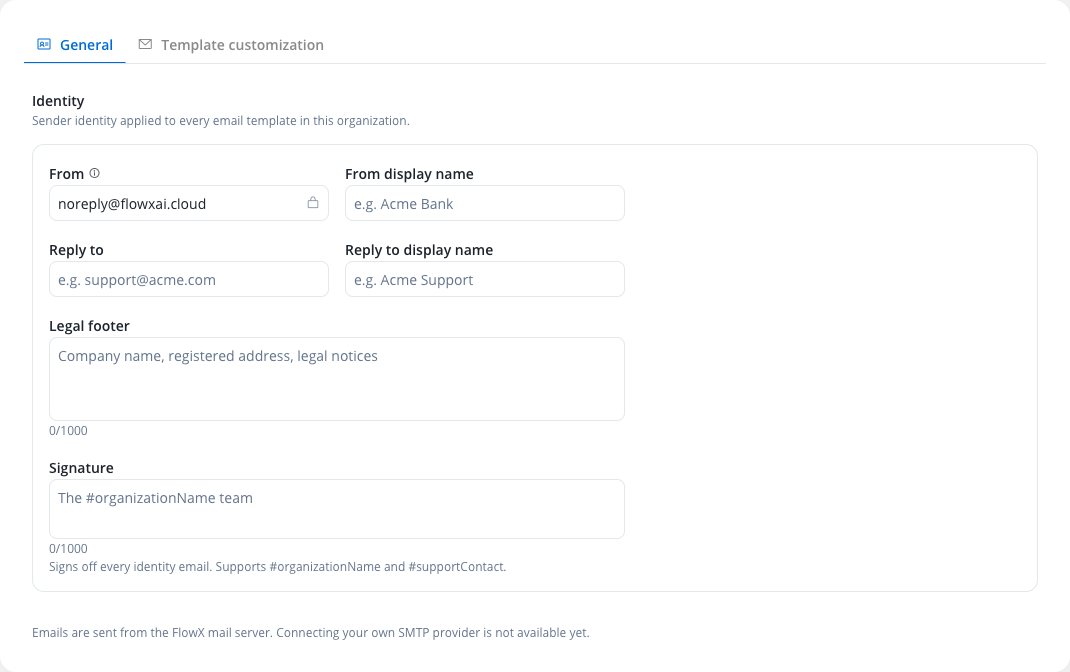
Template customization
Template customization lists the three identity emails. Each one uses the FlowX default text until you customize it.
Each row shows whether the template is Customized or uses the FlowX default, its link validity, and who last edited it and when. To go back to the default text for one template, select Revert to the FlowX default on its row.
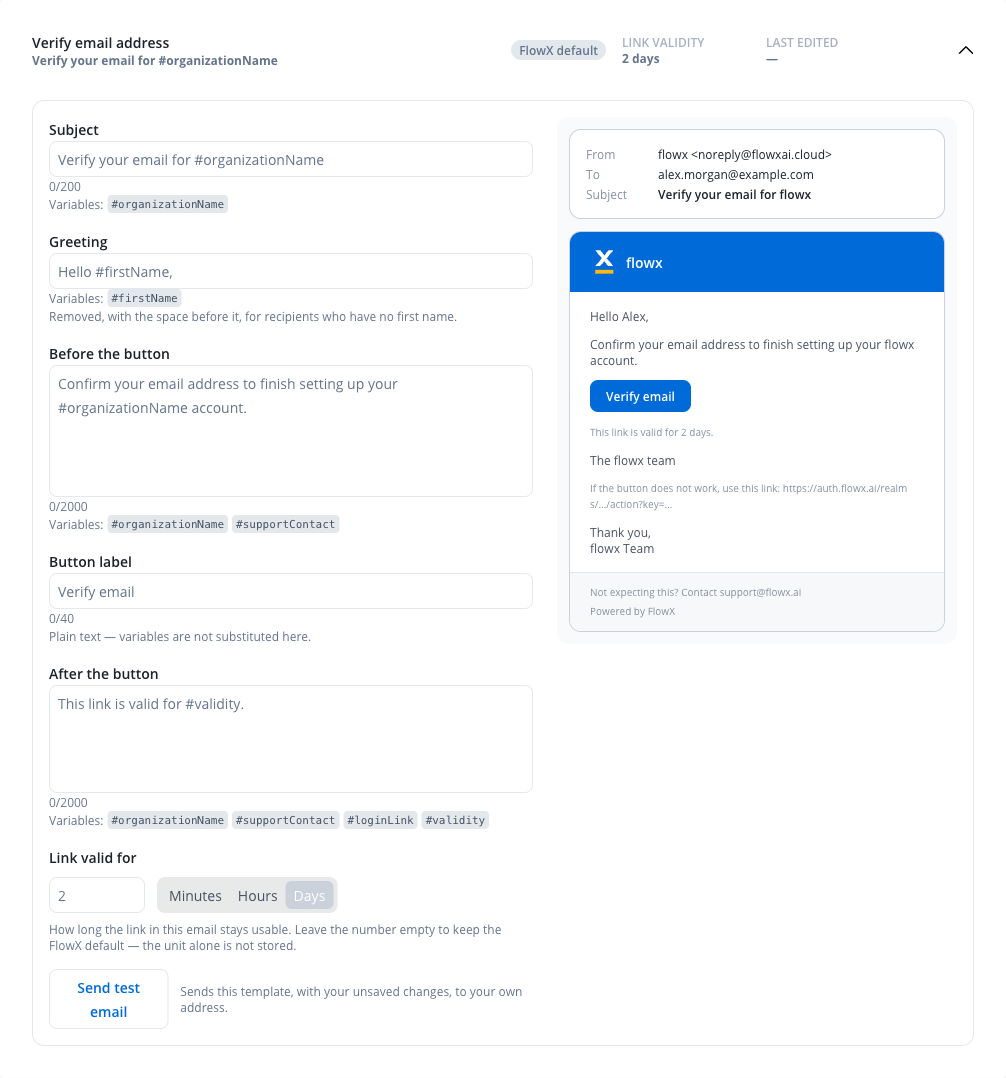
Select a template to open its editor. Every field shows the FlowX default as a placeholder, and an empty field keeps that default.
string
The email subject. Up to 200 characters.
string
The opening line, for example
Hello #firstName,. It can’t start with #firstName. Up to 200 characters.string
Text above the action button. Up to 2,000 characters.
string
The label of the action button. Plain text: variables aren’t replaced here. Up to 40 characters.
string
Text below the action button. Up to 2,000 characters.
number + unit
How long the link in the email stays usable: a number from 1 to 99, in Minutes, Hours, or Days. Leave the number empty to keep the FlowX default. The unit alone isn’t saved.
Variables
Each field replaces only the variables listed under it. A variable used in another field is sent as literal text.If the recipient has no first name,
#firstName is removed together with the space before it.Save and publish
Select Save changes to save all three tabs. Saving doesn’t publish the branding. The status next to the page title shows where the branding is:
To publish saved branding, turn on the Enabled toggle and confirm. The branding then applies in every workspace: solutions, identity emails, and login pages. The toggle is available after you save the branding for the first time.
To stop using your branding, turn off Enabled and confirm. Solutions, emails, and login pages go back to the FlowX default, and your settings are kept so you can enable them later.
To delete the branding, open the page menu and select Reset to FlowX default. The settings are deleted and can’t be recovered.
Related resources
Container app branding
Colors, header, and solution page of the SaaS container app
Organization settings
Manage organization-level configuration