

Built and run by the FlowX docs team on a live FlowX environment. A user typed a customer ID, clicked Get score, and saw the workflow’s score and tier on the same screen without reloading the page. Clicking Continue then finished the process with the score kept.
Prerequisites: a project in your workspace and access to FlowX.AI Designer. This cookbook reuses the send, workflow, receive round trip from Call an external API from a process - start there if Send and Receive Message Tasks are new to you.
Why not run the workflow from the User Task itself
A Start Integration Workflow action also works on a User Task, and the User Task can receive the output through its own data stream. The output lands in process data, but the open screen does not refresh: the user sees the new values only after reloading the page. Adding a Send data to user interface action to the same User Task doesn’t help either, because it doesn’t run again when the workflow replies. The screen re-renders from process data every time the token enters the User Task. So instead of keeping the token on the User Task, send it through the workflow and back.The pattern
The process loops:- Customer details (User Task) shows the form with a Get score and a Continue button.
- Next step (exclusive gateway) reads which button was clicked.
- Start scoring (Send Message Task) starts the workflow with the customer ID.
- Receive score (Receive Message Task) maps the workflow’s output into process data.
- The token returns to Customer details, which re-renders with the score.
app.next - that value is how the gateway tells the two clicks apart.
Step 1: Build the workflow
1
Create the workflow and declare its data
Go to Integrations → Workflows and create a workflow named
getCustomerScore. In its data model, add three attributes: customerId (string), score (number, integer), and tier (string).2
Set the input
On the Start node, set
customerId as the input. This is the value the process sends.3
Add the Script node
Add a Script node named
Calculate score after Start, with this JavaScript:4
Set the output
Connect the Script node to an End node and set
score and tier as its output. These declared outputs are what the process receives.5
Test the workflow on its own
Run the workflow from the editor with
{"customerId": "CUST-1042"}. The End node output is {"score": 763, "tier": "GOLD"}.Step 2: Model the process data
In the process data model, add two objects:
Add a service task named Init Data right after the Start event, with a business rule (JavaScript) that seeds the values. The data model declares the shape, but it doesn’t create any values at runtime:
Step 3: Build the loop
1
Add the nodes
After Init Data, add the User Task Customer details, an exclusive gateway Next step, a Send Message Task Start scoring, a Receive Message Task Receive score, and an End event. Connect them in this order: Customer details → Next step → Start scoring → Receive score → back to Customer details. Connect Next step to the End event as its second path.Place Customer details in a navigation area (a page), or its screen won’t render at runtime.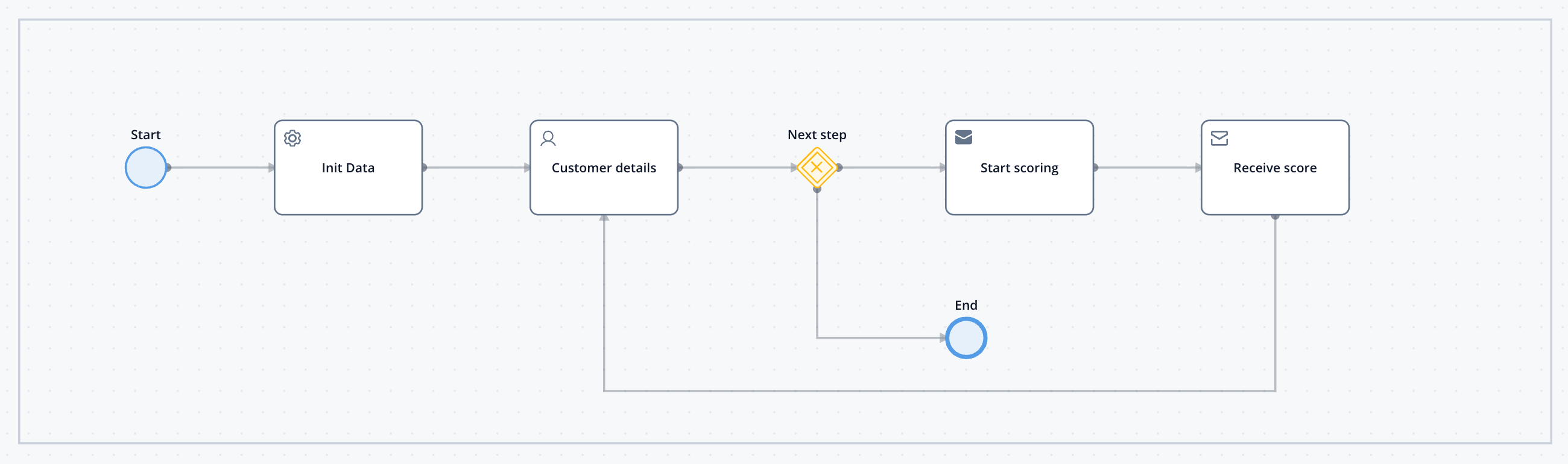
2
Route the gateway
In the gateway’s Gateway Decisions, set the language to JavaScript, send the token to Start scoring when this condition is true, and to the End event otherwise:
3
Start the workflow
On Start scoring, add a Start Integration Workflow action and select 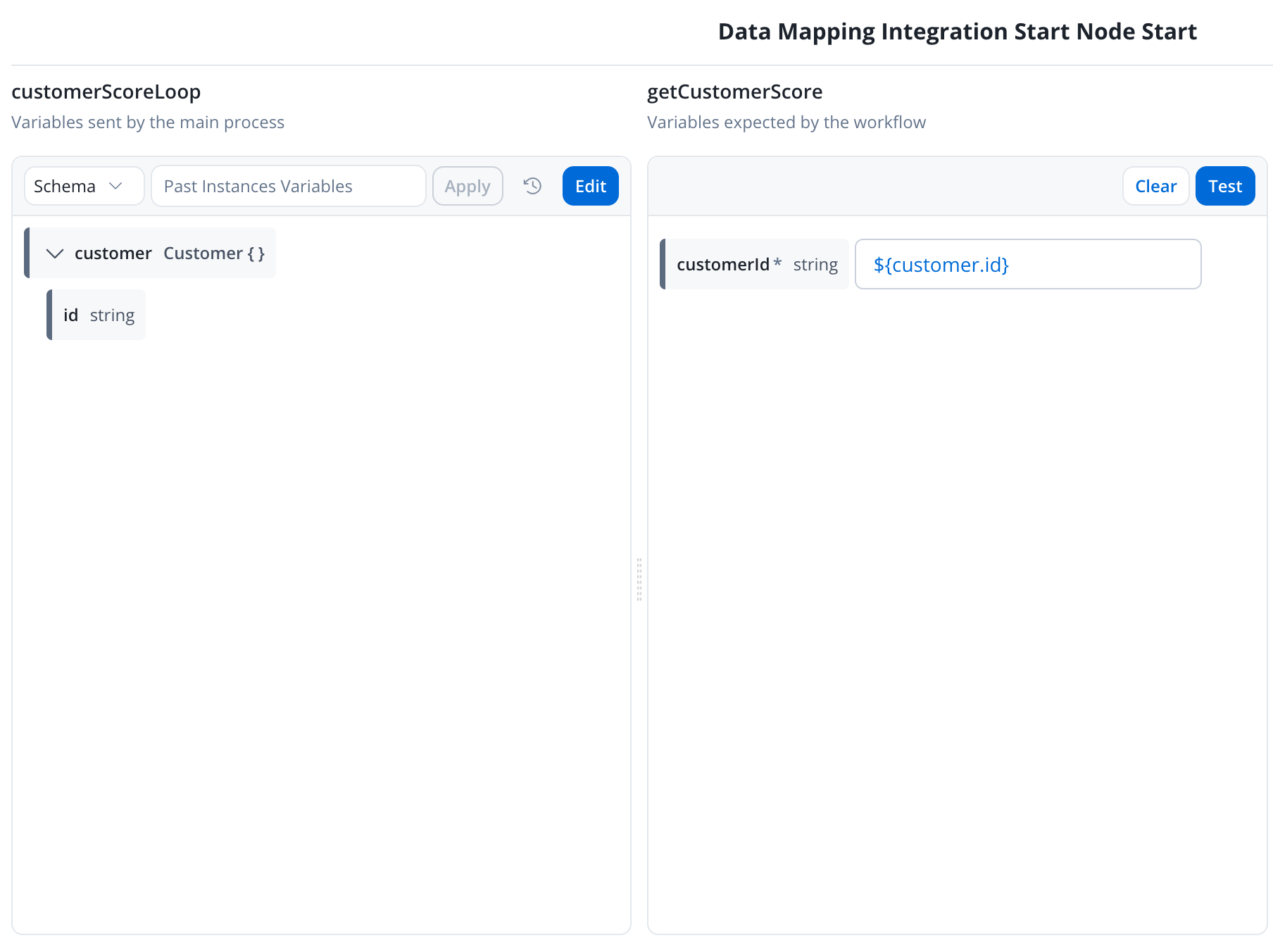
getCustomerScore. Open Input Mapping and map the process attribute customer.id to the workflow input customerId.4
Receive the output
On Receive score, add a data stream with Source set to Workflow and select
getCustomerScore. In the End node’s Output Mapping, map score to customer.score and tier to customer.tier, click Confirm, and save the node.Step 4: Design the screen
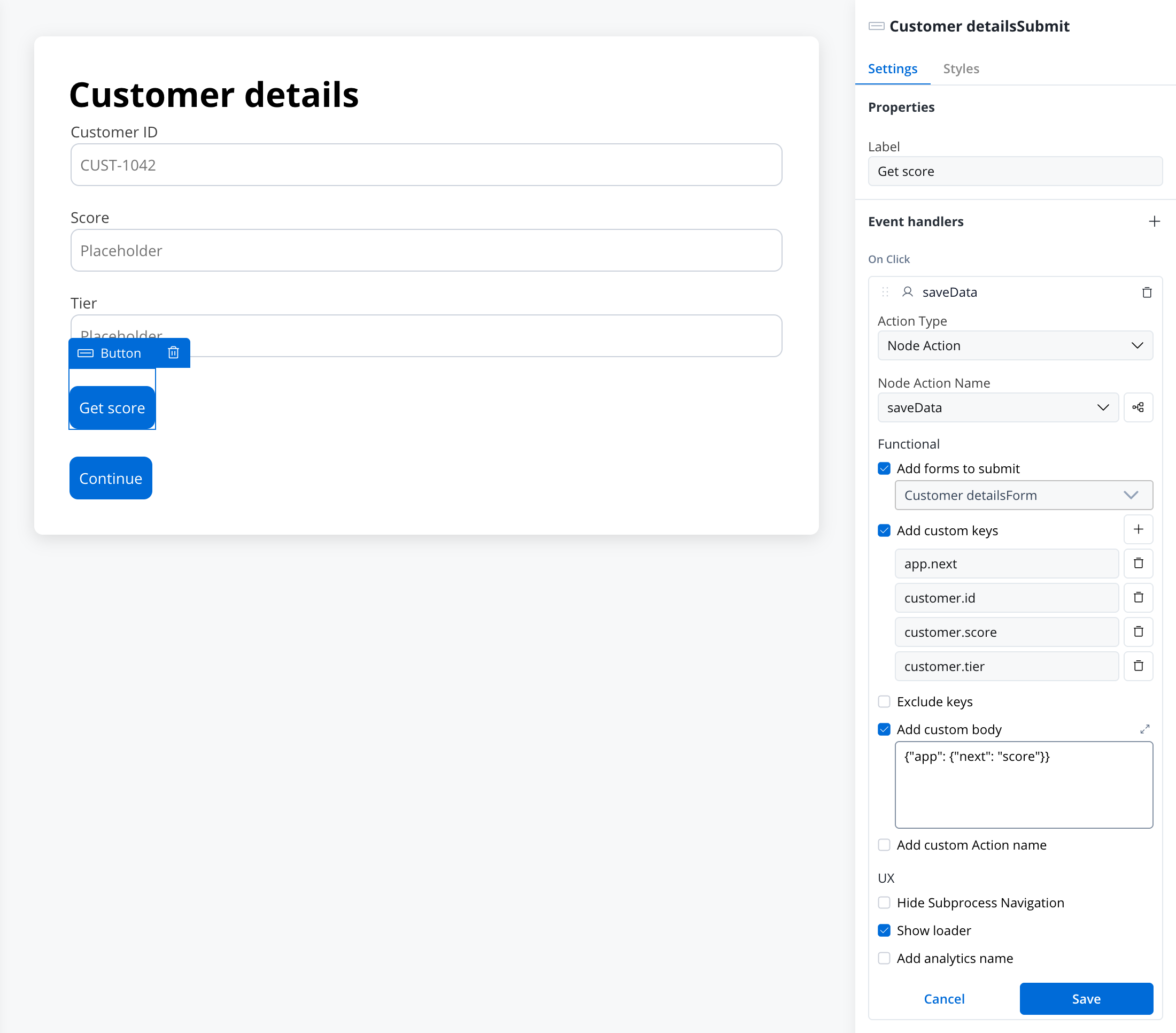
On Customer details, add a form with three fields bound tocustomer.id, customer.score, and customer.tier. Then add the two buttons outside the form, as siblings of the form rather than children. Both buttons get an On Click event handler with Action Type set to Node Action and the User Task’s Save Data action as the Node Action Name. They differ in what they send:
Get score submits the form so the ID the user just typed reaches the workflow, and the form’s fields are added to the saved keys automatically. List
app.next under Add custom keys as well: a custom body on its own is not saved to the process.
Step 5: Run it end to end
Start a process instance and open the Customer details screen:- Type
CUST-1042in the customer ID field and click Get score. The loader shows, and within a few seconds the screen shows score763and tierGOLD. The ID stays filled in. - Change the ID to
CUST-2001and click Get score again. The screen updates to809andGOLD. - Click Continue. The process finishes, and the instance data keeps the last score and tier.
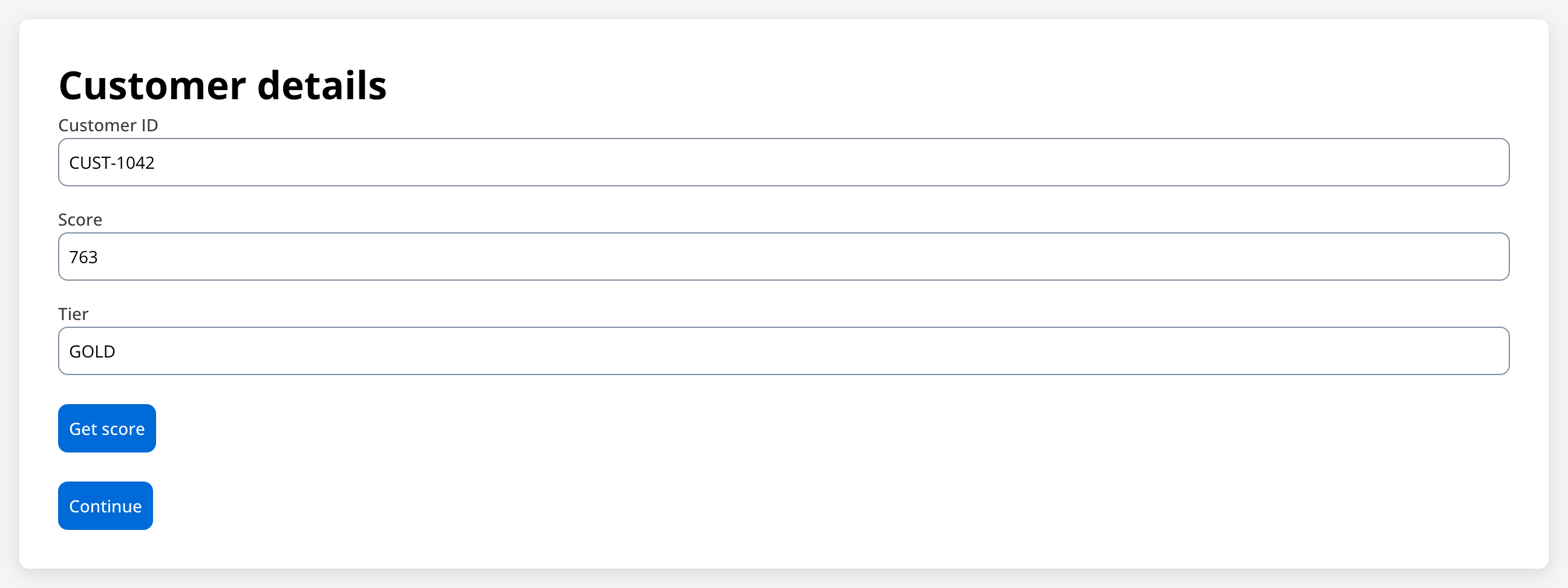
You built a screen that calls a workflow on demand and shows the result in place, without a page reload, plus the button configuration that keeps a fast click from losing the result.
When it fails
Related resources
Call an external API from a process
The send, workflow, receive round trip with a real REST API.
Start integration workflow action
Every option of the action that starts the workflow.
Event handlers
Form submission, custom keys, custom body, and the loader.
Exclusive gateway
Conditions and default paths.