

Prerequisites
- Node.js min version 20 - Download Node.js
- Angular CLI version 19. Install Angular CLI globally using the following command:
Angular project requirements
Your app MUST be created using the NG app from the @angular/cli~19 package. It also MUST use SCSS for styling.To install the npm libraries provided by FLOWX you will need to obtain access to the private FlowX Nexus registry. Please consult with your project DevOps.
The library uses Angular version @angular~19, npm v10.1.0 and node v20.9.0.
If you are using an older version of Angular (for example, v16), please consult the following link for update instructions:Update Angular from v16.0 to v19.0
Installing the library
Use the following command to install the renderer library and its required dependencies:angular.json:
- in order to successfully link the pdf viewer, add the following declaration in the assets property:
Initial setup
Once installed,FlxProcessModule will be imported in the AppModule as FlxProcessModule.withConfig({}).
You MUST also import the dependencies of FlxProcessModule: HttpClientModule from @angular/common/http
Theming
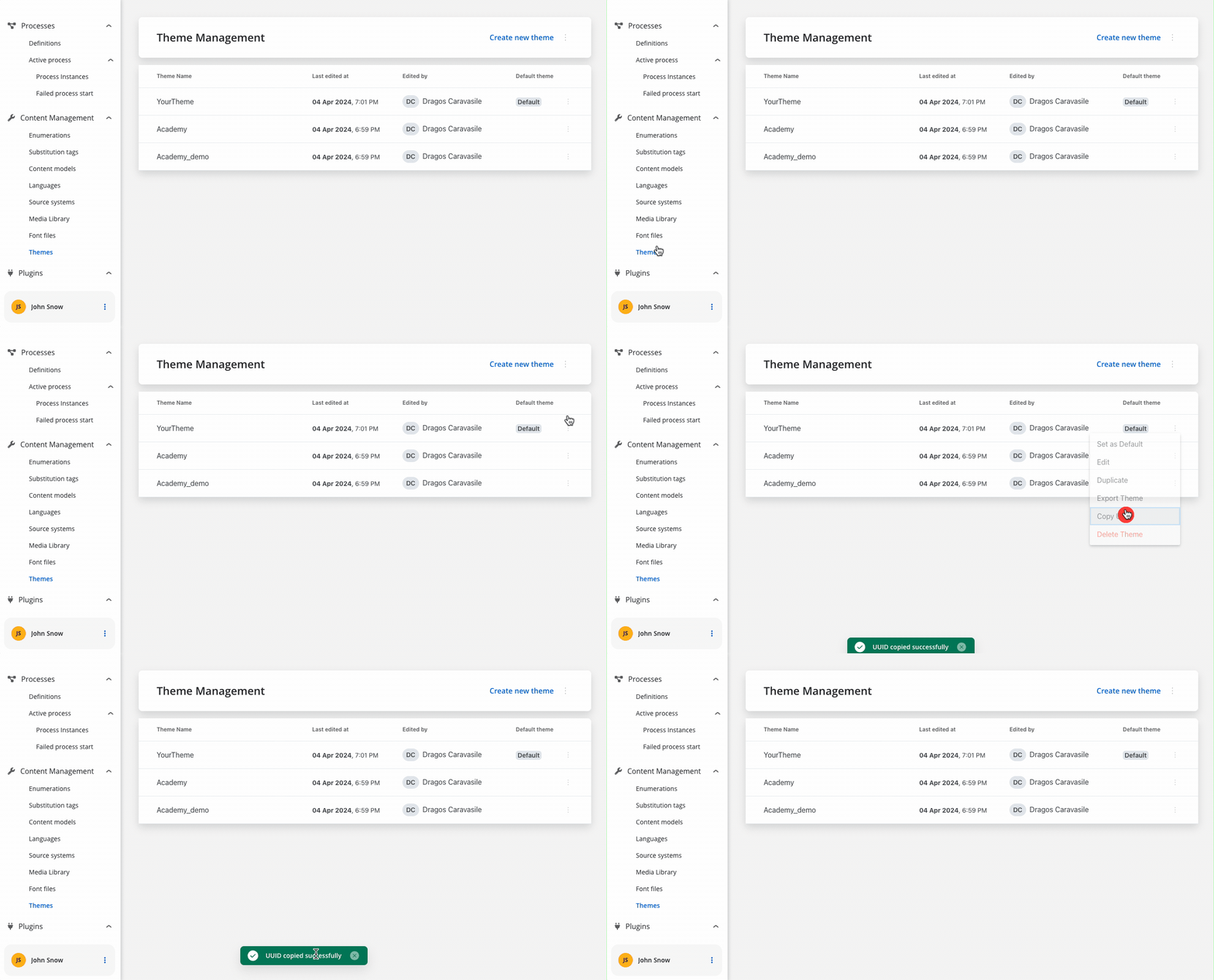
Component theming is done through the@flowx/angular-theme library. The theme id is a required input for the renderer SDK component and is used to fetch the theme configuration. The id can be obtained from the admin panel in the themes section.
Authorization
Every request from the FlowX renderer SDK will be made using the HttpClientModule of the client app, which means those requests will go through every interceptor you define here. This is most important to know when building the auth method as it will be the job of the client app to intercept and decorate the requests with the necessary auth info (eg.
Authorziation: Bearer ...).It’s the responsibility of the client app to implement the authorization flow (using the OpenID Connect standard). The renderer SDK will expect the authToken to be passed to the
flx-process-renderer as an input.withConfig() call is required in the application module where the process will be rendered. The withConfig() method accepts a config argument where you can pass extra config info, register a custom component, service, or custom validators.
Custom components will be referenced by name when creating the template config for a user task.
Custom validators will be referenced by name (currentOrLastYear) in the template config panel in the validators section of each generated form field.
<flx-process-renderer></flx-process-renderer> component. A list of accepted inputs is found below:
Parameters
When the cache is enabled, these CMS resources are stored in the browser’s cache storage, which significantly improves performance and loading times by reducing repeated network requests for the same resources.
Data and actions
Custom components will be hydrated with data through the $data input observable which must be defined in the custom component class.data -> actionsFn key.
Action names are configurable via the process editor.
Custom component validation
Custom components can validate their own status. We can inject theFLX_VALIDATOR_SERVICE service and use it to validate the component. Whe service exposes the following properties:
validate(isValid: boolean)- used to validate the componentsaveData(data: any)- used to save datavalidated$- used to monitor external submission from the process
Custom Interceptors
- Starting from the FlowX SDKs version 4.6, the Angular
HttpClientModuleis no longer used internally to make HTTP requests. Thus, we have a new mechanism that allows you to create custom interceptors for handling HTTP requests.
Request Interceptors
- Here is an example that illustrates how to create an interceptor that adds a custom header to all outgoing requests:
Response Interceptors
- Here is an example that illustrates how to create an interceptor that shows a message when a response errors out:
Interceptors that use Dependency injection
- If you need to use a service in your interceptor, you can use provider factories coupled with the
depsproperty to inject the service into the interceptor:
Using custom icons
The SDK provides a mechanism for using custom icons. Providers for custom icons should be included in the main app module in order to be available for the whole application.Enumerations and translations
The SDK library provides a mechanism for handling enumerations and translations. The api for the method that handles enumerations is provided by thegetEnumeration method which is Promise based.
Custom enumerations
Translations
The SDK provides aFlxLocalizePipe that allows you to manage translations within your application. The pipe is standalone and can be used both in templates and in custom components.
- Here is an example of how to use the pipe in a template:
- Here is an example of how to use the pipe in a custom component:
Analytics
The SDK provides a mechanism for collecting analytics events through a unified
CustomEvent system. These events can be used to track screens and action events.Emitting Analytics Events
Analytics events are dispatched using thepushAnalyticsData(payload: AnalyticsData) method. The SDK defines two event types:
The value property represents the identifier set in the process definition.For ACTION type events there are some additional properties provided:
- component - The type of component triggering the action
- label - The label of the component
- screen - The identifier of the screen containing the component, if set
Listening for Analytics Events
You can subscribe to analytics events using the standard CustomEvent API: Ensure that you remove the event listener on component destruction to avoid memory leaks.
Caching
The SDK provides a caching mechanism for static resources. The cache is enabled by default and can be disabled by setting the cache input of theflx-process-renderer component to false. When turned on, the cache will store the static resources in the browser’s cache storage.
Common Scenario: When making updates to CMS resources (like substitution tags or media library images) during development, you may find that after a browser refresh, the changes don’t appear.
Common Scenario: When making updates to CMS resources (like substitution tags or media library images) during development, you may find that after a browser refresh, the changes don’t appear.
Application (Chrome) or Storage (Firefox) tab in the browser Dev tools and either clear the cache or disable the cache for the current site.
| Browser | Dev Tools Tab | Screenshot |
|---|---|---|
| Chrome | Application tab | 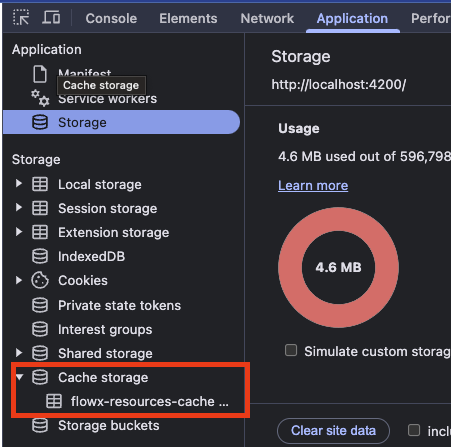 Chrome - Application tab |
| Firefox | Storage tab | 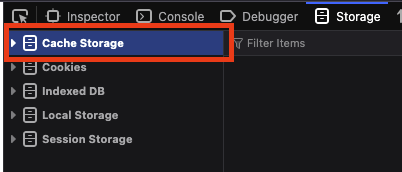 Firefox - Storage tab |
- Chrome: Navigate to Application → Storage → Cache storage → Right-click on “flowx-resources-cache” → Clear
- Firefox: Navigate to Storage → Cache Storage → Right-click → Clear
Interacting with the process
Data from the process is communicated via the Server Send Event protocol under the following keys:Task management component
Theflx-task-manager component is available in the FlxTaskManagementComponent. To use it, import the required module in your Angular project: