

Deployment models:
- SaaS Managed FlowX cloud deployments
- All Deployments Available in both self-hosted and SaaS
What changed since 5.13.0
What changed since 5.13.0
Coming from 5.9.x
Releases 5.10 to 5.13 shipped to SaaS first. An installation that moves from 5.9.x to 6.0.0 gets their features too, including the corrective actions below. The highlights:New data sources
PostgreSQL and Db2 databases, and SOAP services imported from a WSDL.
Document nodes in workflows
Fill a template into a PDF or DOCX, combine or split PDFs, and parse spreadsheets, CSV, XML, and JSON.
Multi-instance and triggered workflows
Run one subworkflow per array element in parallel, and start a workflow from an email or webhook trigger.
Workflow Instances page
Every workflow run in the project, filterable by status, date, and origin.
Branches and the Issues panel
Merge into any branch, archive or delete branches, and see validation findings in one panel.
Workflows as agent tools
A Custom Agent node calls FlowX workflows as tools, each with a hint for when to use it.
Developer Agentic Harness
Developer Agentic Harness
- Overview
- Key Features
The Developer Agentic Harness is the Designer’s AI agent: it surveys your app, plans the change, and builds it on its own branch.Before 6.0: the harness ran an approved plan as a single run, and a conversation stayed tied to the app and branch where you started it. Now: a plan can split the work into stories, each a slice of the app you can try on its own, delivered one story at a time. You can point at a component in the running app to ask for a change. Your conversations follow you across the Designer.Each story says how to test it and what the agent needs from you, so you check one working slice before the next one starts. Comment mode turns the running UI flow or process into the brief: select a component, say what should change, and the comment lands in the conversation with the component attached. A conversation writes to the project and branch set by the first change you confirm, wherever you navigate after that, and the agent asks before it reads beyond that target.See Developer Agentic Harness.
Removed: the Command Center, the standalone Analyst, Architect, Assistant, Designer, and Developer agents, and the AI buttons inside the editors, such as Generate on the data model and the sparkle buttons in business rules, reusable functions, and Script nodes. Open the agent rail instead: press ⌘K (Ctrl+K on Windows and Linux) or select the sparkle toggle in the header. The harness still uses those agents internally for focused generation work. See Developer Agentic Harness.
Corrective actions on running instances
Corrective actions on running instances
- Overview
- Key Features
Corrective actions shipped in the 5.12 and 5.13 feature releases. They fix running process instances in place, without restarting them, from Runtime → Runtime Control → Corrective Actions.Bulk process-instance migration moves a filtered set of running instances from one build to another in one run, so a fix made in a newer build reaches instances already in flight. Move token takes the active token off the node the instances are stuck on and places it on another node of the same process, and the instances stay on their build.The Workspace corrective actions editor role grants both. It replaces the Workspace operations editor role, and the upgrade moves users and groups that had the old role to the new one.See Migrate process instances and Move tokens.
New Designer header
New Designer header
Before 6.0: the branch selector, the version state, and Commit Changes sat in the project’s top bar. Now: the header holds the project name, the Config / Runtime switch (Config to edit a version, Runtime for builds and their settings), the Build with AI and Comment toggles, and Run project, which starts the version’s entry point. Branching, the current version, and Commit Changes move to a version block at the start of the footer on Config pages.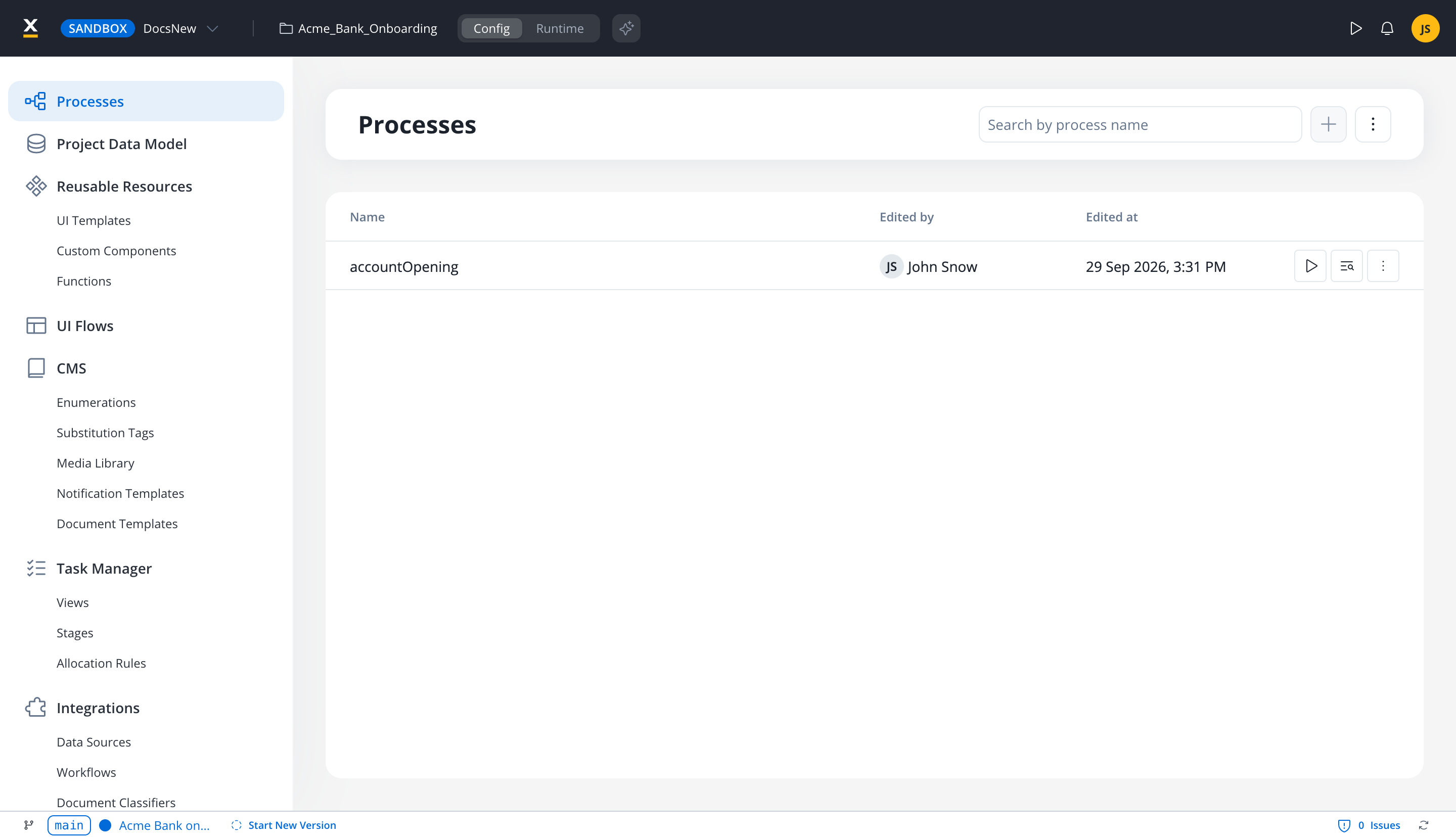 The Designer also opens the workspace you used last, and Organization settings is in the avatar menu. See Header and version block.SaaS
AI node retries
AI node retries
Before 6.0: an AI node failed as soon as its AI service or LLM provider couldn’t be reached. Now: every AI node except Deep Research retries up to 10 times, 30 seconds apart, when the service is unreachable, the provider is unavailable or rate-limits the request, or the connection fails. Timeouts aren’t retried by default, because the node may already have called its tools.Toggle Allow Retry on in the node’s Settings to set your own count, interval, and exponential backoff. After the last retry, the workflow continues down the node’s failure exit if one is connected. With Allow Retry on, the workflow run logs show each attempt on its own line. See AI node retries.SaaS
Knowledge Base re-embedding and entry lifecycle
Knowledge Base re-embedding and entry lifecycle
Before 6.0: the embedding model was locked once a Knowledge Base held content. Now: turning Containing Personal Information on or off later re-embeds the existing content with the new model. Search keeps using the current embedding while it runs, and content changes are locked until it finishes. If some documents fail, the Knowledge Base stays on its previous model and the header says how many weren’t re-embedded.Entries also have their own lifecycle: Disable Entry takes an entry out of retrieval without removing it, Activate Entry puts it back, and an entry can be permanently deleted. See Can I change personal information after content is ingested? and disable, re-activate, or permanently delete an entry.SaaS
Chat message in AI node prompts
Chat message in AI node prompts
The message still reaches the model inside the input data when Use only referenced values as input is off. See Context.SaaS
Evaluations: test cases replace datasets
Evaluations: test cases replace datasets
Before 6.0: test cases lived in datasets, and the Code evaluators checked outputs for an exact, JSON, or Levenshtein match. Now: each workflow has its own test cases, grouped by tags. Each case carries its checks: asserts for equals and equals as JSON, and LLM evaluators with a pass threshold. An experiment runs the test cases you select. See Evaluations.SaaS
Scheduled workflows
Scheduled workflows
- Overview
- Key Features
Before 6.0: an integration workflow started only when a process, a UI flow, or another caller started it. Now: add schedules to the workflow’s Start node and it starts by itself at each fire time.Schedules fire once on a date or repeatedly on an ISO or cron cycle, and the dialog previews the next fire times in your local time zone. Saving a schedule or publishing a build never turns it on: activate it in Runtime → Runtime Settings → Schedules.See How do I run a workflow on a schedule?.
Certificates: trust and identity
Certificates: trust and identity
- Overview
- Key Features
Before 6.0: a REST data source combined keystore, truststore, and a skip-verification switch in one TLS setup. Now: the Certificates panel has two independent parts. Trust decides what the host’s certificate is checked against: System CAs (the default), a Custom CA, or None (insecure). Identity is the client certificate FlowX presents for mutual TLS, turned on with Present a certificate.The same panel is available on File Storage data sources. Existing certificate settings are converted to the new model automatically.See Certificates for when to use each option.
Generate Tabular File node
Generate Tabular File node
A new node under Tools in the workflow palette turns a workflow variable that holds an array of rows into a CSV or XLSX file, stored as a document linked to the workflow run. A workflow can now produce an export without a Script node. See Generate Tabular File node.SaaS
FlowX Database unique indexes
FlowX Database unique indexes
Toggle Enforce unique values when you add an index to reject documents that repeat a value already stored, on one attribute or on a compound key, with an option to exempt documents that leave the key empty. Existing duplicates are reported when you run Apply Indexes, before the index is created. You can also delete a document from the collection view. See How do I make an index unique?.SaaS
Issues Console version checks
Issues Console version checks
Before 6.0: an Issues Console check, which validates the resources in a project version, covered processes, UI flows, and integration workflows. Now: it also checks the version itself: missing, broken, or mismatched entry points, a theme that isn’t in the workspace, library builds that are missing directly or transitively, and dependencies the version doesn’t use. Selecting a finding opens the version settings or the Dependencies page, where you fix it. See Which version settings does a check cover?.SaaS
Import and export notifications
Import and export notifications
The notification center now covers version imports and build exports and imports, alongside version exports and process instance migrations. Each operation notifies you when it starts and replaces that entry with its result: ready to download, imported, needs review with a conflict or excluded-resource count, failed, or timed out. See What sends a notification.SaaS
Resource documentation
Resource documentation
Open Documentation from a resource’s menu to give it a short description and longer Markdown documentation, written and previewed in the same window. Media Library assets in a project library get a description too, used as the image’s alt text in the asset preview. Knowledge base stores, navigation areas, and user tasks in the process navigation panel have Documentation in their menus too. See How do I document a resource?.SaaS
Sensitive values stay hidden
Sensitive values stay hidden
After you save a
value configuration parameter with Sensitive on, the Designer shows ******** in place of the value in the parameters list, overrides, build details and lists, and the merge view. The real value is still used at runtime, and editing other fields keeps it. See What happens after you save a sensitive value?.SaaSSubstitution tags inside any text
Substitution tags inside any text
- Overview
- Key Features
Before 6.0: a substitution tag resolved only when it was the whole value of a property, so
@@greeting ${firstName} rendered as empty text. Now: write ${tag:key} anywhere in a component’s text, next to static text and process data, and the renderer fills in every tag: ${tag:greeting}, ${firstName}! renders as “Hello, John!”.The upgrade rewrites whole-value @@key references to ${tag:key} in processes, UI flows, and reusable templates, so existing screens render as before. @@key keeps working as a whole value.See How do I reference a substitution tag in UI content?.GraalVM script engine deprecated
GraalVM script engine deprecated
The GraalVM script engine is deprecated. FlowX.AI 6.1.x is the last release family that supports it, for every JavaScript and Python script: business rules, reusable functions, workflow Script nodes, and the rest. Scripts that run on GraalVM keep working in 6.0.0. Move them to the native engine, the default since 5.9.0, before support ends. See Move scripts off the GraalVM engine.Time limits on GraalVM too: scripts that run on GraalVM now stop at the same per-language time limit as the native engine: 5,000 ms for JavaScript and 10,000 ms for Python by default, set on the process engine and Integration Designer with
APPLICATION_SCRIPTENGINE_NATIVEENGINE_JS_EXECUTIONTIMEOUTMS and APPLICATION_SCRIPTENGINE_NATIVEENGINE_PYTHON_EXECUTIONTIMEOUTMS. Before 6.0.0, a GraalVM script had no time limit. A script that runs past its limit is stopped and fails with an error saying it did not finish within its time limit. Before you upgrade, check GraalVM scripts that can run longer than these limits, or raise the limits. See Script size and execution limits.All DeploymentsSmaller improvements
Smaller improvements
Auto-arrange on both canvases: select Auto-arrange on the workflow canvas, or Arrange on the process canvas, to see a tidied layout in the Layout preview bar before anything moves. Compare it with the current layout, then Apply or Cancel. See How do I auto-arrange the workflow canvas?. Timers in local time: timer nodes now use the same editor as workflow schedules. Dates and times you pick are in your local time and saved in UTC, one control switches between Guided, Expression, and Process variable entry, and cycle timers preview their next fires. Timers saved with the earlier date pickers can look shifted by your UTC offset in the panel, but they still fire at their stored time. See Which entry modes can I use?. Longer branch names: branch names can be up to 40 characters, up from 16. See Creating a new branch. Organization branding: a Branding page under Organization settings > Customization sets one brand for the organization: name, logos, legal and social links, container app colors and header, and the sender, signature, and text of the invite, verify email, and reset password emails, with a preview of each. Login page and email branding are available on FlowX SaaS only. See Organization branding. Typed dates in the Datepicker: turn on Allow manual input to let users type a date in the pattern of the project’s default locale instead of picking it. Web only, and not available while Legacy component is on. Data mapping creates data types: type a new attribute path such as
client.address.street, and saving the mapping creates the data types it names. Until then, the mapper marks them as not yet added to the data model. Required rows show an asterisk, and mapping an object onto a primitive field shows an error. Removed fields stay removed: when a node’s output sets a field to null, the field is removed from the workflow data and later steps no longer restore it with a null value. If a condition checks for null, make it handle a missing field too. Keys with dots stay whole: a data key that contains a dot, such as cash|31.12.2025, now stays one key when a workflow saves its data. Before, the key was split into nested objects and later nodes could not read it. SaaS