> ## Documentation Index
> Fetch the complete documentation index at: https://docs.flowx.ai/llms.txt
> Use this file to discover all available pages before exploring further.
# FlowX.AI 5.6.0 Release Notes
> Conversational AI with memory and intent routing, incoming webhooks, proxy connections, unmanaged MongoDB, UI Flow session variables, chat history, and 28 bug fixes.
FlowX.AI 5.6.0 brings **conversational AI** to your apps. Build multi-turn chat experiences where agents remember context, classify user intent, and navigate users to the right screen — all within a single workflow. On the integration side, **incoming webhooks** let external systems start processes via HTTP, **proxy connections** route traffic through intermediary servers, and **unmanaged MongoDB** connects FlowX to your existing database infrastructure. The UI layer gains **session variables**, **route management**, **chat history**, and **suggested prompts** for richer end-user experiences.
Chat Driven workflows, session memory, intent routing, and context retrieval
Incoming webhooks, proxy connections, unmanaged MongoDB, and base64 certificates
Session variables, route management, chat history, suggested prompts, and new UI events
### What changed since 5.5.0
| 5.5.0 | 5.6.0 |
| ---------------------------------------------------- | ---------------------------------------------------------------- |
| Output Focused workflows only | + **Chat Driven** workflows with multi-turn memory |
| No event-driven process starts from external systems | **Incoming webhooks** with API key auth |
| FlowX-managed MongoDB only | + **Unmanaged MongoDB** — bring your own database |
| No conversation persistence | **Chat History** — browse and resume past sessions |
| Static chat empty state | **Suggested Prompts** — guide users with one-click starters |
| Certificate file paths only | **Base64 certificates** — paste content directly, no file mounts |
| No cross-page data in UI Flows | **Session variables** — persist data across pages and workflows |
***
**What's new?**
Build complete conversational AI pipelines — from understanding what the user wants, to retrieving the right context, to navigating them to the right screen.
💬 [**Conversational Workflows**](#conversational-workflows) - New Chat Driven workflow type for multi-turn conversations\
🧠 [**Memory Capabilities**](#memory-capabilities) - Automatic session memory with summarization across turns\
🎯 [**Intent Classification node**](#intent-classification-node) - Classify user messages and route to the right branch in one step\
🧭 [**Navigate in UI Flow**](#navigate-in-ui-flow) - Let the AI open forms and screens with contextual data\
🔍 [**Context Retrieval node**](#context-retrieval-node) - RAG search against Knowledge Bases without calling an LLM\
📄 [**Extract Data from File**](#extract-data-from-file) - Three extraction methods, image support, and signature detection\
🌐 [**Web Page Extractor**](#web-page-extractor) - Crawl web pages and extract readable content for AI processing
See also: [Chat History](#chat-history), [Suggested Prompts](#chat-suggested-prompts), and [Markdown in chat](#markdown-in-chat-messages) in the **UI & Designer** tab.
### **Conversational Workflows**
Chat Driven workflows are a specialized workflow type for multi-turn chat interactions. Unlike Output Focused workflows that process structured input/output, Chat Driven workflows manage ongoing dialogue — handling message exchange, session memory, and response routing through a dedicated Start node layout (Chat Session ID + User Message) and Custom Agent nodes with direct chat reply capability.
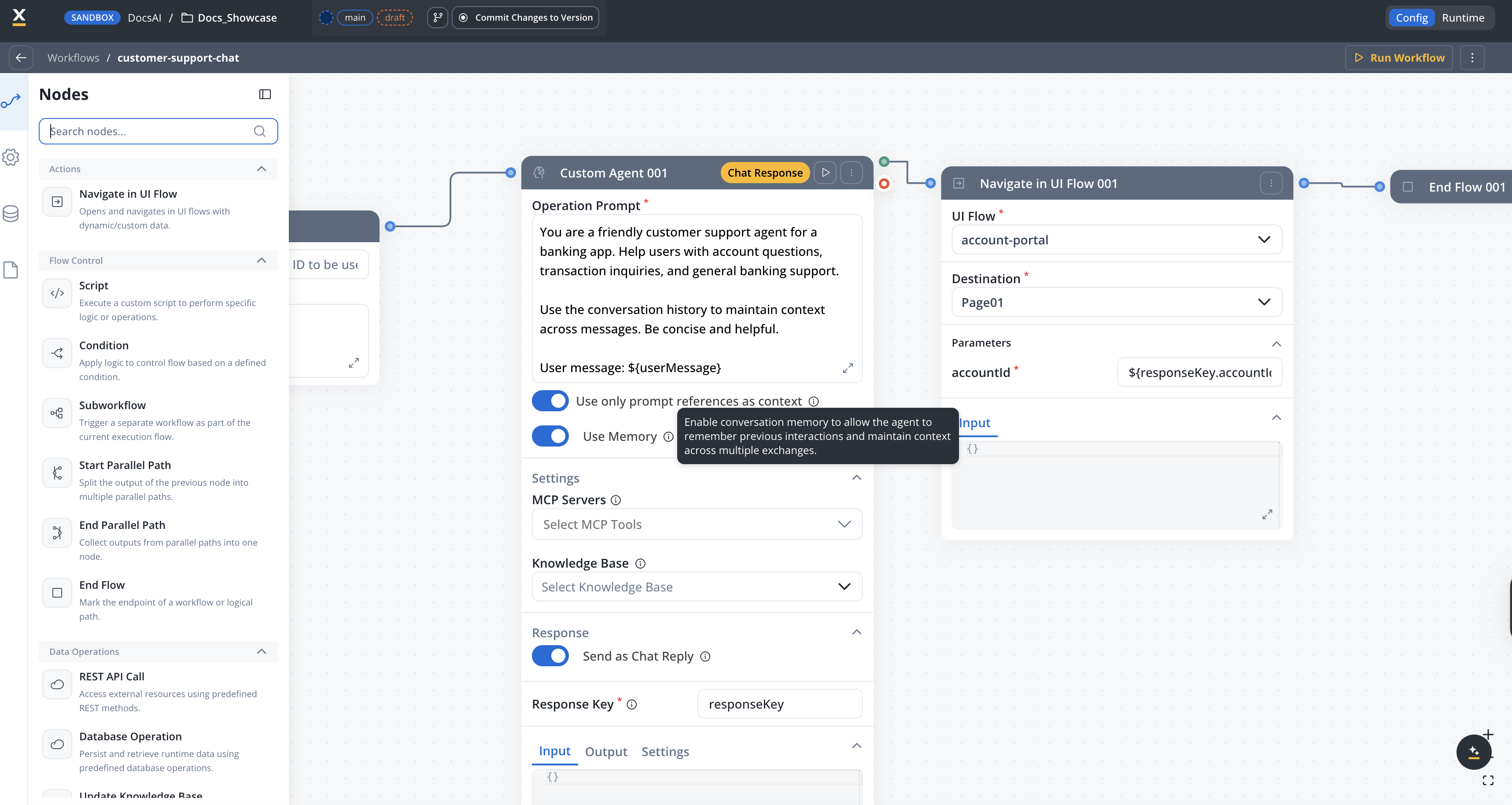
See the complete Conversational Workflows documentation.
Support for back-and-forth conversations with persistent context
Automatically classify user messages and route to appropriate workflow branches
Built-in session memory with automatic summarization across conversation turns
Dedicated chat component with error handling and shared state management
Major Feature
All Deployments
***
### **Memory Capabilities**
Conversational workflows include built-in session memory that automatically persists and retrieves conversation history. On each message, the system retrieves the last 3 turns of raw messages plus a summary of earlier exchanges, injecting them into the AI node's system prompt for context-aware responses.
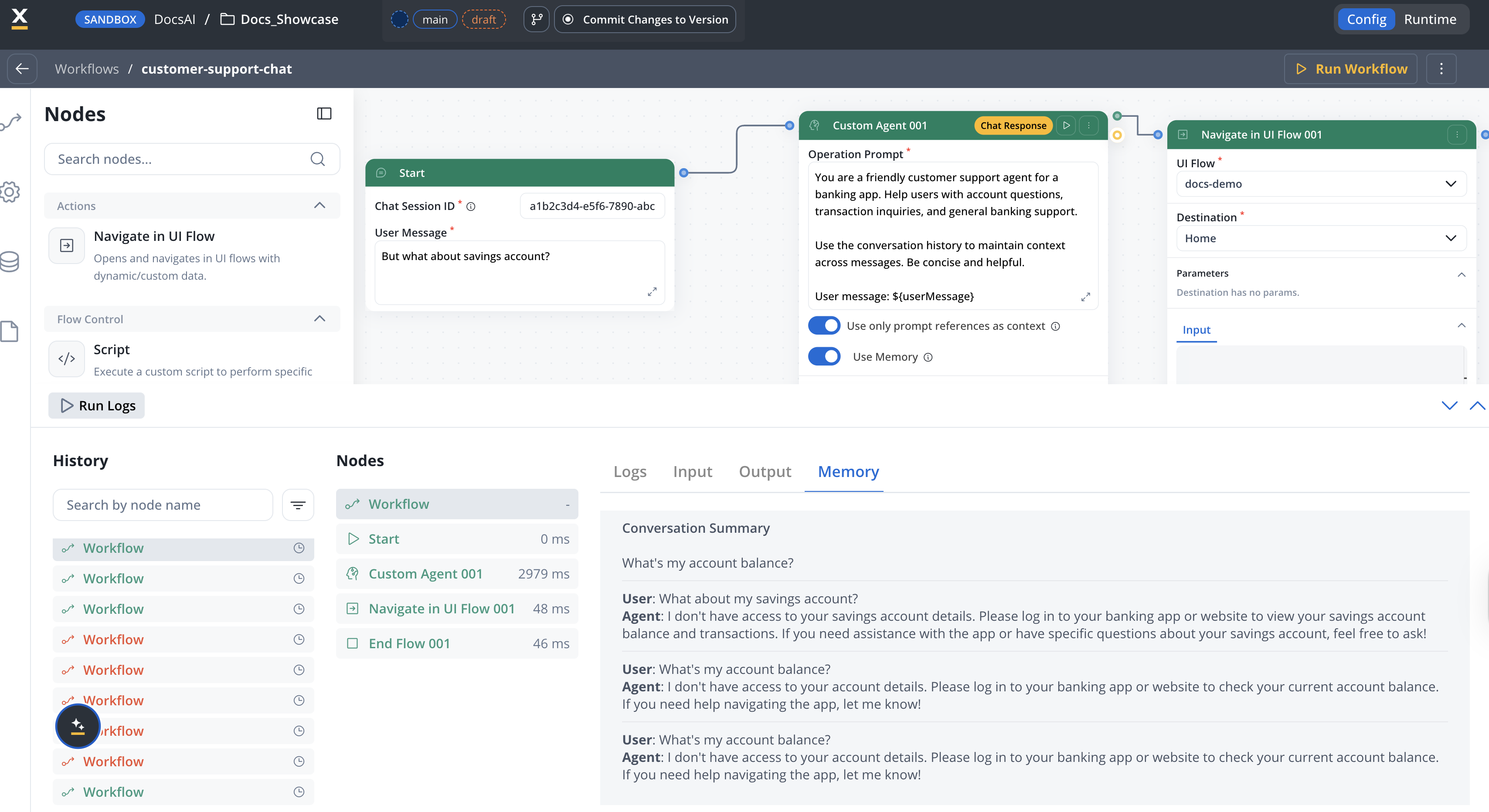
See the complete Memory Capabilities documentation.
Last 3 turns + summary of earlier exchanges retrieved on each message via sessionId
Older conversation history is automatically summarized to fit within context limits
Turn on memory per Custom Agent node with the **Use memory** toggle
View retrieved memory (raw turns + summary) in the workflow console log
Major Feature
All Deployments
***
### **Intent Classification node**
A dedicated workflow node that combines AI-powered message classification with workflow branching in a single step. Define up to 10 intents with natural language descriptions, and the node classifies user messages and routes to the matching branch automatically — replacing the previous TEXT\_UNDERSTANDING + Condition two-node pattern.

See the complete Intent Classification documentation.
Combines LLM classification and conditional branching — no separate Condition node needed
Define intents as plain-text descriptions instead of code expressions
Optionally use past conversation context for more accurate classification
Automatic "If No Intent Matches" branch handles unrecognized inputs
AI Integration
All Deployments
***
### **Navigate in UI Flow**
A new workflow node exclusive to **Chat Driven** (conversational) workflows. It navigates the user to a specific screen in a UI Flow, passing dynamic parameters — for example, the AI says *"Let me open your account details"* and the user sees a pre-filled form with data from the conversation.
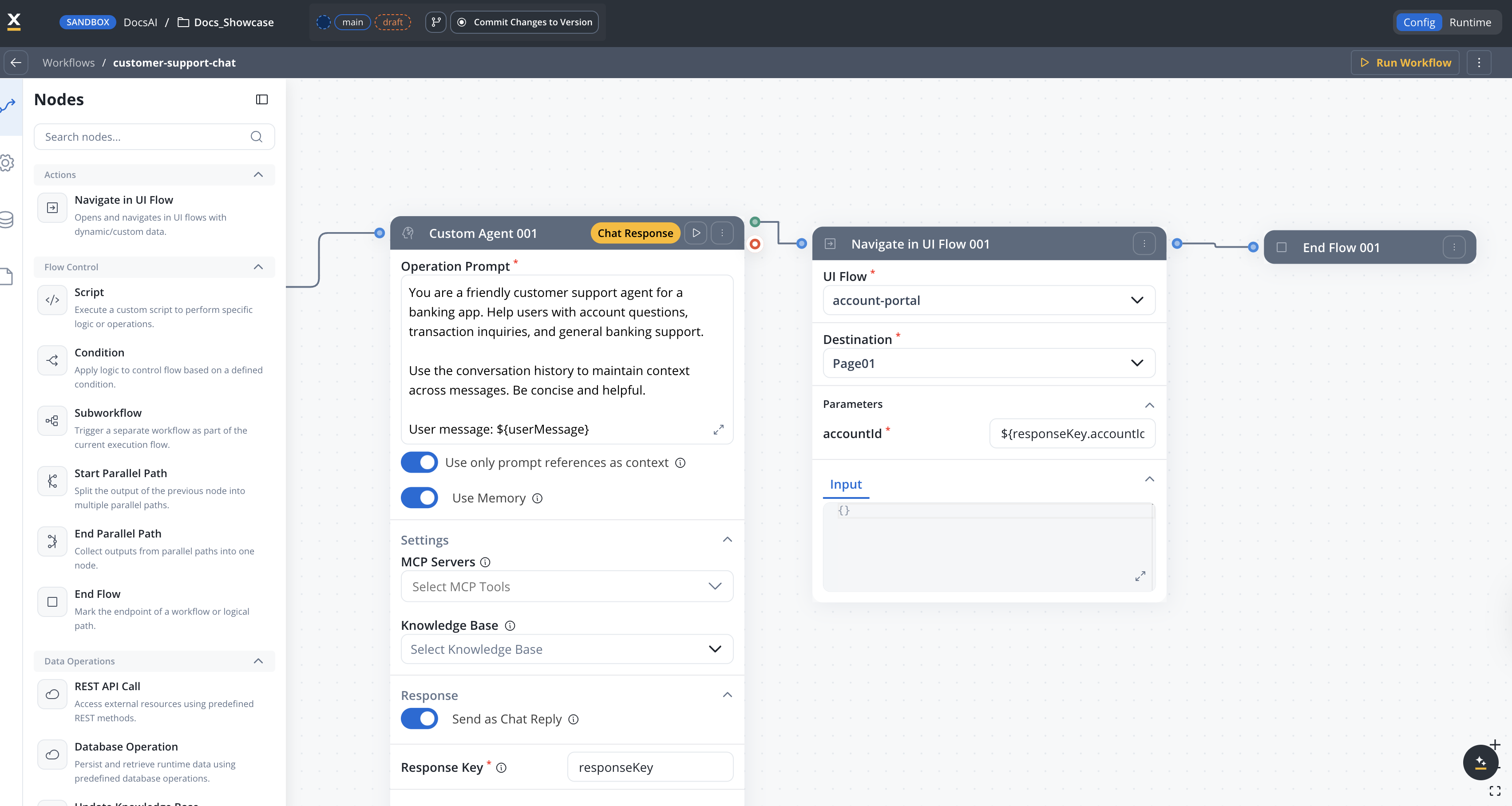
See the Navigate in UI Flow section in Conversational Workflows.
Navigate users to UI screens directly from a Chat Driven workflow conversation
Pass workflow data to the destination screen using `${expression}` syntax
Select from the UI Flow's navigation tree with auto-populated query parameters
Available exclusively in the Actions category of conversational workflows
All Deployments
***
### **Context Retrieval node**
A dedicated workflow node that performs RAG (Retrieval-Augmented Generation) searches against Knowledge Bases without calling an LLM. Returns raw chunks with relevance scores and metadata, giving you full control over downstream processing. Supports hybrid, semantic, and keyword search with configurable re-ranking and metadata filters.
Use Context Retrieval when you need to inspect, filter, or transform chunks before passing them to an LLM — for example, checking relevance scores before generating a response. For all-in-one RAG, use a Custom Agent node with a Knowledge Base attached instead.
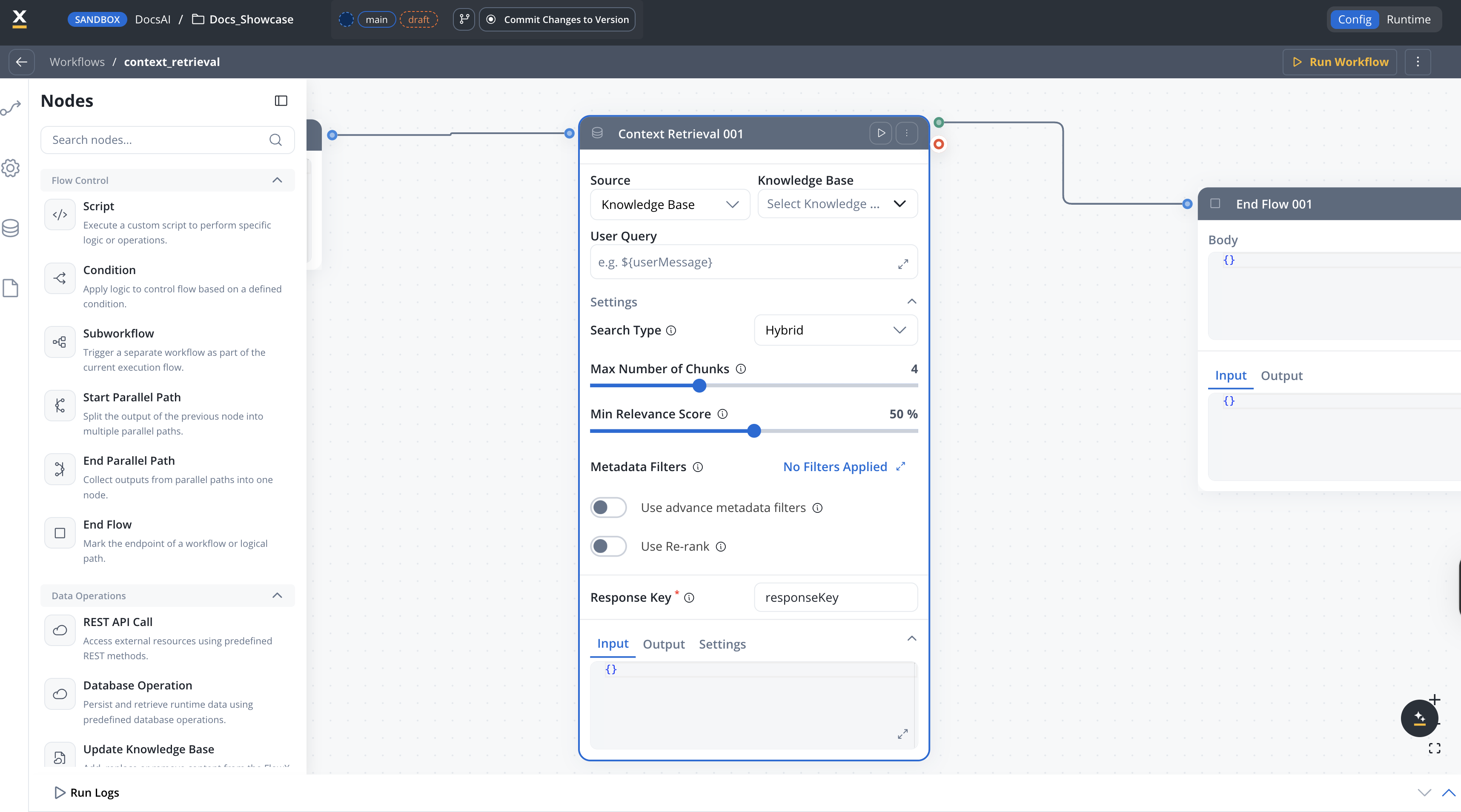
See the complete Context Retrieval documentation.
Retrieves chunks directly — no AI generation step, lower latency and cost
Hybrid, semantic, or keyword search with configurable relevance thresholds
Filter chunks by user-defined metadata for scoped retrieval
Optional re-ranking for improved result ordering
AI Integration
All Deployments
***
### **Extract Data from File**
The workflow node formerly known as "Extract Text from Document" has been renamed to **Extract Data from File** and gained three new configurable settings: **Extraction Method** (LLM Model, OCR Engine, or Text Parsing), **Image Extraction** (Image Description or Image Contents), and **Detect Signatures**. The node now also accepts image files (JPG, PNG, TIFF) in addition to documents.
See the complete Extract Data from File documentation.
Choose between LLM Model (AI vision), OCR Engine (scanned docs), or Text Parsing (digital PDFs) per use case
Process JPG, PNG, and TIFF files alongside PDF, DOCX, XLSX, and PPTX
Identify signature areas within documents when using LLM or OCR extraction
The node is now in the **Tools** category in the workflow node palette
All Deployments
***
### **Web Page Extractor**
A new workflow node in the **Tools** category that collects readable content from web page URLs. Crawl documentation sites to build a Knowledge Base, scrape product pages for competitive analysis, or extract terms and conditions for compliance review. Supports static URL lists or dynamic URL generation, configurable crawling depth with link following, PDF extraction from linked documents, and adjustable scrape speed presets.
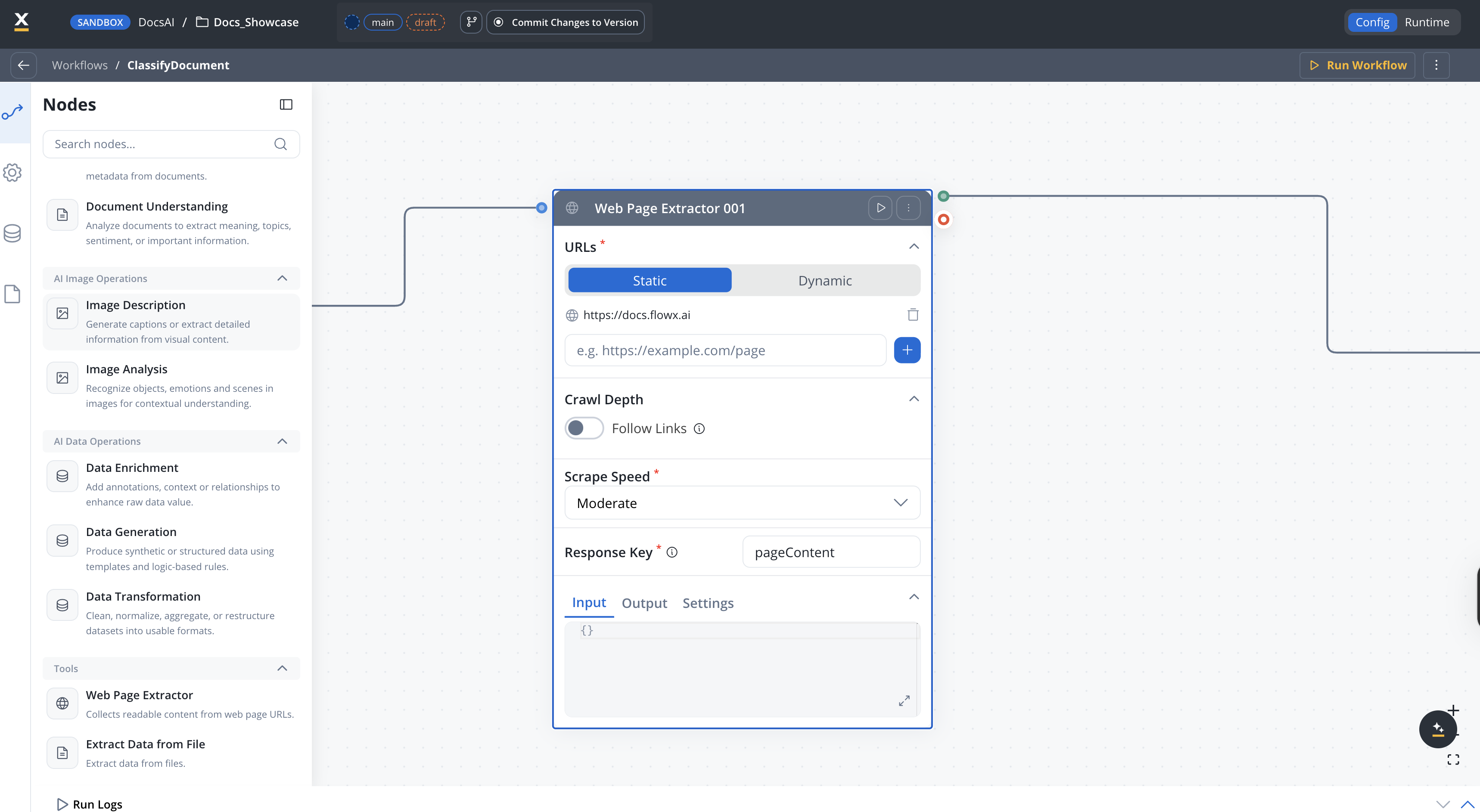
See the complete Web Page Extractor documentation.
Provide a fixed list of up to 20 URLs or generate them dynamically from workflow data
Follow links on pages up to a configurable depth (0–10 levels)
Extract content from PDF files linked on crawled pages
Choose Slow, Moderate, Fast, or Custom with manual rate limit and concurrency
All Deployments
Connect FlowX to more systems — trigger processes from external events, route traffic through proxies, and query your own MongoDB databases.
🔗 [**Incoming Webhooks**](#incoming-webhooks) - Trigger processes from external HTTP POST requests\
🛡️ [**Proxy Server Connections**](#proxy-server-connections) - Route integration traffic through proxy servers\
🗄️ [**Unmanaged MongoDB Datasource**](#unmanaged-mongodb-datasource) - Connect to externally managed MongoDB instances\
📧 [**Email Trigger Enhancements**](#email-trigger-enhancements) - Resource management, reply-to, and mock email testing\
🔐 [**MCP Authentication**](#mcp-authentication) - BEARER and BASIC auth support for MCP server connections\
📜 [**Base64 Certificate Support**](#base64-certificate-support) - Provide certificates as base64-encoded strings instead of file paths\
📊 [**CSV/Excel to JSON Conversion**](#csvexcel-to-json-conversion) - Download CSV and Excel files as structured JSON on the fly
### **Incoming Webhooks**
A new data source type and microservice (`webhook-gateway`) that allows external systems to trigger FlowX processes via HTTP POST requests. Create a Webhook data source in Integration Designer, connect it to a Message Start Event in your process, and FlowX generates a unique URL with API key authentication. When external systems POST to this URL, a process instance starts automatically with the webhook payload and headers.
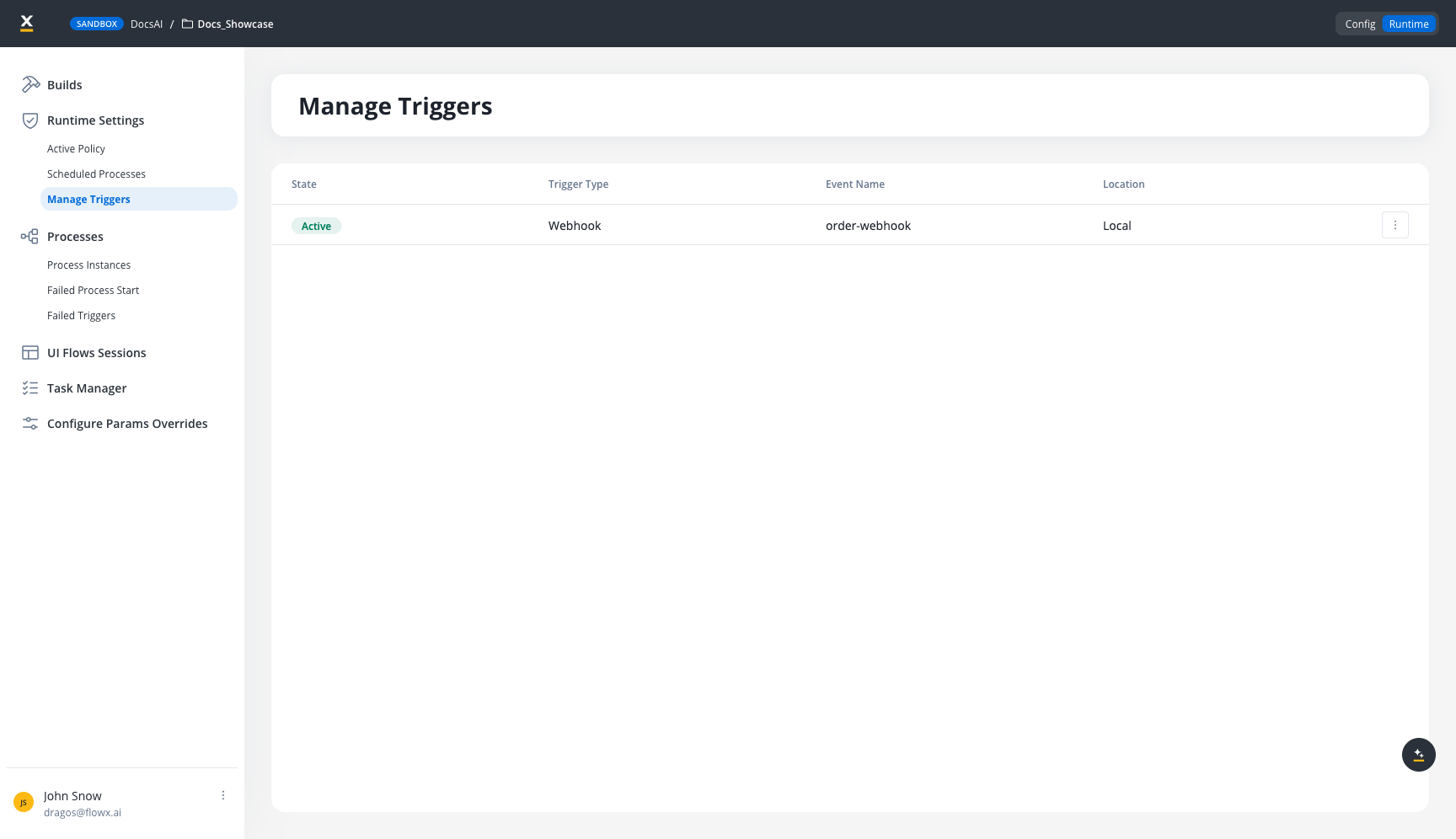
Requires deploying the new `webhook-gateway` microservice. See [Deployment Guidelines](./deployment-guidelines-v5.6) for configuration.
See the complete Incoming Webhooks documentation.
Each webhook gets a unique, cryptographically secure API key for authentication
Webhook body and headers are forwarded to the process instance as variables
Activate, deactivate, and monitor webhooks from the Manage Triggers UI
Regenerate API keys without recreating the webhook configuration
Major Feature
All Deployments
***
### **Proxy Server Connections**
Create reusable proxy connections in Integration Designer and attach them to RESTful System data sources. Route outbound API traffic through HTTP or HTTPS proxy servers for environments that require intermediary routing for security or compliance.
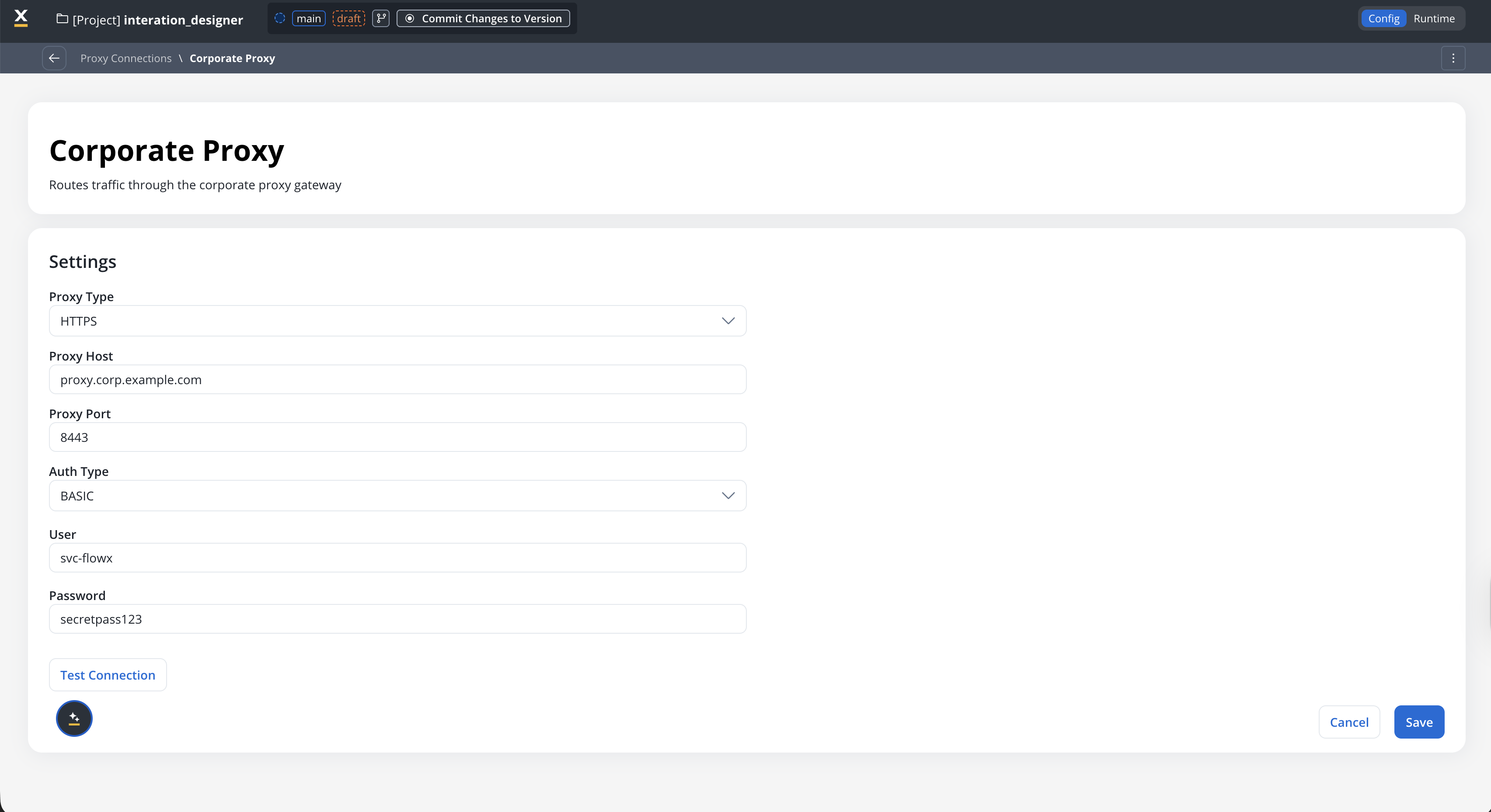
See the complete Proxy Connections documentation.
Configure HTTP or HTTPS proxy servers with optional basic authentication
Create a proxy once and attach it to multiple RESTful System data sources
Validate proxy configuration before saving with the built-in test function
Use `${param}` syntax in host and port fields for environment-specific values
Major Feature
All Deployments
***
### **Unmanaged MongoDB Datasource**
Connect to externally managed MongoDB instances as a data source in FlowX. Unlike the built-in FlowX Database (which provisions and manages MongoDB collections automatically), Unmanaged MongoDB connects to databases and collections you control — with the same CRUD operations, connection discovery, and configurable connection pooling. Requires MongoDB 6.0 or later.
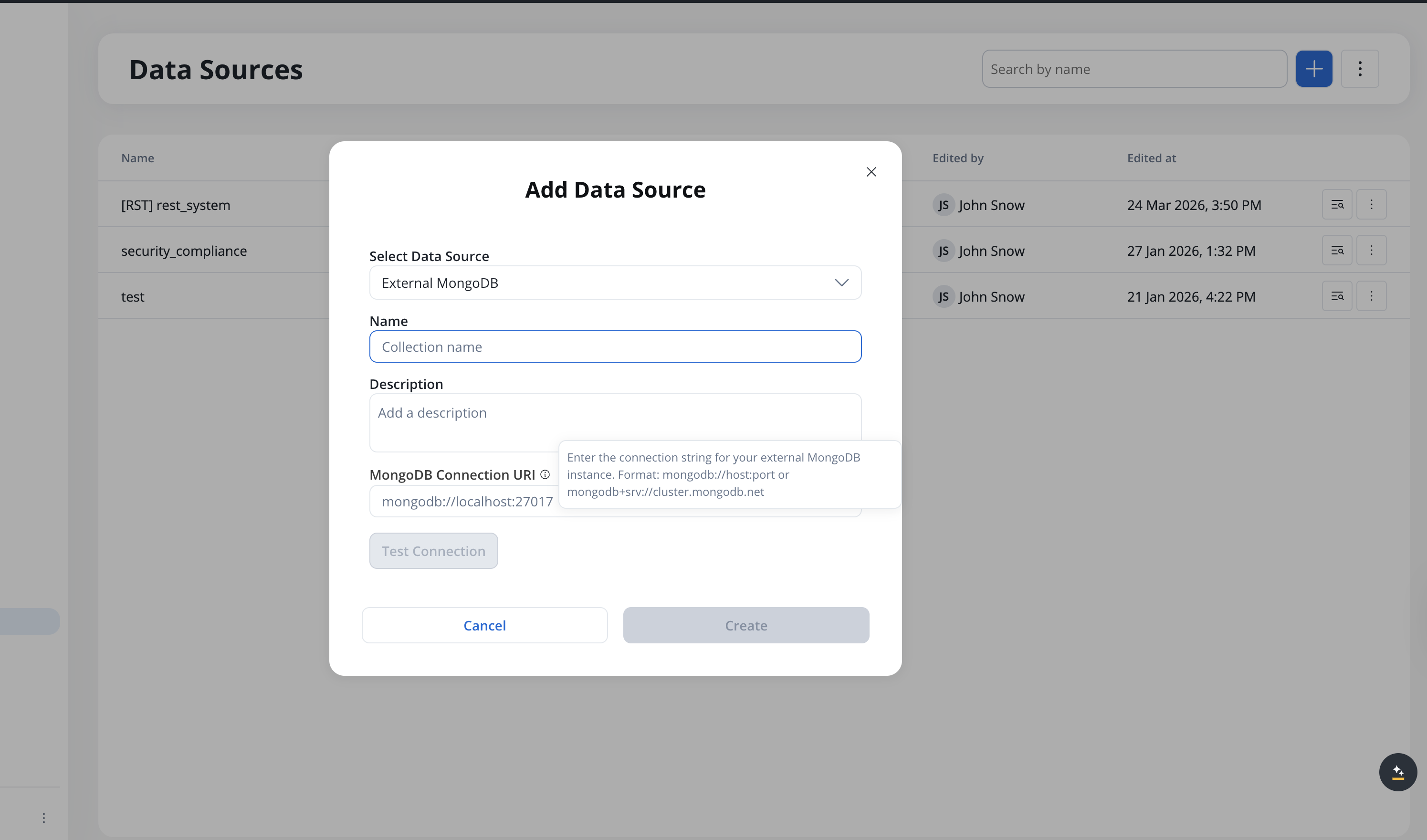
See the complete Unmanaged MongoDB documentation.
All Deployments
***
### **Email Trigger Enhancements**
FlowX.AI 5.6.0 enhances the Email Trigger with resource management capabilities, reply-to-email support, process instance tracking for email-triggered processes, and mock email testing for development.
See the complete Email Trigger documentation.
Manage email trigger resources with proper lifecycle controls
Support for reply-to patterns in email-triggered workflows
View and track process instances created from email triggers
Test email-triggered processes with mock email content during development
All Deployments
***
### **MCP Authentication**
MCP server connections now support **BEARER** and **BASIC** authentication methods. Configure auth credentials when adding an MCP data source to connect to secured MCP servers.
See the Adding MCP Data Source documentation.
All Deployments
***
### **Base64 Certificate Support**
RESTful system data sources now support providing keystore and truststore content as **base64-encoded strings** instead of file paths. A new "Certificate type" selector lets you choose between Base64 (default for new configurations) and Path (existing behavior). Additionally, keystore and truststore passwords now support `${configParam}` placeholder syntax for dynamic per-environment resolution.
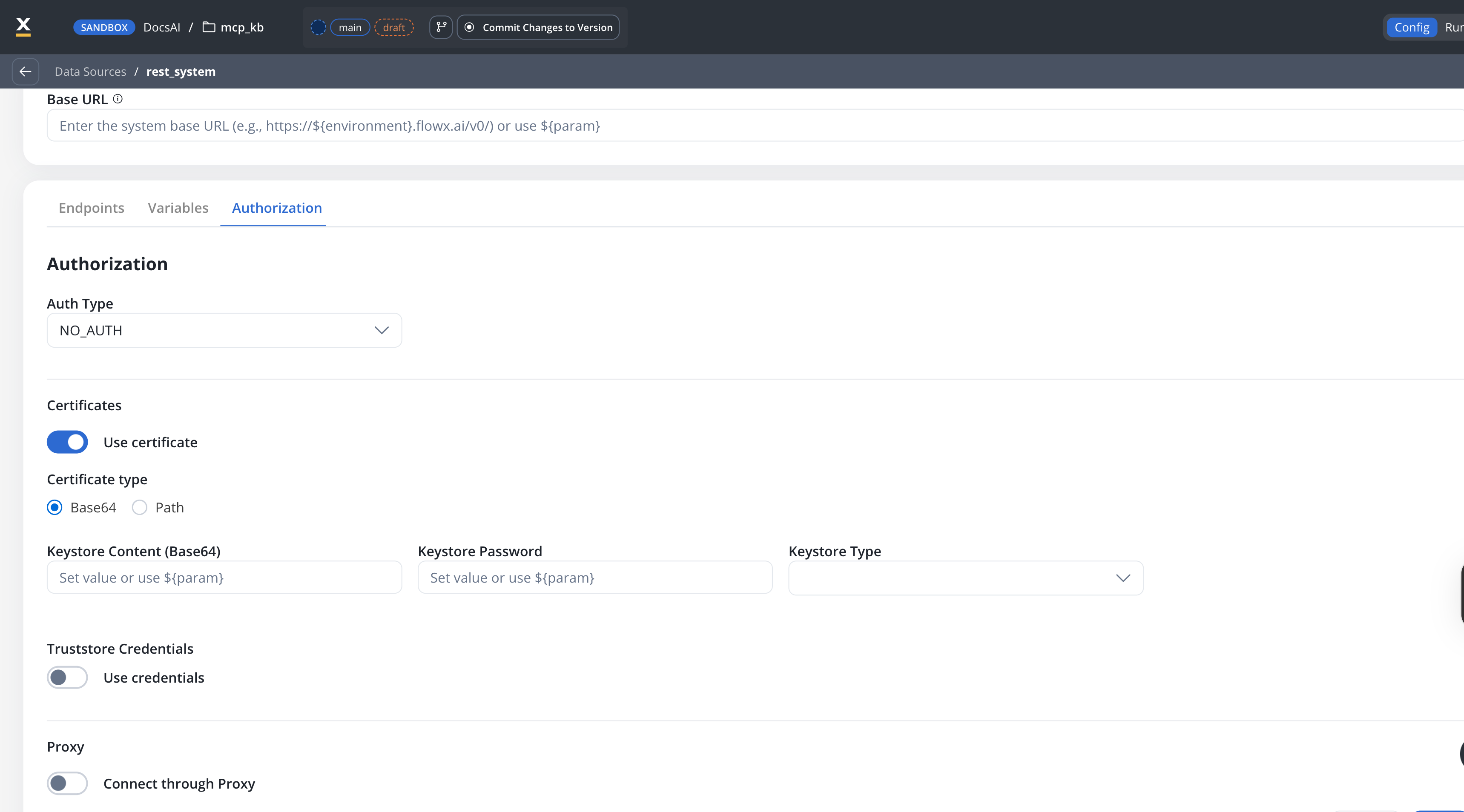
See the Integration Designer certificates documentation.
All Deployments
***
### **CSV/Excel to JSON Conversion**
Download CSV, XLS, or XLSX files as structured JSON directly from the file download endpoints. The conversion happens on the fly using the `Accept: application/json` header — no new files are created in storage. Supports two output formats: an array of objects (one per row) or a columnar structure.
See the Document Conversion documentation.
All Deployments
Richer end-user experiences with session state, chat history, and navigation — plus Designer productivity improvements.
🗺️ [**UI Flow Route Management**](#ui-flow-route-management) - Configure routes, query parameters, and navigation in UI Flows\
▶️ [**UI Flow Start Parameters**](#ui-flow-start-parameters) - Pass parameters when starting UI Flows\
💾 [**UI Flow Session Variables**](#ui-flow-session-variables) - Persist data across pages from workflows and file uploads\
📋 [**Chat History**](#chat-history) - Browse and resume past chat conversations\
💡 [**Chat Suggested Prompts**](#chat-suggested-prompts) - Pre-configured prompt suggestions in chat empty state\
🖱️ [**onClick UI events**](#onclick-ui-events) - Client-side data updates on Button and Collection Prototype clicks\
✨ [**Monaco Editor Autocomplete**](#monaco-editor-autocomplete) - Autocomplete from config params in code editors\
📊 [**KB query results in workflow console**](#kb-query-results-in-workflow-console) - View retrieved chunks and relevance scores during workflow runs\
📎 [**Multi-file bulk upload**](#multi-file-bulk-upload) - Upload multiple files simultaneously\
❌ [**DISMISS UI action**](#dismiss-ui-action) - Dismiss modals automatically after Start Workflow completes\
🎨 [**Process Variables UX**](#process-variables-ux-improvements) - UI/UX improvements for updating process variables\
🏷️ [**Enum label display**](#enum-label-display) - Show enum labels instead of codes in text components\
📬 [**Notification template usages**](#notification-template-usages) - See where notification templates are used\
📐 [**Side Panel in Data Model**](#side-panel-in-data-model) - Improved data model navigation with side panel\
👁️ [**On Display UI event**](#on-display-ui-event) - Re-trigger actions every time a screen becomes visible\
🪟 [**On Load event on Modal**](#on-load-event-on-modal) - Modal components now support On Load events\
🏗️ [**KB user-defined metadata**](#kb-user-defined-metadata) - Define custom metadata keys on Knowledge Base content sources\
⚙️ [**Config params in workflow conditions**](#config-params-in-workflow-conditions) - Use config params and user details in workflow Fork node expressions\
🎨 [**Branding settings grouping**](#branding-settings-grouping) - Reorganized branding settings page\
✍️ [**Markdown in chat messages**](#markdown-in-chat-messages) - Render formatted text, links, and lists in chat responses\
🔗 [**External Action dynamic URL**](#external-action-dynamic-url) - Use expressions in External Action URLs for dynamic navigation\
📬 [**Notification history**](#notification-history) - View sent notification details and search by process instance
### **UI Flow Route Management**
Define query parameters on root views (Pages, Modals), pass data between screens via URL query strings, and get automatic breadcrumb generation from the navigation graph. Navigate To actions support destination parameter mapping with `${expression}` syntax for dynamic values.
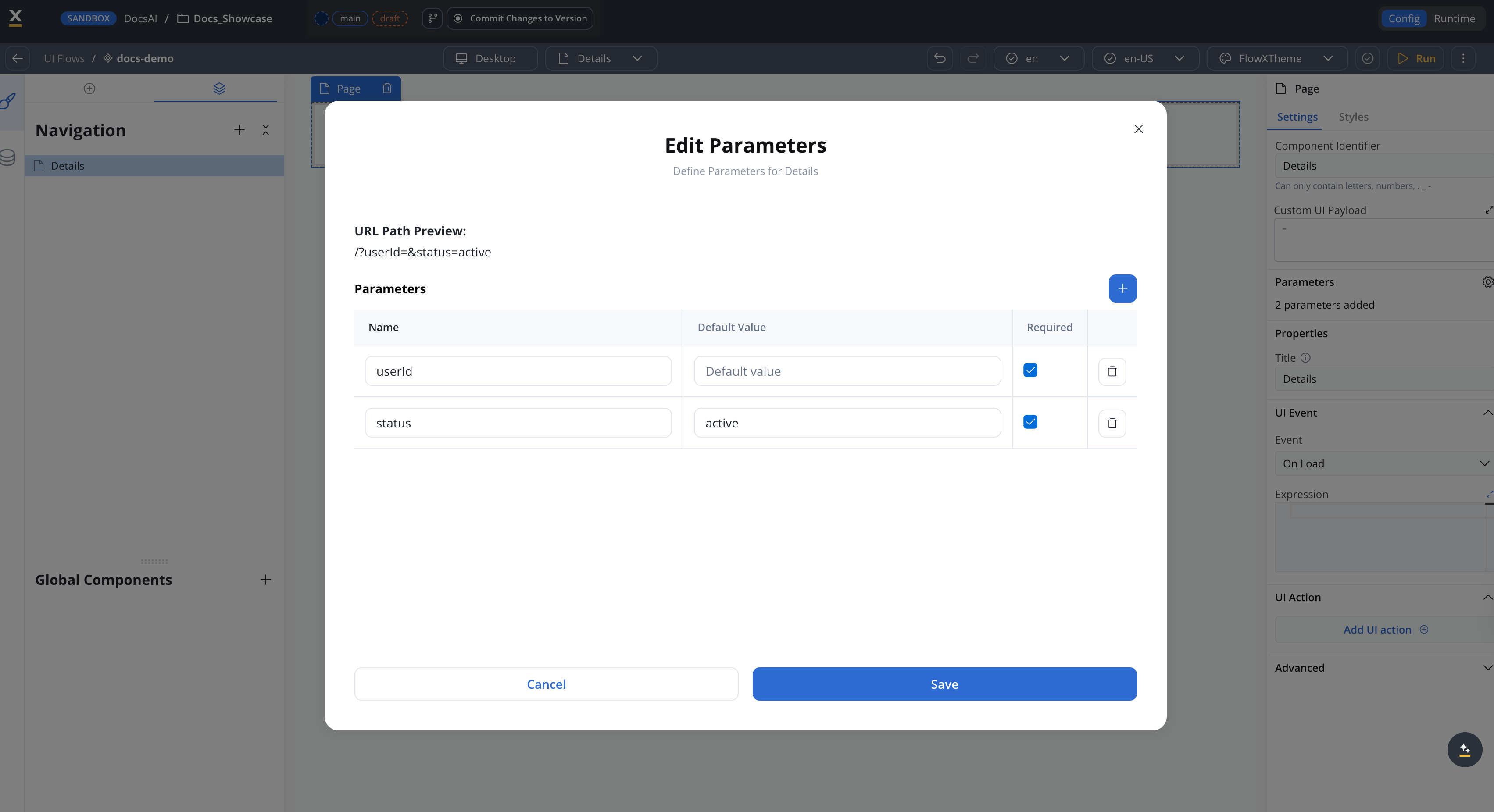
See the Route Management section in UI Flows.
Define named query parameters on root views with default values and required flags
Map data from process store to destination query parameters using JSON expressions
Breadcrumbs auto-generate from the navigation graph with proper parameter handling
Modals add `modalId` to URL — survives page reload and supports deep linking
All Deployments
***
### **UI Flow Start Parameters**
Pass initial data when launching a UI Flow. Define start parameters as a JSON object in the Designer's Run dialog, extract them from URL query strings in SaaS container apps, or send them in the API request body. Parameters are persisted on the session and available throughout the UI Flow lifecycle.
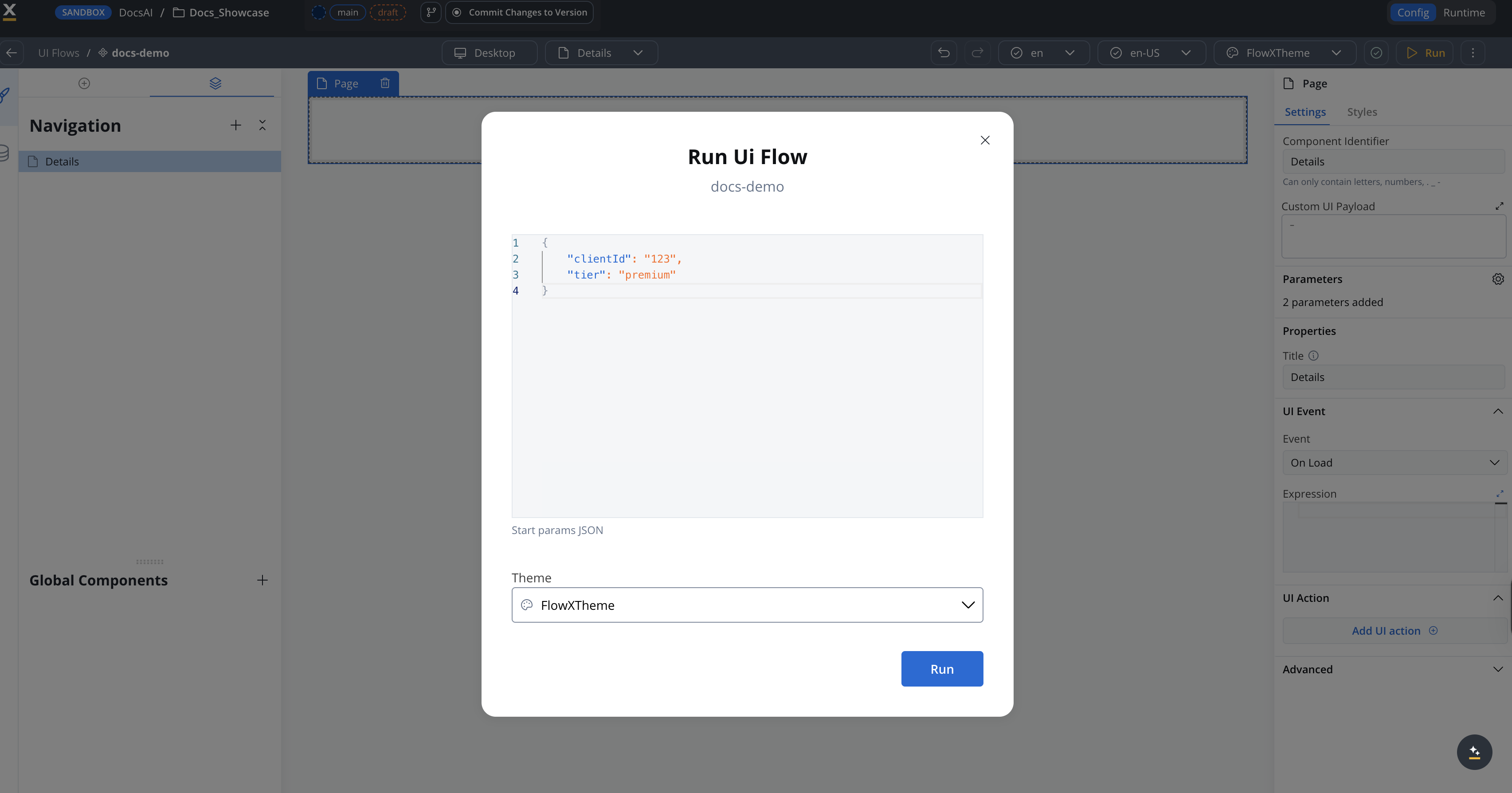
See the Start Parameters section in UI Flows.
All Deployments
***
### **UI Flow Session Variables**
UI Flow sessions can now persist variables across all pages sharing the same session ID. Data from start parameters, workflow outputs, and file upload responses is automatically collected and merged into session variables. Reference them in component configurations using `${}` syntax. A new **Variables** tab in the Designer session console shows current values for debugging.

See the Session Variables section in UI Flows.
All Deployments
***
### **Chat History**
Users can now browse and resume past chat conversations. Chat History displays a list of previous sessions grouped by time (Today, Yesterday, Previous 7 Days, Previous 30 Days, Older), with the ability to open any conversation and continue where they left off. Conversations are per-user with access control enforced.
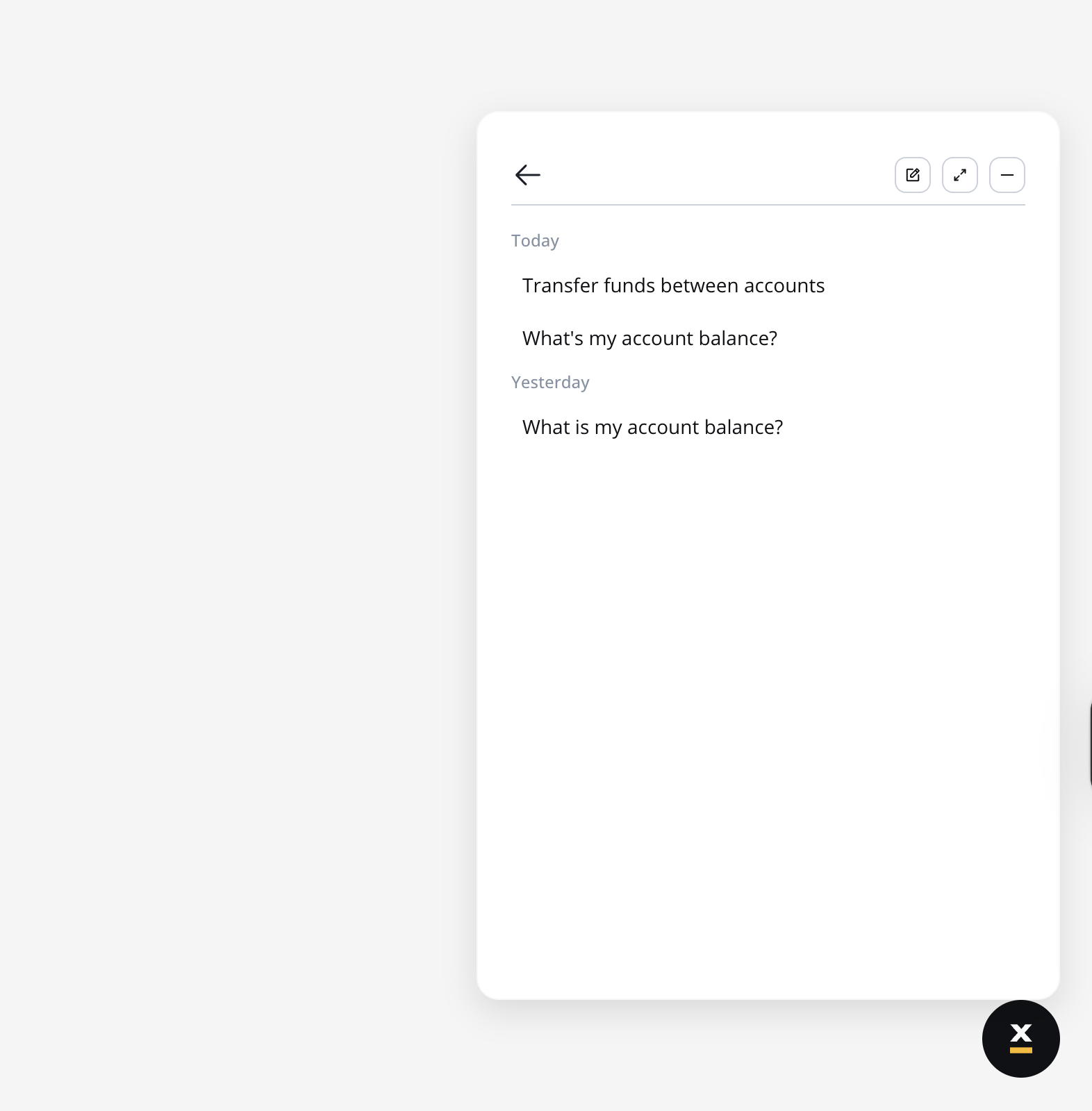
See the Chat History section in Chat component.
All Deployments
***
### **Chat Suggested Prompts**
The Chat component now supports pre-configured **Suggested Prompts** — pill buttons displayed below the welcome message in the chat empty state. Configure a title and up to 5 prompt options in the Designer. When a user clicks a suggestion, it is submitted as their message, starting the conversation immediately.
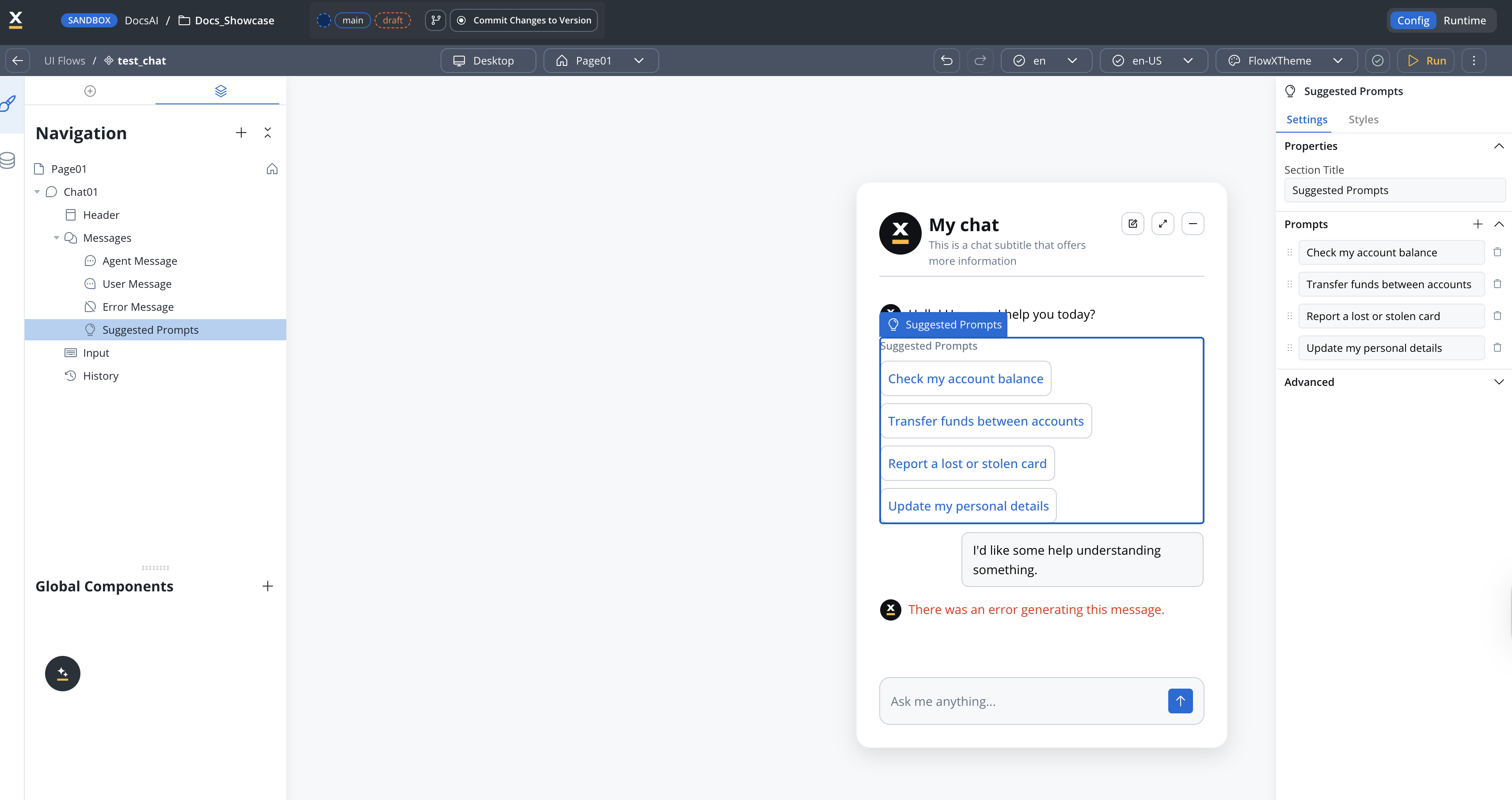
See the Suggested Prompts section in Chat component.
All Deployments
***
### **Monaco Editor Autocomplete**
Code editors in the Designer now provide autocomplete suggestions from your project's configuration parameters. This speeds up writing business rules and expressions that reference config params.
See the Configuration Parameters documentation.
All Deployments
***
### **Process Variables UX improvements**
UI/UX improvements to the Update Process Variables experience, making it easier to view and edit runtime process data.
See the Update Process Variables documentation.
All Deployments
***
### **onClick UI events**
Buttons and Collection Prototypes now support **onClick** UI events — client-side JavaScript expressions that execute immediately when clicked, *before* any configured UI actions fire. Use them for instant local data updates without server roundtrips.
See the UI Events documentation.
All Deployments
***
### **KB query results in workflow console**
The workflow run console now includes a **Knowledge Base** tab that displays retrieved chunks, relevance scores, content sources, and metadata when Custom Agent nodes query a knowledge base. This makes it easier to debug and tune RAG-powered workflows.
See Using Knowledge Base in Workflows.
All Deployments
***
### **Multi-file bulk upload**
Upload multiple files simultaneously at runtime using the new [Multiple File Upload](/5.1/docs/building-blocks/ui-designer/ui-component-types/multiple-file-upload) component. Supports drag-and-drop, batch selection, per-file validation, and progress tracking. Available in both process screens and UI Flows.
All Deployments
***
### **DISMISS UI action**
The Start Workflow UI action now includes a **Dismiss modal** checkbox. When enabled, the modal closes automatically after the workflow completes — removing the need for a separate close action.
All Deployments
***
### **Enum label display**
Text components can now display the human-readable **label** of an enumeration value instead of the raw code. When a data key references an enumeration, the renderer resolves the selected code to its label at display time. Enumeration values are also prefetched from the data model before action resolution for improved performance.
See the Enumerations documentation.
All Deployments
***
### **Notification template usages**
Notification templates now show a **usages** modal that lists all processes and workflows referencing the template. This helps you understand the impact of changes before editing or deleting a template.
See the Managing Notification Templates documentation.
All Deployments
***
### **Side Panel in Data Model**
The Data Model editor now includes a side panel for easier navigation and editing of data model attributes, improving the workflow when working with large data models.
All Deployments
***
### **On Display UI event**
A new `onDisplay` event type that triggers every time a screen becomes visible — on initial load, when navigating back, or when a modal is dismissed. Unlike On Load (which fires once), On Display re-triggers on every view, making it ideal for refreshing data.
Supported on Page, Zone, and Tab Bar components in UI Flows.
All Deployments
***
### **On Load event on Modal**
Modal components in UI Flows now support the On Load event and Start Workflow action. This enables data fetching when a modal opens, allowing you to load context-specific data for modal content.
All Deployments
***
### **KB user-defined metadata**
Define custom metadata keys on Knowledge Bases and assign values to content sources. User-defined metadata enables filtering and scoping when searching chunks — for example, by department, document version, or region. Metadata values are propagated to the vector database and can be used as filters in the Context Retrieval workflow node.
All Deployments
***
### **Config params in workflow conditions**
Workflow Fork (condition) nodes can now access configuration parameters via `additionalData.applicationConfiguration` and authenticated user details via `additionalData.securityDetails` in their expressions. This enables environment-aware routing and user-based branching in integration workflows.
All Deployments
***
### **Branding settings grouping**
The branding settings page has been reorganized with improved grouping and layout, making it easier to find and configure branding options.
All Deployments
***
### **Markdown in chat messages**
Chat message components in web renderers now support Markdown rendering. AI-generated responses can include formatted text, headings, links, code blocks, and lists — displayed with proper styling in the chat interface.
All Deployments
***
### **External Action dynamic URL**
External Action URLs now support `${expression}` syntax for dynamic values. Build destination URLs using process data, config params, or computed values — enabling context-aware external navigation from UI Flows.
See the UI Actions documentation.
All Deployments
***
### **Notification history**
New REST API endpoints on the notification plugin let you retrieve sent notification history. Query a paginated summary list filtered by app and optionally by process instance, or fetch full notification details by ID — including recipients, subject, body, and the source process/action that triggered it.
* `GET /api/notification/summary` — paginated summary list with filtering and sorting
* `GET /api/notification/{id}` — full notification details including body and recipients
Paginated summary list for browsing, with full detail drill-down by notification ID
Each notification records which process, node, and action triggered it for full traceability
All Deployments
User management and branding improvements for SaaS deployments.
👤 [**Runtime User Invitations**](#runtime-user-invitations) - Invite runtime users directly to test projects\
🏢 [**Workspace Type Display**](#workspace-type-display) - See workspace type within Designer\
🎨 [**Container App Branding**](#container-app-branding) - Customize branding for SaaS container apps\
👥 [**Designer User Invitations**](#designer-user-invitations) - Updated invite modal for designer users
### **Runtime User Invitations**
Invite runtime users directly to test projects from within the Designer. Simplifies the process of granting test access without requiring full workspace-level permissions.
See the Inviting Users documentation.
SaaS
***
### **Workspace Type Display**
The Designer now displays the workspace type (development, staging, production) directly within the workspace view, making it easier to identify your current environment.
SaaS
***
### **Container App Branding**
Customize your SaaS container app branding at the organization level — upload a custom logo, set primary and secondary colors, toggle the header, and configure the solutions page background.
See the Container App Branding documentation.
SaaS
***
### **Designer User Invitations**
The invite modal for designer users has been redesigned with clearer role selection, group assignment, and a streamlined layout for inviting multiple users.
See the Inviting Users documentation.
SaaS
## Bug fixes
### Core Platform
* **Authorization-system Oracle DB startup** — Fixed an issue where the authorization-system service failed to start when using Oracle as the configured database.
* **Process definition merge timing** — Fixed a race condition where the process definition was updated before the merge was finalized.
* **Theme import with builds** — Fixed an issue where themes were not included when importing builds.
* **Library import permissions** — Fixed an issue where importing a library into a workspace redirected to a 403 error page.
* **App version reimport** — Fixed an error that occurred when reimporting an app version (project or library).
* **Email resend after URL expiry** — Fixed an issue where the resend email endpoint returned 200 OK but no email was sent after the URL expired.
* **Platform status discovery** — Fixed an authorization error when trying to force discover platform status.
* **Runtime roles in permissions** — Fixed inconsistent runtime roles display in the permissions dropdown.
### AI Platform & Workflows
* **gRPC thread pool sizing** — Fixed under-provisioned gRPC client thread pools that caused socket timeouts and dropped requests in production.
* **API error trace IDs** — API errors now include a reference to the active traceID for easier debugging.
* **Cross-project resource copy** — Fixed an issue where copying a workflow resource to another project did not include LDM objects.
* **Multi-instance mappings** — Fixed a 400 error when saving multi-instance mappings in data mappers.
* **Email trigger mock testing** — Fixed errors when starting a process from a build with mock email content.
* **Multiple start nodes with email trigger** — Fixed an issue where only one start option was displayed when a process contained multiple start nodes with email triggers.
### Renderers & UI
* **Angular input field crash** — Fixed an issue where pressing Enter in an input field caused the Angular UI to crash.
* **Floating Chat interaction blocking** — Fixed an issue where the floating chat component blocked all interaction with page content while open.
* **S3 internal bucket error** — Fixed an error when the integration-designer downloads files from document-plugin via downloadPath.
* **File upload second attempt** — Fixed an issue where upload requests were not made when uploading a second file.
* **UI Flow analytics** — Fixed issues where analytics events were not visible and not saved for Navigate-to action types.
* **Task management column selection** — Fixed an issue where the Last Updated column remained selected in task management.
* **Task Manager theming and UX** — Multiple fixes for Task Manager theming, dropdown display, comment field styling, and user assignment behavior.
* **Toggle/checkbox label alignment** — Fixed an issue where the switch toggle/checkbox or label shifted position when in an error state. {/* ZD-1170, RPT-5043 */}
* **Query parameters lost after refresh** — Fixed an issue where URL query parameters were lost after page refresh in UI Flows. {/* RPT-5012 */}
* **SSE connection management** — Fixed multiple issues where SSE connections were opened twice or not closed properly after messages were received. {/* RPT-5013, RPT-5007, RPT-5006 */}
* **Modal layering** — Fixed incorrect layering when a loader modal was displayed on top of another modal. {/* RPT-4981 */}
* **Card theming overrides** — Fixed an issue where card theming overrides were not applied when the card was collapsed. {/* RPT-5052 */}
* **On Display workflow triggering** — Fixed an issue where past On Display workflows were not re-triggered on page refresh. {/* RPT-5025 */}
### Knowledge Base
* **KB metadata handling** — Fixed multiple issues with Knowledge Base user-defined metadata: empty properties on content source creation, metadata not available for content sources added through apps, and incorrect cleanup when deleting metadata keys. {/* MT-2508, MT-2511, MT-2542 */}
## Additional information
### At a glance
This release includes **30+ new features and enhancements** across AI Platform, Integrations, UI & Designer, and SaaS — plus **28 bug fixes** spanning Core Platform, AI/Workflows, Renderers, and Knowledge Base.
***
### Deployment information
For detailed deployment guidelines, see the [Deployment Guidelines v5.6.0](./deployment-guidelines-v5.6).
For new environment variables and Kafka topics, see the [Deployment Guidelines v5.6.0](./deployment-guidelines-v5.6#new-environment-variables).
### Changes to be aware of
FlowX.AI 5.6.0 is a SaaS-managed release — deployment-level changes (infrastructure, Kafka topics, service configuration) are handled automatically by FlowX. The items below are listed for transparency and for future reference when on-prem support ships in 5.7+.
#### API change (action required if you use this endpoint)
**Process definition start metadata endpoint renamed** — `GET /api/process-definition/{uuid}/get-input-json` has been renamed to `GET /api/process-definition/{uuid}/get-start-metadata`. Update any API clients or custom integrations that call this endpoint directly.
The response now includes an additional `hasEmailTriggerStart` boolean field.
#### Infrastructure changes (managed by FlowX on SaaS)
* **gRPC thread pool configuration** — Default gRPC client thread pool sizes have been updated for better production throughput.
* **WorkspaceCreatedEvent ownership** — Kafka topic ownership moved from `authorization-system` to `organization-manager`.
{/* Not in 5.6.0: PLAT-1137/1140 (ES→MongoDB migration), PLAT-1373 (static models as OCI volumes) */}
### Compatibility
Upgrade from v5.5.0 — if you call `get-input-json` directly, update to `get-start-metadata`. All other changes are managed automatically on SaaS.
See the Deployment Guidelines for the full component version matrix