> ## Documentation Index
> Fetch the complete documentation index at: https://docs.flowx.ai/llms.txt
> Use this file to discover all available pages before exploring further.
# Process configuration
> This guide outlines changes in process and UI configuration from v3.4.x to 4.0 version.
In the latest version, there have been updates and adjustments to process and UI configurations to improve performance and usability. Below are the key changes and steps to migrate your configurations:
## Business Rules
* `output.put` method is required to generate structured output data when using input to validate or filter incoming data based on certain conditions (commonly used to retrieve information needed for processing)
MVEL Syntax Change: In MVEL 2.5.2.Final, the direct property assignment syntax (input.property = value) is no longer supported. Instead, you must use the output.put method (output.put("property", value)) to generate structured output data.
* This represents a fundamental change in how MVEL scripts interact with data
* The input object should be treated as read-only for accessing incoming data\*
* The output object with its put method must be used for storing any results or modified values
* `processInstanceID` and `processInstanceUUID` - This release introduces enhancements aimed at isolating process instance related values from business/configured parameters. Key changes include the removal of `processInstanceId`, `parentProcessInstanceId`, and `parentProcessInstanceUuid` from paramValues zone on process instance, relocating them to a distinct location within process instance data - to a new object called “instanceMetadata”.
### Business rules - new object "instanceMetadata"
Introducing a new object named "instanceMetadata". This object will serve as a container for process instance related values, allowing you to access relevant attributes in your scripts more effectively. Key specifications include making certain variables/parameters read-only, controlled by FlowX, and facilitating attribute access through the `instanceMetadata` object rather than directly calling attributes.
Configurators will utilize `instanceMetadata` to access attributes instead of directly calling them as in version 3.4.x. For example, `input.processInstanceId` will be accessed through `instanceMetadata.processInstanceId`.
Review and update any affected business rules accordingly.
#### Example of business rule (with Python)
This example is made just to demonstrate the use of the new `instanceMetadata.get` object.
```python theme={"system"}
test_string = "There are 2 apples for 4 persons"
# using List comprehension + isdigit() +split()
# getting numbers from string
res = [int(i) for i in test_string.split() if i.isdigit()]
output.put("app", {"phyton": str(res), "key3": "Value updated"});
key = input.get("app").get("key1")
id3 = instanceMetadata.get("processInstanceId")
uuid3 = instanceMetadata.get("processInstanceUuid")
output.put("id3", id3);
output.put("uuid3", uuid3);
```
## UI configuration
There are some changes that were brought together with the Theme Management feature to the UI components in **4.0** release that might impact your previous UI configuration.
### Root components
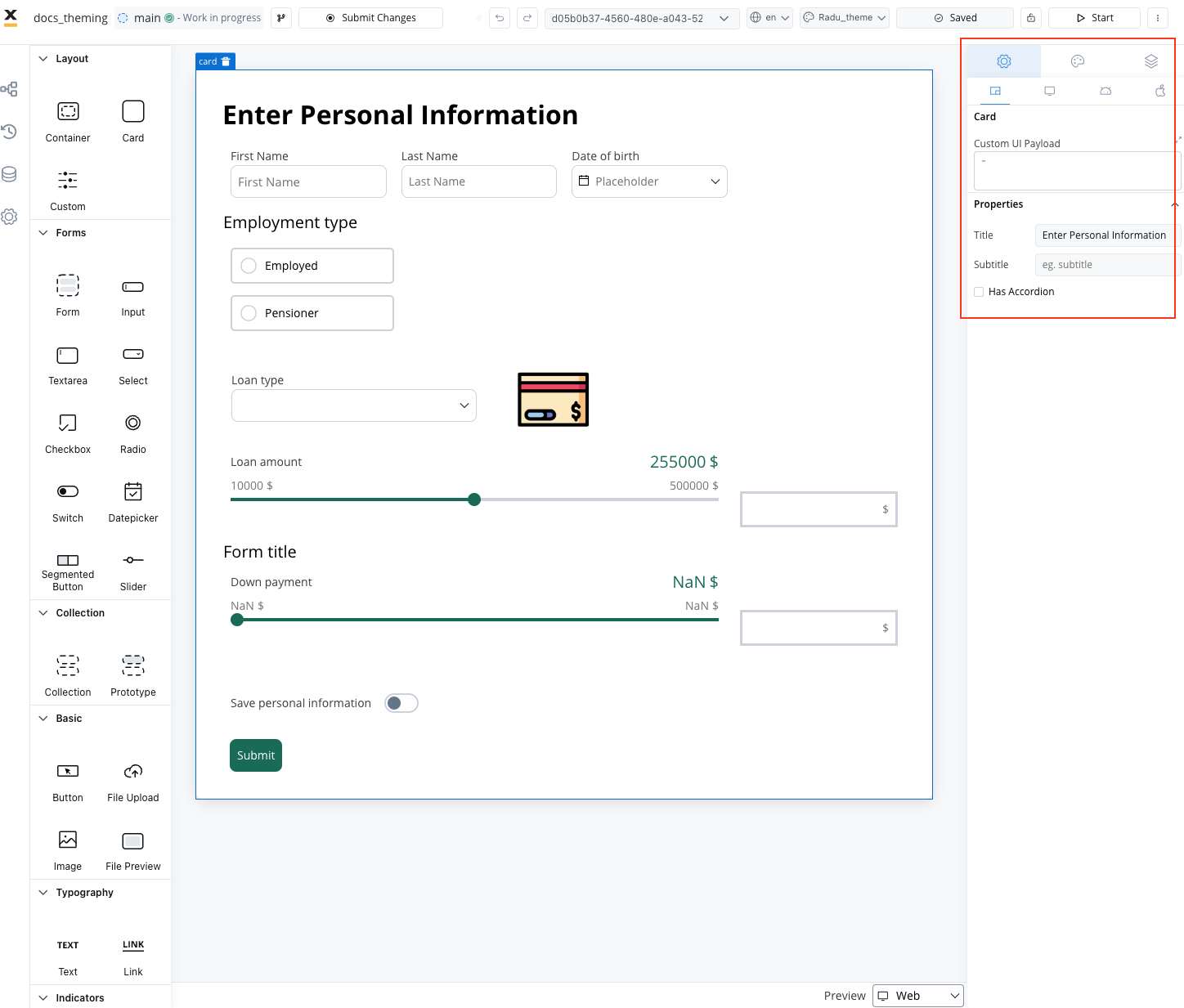
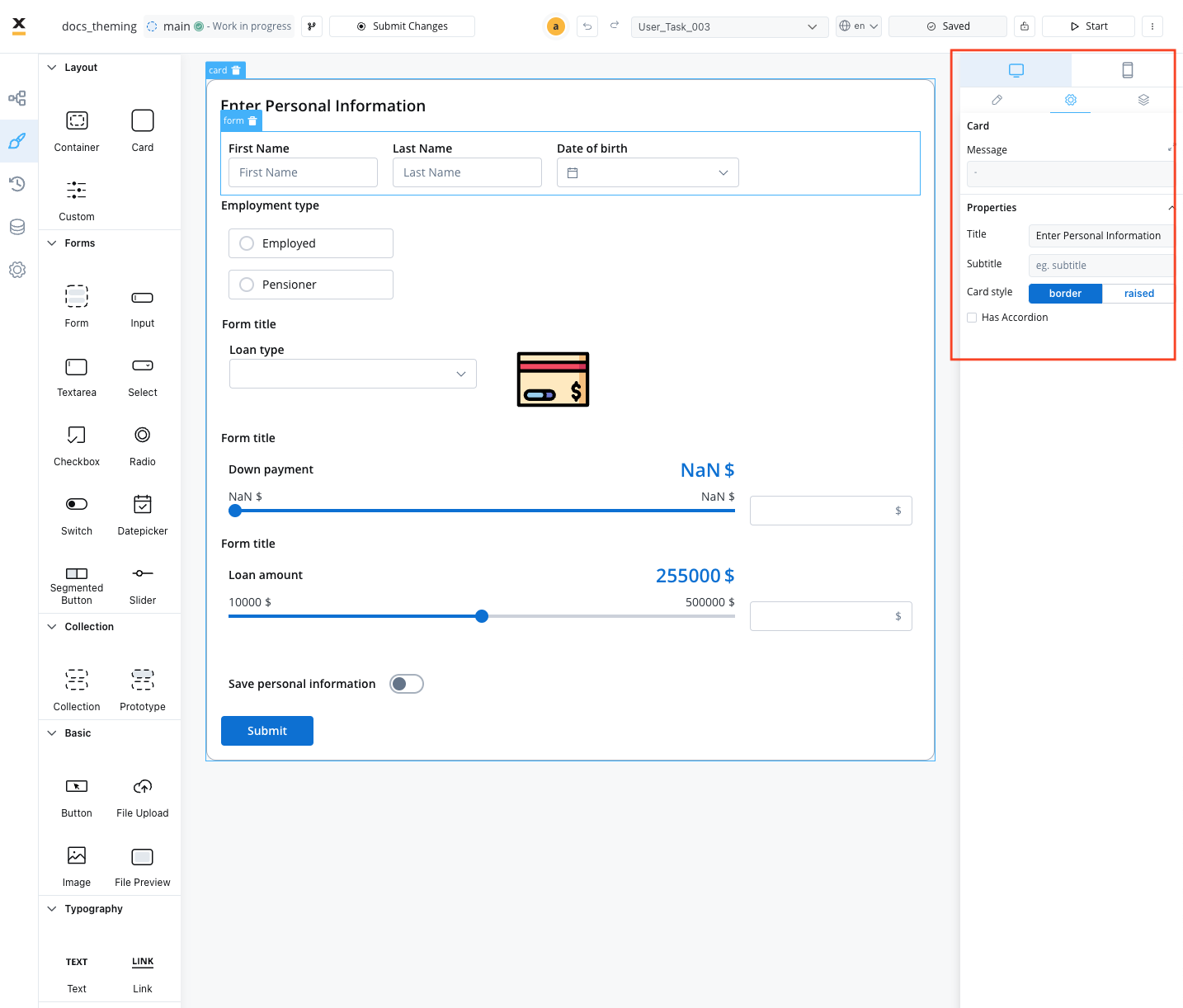
* **Card Element**: Previously (in **v3.4.x**) could have set a **Card style** property: **border** or be **raised**.
| Card 4.0 | Card 3.0 |
| :------------------------------------------------------------------------------------------------: | :------------------------------------------------------------------------------------------------: |
|  |  |
| | |
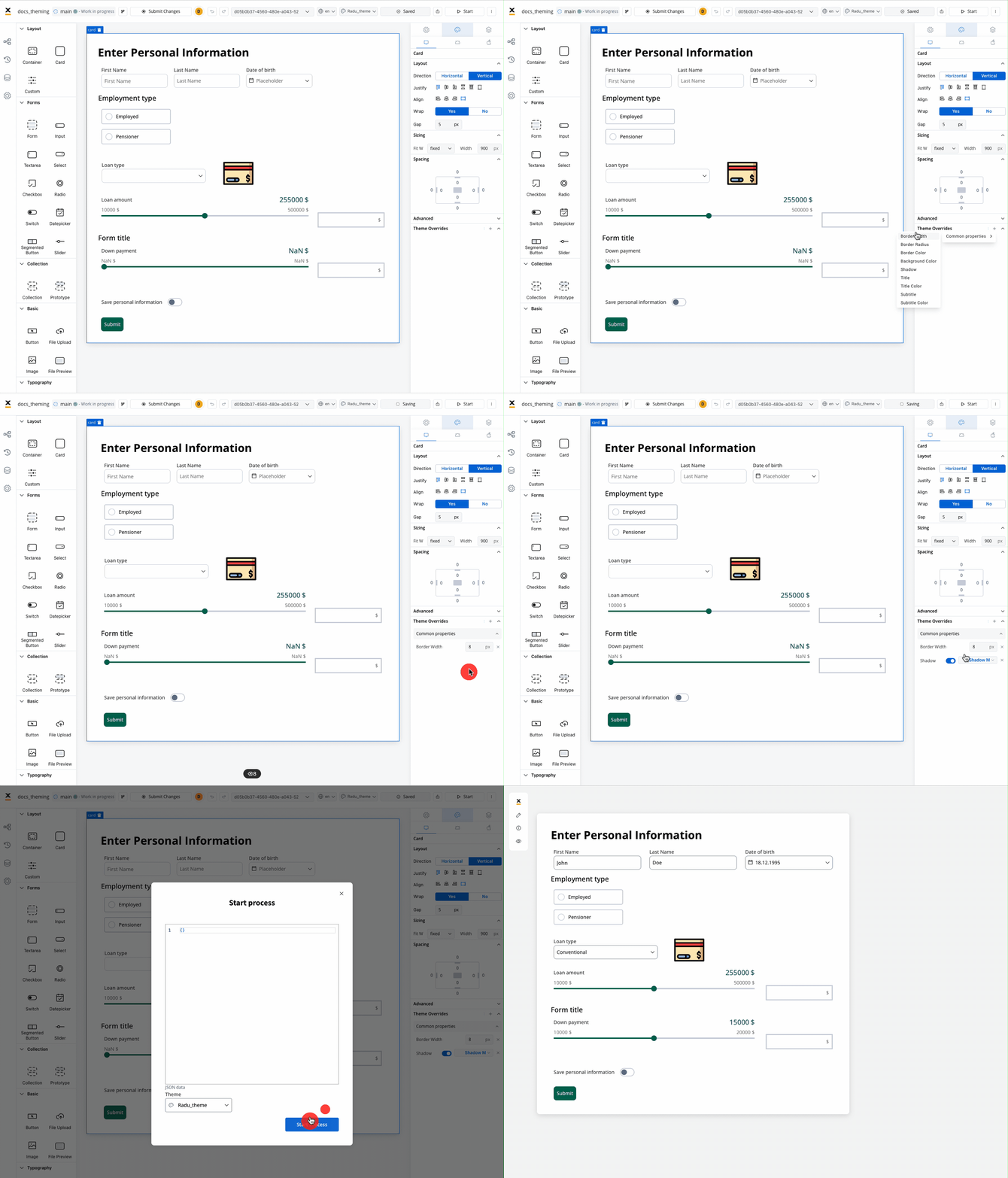
Now, for processes migrated from **v3.4.x** to achieve the previous styling (with "raised prop" or "border") you can either set up from Themes or by using **Theme Overrides** for **Card** element in **UI Designer**:
Depending on the number of Card elements present in your migrated processes, it's essential to devise a strategic approach. If a significant portion of the cards feature "border" styling, you can configure this setting within Themes Management and will be cascading through all of them. For the remaining cards, manual intervention is required to apply the "raised" effect by **overriding** their styles using **Theme Overrides**.
Read more about **Theme management** feature:
### Buttons
All **primary** and **secondary** buttons, in 4.x they transformed to **fill** buttons. If there were secondary buttons, once moved to "fill", they will appear similar to primary ones. You should perform an override in the UI Designer to make them look like secondary buttons as they did initially.
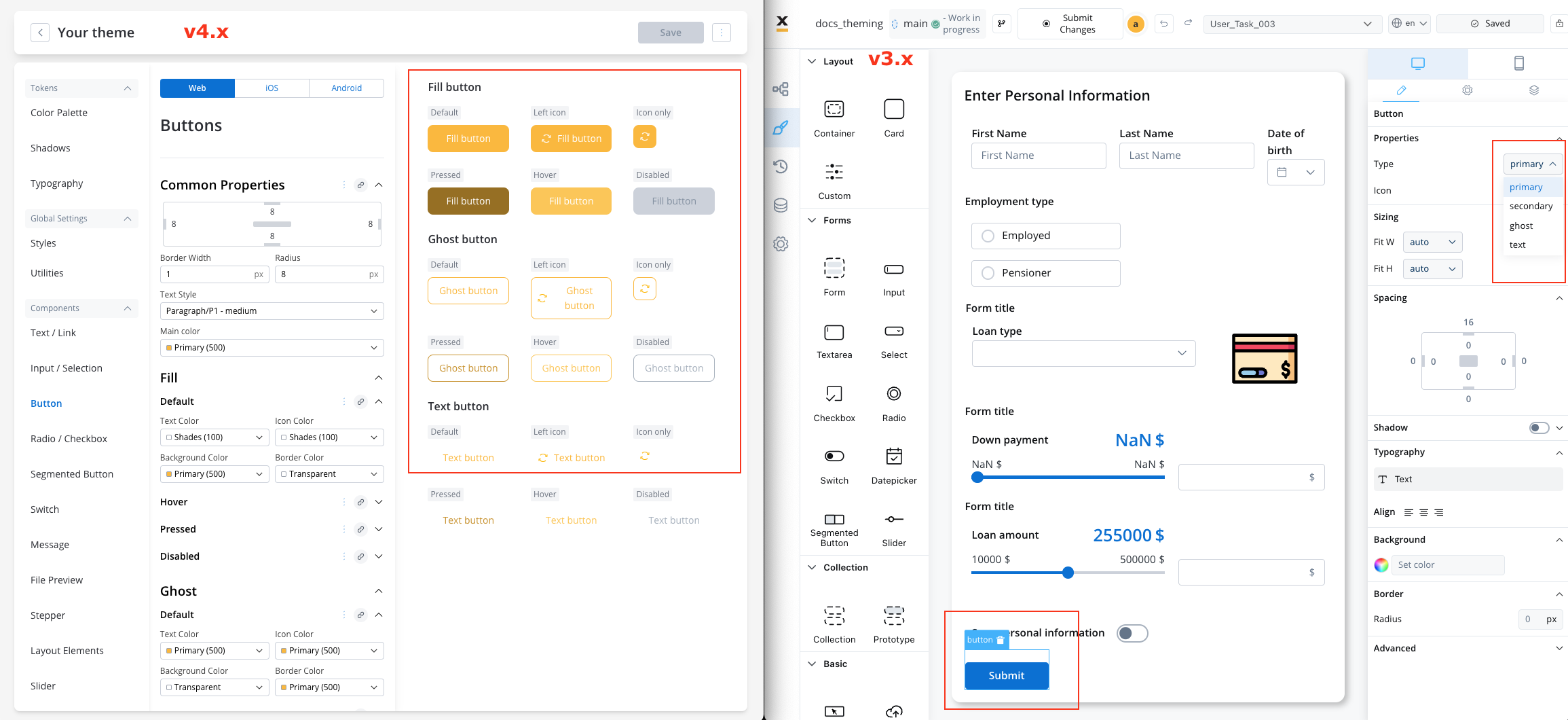
| Version | Primary | Secondary | Ghost | Text | Fill | New States: Pressed, Hover, Disabled |
| ------- | :-----: | :-------: | :---: | :--: | :--: | :----------------------------------: |
| 3.4.x | ✓ | ✓ | ✓ | ✓ | | |
| 4.0.x | | | ✓ | ✓ | ✓ | ✓ |
By following this migration guide, you can seamlessly transition to the Theming 4.0 feature, enhancing your project's design process and ensuring consistency across platforms and branches.
### Icons - no color property
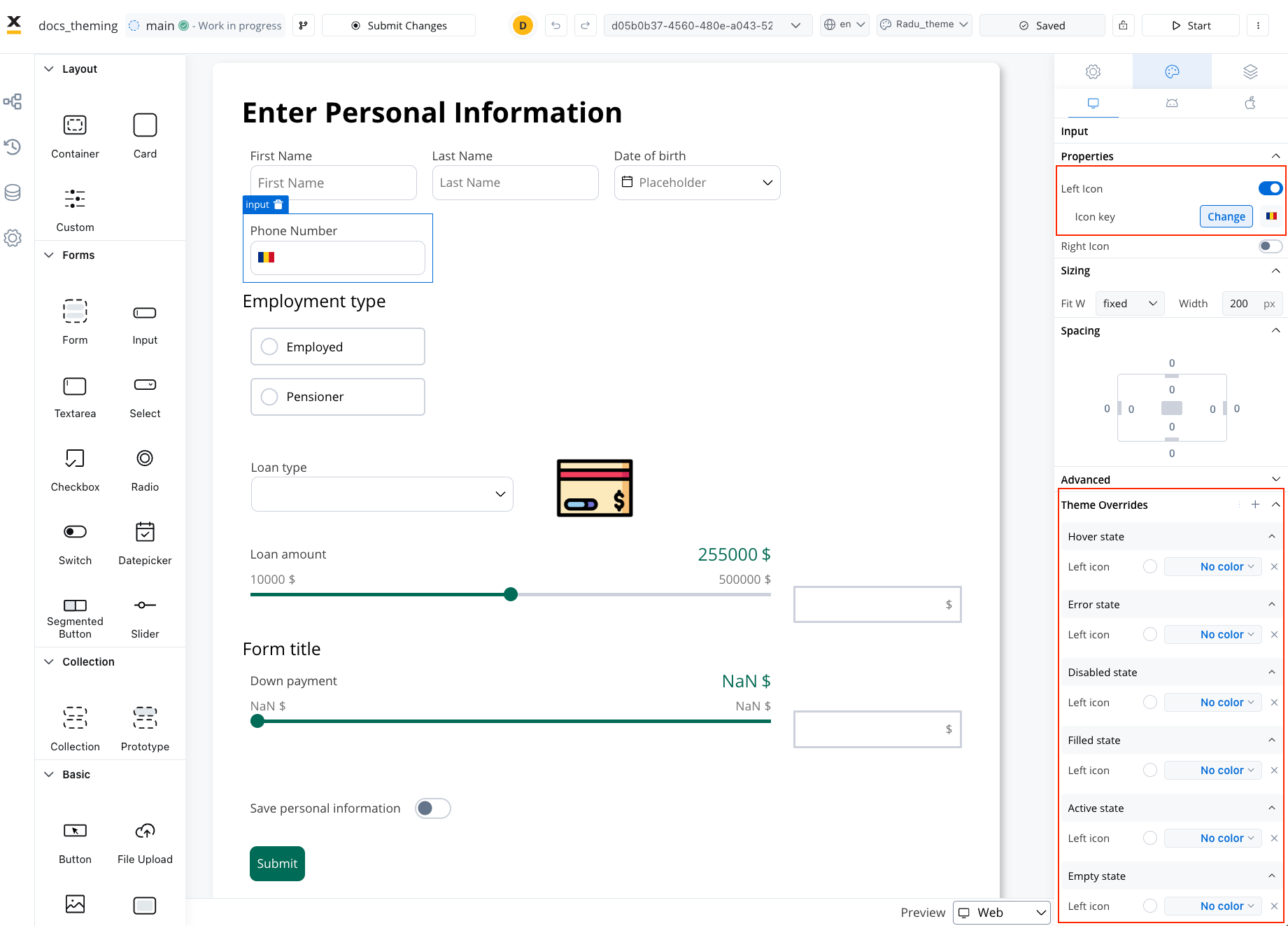
Now, all icon color settings have a "No Color" option, which allows the icon (SVG) to be rendered with its original color settings.
If you are utilizing SVG icons for UI components (such as a left icon on an input element) and you desire to ensure that the color remains consistent regardless of the theme settings, it is imperative to override all states associated with the "Left icon," as demonstrated in the example below:
## Layout
In the context of the Theme Management feature, you can now apply the previously configured paddings directly from the previosuly used theme JSONs within the theme settings. Review the paddings you had set up previously and apply them in the Themes section.
**Themes → Global Settings → Styles**
### Components spacing
If you set it in **Theme → Global Settings**, it will cascade to all the following components:
* Input/ Selection
* Buttons
* Radio/Checkbox
* Message
* Segmentted Button
* Stepper
* Tabs
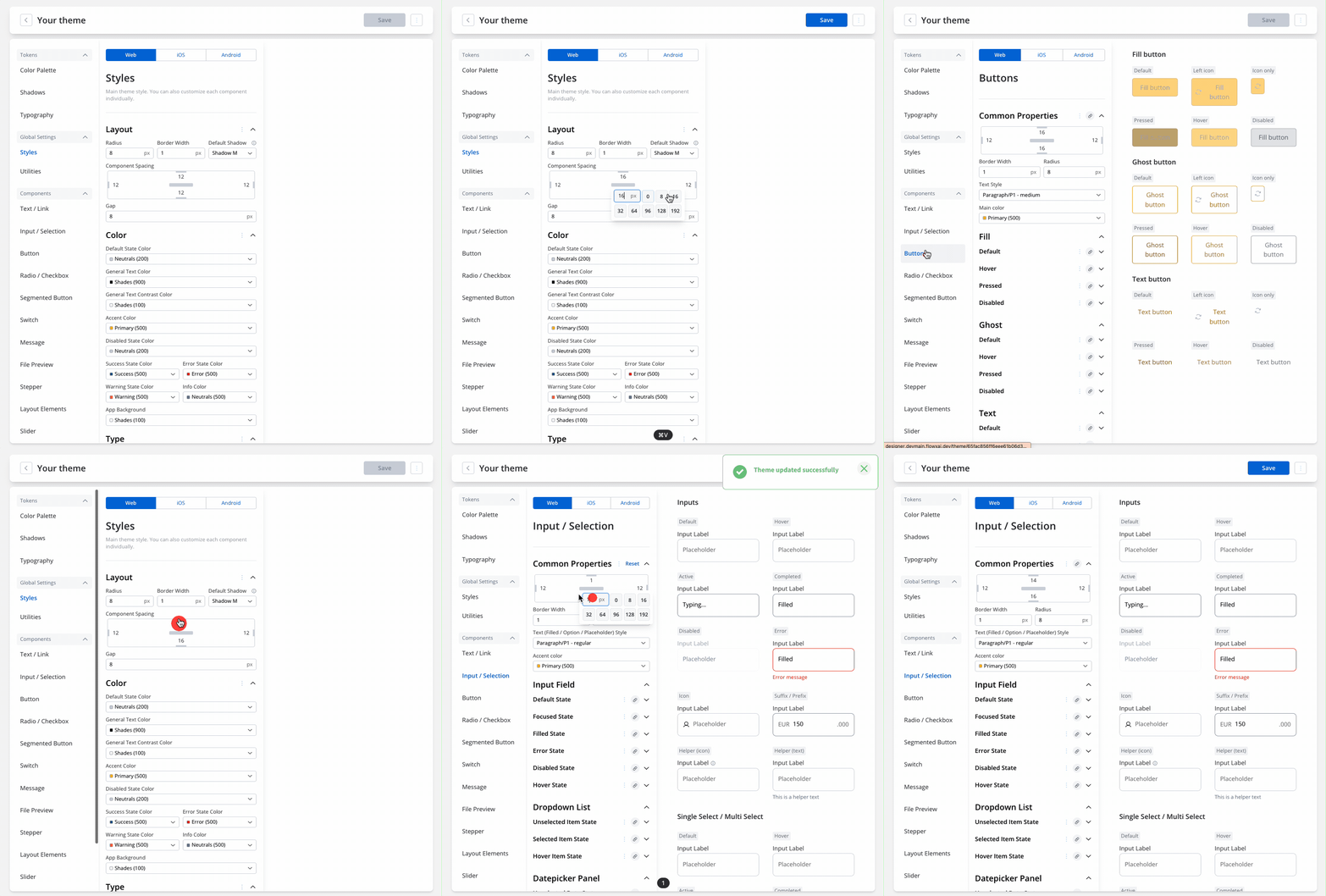
If you want to override the padding set in **Global Settings** for the above components, navigate to **Components → Your Component** and set your desired padding.
After editing the padding for a component, you can also reset the values and they will be set back to the values you added in **Global settings**.
### Layout elements
To set the padding for layout elements( **Cards** and **Forms**), access:
**Themes → Components → Layout Elements**