> ## Documentation Index
> Fetch the complete documentation index at: https://docs.flowx.ai/llms.txt
> Use this file to discover all available pages before exploring further.
# FlowX Database
> Store and access structured data across processes and apps
## What is FlowX Database?
FlowX Database (FlowX DB) is a persistence layer that allows you to store structured data independently of process instances. This enables you to:
* Share data between different process instances
* Store and retrieve data across multiple processes
* Create a persistent data store within the FlowX ecosystem
* Access structured data without directly interacting with external systems
> [!NOTE]
>
> FlowX Database is powered by the **nosql-db-runner** microservice, which provides MongoDB functionality within the FlowX ecosystem. This service supports both **native MongoDB** and **Azure Cosmos DB (MongoDB API)**, enabling you to choose the database backend that best fits your infrastructure needs while maintaining FlowX's workflow integration capabilities.
>
> For more information about the **nosql-db-runner** service and CosmosDB considerations, see the [NoSQL DB Runner documentation](https://docs.flowx.ai/6.x/setup-guides/nosql-db-runner.md).
## Key concepts
> [tab] Collections
>
> Collections are containers for storing documents in FlowX Database. Each collection:
>
> * Stores documents with similar structure
> * Has a unique identifier
> * Can be accessed from different processes
> * Functions similarly to a database table, but with more flexibility
>
> Collections are created and managed through the Data Sources section in the Integration Designer.
> [tab] Operations
>
> Operations define the actions you can perform on a collection. FlowX Database supports the full range of essential MongoDB operations:
>
> | Operation | Description | MongoDB Docs |
> | - | - | - |
> | `find` | Retrieve multiple documents based on criteria | [MongoDB find()](https://www.mongodb.com/docs/manual/reference/method/db.collection.find/) |
> | `findOne` | Retrieve a single document | [MongoDB findOne()](https://www.mongodb.com/docs/manual/reference/method/db.collection.findOne/) |
> | `insertOne` | Add a single document | [MongoDB insertOne()](https://www.mongodb.com/docs/manual/reference/method/db.collection.insertOne/) |
> | `insertMany` | Add multiple documents at once | [MongoDB insertMany()](https://www.mongodb.com/docs/manual/reference/method/db.collection.insertMany/) |
> | `updateOne` | Modify a single document | [MongoDB updateOne()](https://www.mongodb.com/docs/manual/reference/method/db.collection.updateOne/) |
> | `updateMany` | Modify multiple documents at once | [MongoDB updateMany()](https://www.mongodb.com/docs/manual/reference/method/db.collection.updateMany/) |
> | `deleteOne` | Remove a single document | [MongoDB deleteOne()](https://www.mongodb.com/docs/manual/reference/method/db.collection.deleteOne/) |
> | `deleteMany` | Remove multiple documents at once | [MongoDB deleteMany()](https://www.mongodb.com/docs/manual/reference/method/db.collection.deleteMany/) |
>
> Each operation is configured with specific parameters that determine how it interacts with the data.
## Prerequisites
Before working with FlowX Database, you should have a solid understanding of:
> [card] MongoDB Fundamentals
>
> Basic knowledge of MongoDB operations, document structure, and query syntax
> [card] JSON Structure
>
> Understanding of JSON payloads and data formatting
> [card] CRUD Operations
>
> Familiarity with Create, Read, Update, and Delete operations in database systems
> [card] Query Modifiers
>
> Knowledge of query parameters like filters, sorting, projection, and pagination
> [!NOTE]
>
> If you're new to MongoDB, review the [MongoDB Manual](https://www.mongodb.com/docs/manual/) before working with FlowX Database operations.
## Benefits of FlowX Database
> [card] Data Sharing
>
> Share data between different process instances, enabling more complex workflows and business scenarios
> [card] Independence
>
> Store data structured according to your needs, independent of external systems
> [card] Extended Use Cases
>
> Enable new business cases that require persistent data across multiple processes
> [card] Simplified Integration
>
> Reduce the need for creating custom connectors to external systems for basic data persistence
> [card] Native Integration
>
> Integrate with workflows through the existing workflow designer
> [card] Complete CRUD Operations
>
> Perform all standard Create, Read, Update, and Delete operations on your data
> [card] Bulk Operations
>
> Handle multiple documents efficiently with insertMany, updateMany, and deleteMany operations
> [card] Flexible Querying
>
> Use MongoDB's query syntax to filter, sort, and project your data
## How to use FlowX Database
### Creating a collection
**1. Access Data Sources**
Navigate to the 'Integrations' section in the left sidebar of FlowX Designer, then click on 'Data Sources'.
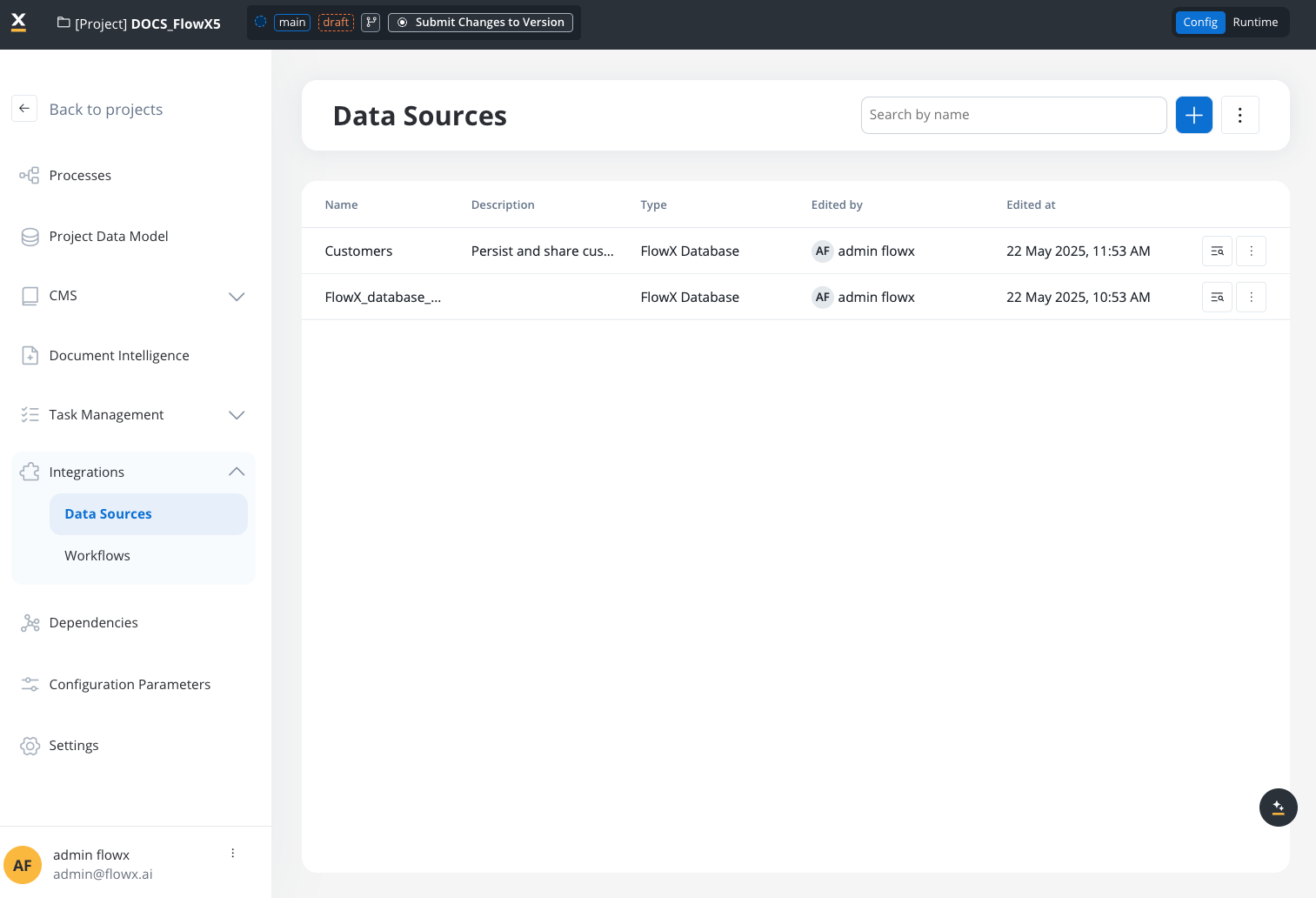
Accessing Data Sources in the navigation menu
**2. Add a new Data Source**
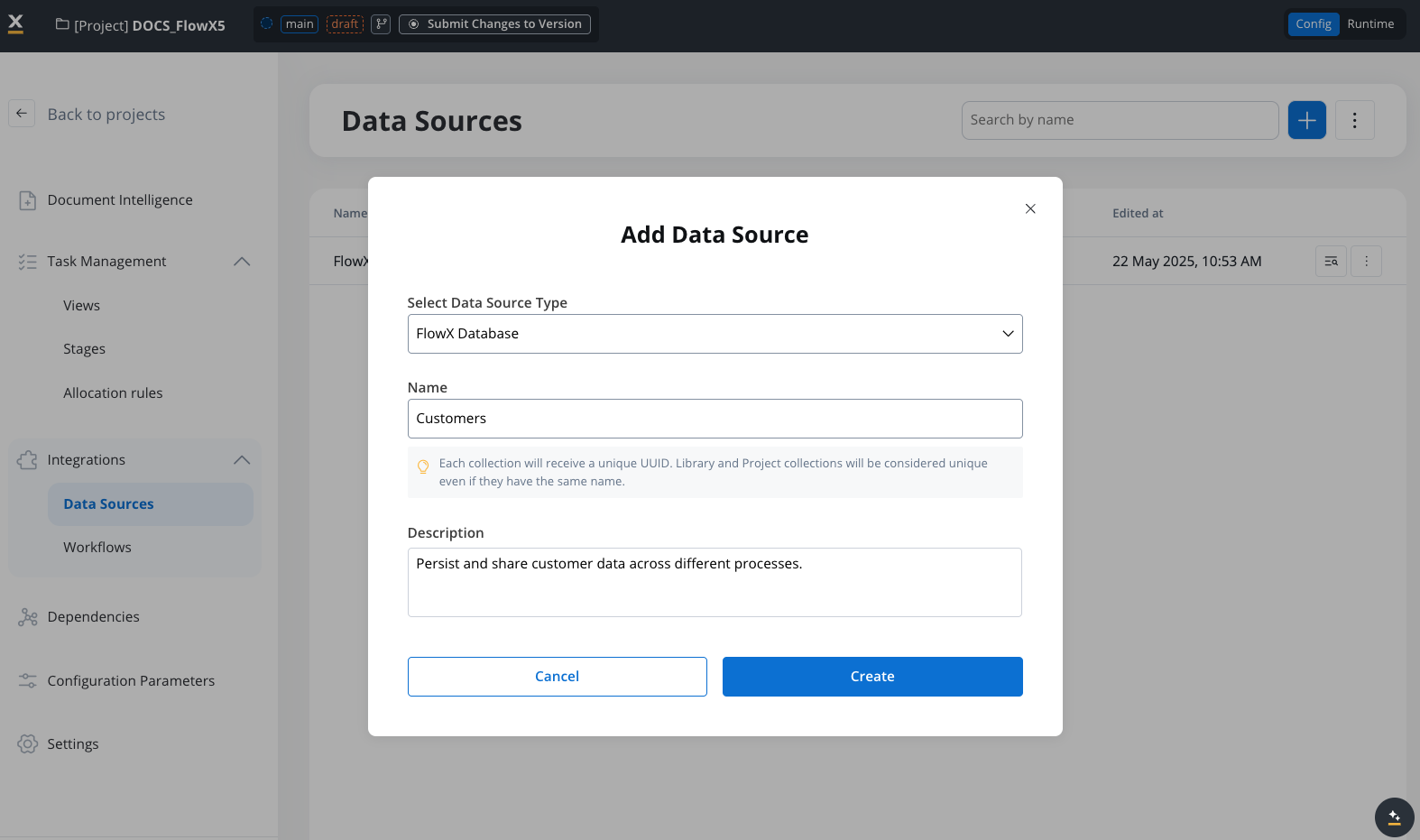
Click the "+" button to add a new Data Source. In the "Add Data Source" dialog, select "FlowX Database" from the dropdown list.
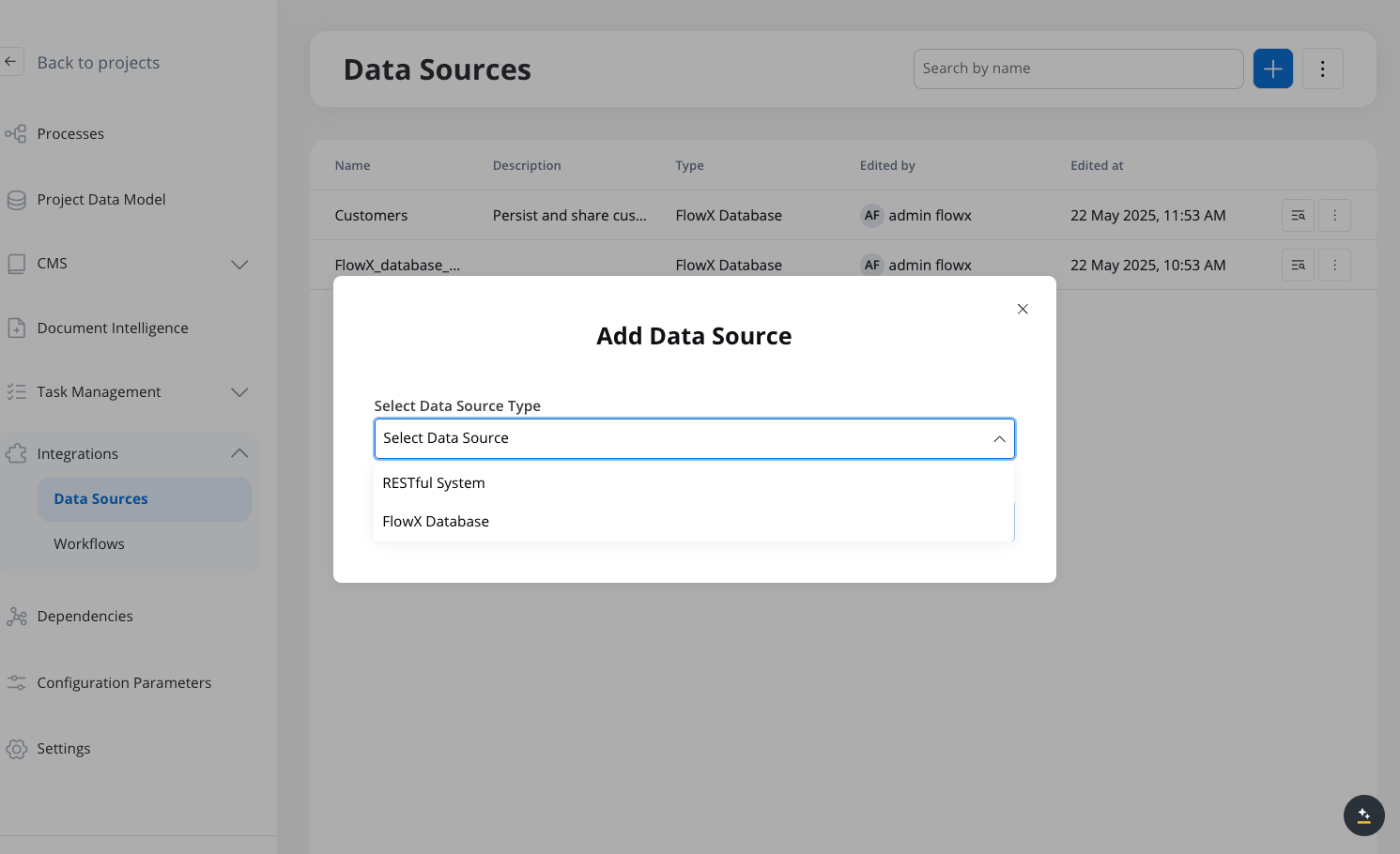
Adding a new FlowX Database data source
**3. Configure the collection**
Provide a name and description for your collection. The name will be used to identify this database collection in your workflows.
> [!WARNING]
>
> **Data Model Required**: You must have a data model defined before creating a FlowX Database collection. The data model becomes the schema for your database collection and defines the structure of documents that will be stored.
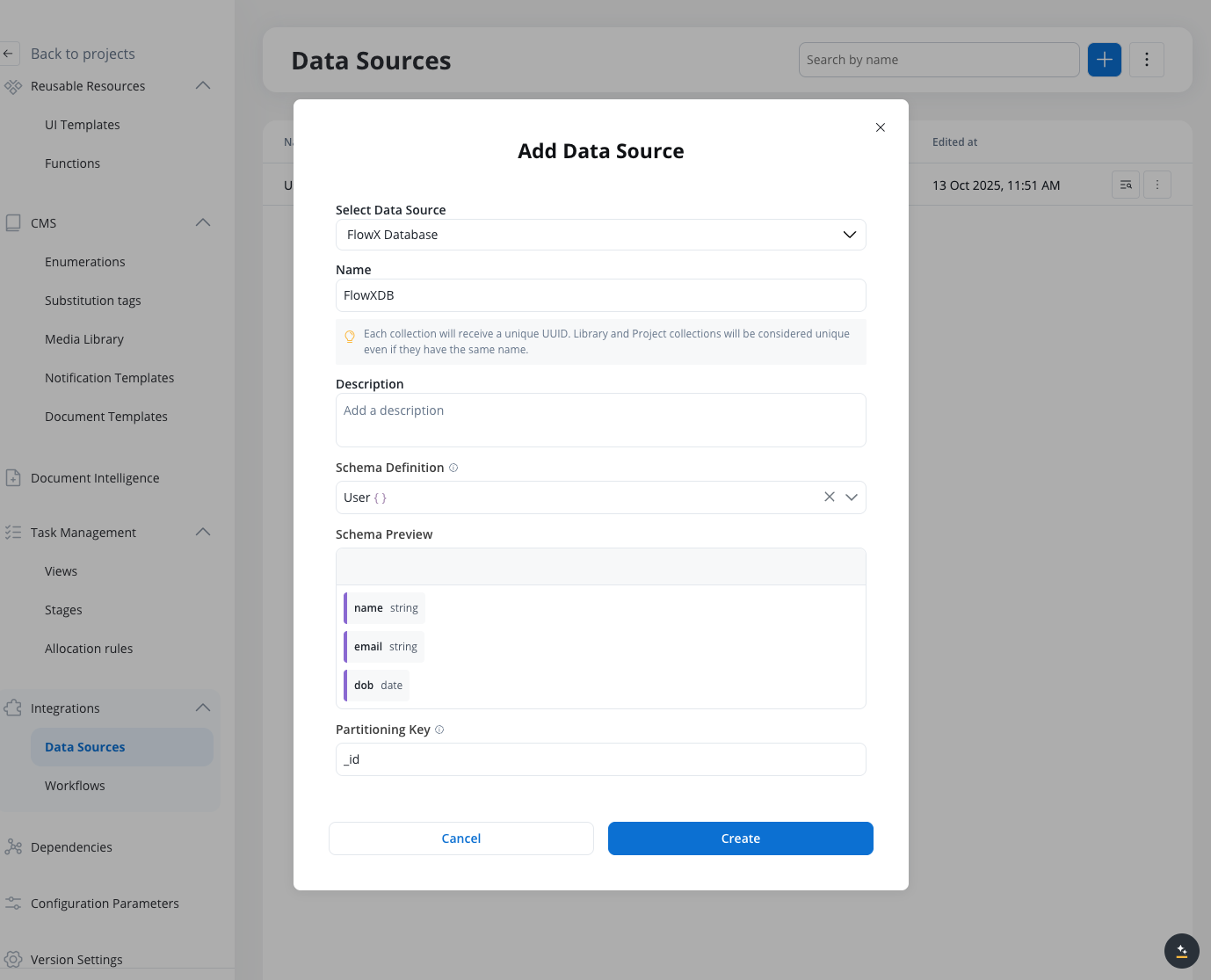
Configuring the collection
* **Schema Definition**: Define the schema for your collection (the selected schema enhances auto-completion but does not enforce validation during insert or update)
* **Partitioning Key**: The attribute used to partition data in your collection. By default, this is set to the `id` attribute, but you can specify a different field based on your data model.
**4. Create the collection**
Click "Create" to save the collection in FlowX Database. Your new collection will appear in the Data Sources list with the type "FlowX Database".
> [!NOTE]
>
> Each FlowX Database data source represents a collection in the underlying MongoDB database. When you create a new data source with the FlowX Database type, you're essentially creating a new collection where your documents will be stored.
### Viewing collection data
**1. Navigate to collection**
Go to the collection you want to view in the 'Data Sources' section.
**2. Access Documents tab**
Click the 'Documents' section within the collection.
**3. Browse documents**
You'll see a listing of currently saved documents in the collection.
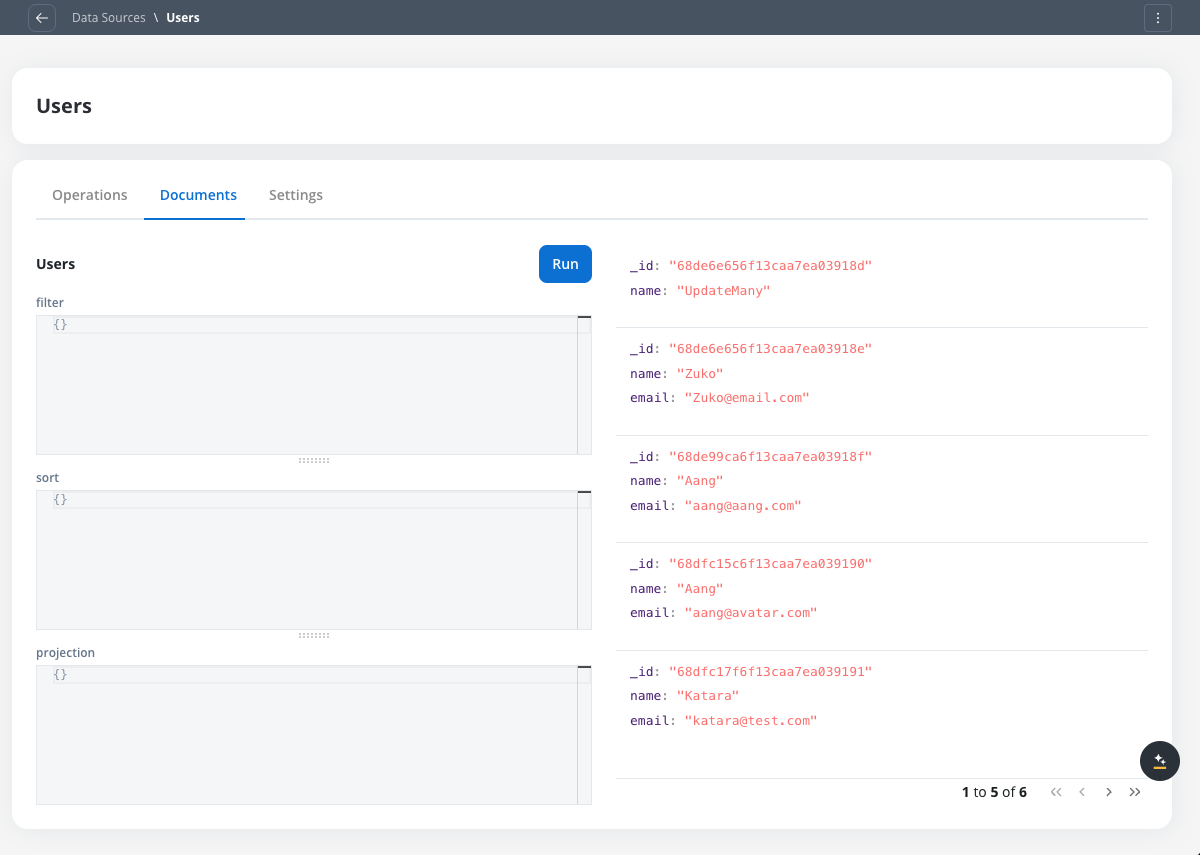
Viewing documents in a FlowX Database collection
**4. Search and filter**
Use the search functionality to find specific documents in the collection. You can add queries to filter documents, sort them, and use projections to choose what content from each entry you want to see.
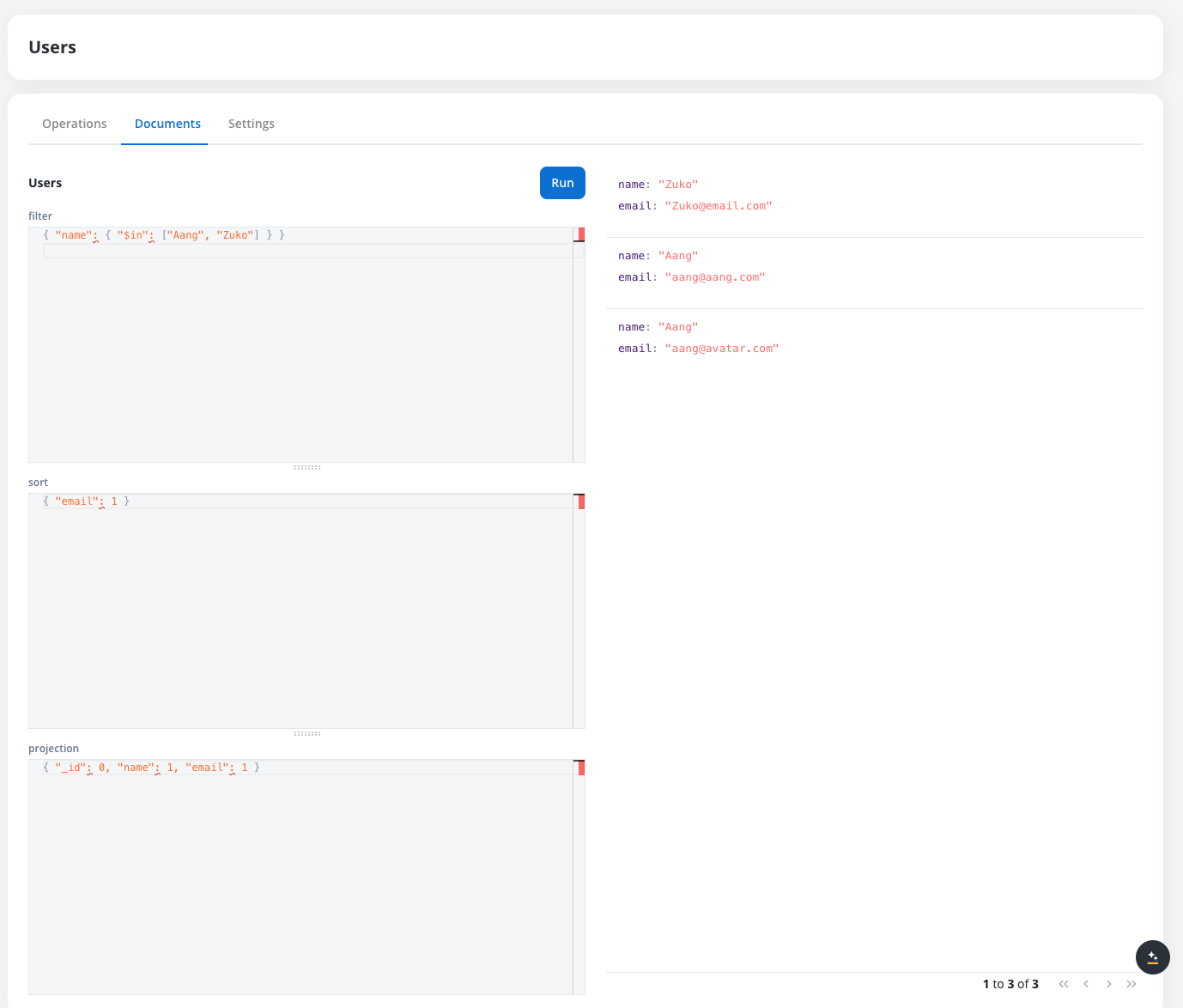
Searching and filtering documents in a FlowX Database collection
> [!NOTE]
>
> FlowX Database currently relies on MongoDB’s native sorting behavior for query results.
> All sorting is performed using MongoDB’s default binary comparison rules.
**5. Delete a document**
Hover over a document row and click the trash icon, then confirm with **Delete**. The document is permanently removed from the collection and can't be restored. You delete one document at a time, and you need edit rights on the data source.
### Managing collection settings
Each FlowX Database collection has a **Settings** tab where you can configure performance optimizations:
**1. Access Settings tab**
Navigate to your collection and click on the 'Settings' tab.
**2. Define indexes**
Create indexes for your collection to improve query performance. Indexes are particularly important for large collections as they significantly reduce query execution time.
> [!TIP]
>
> Create indexes on fields that you frequently use in filter conditions, sort operations, or queries to optimize performance.
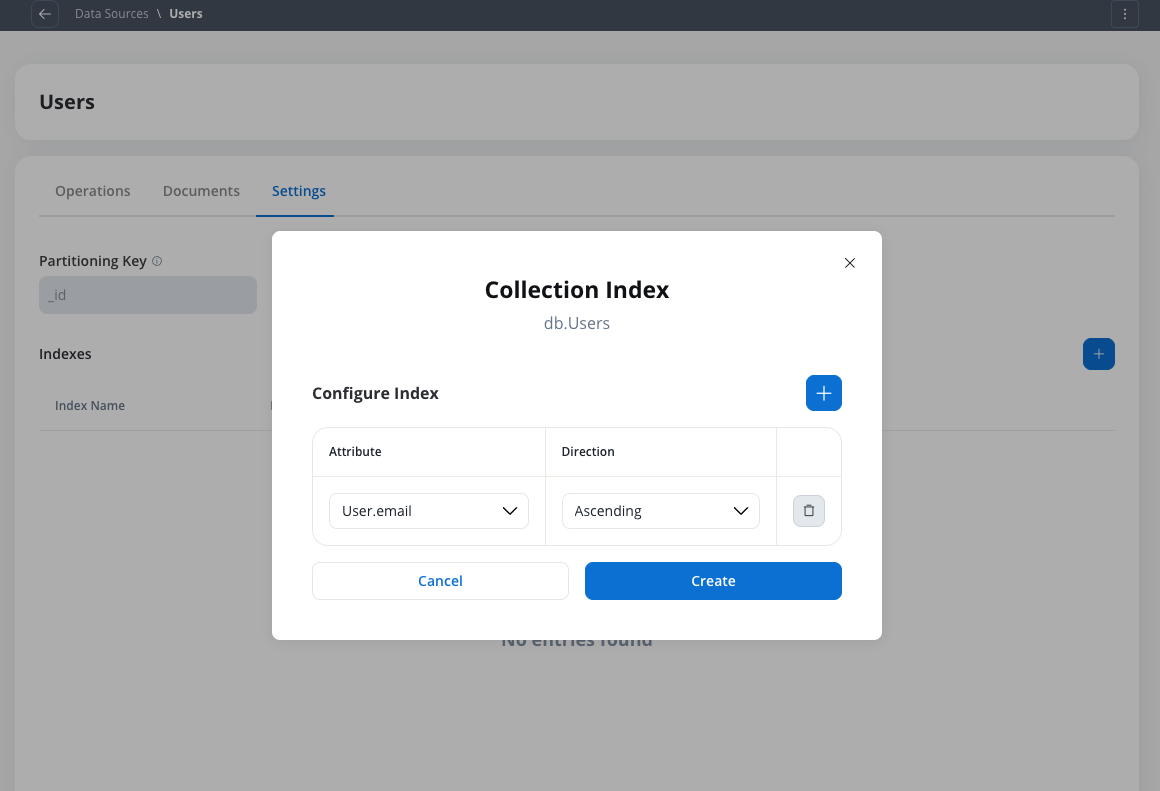
Defining indexes for a FlowX Database collection
> [!WARNING]
>
> Defining indexes in the Settings tab saves them as **configuration only** — they are not applied to the actual MongoDB collection immediately. To apply indexes, you must go to the **Runtime** view of your project or library, open the **Builds** section, and select **Apply Indexes** from the build's context menu. Only one build per project or library can have indexes applied at a time. Applying indexes on a new build will automatically replace any previously applied indexes that differ.
>
> For more details, see [Builds](https://docs.flowx.ai/6.x/docs/projects/runtime/builds.md#apply-indexes).
> [!NOTE]
>
> For large collections with thousands of documents, proper indexing is crucial for maintaining good query performance. Consider indexing frequently queried fields before your collection grows large.
### How do I make an index unique?
Toggle **Enforce unique values** when you add an index to reject any document that repeats a value already stored on the indexed attributes. On a single attribute, no two documents can hold the same value. On a compound index, the combination of attributes must be unique, not each attribute on its own.
When **Enforce unique values** is on, a second toggle controls empty values:
* **Enforce only when the value is filled in** (single attribute) or **Enforce only when the whole key is filled in** (compound index) **ON**: documents that leave the attribute, or any attribute of the key, empty are exempt. Duplicates among documents that do have values are still rejected.
* The same toggle **OFF**: empty attributes count as values. Only one document in the collection can leave a single indexed attribute empty, and on a compound index two documents conflict when their keys match, blanks included.
Keep these rules in mind:
* Values are matched exactly, so `Ana@x.com` and `ana@x.com` are two different values. Changing this later means dropping and recreating the index.
* `_id` is always unique, so it can't be the only attribute of a unique index, and a single index can't cover two array attributes.
* If a new unique index adds nothing to an existing one, FlowX Designer asks you to confirm with **Create anyway**.
* If the collection sets a partitioning key and is sharded, the unique index must start with that key.
Like any index, a unique index is only created in the database when you run **Apply Indexes** on a build. That is when FlowX.AI checks for existing duplicates: if the environment's collection already holds duplicate values, the **Apply Indexes** window lists sample values and keeps **Apply** unavailable. Remove the duplicates from that environment's collection (for example from the **Documents** tab), then click **Re-check**. See [Apply indexes](https://docs.flowx.ai/6.x/docs/projects/runtime/builds.md#apply-indexes).
After the index is applied, an insert or update that would create a duplicate fails.
***
### Creating database operations
> [tab] Create operation
>
> **1. Access operations list**
>
> Navigate to your FlowX Database collection in the Data Sources section.
>
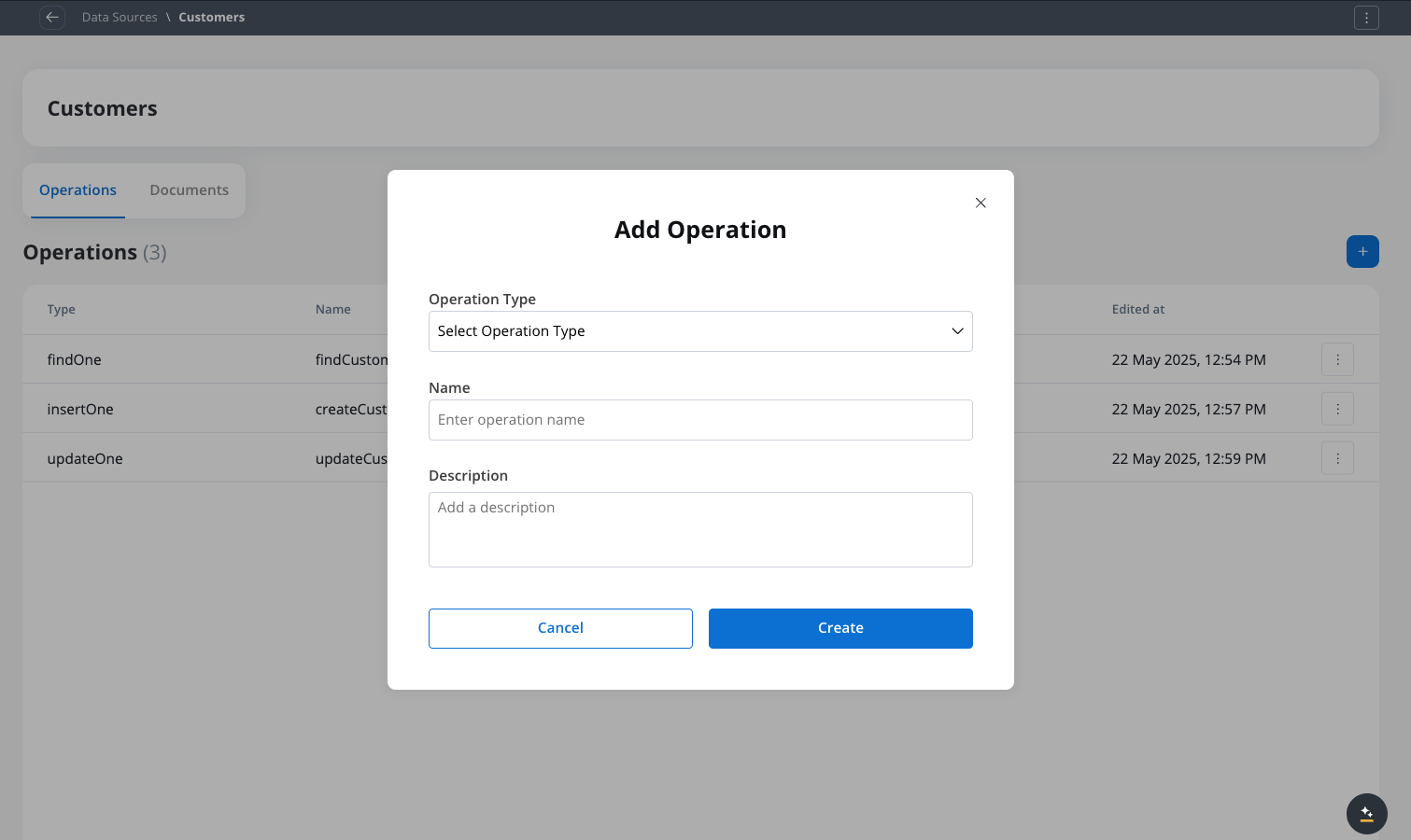
> **2. Create new operation**
>
> Click the "+" button to create a new operation.
>
> 
>
> Creating a new operation for a FlowX Database collection
>
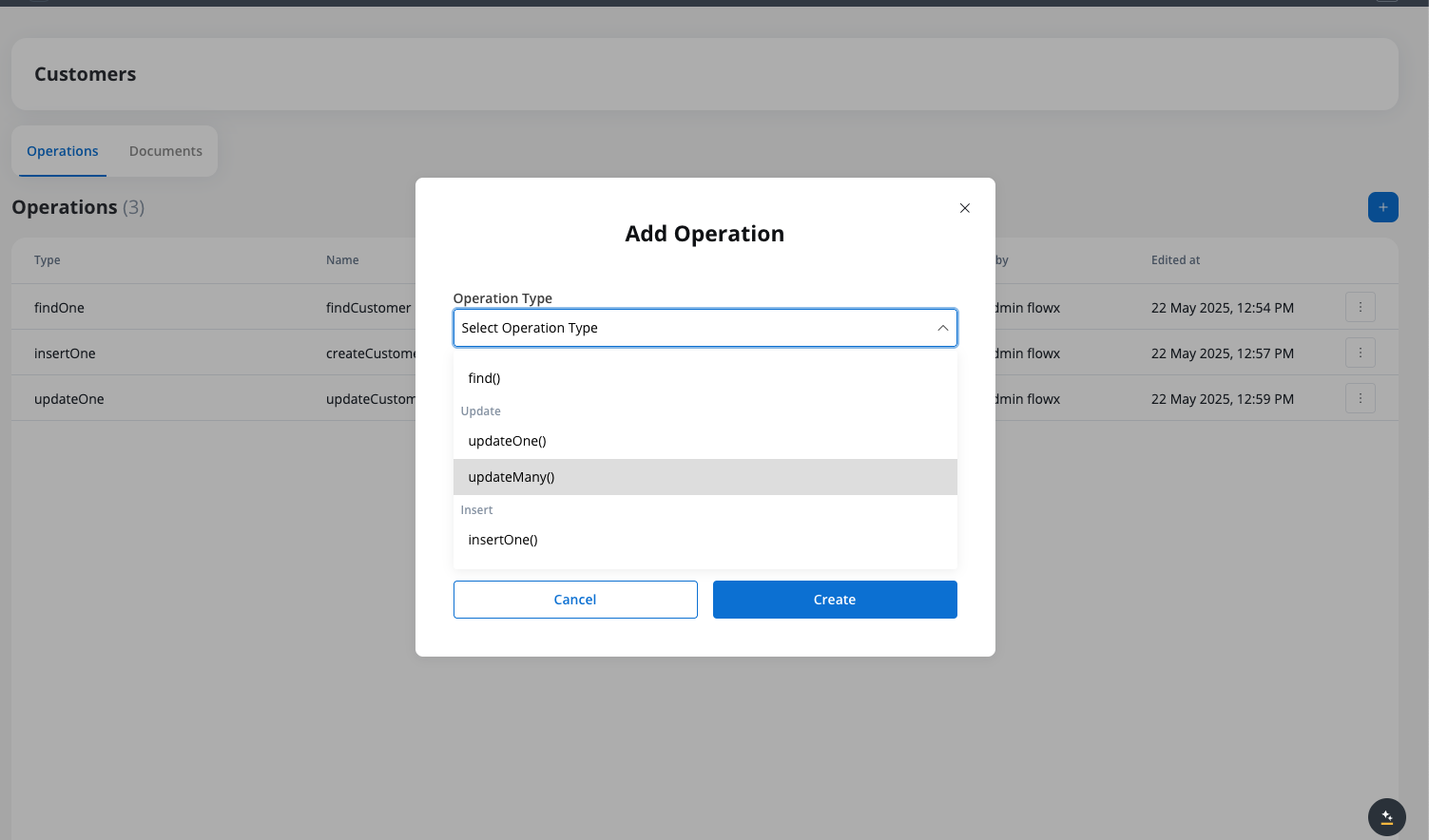
> **3. Select operation type**
>
> Choose the operation type from the dropdown (find, findOne, insertOne, insertMany, etc.).
>
> 
>
> Selecting the operation type
>
> **4. Name the operation**
>
> Give your operation a meaningful name and description that indicates its purpose.
>
> **5. Define the operation parameters**
>
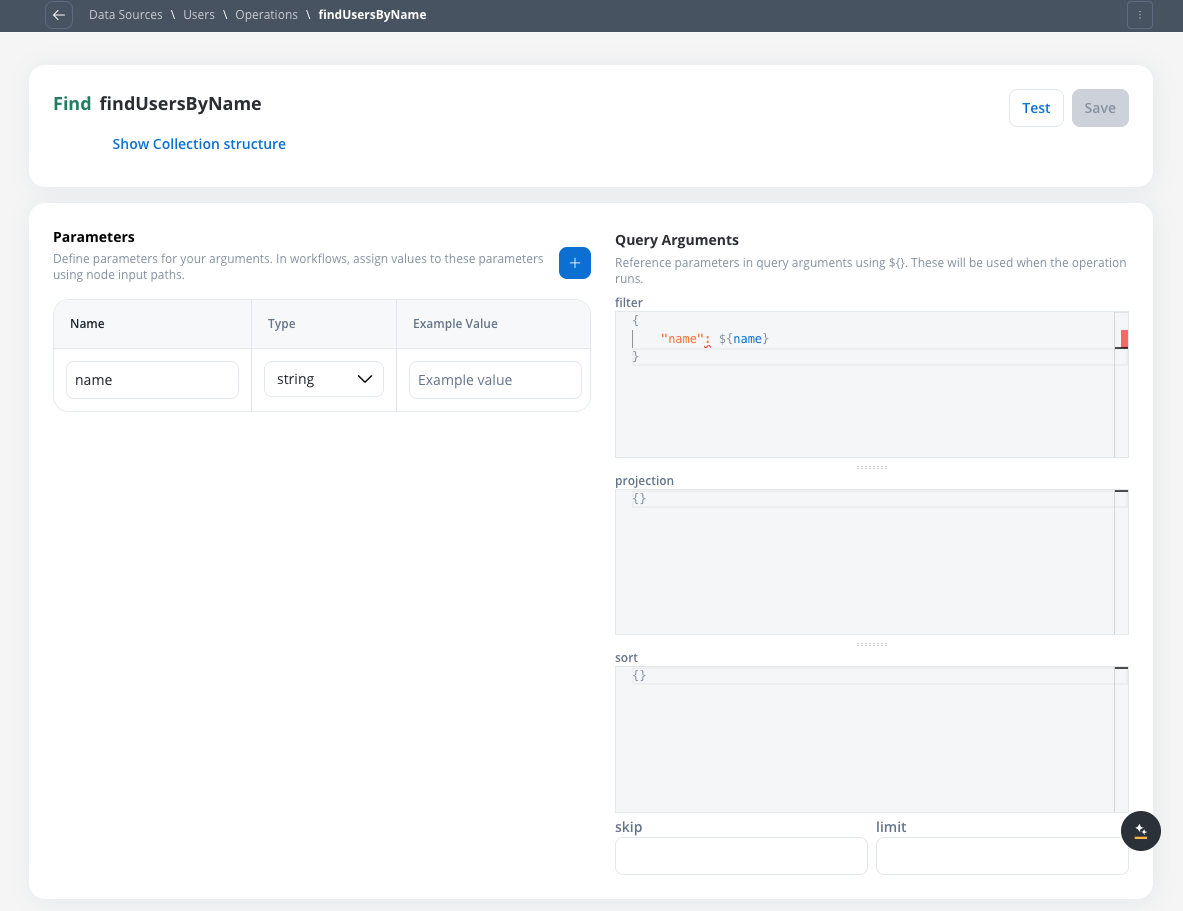
> Configure the parameters for your operation based on its type. For example, for a find operation:
>
> 
>
> Configuring operation parameters
>
> * **Filter**: Define the criteria to match documents
>
> * **Projection**: Select which fields to include in the results
>
> * **Sort**: Specify the sorting order
>
> * **Skip**: For find operations, specify the number of documents to skip
>
> * **Limit**: Set the maximum number of documents to return
>
> > [!NOTE]
> >
> > **Parameter Syntax**: When defining operation parameters, remember:
> >
> > * **Parameters defined in the operation** are referenced using `${parameterName}` syntax
> > * **Database field names** must be in quotes (e.g., `"firstName"`, `"customerId"`)
> > * Parameters don't need to match your data model exactly - they're placeholders that get replaced with actual values
> > * Field names in quotes must match exactly what's stored in the database (same as your data model)
>
> **6. Test the operation**
>
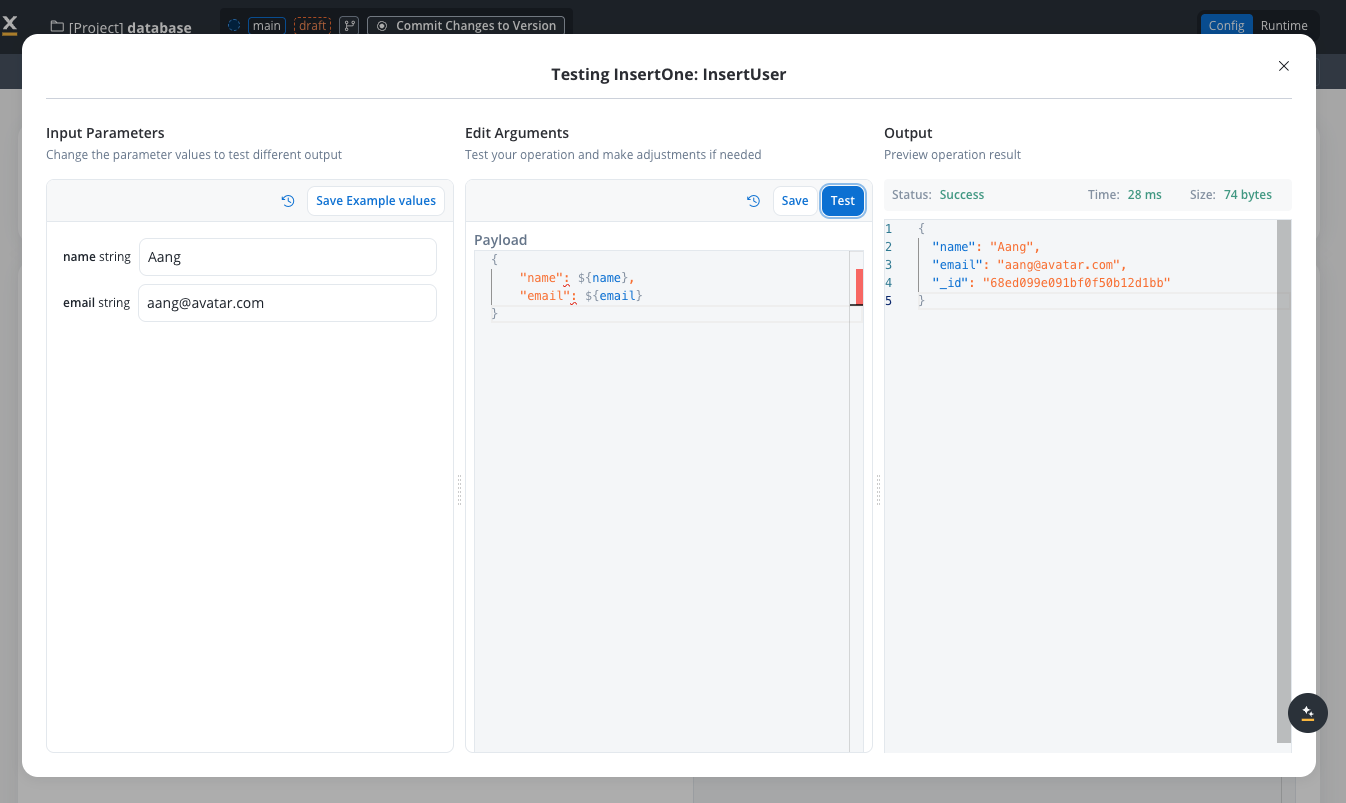
> Use the test functionality to verify your operation works correctly.
>
> 
>
> Testing an operation
>
> > [!WARNING]
> >
> > **Testing Delete Operations**: Be extremely careful when testing delete operations (`deleteOne` and `deleteMany`) as they will actually remove documents from your collection. Always use test data or ensure you have backups before testing deletion operations in collections with important data.
>
> **7. Save the operation**
>
> Click "Save" to add the operation to your collection. It will now be available for use in workflows.
> [tab] Update operation
>
> **1. Select operation**
>
> From the list of operations, select the one you want to update.
>
> **2. Make changes**
>
> Update the operation name, description, or parameters as needed.
>
> **3. Test updated operation**
>
> Test the updated operation to ensure it works as expected.
>
> **4. Save changes**
>
> Save your changes to apply them to the operation.
> [tab] Delete operation
>
> **1. Select operation**
>
> From the list of operations, select the one you want to delete.
>
> **2. Delete operation**
>
> Click the delete button and confirm the deletion when prompted.
>
> **3. Verify removal**
>
> Verify that the operation has been removed from the collection.
### Visual query builder
Instead of writing raw MongoDB query syntax, you can use the visual query builder to define filters, updates, projections, and sorting through a guided interface that understands your collection's schema.
Each operation type has a tailored builder experience. You can switch between **Visual** and **Script** mode at any time with the two icon buttons above the editor: the brick wall icon opens the visual builder, and the curly braces icon opens the JSON query (Script mode). The buttons have no text labels. The two modes work independently — saving in one mode sets that as the active query for the operation.
> [!WARNING]
>
> Switching modes does not sync changes between them. A warning message informs you that saving in the current mode will set it as the final query for the operation.
#### Condition rows
The core building block of the query builder is the **condition row**, used in filter sections across all operation types:
| Element | Description |
| - | - |
| **Field dropdown** | Pick a field from the collection schema. Supports nested paths (e.g., `address.city`). Shows a data type badge for each field. |
| **Operator dropdown** | Type-aware operators that change based on the selected field's data type (see table below). |
| **Value input** | Enter a static value or switch to dynamic mode using `${paramName}` syntax. Input type adapts to the field type (text, number, date picker, boolean toggle, enum dropdown). |
| **Remove button** | Delete the condition row. |
Multiple condition rows can be combined with **AND** or **OR** logic using a dropdown selector. AND is the default.
> [!NOTE]
>
> Each condition row is matched on its own. Two conditions on fields inside the same array of objects, such as `items.sku` and `items.qty`, can be met by **different** elements of the array. When both must hold on the same element, write the filter in Script mode with `$elemMatch`. See [Filter on nested fields and arrays of objects](#mongodb-operations-supported).
#### Type-aware operators
The available operators change based on the selected field's data type:
| Field type | Available operators |
| - | - |
| **String** | equals, not equals, contains, starts with, ends with, matches regex, in, not in, exists, is null |
| **Number** | equals, not equals, greater than, greater or equal, less than, less or equal, in, exists, is null |
| **Boolean** | equals, exists |
| **Date/Time** | equals, before, after, exists, is null |
| **Enum** | equals, not equals, in, not in, exists |
| **Object** | exists, not exists |
| **Array** | contains, size equals, size greater than, exists, intersects |
> [!TIP]
>
> Fields not in the schema can also be used — select a custom key and a data type selector appears so you can set the appropriate operators.
#### Intersects on array fields
**intersects** matches documents whose array field shares at least one value with the list you supply. The value is either a literal list of strings or numbers, or a single `${param}` that resolves to a list at runtime. A parameter cannot be placed inside a literal list. Documents where the field is not an array never match.
> [!NOTE]
>
> Conditions that use **intersects**, like aggregation stages, are not included in the version 3 export format. Use the current export format when moving operations that rely on them.
#### Builder sections by operation type
> [tab] Find / Find One
>
> * **Filter**: Condition rows to define which documents to match
> * **Sort**: Add sort fields with ASC/DESC direction
> * **Projection**: Select fields to include or exclude from results
> * **Pagination** (find only): Set **Limit** (max documents) and **Skip** (offset) values
> [tab] Insert / Insert Many
>
> * **Document fields**: Auto-populated from the collection schema with appropriate input types per field
> * `_id` is auto-included with an "auto-generated" indicator
> * Array fields have an **+ Add item** button
> * Each field supports static values or `${paramName}` dynamic references
> [tab] Update / Update Many
>
> * **Filter section**: Same condition row builder as Find — defines which documents to update
> * **Update section**: Define what to change in matching documents:
>
> | Update operator | Description |
> | - | - |
> | `$set` | Replace field value |
> | `$unset` | Remove field |
> | `$inc` | Increment number |
> | `$push` | Add to array |
> | `$pull` | Remove from array |
> | `$addToSet` | Add unique value to array |
> [tab] Delete / Delete Many
>
> * **Filter section**: Same condition row builder as Find — defines which documents to delete
>
> > [!WARNING]
> >
> > A warning banner is always displayed: "This operation will permanently delete matching documents."
#### Testing operations
The existing 3-panel test modal is enhanced with the visual builder:
* **Left panel**: Input parameters — fill in test values for `${paramName}` references
* **Middle panel**: Shows the visual builder view of the query
* **Right panel**: Results displayed in tabular format with schema-derived column headers
For insert operations, a **Quick Find** button appears after a successful test, letting you immediately verify the inserted document.
***
### Aggregation pipelines
Database operations support MongoDB **aggregation pipelines**, so you can group, join, reshape, and compute across documents beyond what a single query allows. A pipeline is built as an ordered list of **stages** — such as **Filter**, **Sort**, **Projection**, and **Limit** — each configured in the visual builder and applied in sequence to the collection. Use aggregation when you need computed results (counts, sums, grouped summaries) rather than raw documents.
***
## Working with FlowX Database in workflows
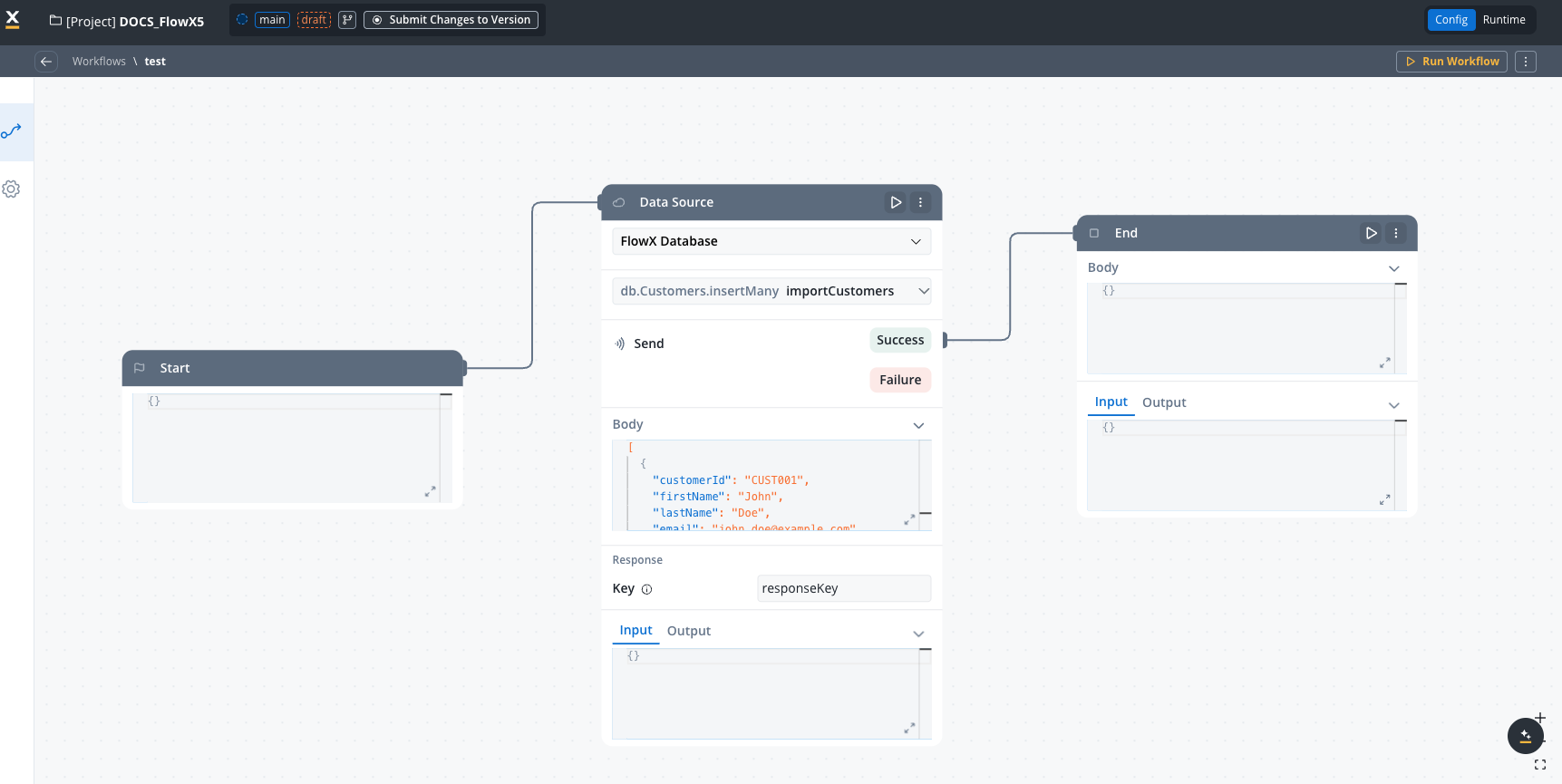
Database node in a workflow
FlowX Database integrates directly with the workflow designer through the "Data Source" node type:
**1. Add Data Source node**
In your workflow, add a new node and select the 'DATA\_SOURCE' type.
**2. Configure data source**
In the node properties panel:
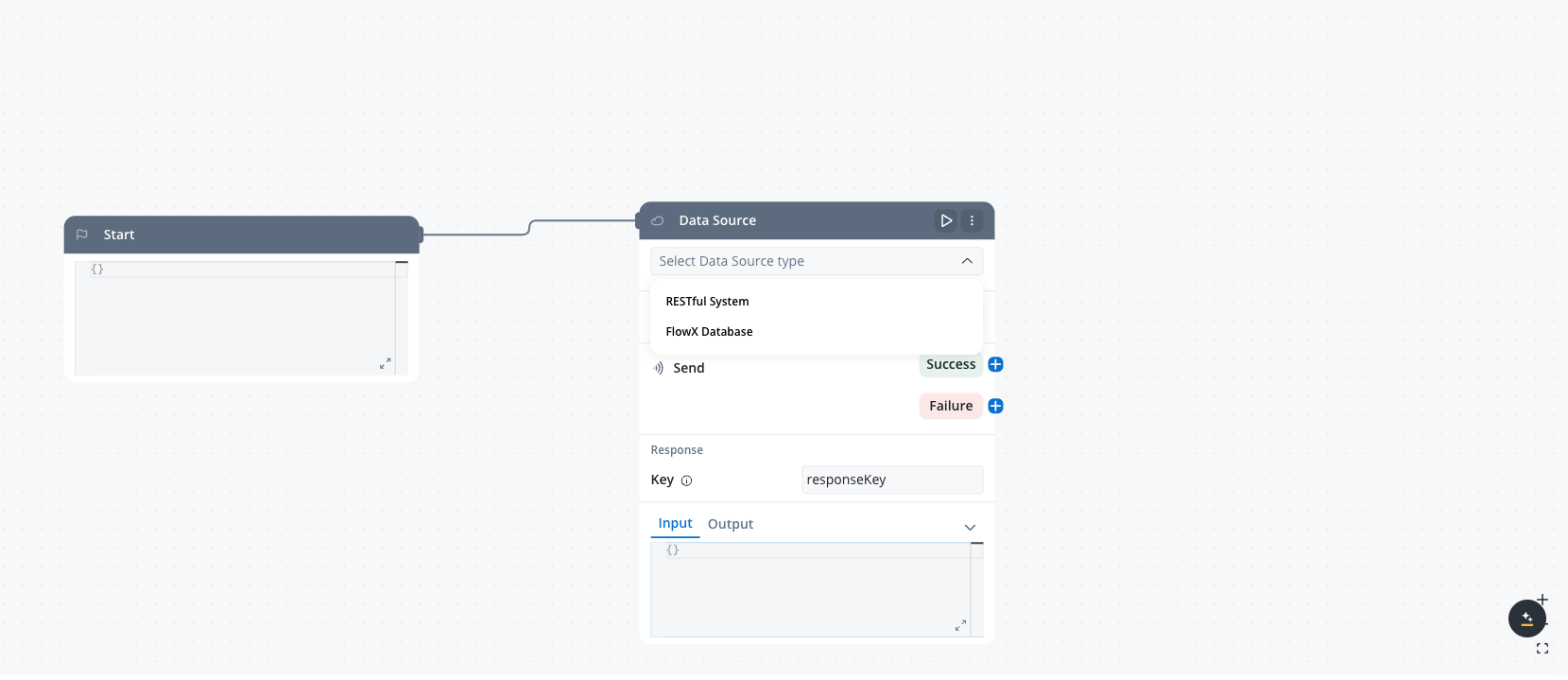
Data Source node configuration
1. Choose "FlowX Database" as the system type from the dropdown
2. Select your collection from the available options
3. Choose the operation you want to perform (find, findOne, insertOne, insertMany, updateOne, updateMany, deleteOne, deleteMany)
**3. Configure operation parameters**
Set the parameters for your selected operation. The available parameters will depend on the operation type:
* **filter** - For find operations, define the criteria to match documents
* **sort** - For find operations, specify the sorting order for results
* **document** - For insert operations, define the document to insert
* **update** - For update operations, define the document to update
* **delete** - For delete operations, define the criteria to match documents
* **skip** - For find operations, specify the number of documents to skip
* **limit** - For find operations, specify the maximum number of documents to return
* **projection** - For find operations, specify the fields to include or exclude in the results
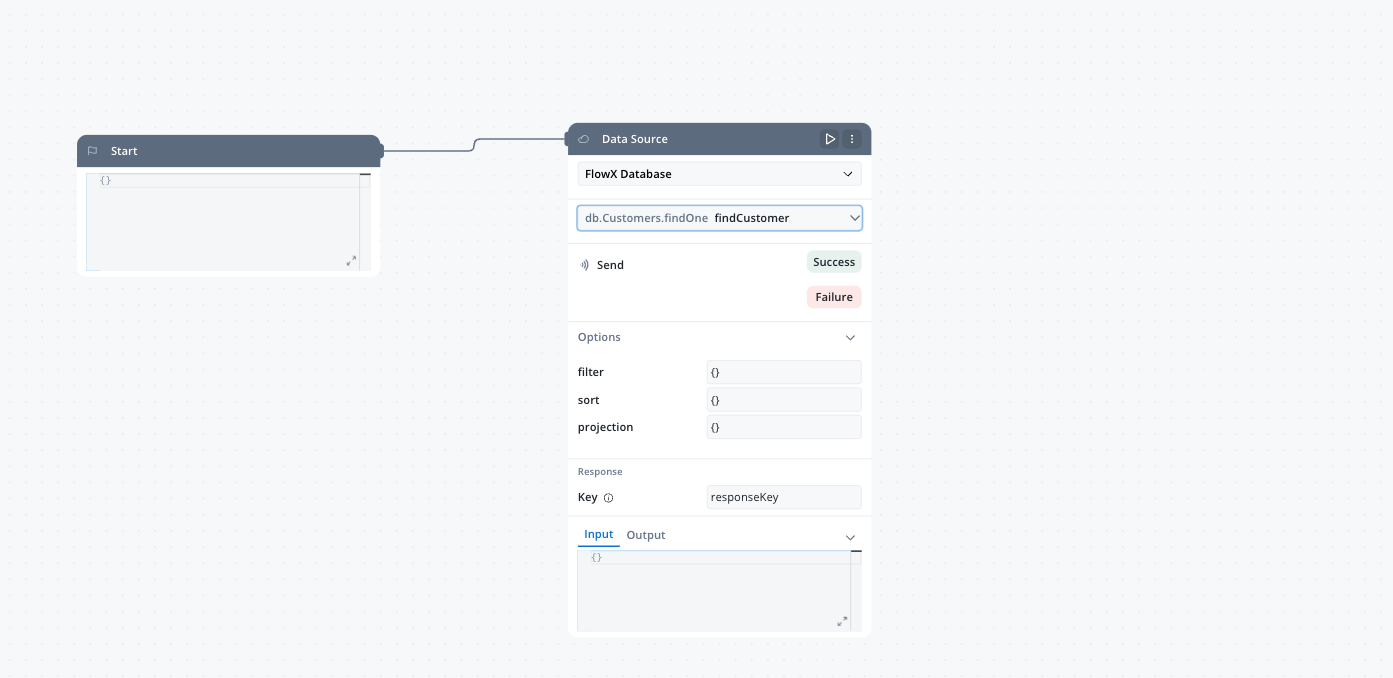
Configuring operation parameters
You can use static JSON or reference process variables using the expression syntax.
**4. Set response key**
Specify where the operation result should be stored in the process instance. This makes the data available to subsequent nodes in your workflow.
> [accordion] Example: Using filter parameter in find operation
>
> ```json theme={"dark"}
> {
> "age": { "$gt": 30 },
> "status": "active"
> }
> ```
>
> This filter will return all documents where the age is greater than 30 and the status is "active".
>
> > [!NOTE]
> >
> > For more information about MongoDB comparison operators like \$gt, see [Comparison Query Operators](https://www.mongodb.com/docs/manual/reference/operator/query-comparison/).
> [accordion] Example: Using process variables in parameters
>
> ```json theme={"dark"}
> {
> "customerId": "${processInstance.customerData.id}"
> }
> ```
>
> This filter uses a value from the process instance to find documents matching a specific customer ID.
>
> > [!NOTE]
> >
> > Learn more about MongoDB query syntax in the [Query Documents Tutorial](https://www.mongodb.com/docs/manual/tutorial/query-documents/).
## MongoDB operations supported
FlowX Database uses MongoDB's query capabilities through the **nosql-db-runner** service, providing pure MongoDB functionality. For detailed information about MongoDB query operators, filters, and syntax, refer to the [MongoDB Query and Projection Operators documentation](https://www.mongodb.com/docs/manual/reference/operator/query/).
The following MongoDB operations are supported in FlowX Database. Each tab includes practical examples that you can use as a starting point for your own operations.
> [tab] find
>
> **Parameters:**
>
> For complete documentation on find operations and query syntax, see [MongoDB db.collection.find()](https://www.mongodb.com/docs/manual/reference/method/db.collection.find/).
>
> * **filter** (document, optional): Criteria to match documents. See [Query Filter Documents](https://www.mongodb.com/docs/manual/tutorial/query-documents/)
>
> * **sort** (document, optional): Document specifying the sorting order. See [Sort Query Results](https://www.mongodb.com/docs/manual/reference/method/cursor.sort/)
>
> * **skip** (integer, optional): Number of documents to skip. See [Limit Query Results](https://www.mongodb.com/docs/manual/reference/method/cursor.skip/)
>
> * **limit** (integer, optional): Maximum number of documents to return. See [Limit Query Results](https://www.mongodb.com/docs/manual/reference/method/cursor.limit/)
>
> * **projection** (document, optional): Fields to include or exclude. See [Project Fields](https://www.mongodb.com/docs/manual/tutorial/project-fields-from-query-results/)
>
> > [accordion] Example: List active customers
> >
> > This example finds all active customers, sorts them by registration date (newest first), limits to 10 results, and returns only specific fields.
> >
> > Operation name: listActiveCustomers
> >
> > > [tab] filter
> > >
> > > ```json theme={"dark"}
> > > {
> > > "status": "active"
> > > }
> > > ```
> >
> > > [tab] sort
> > >
> > > ```json theme={"dark"}
> > > {
> > > "customerSince": -1
> > > }
> > > ```
> >
> > > [tab] projection
> > >
> > > ```json theme={"dark"}
> > > {
> > > "customerId": 1,
> > > "firstName": 1,
> > > "lastName": 1,
> > > "email": 1,
> > > "status": 1,
> > > "_id": 0
> > > }
> > > ```
> >
> > > [tab] skip
> > >
> > > ```
> > > 0
> > > ```
> >
> > > [tab] limit
> > >
> > > ```
> > > 10
> > > ```
> >
> > This operation will return up to 10 active customers, with the most recently registered customers first.
>
> > [accordion] Example: Find products by category and price
> >
> > This example finds products in a specific category within a price range.
> >
> > Operation name: findAffordableElectronics
> >
> > > [tab] filter
> > >
> > > ```json theme={"dark"}
> > > {
> > > "category": "electronics",
> > > "price": { "$gte": 10, "$lte": 100 }
> > > }
> > > ```
> >
> > > [tab] sort
> > >
> > > ```json theme={"dark"}
> > > {
> > > "price": 1
> > > }
> > > ```
> >
> > > [tab] projection
> > >
> > > ```json theme={"dark"}
> > > {
> > > "productName": 1,
> > > "price": 1,
> > > "rating": 1,
> > > "inStock": 1,
> > > "_id": 0
> > > }
> > > ```
> >
> > > [tab] limit
> > >
> > > ```
> > > 20
> > > ```
> >
> > This operation will return up to 20 electronics products with prices between $10 and $100, sorted from lowest to highest price.
>
> > [accordion] Example: Filter on nested fields and arrays of objects
> >
> > In Script mode, the filter goes to MongoDB unchanged, so standard MongoDB filter syntax works. Use dot notation for a field inside an object, and `$elemMatch` when several conditions must hold on the same element of an array.
> >
> > Operation name: findClujOrdersWithBulkItem
> >
> > > [tab] filter
> > >
> > > ```json theme={"dark"}
> > > {
> > > "address.city": "Cluj",
> > > "items": { "$elemMatch": { "sku": "A1", "qty": { "$gt": 2 } } }
> > > }
> > > ```
> >
> > This operation returns orders shipped to Cluj that contain at least one line with SKU `A1` **and** a quantity above 2 on that same line. Without `$elemMatch`, `{"items.sku": "A1", "items.qty": {"$gt": 2}}` would also match an order where one line has SKU `A1` and a different line has a quantity above 2.
> [tab] findOne
>
> **Parameters:**
>
> For complete documentation on findOne operations, see [MongoDB db.collection.findOne()](https://www.mongodb.com/docs/manual/reference/method/db.collection.findOne/).
>
> * **filter** (document, optional): Criteria to match the document. See [Query Filter Documents](https://www.mongodb.com/docs/manual/tutorial/query-documents/)
>
> * **projection** (document, optional): Fields to include or exclude. See [Project Fields](https://www.mongodb.com/docs/manual/tutorial/project-fields-from-query-results/)
>
> * **sort** (document, optional): Document specifying the sorting order. See [Sort Query Results](https://www.mongodb.com/docs/manual/reference/method/cursor.sort/)
>
> > [accordion] Example: Find customer by ID
> >
> > This example retrieves a single customer by their unique customer ID.
> >
> > Operation name: findCustomerById
> >
> > > [tab] filter
> > >
> > > ```json theme={"dark"}
> > > {
> > > "customerId": "${processInstance.customerId}"
> > > }
> > > ```
> >
> > > [tab] projection
> > >
> > > ```json theme={"dark"}
> > > {
> > > "firstName": 1,
> > > "lastName": 1,
> > > "email": 1,
> > > "phone": 1,
> > > "status": 1,
> > > "customerSince": 1,
> > > "address": 1,
> > > "_id": 0
> > > }
> > > ```
> >
> > This operation uses a process variable for the customer ID and returns specific customer fields. Since findOne only returns one document, sort is usually unnecessary unless you need the first document matching certain criteria.
>
> > [accordion] Example: Find latest order
> >
> > This example finds the most recent order for a customer.
> >
> > Operation name: findLatestOrder
> >
> > > [tab] filter
> > >
> > > ```json theme={"dark"}
> > > {
> > > "customerId": "${processInstance.customerId}"
> > > }
> > > ```
> >
> > > [tab] sort
> > >
> > > ```json theme={"dark"}
> > > {
> > > "orderDate": -1
> > > }
> > > ```
> >
> > > [tab] projection
> > >
> > > ```json theme={"dark"}
> > > {
> > > "orderId": 1,
> > > "orderDate": 1,
> > > "totalAmount": 1,
> > > "status": 1,
> > > "items": 1,
> > > "_id": 0
> > > }
> > > ```
> >
> > This operation will find the most recent order for a specific customer by sorting by orderDate in descending order and returning only the first match.
> [tab] insertOne
>
> **Parameters:**
>
> For complete documentation on insertOne operations, see [MongoDB db.collection.insertOne()](https://www.mongodb.com/docs/manual/reference/method/db.collection.insertOne/).
>
> * **document** (document, required): The document to insert. See [Insert Documents](https://www.mongodb.com/docs/manual/tutorial/insert-documents/)
>
> > [accordion] Example: Create a new customer
> >
> > This example inserts a new customer record using data from a process instance.
> >
> > Operation name: createCustomer
> >
> > > [tab] document
> > >
> > > ```json theme={"dark"}
> > > {
> > > "customerId": "${processInstance.customerData.id}",
> > > "firstName": "${processInstance.customerData.firstName}",
> > > "lastName": "${processInstance.customerData.lastName}",
> > > "email": "${processInstance.customerData.email}",
> > > "phone": "${processInstance.customerData.phone}",
> > > "status": "active",
> > > "customerSince": "${processInstance.customerData.registrationDate}",
> > > "address": {
> > > "street": "${processInstance.customerData.address.street}",
> > > "city": "${processInstance.customerData.address.city}",
> > > "state": "${processInstance.customerData.address.state}",
> > > "zipCode": "${processInstance.customerData.address.zipCode}"
> > > }
> > > }
> > > ```
> >
> > This operation creates a new customer document with nested address data, using values from the process instance.
>
> > [accordion] Example: Log a system event
> >
> > This example logs a system event with static and dynamic data.
> >
> > Operation name: logSystemEvent
> >
> > > [tab] document
> > >
> > > ```json theme={"dark"}
> > > {
> > > "eventType": "user_action",
> > > "action": "${processInstance.actionType}",
> > > "timestamp": "${processInstance.currentDateTime}",
> > > "userId": "${processInstance.userId}",
> > > "details": "${processInstance.actionDetails}",
> > > "source": "workflow",
> > > "processId": "${processInstance.id}"
> > > }
> > > ```
> >
> > This operation creates an event log entry with information about user actions in the system.
> [tab] insertMany
>
> **Parameters:**
>
> For complete documentation on insertMany operations, see [MongoDB db.collection.insertMany()](https://www.mongodb.com/docs/manual/reference/method/db.collection.insertMany/).
>
> * **documents** (array, required): Array of documents to insert. See [Insert Documents](https://www.mongodb.com/docs/manual/tutorial/insert-documents/)
>
> > [accordion] Example: Import multiple customers
> >
> > This example inserts multiple customer records at once, typically from an imported data source.
> >
> > Operation name: importCustomers
> >
> > > [tab] documents
> > >
> > > ```json theme={"dark"}
> > > [
> > > {
> > > "customerId": "CUST001",
> > > "firstName": "John",
> > > "lastName": "Doe",
> > > "email": "john.doe@example.com",
> > > "status": "active",
> > > "customerSince": "2025-01-15"
> > > },
> > > {
> > > "customerId": "CUST002",
> > > "firstName": "Jane",
> > > "lastName": "Smith",
> > > "email": "jane.smith@example.com",
> > > "status": "active",
> > > "customerSince": "2025-01-20"
> > > },
> > > {
> > > "customerId": "CUST003",
> > > "firstName": "Robert",
> > > "lastName": "Johnson",
> > > "email": "robert.j@example.com",
> > > "status": "inactive",
> > > "customerSince": "2024-11-05"
> > > }
> > > ]
> > > ```
> >
> > This operation inserts multiple customer records at once. In a real scenario, you would typically reference a process variable containing the array: `{processInstance.importedCustomers}`
>
> > [accordion] Example: Create order items
> >
> > This example creates multiple order items for a single order.
> >
> > Operation name: createOrderItems
> >
> > > [tab] documents
> > >
> > > ```json theme={"dark"}
> > > [
> > > {
> > > "orderId": "${processInstance.orderId}",
> > > "productId": "${processInstance.items[0].productId}",
> > > "quantity": "${processInstance.items[0].quantity}",
> > > "unitPrice": "${processInstance.items[0].price}",
> > > "subtotal": "${processInstance.items[0].subtotal}"
> > > },
> > > {
> > > "orderId": "${processInstance.orderId}",
> > > "productId": "${processInstance.items[1].productId}",
> > > "quantity": "${processInstance.items[1].quantity}",
> > > "unitPrice": "${processInstance.items[1].price}",
> > > "subtotal": "${processInstance.items[1].subtotal}"
> > > }
> > > ]
> > > ```
> >
> > This operation creates multiple order item records for a single order. In practice, you would use `{processInstance.items}` directly if your process data model matches the database structure.
> [tab] updateOne
>
> **Parameters:**
>
> For complete documentation on updateOne operations, see [MongoDB db.collection.updateOne()](https://www.mongodb.com/docs/manual/reference/method/db.collection.updateOne/).
>
> * **filter** (document, required): Criteria to match the document to update. See [Query Filter Documents](https://www.mongodb.com/docs/manual/tutorial/query-documents/)
>
> * **update** (document, required): Update operations to apply. See [Update Operators](https://www.mongodb.com/docs/manual/reference/mql/update/)
>
> > [!WARNING]
> >
> > **Important Update Behavior**: When using update operations without the `$set` operator, the entire document will be replaced with the new data. This means any fields not included in your update payload will be removed from the document. Always use the `$set` operator to update specific fields while preserving others.
>
> > [accordion] Example: Update customer status
> >
> > This example updates a customer's status and records when the change occurred.
> >
> > Operation name: updateCustomerStatus
> >
> > > [tab] filter
> > >
> > > ```json theme={"dark"}
> > > {
> > > "customerId": "${processInstance.customerId}"
> > > }
> > > ```
> >
> > > [tab] update
> > >
> > > ```json theme={"dark"}
> > > {
> > > "$set": {
> > > "status": "${processInstance.newStatus}",
> > > "lastUpdated": "${processInstance.currentDate}",
> > > "statusReason": "${processInstance.statusChangeReason}"
> > > }
> > > }
> > > ```
> >
> > This operation updates a customer's status along with the reason and timestamp.
>
> > [accordion] Example: Update order with tracking information
> >
> > This example updates an order with shipping details and increments a counter.
> >
> > Operation name: updateOrderShipping
> >
> > > [tab] filter
> > >
> > > ```json theme={"dark"}
> > > {
> > > "orderId": "${processInstance.orderId}"
> > > }
> > > ```
> >
> > > [tab] update
> > >
> > > ```json theme={"dark"}
> > > {
> > > "$set": {
> > > "status": "shipped",
> > > "shippingDetails": {
> > > "carrier": "${processInstance.shippingData.carrier}",
> > > "trackingNumber": "${processInstance.shippingData.trackingNumber}",
> > > "estimatedDelivery": "${processInstance.shippingData.estimatedDelivery}"
> > > },
> > > "lastUpdated": "${processInstance.currentDateTime}"
> > > },
> > > "$inc": {
> > > "statusUpdates": 1
> > > }
> > > }
> > > ```
> >
> > This operation updates an order with shipping information, sets the status to "shipped", and increments a counter tracking the number of status updates.
> [tab] updateMany
>
> **Parameters:**
>
> For complete documentation on updateMany operations, see [MongoDB db.collection.updateMany()](https://www.mongodb.com/docs/manual/reference/method/db.collection.updateMany/).
>
> * **filter** (document, required): Criteria to match documents to update. See [Query Filter Documents](https://www.mongodb.com/docs/manual/tutorial/query-documents/). An empty filter (`{}`) is rejected. To match every document on purpose, pass `{"_id": {"$exists": true}}`.
>
> * **update** (document, required): Update operations to apply. See [Update Operators](https://www.mongodb.com/docs/manual/reference/mql/update/)
>
> > [!WARNING]
> >
> > **Important Update Behavior**: When using update operations without the `$set` operator, the entire document will be replaced with the new data. This means any fields not included in your update payload will be removed from the document.
> >
> > For example, if a document has `id`, `name`, and `email`, and you update only the `name` field without using `$set`, the `email` field will be deleted. Always use the `$set` operator to update specific fields while preserving others.
>
> > [accordion] Example: Deactivate inactive customers
> >
> > This example updates the status of multiple customers based on their last activity date.
> >
> > Operation name: deactivateInactiveCustomers
> >
> > > [tab] filter
> > >
> > > ```json theme={"dark"}
> > > {
> > > "lastActivityDate": { "$lt": "${processInstance.thresholdDate}" },
> > > "status": "active"
> > > }
> > > ```
> >
> > > [tab] update
> > >
> > > ```json theme={"dark"}
> > > {
> > > "$set": {
> > > "status": "inactive",
> > > "deactivationDate": "${processInstance.currentDate}",
> > > "deactivationReason": "inactivity"
> > > }
> > > }
> > > ```
> >
> > This operation identifies all active customers whose last activity date is older than a threshold date and marks them as inactive.
> >
> > > [!NOTE]
> > >
> > > **Key MongoDB Operators**: This example uses `$lt` (less than) for date comparison and `$set` to update specific fields without affecting other customer data. The `$set` operator is essential for partial document updates.
>
> > [accordion] Example: Update multiple customers by ID list
> >
> > This example demonstrates updating multiple specific customers using the `$in` operator.
> >
> > Operation name: updateCustomersByIdList
> >
> > > [tab] filter
> > >
> > > ```json theme={"dark"}
> > > {
> > > "customerId": { "$in": ["${processInstance.customerIds}"] }
> > > }
> > > ```
> >
> > > [tab] update
> > >
> > > ```json theme={"dark"}
> > > {
> > > "$set": {
> > > "lastContactedDate": "${processInstance.currentDate}",
> > > "contactMethod": "${processInstance.contactMethod}",
> > > "notes": "${processInstance.contactNotes}"
> > > }
> > > }
> > > ```
> >
> > This operation updates all customers whose IDs are in the provided list, setting contact information for multiple customers at once.
> >
> > > [!TIP]
> > >
> > > **Standard MongoDB Pattern**: The combination of `$in` for filtering and `$set` for updating is a standard pattern in MongoDB. Use `$in` when you need to match against a list of values, and always use `$set` to avoid replacing the entire document.
>
> > [accordion] Example: Apply discount to products
> >
> > This example applies a discount to all products in a specific category.
> >
> > Operation name: applySeasonalDiscount
> >
> > > [tab] filter
> > >
> > > ```json theme={"dark"}
> > > {
> > > "category": "${processInstance.discountCategory}",
> > > "onSale": false
> > > }
> > > ```
> >
> > > [tab] update
> > >
> > > ```json theme={"dark"}
> > > {
> > > "$mul": {
> > > "price": ${processInstance.discountFactor}
> > > },
> > > "$set": {
> > > "onSale": true,
> > > "discountPercent": "${processInstance.discountPercent}",
> > > "saleEndDate": "${processInstance.saleEndDate}"
> > > }
> > > }
> > > ```
> >
> > This operation applies a discount to all products in a specific category by multiplying the price by a discount factor (e.g., 0.8 for 20% off) and setting sale-related fields.
> >
> > > [!TIP]
> > >
> > > **MongoDB Operators in Action**: This example demonstrates essential MongoDB operators:
> > >
> > > * `$mul` multiplies the price by the discount factor
> > > * `$set` updates specific fields without affecting others
> > > * In the filter, you could use `$in` to target multiple categories: `"category": {"$in": ["electronics", "clothing"]}`
> [tab] deleteOne
>
> **Parameters:**
>
> For complete documentation on deleteOne operations, see [MongoDB db.collection.deleteOne()](https://www.mongodb.com/docs/manual/reference/method/db.collection.deleteOne/).
>
> * **filter** (document, required): Criteria to match the document to delete. See [Query Filter Documents](https://www.mongodb.com/docs/manual/tutorial/query-documents/)
>
> > [accordion] Example: Delete a customer record
> >
> > This example removes a single customer record by ID.
> >
> > Operation name: deleteCustomer
> >
> > > [tab] filter
> > >
> > > ```json theme={"dark"}
> > > {
> > > "customerId": "${processInstance.customerIdToDelete}"
> > > }
> > > ```
> >
> > This operation deletes a customer record with the specified ID. Make sure to implement proper validation and confirmation before executing deletion operations.
>
> > [accordion] Example: Remove abandoned cart
> >
> > This example removes an abandoned shopping cart after confirmation.
> >
> > Operation name: removeAbandonedCart
> >
> > > [tab] filter
> > >
> > > ```json theme={"dark"}
> > > {
> > > "cartId": "${processInstance.cartId}",
> > > "status": "abandoned",
> > > "lastUpdated": { "$lt": "${processInstance.thresholdDate}" }
> > > }
> > > ```
> >
> > This operation deletes a shopping cart that's been marked as abandoned and hasn't been updated since a specific date.
> [tab] deleteMany
>
> **Parameters:**
>
> For complete documentation on deleteMany operations, see [MongoDB db.collection.deleteMany()](https://www.mongodb.com/docs/manual/reference/method/db.collection.deleteMany/).
>
> * **filter** (document, required): Criteria to match documents to delete. See [Query Filter Documents](https://www.mongodb.com/docs/manual/tutorial/query-documents/). An empty filter (`{}`) is rejected. To match every document on purpose, pass `{"_id": {"$exists": true}}`.
>
> > [accordion] Example: Purge temporary records
> >
> > This example removes all temporary records older than a specified date.
> >
> > Operation name: purgeTemporaryRecords
> >
> > > [tab] filter
> > >
> > > ```json theme={"dark"}
> > > {
> > > "status": "temporary",
> > > "createdDate": { "$lt": "${processInstance.purgeThresholdDate}" }
> > > }
> > > ```
> >
> > This operation removes all documents marked as "temporary" that were created before a specific date. Use with caution as this will delete all matching records.
>
> > [accordion] Example: Clear completed tasks
> >
> > This example removes all completed tasks for a specific user.
> >
> > Operation name: clearCompletedTasks
> >
> > > [tab] filter
> > >
> > > ```json theme={"dark"}
> > > {
> > > "assignedTo": "${processInstance.userId}",
> > > "status": "completed",
> > > "completedDate": { "$lt": "${processInstance.olderThanDate}" }
> > > }
> > > ```
> >
> > This operation removes all tasks that are marked as completed, were assigned to a specific user, and were completed before a certain date.
> [!WARNING]
>
> Always use caution with update and delete operations, especially those that affect multiple documents (updateMany, deleteMany). Always include specific filter criteria to avoid unintended changes to your data.
>
> `UPDATE`, `UPDATE_MANY`, `DELETE`, and `DELETE_MANY` operations with a missing or empty filter are rejected with the error ` requires a non-empty filter`. To match every document on purpose, use the filter `{"_id": {"$exists": true}}`.
## Real-world example: Customer management system
This example demonstrates how a customer management system could use FlowX Database to persist and share customer data across different processes.
> [accordion] Setup
>
> **1. Create Customer collection**
>
> Create a new FlowX Database data source named "Customers".
>
> 
>
> **2. Define operations**
>
> Create the following operations:
>
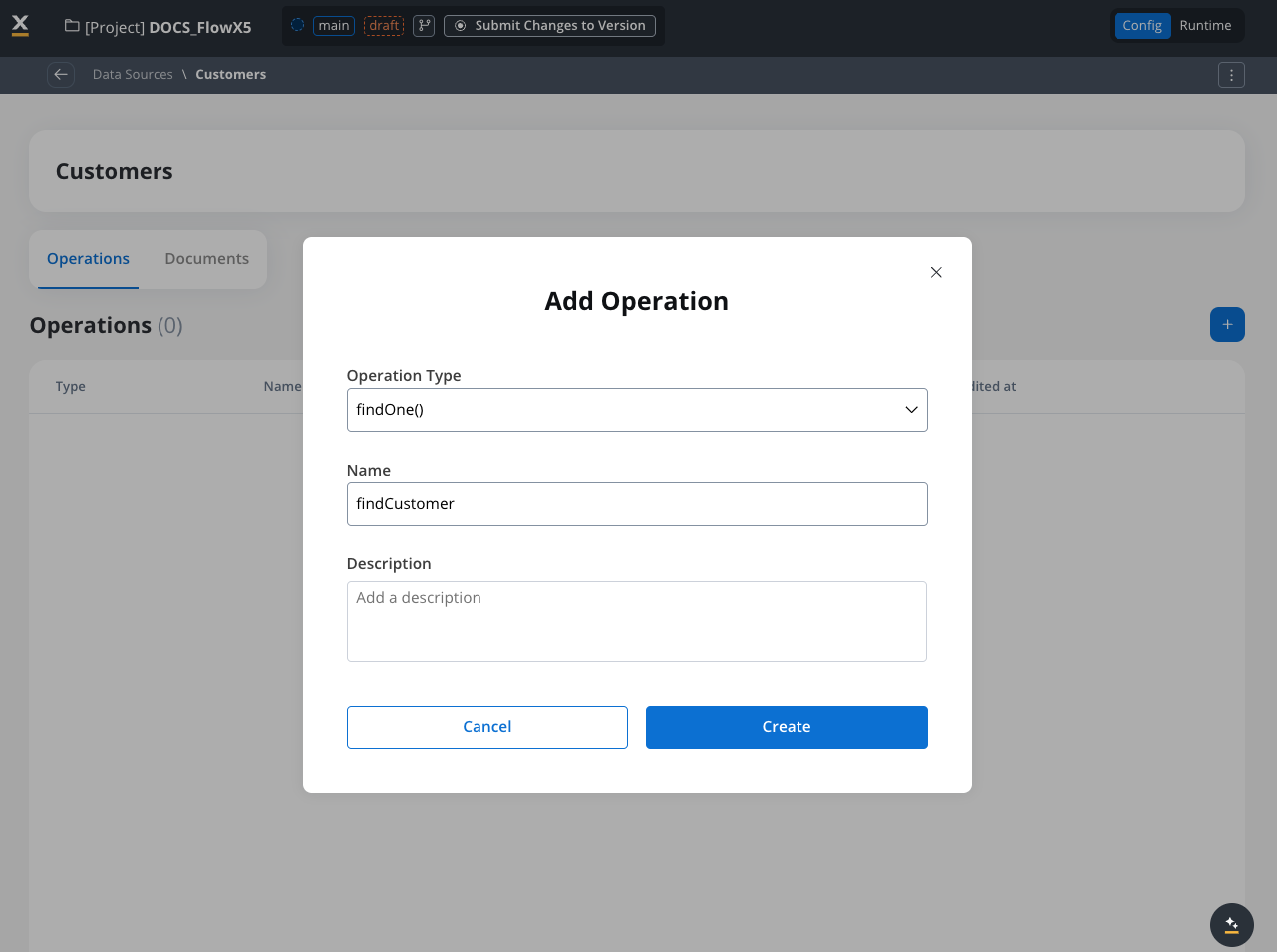
> > [tab] findCustomer
> >
> > **Operation Type**: findOne
> >
> > 
> >
> > **Parameters**:
> >
> > ```json theme={"dark"}
> > {
> > "filter": {
> > "customerId": "${processInstance.customerId}"
> > },
> > "projection": {
> > "firstName": 1,
> > "lastName": 1,
> > "email": 1,
> > "phone": 1,
> > "status": 1,
> > "customerSince": 1,
> > "_id": 0
> > }
> > }
> > ```
> >
> > This operation retrieves a single customer by their customerId, returning only selected fields.
>
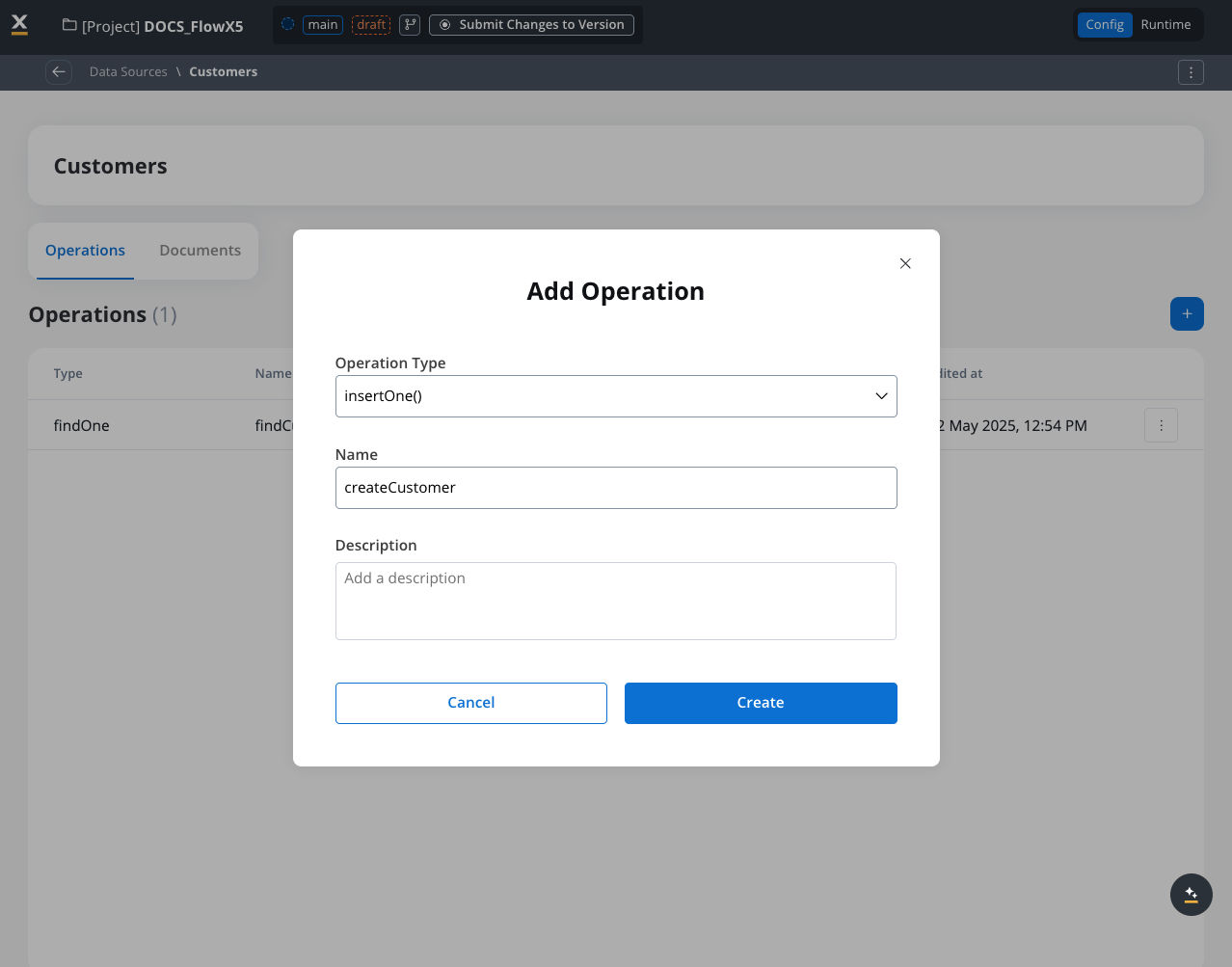
> > [tab] createCustomer
> >
> > **Operation Type**: insertOne
> >
> > 
> >
> > **Parameters**:
> >
> > ```json theme={"dark"}
> > {
> > "document": {
> > "customerId": "${processInstance.customerData.id}",
> > "firstName": "${processInstance.customerData.firstName}",
> > "lastName": "${processInstance.customerData.lastName}",
> > "email": "${processInstance.customerData.email}",
> > "phone": "${processInstance.customerData.phone}",
> > "status": "active",
> > "customerSince": "${processInstance.customerData.registrationDate}",
> > "address": {
> > "street": "${processInstance.customerData.address.street}",
> > "city": "${processInstance.customerData.address.city}",
> > "state": "${processInstance.customerData.address.state}",
> > "zipCode": "${processInstance.customerData.address.zipCode}"
> > }
> > }
> > }
> > ```
> >
> > This operation inserts a new customer document using data from the process instance.
>
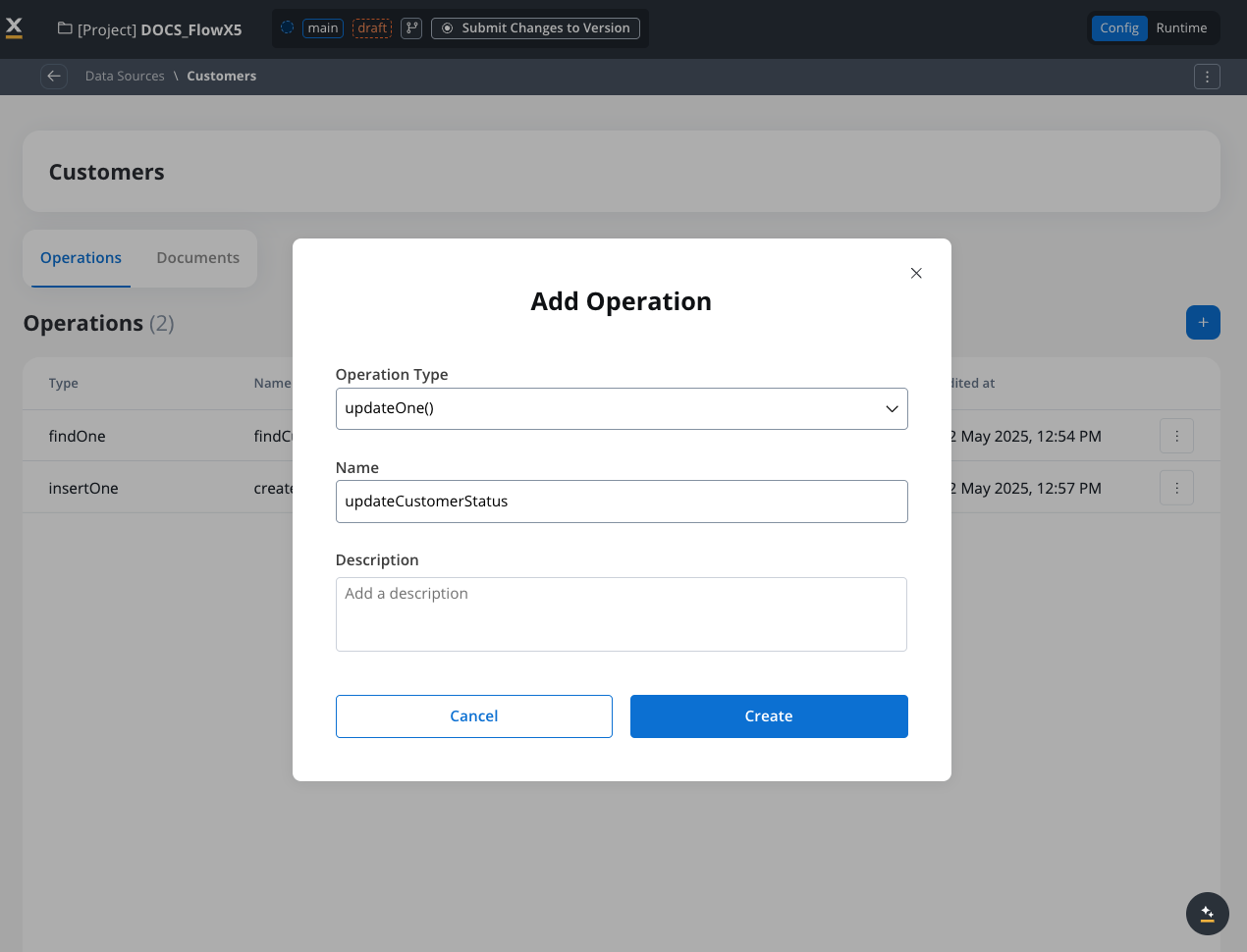
> > [tab] updateCustomerStatus
> >
> > **Operation Type**: updateOne
> >
> > 
> >
> > **Parameters**:
> >
> > ```json theme={"dark"}
> > {
> > "filter": {
> > "customerId": "${processInstance.customerId}"
> > },
> > "update": {
> > "$set": {
> > "status": "${processInstance.newStatus}",
> > "lastUpdated": "${processInstance.currentDate}"
> > }
> > }
> > }
> > ```
> >
> > This operation updates a customer's status and sets the lastUpdated timestamp.
>
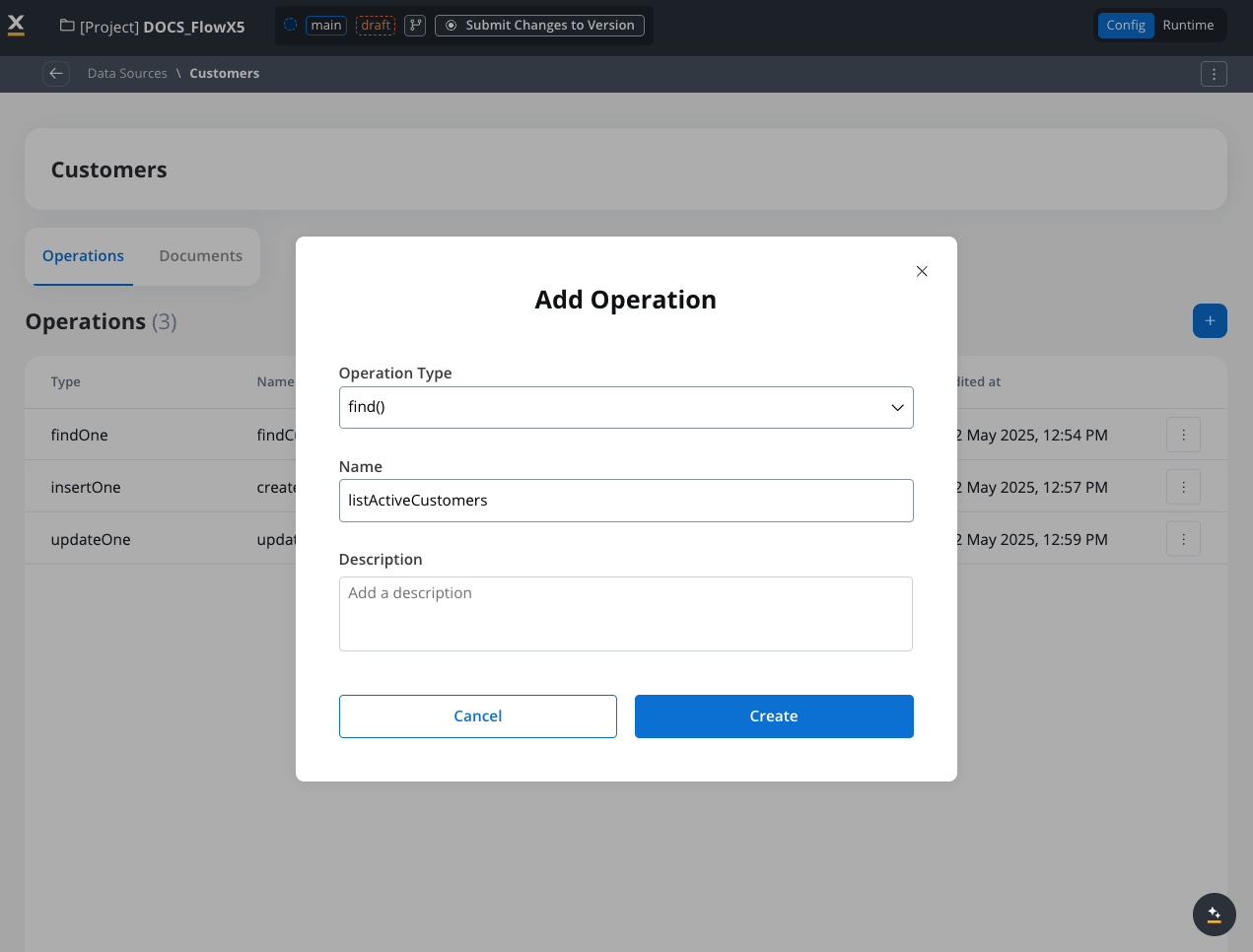
> > [tab] listActiveCustomers
> >
> > **Operation Type**: find()
> >
> > 
> >
> > **Parameters**:
> >
> > ```json theme={"dark"}
> > {
> > "filter": {
> > "status": "active"
> > },
> > "sort": {
> > "customerSince": -1
> > },
> > "limit": 50,
> > "projection": {
> > "customerId": 1,
> > "firstName": 1,
> > "lastName": 1,
> > "email": 1,
> > "status": 1,
> > "_id": 0
> > }
> > }
> > ```
> >
> > This operation retrieves a list of active customers, sorted by registration date (newest first), limited to 50 results.
> [accordion] Customer support process
>
> In this process:
>
> 1. Support agent enters the customer ID
> 2. A Data Source node retrieves the customer details from the Customers collection
> 3. Customer information is displayed to the agent
> 4. After resolving the issue, the support agent updates the customer status
> 5. Another Data Source node updates the customer record in the database
> [accordion] Benefits demonstrated
>
> > [card]
> >
> > This example shows how FlowX Database:
> >
> > * Enables data persistence across multiple processes
> > * Provides a single source of truth for customer data
> > * Makes data retrieval and updates easier
> > * Eliminates the need for external systems to store basic customer information
## Limitations and considerations
**Current limitations of FlowX Database**
> [!WARNING]
>
> Multiple versions of documents are stored in the collection. Upon retrieval, all data that fits the filter conditions will be retrieved regardless of version.
> [!WARNING]
>
> No automatic migration capabilities are available. Any migration will need to be done manually by the DevOps team.
> [!WARNING]
>
> In the initial release, FlowX Database does not support transactions across multiple collections.
> [!WARNING]
>
> Data validation based on a schema is not yet supported.
## Best practices
> [!TIP]
>
> **Design before implementation**: Plan your collections and operations carefully before implementation.
> [!TIP]
>
> **Keep document structure simple**: Avoid deeply nested structures for better performance and easier querying.
> [!TIP]
>
> **Use meaningful names**: Choose clear names for collections and operations.
> [!TIP]
>
> **Limit document size**: Keep individual documents under 16MB for optimal performance.
> [!TIP]
>
> **Test operations thoroughly**: Use the testing functionality to ensure operations work as expected.
> [!TIP]
>
> **Consider indexing**: For large collections, consider indexing frequently queried fields.
> [!TIP]
>
> **Provide default values**: Ensure all data types have default values (e.g., empty string for null, 0 for integers).
## Troubleshooting
> [accordion] Operation fails with filter error
>
> **1. Problem**
>
> Find operation fails with an error related to the filter syntax.
>
> **2. Solution**
>
> Check your filter syntax to ensure it follows MongoDB query syntax. Common issues:
>
> * Missing quotes around string values
> * Incorrect operator syntax (e.g., using > instead of \$gt)
> * Mismatched brackets or braces
> [accordion] Documents not appearing in results
>
> **1. Problem**
>
> Your query doesn't return expected documents.
>
> **2. Solution**
>
> * Verify your filter conditions are correct
> * Check if documents actually exist in the collection
> * Try a more general query to see if documents are returned
> * Check if field names in your filter match exactly with the document structure
> [accordion] Performance issues with large result sets
>
> **1. Problem**
>
> Queries returning large amounts of data are slow.
>
> **2. Solution**
>
> * Add pagination using skip and limit parameters
> * Add more specific filter conditions
> * Use projection to return only needed fields
> * Consider indexing frequently queried fields
> [accordion] Insert operation fails
>
> **1. Problem**
>
> Insert operation fails with an error.
>
> **2. Solution**
>
> * Check that your document JSON is valid
> * Ensure document size is under 16MB
> * Verify all required fields are present
> * Check for any unique constraint violations
## Related features
> [card] [Cookbook: reconcile invoices](https://docs.flowx.ai/6.x/cookbooks/invoice-reconciliation.md)
>
> See FlowX Database in a full build: look up each invoice's purchase order and compare them in a workflow.
> [card] [Data Search](https://docs.flowx.ai/6.x/docs/platform-deep-dive/core-extensions/search-data-service.md)
>
> Learn about the Data Search service for indexing and searching process data.
> [card] [Integration Management](https://docs.flowx.ai/6.x/docs/platform-deep-dive/integrations/integration-designer.md)
>
> Understand how to manage integrations with external systems.
> [card] [Workflow](https://docs.flowx.ai/6.x/docs/platform-deep-dive/integrations/integration-designer.md#workflows)
>
> See how workflows can interact with data sources.
> [card] [Process Data Model](https://docs.flowx.ai/6.x/docs/building-blocks/process/data-model.md)
>
> Learn about data models used within processes.
## Summary
FlowX Database provides a persistence layer that enables you to store and share data across different processes and projects. By using MongoDB's capabilities through the **nosql-db-runner** service, FlowX Database offers:
1. **Flexible data storage** for any structured data
2. **Data sharing** between process instances
3. **Integration** with workflows
4. **Independence** from external systems for basic data persistence
## MongoDB learning resources
To get the most out of FlowX Database, familiarize yourself with MongoDB concepts and operations:
> [card] [MongoDB Manual](https://www.mongodb.com/docs/manual/)
>
> Complete MongoDB documentation covering all operations and concepts
> [card] [Query Tutorial](https://www.mongodb.com/docs/manual/tutorial/query-documents/)
>
> Learn how to construct effective MongoDB queries
> [card] [Update Operations](https://www.mongodb.com/docs/manual/tutorial/update-documents/)
>
> Master document update operations and operators
> [card] [Data Modeling](https://www.mongodb.com/docs/manual/core/data-modeling-introduction/)
>
> Best practices for structuring your data in MongoDB
## FAQs
> [accordion] When should I use Data Search vs. FlowX Database?
>
> FlowX Database does not replace Data Search. Each serves different purposes in the platform.
>
> > [tab] FlowX Database
> >
> > * Acts as a persistent data store
> > * Optimized for CRUD operations
> > * Stores structured business data
> > * Designed for sharing data across processes
> > * Uses MongoDB as the underlying technology (via nosql-db-runner service)
>
> > [tab] Data Search
> >
> > * Provides indexing and search capabilities
> > * Optimized for quick lookups and aggregations
> > * Used for debugging and analytics
> > * Enables searching across process instances
> > * Uses Elasticsearch as the underlying technology
> [accordion] What types of data should I store in FlowX Database?
>
> FlowX Database is designed for **operational data with temporary character**, including:
>
> * **Dashboard data**: Aggregated information for reporting and visualization. For example, create operations that gather information from multiple processes and pull all the data to calculate sums, averages, or other metrics for executive dashboards
>
> * **Cached data**: Frequently accessed information that changes periodically, such as:
> * Daily exchange rates for financial calculations
> * Product catalogs that update weekly
> * Configuration data that multiple processes need to access
>
> * **Internal operational comments**: Information that needs to be shared between users but shouldn't reach business systems, such as:
> * Internal comments in a client's profile for bank tellers
> * Notes and annotations that support decision-making across different process instances
> * Communication logs between team members working on the same case
>
> * **Shared process data**: Information that needs to be accessed across multiple process instances - this solves the key pain point of data sharing between different process instances
>
> * **Temporary operational data**: Working data that supports business processes but isn't part of your permanent records
>
> > [!WARNING]
> >
> > **Important**: FlowX Database should **not become your primary book of records** or system of record. Use it for operational data that supports your processes, not for critical business data that requires long-term retention and governance.
> [accordion] Can I share FlowX Database collections between different projects?
>
> Yes, you can share collections between projects using the library approach:
>
> 1. **Create collections in one project**: Set up your FlowX Database collections in a primary project
> 2. **Include as libraries**: Add these collections as libraries in other projects that need access
> 3. **Maintain consistency**: This approach ensures all projects use the same data structures and operations
> 4. **Future-proof management**: Having centralized collection definitions makes updates and maintenance easier across all projects
>
> This pattern is particularly useful for shared reference data, common configurations, or cross-project operational data.
>
> > [!NOTE]
> >
> > **Collection Ownership**: Each FlowX Database collection has an owner - either the project where it was created or the library that contains it. By default, only processes and workflows within the same project can access a collection. If you need to access the same collection from multiple projects, create it in a library and then include that library in all projects that need access.
> [accordion] Why doesn't FlowX Database support automatic data migration?
>
> FlowX Database intentionally does not provide automatic migration capabilities for several important reasons:
>
> * **Data integrity**: Many documents need to remain in their original format to maintain historical accuracy and compliance requirements
> * **Process dependencies**: Existing processes may depend on specific data structures, and automatic changes could break functionality
> * **Business context**: Data migration often requires business logic and context that automated systems cannot provide
> * **Risk management**: Manual migration allows for proper testing and validation before changes are applied
>
> When you need to modify data structures, plan for manual migration processes with proper testing and validation procedures handled by your DevOps team.
> [accordion] Can I store different types of documents in the same collection?
>
> **No, this is strongly discouraged.** Each collection should contain documents with the same structure and purpose.
>
> **DON'T DO IT** - Mixing different document types in one collection can lead to:
>
> * **Query complexity**: Filtering becomes more complex when documents have different schemas
> * **Performance issues**: Indexes become less effective with mixed document types
> * **Maintenance problems**: Updates and changes become harder to manage
> * **Data consistency**: Harder to ensure data quality and validation
>
> Instead, create separate collections for each document type, even if they seem related. This follows MongoDB best practices and keeps your data organized and manageable.
> [accordion] How does FlowX Database solve cross-process data sharing?
>
> FlowX Database solves the key pain point of **accessing the same data from multiple process instances**:
>
> * **Cross-instance access**: Multiple process instances can read from and write to the same collections simultaneously
> * **Data persistence**: Data remains available even after individual processes complete
> * **Concurrent access**: The underlying MongoDB technology (via nosql-db-runner) handles concurrent read/write operations safely
> * **Shared state**: Enables complex workflows where processes need to coordinate through shared data
>
> This capability enables use cases like multi-step approval processes, shared customer data across different business processes, and coordinated workflows that span multiple process instances - addressing a major limitation of traditional process-scoped data storage.
> [accordion] What's the relationship between FlowX Database and the nosql-db-runner service?
>
> FlowX Database is powered by the **nosql-db-runner** microservice, which provides:
>
> * **Pure MongoDB functionality**: Direct access to MongoDB operations within the FlowX ecosystem
> * **Native integration**: Connection between FlowX workflows and MongoDB operations
> * **Scalable architecture**: A dedicated service that can be scaled independently based on database operation needs
>
> The nosql-db-runner acts as the bridge between FlowX's workflow engine and MongoDB, enabling you to use MongoDB's full capabilities while maintaining FlowX's process orchestration capabilities.
***
## Academy courses
> [card] [Integration Designer course](https://academy.flowx.ai/explore/integration-designer)
>
> Hands-on course covering systems, data sources, workflows, and database integration patterns
> [card] [Data Mappers course](https://academy.flowx.ai/explore/5data-mappers)
>
> Learn data mapping and transformation between process and integration workflows
> [!TIP]
>
> **Academy playground** — explore the [**database**](https://designer-workshop-51x.playground.flowxai.dev/workspace/00000000-0000-0000-0000-000000000001/projects/f69d3816-8746-43bc-ac89-121a28710ee5/config/4082e8f4-2f17-4071-84ea-a0692b34fc83/processes) project for working examples of find, findOne, insert, and update operations.
## Related topics
- [Oracle Database](https://docs.flowx.ai/6.x/docs/platform-deep-dive/integrations/oracle-database.md)
- [PostgreSQL Database](https://docs.flowx.ai/6.x/docs/platform-deep-dive/integrations/postgresql-database.md)
- [FlowX Admin setup](https://docs.flowx.ai/6.x/setup-guides/admin-setup-guide.md)
- [Db2 Database](https://docs.flowx.ai/6.x/docs/platform-deep-dive/integrations/db2-database.md)
This documentation is built and hosted on [Mintlify](https://mintlify.com), a developer documentation platform.