

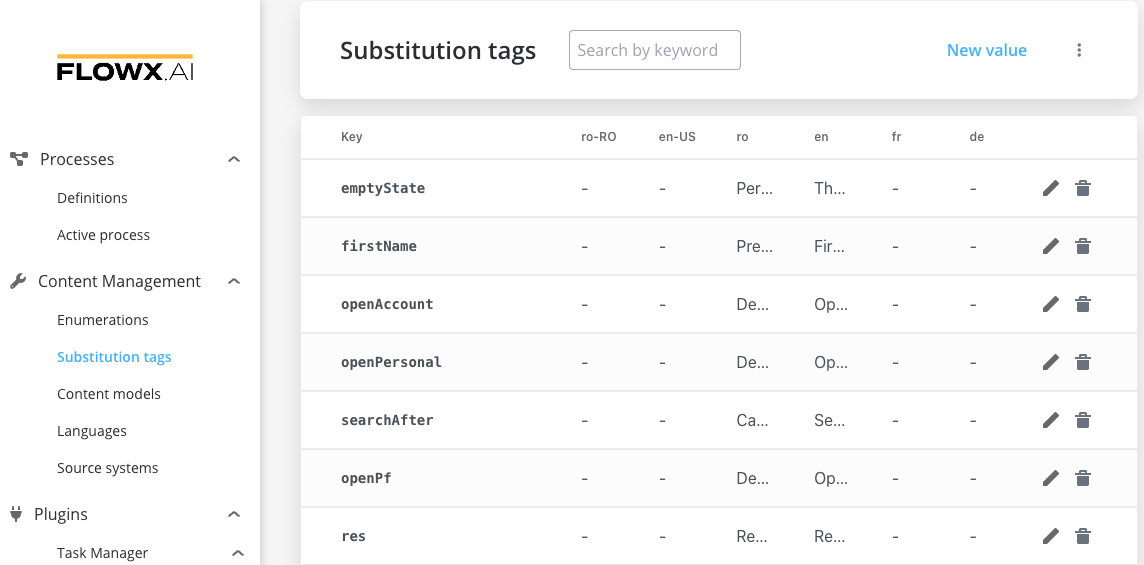
Substitution tags are versioned as part of your project version, not individually. Changes are tracked in the project’s Resources Changed view. To view the change history for a specific substitution tag, right-click it and select View History.
- Key
- Values - strings that are used in the end-user interface, according to the language set for the generated solution
- Edit - button used to edit substitution tags
- Delete - button used to delete substitution tags
- New value - button used to add a new substitution tag
- Breadcrumbs menu - access import, export, and other bulk actions
- Search by - search function used to easily look for a particular substitution tag
Export and import
You can export and import substitution tags to transfer them between projects or environments.Exporting
- Open the breadcrumbs menu on the Substitution Tags list page
- Select Export and choose the format:
- to JSON - exports as a ZIP file containing JSON data
- to CSV - exports as a CSV file
Importing
- Open the breadcrumbs menu on the Substitution Tags list page
- Select Import and choose the format:
- from ZIP - import from a ZIP file exported from another environment
- from CSV - import from a CSV file for bulk operations
- Select the file to import
- If substitution tags with the same identifiers already exist, a Review Resource Identifiers Conflicts modal appears
- Choose a strategy for each conflicting tag (or use Apply to all):
- Keep both - imports the tag as a new copy alongside the existing one
- Replace - overwrites the existing tag with the imported version
- Skip this one - keeps the existing tag unchanged
- Click Continue to complete the import
Importing is only available for work-in-progress (WIP) project versions. You cannot import into a committed version.
Adding new substitution tags
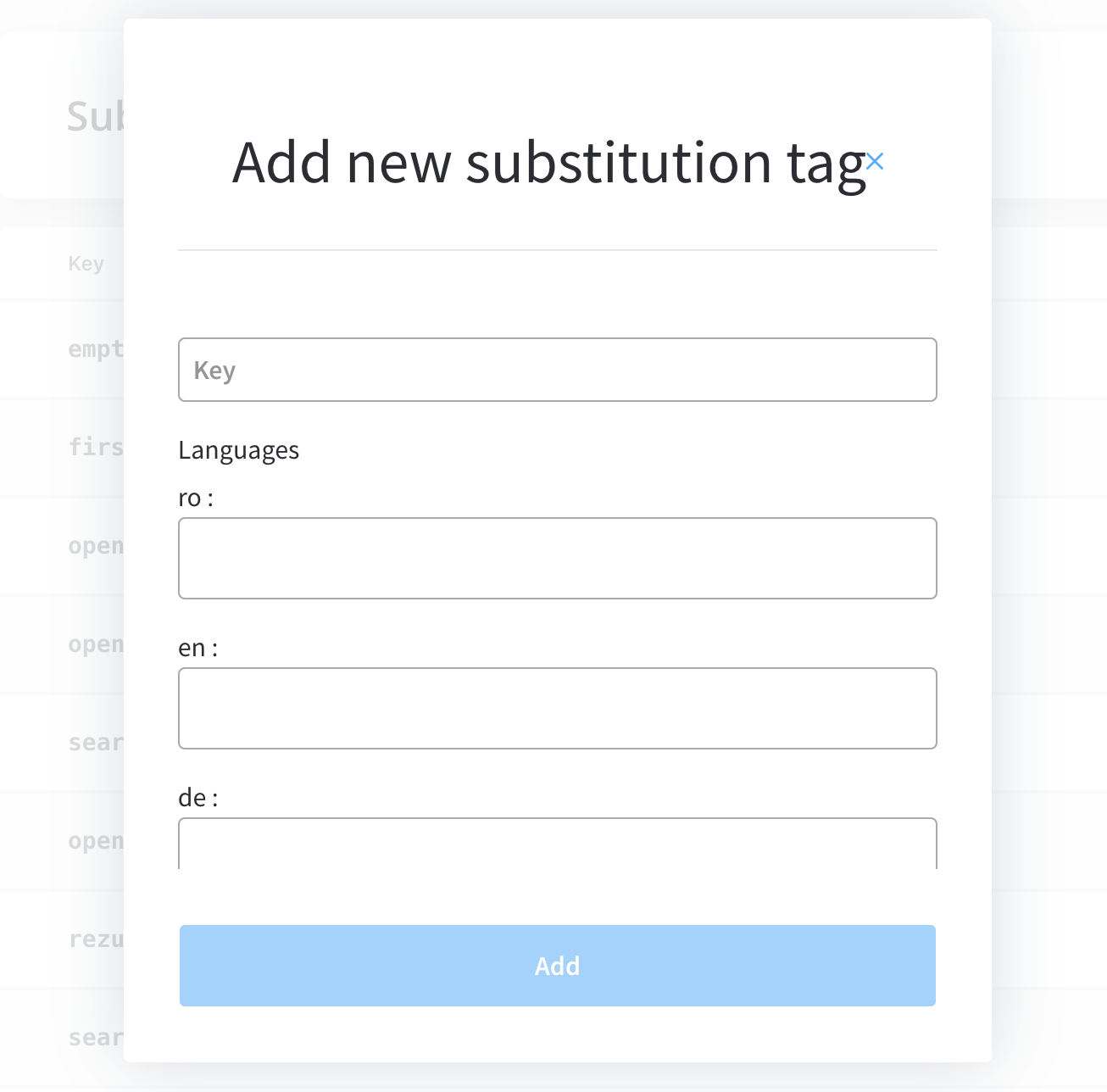
To add a new substitution tag, follow the next steps.- Open your project in FlowX Designer and go to CMS.
- Select Substitution Tags.
- Click New value.
- Fill in the necessary details:
- Key
- Languages
- Click Add after you finish.
When working with substitution tags or other elements that imply values from other languages defined in the CMS, when running a process, the default values extracted will be the ones marked by the default language.
Using substitution tags in a container app
All substitution tags are retrieved by the renderer SDK before the first process starts - fetched for the current language, then cached and reused on subsequent process starts.How do I reference a substitution tag in UI content?
Write${tag:key} in the component’s text, for example ${tag:sys_ok}. At render time, the renderer replaces it with the tag’s value in the user’s language.
Starting with FlowX.AI 6.0, a tag can sit anywhere in the text, next to static text and process data placeholders, and one text can hold several tags. With the tags greeting = Hello and welcome_back = Good to see you again., and firstName = John in the process data:
Tags resolve in the display text of UI components (labels, placeholders, helper texts, titles, messages, and accessibility labels), in validator messages, and in option labels. Type the reference directly in the field.
A reference to a key that doesn’t exist renders as empty text. This includes system (
sys_*) tags: the renderer no longer falls back to built-in English text for them, so keep their values in the project for every language you ship.
Option values are identifiers, not display text: don’t put
${tag:key} in an option value. Existing option values written as @@key keep working, and one whose tag is missing keeps its raw key, so options stay distinct.What happens to @@key references?
@@key is the earlier syntax. It still works when it’s the whole value of a property, so existing content keeps rendering, but use ${tag:key} for new content.
@@ only ever worked as the whole value. Text such as @@greeting ${firstName} renders as empty text, before and after 6.0. Rewrite it as ${tag:greeting} ${firstName}.
Task Manager treats a column value that is exactly ${tag:key} the same as @@key: it shows the tag’s value, and search, filter, and sort work on that value.
What changes in existing apps when you upgrade?
When your environment is upgraded to FlowX.AI 6.0, references whose whole value is@@key are rewritten to ${tag:key} in processes, UI flows, and reusable templates. The text users see doesn’t change.
Rewritten to ${tag:key}:
- Component display properties, in every platform’s settings (generic, web, iOS, and Android)
- Validator messages and parameters
- Option labels, and the default value of components that aren’t choice components
- The analytics parameters of UI actions, including actions embedded from a reusable template, and the URL of External actions
@@key:
- Option values, and the default value of choice components (Select, Multi-select, Radio, Checkbox, Segmented button), because the default must match an option value
- Text that isn’t one whole tag, such as
@@greeting ${firstName}. It renders as empty text either way: rewrite it by hand. - Keys that contain
{,}, or:
How do tags move between 6.0 and 5.9?
- Importing from FlowX.AI 5.9: whole-value
@@keyreferences are converted to${tag:key}. - Exporting for FlowX.AI 5.9: whole-value
${tag:key}references are converted back to@@key. Text that mixes a tag with other content can’t be written with@@, so it is exported as written, and 5.9 doesn’t resolve the tag in it.
React renderer
getSubstitutionTagContent in the Utility APIiOS renderer
getTag(withKey:)Angular renderer
Localization utilities
React Native renderer
Localization utilities
Resolution across library dependencies
At runtime, substitution tags from the project and all its library dependencies are merged into a single set. When the same tag key is defined in more than one place, the value is resolved by proximity to the project:- The project’s own tag always wins over a tag with the same key defined in any library.
- A tag from a direct dependency wins over one from a transitive dependency: the definition closest to the project in the dependency tree is used.
- Two libraries at the same depth: the tag from the library with the most recent build is used.
Task Management localization
Substitution tags are essential for localizing Task Management interfaces. FlowX.AI provides 51 system substitution tags (prefixed withsys_tm_*) specifically for Task Management localization:
- Table columns (title, stage, assignee, status, priority)
- Process states (created, started, finished, etc.)
- Task actions (assign, hold, unassign, execute)
- Bulk operations
- History events and comments
- User selection dialogs
sys_tm_*tags live in the same global substitution-tag catalog as your own tags - the prefix does not create a separate scope. Task Manager screens reference them by default, but any component that accepts a substitution tag resolves a${tag:sys_tm_*}reference the same way.- Resolution happens in the renderer, not on the server: the backend sends the raw
@@sys_tm_*reference (for example, as a task-view column name) and the SDK substitutes the localized value at render time. Asys_tm_*reference with no value in the catalog renders as empty text. - To change the wording or add translations, edit the tag values in the CMS like any other substitution tag - see the localization guide linked below. Some history tags contain runtime placeholders (for example,
${user}in “user created this task”) that the renderer fills in per event.
sys_ prefix is now reserved for system substitution tags: creating a custom substitution tag whose key starts with sys_ is rejected. Editing the values of existing system tags, for wording or translations, works the same as before.
sys_tm_* is one of several system tag families shipped with the platform - others cover chat surfaces (sys_chat_*), accessibility labels (sys_a11y_*), error messages (sys_error_*), and generic UI labels such as sys_close and sys_cancel. All follow the same catalog and resolution rules.Task Management Localization
Complete guide to localizing Task Management with all 51 substitution tags. Table grid localization is automatic.