Contract number:
Customer:
``` A bare `${fullName}` outside a `th:` attribute is printed as is in the generated document. 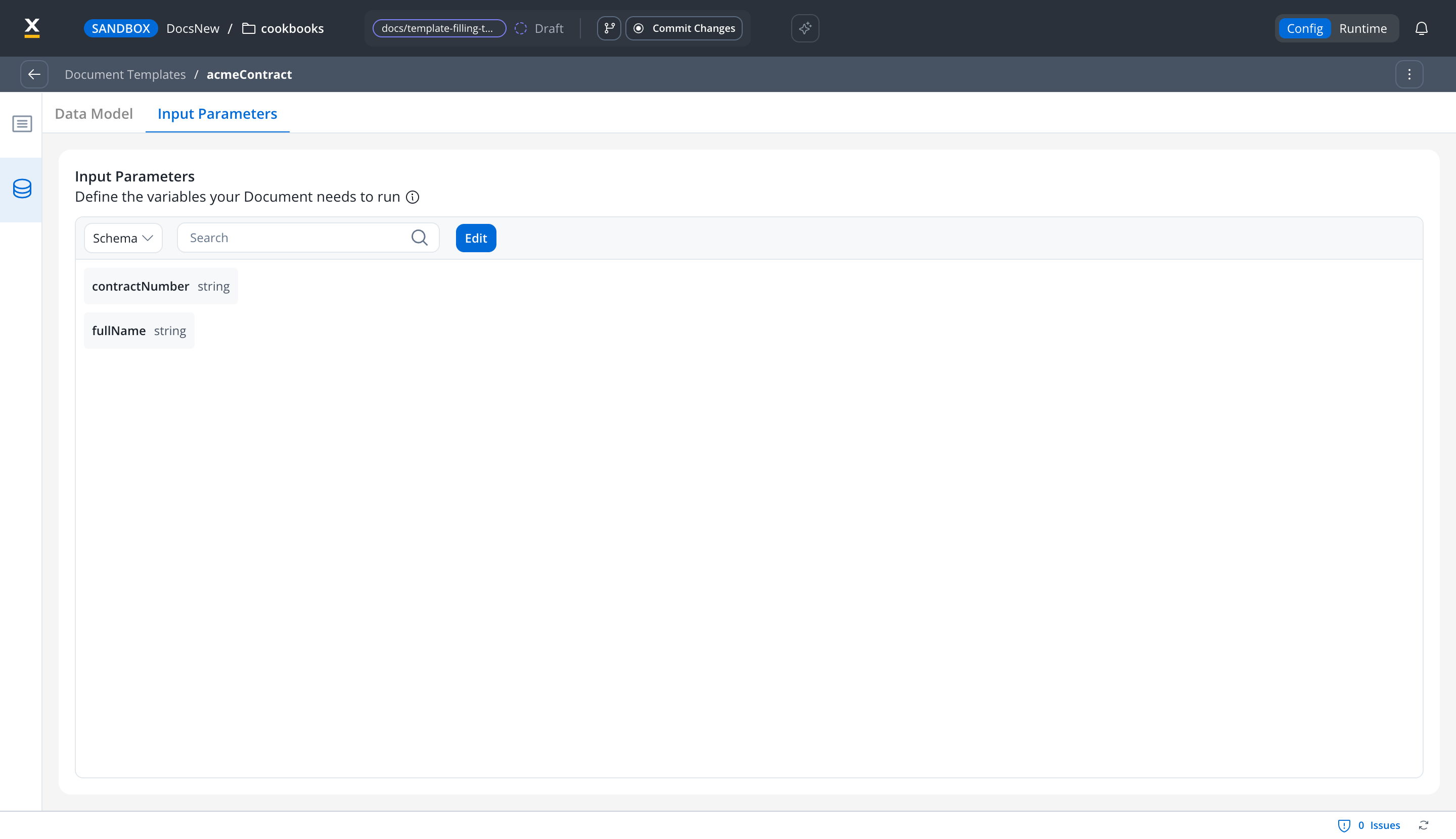 **4. Add and configure the Template Filling node** Add **Template Filling** from the node palette after the Script node and set: * **Template**: the document template to fill, from this project or one of its library dependencies * **Language**: the template language * **Document Tag**: the tag stored with the generated file, for example `ContractTemplate` * **Document format**: **PDF** (default) or **DOCX** * **Response Key**: the key that holds the generated file's details, for example `generatedContract` **Template**, **Language**, **Document Tag**, and **Response Key** are required. **5. Map the workflow attributes onto the template** Under **Input Mapping**, click the wrench icon (**Configure mapping**) on the **Template Input** card. In the **Input Mapping** window: 1. In the workflow panel on the left, click **Define parameters**, select the workflow attributes to map (for example `customer`), and click **Done**. 2. In the field next to each template attribute, type `${customer.` and pick the suggested path, for example `${customer.fullName}`. 3. Optionally, click **Test** to see the mapped output under **Preview results**. 4. Click **Save**. 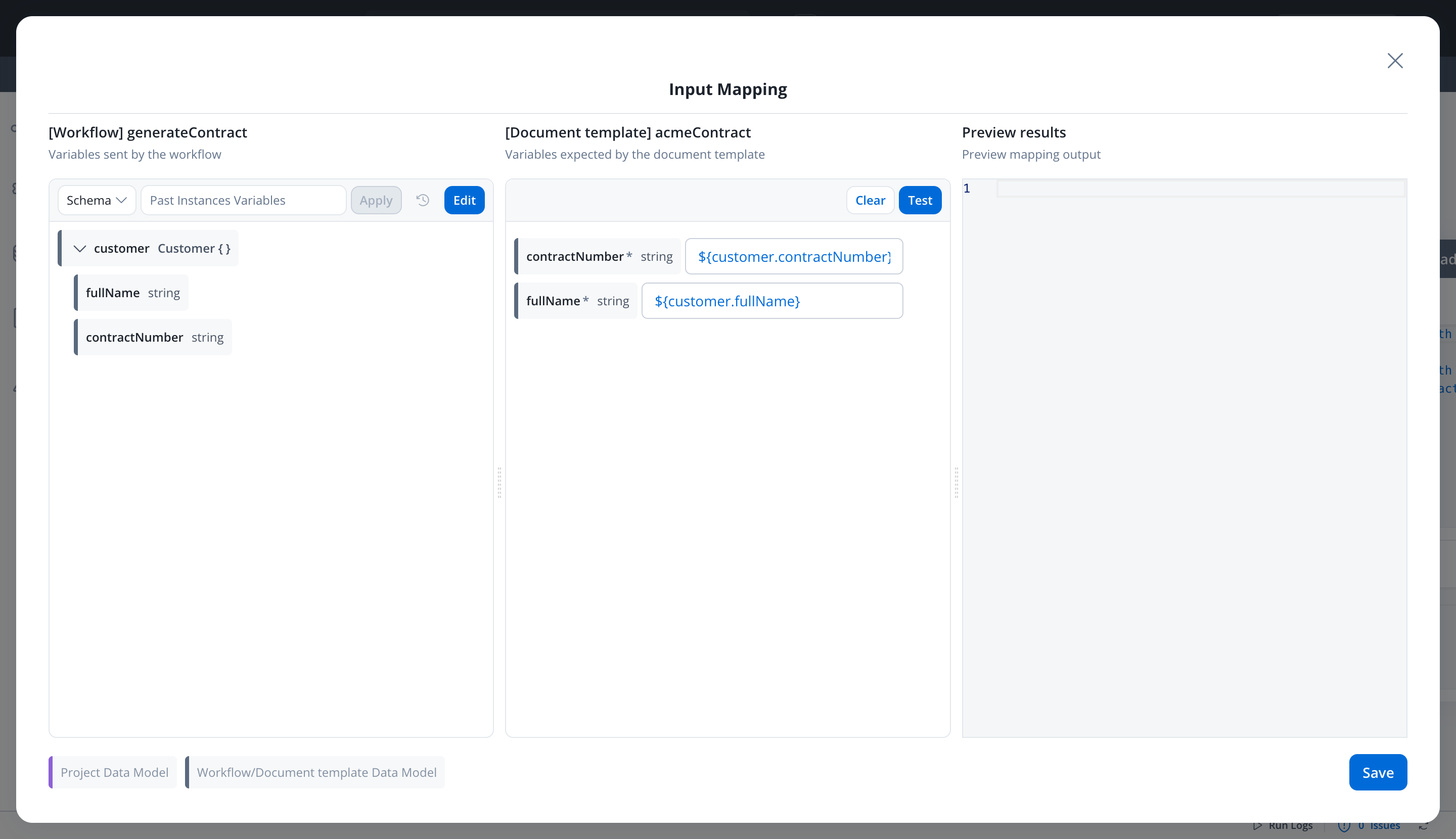 The **Template Input** card then shows how many attributes are mapped, for example **2 mapped**. 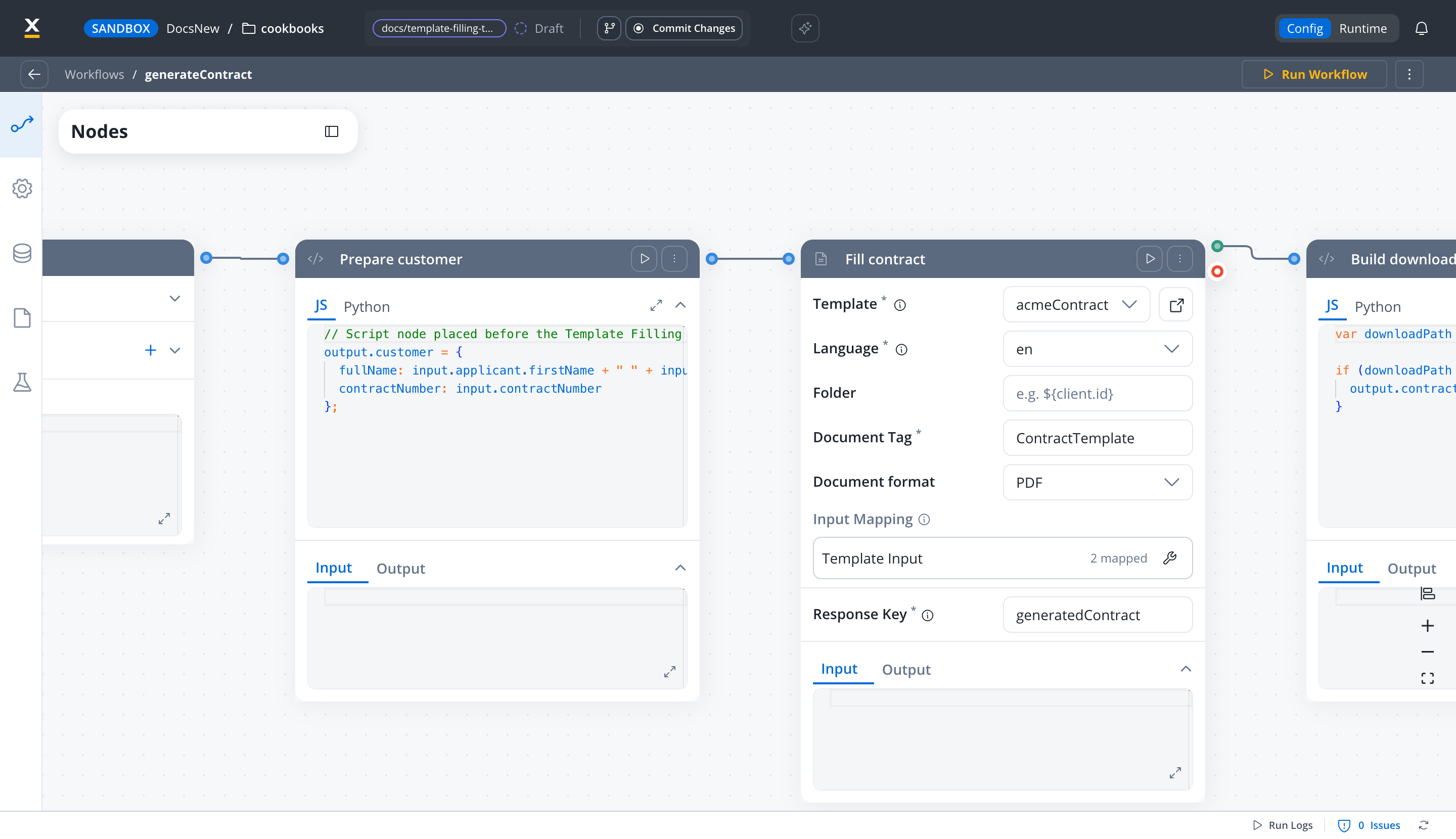 ### Template Filling nodes created before data mapping Data mapping arrived in FlowX.AI 5.13. Template Filling nodes created before then show an **Enable data mapping** toggle: * **On**: the node uses the data mapper (**Configure mapping** on the **Template Input** card). Values typed by hand are ignored. * **Off**: under **Template Variables**, click **Configure Variables** and enter a value for each template variable, either fixed text or an expression such as `${customer.fullName}`. New nodes always use the mapper and don't show the toggle. *** ## Why does the Template Filling node show no mapping options? The mapper needs a selected template whose data model has input attributes. Find the message or symptom you see in the table below: | What you see | Cause | Fix | | - | - | - | | **No template selected** | No template is set in **Template**. | Select a template. | | **This template has no input attributes to map onto** | The template has no data model attributes, or none is selected as an input parameter. | Open the template, add attributes on its **Data Model** tab, and select them on the **Input Parameters** tab. Then reopen the node. | | The same message, followed by **so it can only be filled in by hand**, and the **Enable data mapping** toggle is unavailable | The node predates data mapping, and the template has no input attributes. | Add input parameters to the template as in the previous row, or fill the values by hand under **Template Variables**. | | The mapper opens with **No workflow parameters** on the left | No workflow attributes have been added to the mapper yet. | Click **Define parameters**, select the attributes, and click **Done**. | | The mapper opens, but the Script node's keys aren't listed as sources | The keys aren't declared in the workflow data model. | Add them to the workflow **Data Model**, as in [Declare the keys in the workflow data model](#how-do-i-pass-a-script-node’s-output-into-the-template-filling-node). | | The document is generated, but every template value is empty | Data mapping is on, but no mapping was saved. The node sends empty template data. | Click **Configure mapping**, map the attributes, and save. | | The document shows `${fullName}` literally instead of the value | The template markup uses a bare `${...}` placeholder. | Insert the value with a `th:text` attribute, for example ``. | | The run fails with **Workflow is missing outgoing sequences** | The Template Filling node failed and the document wasn't generated. Only the node's green (success) exit is connected, so the failed run has no path to follow. | Connect the node's red (failure) exit to a branch that handles a failed generation. | For the template data model and the **Input Parameters** tab, see [Managing templates](https://docs.flowx.ai/6.x/docs/platform-deep-dive/core-extensions/content-management/documents-plugin/managing-html-templates.md). *** ## How do I build the download URL for the generated document? All Deployments The download URL is the Documents plugin base URL followed by the `downloadPath` the plugin returns: ``` https://{your-flowx-api-host}/document/ + downloadPath ``` `downloadPath` is relative, for example `internal/files/{fileId}/download`, so the complete URL has the form `https://{your-flowx-api-host}/document/internal/files/{fileId}/download`. The `/document` prefix is the route the Documents plugin is exposed on, as listed in the [ingress service route reference](https://docs.flowx.ai/6.x/setup-guides/ingress-configuration.md). Keep the trailing slash after `document`, because `downloadPath` doesn't start with one. ### What does the Template Filling node return? The node stores the Documents plugin response under its **Response Key**. With the response key `generatedContract`, the workflow data contains: ```json theme={"dark"} { "generatedContract": { "customId": null, "fileId": "{fileId}", "documentType": "ContractTemplate", "documentLabel": "GENERATED_PDF", "filePath": "{storage-object-path}", "downloadPath": "internal/files/{fileId}/download", "originalFileName": "ContractTemplate.pdf", "noOfPages": 1, "error": null } } ``` `customId` holds the **Folder** value, and is `null` when **Folder** is empty. The response also carries `minioPath`, which is deprecated: use `filePath` instead. `filePath` is the object path in file storage, not a URL. If generation fails, the node run fails. The Documents plugin error is returned under the response key, or, when the node can't reach the plugin, the output holds an `error` message and an `errorType`. ### Build the URL in the workflow Add a Script node after the Template Filling node and prefix `downloadPath`: ```javascript theme={"dark"} var downloadPath = input.generatedContract.downloadPath; if (downloadPath != null) { output.contractUrl = "https://{your-flowx-api-host}/document/" + downloadPath; } ``` Return `contractUrl` in the End node output, then map it into process data in the process that started the workflow. For the round trip from process to workflow and back, see [Call an external API from a process](https://docs.flowx.ai/6.x/cookbooks/call-external-api.md). ### Build the URL in a process When you generate documents from a process through the Documents plugin, the reply carries the same `downloadPath`. To show the document in File Preview, you don't need the complete URL: set its **Source** to **Document Plugin path** and point it at `downloadPath`, and the renderer adds the Documents plugin base URL. See [Generating documents](https://docs.flowx.ai/6.x/docs/platform-deep-dive/core-extensions/content-management/documents-plugin/generating-from-html-templates.md) for the request and reply, and [Preview an uploaded file](https://docs.flowx.ai/6.x/docs/building-blocks/ui-designer/ui-component-types/file-preview.md#preview-an-uploaded-file) for the binding. When you need the complete URL in process data, for example for a **URL** source, build it in a business rule as in [Creating and uploading a new document](https://docs.flowx.ai/6.x/docs/platform-deep-dive/core-extensions/content-management/documents-plugin/uploading-a-new-document.md). > [!NOTE] > > The download endpoint requires authentication. The FlowX renderer recognizes a Documents plugin download by the URL ending in `download`, which is how `downloadPath` ends, and fetches it with the user's token. A plain browser link to the same URL has no token and is rejected. For linking to a stored file from a **File download** component, see [File download](https://docs.flowx.ai/6.x/docs/building-blocks/ui-designer/ui-component-types/file-download.md). *** ## Related resources > [card] [Template Filling node](https://docs.flowx.ai/6.x/docs/platform-deep-dive/integrations/integration-designer.md#template-filling-node) > > Every field of the Template Filling node. > [card] [Script node](https://docs.flowx.ai/6.x/docs/platform-deep-dive/integrations/integration-designer.md#script-node) > > How Script node output merges into workflow data. > [card] [Managing templates](https://docs.flowx.ai/6.x/docs/platform-deep-dive/core-extensions/content-management/documents-plugin/managing-html-templates.md) > > Create document templates and define their data model. > [card] [Generating documents](https://docs.flowx.ai/6.x/docs/platform-deep-dive/core-extensions/content-management/documents-plugin/generating-from-html-templates.md) > > Generate documents from a process through the Documents plugin. ## Related topics - [Integration Designer](https://docs.flowx.ai/6.x/docs/platform-deep-dive/integrations/integration-designer.md) - [AI node types](https://docs.flowx.ai/6.x/ai-platform/agent-builder/node-types.md) - [Generating documents](https://docs.flowx.ai/6.x/docs/platform-deep-dive/core-extensions/content-management/documents-plugin/generating-from-html-templates.md) - [FlowX.AI 5.10.0 Release Notes](https://docs.flowx.ai/release-notes/v5.x/v5.10.0-july-2026/v5.10.0-july-2026.md) - [Reusable UI Templates](https://docs.flowx.ai/6.x/docs/building-blocks/reusable-resources/reusable-ui.md) This documentation is built and hosted on [Mintlify](https://mintlify.com), a developer documentation platform.