> ## Documentation Index
> Fetch the complete documentation index at: https://docs.flowx.ai/llms.txt
> Use this file to discover all available pages before exploring further.
# Mortgage advisor chatbot
> Build a Chat Driven conversational AI mortgage advisor with built-in session memory, intent routing, an agentic knowledge base, and a workflow-as-tool for deterministic recommendations.
In this tutorial, you build a **mortgage advisor chatbot** — a Chat Driven conversational AI app that guides users through mortgage product selection. The app detects what the user wants, answers questions from a knowledge base, collects financial data across conversation turns, and generates personalized recommendations by letting an AI agent call a deterministic calculation workflow as a tool.
**What you will build:**
* A **main Chat Driven workflow** that uses an **Intent Classification Agent** to route messages
* **Built-in session memory** that carries financial data across conversation turns
* A **knowledge base Q\&A** handler that answers mortgage questions from uploaded documents, using **agentic search**
* A **data collection** handler that captures the user's financial data from free-text messages
* A **personalized offer** generator where a Custom Agent calls a **workflow-as-tool** for auditable calculations
* A **small talk** responder and **fallback handler**
**AI node types used:** Intent Classification Agent, Custom Agent (with Knowledge Base, workflow tools, and Send as Chat Reply)
**Patterns demonstrated:** [Intent classification](https://docs.flowx.ai/6.x/ai-platform/patterns/intent-classification-routing.md), [Knowledge base RAG](https://docs.flowx.ai/6.x/ai-platform/patterns/knowledge-base-rag.md), [Hybrid AI + business rules](https://docs.flowx.ai/6.x/ai-platform/patterns/hybrid-ai-rules.md), [Session state management](https://docs.flowx.ai/6.x/ai-platform/patterns/session-state-management.md)
***
## Architecture overview
The app is a **Chat Driven workflow** that uses an **Intent Classification Agent** to classify each user message and route it to the right handler. Each intent maps to a separate output branch on the node, eliminating the need for a Condition node. Each handler is a **Custom Agent** with **Send as Chat Reply** enabled, which delivers the response directly to the Chat component and updates session memory.
```mermaid theme={"dark"}
flowchart TD
A["Start
(Chat Session ID, User Message)"] --> B["Intent Classification Agent"]
B -- "Greetings" --> C["answerSmalltalk
(Custom Agent → chat reply)"]
B -- "Offer" --> D["answerPersonalisedOffer
(Custom Agent + tool → chat reply)"]
B -- "KB question" --> E["knowledgeBaseQA
(Custom Agent + agentic KB → chat reply)"]
B -- "Data Input" --> F["handleDataInput
(Custom Agent → chat reply)"]
B -- "If No Intent Matches" --> G["fallback
(Custom Agent → chat reply)"]
C --> H["End Flow"]
D --> H
E --> H
F --> H
G --> H
D -. "calls as tool" .-> T["mortgageOfferCalc
(workflow: PMT · DTI · rank)"]
```
> [!NOTE]
>
> In Chat Driven workflows, responses are delivered to the user by Custom Agent nodes with **Send as Chat Reply** enabled, not by the End Flow node. The End Flow node has no body configuration.
***
## Data model
In a Chat Driven workflow, the Start node provides **Chat Session ID**, **User Message**, and an optional **UI Flow Context** as dedicated input fields — you reference them as `${chatSessionId}`, `${userMessage}`, and `${context}` in downstream nodes. These are not keys you declare in the data model.
### mainChat data model
The mainChat workflow does not need any chat-specific keys in its data model — everything comes from the Start node fields and from the offer tool's output.
### mortgageOfferCalc data contract
The offer calculation workflow is exposed to the offer agent as a tool, so it declares an explicit input and output contract:
| Parameter | Direction | Type | Description |
| - | - | - | - |
| `age` | Input | INTEGER | Client age |
| `income` | Input | INTEGER | Monthly income |
| `loanAmount` | Input | INTEGER | Requested loan amount |
| `loanDuration` | Input | INTEGER | Loan term in years |
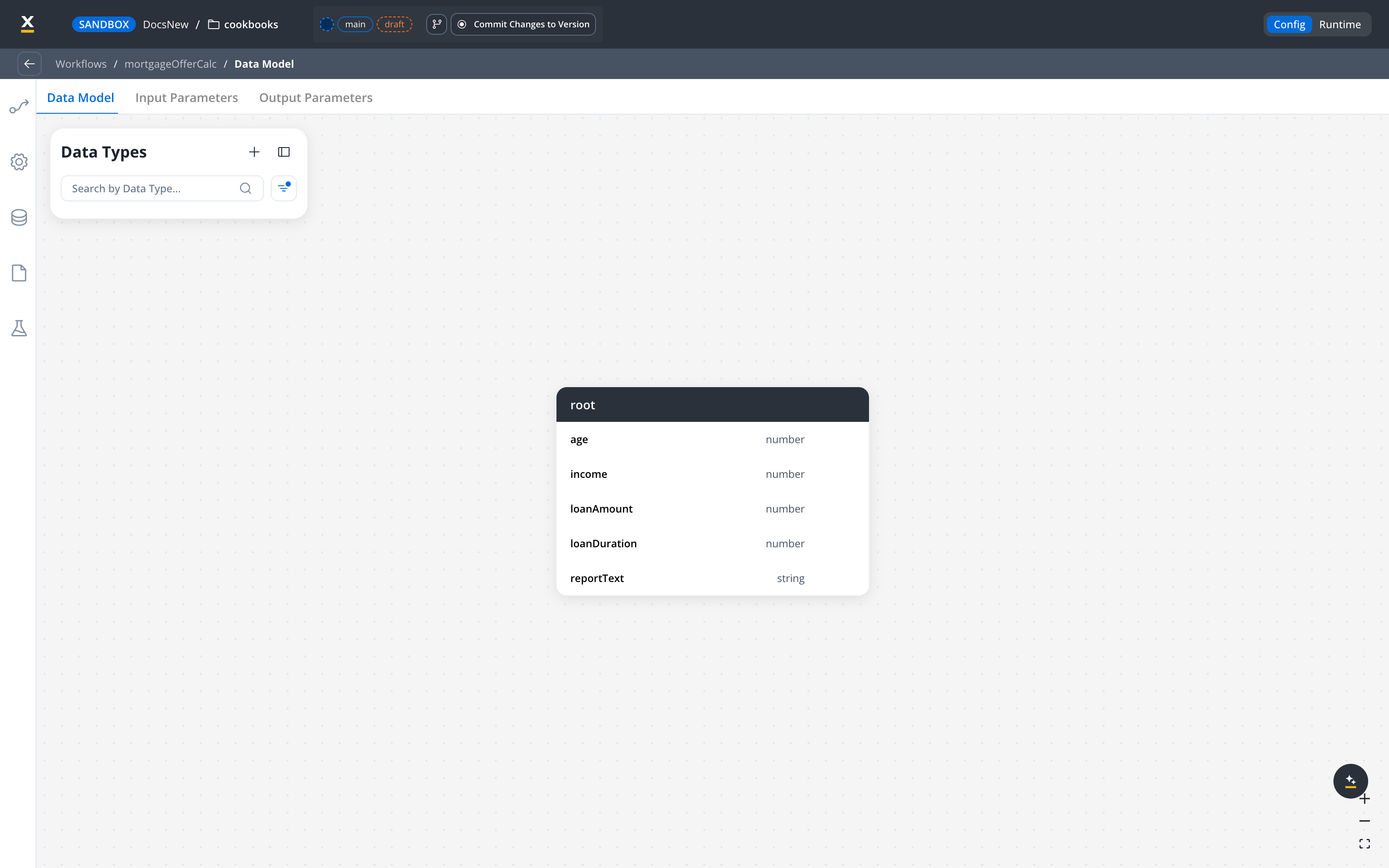
| `reportText` | Output | STRING | Generated recommendation text delivered by the offer agent |
> [!NOTE]
>
> **Built-in session memory**
>
> Chat Driven workflows retrieve the last 30 turns of the conversation automatically and send them to the model in full. Any Custom Agent node with **Use conversation memory** enabled receives this history as LLM context, so data mentioned in earlier turns (age, income, loan amount) is available to later turns without manual persistence. See [Session state management](https://docs.flowx.ai/6.x/ai-platform/patterns/session-state-management.md) and [Chat-driven workflows — Session memory](https://docs.flowx.ai/6.x/ai-platform/chat-driven-workflows.md#session-memory).
***
## Prerequisites
Before starting, make sure you have:
* Access to a FlowX Designer workspace with AI Platform enabled
* Familiarity with creating workflows in FlowX
* A **Knowledge Base** data source with mortgage-related documents uploaded (see [Step 4](#step-4-build-the-knowledge-base-q\&a-handler))
***
## Step 1: Build the main orchestration workflow
Create a workflow named **`mainChat`** and select **Chat Driven** as the workflow type.
> [!WARNING]
>
> The workflow type cannot be changed after creation. Make sure you select **Chat Driven** — Output Focused workflows cannot be used from the Chat component.
### Review the Start node
The Start node is created automatically with three fields:
* **Chat Session ID** — a UUID populated by the Chat component at runtime (referenced as `${chatSessionId}`)
* **User Message** — the user's text message (referenced as `${userMessage}`)
* **UI Flow Context** — optional JSON object passed from the UI (referenced as `${context}`)
No Start body configuration is needed in Chat Driven workflows.
### Add the Intent Classification Agent
From the node palette, drag an **Intent Classification Agent** node onto the canvas and connect it to the **Start** node.
Configure the node:
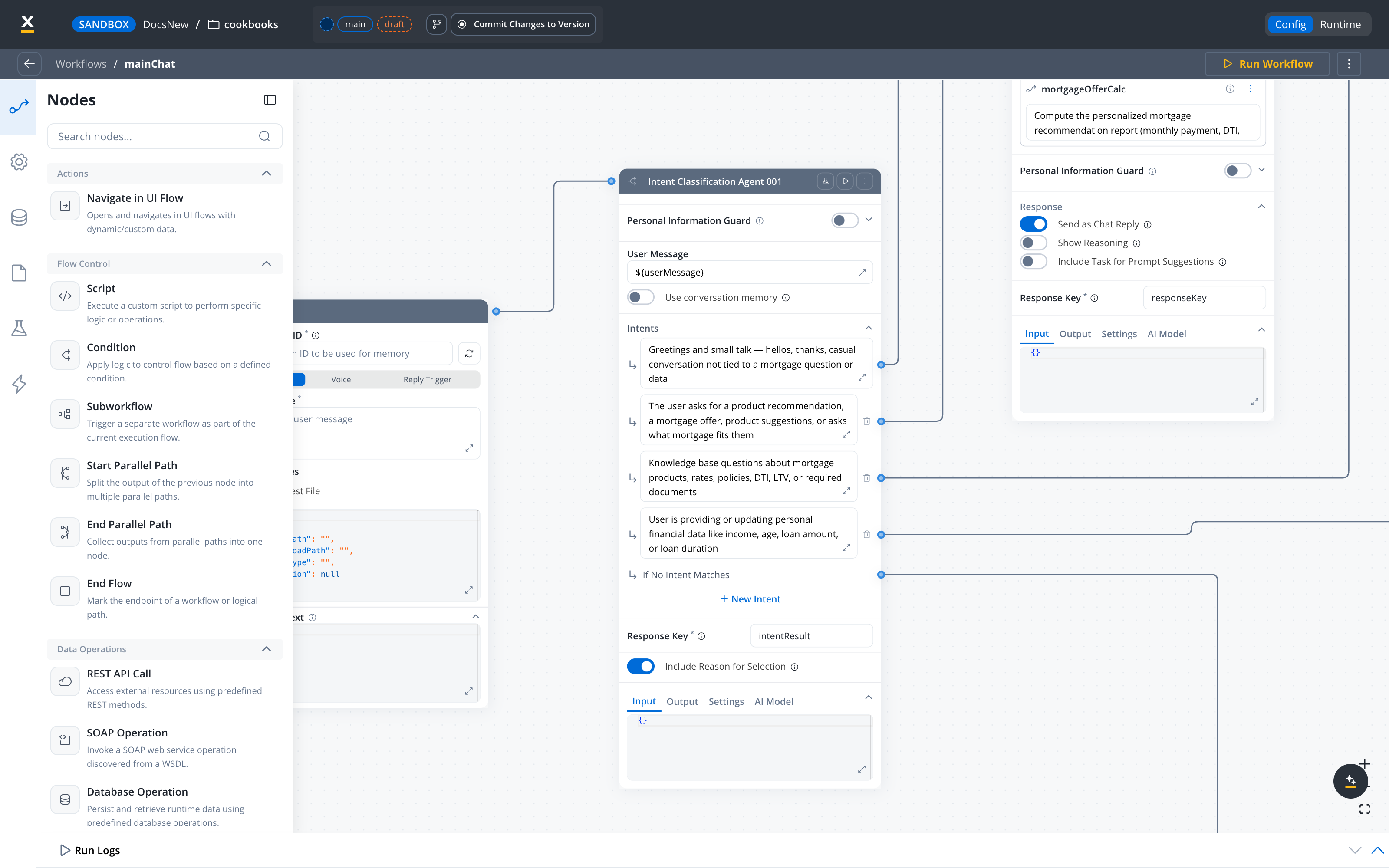
**User Message:** `${userMessage}`
**Intents:** in the **Intents** section, click **+ New Intent** for each row below and type the description into the field ("Describe the intent in a few words"). Each intent is a single description, and the node adds up to 10. The short names in the first column are only how this tutorial refers to each branch.
| Intent | Short name | Description to enter |
| - | - | - |
| 1 | Greetings | Greetings and small talk: hellos, thanks, casual conversation not tied to a mortgage question or data |
| 2 | Offer | The user asks for a product recommendation, a mortgage offer, product suggestions, or asks what mortgage fits them |
| 3 | KB question | Knowledge base questions about mortgage products, rates, policies, DTI, LTV, or required documents |
| 4 | Data Input | User is providing or updating personal financial data like income, age, loan amount, or loan duration |
**Response Key:** `intentResult`
The **If No Intent Matches** branch is a default output port that fires when the classifier can't confidently match any intent. It's always present on the node — you connect it to the fallback handler in Step 2.
> [!TIP]
>
> Toggle **Include Reason for Selection** ON while tuning intent labels. When enabled, the agent returns a rationale explaining why it chose each intent — useful for diagnosing misclassifications. Turn it off once the intents are stable.
> [!NOTE]
>
> Each intent creates a separate output port on the node. When the agent classifies a message, the workflow continues along the matching branch — no Condition node needed. Leave **Use conversation memory** OFF so each message is classified on its own; turn it ON only if you want the classifier to resolve ambiguous follow-ups against prior turns.
### Connect handler nodes to each branch
Add the following nodes and connect each to its corresponding intent output:
| Intent branch | Handler node | Type |
| - | - | - |
| **Intent 1** (Greetings) | `answerSmalltalk` | Custom Agent |
| **Intent 2** (Offer) | `answerPersonalisedOffer` | Custom Agent with a workflow tool |
| **Intent 3** (KB question) | `knowledgeBaseQA` | Custom Agent with Knowledge Base |
| **Intent 4** (Data Input) | `handleDataInput` | Custom Agent |
| **No Match** | `fallback` | Custom Agent |
### Add the End Flow node
Add an **End Flow** node from the palette (it is not auto-created for Chat Driven workflows) and connect every handler branch to it. The End Flow node has no body configuration — responses are already delivered by the Custom Agent nodes upstream.
***
## Step 2: Build the inline handlers
Every handler in this tutorial is a **Custom Agent** placed directly in the `mainChat` workflow.
> [!NOTE]
>
> **Shared Custom Agent settings**
>
> Every Custom Agent in `mainChat` uses the same two defaults:
>
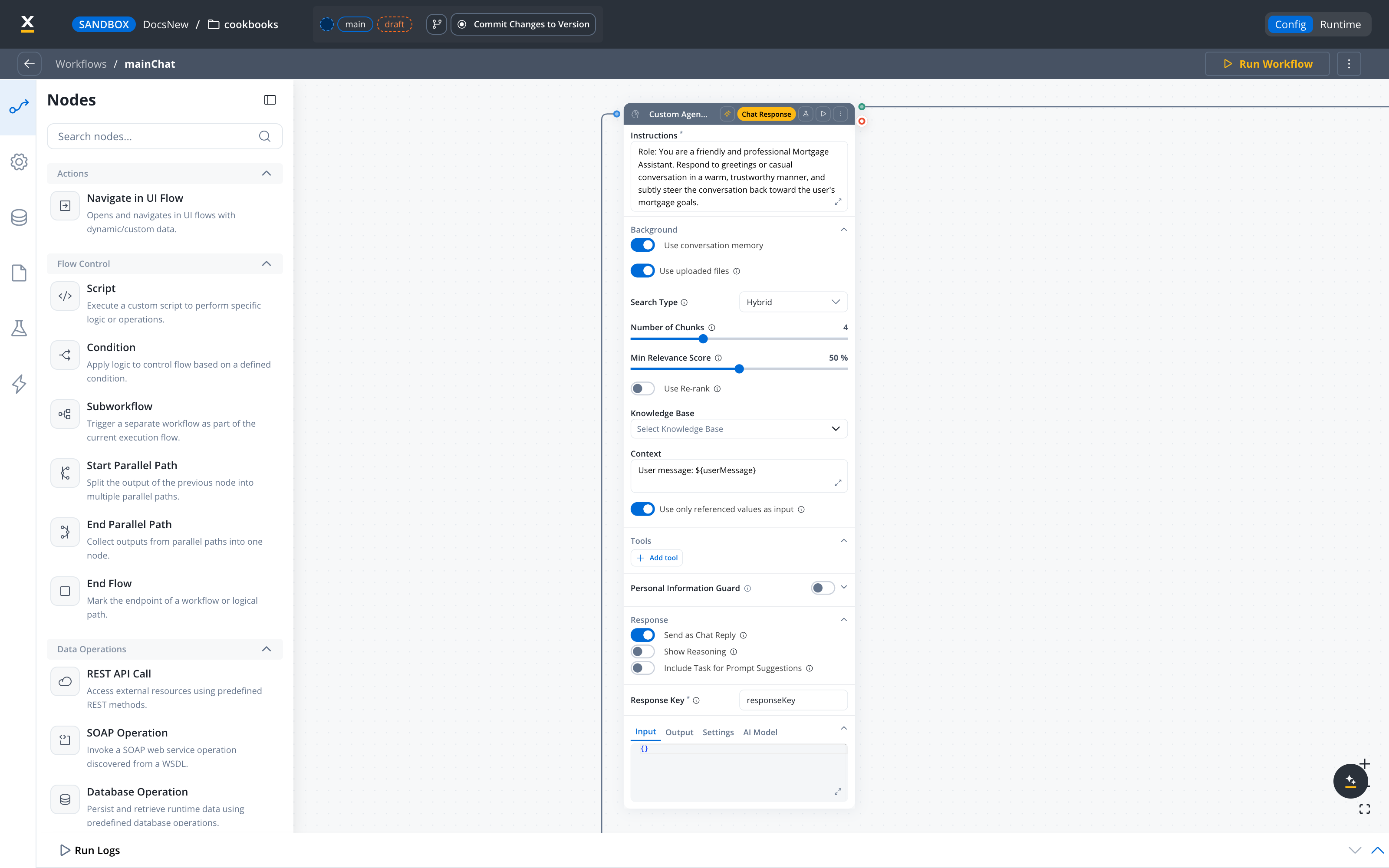
> * **Use only referenced values as input:** ON — keeps each call scoped to the values referenced with `${...}` in the **Context** field and reduces token usage.
> * **Include Task for Prompt Suggestions:** OFF — turn ON only if you want AI-generated follow-up prompts shown in the Chat component.
>
> Only the **Use conversation memory** and **Send as Chat Reply** toggles vary per handler, so those are called out on each node below.
### answerSmalltalk (Custom Agent)
Add a **Custom Agent** node named `answerSmalltalk` to the Greetings branch.
**Instructions:**
```text theme={"dark"}
Role: You are a friendly and professional Mortgage Assistant. Your goal
is to respond to greetings or casual conversation in a warm, trustworthy
manner, and subtly steer the conversation back toward the user's
mortgage goals.
Response Guidelines:
- Tone: Warm, professional, and pragmatic.
- Acknowledge & Validate: Respond directly to what the user said.
- Subtle Pivot: End your response with a gentle nudge toward the
mortgage process, without being pushy.
- Constraint: Keep the response under 3 sentences.
```
**Context:**
```text theme={"dark"}
User message: ${userMessage}
```
> [!NOTE]
>
> The **Instructions** field is static — the node rejects `${...}` references inside it with "This field is static. Use Context for dynamic values." Put dynamic values in the **Context** field, which accepts mixed text and `${...}` keys. This split applies to every AI node in this tutorial.
**Use conversation memory:** ON — lets the agent tie small talk back to anything the user already shared.
**Send as Chat Reply:** ON — sends the response to the Chat component as Markdown.
### fallback (Custom Agent)
Add a **Custom Agent** node named `fallback` on the No Match branch.
**Instructions:**
```text theme={"dark"}
Role: You are a mortgage assistant. The user sent a message that did not
match any known intent (greetings, product offer, knowledge base
question, or data input).
Respond with a short, friendly message that acknowledges you did not
understand and offers three concrete options the user can try: asking a
mortgage question, sharing their financial details, or requesting a
product recommendation. Keep it under 3 sentences.
```
**Context:**
```text theme={"dark"}
User message: ${userMessage}
```
**Use conversation memory:** OFF — the fallback response is self-contained.
**Send as Chat Reply:** ON.
***
## Step 3: Build the data input handler
The Data Input branch is a single **Custom Agent** named `handleDataInput`. With built-in session memory, the agent both captures the financial data from the message and confirms it back — no separate extraction script is needed.
**Instructions:**
```text theme={"dark"}
Role: You are a mortgage assistant that captures the user's financial
data from their message and confirms what you recorded.
From the user's message, identify any of: age, monthly income, loan
amount, loan duration (years). Confirm back exactly the values you
captured in a friendly one-line summary, then ask what else you can help
with. Do not invent numbers — only confirm values actually present in
the conversation. If nothing is extractable, ask them to share their
age, income, loan amount, or loan duration.
```
**Context:**
```text theme={"dark"}
User message: ${userMessage}
```
**Use conversation memory:** ON — so captured values persist across turns and reach the offer agent later.
**Send as Chat Reply:** ON.
> [!TIP]
>
> If you need strictly deterministic extraction (for example, to write values to a database), add a **Script** node before this agent to parse the message, and have the agent confirm the script's result. The single-agent version here is simpler and relies on session memory to carry values forward.
***
## Step 4: Build the knowledge base Q\&A handler
The KB question branch is a single **Custom Agent** node named `knowledgeBaseQA`, placed inline on the Intent 3 branch, with a Knowledge Base attached and **Send as Chat Reply** enabled.
### Set up the Knowledge Base
**1. Create a Knowledge Base data source**
In the **Integration Designer**, add a new **Knowledge Base** data source. Name it something descriptive like `MortgageKnowledgeBase`.
**2. Upload mortgage documents**
On the Knowledge Base's **Stores** tab, upload your own PDF documents covering product sheets (rates, terms, eligibility), FAQ documents (DTI, LTV), and regulatory guides (required documents, application process). This tutorial doesn't ship sample documents. Wait for automatic chunking and vector indexing to complete.
**3. Test queries**
On the **Chunks** tab, type a query like "What is DTI?" or "What documents do I need?" in **Query Input**, then click **Run** to check that relevant chunks come back.
> [!NOTE]
>
> For detailed Knowledge Base setup, see the [Knowledge Base integration](https://docs.flowx.ai/6.x/docs/platform-deep-dive/integrations/knowledge-base-integration/knowledge-base-overview.md) documentation.
### Configure the Custom Agent node
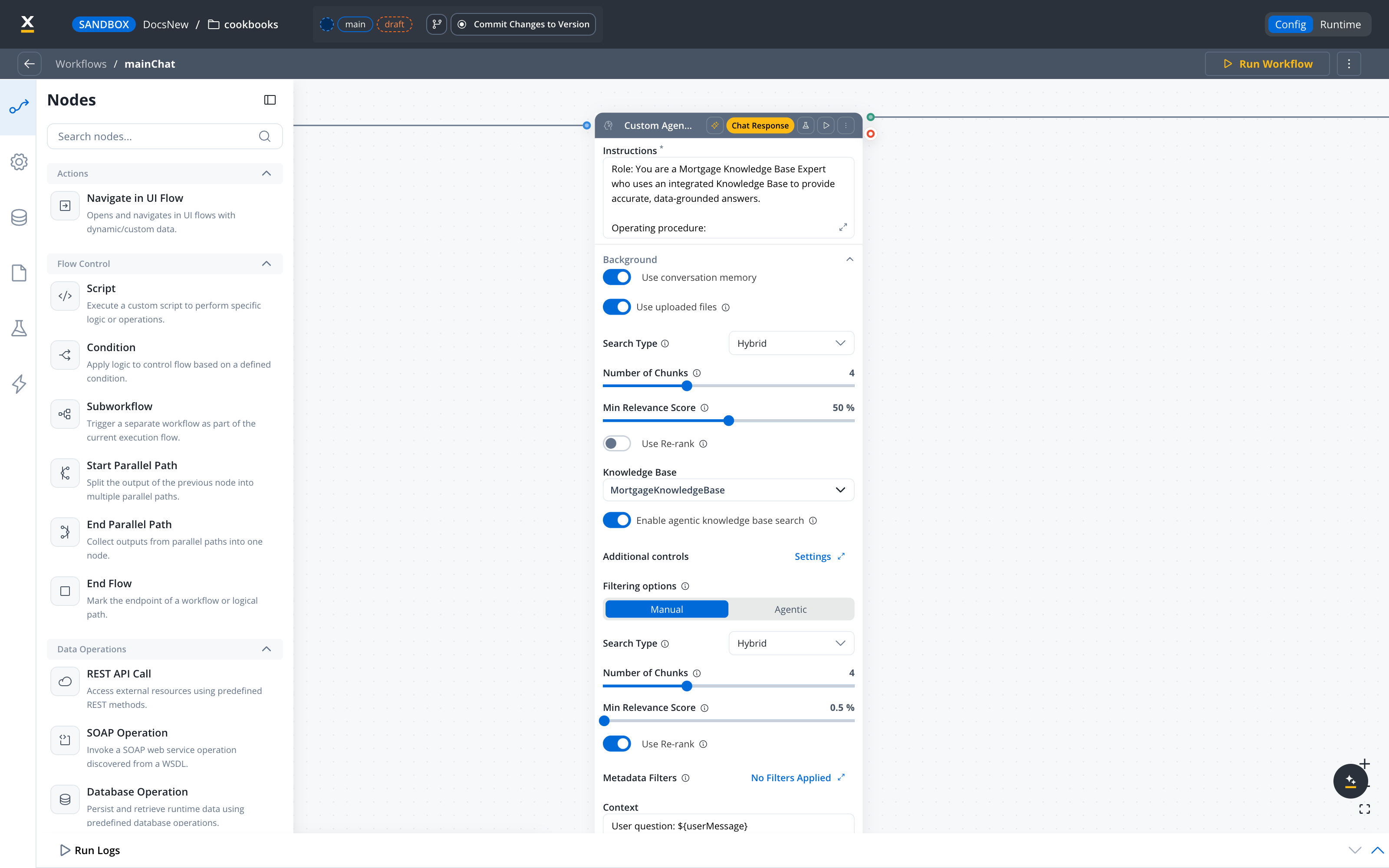
Add a **Custom Agent** node named `knowledgeBaseQA` on the Intent 3 branch. In the node's **Background** section, select your `MortgageKnowledgeBase` data source from the **Knowledge Base** dropdown. The knowledge base options below appear once a knowledge base is selected.
Turn on **Enable agentic knowledge base search**. Instead of a single lookup, the agent issues several sub-queries per turn and merges the results, which improves recall on multi-part questions. To tune it, click **Settings** next to **Additional controls** and set **Max attempts** and **Subqueries per attempt**.
Under **Filtering options**, keep **Manual** unless you want the model to write its own metadata filter at run time (**Agentic**).
**Retrieval parameters:**
| Parameter | Value |
| - | - |
| **Search Type** | `Hybrid` |
| **Number of Chunks** | `4` |
| **Use Re-rank** | ON |
| **Enable agentic knowledge base search** | ON |
| **Filtering options** | Manual (no filters) |
> [!NOTE]
>
> Under **Hybrid** search the **Min Relevance Score** slider does not filter results — a hybrid score is a rank, not a similarity. To gate strictly on relevance, use **Semantic** search, or bound retrieval with **Number of Chunks** and re-rank.
**Instructions:**
```text theme={"dark"}
Role: You are a Mortgage Knowledge Base Expert who uses an integrated
Knowledge Base to provide accurate, data-grounded answers.
Operating Procedure:
1. Query Analysis: Identify key terms from the user's question.
2. Knowledge Base Search: Find the most relevant document fragments.
3. Response Synthesis: Formulate a clear answer using ONLY the
information found.
Strict Rules:
- If the information is not in the Knowledge Base, respond:
"Our current knowledge base does not contain specific information
about this topic."
- Reference the source document when possible.
- Never fabricate rates, terms, or requirements.
- Keep responses concise (under 200 words).
```
**Context:**
```text theme={"dark"}
User question: ${userMessage}
```
**Use conversation memory:** ON — so the agent can resolve follow-ups like "what about the second one?" against the previous answer.
**Send as Chat Reply:** ON.
> [!WARNING]
>
> Without explicit grounding rules in the prompt, the LLM may fall back to its general training data and produce inaccurate mortgage information. Always include the "ONLY from knowledge base" instruction.
For more details on this pattern, see [Knowledge base RAG](https://docs.flowx.ai/6.x/ai-platform/patterns/knowledge-base-rag.md).
***
## Step 5: Build the personalized offer handler
This handler implements the [Hybrid AI + business rules](https://docs.flowx.ai/6.x/ai-platform/patterns/hybrid-ai-rules.md) pattern. In 5.11 you build it as a single **Custom Agent** that calls a deterministic calculation workflow as a **tool**: the agent handles the natural-language work (extract the client's numbers, present the result), while the tool handles the auditable math. This replaces the older pattern of an Output Focused subworkflow followed by a separate terminal agent.
### Step 5a: Build the mortgageOfferCalc workflow
Create a workflow named **`mortgageOfferCalc`** with **Output Focused** as the workflow type. In its **Description**, say what the workflow computes, for example `Deterministic mortgage offer calculator: monthly payment, DTI, maximum eligible loan, and ranked products.` The agent reads this description when it decides whether to call the tool.
Open the workflow's **Data Model** and give it an input and output contract so it can be exposed as a tool:
* **Input Parameters** tab: `age`, `income`, `loanAmount`, `loanDuration` (all INTEGER)
* **Output Parameters** tab: `reportText` (STRING)
> [!WARNING]
>
> The output contract is a promise the workflow has to keep. A node writes its result under its own **Response Key**, and only the parameters declared in the output contract are returned to the caller — so if the two do not line up, the workflow returns `SUCCESS` with every field `null` and the agent has no way to tell that apart from a genuinely empty result.
>
> The Script node below writes to `reportText`, which is the declared output parameter, so nothing extra is needed. An **AI node** is the case to watch: its Response Key holds a result object, so add a Script node after it that copies the values into the declared output parameters.
Add a single **Script** node (JavaScript) between Start and End Flow. It computes the monthly payment, debt-to-income ratio, and maximum eligible loan, scores the products, and writes the recommendation to `reportText`.
```javascript theme={"dark"}
var income = parseFloat(input.income) || 0;
var loanAmount = parseFloat(input.loanAmount) || 0;
var loanDuration = parseInt(input.loanDuration) || 20;
var termMonths = loanDuration * 12;
function computePMT(principal, annualRate, months) {
var r = annualRate / 12;
if (r === 0) return principal / months;
return principal * (r * Math.pow(1 + r, months)) /
(Math.pow(1 + r, months) - 1);
}
function pct(rate) { return Math.round(rate * 10000) / 100; }
var estimatedRate = 0.045;
var monthlyPayment = income > 0
? computePMT(loanAmount, estimatedRate, termMonths) : 0;
var dti = income > 0 ? monthlyPayment / income : 1;
var maxDtiShare = 0.43;
var allowablePayment = maxDtiShare * income;
var maxLoan = allowablePayment > 0
? allowablePayment * ((Math.pow(1 + estimatedRate / 12, termMonths) - 1) /
(estimatedRate / 12 * Math.pow(1 + estimatedRate / 12, termMonths)))
: 0;
var catalog = [
{id: "fixed30", bankName: "Alpha Bank", rate: 0.045, allowsPrepayment: true, flexibleTerm: false, term: 30},
{id: "variable20", bankName: "Beta Bank", rate: 0.035, allowsPrepayment: false, flexibleTerm: true, term: 20},
{id: "fixed15", bankName: "Gamma Bank", rate: 0.04, allowsPrepayment: true, flexibleTerm: true, term: 15}
];
var scored = [];
for (var i = 0; i < catalog.length; i++) {
var d = catalog[i];
var rateScore = 1 - (d.rate / 0.10);
var flexScore = (d.allowsPrepayment ? 0.5 : 0) + (d.flexibleTerm ? 0.5 : 0);
var totalScore = (rateScore * 0.5) + (0.8 * 0.3) + (flexScore * 0.2);
scored.push({productId: d.id, bankName: d.bankName, rate: d.rate, term: d.term,
totalScore: Math.round(totalScore * 1000) / 1000});
}
scored.sort(function(a, b) { return b.totalScore - a.totalScore; });
var eligible = dti <= maxDtiShare;
var report = "Mortgage Recommendation Report. ";
report += "Estimated monthly payment: " + (Math.round(monthlyPayment * 100) / 100) + " EUR. ";
report += "Debt-to-income ratio: " + pct(dti).toFixed(1) + "%. ";
report += "Maximum eligible loan: " + Math.round(maxLoan) + " EUR. ";
report += "Status: " + (eligible ? "Eligible" : "May need adjustment") + ". ";
report += "Top Recommendations: ";
for (var k = 0; k < scored.length; k++) {
var p = scored[k];
report += (k + 1) + ". " + p.bankName + " (" + p.productId + ") - "
+ pct(p.rate) + "% for " + p.term + " years. Score: " + p.totalScore + ". ";
}
report += "Next Steps: Compare the options above, gather required documents, "
+ "and schedule a consultation with your preferred bank.";
output.reportText = report;
```
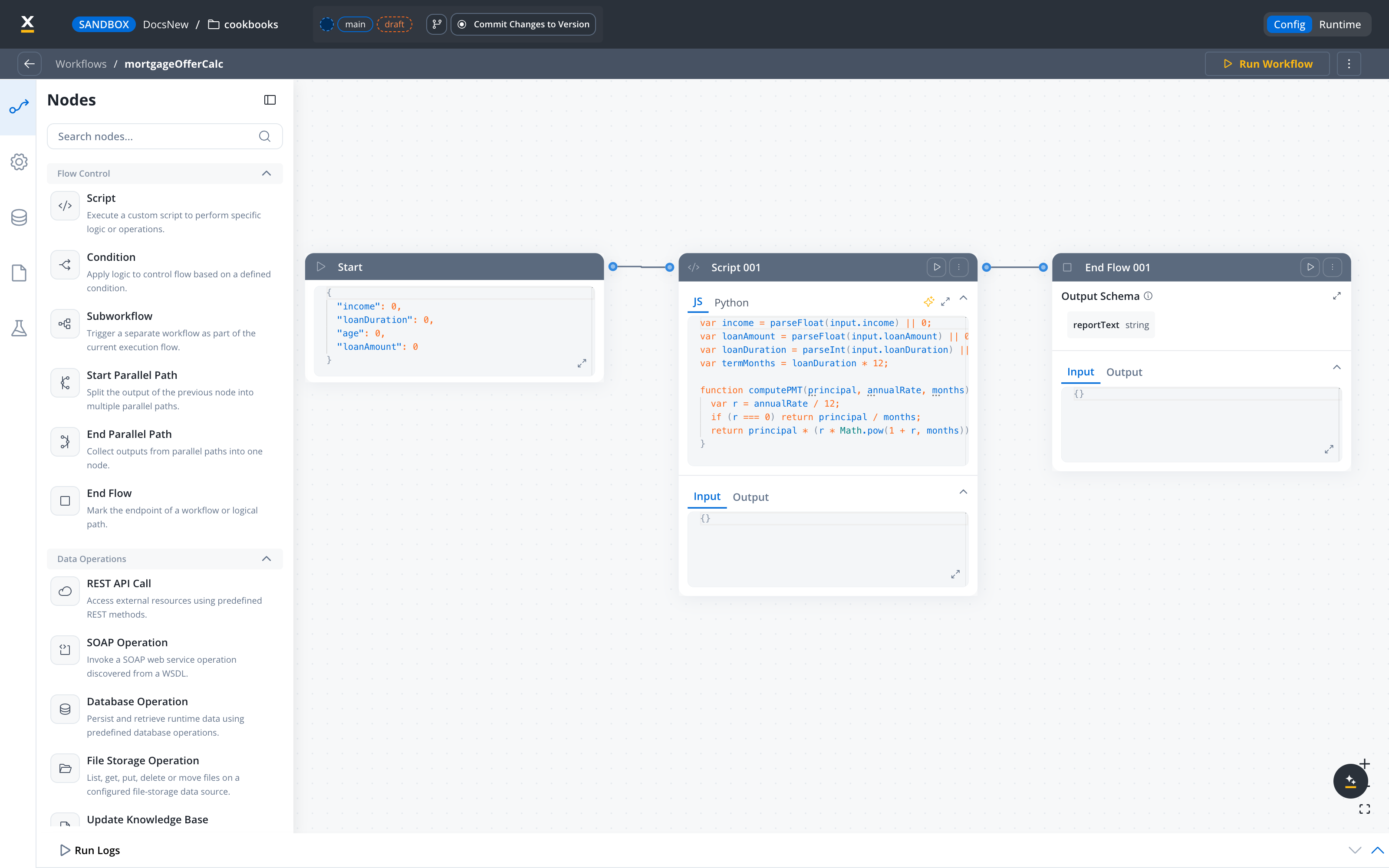
> [!NOTE]
>
> Keeping the numbers in a Script node rather than an LLM keeps them deterministic and auditable. For any recommendation, you can trace exactly which formula produced each figure.
### Step 5b: Attach the workflow as a tool on the offer agent
Switch back to `mainChat`. On the Offer branch, add a **Custom Agent** node named `answerPersonalisedOffer`. Under **Tools**, click **Add tool** → **Workflow** and select `mortgageOfferCalc`. Only workflows with input parameters appear in the list.
In the tool's **When should the agent use this workflow?** field, name the arguments and add a stop condition:
```text theme={"dark"}
Compute the personalized mortgage recommendation report (monthly payment,
DTI, max eligible loan, ranked products). Pass all four integer arguments:
age, income (monthly), loanAmount, and loanDuration (years). Call at most
once per turn; a SUCCESS with a non-empty reportText completes the lookup,
so do not call it again after it returns.
```
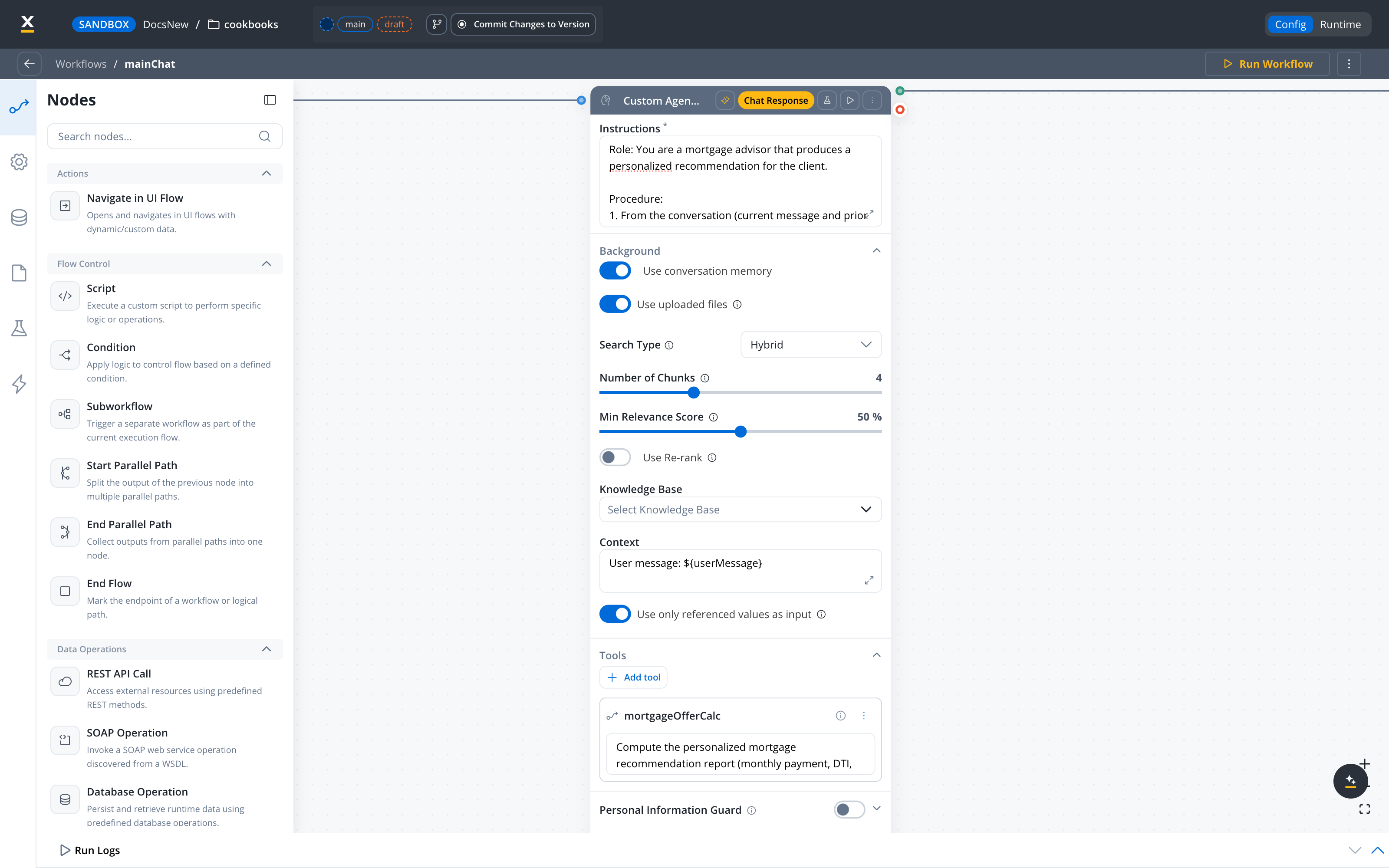
**Instructions:**
```text theme={"dark"}
Role: You are a mortgage advisor that produces a personalized
recommendation for the client.
Procedure:
1. From the conversation (current message and prior turns), determine the
client's age, monthly income, loan amount, and loan duration in years.
2. Call the mortgageOfferCalc tool with those four integers to compute the
recommendation report. Never invent the numbers yourself — always use
the tool. Call it at most once per turn; a successful result completes
the lookup.
3. Present the tool's report to the client in a warm, professional tone,
preserving every number and product name exactly. Close by inviting
follow-up questions.
If any of the four values is missing and cannot be inferred from the
conversation, ask the client for the missing value instead of calling
the tool.
```
**Context:**
```text theme={"dark"}
User message: ${userMessage}
```
**Use conversation memory:** ON — so the agent can reuse age, income, loan amount, and duration shared in earlier turns.
**Send as Chat Reply:** ON.
Connect this Custom Agent to the **End Flow** node on `mainChat`.
> [!NOTE]
>
> A workflow can be attached as a tool only if it declares input parameters, and it needs output parameters to return anything useful (Step 5a). The agent sees the workflow's **Description** plus the **When should the agent use this workflow?** text as the tool description, so name the arguments it needs and add a stop condition there. An agent node is capped at 10 workflow-tool calls per run — past the cap the call is not dispatched and the agent is told to answer with what it already has, so the prompt is still what stops a model from re-calling a tool that already succeeded.
***
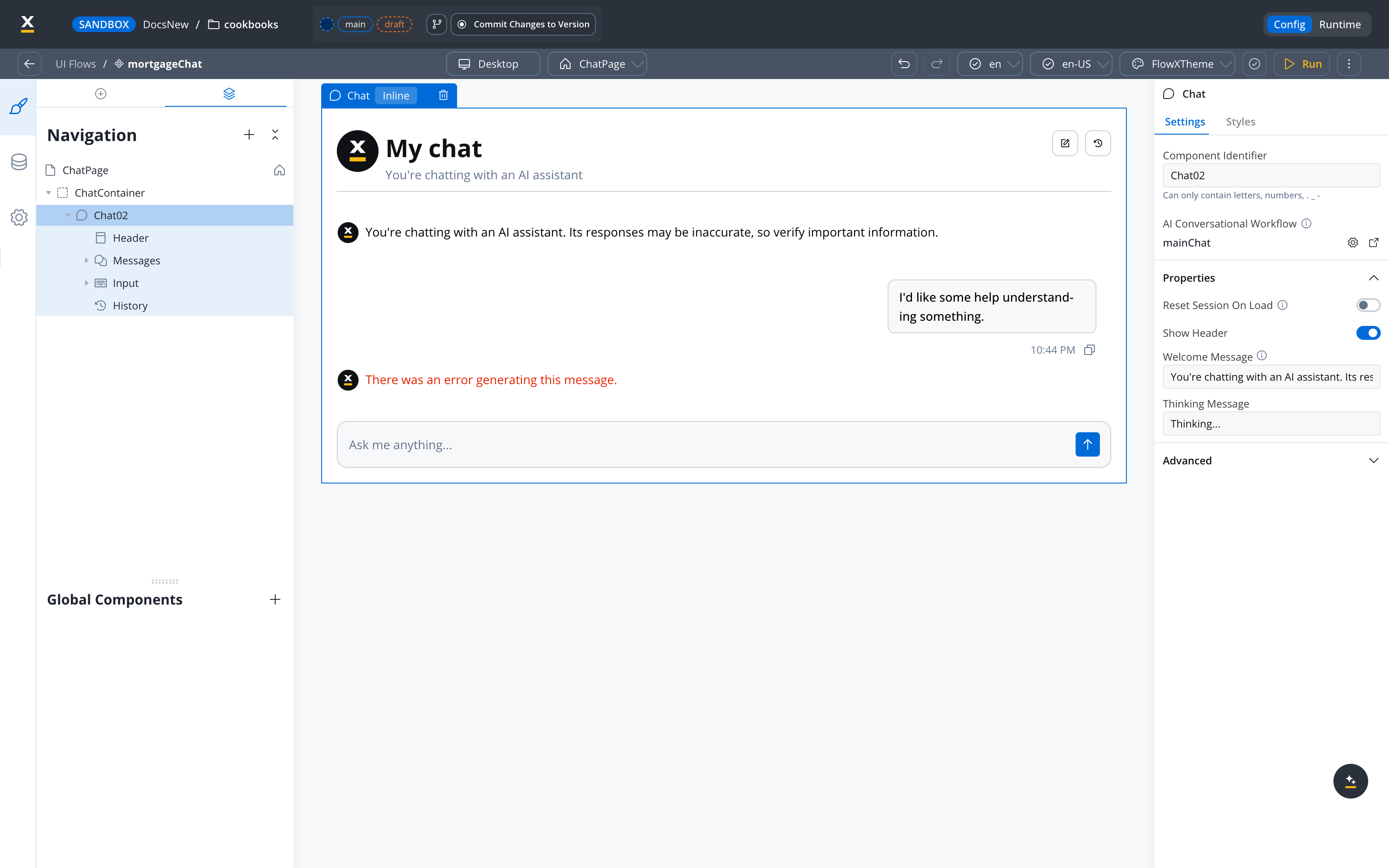
## Step 6: Connect to the chat UI
**1. Create a Chat-Driven UI Flow**
Go to **UI Flows** and create a new UI Flow, selecting **Chat-Driven** as the experience type. Set `mainChat` in the **AI Conversational Workflow** field.
**2. Add a Chat component**
Add a **Chat** component to the page. In a Chat-Driven UI Flow it uses `mainChat` by default — no per-component configuration needed.
**3. Test the chat**
Click **Run** to preview the UI Flow and interact with the chatbot.
> [!NOTE]
>
> For details on configuring chat experiences with built-in session memory, see [Chat-driven workflows](https://docs.flowx.ai/6.x/ai-platform/chat-driven-workflows.md). For the Chat component reference, see [Chat component](https://docs.flowx.ai/6.x/ai-platform/chat-component.md).
***
## Testing
**1. Test the mainChat workflow directly**
Open `mainChat` and click **Run Workflow**. In the test modal, provide a valid UUID for **Chat Session ID** (click **Generate Chat Session ID** to create one, and reuse the same one across runs to verify multi-turn memory) and a **User Message**.
> [!WARNING]
>
> The Chat Session ID must be a valid UUID. A plain string like `test-session-1` causes a runtime error: `Invalid UUID string`.
**2. Test the full chat flow**
Run the UI Flow that embeds the Chat component. With built-in session memory, financial details captured in earlier turns are available to later turns:
| Turn | Message | Expected behavior |
| - | - | - |
| 1 | "Hi there!" | Greeting response, nudge toward mortgage |
| 2 | "I'm 35, I earn 6000 EUR a month, and I want to borrow 250000 EUR over 20 years." | Acknowledges the recorded data |
| 3 | "Give me a product recommendation now." | Recommendation report using the data from turn 2 |
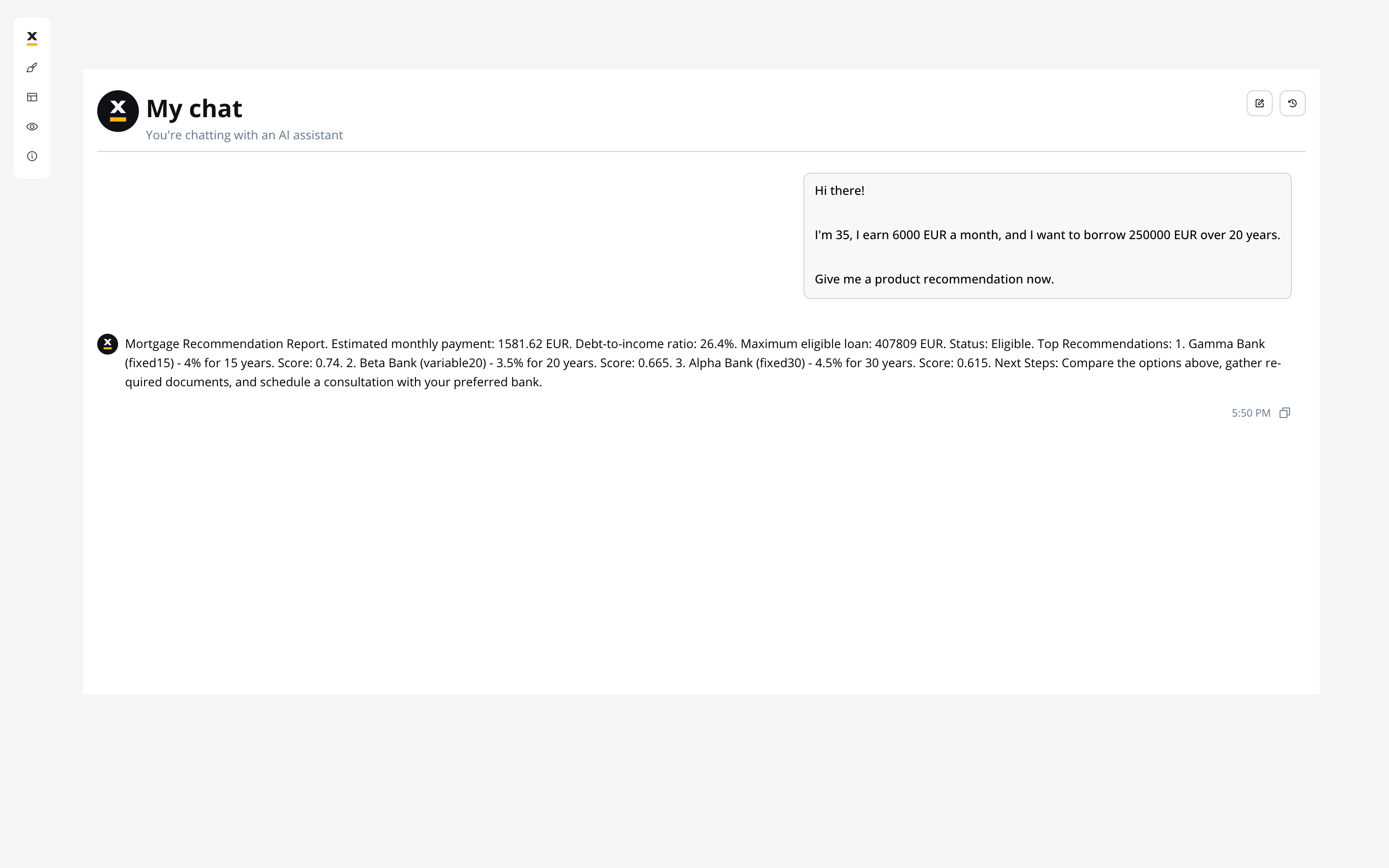
**3. Test edge cases**
| Test message | Expected intent branch | Expected behavior |
| - | - | - |
| "What documents do I need to apply?" | KB question | Answer from knowledge base |
| "asdfghjk" | No Match | Fallback response |
| "I changed my mind, my income is 6000" | Data Input | Updates income, confirms change |
***
## What you learned
In this tutorial, you built a full-featured Chat Driven app that demonstrates:
* **Chat Driven workflow basics** — dedicated Start node fields, `${userMessage}` interpolation, simplified End Flow ([guide](https://docs.flowx.ai/6.x/ai-platform/chat-driven-workflows.md))
* **Built-in session memory** — multi-turn context without manually persisting conversation history
* **Intent classification and routing** — using an Intent Classification Agent to route messages to handler branches automatically ([pattern](https://docs.flowx.ai/6.x/ai-platform/patterns/intent-classification-routing.md))
* **Agentic knowledge base search** — grounding answers in uploaded documents with multi-query retrieval and re-rank ([pattern](https://docs.flowx.ai/6.x/ai-platform/patterns/knowledge-base-rag.md))
* **Workflow-as-tool** — letting a Custom Agent call a deterministic calculation workflow for auditable, hybrid AI + business-rule recommendations ([pattern](https://docs.flowx.ai/6.x/ai-platform/patterns/hybrid-ai-rules.md))
***
## Next steps
> [card] [Chat-driven workflows](https://docs.flowx.ai/6.x/ai-platform/chat-driven-workflows.md)
>
> Full reference for Chat Driven workflows, AI Triggers, and session memory
> [card] [AI patterns](https://docs.flowx.ai/6.x/ai-platform/patterns/overview.md)
>
> Deep-dive into the patterns used in this tutorial
> [card] [Node types reference](https://docs.flowx.ai/6.x/ai-platform/agent-builder/node-types.md)
>
> Detailed configuration reference for all AI node types
> [card] [Knowledge Base integration](https://docs.flowx.ai/6.x/docs/platform-deep-dive/integrations/knowledge-base-integration/knowledge-base-overview.md)
>
> Create and manage Knowledge Bases for RAG
## Related topics
- [Agent Builder use cases](https://docs.flowx.ai/6.x/ai-platform/agent-builder/use-cases.md)
- [Knowledge base RAG](https://docs.flowx.ai/6.x/ai-platform/patterns/knowledge-base-rag.md)
- [Session state management](https://docs.flowx.ai/6.x/ai-platform/patterns/session-state-management.md)
- [Intent classification and routing](https://docs.flowx.ai/6.x/ai-platform/patterns/intent-classification-routing.md)
- [Customer onboarding with KYC](https://docs.flowx.ai/6.x/ai-platform/tutorials/customer-onboarding.md)
This documentation is built and hosted on [Mintlify](https://mintlify.com), a developer documentation platform.