> ## Documentation Index
> Fetch the complete documentation index at: https://docs.flowx.ai/llms.txt
> Use this file to discover all available pages before exploring further.
# Document processing pipeline
> Build an AI document verification pipeline where a Custom Agent classifies each uploaded document, calls the matching extraction workflow, and reconciles the result against application data.
Tested · September 2026
> [!TIP]
>
> **Built and run by the FlowX docs team on a live FlowX environment.** Each stage was run on its own: the tool workflows, the verification agent and its tool calls, the summary workflow, and the process data mappings and business rule.
In this tutorial, you build a **document processing pipeline** that verifies customer onboarding documents against application data. The customer uploads files (ID card, proof of address, salary slip). For each file, a **Custom Agent** reads the document, decides what it is, calls the matching extraction workflow as a tool, and compares the extracted fields to what the applicant declared. Documents with discrepancies go to a human reviewer.
**What you will build:**
* Four small **tool workflows** that read a document's text and extract structured fields per document type
* A **verification agent** that classifies each document, picks the right extraction tool, and reconciles the result
* A **summary generation** workflow that writes the verification report
* A **BPMN process** with a file upload UI, **business rules** that aggregate the per-document verdicts, and a **human review** task
**AI node types used:** Custom Agent, Extract Data from File, Document Extraction, Text Generation
**Patterns demonstrated:** [Fan-out extraction](https://docs.flowx.ai/6.x/ai-platform/patterns/fan-out-extraction.md), [AI comparison and reconciliation](https://docs.flowx.ai/6.x/ai-platform/patterns/ai-comparison-reconciliation.md)
> [!NOTE]
>
> The verification agent needs workflow tools. If your deployment doesn't have them yet, see [Explicit pipeline alternative](#explicit-pipeline-alternative) for the same verification built from explicit classification, routing, and comparison steps.
***
## Architecture overview
The pipeline processes documents in four phases: upload, verify each document, aggregate, and review.
```mermaid theme={"dark"}
flowchart TD
A["User uploads documents"] --> B["User Task
(file upload UI)"]
B --> C["Send / Receive Message Task
(once per document)"]
C -. "Workflow: verifyDocuments
(Custom Agent + tool workflows)" .-> C
C --> E["Business Rule
(aggregate verdicts)"]
E --> F{"Exclusive Gateway"}
F -- "All valid" --> G["Auto-approve"]
F -- "Exceptions found" --> H["Human Review Task"]
G --> I["Send / Receive Message Task"]
H --> I
I -. "Workflow: generateSummary" .-> I
I --> J(("End Event"))
style A fill:#f0f4ff,stroke:#4a6fa5
style J fill:#f0f4ff,stroke:#4a6fa5
```
**Workflow breakdown:**
| Workflow | AI nodes | Purpose |
| - | - | - |
| `readDocumentText` | Extract Data from File | Tool: return the raw text of a document so the agent can classify it |
| `extractIdCard`, `extractProofOfAddress`, `extractSalarySlip` | Document Extraction | Tools: extract structured fields for one document type |
| `verifyDocuments` | Custom Agent | Classify the document, call one extraction tool, reconcile against the declared data |
| `generateSummary` | Text Generation | Produce a human-readable verification report |
***
## Prerequisites
Before starting, make sure you have:
* Access to a FlowX Designer workspace with AI Platform enabled
* An AI model available to your project. The AI nodes use the project default unless you override the model on the node.
* A project with the Documents Plugin configured (for file uploads)
* Sample documents to test with: an ID card, a proof of address (for example, a utility bill), and a salary slip, as PDF files
* Familiarity with creating processes, workflows, and UI flows in FlowX, including workflow [input and output parameters](https://docs.flowx.ai/6.x/docs/platform-deep-dive/integrations/workflow-data-models.md)
***
## Data model
Define the following keys in your process data model. They hold the application data submitted by the customer, the agent's verdict per document, and the results of the later steps.
```json theme={"dark"}
{
"applicant": {
"firstName": "STRING",
"lastName": "STRING",
"dateOfBirth": "STRING",
"address": {
"street": "STRING",
"city": "STRING",
"postalCode": "STRING",
"country": "STRING"
},
"monthlyIncome": "FLOAT",
"employer": "STRING"
},
"documents": {
"uploadedFiles": [
{
"fileId": "STRING",
"filePath": "STRING",
"fileName": "STRING"
}
]
},
"currentFile": {
"fileId": "STRING",
"filePath": "STRING",
"fileName": "STRING"
},
"verification": {
"doc1": {
"documentType": "STRING",
"overallStatus": "STRING",
"matchRate": "FLOAT",
"exceptionSummary": "STRING"
},
"doc2": { "...": "same fields as doc1" },
"doc3": { "...": "same fields as doc1" }
},
"validation": {
"missingDocuments": {
"idCard": "BOOLEAN",
"proofOfAddress": "BOOLEAN",
"salarySlip": "BOOLEAN"
},
"anyRejected": "BOOLEAN",
"requiresReview": "BOOLEAN",
"lowestMatchRate": "FLOAT"
},
"summaryInput": {
"applicantName": "STRING",
"decision": "STRING",
"findings": "STRING"
},
"review": {
"reviewerDecision": "STRING",
"reviewerNotes": "STRING"
},
"summary": {
"report": "STRING"
}
}
```
> [!TIP]
>
> Define these keys under your process data model before building the process. The business rules, gateways, and UI components reference these paths at runtime.
***
## Step 1: Build the tool workflows
The agent doesn't extract fields itself. It calls four small workflows as tools: one that returns the document's raw text, and one extractor per document type. Every tool workflow follows the same contract:
* On the Data Model **Input Parameters** tab, add `filePath` (STRING). A workflow with no input parameters can't be attached as a tool.
* On the **Output Parameters** tab, add the fields the tool returns. Without output parameters, the tool returns nothing useful to the agent.
* Set the workflow **Description**. The agent sees it, together with the "when to use" hint you add in Step 2, when it chooses a tool.
* On the AI node, set **Document Source** to **Document Plugin** and reference the file as `${filePath}`. The workflow's input parameters resolve by name, whether you run the workflow on its own or the agent calls it as a tool.
### 1.1 Build readDocumentText
Create a workflow named **`readDocumentText`** with one **Extract Data from File** node:
* **Extraction Method:** **Automatic**. The format varies per upload in a mixed document set like this one, so let the node pick a strategy per file.
* **Response Key:** `documentText`
* **Output parameter:** `documentText`
* **Description:** `Return the raw text of an uploaded document so the agent can classify it. Uses the Automatic extraction method.`
Connect the node's SUCCESS exit to the End Flow node.
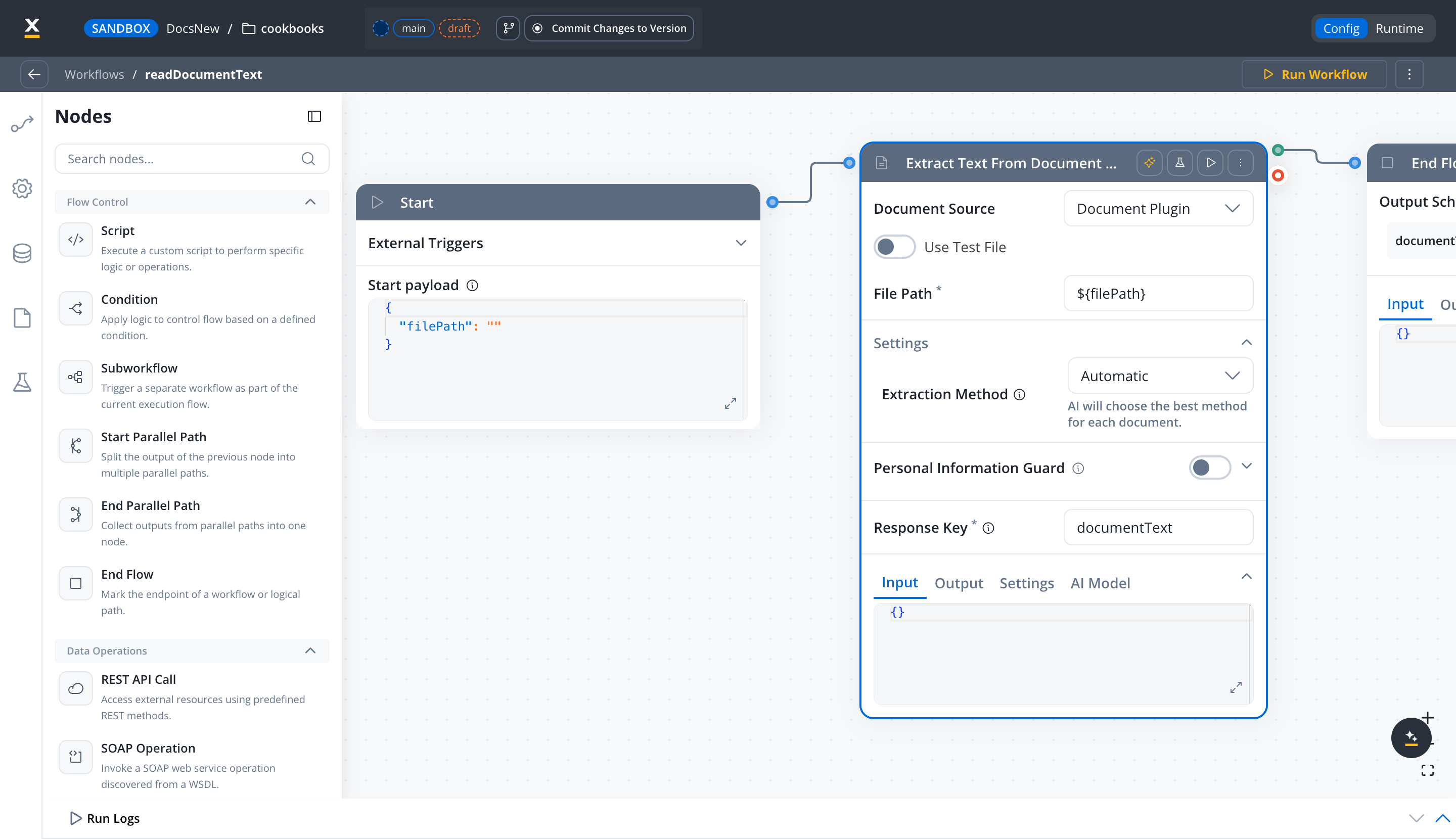
See [Extract Data from File](https://docs.flowx.ai/6.x/ai-platform/agent-builder/extract-data-from-file.md) for a comparison of the extraction methods, image extraction, and signature detection.
### 1.2 Build the three extraction workflows
Create one workflow per document type: **`extractIdCard`**, **`extractProofOfAddress`**, and **`extractSalarySlip`**. Each contains a **Document Extraction** node with the instructions and response schema for its type, followed by a **Script** node that lifts the fields into the output parameters.
> [!WARNING]
>
> Use **Document Extraction** for this step, not Extract Data from File. The two nodes are not interchangeable:
>
> * **Document Extraction** takes **Instructions** and a **Response schema**, and returns structured fields. It has no extraction-method setting.
> * **Extract Data from File** takes an **Extraction Method** (Automatic, LLM Model, OCR Engine, Text Parsing) plus image and signature options, and returns text. It accepts no instructions or response schema.
>
> A single node cannot combine a prompt, a response schema, and an extraction method.
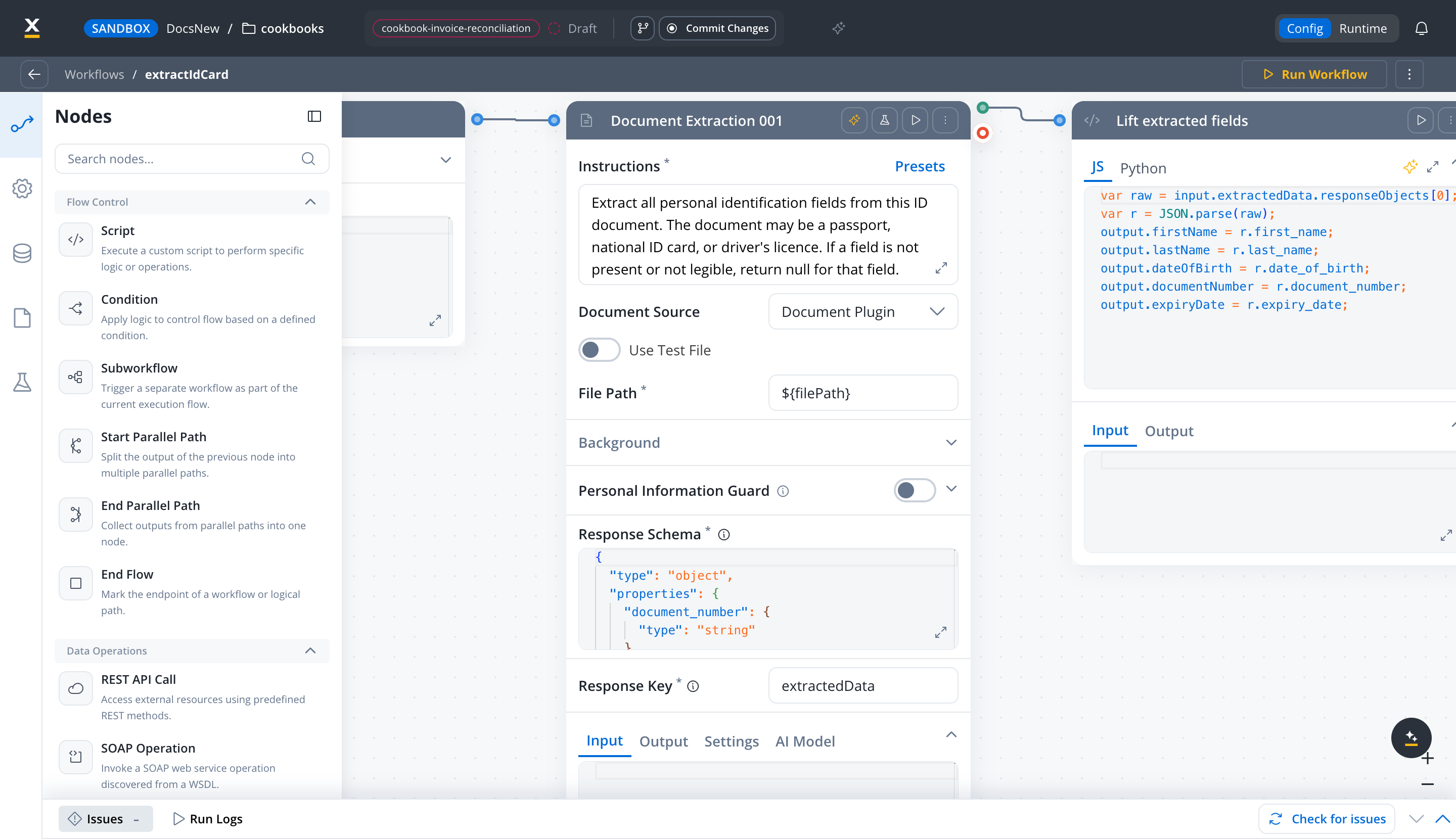
Document Extraction returns its result as a JSON string, under `responseObjects[0]` of the Response Key. The Script node parses it and maps each field to an output parameter.
> [tab] ID card
>
> **Description:** `Extract identity fields from an ID document (passport, national ID, driver's licence). Exposed to the verification agent as a tool.`
>
> **Instructions:**
>
> ```text theme={"dark"}
> Extract all personal identification fields from this ID document.
> The document may be a passport, national ID card, or driver's license.
> If a field is not present or not legible, return null for that field.
> ```
>
> **Response schema:**
>
> ```json theme={"dark"}
> {
> "type": "object",
> "properties": {
> "document_number": { "type": "string" },
> "first_name": { "type": "string" },
> "last_name": { "type": "string" },
> "date_of_birth": {
> "type": "string",
> "description": "Format: YYYY-MM-DD"
> },
> "nationality": { "type": "string" },
> "expiry_date": {
> "type": "string",
> "description": "Format: YYYY-MM-DD"
> },
> "issuing_authority": { "type": "string" },
> "address": {
> "type": "object",
> "properties": {
> "street": { "type": "string" },
> "city": { "type": "string" },
> "postal_code": { "type": "string" },
> "country": { "type": "string" }
> }
> }
> },
> "required": ["first_name", "last_name", "date_of_birth"]
> }
> ```
>
> **Response Key:** `extractedData`
>
> **Output parameters:** `firstName`, `lastName`, `dateOfBirth`, `documentNumber`, `expiryDate` (all STRING)
>
> **Script:**
>
> ```javascript theme={"dark"}
> var raw = input.extractedData.responseObjects[0];
> var r = JSON.parse(raw);
> output.firstName = r.first_name;
> output.lastName = r.last_name;
> output.dateOfBirth = r.date_of_birth;
> output.documentNumber = r.document_number;
> output.expiryDate = r.expiry_date;
> ```
> [tab] Proof of address
>
> **Description:** `Extract resident name, address and document date from a proof-of-address document. Exposed to the verification agent as a tool.`
>
> **Instructions:**
>
> ```text theme={"dark"}
> Extract the resident's name, full address, document date, and issuing
> organization from this proof of address document. The document may be a
> utility bill, bank statement, or government letter.
> If a field is not present, return null for that field.
> ```
>
> **Response schema:**
>
> ```json theme={"dark"}
> {
> "type": "object",
> "properties": {
> "resident_name": { "type": "string" },
> "address": {
> "type": "object",
> "properties": {
> "street": { "type": "string" },
> "city": { "type": "string" },
> "postal_code": { "type": "string" },
> "country": { "type": "string" }
> }
> },
> "document_date": {
> "type": "string",
> "description": "Format: YYYY-MM-DD"
> },
> "issuing_organization": { "type": "string" },
> "document_type_detail": {
> "type": "string",
> "description": "e.g., electricity bill, water bill, bank statement"
> }
> },
> "required": ["resident_name", "address"]
> }
> ```
>
> **Response Key:** `extractedData`
>
> **Output parameters:** `residentName`, `street`, `city`, `postalCode`, `documentDate` (all STRING)
>
> **Script:**
>
> ```javascript theme={"dark"}
> var raw = input.extractedData.responseObjects[0];
> var r = JSON.parse(raw);
> output.residentName = r.resident_name;
> output.street = r.address ? r.address.street : null;
> output.city = r.address ? r.address.city : null;
> output.postalCode = r.address ? r.address.postal_code : null;
> output.documentDate = r.document_date;
> ```
> [tab] Salary slip
>
> **Description:** `Extract employer, pay period and salary components from a payslip. Exposed to the verification agent as a tool.`
>
> **Instructions:**
>
> ```text theme={"dark"}
> Extract salary and employment details from this payslip document.
> Capture the employee name, employer, pay period, and all salary
> components (gross, deductions, net).
> If a field is not present, return null for that field.
> ```
>
> **Response schema:**
>
> ```json theme={"dark"}
> {
> "type": "object",
> "properties": {
> "employee_name": { "type": "string" },
> "employer_name": { "type": "string" },
> "pay_period": {
> "type": "string",
> "description": "e.g., January 2025, 2025-01"
> },
> "gross_salary": { "type": "number" },
> "net_salary": { "type": "number" },
> "deductions": {
> "type": "object",
> "properties": {
> "tax": { "type": "number" },
> "social_security": { "type": "number" },
> "health_insurance": { "type": "number" },
> "other": { "type": "number" }
> }
> },
> "currency": { "type": "string" },
> "employee_id": { "type": "string" }
> },
> "required": ["employee_name", "employer_name", "net_salary"]
> }
> ```
>
> **Response Key:** `extractedData`
>
> **Output parameters:** `employeeName`, `employerName`, `payPeriod`, `currency` (STRING) and `netSalary` (FLOAT)
>
> **Script:**
>
> ```javascript theme={"dark"}
> var raw = input.extractedData.responseObjects[0];
> var r = JSON.parse(raw);
> output.employeeName = r.employee_name;
> output.employerName = r.employer_name;
> output.payPeriod = r.pay_period;
> output.netSalary = r.net_salary;
> output.currency = r.currency;
> ```
> [!NOTE]
>
> Both Document Extraction and Extract Data from File support the **Personal Information Guard**, which detects and replaces personal data before it reaches the model. Consider turning it on for this pipeline: ID documents, addresses, and payslips all carry personal data. See [Personal Information Guard](https://docs.flowx.ai/6.x/ai-platform/personal-information-guard.md).
***
## Step 2: Configure the verification agent
Create a workflow named **`verifyDocuments`**. It receives one document and the applicant's declared data, and a single **Custom Agent** node does the classification, the extraction tool call, and the reconciliation.
```mermaid theme={"dark"}
flowchart LR
IN["Input: filePath +
declared data"] --> AGENT["Custom Agent
(classifies, reconciles)"]
AGENT -->|"call 1: read text"| READ["readDocumentText"]
AGENT -->|"call 2: one extractor"| ID["extractIdCard"]
AGENT -->|"call 2: one extractor"| POA["extractProofOfAddress"]
AGENT -->|"call 2: one extractor"| SAL["extractSalarySlip"]
AGENT --> OUT["Output: documentType, overallStatus,
matchRate, exceptionSummary"]
```
**Input parameters:** `filePath`, `declaredFirstName`, `declaredLastName`, `declaredCity` (STRING) and `declaredMonthlyIncome` (FLOAT)
**Output parameters:** `documentType`, `overallStatus`, `exceptionSummary` (STRING) and `matchRate` (FLOAT)
Add a **Custom Agent** node after the Start node.
**Instructions** (static; dynamic values go in **Context**):
```text theme={"dark"}
You are a document verification agent for a bank's customer onboarding
process.
You receive one uploaded document and the applicant's declared data.
Step 1 - Call readDocumentText once to read the document.
Step 2 - Classify it as ID_CARD, PROOF_OF_ADDRESS, SALARY_SLIP or UNKNOWN
from that text, based on its layout, headers and field labels.
Step 3 - Call exactly ONE extraction tool that matches the classification:
- ID_CARD uses extractIdCard
- PROOF_OF_ADDRESS uses extractProofOfAddress
- SALARY_SLIP uses extractSalarySlip
If the type is UNKNOWN, call no extraction tool and return overallStatus
REVIEW_REQUIRED.
Never call the same tool twice. Stop calling tools once you have the
extracted fields.
Step 4 - Reconcile the extracted fields against the declared data:
- Names use fuzzy matching. Case differences are a match; a different
spelling is a WARNING.
- Compare addresses per component. Minor formatting differences are
acceptable.
- Normalise dates to YYYY-MM-DD before comparing.
- Flag net salary that differs from declared monthly income by more than
10 percent.
- An expired document is CRITICAL.
Return matchRate as a percentage from 0 to 100, overallStatus as APPROVED,
REVIEW_REQUIRED or REJECTED, and exceptionSummary as one short sentence
naming each mismatch found.
```
**Context:**
```text theme={"dark"}
Document to verify: ${filePath}
Declared first name: ${declaredFirstName}
Declared last name: ${declaredLastName}
Declared city: ${declaredCity}
Declared monthly income: ${declaredMonthlyIncome}
```
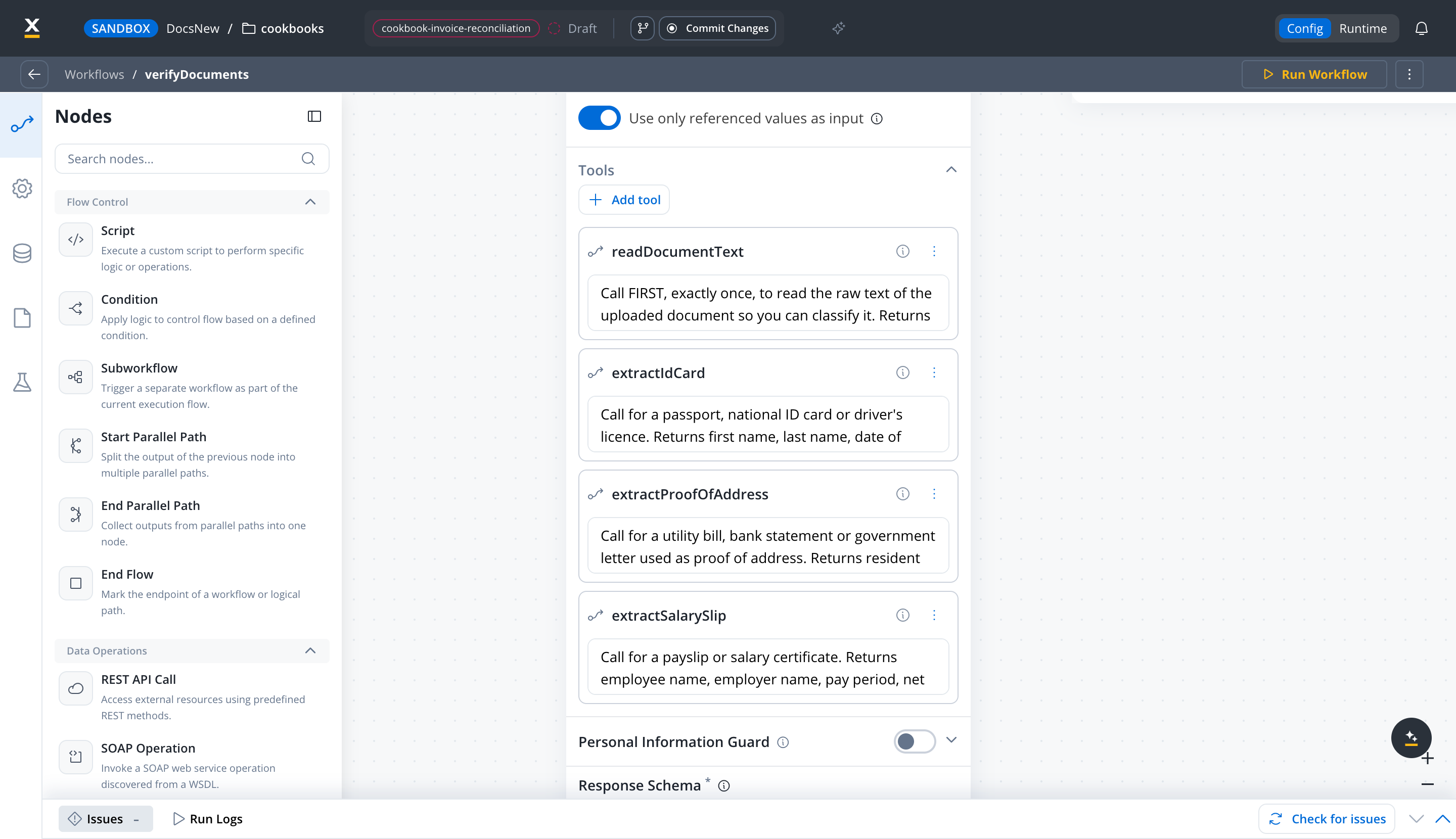
**Tools:** click **Add tool** → **Workflow** and attach the four tool workflows. Only workflows with input parameters appear in the list. For each one, fill in **When should the agent use this workflow?**:
| Workflow | When to use |
| - | - |
| `readDocumentText` | Call FIRST, exactly once, to read the raw text of the uploaded document so you can classify it. Returns documentText. |
| `extractIdCard` | Call for a passport, national ID card or driver's licence. Returns first name, last name, date of birth, document number and expiry date. |
| `extractProofOfAddress` | Call for a utility bill, bank statement or government letter used as proof of address. Returns resident name, street, city, postal code and document date. |
| `extractSalarySlip` | Call for a payslip or salary certificate. Returns employee name, employer name, pay period, net salary and currency. |
> [!TIP]
>
> The agent sees each tool as its workflow **Description** plus the **When should the agent use this workflow?** text. Write both as if you were telling a colleague when to use the tool, and put ordering rules and stop conditions ("exactly once", "call FIRST") in the hint.
**Response schema:**
```json theme={"dark"}
{
"type": "object",
"properties": {
"documentType": {
"type": "string",
"enum": ["ID_CARD", "PROOF_OF_ADDRESS", "SALARY_SLIP", "UNKNOWN"]
},
"matchRate": { "type": "number" },
"overallStatus": {
"type": "string",
"enum": ["APPROVED", "REVIEW_REQUIRED", "REJECTED"]
},
"exceptionSummary": { "type": "string" }
},
"required": ["documentType", "matchRate", "overallStatus", "exceptionSummary"]
}
```
**Response Key:** `verification`
The agent's answer lands under the Response Key, so lift it into the output parameters with a **Script** node before the End Flow:
```javascript theme={"dark"}
output.documentType = input.verification.documentType;
output.overallStatus = input.verification.overallStatus;
output.matchRate = input.verification.matchRate;
output.exceptionSummary = input.verification.exceptionSummary;
```
> [!NOTE]
>
> Agents are capped at 20 tool calls per run, 10 of them to workflow tools, and an agent can have at most 10 workflow tools attached. A verification run stays far below the caps: it makes exactly two calls.
### Verified run
With declared data `John Smith, monthly income 5000` and a payslip showing employee Jonathan Smith and net salary 4,200 (the mismatch case from [Testing](#testing)), the agent returns:
```json theme={"dark"}
{
"documentType": "SALARY_SLIP",
"overallStatus": "REVIEW_REQUIRED",
"matchRate": 60,
"exceptionSummary": "Name mismatch: document shows Jonathan Smith vs declared John Smith, and net salary £4,200.00 differs from declared monthly income 5000.0 by more than 10%."
}
```
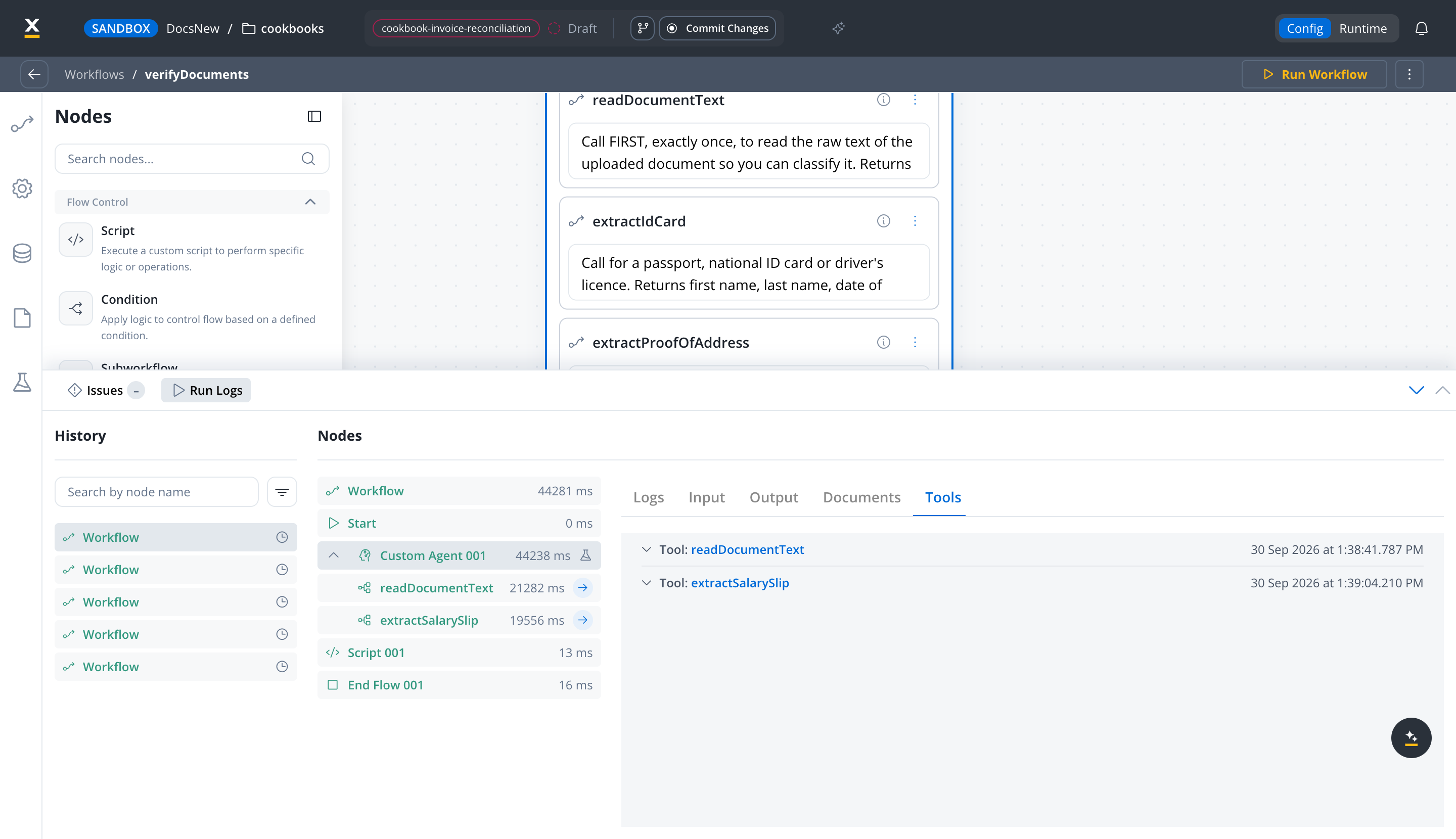
The run trace shows the agent called `readDocumentText` first, classified the document as `SALARY_SLIP`, called `extractSalarySlip` exactly once, and produced the reconciliation verdict.
***
## Step 3: Build the summary generation workflow
Create a workflow named **`generateSummary`**. It receives the aggregated findings from the process and writes the verification report with a single **Text Generation** node.
**Input parameters:** `applicantName`, `decision`, `findings` (STRING) and `reviewerNotes` (STRING, optional)
**Output parameters:** `report` (STRING)
Add a **Text Generation** node after the Start node.
**Instructions:**
```text theme={"dark"}
You are a compliance documentation assistant. Write a document
verification report from the applicant name, the decision, the
per-document findings, and the reviewer notes provided in the context.
Structure the report as follows:
1. VERIFICATION OVERVIEW
- Applicant name
- Number of documents processed
- Lowest match rate across the documents
- Verification status (Approved / Review Required / Rejected)
2. DOCUMENT DETAILS
For each document: document type, status, match rate, and the
mismatches found.
3. EXCEPTIONS
- List every mismatch named in the findings
- Highlight anything marked REJECTED
4. RECOMMENDATION
- Clear recommendation based on the findings and the reviewer notes
- Specific follow-up actions if needed
Use professional, concise language. Format the report in Markdown.
```
**Context:**
```text theme={"dark"}
Applicant: ${applicantName}
Decision: ${decision}
Findings per document:
${findings}
Reviewer notes: ${reviewerNotes}
```
The workflow can only reference its own input parameters here. The process maps its data into them in Step 4.
**Response schema:**
```json theme={"dark"}
{
"type": "object",
"properties": {
"report": {
"type": "string",
"description": "The verification report in Markdown"
}
},
"required": ["report"]
}
```
**Response Key:** `summaryReport`
Add a **Script** node before the End Flow to lift the report into the output parameter:
```javascript theme={"dark"}
output.report = input.summaryReport.report;
```
***
## Step 4: Build the BPMN process
Create a process named **`documentVerify`** that orchestrates the full pipeline using the workflows you built.
> [!NOTE]
>
> The mappings below use the data mapping modals, the default. If you turn on **Legacy Mapping**, the **Start Integration Workflow** action takes a JSON input body and the Receive Message Task's data stream takes a single **Key Name** instead. See [Legacy mapping vs data mappers](https://docs.flowx.ai/6.x/docs/building-blocks/node/message-send-received-task-node.md#legacy-mapping-vs-data-mappers).
> [!WARNING]
>
> Turn off **Use Test File** on the AI node of every tool workflow before you run this process. While it's on, the node reads its selected test file and ignores the `filePath` the agent passes in, even when a process starts the run, so every uploaded document is verified against the same sample.
**1. Add a User Task for file upload**
Add a **User Task** node after the Start Event. This task presents the file upload UI to the user.
Configure the task with:
* **Task name:** `Upload documents`
* **Assignment:** Assigned to the initiating user
The upload UI is designed directly on this node - you build it in Step 5. A User Task cannot attach a standalone UI Flow; its UI lives on the node.
**2. Verify each uploaded document**
Call `verifyDocuments` once per uploaded file. Array-indexed `${...}` expressions do not resolve in data mappings, so first copy the current file into a named object: add a **Service Task** with a **Business Rule** action that sets `output.currentFile = input.documents.uploadedFiles[0];`. See [Referencing workflow data in node configurations](https://docs.flowx.ai/6.x/docs/platform-deep-dive/integrations/integration-designer.md#referencing-workflow-data-in-node-configurations).
Then add a **Send Message Task** with a **Start Integration Workflow** action pointing to `verifyDocuments`, and map its input parameters:
| Workflow input | Process data |
| - | - |
| `filePath` | `${currentFile.filePath}` |
| `declaredFirstName` | `${applicant.firstName}` |
| `declaredLastName` | `${applicant.lastName}` |
| `declaredCity` | `${applicant.address.city}` |
| `declaredMonthlyIncome` | `${applicant.monthlyIncome}` |
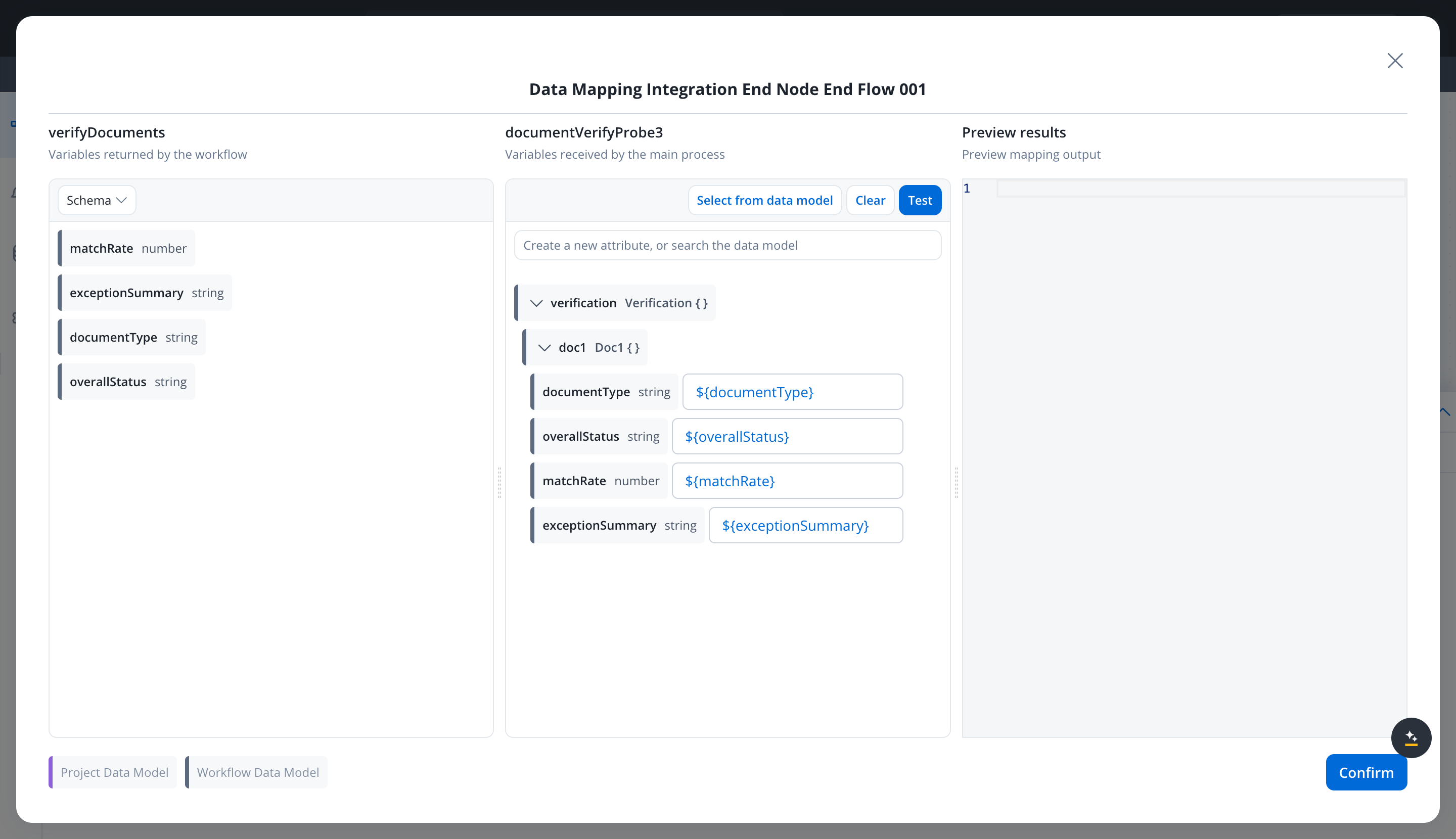
Add a **Receive Message Task** node to capture the agent's verdict. Add a data stream with **Source** set to **Workflow**, select `verifyDocuments`, and in the **Output Mapping** of its End node map `documentType`, `overallStatus`, `matchRate`, and `exceptionSummary` to the fields of the same name under `verification.doc1`. Click **Confirm**, then save the node.
> [!TIP]
>
> Click **Test** in a mapping modal to check the mapping in **Preview results**. If the preview shows a `${...}` expression as literal text, the process sends that literal text at run time. Re-enter the path until the preview resolves it.
> [accordion] Legacy mapping equivalent
>
> With **Legacy Mapping** turned on, the action's JSON input body is:
>
> ```json theme={"dark"}
> {
> "filePath": "${currentFile.filePath}",
> "declaredFirstName": "${applicant.firstName}",
> "declaredLastName": "${applicant.lastName}",
> "declaredCity": "${applicant.address.city}",
> "declaredMonthlyIncome": "${applicant.monthlyIncome}"
> }
> ```
>
> On the Receive Message Task, set the data stream's **Key Name** to `verification.doc1`.
Repeat the three nodes for the second and third file (`uploadedFiles[1]` into `verification.doc2`, `uploadedFiles[2]` into `verification.doc3`).
**3. Add a business rule to aggregate the verdicts**
Add a **Service Task** with a **Business Rule** action (JavaScript). The agent already checked each document against the declared data; this rule combines the three verdicts, checks that every required document type is present, and prepares the input for the summary. Business rules read process data through `input.` and write results through `output.`.
```javascript theme={"dark"}
// One verdict per uploaded document, as returned by verifyDocuments
var results = [input.verification.doc1, input.verification.doc2, input.verification.doc3];
var types = [];
var findings = [];
var anyRejected = false;
var anyNotApproved = false;
var lowestMatchRate = 100;
for (var i = 0; i < results.length; i++) {
var r = results[i];
if (!r) {
continue;
}
types.push(r.documentType);
if (r.overallStatus === "REJECTED") {
anyRejected = true;
}
if (r.overallStatus !== "APPROVED") {
anyNotApproved = true;
}
if (r.matchRate < lowestMatchRate) {
lowestMatchRate = r.matchRate;
}
findings.push(r.documentType + ": " + r.overallStatus + " (" + r.matchRate + "%) - " + r.exceptionSummary);
}
// Check all required document types are present
var missingId = types.indexOf("ID_CARD") === -1;
var missingAddress = types.indexOf("PROOF_OF_ADDRESS") === -1;
var missingSalary = types.indexOf("SALARY_SLIP") === -1;
var requiresReview = anyNotApproved || missingId || missingAddress || missingSalary;
output.validation = {
missingDocuments: {
idCard: missingId,
proofOfAddress: missingAddress,
salarySlip: missingSalary
},
anyRejected: anyRejected,
requiresReview: requiresReview,
lowestMatchRate: lowestMatchRate
};
output.summaryInput = {
applicantName: input.applicant.firstName + " " + input.applicant.lastName,
decision: anyRejected ? "REJECTED" : (requiresReview ? "REVIEW_REQUIRED" : "APPROVED"),
findings: findings.join(" | ")
};
```
> [!TIP]
>
> Business rules provide deterministic, auditable checks. Use them alongside the agent to enforce what must never depend on a model's judgment, such as the set of required document types.
**4. Add the routing gateway**
Add an **Exclusive Gateway** after the business rule. Configure two branches:
| Branch | Condition | Target |
| - | - | - |
| Auto-approve | `input.validation.requiresReview == false && input.validation.lowestMatchRate >= 90` | Proceed to summary generation |
| Human review | *(default)* | Human review User Task |
> [!WARNING]
>
> A gateway needs its evaluation rule defined in addition to the outgoing branches - without one, the process fails at runtime with "No rules found for gateway node". Gateway conditions read process data with the `input.` prefix.
**5. Add the human review task**
Add a **User Task** node for manual review. The reviewer sees:
* Uploaded documents (viewable in a File Preview component)
* The agent's verdict for each document, with its exception summary
* Validation flags from the business rule
The reviewer submits a decision:
* **Approve** — continue to summary
* **Reject** — end process with rejection status
* **Request re-upload** — loop back to the upload step
Store the decision in `review.reviewerDecision` and any notes in `review.reviewerNotes`.
**6. Route on the reviewer's decision**
Add a second **Exclusive Gateway** after the review task - the three reviewer outcomes each need a branch:
| Branch | Condition | Target |
| - | - | - |
| Approve | `input.review.reviewerDecision == 'APPROVE'` | Summary generation |
| Request re-upload | `input.review.reviewerDecision == 'REUPLOAD'` | Upload documents User Task |
| Reject | *(default)* | End Event |
**7. Trigger the summary generation workflow**
After both the auto-approve and human-review-approve paths converge, add a **Send Message Task** with a **Start Integration Workflow** action pointing to `generateSummary`, and map its input parameters:
| Workflow input | Process data |
| - | - |
| `applicantName` | `${summaryInput.applicantName}` |
| `decision` | `${summaryInput.decision}` |
| `findings` | `${summaryInput.findings}` |
| `reviewerNotes` | `${review.reviewerNotes}` |
Add a **Receive Message Task** with a **Workflow** data stream for `generateSummary`, and in the **Output Mapping** of its End node map `report` to `summary.report`. Click **Confirm**, then save the node.
> [accordion] Legacy mapping equivalent
>
> With **Legacy Mapping** turned on, the action's JSON input body is:
>
> ```json theme={"dark"}
> {
> "applicantName": "${summaryInput.applicantName}",
> "decision": "${summaryInput.decision}",
> "findings": "${summaryInput.findings}",
> "reviewerNotes": "${review.reviewerNotes}"
> }
> ```
>
> On the Receive Message Task, set the data stream's **Key Name** to `summary`.
**8. Add the End Event**
Add an **End Event** after the summary is received. The process instance now contains the full verification report at `summary.report`.
***
## Step 5: Build the upload UI
Design the upload page directly on the **Upload documents** User Task: select the node and open its UI Designer. A User Task's UI lives on the node - a standalone UI Flow cannot be attached to a BPMN task.
**1. Add an upload component**
Add a **File Upload** component to the node's UI and restrict the accepted file types to PDF, JPG, and PNG.
**2. Add the Upload file action**
On a User Task, the File Upload component does not come with an action - create an **Upload file** action on the node and link the component to it. The action posts the file to the Documents Plugin over Kafka; configure the **Address** (the document-persist topic) and the **Document Type**. For the full parameter list and the multi-file behavior, see the [Upload file action](https://docs.flowx.ai/6.x/docs/building-blocks/actions/upload-file-action.md) guide.
The AI document nodes read uploaded files with **Document Source** set to **Document Plugin**, which resolves paths produced by this upload.
**3. Add applicant data display**
Add form fields (read-only) that display the applicant's declared data from `applicant`. This gives context to the person uploading documents.
**4. Add a submit button**
Add a **Button** component labeled **Submit documents**. Configure it to save the data and advance the User Task.
> [!NOTE]
>
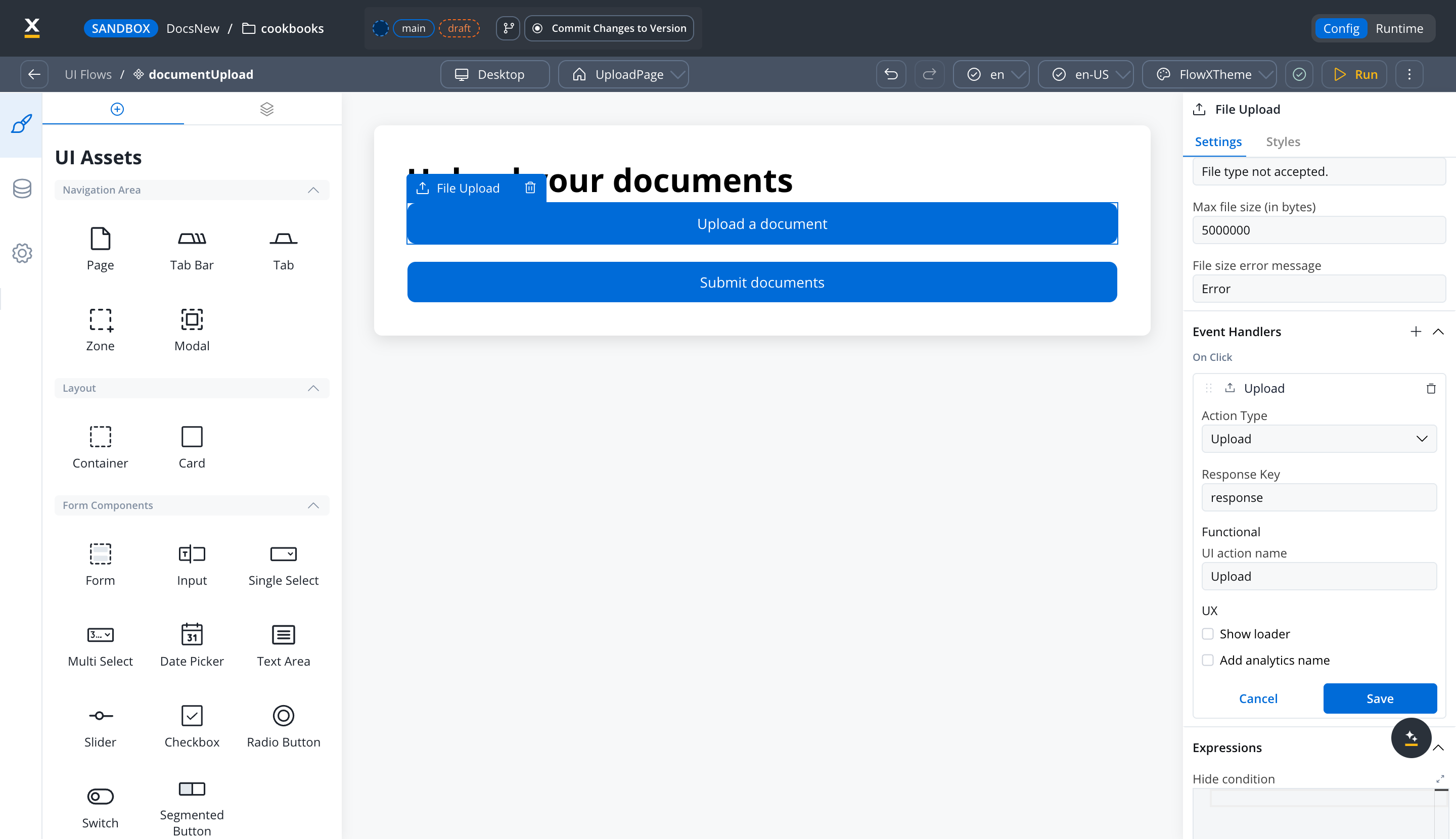
> In a standalone **UI Flow** (for example, a chat-driven app that triggers workflows directly), the File Upload component behaves differently: it arrives with an **Upload** action already attached, and the upload result lands under that action's **Response Key** - not under the component's data key. With the default key of `response`, a successful upload produces:
>
> ```json theme={"dark"}
> {
> "response": {
> "filePath": "flowx-dev-ui-flow/{realm}/{workspace}/{session}/payslip.pdf",
> "downloadPath": "internal/files/{id}/download",
> "originalFileName": "payslip.pdf",
> "mimeType": "application/pdf",
> "error": null
> }
> }
> ```
>
> Pass `response.filePath` to the workflow in that setup.
>
> 
> [!NOTE]
>
> For the human review step, design a second page the same way - on the **Human review** User Task node - displaying the agent's verdict and exception summary for each document alongside the original documents. Use a side-by-side layout so the reviewer can compare easily.
***
## Step 6: Build the review UI
Design the review page on the **Human review** User Task node, the same way you built the upload page in Step 5.
The review page should include:
| Section | Data source | Component |
| - | - | - |
| Applicant info | `applicant` | Read-only form fields |
| Uploaded documents | One key per document that holds its preview URL, for example `preview.doc1.filePath` | One File Preview per document |
| Verdict per document | `verification.doc1`, `verification.doc2`, `verification.doc3` | Read-only fields with status badges |
| Findings | `summaryInput.findings` | Read-only text |
| Validation flags | `validation` | Alert components for each flag |
| Decision | `review.reviewerDecision` | Radio buttons (Approve / Reject / Request re-upload) |
| Notes | `review.reviewerNotes` | Text area |
> [!NOTE]
>
> A File Preview shows one file, and its **Process Data** source uses the key's value as-is, so the value must be a complete, absolute URL. Don't bind it to `documents.uploadedFiles`: that key holds a list, and each entry's `filePath` is a storage object path, not a URL. For each document, build the URL from the upload reply's `downloadPath` in a business rule and bind the File Preview to the result, as shown in [Preview an uploaded file](https://docs.flowx.ai/6.x/docs/building-blocks/ui-designer/ui-component-types/file-preview.md#preview-an-uploaded-file).
> [!TIP]
>
> Use conditional visibility to highlight documents whose `overallStatus` is `REVIEW_REQUIRED` or `REJECTED`. This draws the reviewer's attention to the issues that need their judgment.
***
## Testing
**1. Test classification through the agent**
The `verifyDocuments` workflow has no file node of its own, so the sample documents go on the tool workflows. Upload them as test files on the AI nodes, turn on **Use Test File**, and select the document under test on `readDocumentText` and the matching sample on each extractor. Then open `verifyDocuments`, use **Run Workflow** with sample declared data, and check the `documentType` in the output and the tool calls in the run trace.
| Test document | Expected `documentType` | Expected extraction tool |
| - | - | - |
| Scanned passport | `ID_CARD` | `extractIdCard` |
| Electricity bill PDF | `PROOF_OF_ADDRESS` | `extractProofOfAddress` |
| Monthly payslip | `SALARY_SLIP` | `extractSalarySlip` |
| Random brochure | `UNKNOWN` | none, with `overallStatus` `REVIEW_REQUIRED` |
**2. Test extraction accuracy**
For each document type, compare the extracted fields in the run trace against the actual document content. Check that:
* Names are captured correctly (including accented characters)
* Dates are in the expected `YYYY-MM-DD` format
* Numeric values (salary, postal code) are accurate
* Null is returned for missing fields (not hallucinated values)
**3. Test reconciliation with known mismatches**
Run `verifyDocuments` with deliberate mismatches: declared John Smith with monthly income 5000, and a salary slip showing Jonathan Smith with net salary 4200. Expect:
* `documentType`: `SALARY_SLIP`
* `overallStatus`: `REVIEW_REQUIRED`
* `exceptionSummary` naming both the name variation and the income discrepancy (16%)
The run trace should show exactly two tool calls: `readDocumentText`, then `extractSalarySlip`.
**4. Test the business rule**
Verify the JavaScript business rule catches:
* Missing required document types
* Any document the agent marked `REJECTED` or `REVIEW_REQUIRED`
* A lowest match rate below the auto-approve threshold
Test edge cases: all documents valid (auto-approve path), one missing document (review path), expired ID (the agent flags it as CRITICAL, so the process takes the review path).
**5. Test the full end-to-end flow**
Run the complete `documentVerify` process:
1. Upload three documents (ID, proof of address, salary slip)
2. Verify that `verification.doc1` to `verification.doc3` are filled in
3. Check the `validation` flags and `summaryInput.findings`
4. If routed to review, complete the reviewer task
5. Verify the summary report is generated at `summary.report`
Test both the auto-approve path (all documents match) and the human review path (with discrepancies).
***
## Troubleshooting
> [accordion] The placeholder input.filePath has no value set!
>
> **Cause:** the AI node references the file as `${input.filePath}`. Workflow input parameters resolve by name, with no `input.` prefix.
>
> **Fix:** set the node's file reference to `${filePath}`. The same reference works when you run the workflow on its own and when the agent calls it as a tool.
***
## Explicit pipeline alternative
The verification agent decides at run time which extraction tool to call. If you need every routing decision to be visible on the canvas, or your deployment doesn't have workflow tools yet, build the same verification as explicit steps instead:
1. **Classify and extract:** classify each document, then branch to a type-specific Document Extraction node with a Condition node. The instructions and response schemas from [Step 1](#step-1-build-the-tool-workflows) carry over unchanged. See [Fan-out extraction](https://docs.flowx.ai/6.x/ai-platform/patterns/fan-out-extraction.md).
2. **Reconcile:** compare the extracted fields against the applicant data in a separate comparison step with a structured exception report. See [AI comparison and reconciliation](https://docs.flowx.ai/6.x/ai-platform/patterns/ai-comparison-reconciliation.md).
AI nodes return their result under the Response Key, and Document Extraction returns it as a JSON string. Parse it with a Script node before a Condition node branches on it, and before the End Flow node returns it.
Steps 3 to 6 stay the same. In Step 4, point the aggregation business rule at the reconciliation output instead of `verification.doc1` to `verification.doc3`.
***
## What you learned
In this tutorial, you built a document processing pipeline that demonstrates several key patterns:
* **Agentic tool-calling:** a Custom Agent that classifies each document and chooses the right extraction workflow at run time
* **Fan-out extraction:** a specialized extraction workflow per document type, with tailored instructions and schemas
* **AI reconciliation:** comparing AI-extracted data against application data and returning a structured verdict
* **Hybrid AI + business rules:** combining the agent's verdicts with deterministic checks (missing document types, match-rate threshold)
* **Human-in-the-loop:** routing edge cases to a reviewer while auto-approving clean results
* **Workflow composition:** building small, typed workflows for tools, verification, and summary generation, then orchestrating them from a BPMN process
***
## Next steps
> [card] [Fan-out extraction pattern](https://docs.flowx.ai/6.x/ai-platform/patterns/fan-out-extraction.md)
>
> Scale the classification and extraction pattern to dozens of document types
> [card] [AI comparison and reconciliation](https://docs.flowx.ai/6.x/ai-platform/patterns/ai-comparison-reconciliation.md)
>
> Deep-dive into the reconciliation pattern with threshold tuning
> [card] [Extract Data from File](https://docs.flowx.ai/6.x/ai-platform/agent-builder/extract-data-from-file.md)
>
> Configure extraction strategies, image extraction, and signature detection
> [card] [AI node types](https://docs.flowx.ai/6.x/ai-platform/agent-builder/node-types.md)
>
> Reference for all AI node types available in Agent Builder
## Related topics
- [AI comparison and reconciliation](https://docs.flowx.ai/6.x/ai-platform/patterns/ai-comparison-reconciliation.md)
- [Tutorials](https://docs.flowx.ai/6.x/ai-platform/tutorials/overview.md)
- [FlowX.AI documentation](https://docs.flowx.ai/6.x/docs/introduction.md)
- [Cookbooks](https://docs.flowx.ai/6.x/cookbooks/overview.md)
- [Agent Builder use cases](https://docs.flowx.ai/6.x/ai-platform/agent-builder/use-cases.md)
This documentation is built and hosted on [Mintlify](https://mintlify.com), a developer documentation platform.