> ## Documentation Index
> Fetch the complete documentation index at: https://docs.flowx.ai/llms.txt
> Use this file to discover all available pages before exploring further.
# Configuring access roles for processes
> Learn how to set up user role-based access control for process definitions using swimlanes, business filters, and permissions configuration.
Process access control in FlowX.AI is managed through a flexible role-based system that allows you to control who can access, view, and interact with different parts of your processes. This guide covers the complete setup and configuration of access roles for processes.
## Overview
FlowX.AI provides two main mechanisms for controlling process access:
* **Swimlanes**: Group process nodes by participants and control access at the node level
* **Business filters**: Restrict access based on dynamic business rules and user attributes
Both mechanisms work together to provide granular control over process security and user permissions.
## Prerequisites
Before configuring process access roles, ensure you have:
1. **Identity Provider Setup**: A configured identity provider (Keycloak, Entra ID, etc.) with user roles defined
2. **Service Account**: A service account with appropriate permissions in your identity provider
3. **Platform Configuration**: Proper platform configuration to connect to your identity provider
Complete guide for setting up identity provider integration
## Access control with swimlanes
### What are swimlanes?
Swimlanes provide a way of grouping process nodes by process participants. They allow you to ensure that only users with specific roles can access certain process nodes.
**Key characteristics:**
* By default, all process nodes belong to the same swimlane
* When a token moves between swimlanes, user access is evaluated
* Users without access to a swimlane will see the process in read-only mode
* Users receive notifications when access changes
### Configuring swimlanes
#### Step 1: Set up roles in identity provider
First, configure the desired user roles in your identity provider solution and assign users to the appropriate roles.
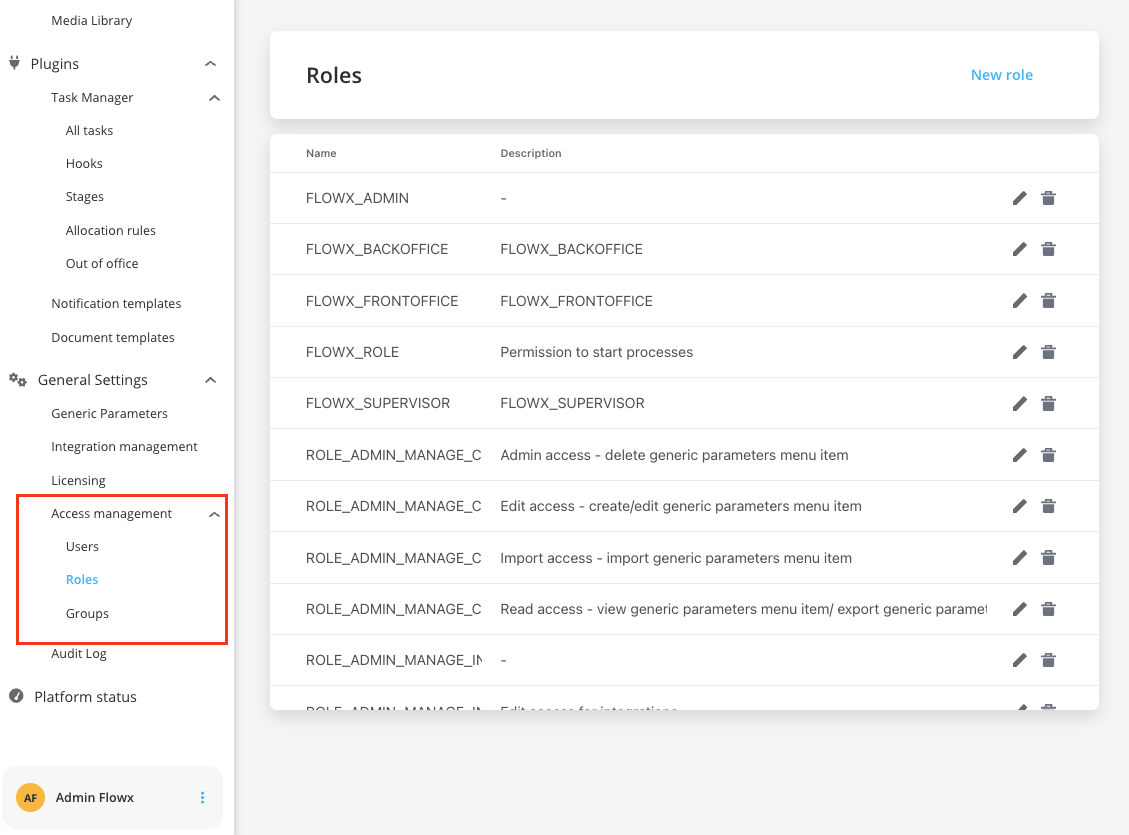
Use the **Access Management** tab under **General Settings** in FlowX Designer to administrate all roles and view their current assignments.
#### Step 2: Configure service account
A [service account](../access-management/configuring-an-iam-solution#process-engine-service-account) with appropriate permissions must be configured in your identity provider to allow FlowX.AI to access role information.
#### Step 3: Configure swimlane permissions
Navigate to your process definition and access the **Permissions** tab in the process settings panel. Here you can configure access for each swimlane.
After defining roles in your identity provider solution, they will be available in the process definition settings panel for configuring swimlane access. When you create a new swimlane, it automatically comes with two default permissions assigned.
### Default swimlane permissions
Every process comes with a **Default** swimlane that includes two standard permissions:
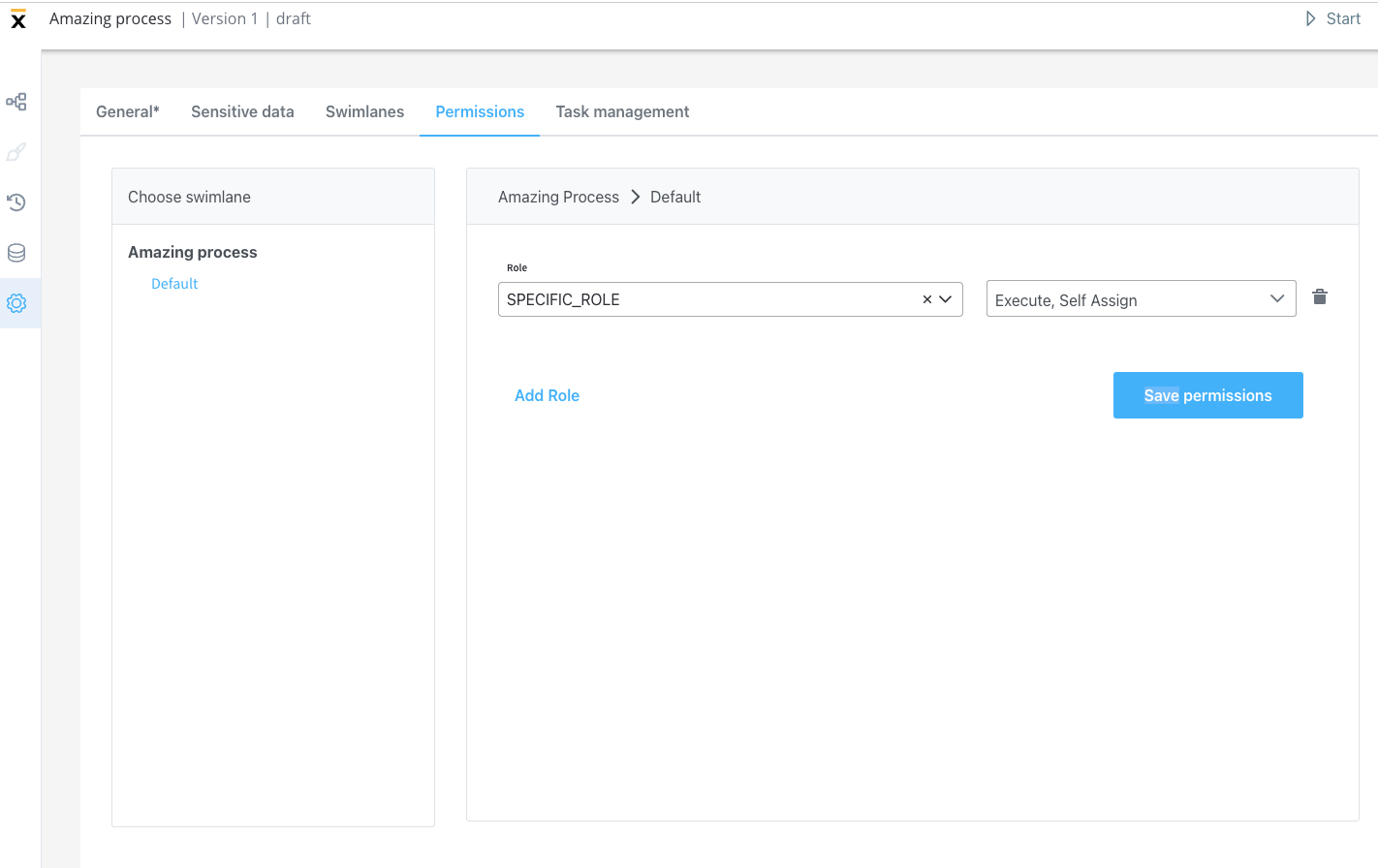
* **Execute**: You can start process instances and run actions on them
* **Self-assign**: You can assign process instances to themselves and begin working on them
These default permissions are available in FlowX.AI platform version **2.11.0 and later**.
### Swimlane execution control
#### Allow multiple swimlane executors
For each swimlane, you can control execution permissions by switching between:
* **Swimlane owner + multiple executors** (default)
* **Only Swimlane Owner**
This setting can be configured individually for each swimlane in your process definition.
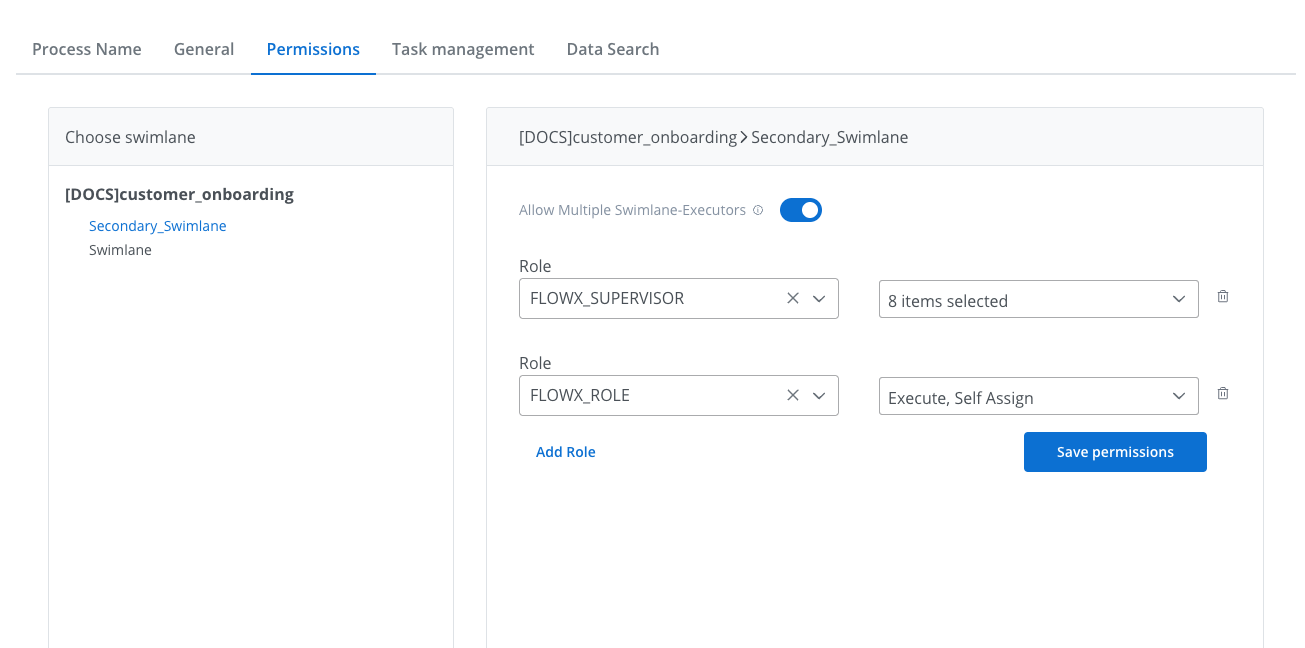
When **multiple executors** is enabled, you gain additional flexibility to configure permissions at the UI Element level within User Tasks for the selected swimlane.
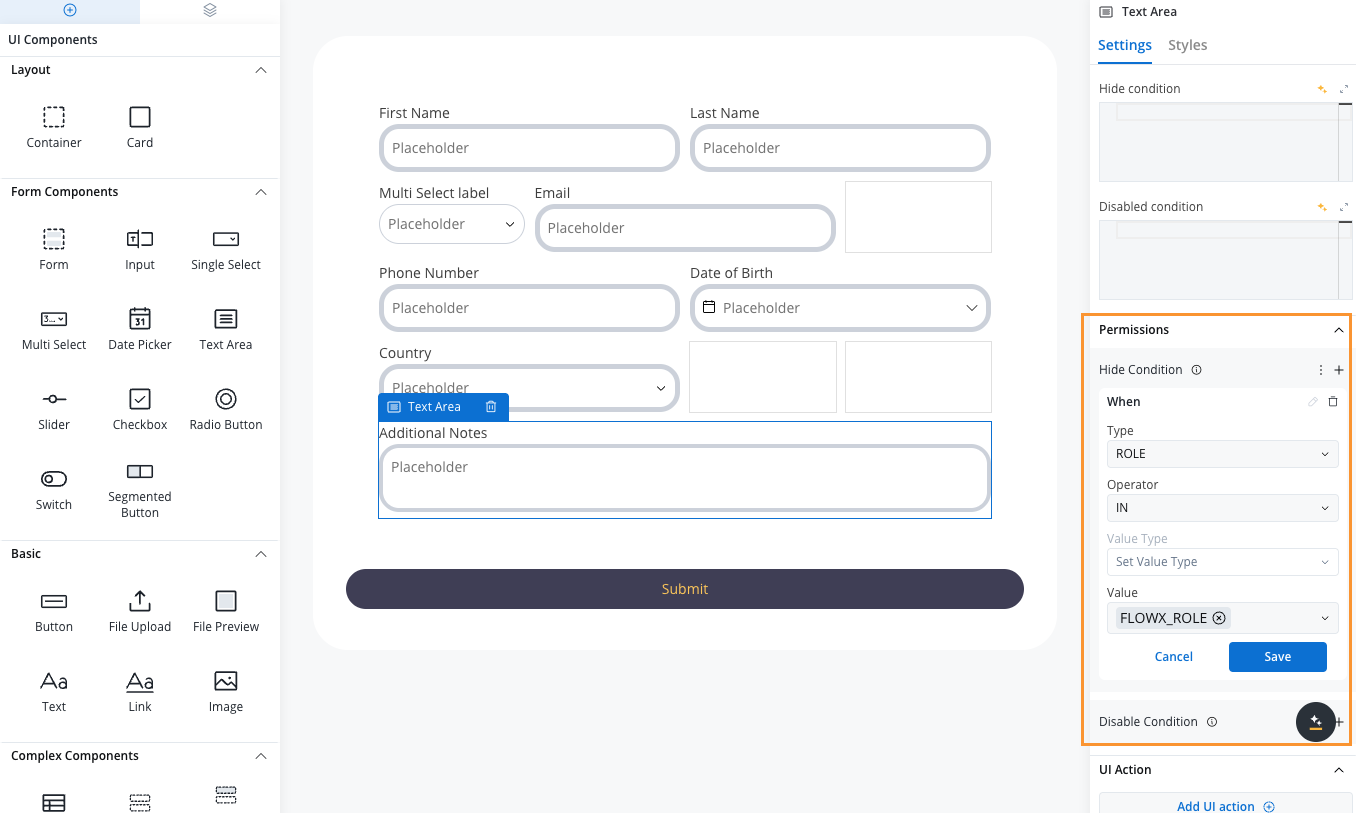
This granular control allows you to:
* Assign different UI elements to different roles within the same swimlane
* Create more complex permission structures for sophisticated workflows
* Maintain security while enabling collaborative work on process instances
### Additional permissions
You can manually add additional permissions based on your specific requirements:
#### Core permissions
* **View**: View process instance data
* **Execute**: Start process instances and run actions
* **Self-assign**: Assign process instances to yourself
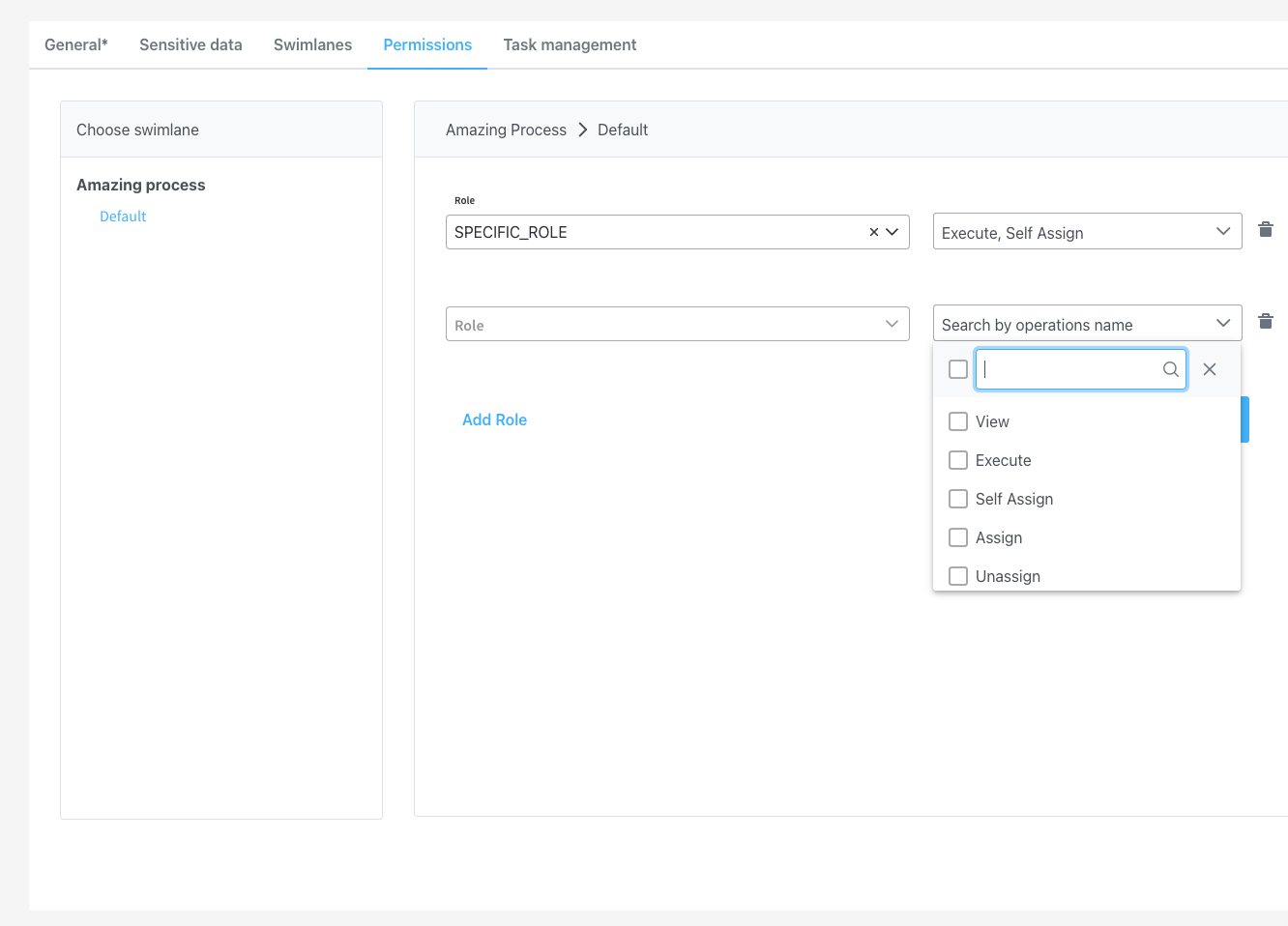
#### Task management permissions
These permissions are specifically for use with the [Task Management plugin](../../docs/platform-deep-dive/core-extensions/task-management/task-management-overview):
* **Assign**: Assign tasks to other users
* **Unassign**: Remove task assignments from other users
* **Hold**: Mark process instances as on hold
* **Unhold**: Remove hold status from process instances
* **Change Priority**: Modify task priority levels
**Version Compatibility**:
* **2.11.0+**: Specific roles must be configured for each operation, otherwise restrictions will be applied
* **\< 2.11.0**: If no role is configured, no restrictions are applied
## Access control with business filters
### What are business filters?
Business filters allow you to restrict process access based on dynamic business rules. For example, you might want only users from a specific bank branch to view process instances started from that branch.
### How business filters work
Business filters use attributes that are:
1. Configured in your identity management platform
2. Made available on the authorization token
3. Assigned to application users
4. Stored in process instance parameters
When a business filter is applied, only users with matching attributes can interact with the process instance.
### Configuring business filters
#### Step 1: Identity provider configuration
Configure business filter attributes in your identity provider as:
* A list of filters on the authorization token
* Attributes assigned to specific users
#### Step 2: Process definition setup
In your process definition, include nodes with actions that store the current business filter value to:
```
task.businessFilters
```
This value must be set in the process instance parameters.
#### Step 3: Runtime behavior
Once configured, only users with the correct business filter attribute can interact with process instances that have the filter applied.
Detailed guide on implementing business filters
## Configuration examples
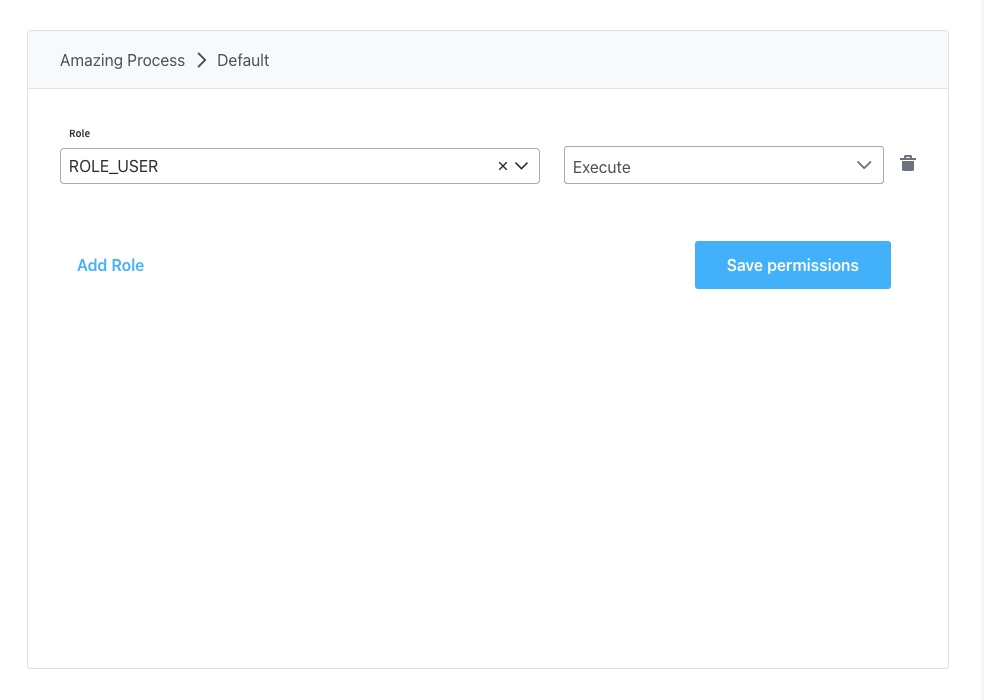
### Standard user configuration
For regular users who need basic process interaction:
```yaml theme={"system"}
Permissions:
- execute: USER_ROLE
- self-assign: USER_ROLE
- view: USER_ROLE
```
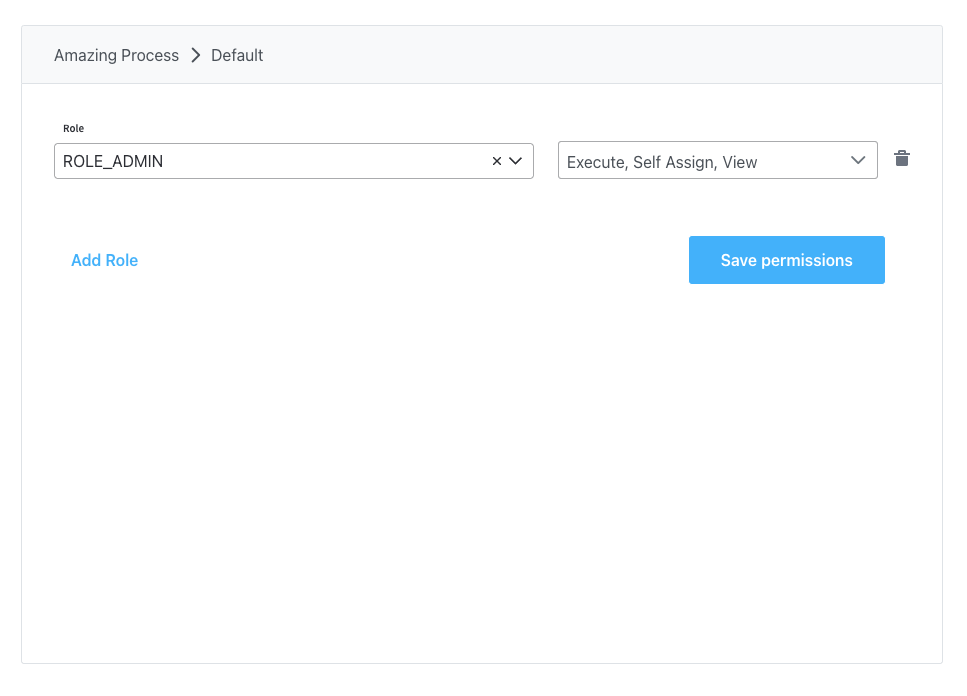
### Administrator configuration
For administrators who need full process management capabilities:
```yaml theme={"system"}
Permissions:
- execute: ADMIN_ROLE
- self-assign: ADMIN_ROLE
- view: ADMIN_ROLE
- assign: ADMIN_ROLE
- unassign: ADMIN_ROLE
- hold: ADMIN_ROLE
- unhold: ADMIN_ROLE
- change-priority: ADMIN_ROLE
```
### Team lead configuration
For team leads who can manage their team's tasks:
```yaml theme={"system"}
Permissions:
- execute: TEAM_LEAD_ROLE
- self-assign: TEAM_LEAD_ROLE
- view: TEAM_LEAD_ROLE
- assign: TEAM_LEAD_ROLE
- unassign: TEAM_LEAD_ROLE
```
## Platform configuration
### Engine configuration
Configure the FlowX Engine with the necessary environment variables for your identity provider:
#### Required variables
```bash theme={"system"}
SECURITY_TYPE=jwt-public-key
SECURITY_OAUTH2_BASESERVERURL=https://your-keycloak-server.com
SECURITY_OAUTH2_SAREALM=00000002-0002-4002-8002-000000000002
SPRING_SECURITY_OAUTH2_CLIENT_REGISTRATION_MAINIDENTITY_CLIENTID=flowx-process-engine-sa
SPRING_SECURITY_OAUTH2_CLIENT_REGISTRATION_MAINIDENTITY_CLIENTSECRET={your-sa-client-secret}
```
#### Optional variables
```bash theme={"system"}
# Data anonymization for sensitive information
FLOWX_DATA_ANONYMIZATION=true
```
### REST API access control
To restrict API calls by user role, configure path authorizations:
```yaml theme={"system"}
security:
pathAuthorizations:
- path: "/api/**"
rolesAllowed: "ANY_AUTHENTICATED_USER"
- path: "/api/admin/**"
rolesAllowed: "ADMIN_ROLE"
```
## Process instance management
### Viewing process instances
You can view active process instances and their data from FlowX Designer if you have the appropriate role (default: `FLOWX_ROLE`).
**Data Privacy**: Use the `FLOWX_DATA_ANONYMIZATION` environment variable to configure whether sensitive user data should be hidden in process views.
### Starting processes
The `FLOWX_ROLE` (or your configured default role) is required for users to start new process instances.
## Troubleshooting
### Common issues
**Users can't see processes**: Verify that the correct roles are assigned in your identity provider and that the service account is properly configured.
**Permission denied errors**: Check that the required permissions are configured for the specific operations and that users have the appropriate roles.
**Business filters not working**: Ensure that business filter attributes are properly configured in the identity provider and available on the authorization token.
### Version-specific considerations
**Platform Version \< 2.11.0**: If no role is configured on an operation, no restrictions will be applied. This behavior changed in version 2.11.0 where explicit role configuration became mandatory.
## Best practices
1. **Principle of Least Privilege**: Only grant the minimum permissions necessary for users to perform their tasks
2. **Role Hierarchy**: Design roles hierarchically (e.g., Admin > Team Lead > User) to simplify management
3. **Regular Audits**: Periodically review role assignments and permissions to ensure they remain appropriate
4. **Documentation**: Maintain clear documentation of what each role can do and who should have each role
5. **Testing**: Always test permission changes in a non-production environment first
6. **Business Filters**: Use business filters for dynamic, data-driven access control rather than static role-based restrictions
## Related topics
Detailed swimlanes configuration guide
Advanced business rules for access control