> ## Documentation Index
> Fetch the complete documentation index at: https://docs.flowx.ai/llms.txt
> Use this file to discover all available pages before exploring further.
# Workspaces access rights
> Overview of FlowX workspaces access rights and role-based access control
**Documentation Navigation:**
* **Workspaces Access Rights** (Current) - Role overview and concepts
* [Complete Permissions Matrix](/5.9/setup-guides/access-management/roles-permissions-matrix) - Detailed permission specifications
* [Permission Reference Guide](/5.9/setup-guides/access-management/permission-reference-guide) - Technical implementation details
* [Role Selection Guide](/5.9/setup-guides/access-management/role-selection-guide) - Practical scenarios and best practices
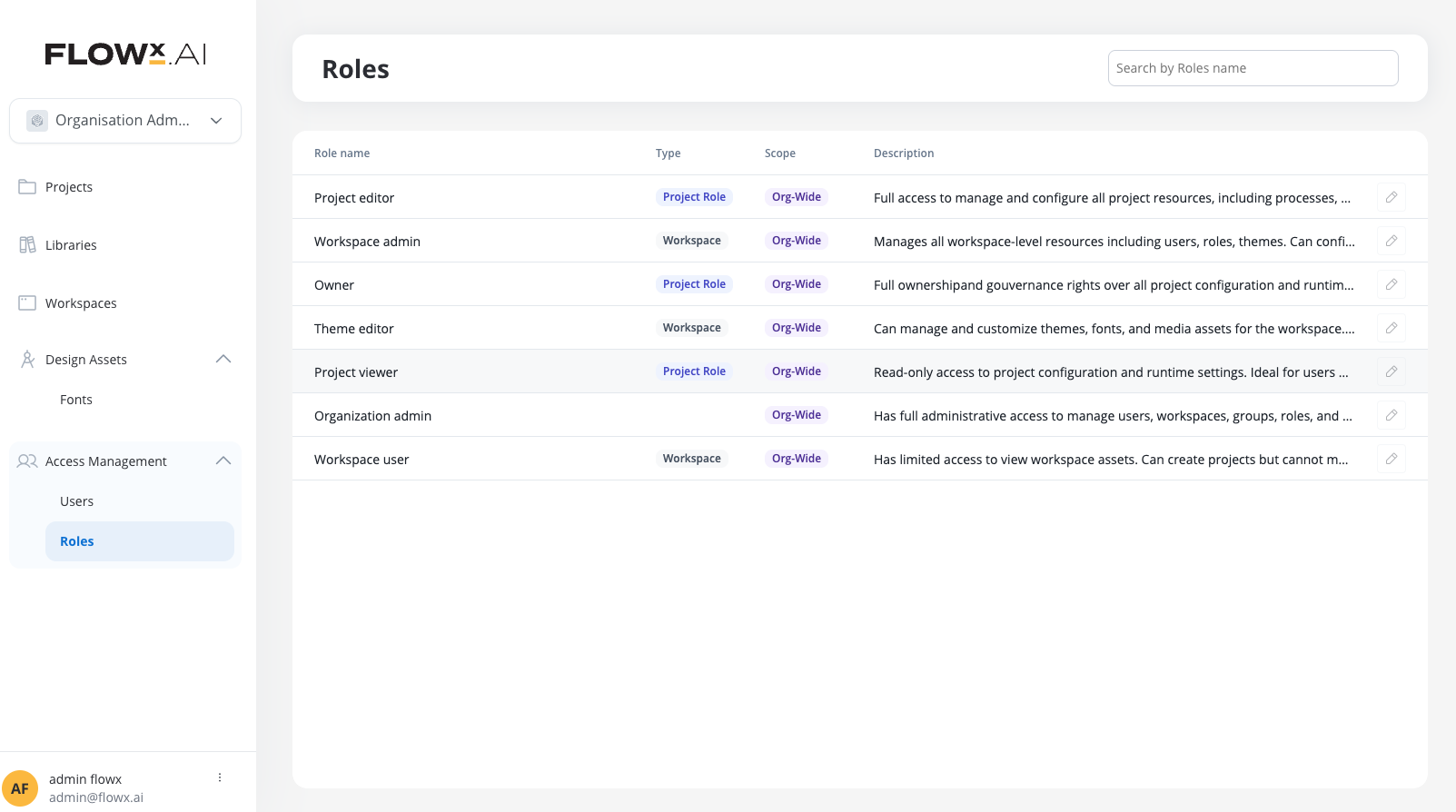
FlowX provides a comprehensive role-based access control system with predefined roles at organization, workspace, and project levels.
## Overview of workspaces access rights
FlowX provides a structured role hierarchy designed to support multi-tenant workspace architecture while maintaining security and governance. The system includes predefined roles that cannot be modified, ensuring consistent access patterns across all FlowX deployments.
## Authentication and authorization architecture
FlowX separates authentication and authorization into distinct systems:
**Handles user identity and login**
* User login and identity verification
* Token generation for authenticated users
* User creation and management in identity provider
* Service account identification with `SA_FLOWX` role
**Manages access control and permissions**
* Endpoint access control within FlowX Designer
* Workspace and project permissions
* Role and group management
* ACL-based fine-grained access control
* Database-stored permissions for better performance
**Designer vs Runtime Permissions**
* **Designer Permissions**: Control access to FlowX Designer interface, managed through workspaces and the role system
* **Runtime Permissions**: Control process execution and data access, managed through Keycloak roles
All roles and permissions described in this document apply only to FlowX Designer access.
## Configuration and Runtime access
**Project-level roles for design and building**
* Process and workflow design
* UI templates and integrations
* Project settings and resources
* **Roles**: Owner, Editor, Viewer
* **Scope**: Per-project assignment
**Workspace-level roles for deployment and execution**
* Build creation and deployment
* Process instance management
* Scheduled processes and policies
* Runtime environment overrides
* **Roles**: Runtime Editor, Admin
* **Scope**: Workspace-wide application
**Key Distinction**: Project roles provide **configuration access only**. Runtime operations require separate workspace-level roles like `workspace_runtime_editor`, `workspace_admin` or `workspace_user`, etc.
## User types
FlowX distinguishes between two primary user types, each with different access patterns and authentication requirements:
### Designer users
**Users who access FlowX Designer to configure and manage applications**
**Characteristics:**
* Created in FlowX database upon first login to Designer
* Managed through the workspace and role system described in this document
* Authentication handled by external provider (e.g., Keycloak)
* Authorization controlled by FlowX Designer roles and permissions
**Use Cases:**
* Platform administrators
* Business analysts and configurators
* Process designers and developers
* UI/UX designers and theme editors
### Runtime users
**Users who interact with applications built using FlowX, but do not necessarily have access to FlowX Designer**
**Characteristics:**
* Not created in FlowX database unless they also log into FlowX Designer
* Receive access to applications powered by FlowX via runtime roles and groups from external authentication system (e.g., Keycloak)
* Permissions at runtime (e.g., swimlane access, task management) are granted based on roles/groups parsed from user's access token
* No visibility in Designer unless they have both runtime and Designer access
**Subtypes:**
**Internal staff using FlowX-powered applications**
* Bank tellers, loan officers, branch staff
* Customer service representatives
* Back-office operational teams
* Task management and workflow execution capabilities
* Access granted through organizational roles and group memberships
**Organization's customers interfacing with customer-facing applications**
* External customers using digital banking, insurance, or other services
* Indirect users of FlowX runtime via organization's digital channels
* Typically authenticated through customer identity systems
* Limited to self-service and customer-facing workflows
**User Overlap Between Designer and Runtime**
Users can have both Designer access and Runtime access simultaneously. When this occurs:
* The user is created in FlowX database with Designer roles and permissions
* The same user can also interact with runtime applications using their runtime roles from Keycloak
* Designer permissions control what they can configure in FlowX Designer
* Runtime permissions control what processes and tasks they can access in deployed applications
**Organization ID propagation**
FlowX propagates the organization ID across runtime contexts for multi-tenant isolation:
* **Scheduler execution**: Organization ID added to scheduled job context
* **Event listeners**: Organization ID propagated to event handlers
* **Process instances**: Organization ID captured from the initiator
This improves audit trails and ensures proper resource scoping per organization in SaaS deployments.
## Role architecture
Cross-workspace administrative access for managing the entire FlowX organization
**Roles:**
* Organization Admin
Workspace-specific roles for managing resources, users, and configurations within a workspace
**Roles:**
* Workspace Admin
* Workspace User
* Theme Editor
* Workspace Runtime Editor
* Workspace Operations Editor
Project-specific roles for controlling access to individual projects and their resources
**Roles:**
* Project Owner
* Project Editor
* Project Viewer
## Organization level roles
### Organization admin
**Full administrative access across the entire FlowX organization**
**Key Responsibilities:**
* Managing all workspaces across the organization
* Creating and organizing workspace structure
* Managing organization-wide users and groups
* Overseeing system health and platform status
* Implementing organization-wide policies and configurations
**Key Characteristics:**
* Cannot be edited, duplicated, or deleted
* Can only be assigned in the Organization admin interface
* Hidden from workspace role lists
* Highest level of access in the FlowX hierarchy
* Should be limited to 2-3 trusted platform administrators
**Use Cases:**
* Platform administrators managing FlowX deployment
* IT managers responsible for multi-workspace environments
* System architects overseeing enterprise FlowX usage
#### Key permissions summary
✅ Create, edit, and delete workspaces\
✅ Configure organization settings\
✅ Manage organization-wide users and groups\
✅ Access all projects across all workspaces
✅ Manage global font resources\
✅ Configure out of office policies\
✅ Monitor platform status
⚠️ Manage environment information *(deprecated in 5.7.0 — Configure Environment Info UI removed)*
✅ View organization audit logs\
✅ Access all workspace audit logs\
✅ Monitor system health across organization\
❌ Cannot edit or delete audit entries (read-only)
**Critical Security Note**
The Organization Admin role should be assigned sparingly. Organization admins have access to **all projects in all workspaces** without exception. Limit this role to trusted platform administrators only.
For complete permission specifications, see the [Organization Admin Permission Matrix](/5.9/setup-guides/access-management/roles-permissions-matrix#organization-admin-permission-matrix).
## Workspace level roles
### Workspace admin
**Complete control over workspace-level resources and users**
**Key Responsibilities:**
* Managing workspace users, groups, and roles
* Overseeing all projects within the workspace
* Configuring workspace themes and branding
* Managing workspace-level settings and policies
* Handling workspace resource allocation
* Granting and revoking project access
**Key Characteristics:**
* Cannot be edited or deleted (predefined role)
* Can be assigned to users and groups within the workspace
* Listed in workspace role management interfaces
* Cannot manage organization-wide settings
* Has admin access to all projects in their workspace
**Use Cases:**
* Business unit managers
* Department heads overseeing team projects
* Workspace administrators with full workspace responsibility
* Team leads managing workspace access and resources
#### Key permissions summary
✅ Create projects and libraries\
✅ Manage workspace themes and fonts\
✅ Manage global media library\
✅ Configure workspace settings\
✅ View workspace audit logs
✅ Add and remove workspace users\
✅ Create and manage groups\
✅ Assign workspace roles\
✅ Manage user permissions\
❌ Cannot create or delete workspaces
✅ Create and view builds\
✅ Manage active policies\
✅ Configure scheduled processes\
✅ Manage configuration parameter overrides\
✅ View and edit process instances
✅ Edit process variables on active instances
For complete permission specifications, see the [Workspace Admin Permission Matrix](/5.9/setup-guides/access-management/roles-permissions-matrix#workspace-admin-permission-matrix).
### Workspace user
**Standard workspace access with project creation capabilities**
**Key Responsibilities:**
* Creating new projects within the workspace
* Working on assigned projects with appropriate project-level roles
* Viewing workspace resources (themes, fonts, media)
* Basic workspace participation
**Key Characteristics:**
* Cannot be edited or deleted (predefined role)
* Default role for most workspace members
* Can create projects (becomes project owner automatically)
* Needs explicit project access to work on others' projects
* Limited administrative capabilities
**Use Cases:**
* Business analysts and configurators
* Process designers and developers
* Junior team members
* Team members who build projects within defined boundaries
* General workspace members
#### Key permissions summary
✅ Create projects and libraries\
✅ View workspace themes (read-only)\
✅ View workspace fonts (read-only)\
✅ View global media library (read-only)\
✅ View workspace users, groups, and roles (read-only)\
❌ Cannot manage workspace settings
✅ View builds for accessible projects\
✅ View active policies (read-only)\
✅ View scheduled processes (read-only)\
✅ View configuration parameters (read-only)\
✅ View process instances for accessible projects (read-only)\
❌ Cannot create or modify runtime configurations
✅ Create new projects (becomes owner)\
✅ Access granted projects based on project role (read-only)\
❌ Cannot view all workspace projects by default\
❌ Needs explicit project access from project owner (read-only)
For complete permission specifications, see the [Workspace User Permission Matrix](/5.9/setup-guides/access-management/roles-permissions-matrix#workspace-user-permission-matrix).
### Theme editor
**Specialized role for visual design and branding management**
**Key Responsibilities:**
* Designing and customizing application themes
* Managing workspace fonts and typography
* Organizing and maintaining media library
* Creating visual design assets
* Ensuring brand consistency across projects
**Key Characteristics:**
* Extends workspace\_user with design permissions
* Same base permissions as workspace\_user
* Additional permissions for visual asset management
* Cannot be edited or deleted (predefined role)
* Focused on design and branding elements
**Use Cases:**
* UI/UX designers
* Brand managers ensuring visual consistency
* Visual design specialists
* Marketing team members managing brand assets
* Design teams customizing FlowX applications
#### Key permissions summary
✅ Create, edit, and delete themes\
✅ Manage workspace fonts (full access)\
✅ Manage global media library\
✅ Set default themes\
✅ Configure theme sections
✅ Create projects and libraries\
✅ View workspace resources\
✅ View runtime information (read-only)\
✅ Standard workspace user capabilities
Theme editors have the same project access rules as workspace users. They can create projects but need explicit access to work on others' projects.
For complete permission specifications, see the [Theme Editor Permission Matrix](/5.9/setup-guides/access-management/roles-permissions-matrix#theme-editor-permission-matrix).
### Workspace runtime editor
**Extended workspace user role with runtime configuration capabilities**
**Key Responsibilities:**
* Creating and managing workspace builds
* Configuring runtime environments and deployments
* Managing active policies and deployment strategies
* Overriding configuration parameters for runtime
* Monitoring and managing process instances
* Scheduling process executions
**Key Characteristics:**
* Extends workspace\_user with runtime permissions
* Same base permissions as workspace\_user
* Additional permissions for runtime environment management
* Cannot be edited or deleted (predefined role)
* Focused on deployment and runtime operations
**Use Cases:**
* DevOps engineers managing deployments
* Release managers handling build processes
* Runtime environment administrators
* Technical operations staff
* System administrators with runtime responsibilities
#### Key permissions summary
✅ Create builds from library versions\
✅ Edit active policies\
✅ Manage scheduled processes (activate, deactivate, delete)\
✅ Create, edit, and delete configuration parameter overrides\
✅ Edit process instances
✅ Create projects and libraries\
✅ View workspace resources\
✅ Standard workspace user capabilities
**Runtime access is workspace-scoped**
Runtime permissions are managed at the workspace level, not the project level. Users with workspace\_runtime\_editor can manage runtime configurations across **all projects in the workspace**, not just specific projects.
For complete permission specifications, see the [Workspace Runtime Editor Permission Matrix](/5.9/setup-guides/access-management/roles-permissions-matrix#workspace-runtime-editor-permission-matrix).
### Workspace operations editor
**Extended workspace user role with operations management capabilities**
**Key Responsibilities:**
* Managing process instance operations (migration & move token)
* Editing process variables on active instances
* Managing operational tasks across the workspace
* Viewing and editing process instances
**Key Characteristics:**
* Extends workspace\_user with operations permissions
* Same base permissions as workspace\_user
* Additional permissions for operations management
* Cannot be edited or deleted (predefined role)
* Focused on process operations and instance management
**Use Cases:**
* Support engineers managing process migrations
* Operations teams handling token movements
* Technical support staff editing process variables
* Operations managers overseeing process instances
#### Key permissions summary
✅ Create, view, edit, and delete operations (migration & move token)\
✅ Edit process instances\
✅ Edit process variables on active instances\
✅ View all process instances across workspace
✅ Create projects and libraries\
✅ View workspace resources\
✅ Standard workspace user capabilities
The workspace\_operations\_editor role provides focused permissions for operations management without the broader runtime capabilities of workspace\_runtime\_editor.
For complete permission specifications, see the [Workspace Operations Editor Permission Matrix](/5.9/setup-guides/access-management/roles-permissions-matrix#workspace-operations-editor-permission-matrix).
## Project level roles
### Project owner
**Complete ownership and governance of project resources**
**Key Responsibilities:**
* Full project governance and decision-making authority
* Granting and revoking project access to other users
* Managing all project configurations and resources
* Approving major project changes
* Overseeing project lifecycle
**Key Characteristics:**
* Automatically assigned to project creator
* Cannot be edited, duplicated, deleted, or manually assigned through UI
* Hidden from role selection interfaces
* System-managed role with highest project-level access
* Permanent assignment for project lifecycle
* Only one owner per project
**Automatic Assignment:**
* Automatically granted when creating a project
* Can be transferred to another user (ownership transfer)
* Cannot be removed without transferring to another user
**Use Cases:**
* Project leads with full authority
* Technical architects owning project decisions
* Product owners managing project direction
* Users who created the project
#### Key permissions summary
✅ Complete project ownership and governance\
✅ Grant/revoke project access\
✅ Delete project\
✅ Transfer project ownership\
✅ Full administrative control
✅ All configuration resources (full access)\
✅ Processes, workflows, enumerations\
✅ Templates, media, integrations\
✅ AI agents, reusable resources\
✅ All project settings
**Non-Configurable Permissions**
Project owner permissions are not configurable in the UI. The role automatically includes all project-level permissions without exception.
For complete permission specifications, see the [Project Owner Permission Matrix](/5.9/setup-guides/access-management/roles-permissions-matrix#project-owner-permission-matrix).
### Project editor
**Full project configuration and management capabilities**
**Key Responsibilities:**
* Building and configuring project processes
* Designing workflows and integrations
* Creating UI configurations
* Managing project resources
* Creating builds and deployments
* Day-to-day project development
**Key Characteristics:**
* Can be assigned to users and groups
* Comprehensive project access without ownership rights
* Cannot grant/revoke project access to others
* Standard role for project team members
* Cannot be edited or deleted (predefined role)
**Use Cases:**
* Senior developers and configurators
* Technical leads on project teams
* Business analysts with advanced permissions
* Team members with full project configuration needs
* Development team members
#### Key permissions summary
✅ All configuration resources (full access)\
✅ Processes, workflows, enumerations\
✅ Templates, media, integrations\
✅ AI agents, reusable resources\
✅ All project settings\
❌ Cannot manage project access
❌ Cannot grant/revoke project access\
❌ Cannot delete project\
❌ No administrative rights over project
For complete permission specifications, see the [Project Editor Permission Matrix](/5.9/setup-guides/access-management/roles-permissions-matrix#project-editor-permission-matrix).
### Project viewer
**Read-only access to project configuration and settings**
**Key Responsibilities:**
* Reviewing project configurations
* Auditing processes and workflows
* Compliance checking and documentation
* Understanding project structure for training
* Monitoring project status
**Key Characteristics:**
* Can be assigned when granting project access
* Completely read-only access
* Safe role for stakeholders needing visibility
* No modification capabilities
* Can test processes through interface
* Suitable for audit and review purposes
**Use Cases:**
* Business stakeholders and executives
* Quality assurance team members
* External consultants needing project visibility
* Audit and compliance personnel
* New team members during onboarding
* Documentation and training purposes
#### Key permissions summary
✅ View all configuration resources\
✅ View processes, workflows, enumerations\
✅ View templates, media, integrations\
✅ View project settings and dependencies\
✅ Export project resources
✅ Test processes and workflows
❌ Cannot edit any resources
❌ Cannot create any resources\
❌ Cannot delete any resources\
❌ Cannot modify configurations\
❌ Cannot create builds or deployments
**Testing Capability**
Project viewers can test processes and workflows through the interface, allowing them to understand how processes work without the ability to modify configurations.
For complete permission specifications, see the [Project Viewer Permission Matrix](/5.9/setup-guides/access-management/roles-permissions-matrix#project-viewer-permission-matrix).
## Role comparison matrix
### Quick capability comparison
The following table provides a high-level comparison of key capabilities across all roles:
| Capability | org\_admin | workspace\_admin | workspace\_user | theme\_editor | runtime\_editor | operations\_editor | project\_owner | project\_editor | project\_viewer |
| ------------------------- | ---------- | ---------------- | --------------- | ------------- | --------------- | ------------------ | -------------- | --------------- | --------------- |
| **Workspace Management** | | | | | | | | | |
| Create workspace | ✅ | ❌ | ❌ | ❌ | ❌ | ❌ | ❌ | ❌ | ❌ |
| Manage workspace users | ✅ | ✅ | ❌ | ❌ | ❌ | ❌ | ❌ | ❌ | ❌ |
| Create projects | ✅ | ✅ | ✅ | ✅ | ✅ | ✅ | N/A | N/A | N/A |
| **Design & Branding** | | | | | | | | | |
| Edit themes | ✅ | ✅ | ❌ | ✅ | ❌ | ❌ | N/A | N/A | N/A |
| Manage fonts | ✅ | ✅ | ❌ | ✅ | ❌ | ❌ | N/A | N/A | N/A |
| **Runtime Operations** | | | | | | | | | |
| Create builds | ✅ | ✅ | ❌ | ❌ | ✅ | ❌ | ✅ | ✅ | ❌ |
| Edit active policy | ✅ | ✅ | ❌ | ❌ | ✅ | ❌ | ✅ | ✅ | ❌ |
| Manage config parameters | ✅ | ✅ | ❌ | ❌ | ✅ | ❌ | ✅ | ✅ | ❌ |
| **Operations Management** | | | | | | | | | |
| Manage operations | ✅ | ✅ | ❌ | ❌ | ✅ | ✅ | N/A | N/A | N/A |
| Edit process variables | ✅ | ✅ | ✅ | ❌ | ✅ | ✅ | N/A | N/A | N/A |
| **Project Configuration** | | | | | | | | | |
| Edit processes | ✅ | ✅\* | ✅\* | ✅\* | ✅\* | ✅\* | ✅ | ✅ | ❌ |
| Manage templates | ✅ | ✅\* | ✅\* | ✅\* | ✅\* | ✅\* | ✅ | ✅ | ❌ |
| Configure integrations | ✅ | ✅\* | ✅\* | ✅\* | ✅\* | ✅\* | ✅ | ✅ | ❌ |
| **Access Control** | | | | | | | | | |
| Grant project access | ✅ | ✅ | ❌ | ❌ | ❌ | ❌ | ✅ | ❌ | ❌ |
| Manage workspace access | ✅ | ✅ | ❌ | ❌ | ❌ | ❌ | ❌ | ❌ | ❌ |
\* Workspace-level roles can only edit project resources for projects they have been explicitly granted access to. Having a workspace role does not automatically grant access to all projects.
## Default groups
### Everyone in workspace group
Every workspace automatically includes a special system-managed group for simplified access management to all workspace users.
**Display Name:** Everyone from \
**Purpose:**
Provides convenient access management for all users associated with a workspace, enabling efficient bulk access grants.
**Automatic Behavior:**
* ✅ Created automatically during workspace provisioning
* ✅ Users automatically added when granted workspace access
* ✅ Users automatically removed when workspace access revoked
* ✅ Pre-selected when creating new projects/libraries
* ✅ Appears in user/group search results
* ❌ Cannot be edited, deleted, or duplicated
* ❌ Membership cannot be manually modified
**Common Use Cases:**
* Grant all workspace members read access to reference projects
* Provide baseline visibility across workspace projects
* Simplify onboarding by giving new users automatic access to shared resources
* Create workspace-wide shared libraries
**Example:**
```
Workspace: "Product Development"
Group: "all_users_product_development"
Display: "Everyone from Product Development"
```
**No Individual Exclusions**
The "Everyone in workspace" group includes ALL workspace members without exception. You cannot remove specific users from this group or create exclusions. If you need selective access, create custom groups instead.
### Custom groups
**When to create custom groups:**
* Team-based access (e.g., "Development Team", "QA Team")
* Role-based access (e.g., "Senior Developers", "Stakeholders")
* Project-specific access (e.g., "Project Alpha Team")
* Cross-functional teams (e.g., "Release Management")
**Group naming best practices:**
* Use descriptive names indicating purpose
* Follow consistent naming conventions
* Example format: `[function]_[department]_[sub-group]`
* Good examples: `dev_team_frontend`, `stakeholders_finance`, `editors_project_phoenix`
**Group operations:**
* Add members individually or bulk import
* Assign workspace-level roles to groups
* Use groups when granting project access
* Remove members or delete entire groups
**Best practices:**
* Use groups instead of individual assignments when possible
* Document group purposes clearly
* Review group memberships regularly
* Plan group structure before implementation
For comprehensive groups documentation and strategies, see the [Role Selection & Management Guide](/5.9/setup-guides/access-management/role-selection-guide#groups-and-access-management).
## Quick start guide
### Grant workspace access
Go to your workspace → Access Management → Users
Click "Add" button → Search for user by name or email
Select appropriate role (typically `workspace_user` for standard access) → Confirm
### Assign user to project
Go to project → Settings → Access Management
Click "Grant Access" → Search for user or group
Choose role (`project_editor` for full access, `project_viewer` for read-only) → Confirm
### Create a custom group
Go to workspace → Access Management → Groups
Click "Add" → Enter descriptive group name and description
Add users to group → Assign workspace-level role to group → Save
## Legacy role migration
### FlowX 4.x to 5.0 role mapping
FlowX 4.x roles stored in Keycloak are not automatically migrated. Manual role assignment is required in FlowX 5.0.
| FlowX 4.x Role | FlowX 5.0 Equivalent | Scope Change | Notes |
| --------------------- | ------------------------------------ | -------------------- | ------------------------------- |
| `FLOWX_ADMIN` | `workspace_admin` | Now workspace-scoped | Was global, now per-workspace |
| `FLOWX_CONFIGURATOR` | `workspace_user` or `project_editor` | Depends on needs | Choose based on required access |
| `FLOWX_UI_DESIGNER` | `theme_editor` | Workspace-scoped | Enhanced capabilities |
| `FLOWX_VIEWER` | `project_viewer` | Now project-specific | Was global, now per-project |
| Custom Keycloak roles | Manual review required | N/A | Assess against new structure |
### Key migration considerations
Roles are now workspace-scoped rather than global. Reassign within workspace context.
Runtime permissions moved to workspace level. Use `workspace_runtime_editor` role.
Roles now stored in FlowX database for better performance and control.
New role hierarchy requires review of user access patterns.
## Best practices summary
Begin with minimum required access (e.g., `project_viewer`) and escalate as needed based on demonstrated requirements.
Create and use groups for teams and functions rather than managing individual user access.
Conduct quarterly access reviews, remove inactive users, and validate permissions match responsibilities.
Maintain records of role assignments, especially for elevated privileges and exceptions.
Always grant the minimum permissions necessary for users to perform their job functions.
Have clear processes for role changes, project ownership transfers, and access removal.
For detailed best practices and practical scenarios, see the [Role Selection & Management Guide](/5.9/setup-guides/access-management/role-selection-guide#best-practices-summary).
## Current limitations in FlowX 5.1
The following features have specific limitations in FlowX 5.1:
**Role Management:**
* Custom roles not available
* Bulk role assignment tools not available
**Workspace Features:**
* Workspace deletion functionality not available
* Moving projects/libraries between workspaces not supported
**Integration Features:**
* Runtime roles and groups will return errors if Keycloak isn't used as the authentication provider
## Troubleshooting common issues
**Possible Causes:**
* User not assigned to workspace
* No role assigned in workspace
* User not in any workspace groups
**Solutions:**
1. Verify user is in workspace user list
2. Check role assignments
3. Validate group memberships
4. Contact workspace administrator for access
**Possible Causes:**
* No project-level access granted
* Workspace role doesn't auto-grant project access
* Project visibility restrictions
**Solutions:**
1. Contact project owner for access
2. Verify workspace membership
3. Check if project exists in current workspace
4. Request appropriate project role
**Possible Causes:**
* Cached permissions not updated
* User hasn't logged out and back in
* Conflicting role assignments
**Solutions:**
1. Log out completely and log back in
2. Clear browser cache
3. Wait a few minutes for permissions to propagate
4. Contact workspace administrator if issue persists
For comprehensive troubleshooting with detailed diagnostic procedures, see [Troubleshooting Permission Issues](/5.9/setup-guides/access-management/role-selection-guide#troubleshooting-permission-issues).
## Related documentation
Detailed permission specifications for all FlowX roles with comprehensive matrices
Technical implementation details, UI mappings, and permission naming conventions
Practical scenarios, best practices, troubleshooting, and migration guidance
Overview of FlowX access management system and authentication architecture
Setting up identity and access management with Keycloak
Understanding workspaces and their role in organizing projects