> ## Documentation Index
> Fetch the complete documentation index at: https://docs.flowx.ai/llms.txt
> Use this file to discover all available pages before exploring further.
# Move tokens
> Reposition the active tokens of running process instances to a different node of the same process, in bulk, without restarting the instances.
export const release_1 = "5.13"
export const release_0 = "5.13"
SaaS · {release_0}
**Available on SaaS with FlowX.AI {release_0}.** This feature is live on managed (SaaS) deployments now. Self-hosted deployments will receive it with the next LTS release family.
## Overview
Move token is a corrective action that takes the active token of a running process instance off the node it is stuck on and places it on another node of the same process. Use it when instances are blocked on a node and you want them to resume somewhere else, for example to skip a step that cannot complete or to send them back to repeat one.
It runs in bulk from the Corrective Actions page, on one or many instances at once, and the instances keep running on the build they started on.
| You want to | Use |
| - | - |
| Resume instances from a different node of the same process | **Move token** (this page) |
| Apply a corrected process definition from another build | [Migrate process instances](./migrate-process-instances) |
| Fix the data an instance is carrying | [Update process variables](./update-process-variables) |
***
## Eligibility
| Condition | Rule |
| - | - |
| **Instance status** | Only running root instances are eligible: **STARTED** or **ON HOLD** status. Finished, terminated, expired, and failed instances can't be selected. |
| **Build** | The instance must have started on a committed build. Unlike migration, there is no restriction on the active build: instances running on it can have their tokens moved. |
| **Token status** | Only tokens that are **active** or **on hold** are moved. |
| **Destination** | Any node of the same process definition, before or after the current node. Inside a parallel section, see [Parallel gateways](#parallel-gateways). |
***
## Prerequisites
SaaS · {release_1}
**Available on SaaS with FlowX.AI {release_1}.** This feature is live on managed (SaaS) deployments now. Self-hosted deployments will receive it with the next LTS release family.
You need the **Workspace corrective actions editor** role in the workspace, plus permission to view and edit process instances in the project. Workspace admins have corrective actions access by default, and organization admins get it through their workspace admin access.
The Corrective Actions page is visible to anyone with read access to corrective actions. The **Move Tokens** and **Bulk Migration** menu items appear disabled unless you can also create them.
For the full permission breakdown, see the [Roles and permissions matrix](/5.9/setup-guides/access-management/roles-permissions-matrix).
***
## Move tokens
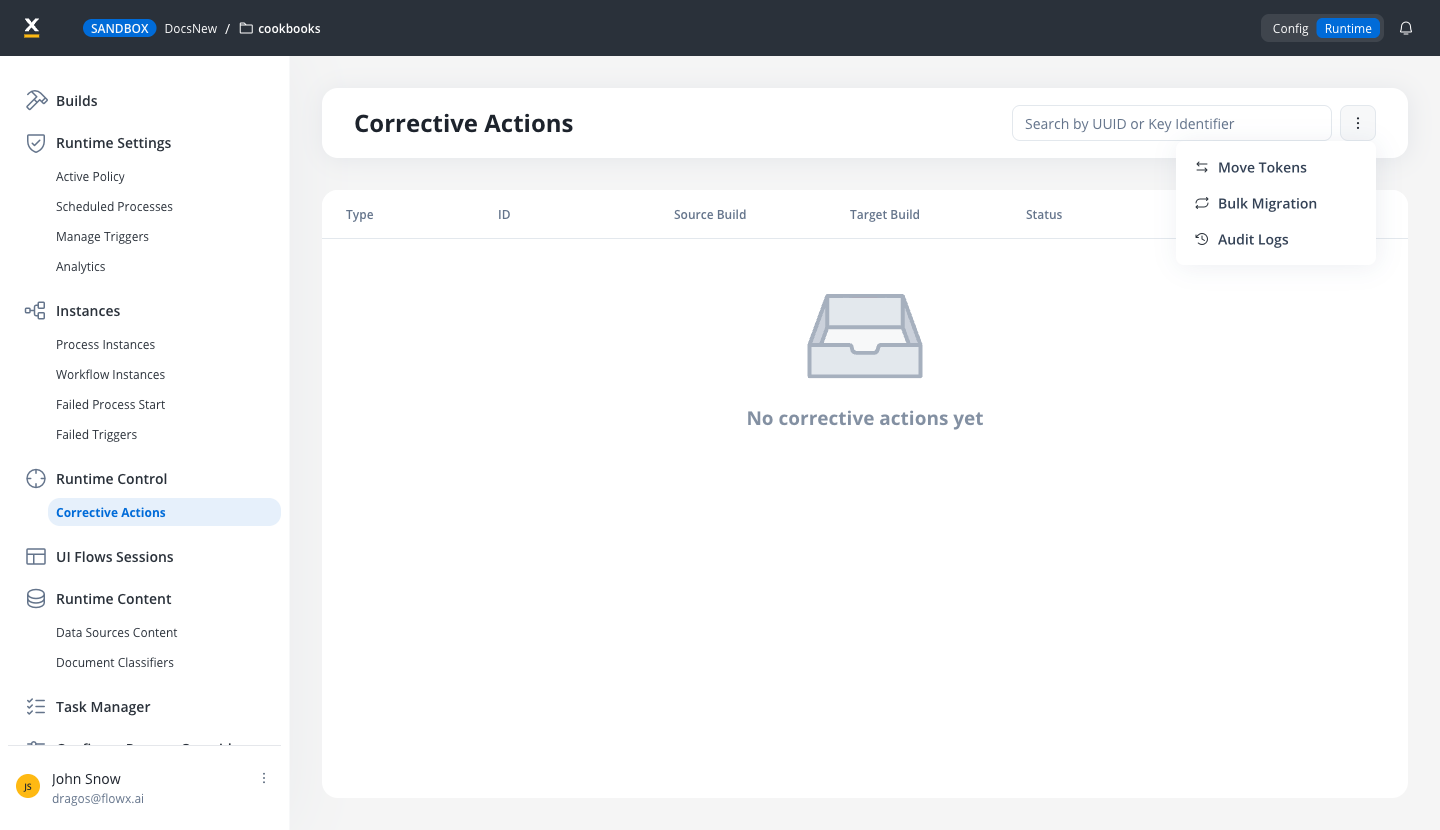
Go to **Runtime → Runtime Control → Corrective Actions**, open the menu (three dots, top right) and select **Move Tokens**.
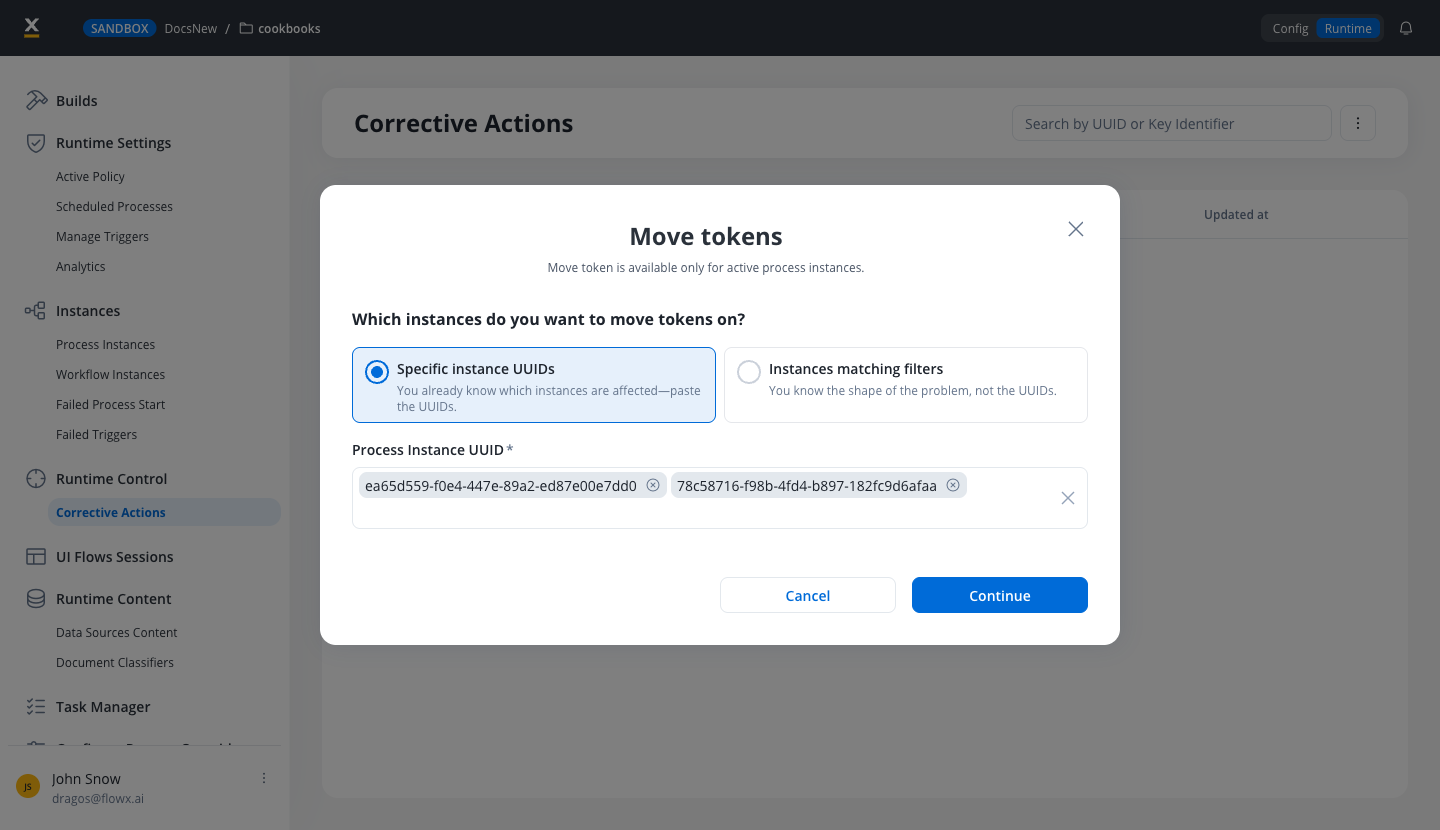
In the **Move tokens** modal, under **Which instances do you want to move tokens on?**, pick a selection mode and fill in its fields; see [Choosing the instances](#choosing-the-instances). Click **Continue**.
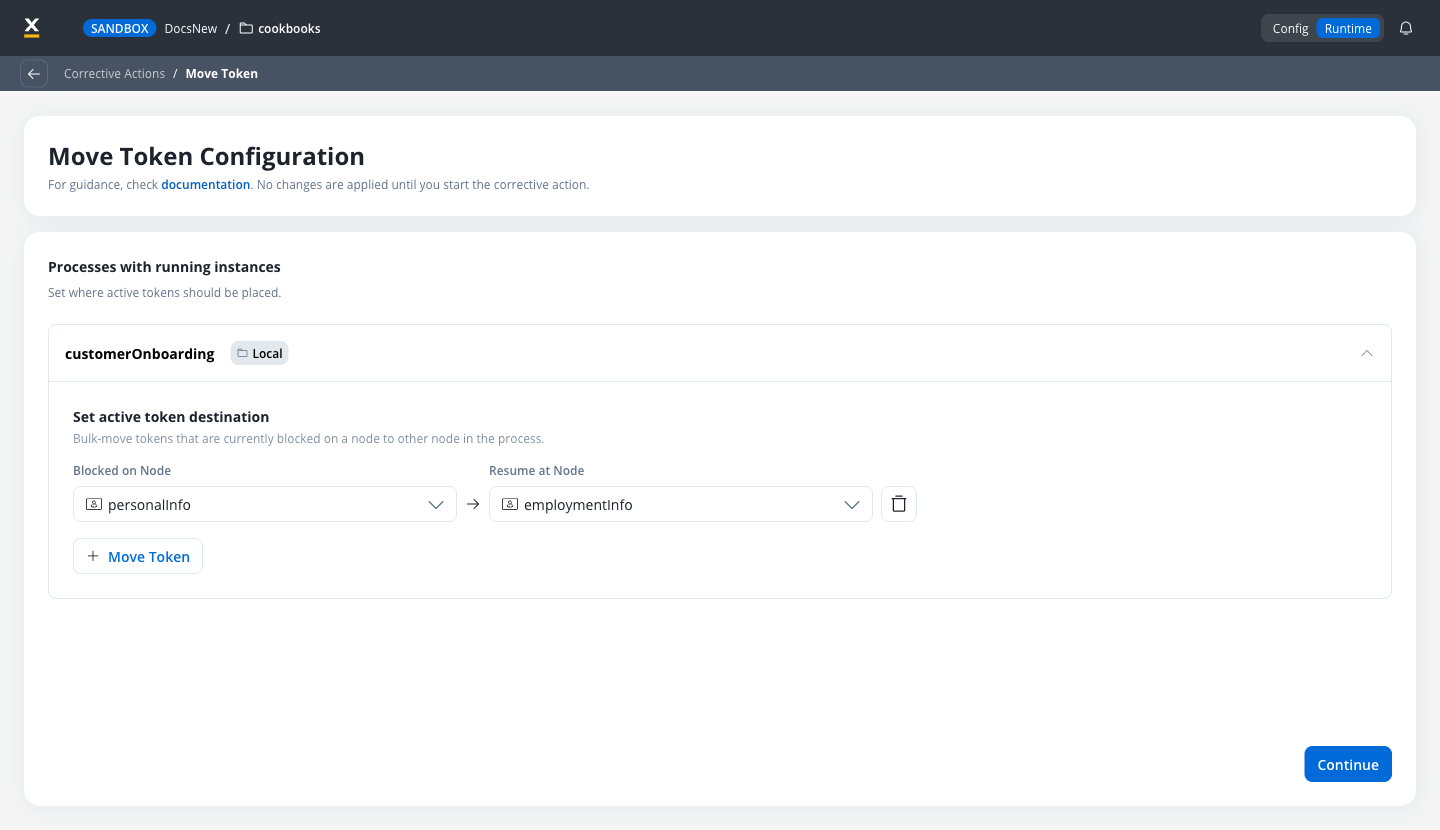
The **Move Token Configuration** page lists each process that has running instances in your selection. For each one, click **Move Token** to add a row, then choose:
* **Blocked on Node**: the node the tokens currently sit on. Only nodes where the selected instances have tokens are offered.
* **Resume at Node**: the node the tokens should move to.
Add one row per blocked node. A node used as **Blocked on Node** in one row can't be picked again in another. Every row must be complete before you can continue. Click **Continue**.
The **Move Token Summary** lists the processes and the number of tokens that will move in each. Click **Start Move Token** to run it, or **Back to Setup** to change the configuration.
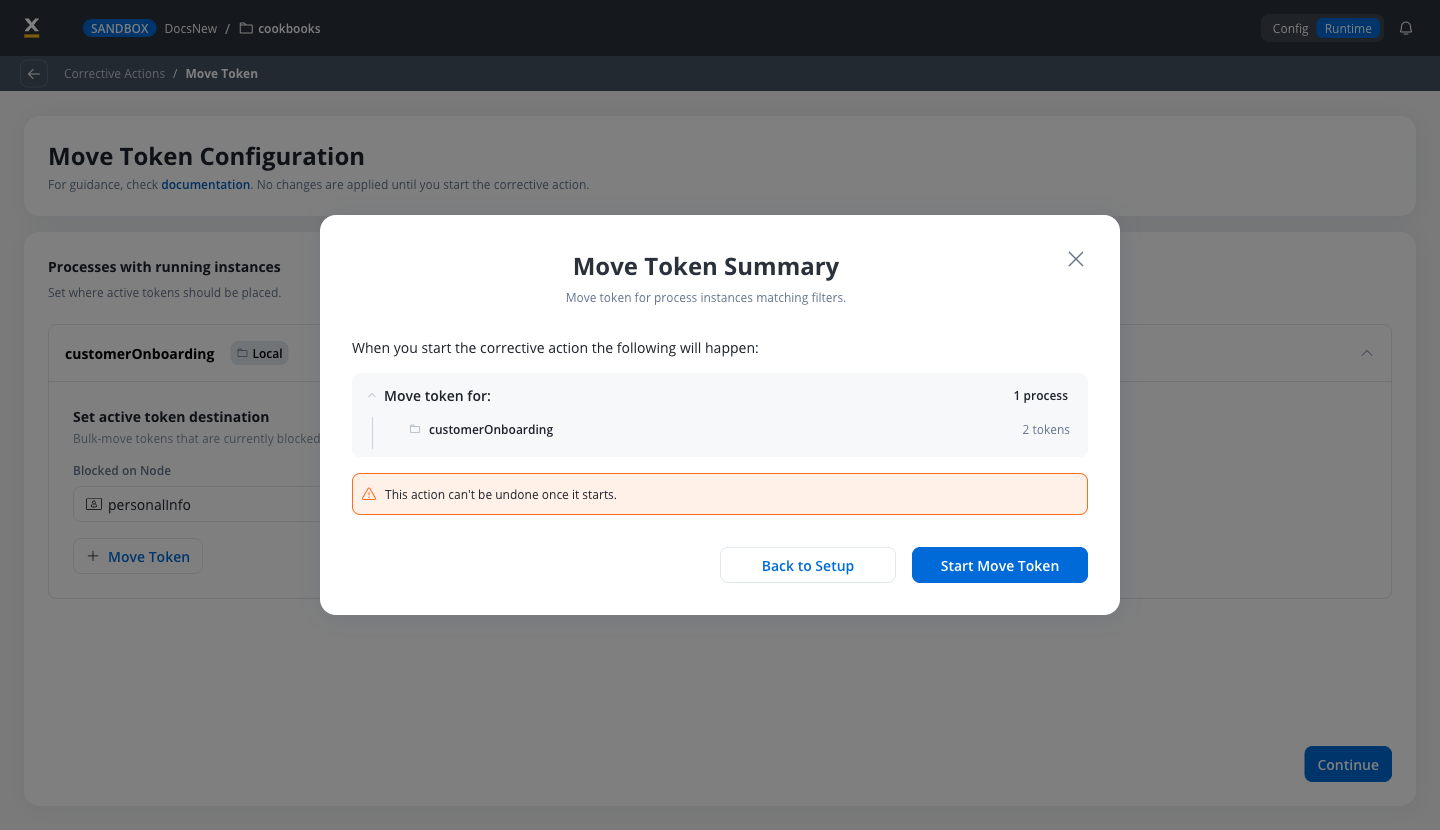
A move token run can't be undone or cancelled once it starts.
The run continues in the background, so you can close the progress window and keep working. Track it on the Corrective Actions page; see [Track the run](#track-the-run).
### Choosing the instances
The modal offers two selection modes:
| Mode | Use it when |
| - | - |
| **Specific instance UUIDs** | You already know which instances are affected, so you paste their UUIDs. |
| **Instances matching filters** | You know the shape of the problem but not the UUIDs. |
**Specific instance UUIDs** takes comma-separated UUIDs in the **Process Instance UUID** field, up to **100** in one run. The instances can be running on different builds. If any UUID is invalid or not eligible, the modal flags it so you can correct the list.
**Instances matching filters** selects instances on one build per run:
| Filter | Required | What it matches |
| - | - | - |
| **Instances running on build** | Yes | Instances running on that build. The active build is labelled **(Active build)**. |
| **Process Name** | No | Instances of that process. Leave it empty to include all processes. |
| **Current Node Name** | No | Instances whose active token sits on that node. |
| **Instance status** | No | The token's status on that node. |
***
## What happens to a moved token
When a token moves, the instance is paused for the duration of the move, then:
* The original token is closed with the **Moved** status and stays in the instance history.
* A new token is created on the destination node, carrying the earlier history. The destination node runs from the start, so its actions execute again.
* Only the tokens you picked are affected. Other tokens of the same instance keep running.
* Process data is not changed. If the destination node expects data that earlier steps never produced, [update the process variables](./update-process-variables) as well.
* Moving a token **backward** removes the history from the destination node onward, so the instance replays those steps.
* Tokens that descend from the moved token are aborted, and subprocesses started by actions on the node being left are cancelled.
* Timers on the node being left are stopped. Timers on the destination node are created again, with a fresh start time.
* Moving a token onto the end node of an embedded subprocess returns the token to the parent process.
### Parallel gateways
Inside a parallel section, a token can move only to a node on its own branch. Moving it to a node on another branch is rejected. A token outside a parallel section can move past a complete parallel section, split and join included.
***
## Track the run
Each run appears on the Corrective Actions page with the **Move Token** type and its status: **Draft**, **Initialized**, **Pending**, **In Progress**, **Completed**, or **Failed**.
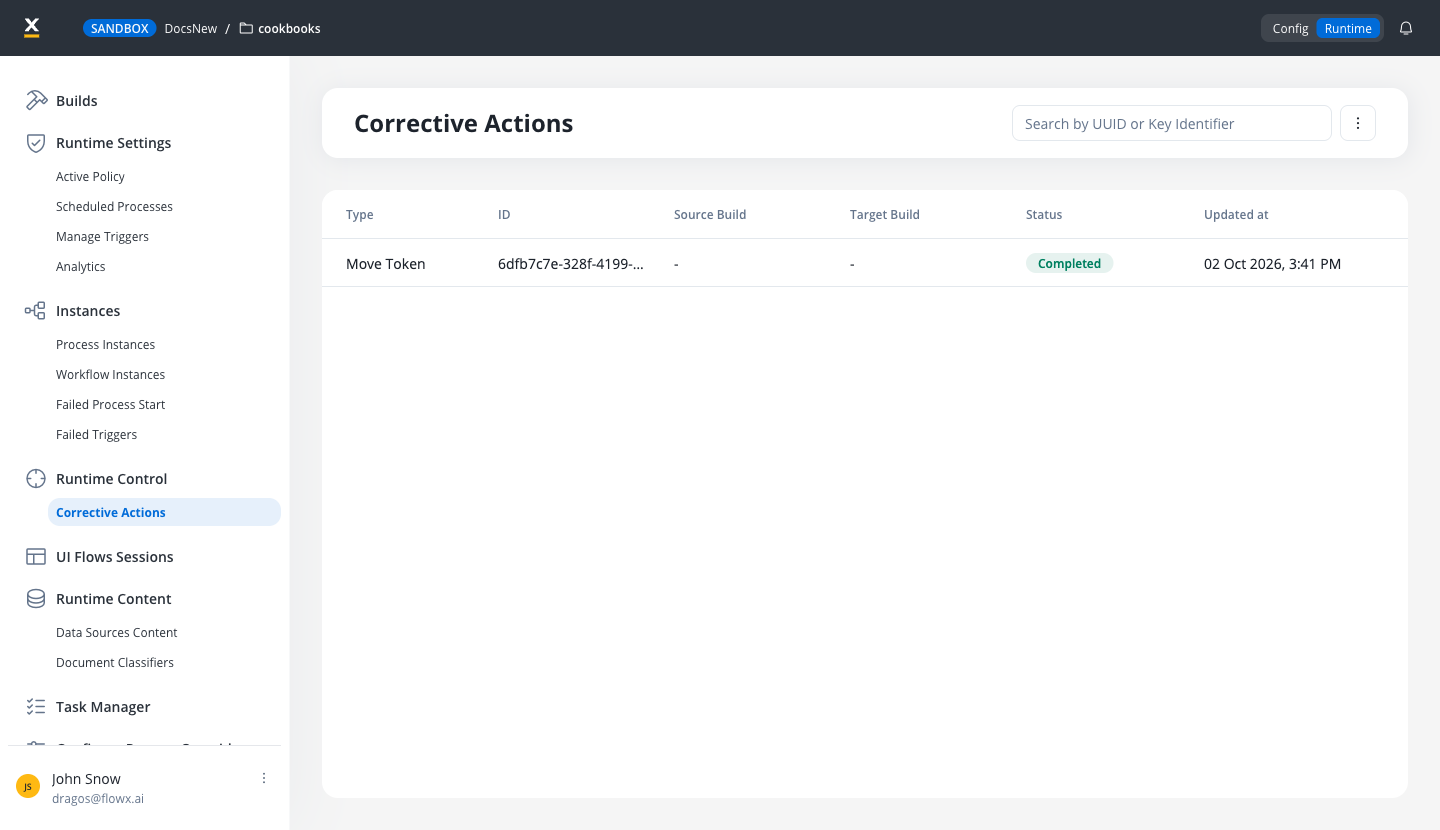
Click a run to open **Move Token Status**. It shows the corrective action ID and the per-instance outcome, with **Success** and **Failed** filters and an **Error** column for instances that failed.
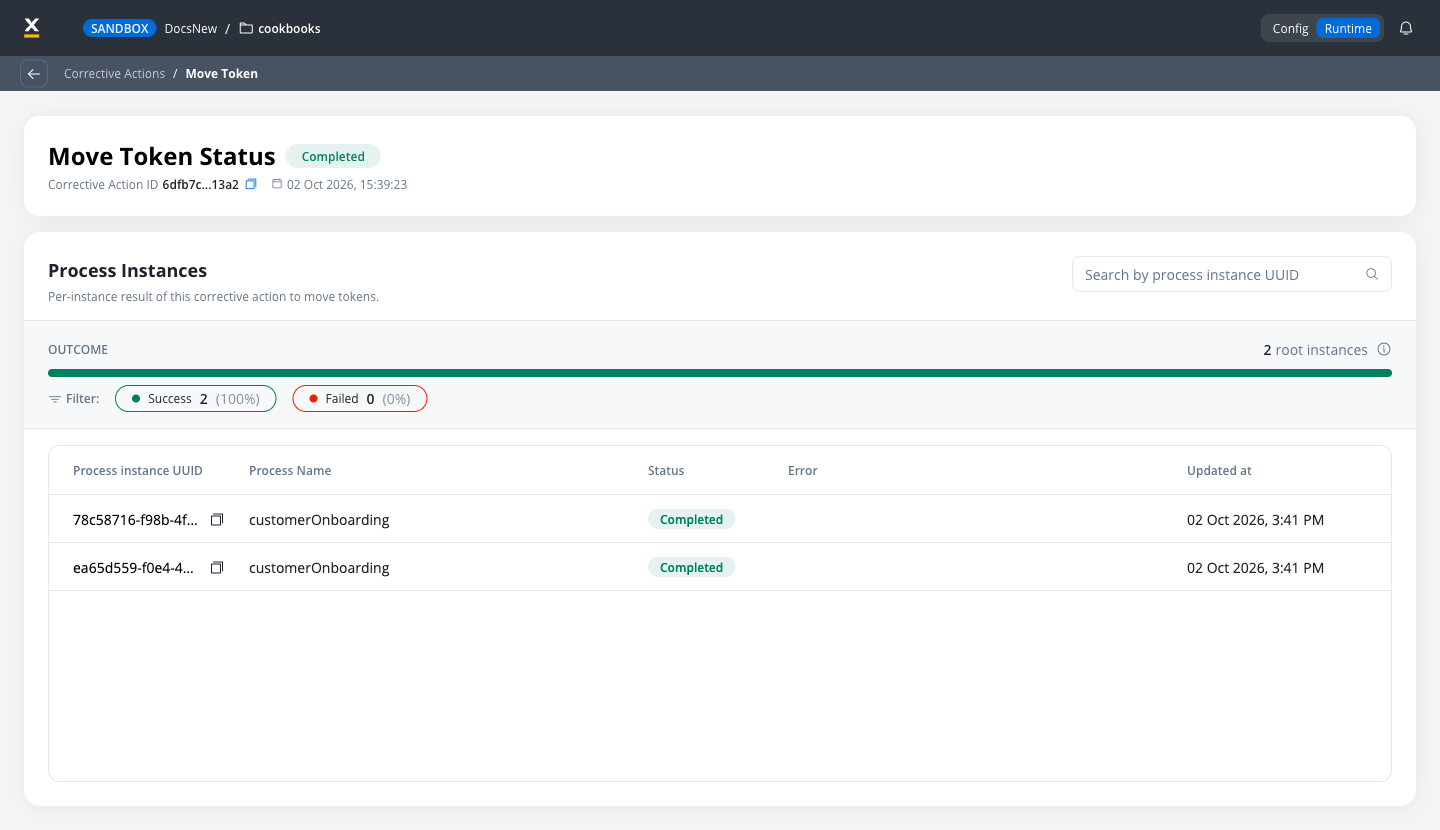
Instances are processed independently. If the move fails for one instance, that instance is restored to its state before the move, and the others are unaffected. The run reaches **Completed** even when some instances failed, so check the **Failed** filter.
***
## Audit trail
Every move token run is recorded in the [audit log](../../../platform-deep-dive/core-extensions/audit), attributed to the user who started it:
* One entry for the run itself, identified by the corrective action ID. The entry records success, or an error with the number of instances whose tokens failed to move.
* One entry per instance, with the **Process Instance** subject and the instance identifier.
To view these entries filtered to corrective actions, go to **Runtime → Runtime Control → Corrective Actions**, open the menu (three dots, top right) and select **Audit Logs**.
***
## Limitations
* **No undo or cancel.** A run can't be stopped once started, and a successful move can't be rolled back. To correct a move, run another one.
* **No completion notification.** The progress window mentions a notification, but move token runs don't send one. Check the status on the Corrective Actions page.
* **Tokens tab after a move.** On the Process instance page of an instance whose tokens were moved, the **Tokens** tab doesn't display. Use the canvas and the **Move Token Status** page to confirm where the tokens are.
* **UUID limit.** **Specific instance UUIDs** accepts up to 100 instances per run.
***
## Related resources
Move running instances to another build of the same process.
Correct the data a running instance is carrying.
Monitor instance status, tokens, and canvas color coding.
Workspace roles and the permissions they grant.
## Related topics
- [FlowX.AI 5.13.0 Release Notes](/release-notes/v5.x/v5.13.0-september-2026/v5.13.0-september-2026.md)
- [Workspaces access rights](/5.9/setup-guides/access-management/workspaces-access-rights.md)
- [Deployment guidelines v5.13.0](/release-notes/v5.x/v5.13.0-september-2026/deployment-guidelines-v5.13.md)
- [Complete roles & permissions matrix](/5.9/setup-guides/access-management/roles-permissions-matrix.md)
- [Role selection & management guide](/5.9/setup-guides/access-management/role-selection-guide.md)
This documentation is built and hosted on [Mintlify](https://mintlify.com), a developer documentation platform.