> ## Documentation Index
> Fetch the complete documentation index at: https://docs.flowx.ai/llms.txt
> Use this file to discover all available pages before exploring further.
# Checking a version for issues
> Validate the resources in a project version from the Issues panel, see where each problem is, and review what is outstanding before you commit.
export const release_0 = "5.12"
SaaS · {release_0}
**Available on SaaS with FlowX.AI {release_0}.** This feature is live on managed (SaaS) deployments now. Self-hosted deployments will receive it with the next LTS release family.
## Overview
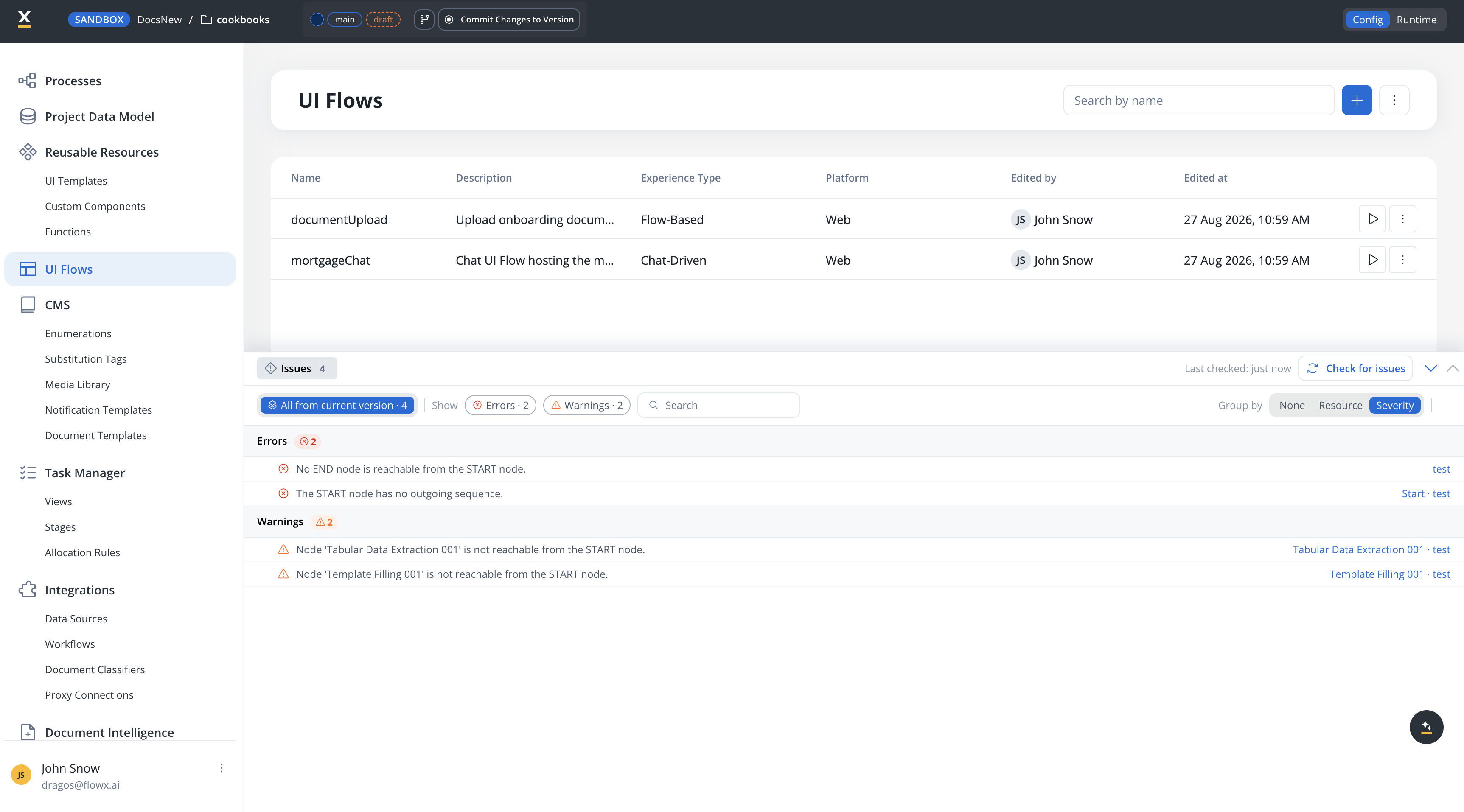
The Designer can check the resources in your project version and list what it finds in one place. Problems are reported in the **Issues** panel at the bottom of the screen, and marked where they occur so you can go straight to them.
The panel belongs to the project rather than to a single page, so it stays with you as you move around and always describes the version you are working in.
**Workflows only, for now.** Only integration workflows are validated. Other resource types are listed as unsupported rather than reported as clean, so an empty result never means more than it should.
***
## Running a check
Checks do not run on their own. An unchecked version shows **Nothing checked yet. Run a check to validate every resource in this version.**
Select **Check for issues** to run one. The panel header then shows **Last checked** with how long ago it ran, so you can tell a current result from a stale one.
Run a check again after a round of edits. The list describes the version as it was at the last check, not as it is now.
***
## Reading the list
Every finding is reported at one of two severities, **Errors** and **Warnings**, and says which resource and which element it came from.
The filter row above the list narrows what you see:
| Control | What it does |
| ------------------------- | ----------------------------------------------------------------------------------------------------------------------------------------------------------------------------------------------------- |
| **Scope** | Choose **All from current version**, only the resource you are inside, or only the node you have selected. Each option carries its own count, so you can see where the problems are before switching. |
| **Errors** / **Warnings** | Turn either severity off. Both are on by default, and each chip shows its total. |
| **Search** | Filter the list by text. |
| **Group by** | **None**, **Resource**, or **Severity**. Grouping by severity is the default. |
The scope options only ever offer what the page you are on can narrow by. A node scope appears when a canvas node is selected, and not otherwise.
***
## Markers
Findings are also marked where they live: on resource list rows, on page titles, and on nodes in the workflow canvas. Selecting a marker opens the panel with that finding in view.
To turn markers off, open the settings popover in the filter row and clear **Show on canvas and lists**. The panel keeps working; only the markers elsewhere are hidden.
***
## Before you commit
Opening **Commit Changes to Version** runs a check on its own, and each changed resource in the modal shows what the check found: how many errors and warnings it has, that it is clean, or that its type is not validated. A resource you are deleting is shown as unsupported, since it is not part of the version being described.
**Findings do not block the commit.** Errors are reported, not enforced, so a version with outstanding errors can still be committed. Treat the list as a review step you perform, not a gate the Designer applies for you.
***
## Related resources
Project versions, committing changes, branches and builds
Building the workflows this check validates
## Related topics
- [FlowX.AI 5.12.0 Release Notes](/release-notes/v5.x/v5.12.0-september-2026/v5.12.0-september-2026.md)
- [Versioning](/5.9/docs/projects/managing-applications/versioning.md)
- [Dynamic & computed values](/5.9/docs/building-blocks/ui-designer/dynamic-and-computed-values.md)
- [FlowX.AI Designer](/5.9/docs/flowx-designer/overview.md)
- [Exporting and importing projects](/5.9/docs/flowx-designer/managing-a-project-flow/export-import-a-process-definition.md)